Note
Access to this page requires authorization. You can try signing in or changing directories.
Access to this page requires authorization. You can try changing directories.
Azure HorizonDB is a fully managed, PostgreSQL-compatible database service designed for mission-critical and AI-ready workloads. This article describes an offline migration approach based on Azure Database Migration Service (DMS) for moving PostgreSQL workloads to HorizonDB.
The procedure applies to supported PostgreSQL sources, including Azure Database for PostgreSQL flexible server, PostgreSQL on Azure virtual machines, on-premises PostgreSQL, Amazon RDS or Aurora for PostgreSQL, Google Cloud SQL for PostgreSQL, and other PostgreSQL-compatible environments.
Important
Database Migration Service support for PostgreSQL-to-HorizonDB migrations is in preview. Before a production migration, confirm regional availability, supported source versions, networking options, extension compatibility, feature limitations, and operational limits.
Migration workflow
The migration process follows these general stages:
- Assess compatibility and select the target HorizonDB cluster configuration.
- Prepare source access, networking, credentials, users, roles, and extensions.
- Export users and roles and restore them into HorizonDB.
- Stop source writes and perform the offline migration.
- Validate data, objects, security, and application behavior.
- Redirect applications to HorizonDB and monitor.
Plan the migration
Before you begin, ensure the following prerequisites and readiness steps are in place:
- Provision a HorizonDB cluster in a supported region and select compute appropriate for the initial load and expected production workload.
- Configure public access or private endpoints, firewall rules, and TLS requirements.
Execute the migration
To execute the migration, create the target, create a DMS resource, export users and roles, configure and start the migration in DMS, and recreate environment-specific configuration.
1. Create and configure the HorizonDB target
- Create a HorizonDB cluster in the required subscription, resource group, and region.
- If the source uses extensions, confirm that HorizonDB supports them and add the required extensions to the target allow list. Complete any required
shared_preload_librariesconfiguration and restart described in Create extensions before starting the migration. - Configure public or private connectivity and verify name resolution from the migration host.
- Temporarily scale compute for the initial load if testing shows that it shortens the maintenance window. Resize to the intended production configuration after validation.
2. Create a Database Migration Service resource
Create the DMS resource that runs the migration.
In the Azure portal, open Azure Database Migration Service and select Create.
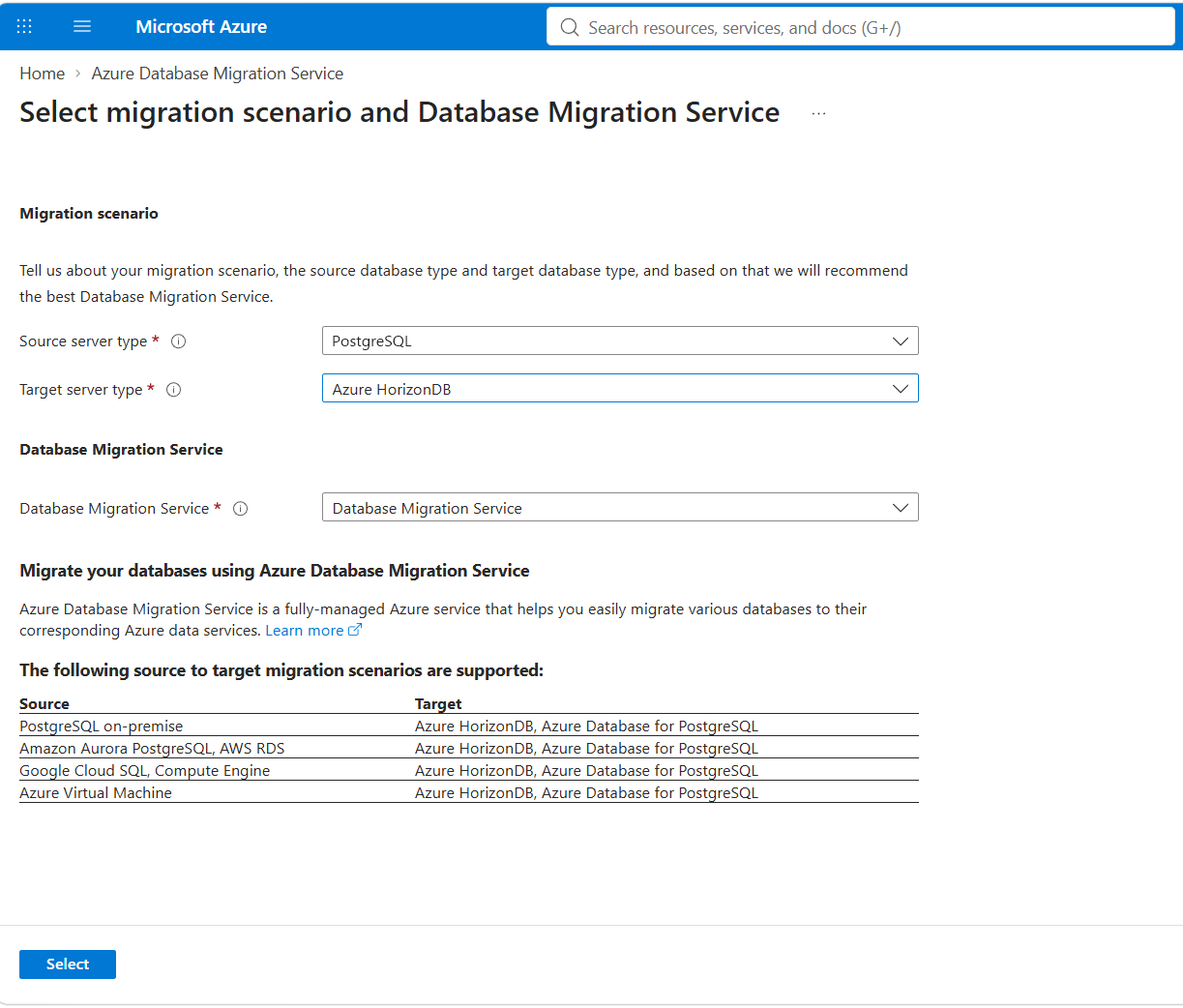
For Source server type, select PostgreSQL for any supported source. For Target server type, select Azure HorizonDB. The supported scenarios list on this page doesn't include every supported source, such as Azure Database for PostgreSQL flexible server. You select your specific source server type when you create the migration.
For Database Migration Service, select Database Migration Service, and then select Select.
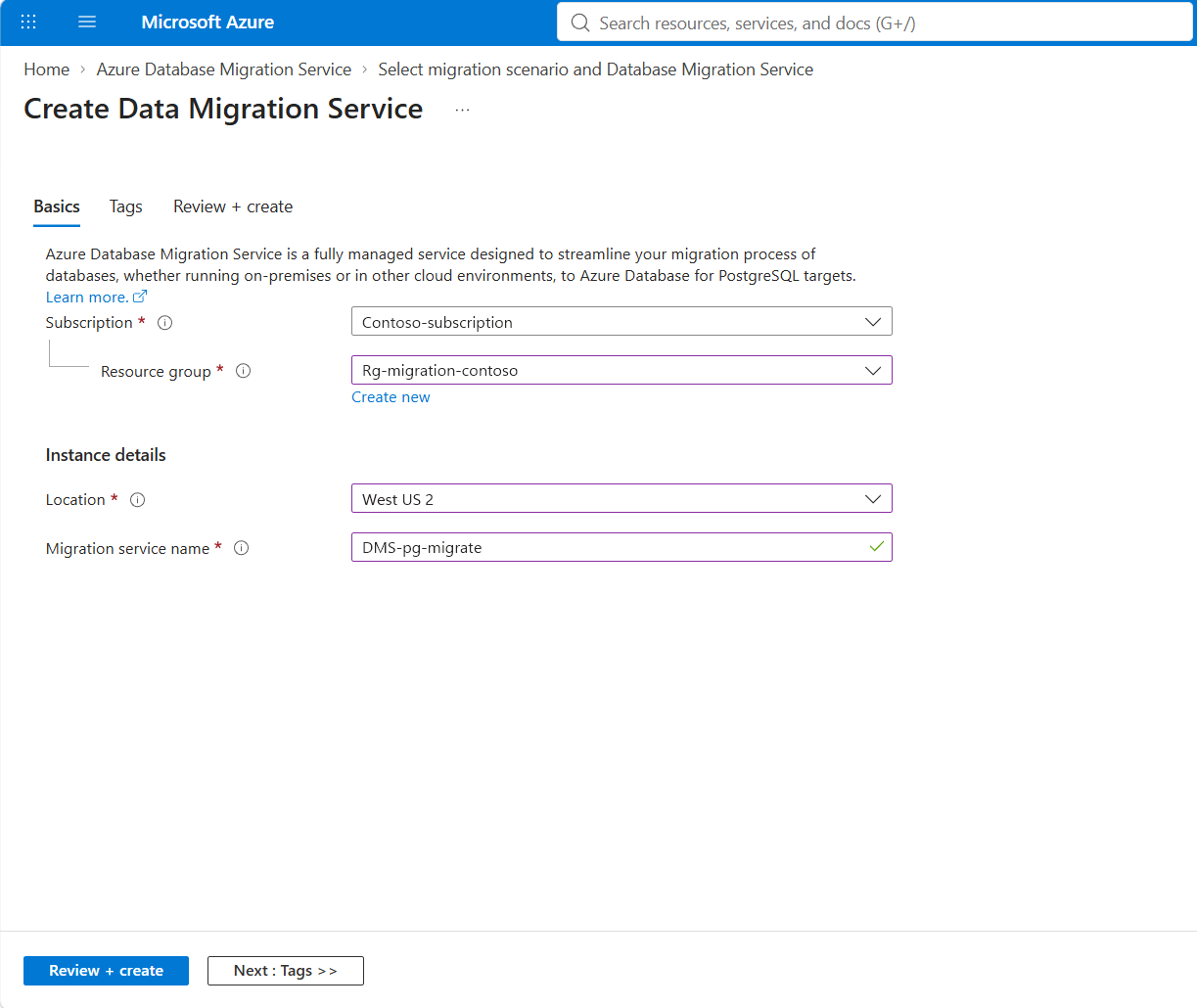
On the Basics tab, select your subscription and resource group, select a Location, and enter a Migration service name. When possible, choose the same region as your source and target to minimize network latency.
Select Review + create, verify the settings, review the terms, and then select Create.
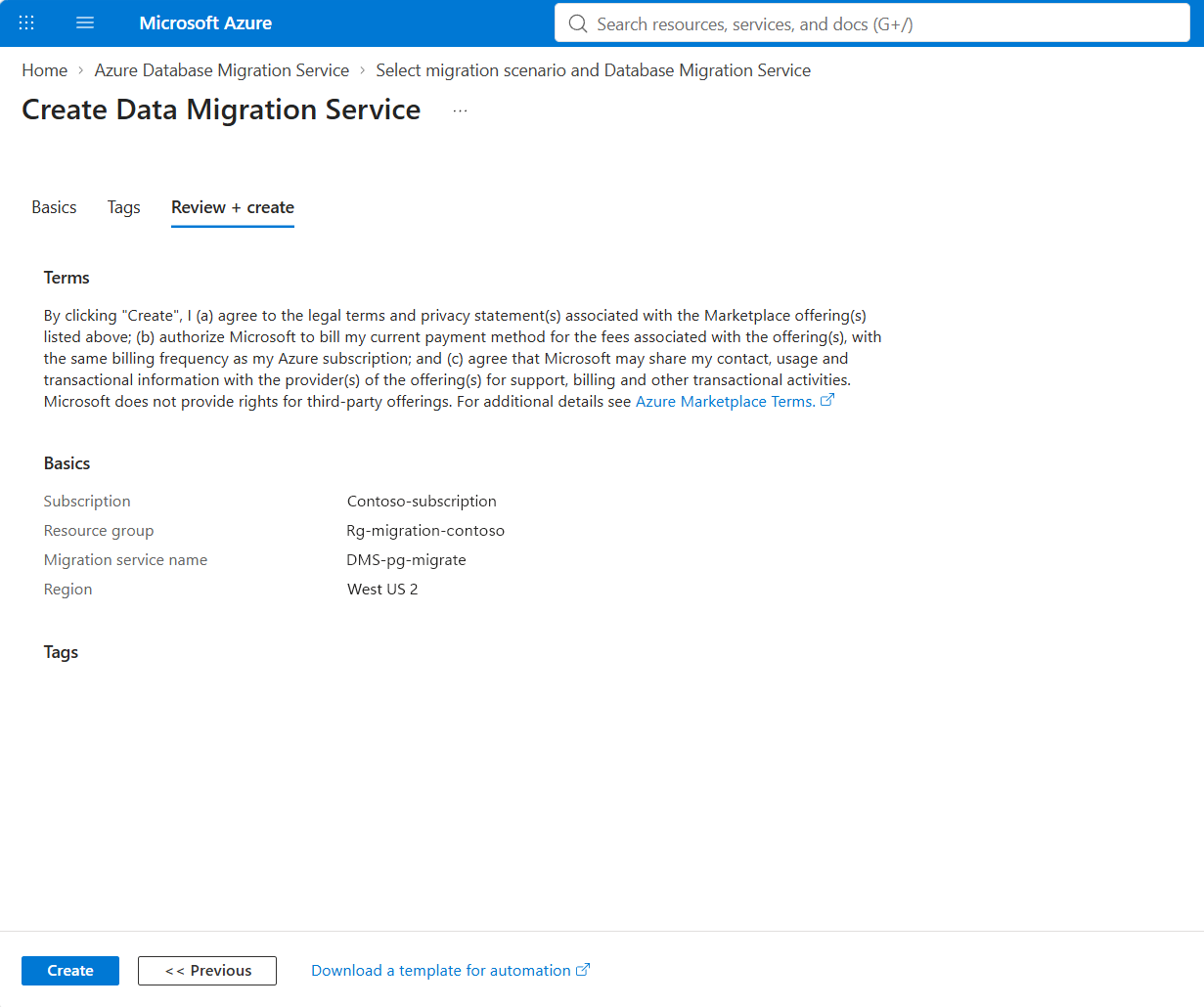
When the deployment finishes, open the DMS resource.
3. Export users, roles, and permissions
Before starting the data migration, export and restore the roles that own database objects or access the migrated data.
Run the role export from a secure bash-compatible migration host that has the pg_dumpall and psql client utilities installed. Use utilities whose major version is the same as or higher than both the source server and HorizonDB, and check it with psql --version. Store the output securely because role definitions contain security-sensitive metadata.
pg_dumpall --roles-only --no-role-passwords --host=<source-host> --port=5432 --username=<source-admin> --file=roles.sql
The --no-role-passwords option avoids reading password verifiers from pg_authid, which administrators can't access on restricted sources such as Azure Database for PostgreSQL flexible server. For more information, see Dump roles from a flexible server.
Review roles.sql before restoring it. Remove provider-managed roles, unsupported attributes, commands that require superuser privileges, and ownership references that should map to another HorizonDB role.
psql "host=<horizondb-host> port=5432 dbname=postgres user=<target-admin> sslmode=require" --file=roles.sql
Set passwords separately for restored roles that can sign in. Use your approved secret-management process and complete this step before validation and cutover. The export doesn't include passwords.
4. Configure and start the migration
Open the DMS resource and select New migration.
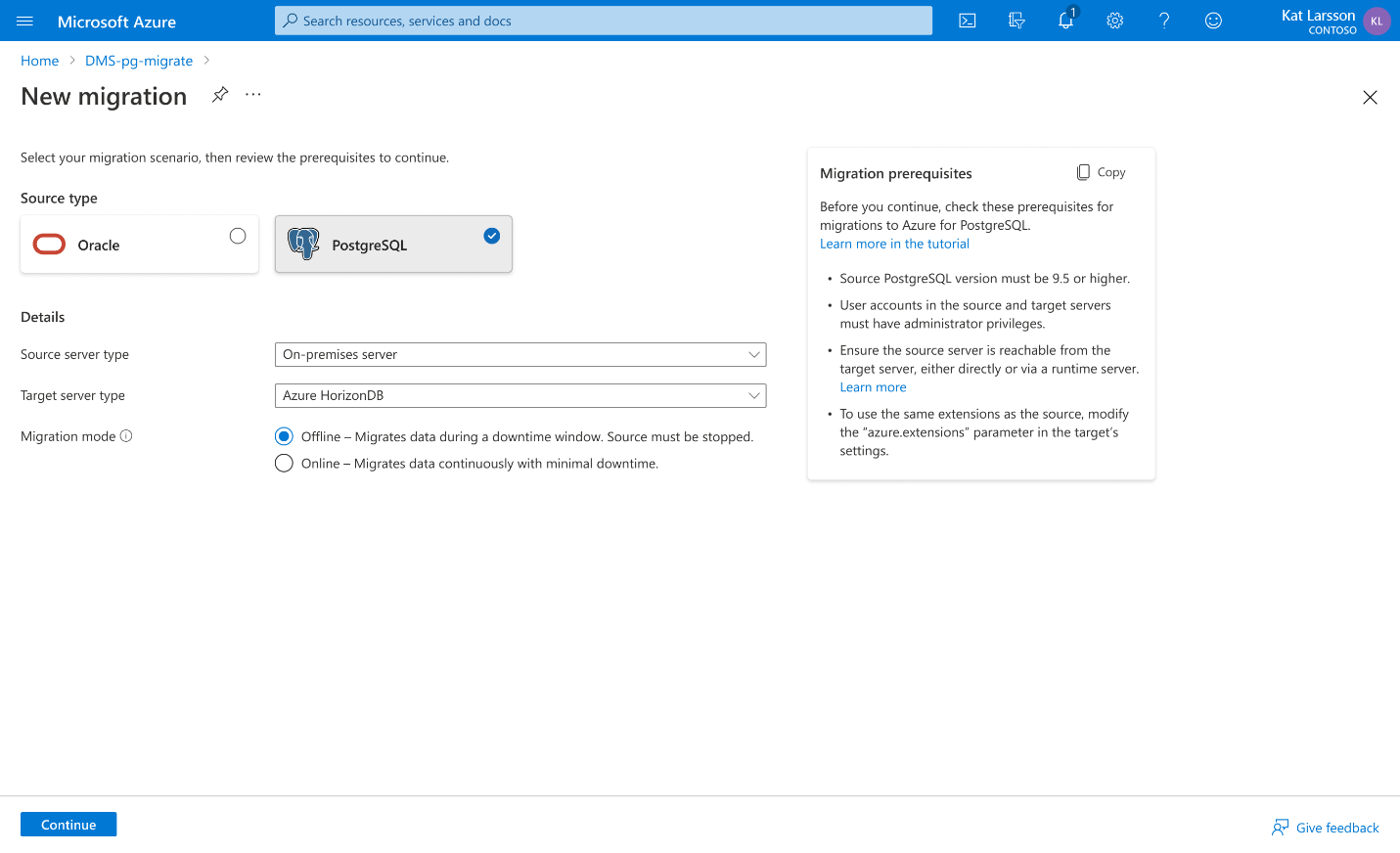
Select PostgreSQL as the Source type, select your Source server type, and select Azure HorizonDB as the Target server type. Select Offline as the Migration mode, review the Migration prerequisites, and then select Continue.
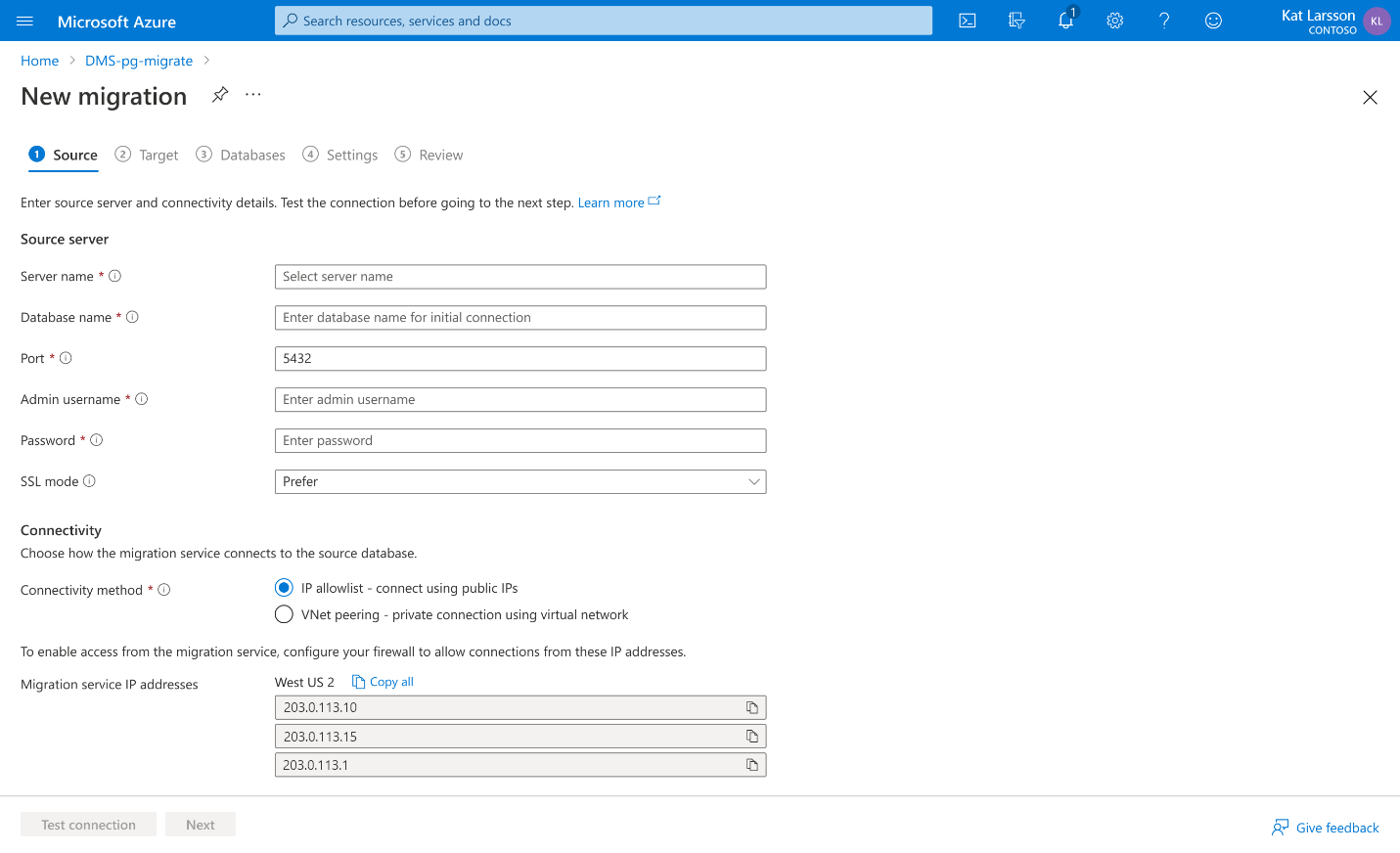
On the Source tab, enter the source server details, authentication information, and connection settings.
Configure access from DMS, not just from the host that runs pg_dumpall. DMS manages the migration infrastructure; you don't need to deploy migration virtual machines. Under Connectivity, select the connection method for the source:
- For IP allowlist - connect using public IPs, use Copy all to copy the displayed Migration service IP addresses. Allow those addresses through the source firewall and any applicable network access rules on the database port, typically 5432. Use the actual addresses displayed in your migration wizard, not the example addresses in the screenshot.
- For VNet peering - private connection using virtual network, configure the virtual network connection and peering. Verify that routes, private DNS resolution, and network security rules let DMS reach the source hostname and database port.
Select Test connection and resolve any errors before continuing to the target.
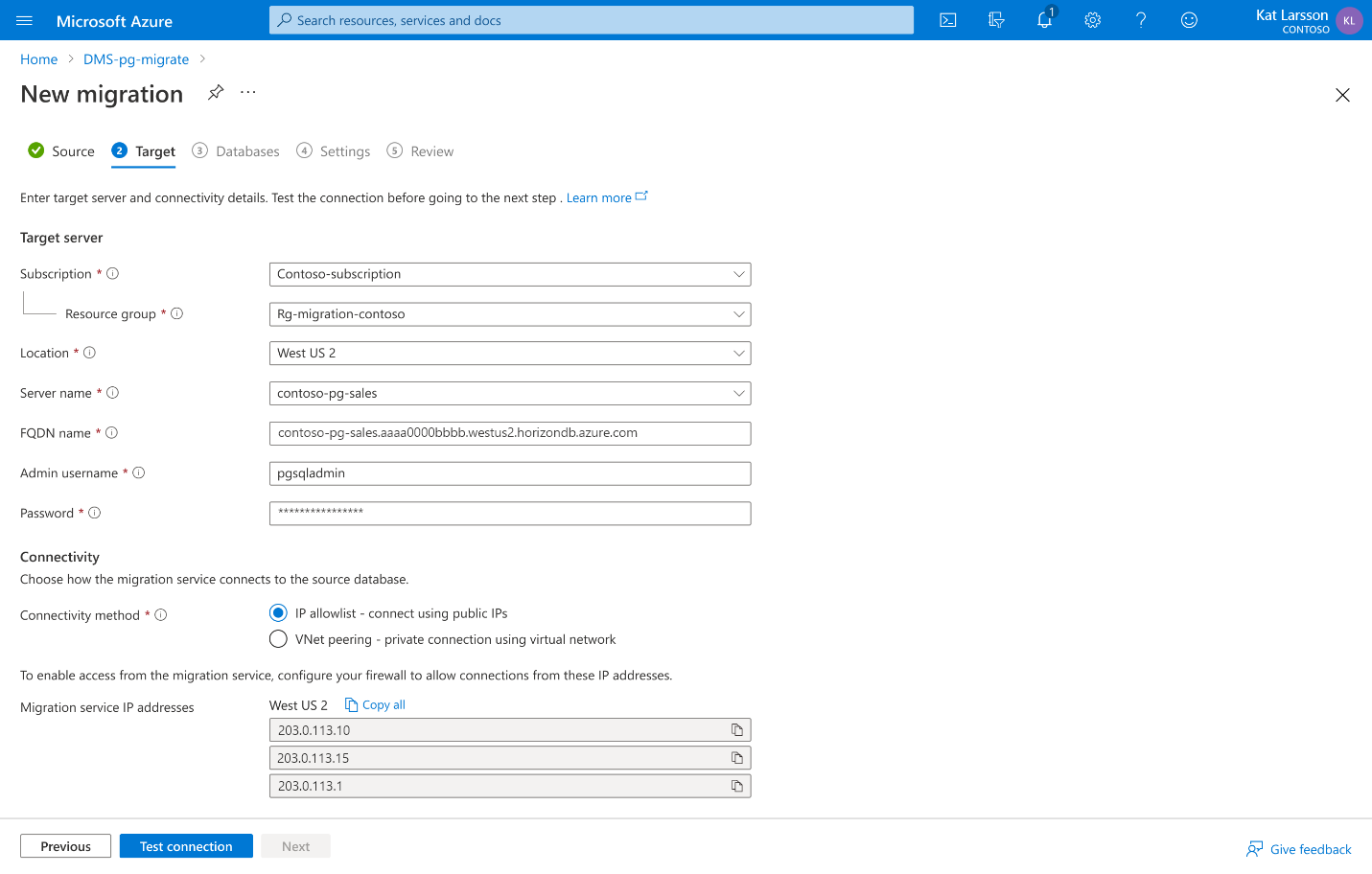
On the Target tab, select the subscription, resource group, location, and Server name of your HorizonDB cluster, verify the FQDN name, and enter the Admin username and Password. Under Connectivity, select the public IP allow list or private virtual network connection method for the target. For public access, allow the displayed migration service IP addresses through the target firewall. For private access, configure the target network connection and verify routing, private DNS resolution, and database-port access from DMS.
Select Test connection and resolve any errors before continuing.
On the Databases tab, select the databases to migrate, and then review the configuration on the Settings and Review tabs. Before starting the migration, stop application writes and pause all scheduled jobs and integrations that modify the source. Keep the source database running so DMS can read it.
Start the migration and monitor it until the data copy completes successfully. Offline migration doesn't synchronize later source changes. Keep all source writers stopped through validation and the switch to HorizonDB.
5. Recreate environment-specific configuration
- Apply role memberships, grants, default privileges, and schema ownership.
- Configure application parameters and connection pooling based on HorizonDB guidance.
- Recreate monitoring, alerts, diagnostic settings, and operational runbooks.
- Update scheduled jobs and external integrations to use HorizonDB, but keep them paused until validation and cutover are complete.
- Recreate endpoints, firewall rules, private DNS links, and client certificates as applicable.
Validate and cut over
Complete validation before redirecting production traffic. Record evidence for each acceptance criterion and obtain application-owner approval.
| Validation area | Minimum acceptance criteria |
|---|---|
| Database objects | Expected schemas, tables, indexes, views, sequences, functions, triggers, and extensions are present. |
| Data integrity | Row counts and application-specific aggregates match, with approved explanations for any differences. |
| Security | Roles, memberships, grants, ownership, and application identities function as designed. |
| Application | Smoke tests, integrations, background jobs, and critical transactions complete successfully. |
| Operations | Monitoring, alerts, backup expectations, runbooks, and escalation paths are ready. |
Cut over to HorizonDB
- Confirm that the offline migration completed successfully and that all validation criteria are met.
- Notify stakeholders and obtain application-owner approval to switch to HorizonDB. Keep source writers stopped.
- Update application secrets, connection strings, DNS aliases, or configuration to use the HorizonDB endpoint.
- Start applications and resume scheduled jobs and integrations against HorizonDB. Monitor errors, latency, connection counts, and resource consumption.
Troubleshooting
| Issue | Likely cause | Resolution |
|---|---|---|
| Connection timeout or name-resolution failure | Firewall, private endpoint, route, or DNS configuration | For DMS failures, verify the migration service IP allow list or private network configuration, DNS, routes, and database-port access, then rerun Test connection for the affected endpoint. For pg_dumpall or psql failures, validate connectivity from the host running that command. |
| Permission denied during dump | Source account can't read all schemas or large objects | Grant the minimum required source permissions or use an approved migration role. |
| Role or ownership errors during restore | Managed-service roles or unsupported attributes in the role script | Remove provider-managed roles and unsupported attributes from roles.sql, map ownership to target roles, and apply grants after the data migration. Use --no-role-passwords when exporting from restricted sources and set role passwords separately. |
| Extension doesn't exist | Extension isn't allowed, installed, or available | Allow and create the supported extension, select an alternative, or remove the dependency in the source. |
| Migration is slower than expected | Undersized target compute, network latency between DMS and the databases, or index build time | Create DMS in the same region as the source and target when possible, and temporarily scale HorizonDB compute for the initial load. |
| Application fails after cutover | Connection string, TLS, permissions, parameters, or extension behavior differs | Check client logs and target logs, retest authentication and TLS, and compare the compatibility inventory. |