Note
Access to this page requires authorization. You can try signing in or changing directories.
Access to this page requires authorization. You can try changing directories.
This article shows how to make Microsoft Fabric OneLake table-type (/Tables) data available in Azure Machine Learning by copying it into an Azure Data Lake Storage (ADLS) account and creating a datastore over the copy. You do the whole task in the studio UI.
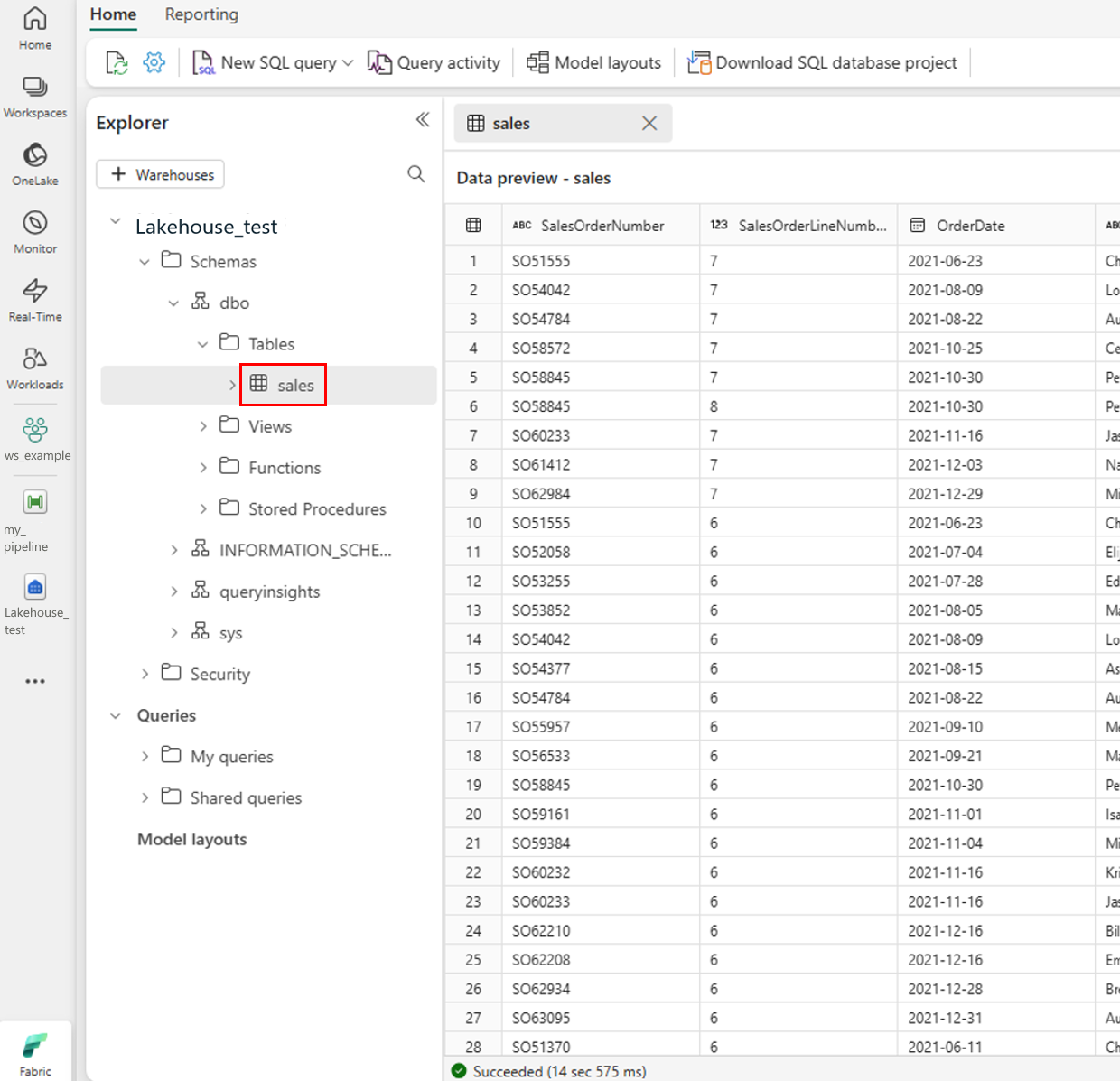
Azure Machine Learning can connect directly to OneLake file-type (/Files) data through a OneLake datastore, with no copy. That no-copy datastore doesn't support lakehouse tables, as shown in the following screenshot, so this article covers a UI-based workaround for table data.
Note
This procedure copies data into Azure Data Lake Storage. The copied data is a point-in-time snapshot, not a live link, so you re-run the copy when the source table changes. If you don't need a UI-only workflow, consider the no-copy options first: a OneLake (Microsoft Fabric) datastore for /Files data, or direct access from compute. For an overview of all OneLake integration options, see Integrate OneLake with Azure Machine Learning.
When to use this approach
Use the copy-based method in this article when both of these conditions are true:
- Your data is OneLake table-type (
/Tables) data, which a OneLake datastore can't reference directly. - You want to build the connection entirely in Azure Machine Learning studio, without the CLI or SDK.
If you need live, no-copy access, or your data is in the lakehouse /Files section, use a OneLake datastore instead.
Prerequisites
- An Azure subscription; if you don't have an Azure subscription, create a free account before you start.
- An Azure Machine Learning workspace. Visit Create workspace resources.
- An Azure Data Lake Storage (ADLS) storage account. Visit Create an Azure Data Lake Storage (ADLS) storage account.
- Knowledge of assigning roles in Azure storage account.
- Access to a Microsoft Fabric workspace with a lakehouse that contains table-type data.
- Permission to create a data pipeline in the Fabric workspace, such as the Contributor or Member workspace role.
How the copy workflow works
This workaround has three parts:
- Create and set up a Data Lake Storage account in the Azure portal.
- Use a Fabric data pipeline to copy the table data from OneLake to Azure Data Lake Storage.
- Create an Azure Machine Learning datastore over the Azure Data Lake Storage container.
The following diagram shows the overall flow:

Important
Because this approach copies data, the Azure Machine Learning datastore holds a point-in-time snapshot. Re-run the copy when the source lakehouse table changes. The copy also duplicates storage, which adds cost, and doesn't preserve OneLake governance or lineage.
Set up the Data Lake storage account in the Azure portal
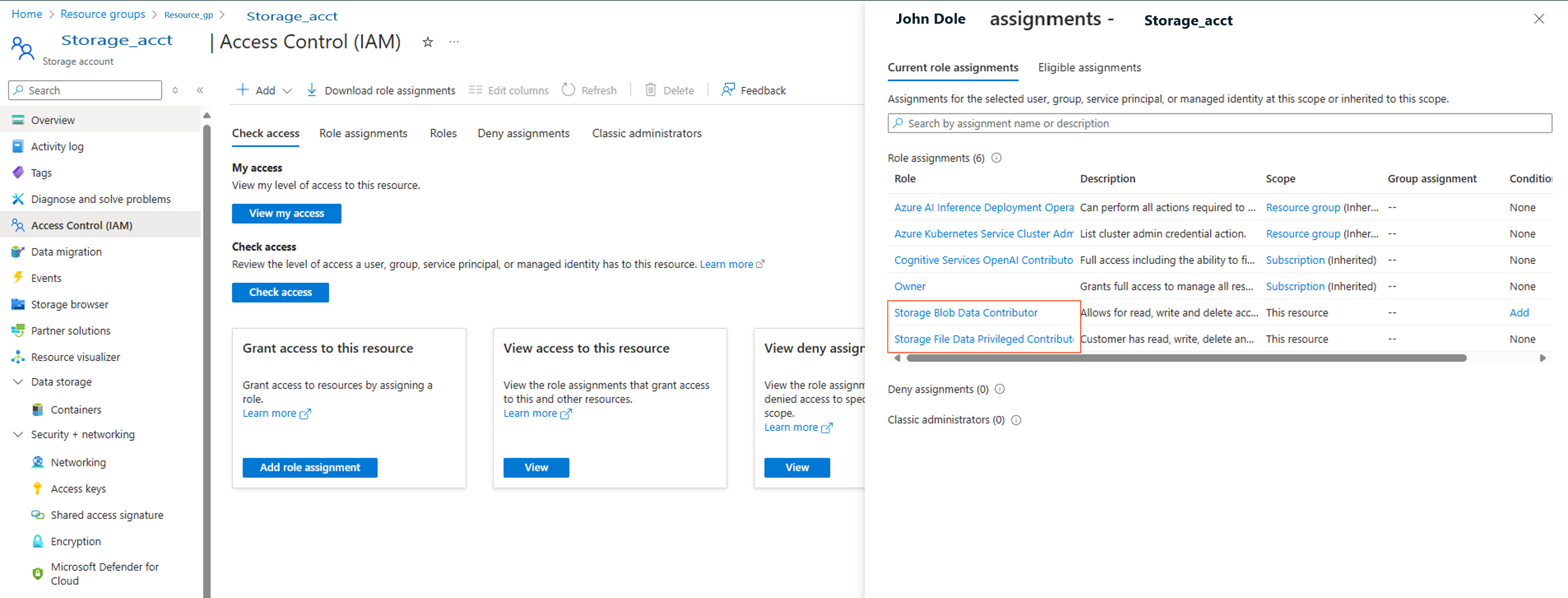
Assign the Storage Blob Data Contributor and Storage File Data Privileged Contributor roles to the user identity or service principal to grant data-plane access and permission to create containers. Account-key access is controlled separately by the Allow storage account key access setting, which you enable in a later step. To assign the roles to the user identity:
Open the Microsoft Azure portal.
Select the Storage accounts service.

On the Storage accounts page, select the Data Lake Storage account you created in the prerequisite step. A page showing the storage account properties opens.
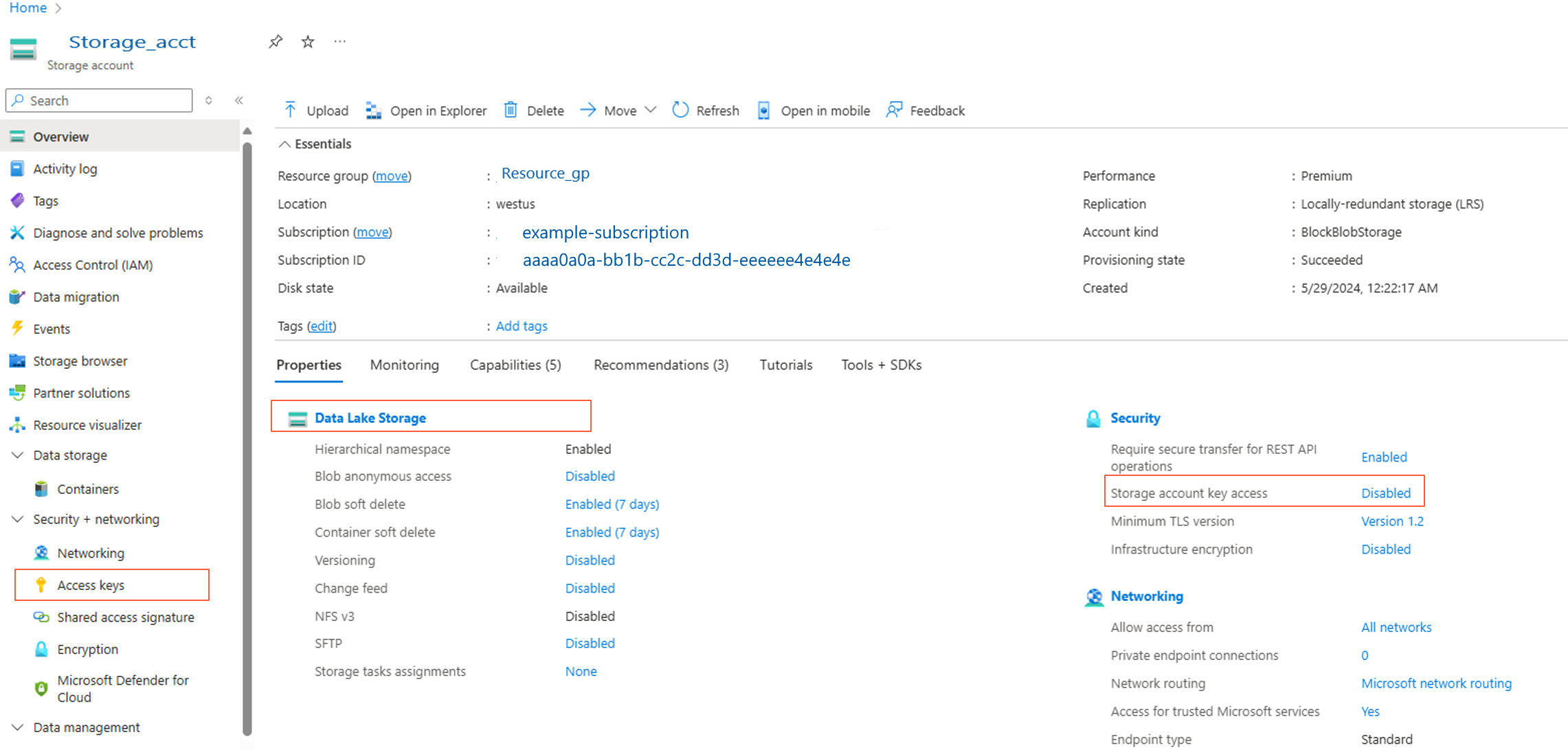
Select Access keys from the left panel and record the key. You need this value in a later step.
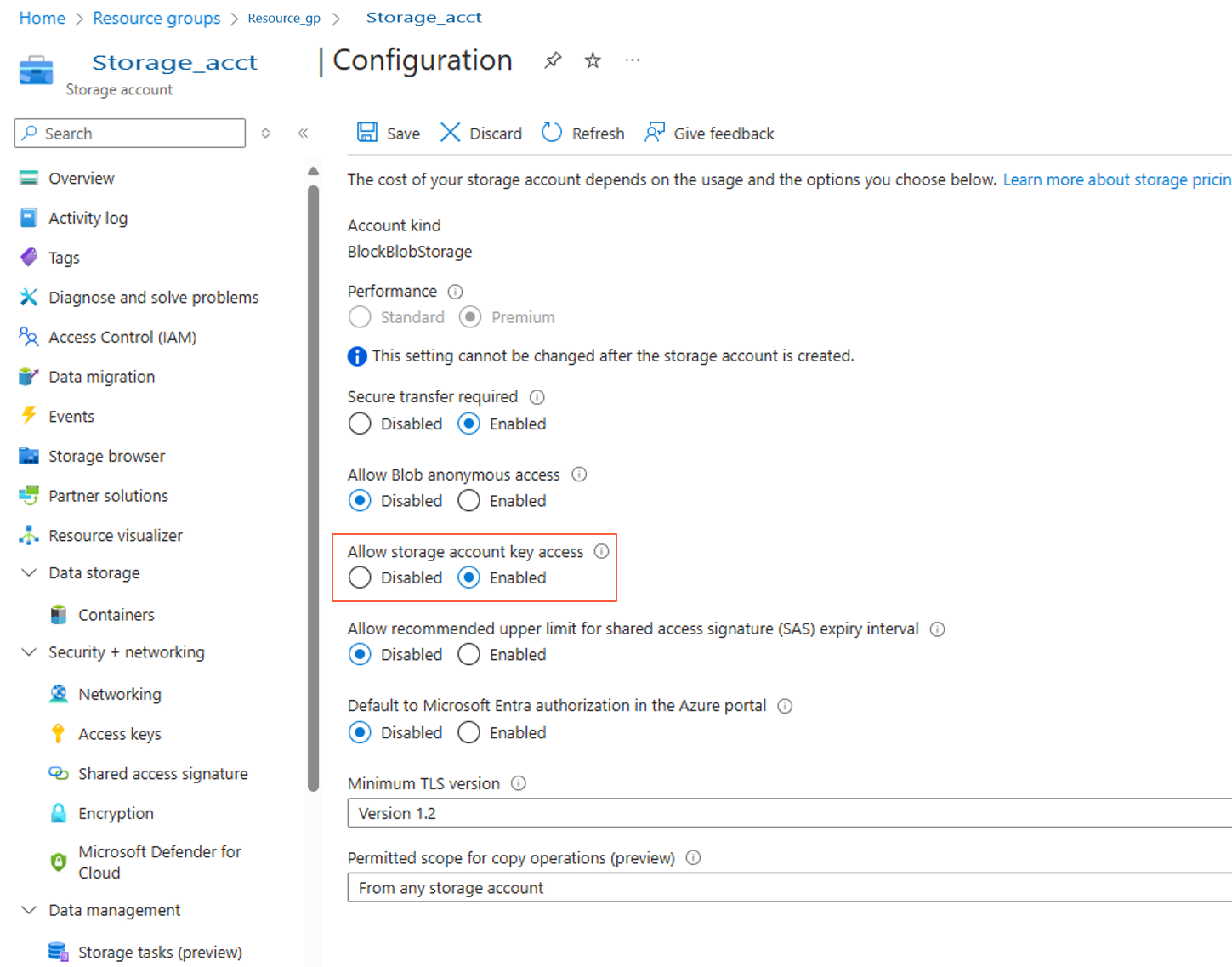
Select and enable Allow storage account key access as shown in the following screenshot:
Tip
For production workloads, use identity-based authentication (Microsoft Entra ID) instead of account keys. For more information, see Create datastores.
Select Access Control (IAM) from the left panel, and assign the Storage Blob Data Contributor and Storage File Data Privileged Contributor roles to the service principal.
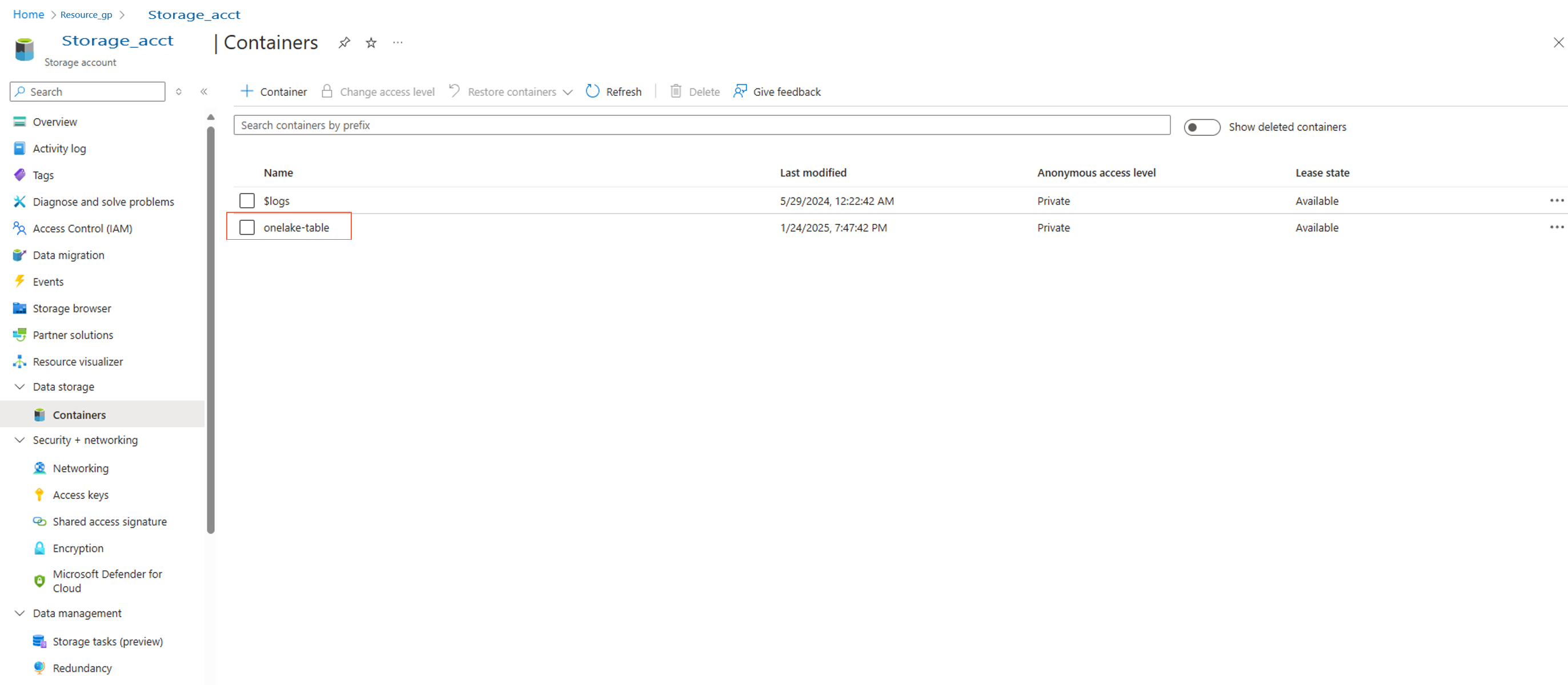
Create a container in the storage account. Name it onelake-table.

Use a Fabric data pipeline to copy data to an Azure Data Lake Storage account
Tip
You can also use a Fabric Copy job, which provides a simpler experience for data copy scenarios.
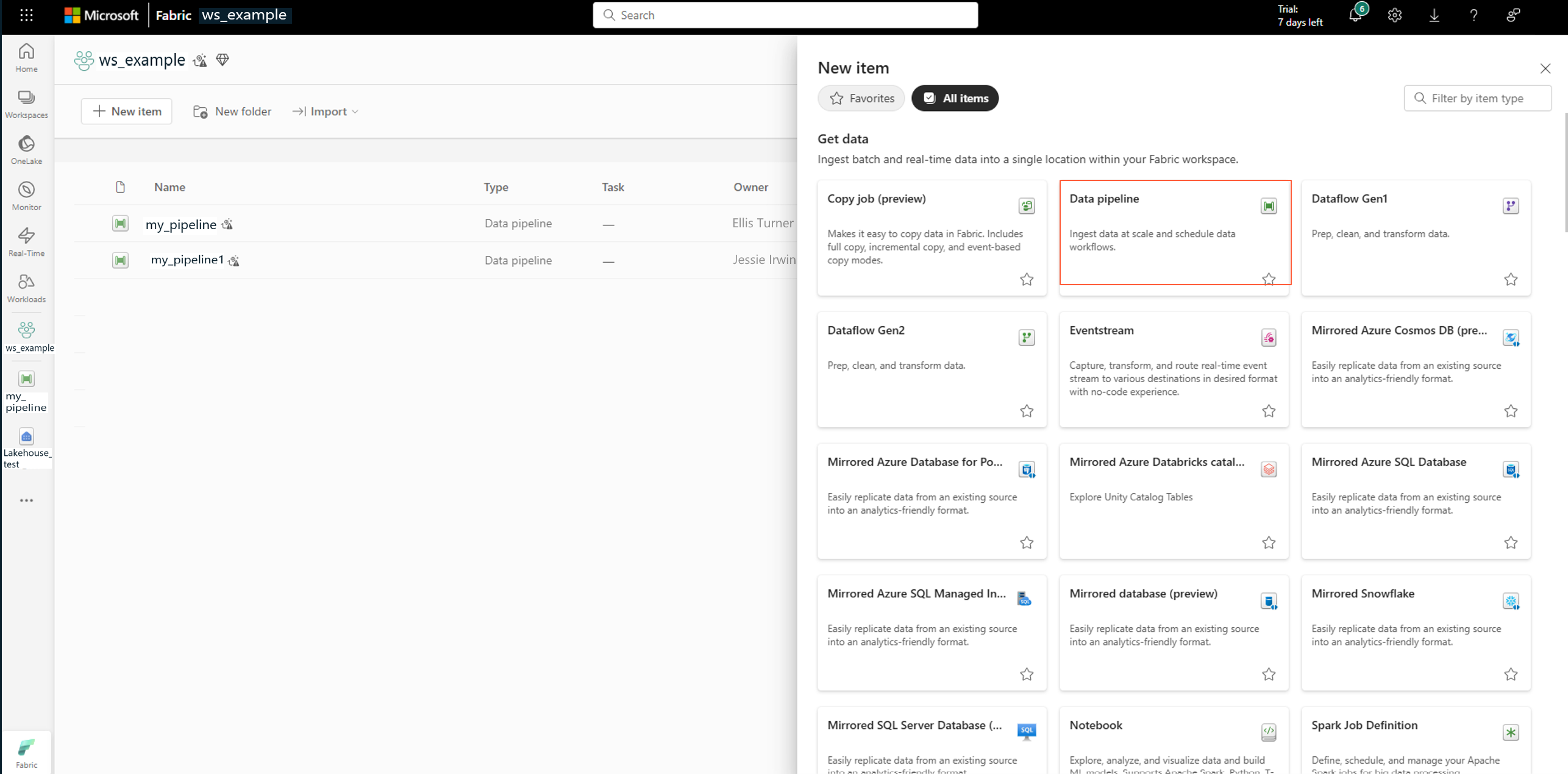
At the Fabric portal, select Data pipeline at the New item page.
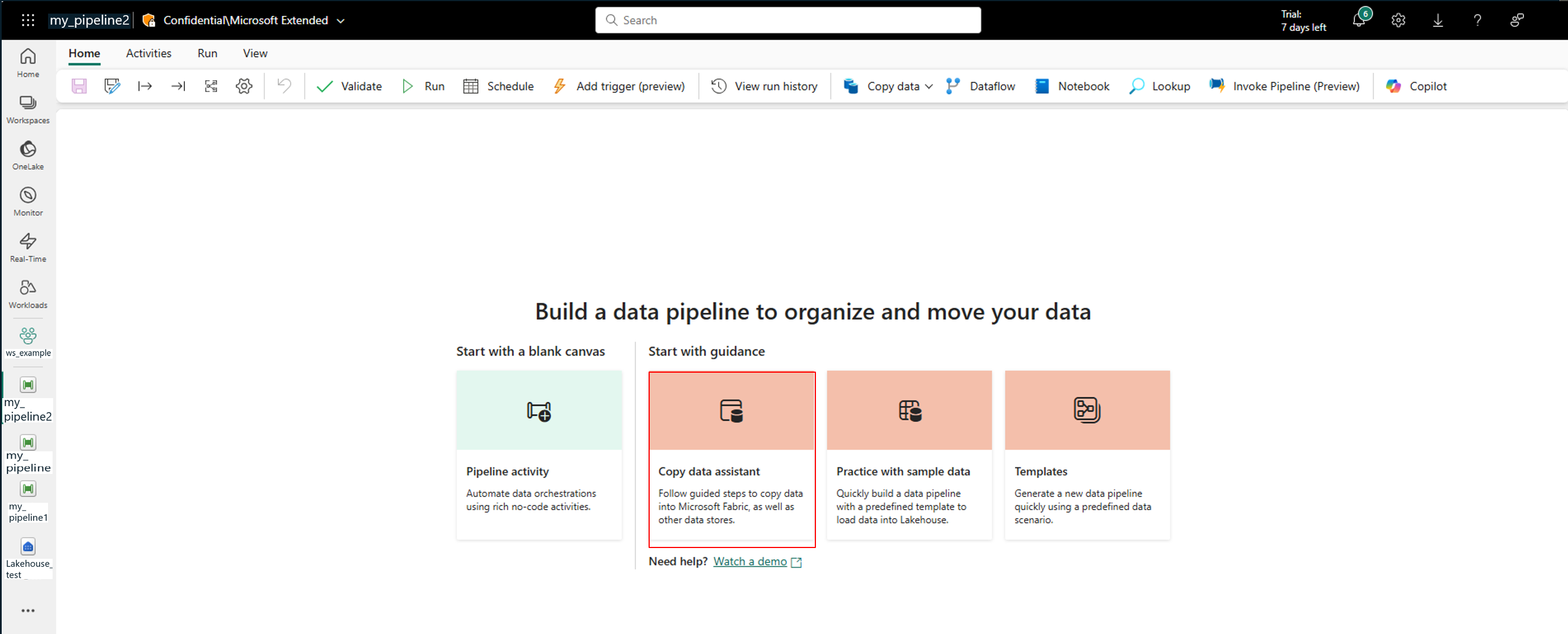
Select Copy data assistant.
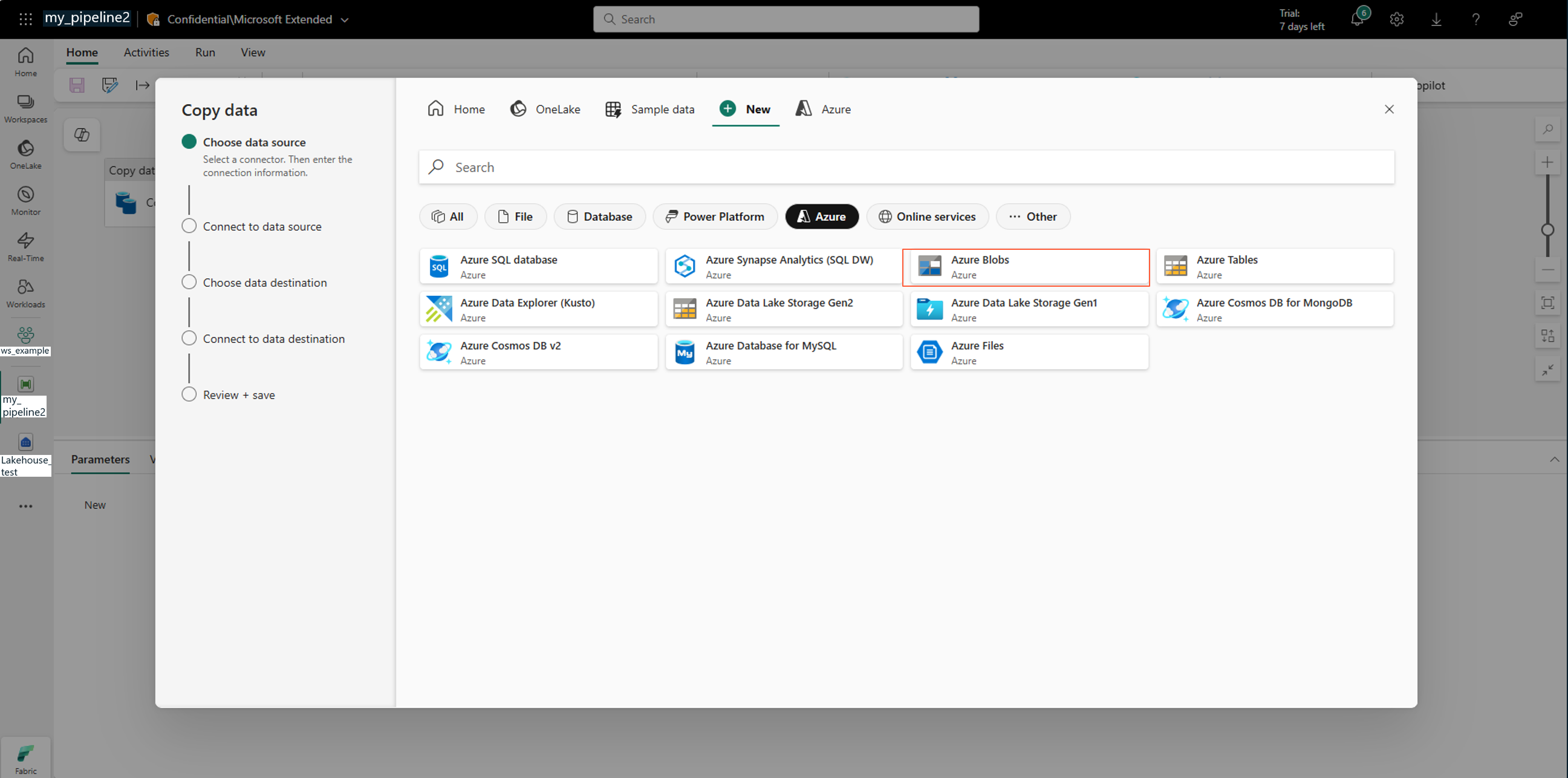
In Copy data assistant, select Azure Blobs:
To create a connection to the Azure Data Lake storage account, select Authentication kind: Account key and then Next:
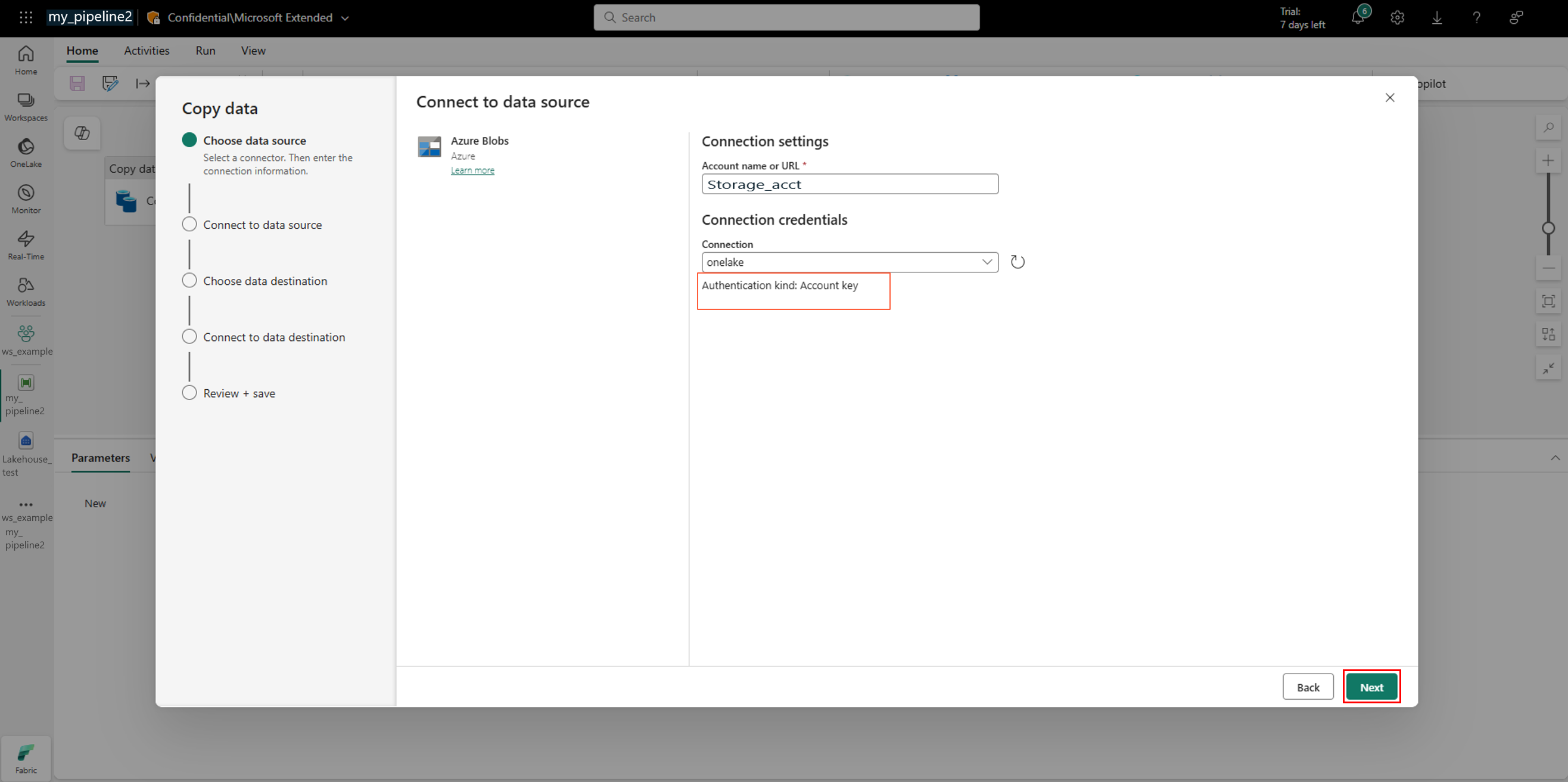
Tip
To avoid account keys, select an identity-based Authentication kind, such as Organizational account, and create the Azure Machine Learning datastore with identity-based access. This approach uses the data-plane roles you assigned earlier and doesn't require enabling account-key access.
Select the data destination, and select Next:
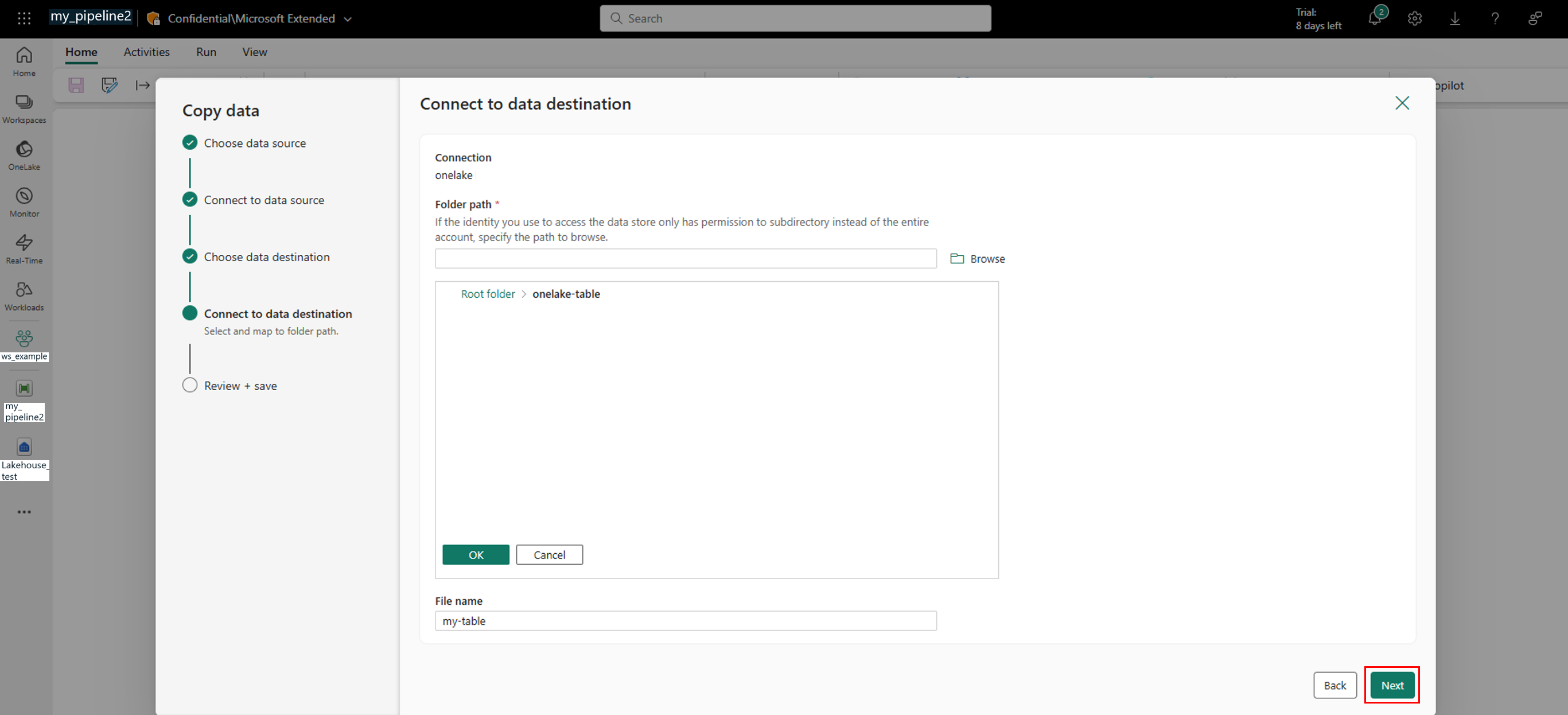
Connect to the data destination, and select Next:
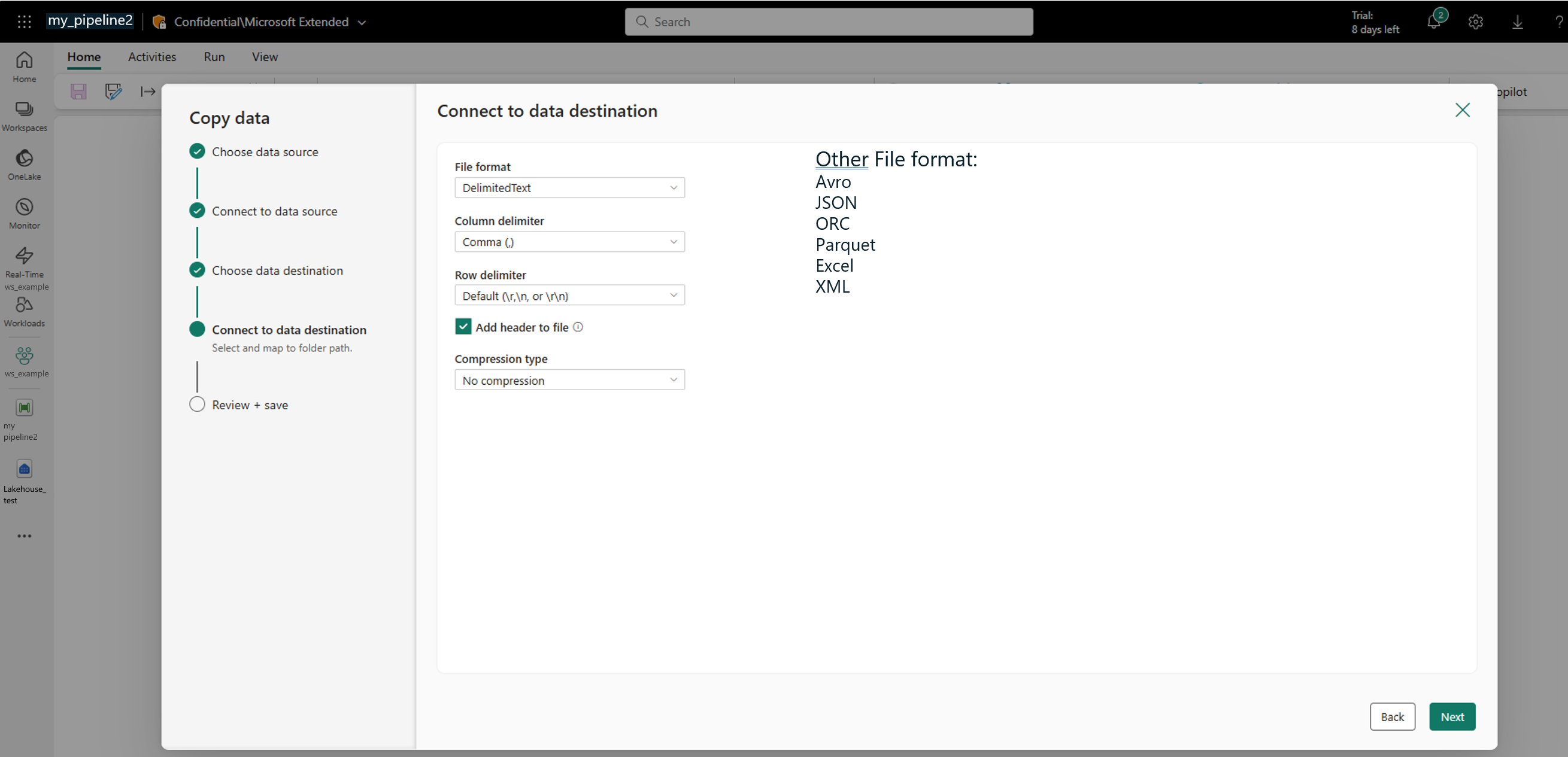
That step automatically starts the data copy job:
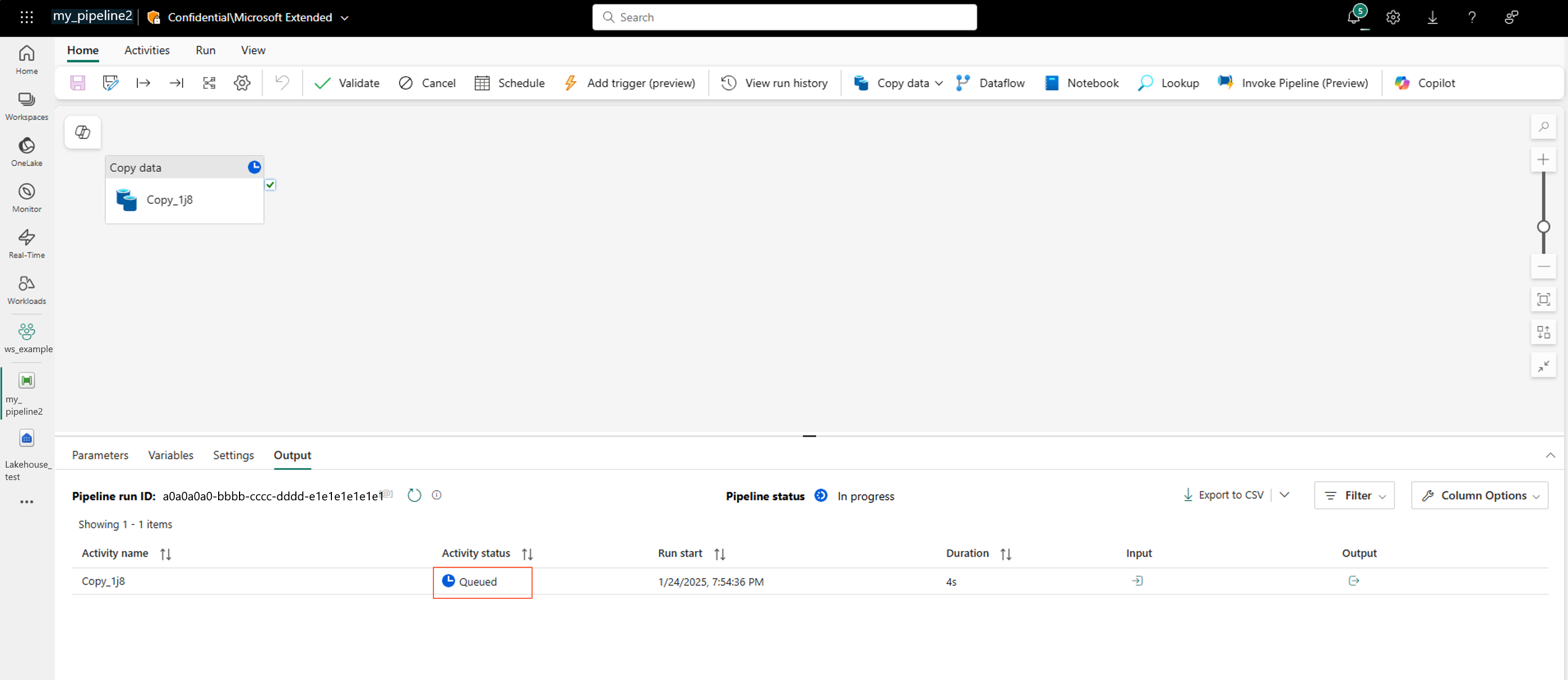
This step might take a while. It directly leads to the next step.
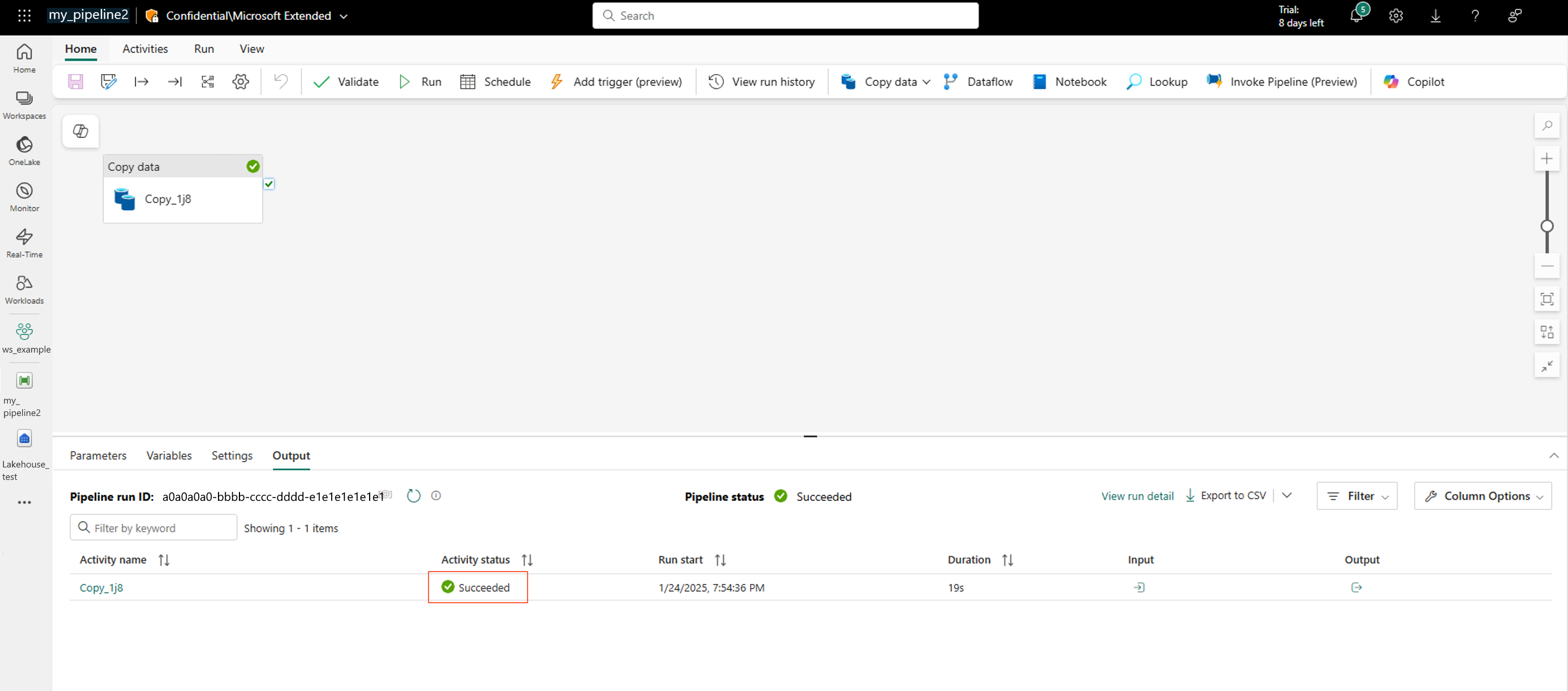
Check that the data copy job finished successfully:
Create an Azure Machine Learning datastore over the Azure Data Lake Storage container
Now that your data is in the Azure Data Lake storage resource, you can create an Azure Machine Learning datastore.
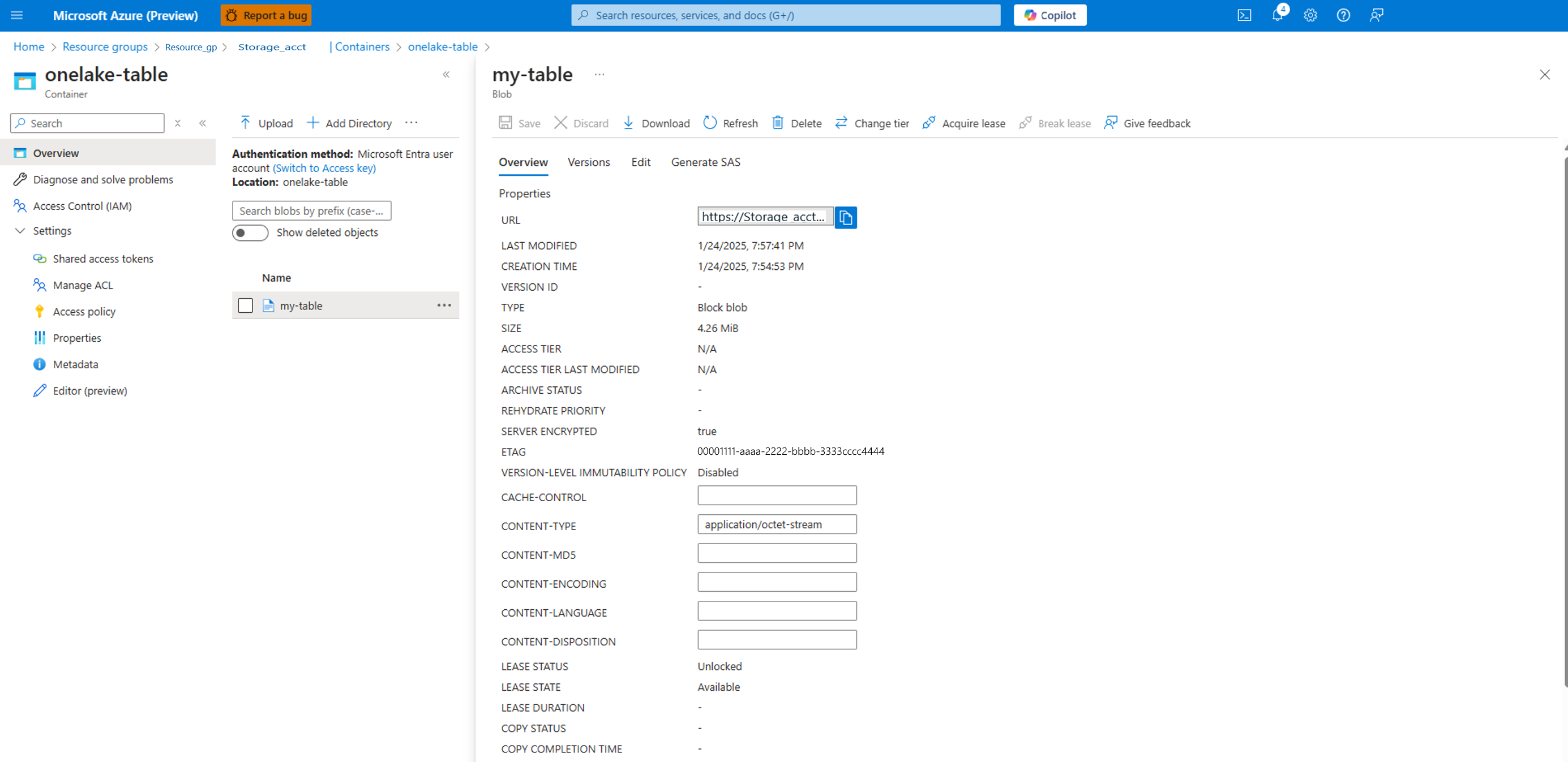
In Azure storage account, the container as shown on the left has data, as shown on the right:
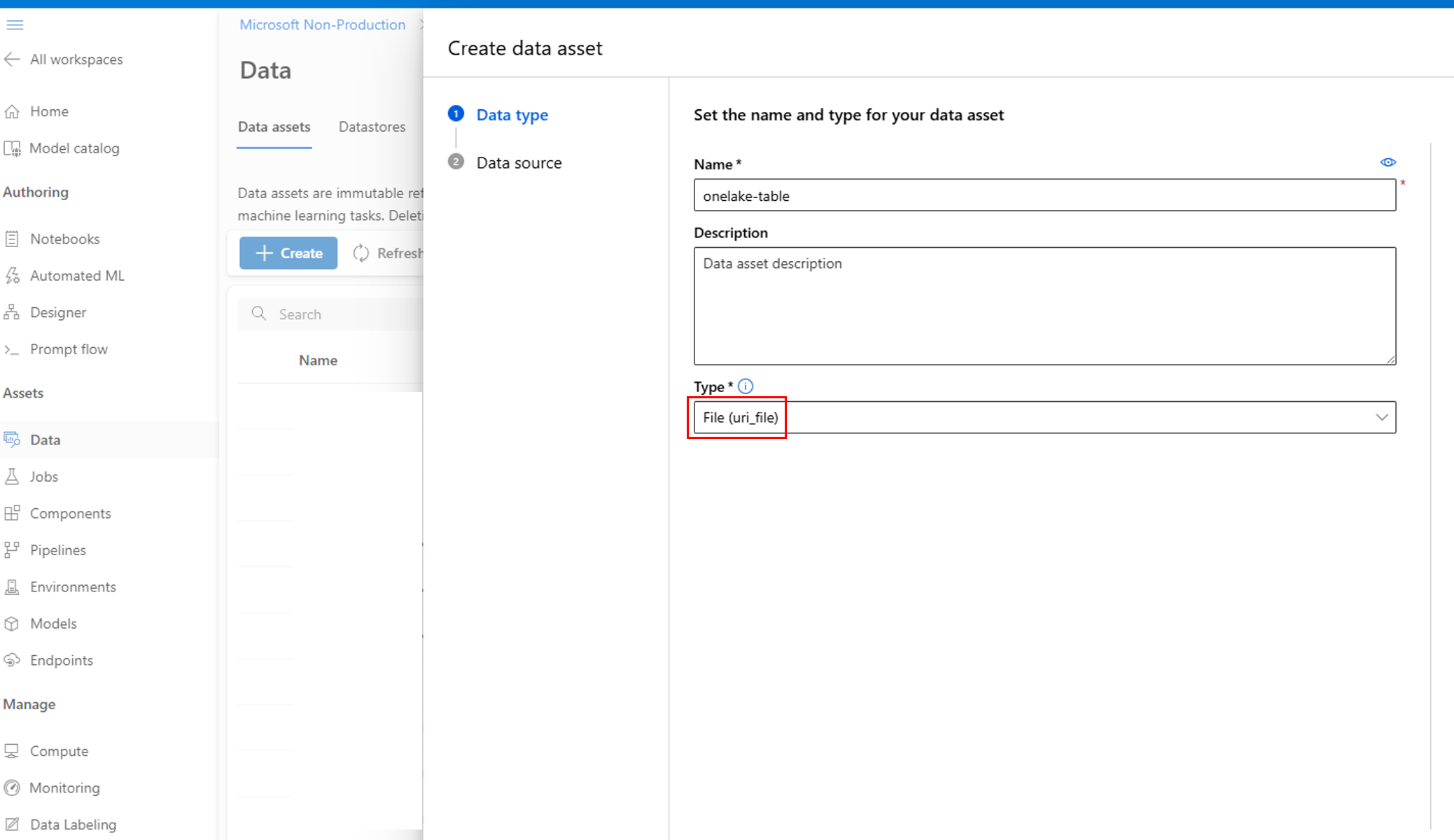
In Azure Machine Learning studio, create a data asset. To decide the type, open the onelake-table container and check whether the copy produced a single file or a folder of files. Select File (uri_file) for a single file, or Folder (uri_folder) for a folder of files, which is common when the table exports as multiple files:
Select From Azure storage:

Using the Account key value from the earlier Create a connection to the Azure Data Lake storage account step, create a New datastore:
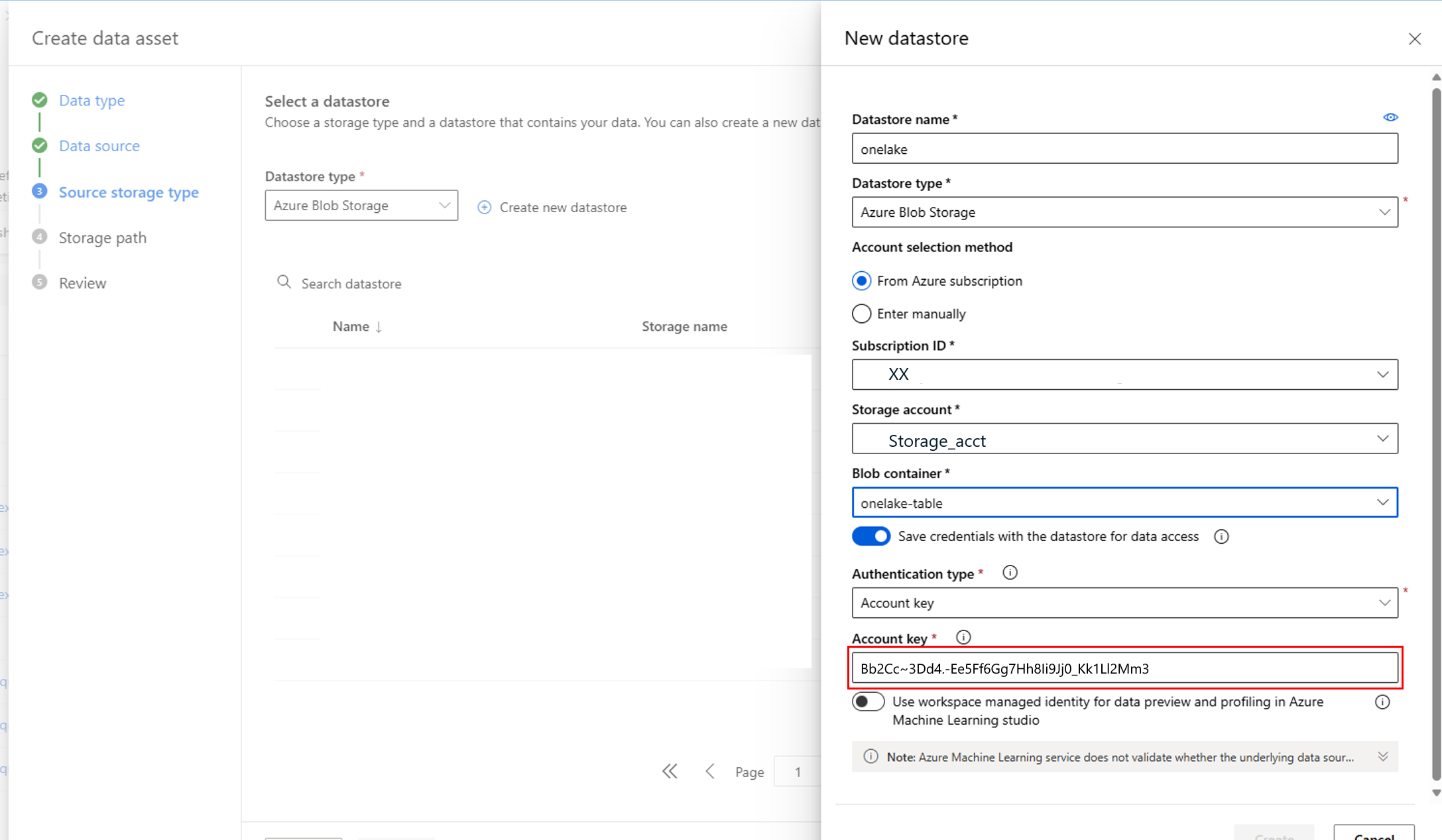
You can also directly create a datastore in Azure Machine Learning studio:
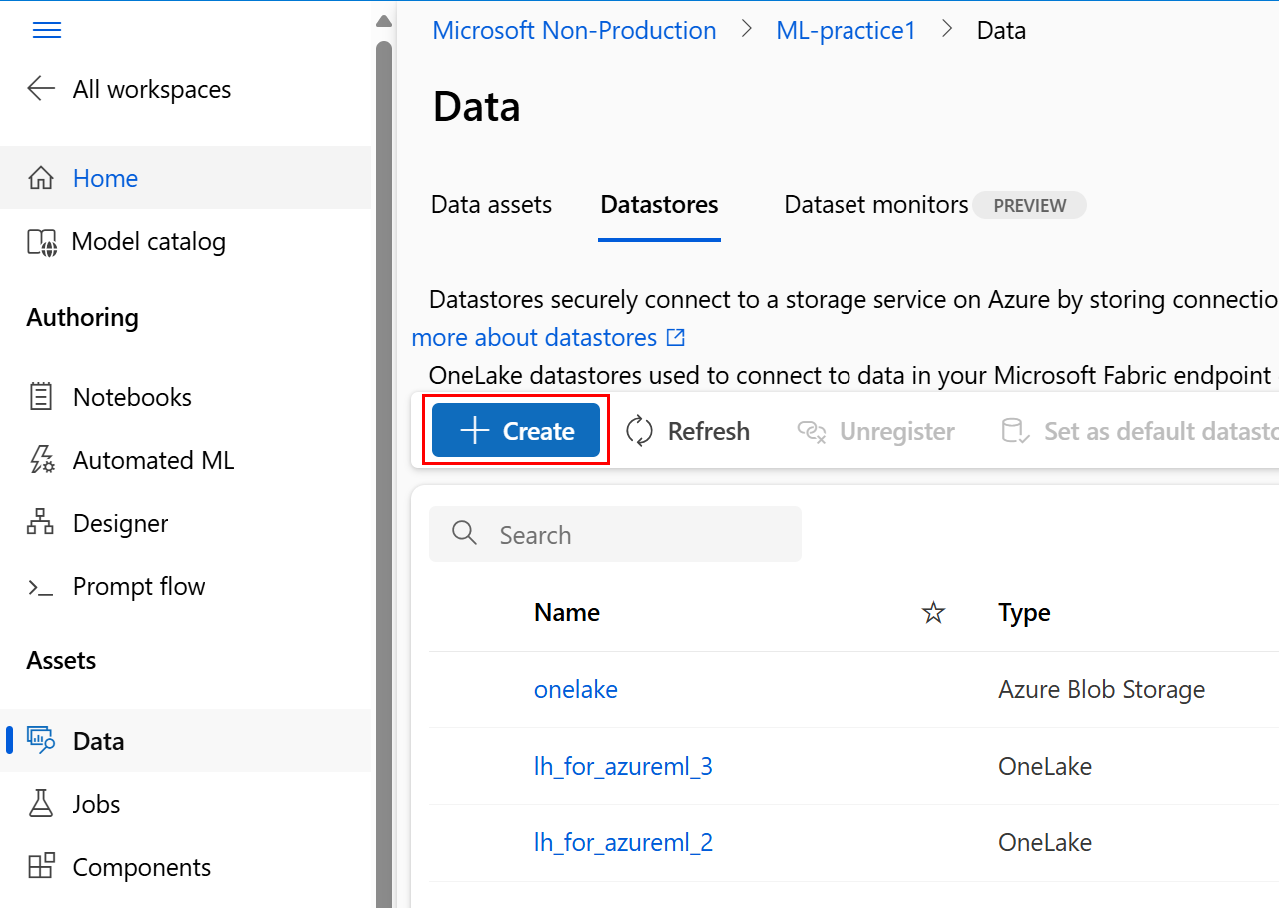
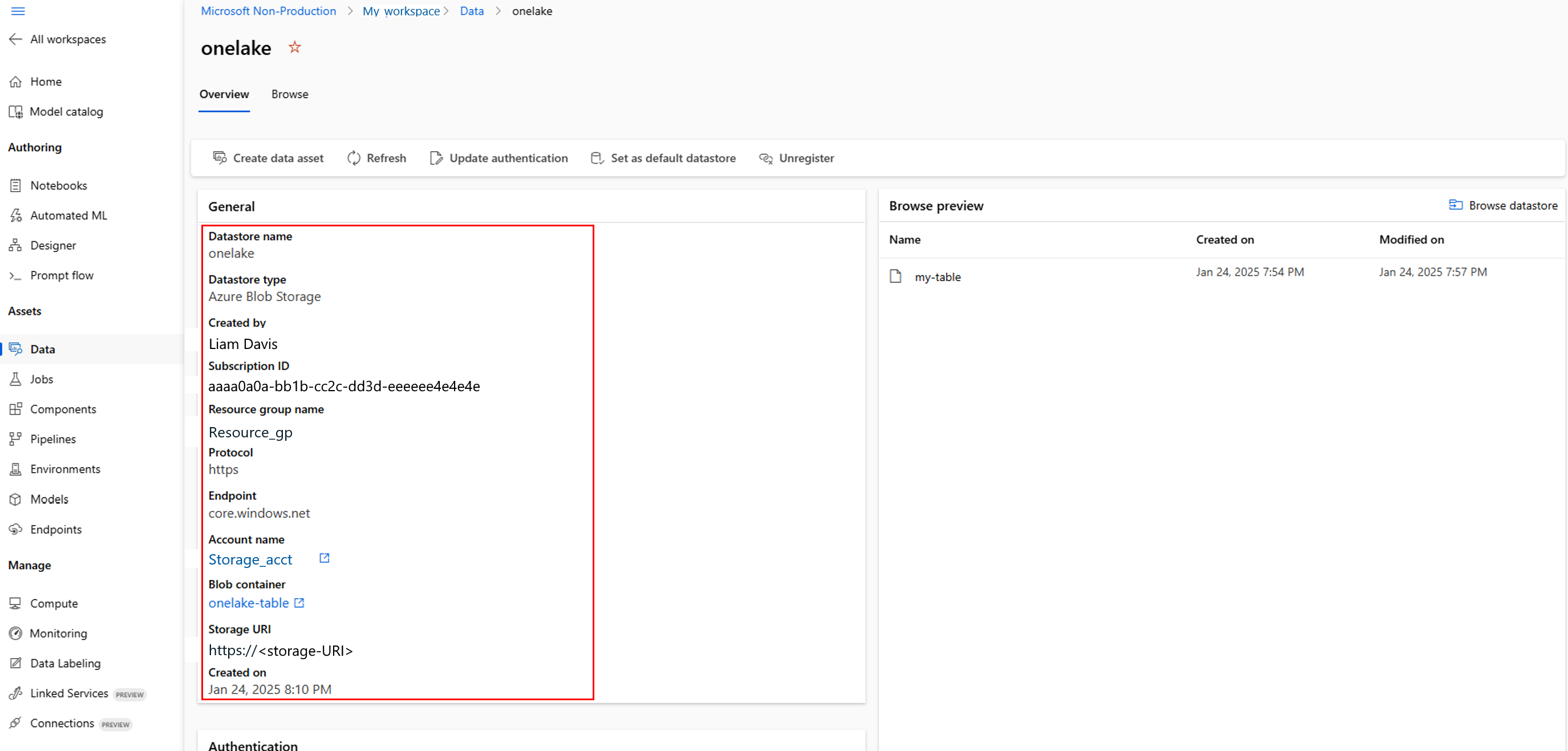
You can review details of the datastore you created:
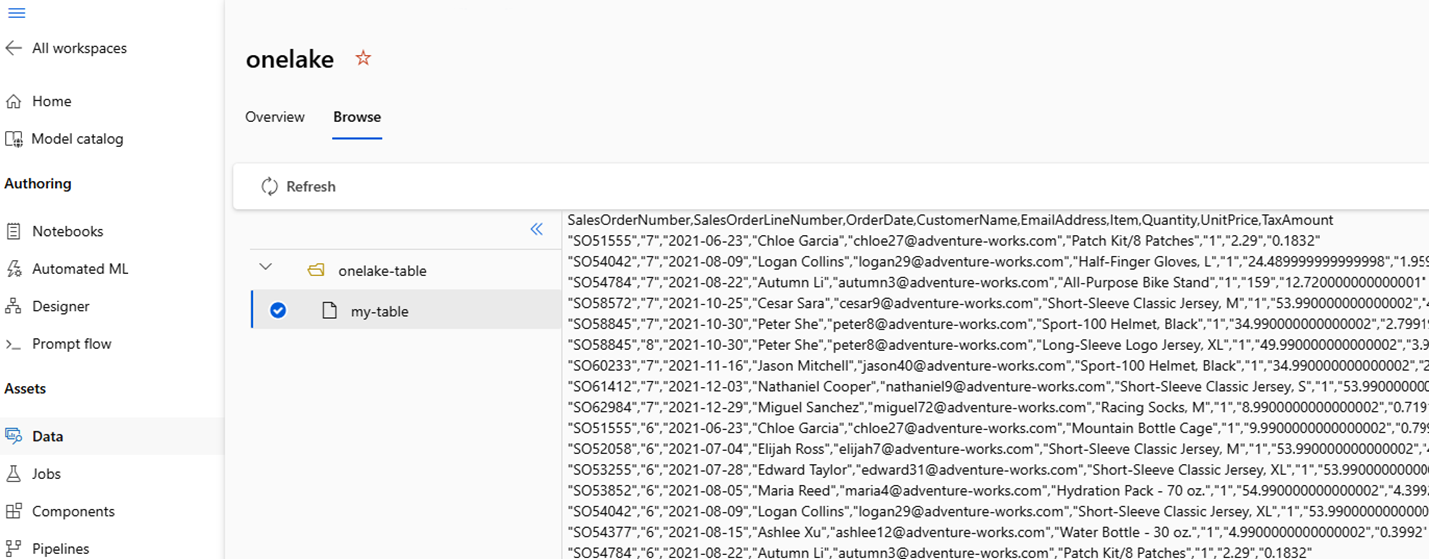
Review the data in the datastore

Now that you successfully created the datastore in Azure Machine Learning, you can use it in machine learning exercises.
Troubleshooting
- Role assignment not yet effective: Azure role assignments can take several minutes to propagate. If the copy job or datastore creation fails with an authorization error, wait a few minutes and retry.
- Account key access disabled: If you can't retrieve or use the account key, confirm that Allow storage account key access is enabled on the storage account.
- Fabric connection fails: Verify the storage account name and key, and confirm that the onelake-table container exists.
- Snapshot is stale: The copy produces a point-in-time snapshot. To keep it current, schedule the Fabric data pipeline to run on a recurring cadence.
Related content
- Create datastores
- Create a OneLake (Microsoft Fabric) datastore (preview)
- Create data assets
- Integrate OneLake with Azure Machine Learning