Note
Access to this page requires authorization. You can try signing in or changing directories.
Access to this page requires authorization. You can try changing directories.
This article shows you how to set up and manage data encryption at rest for Azure Database for MySQL flexible server by using the Azure portal.
In this article, you learn how to:
- Set data encryption for Azure Database for MySQL.
- Configure data encryption for database restore operations.
- Configure data encryption for replica servers.
Encryption types
Azure Database for MySQL supports two primary types of encryption to help safeguard your data.
- Encryption at rest ensures that all data stored in the database, including backups and logs, is protected from unauthorized access by encrypting it on disk.
- Encryption in transit secures data as it moves between your client applications and the database server covered in Transport Layer Security (TLS) in Azure Database for MySQL.
Permission models for Azure Key Vault access
Azure key vault access configuration now supports two types of permission models - Azure role-based access control and Vault access policy. This article describes how to configure data encryption for Azure Database for MySQL by using a Vault access policy.
You can choose to use Azure RBAC as a permission model to grant access to Azure Key Vault. To do so, you need a built-in or custom role that has the three permissions and assign it through "role assignments" by using the Access control (IAM) tab in the key vault:
- KeyVault/vaults/keys/wrap/action
- KeyVault/vaults/keys/unwrap/action
- KeyVault/vaults/keys/read.
For Azure Key Vault-managed HSM, you need to assign the "Managed HSM Crypto Service Encryption User" role.
Prerequisites
An Azure account with an active subscription.
If you don't have an Azure subscription, create an Azure free account before you begin.
Note
With an Azure free account, you can now try Azure Database for MySQL Flexible Server for free for 12 months. For more information, see Use an Azure free account to try Azure Database for MySQL - Flexible Server for free.
Set the proper permissions for key operations
In Key Vault, select Access policies, and then select Create.
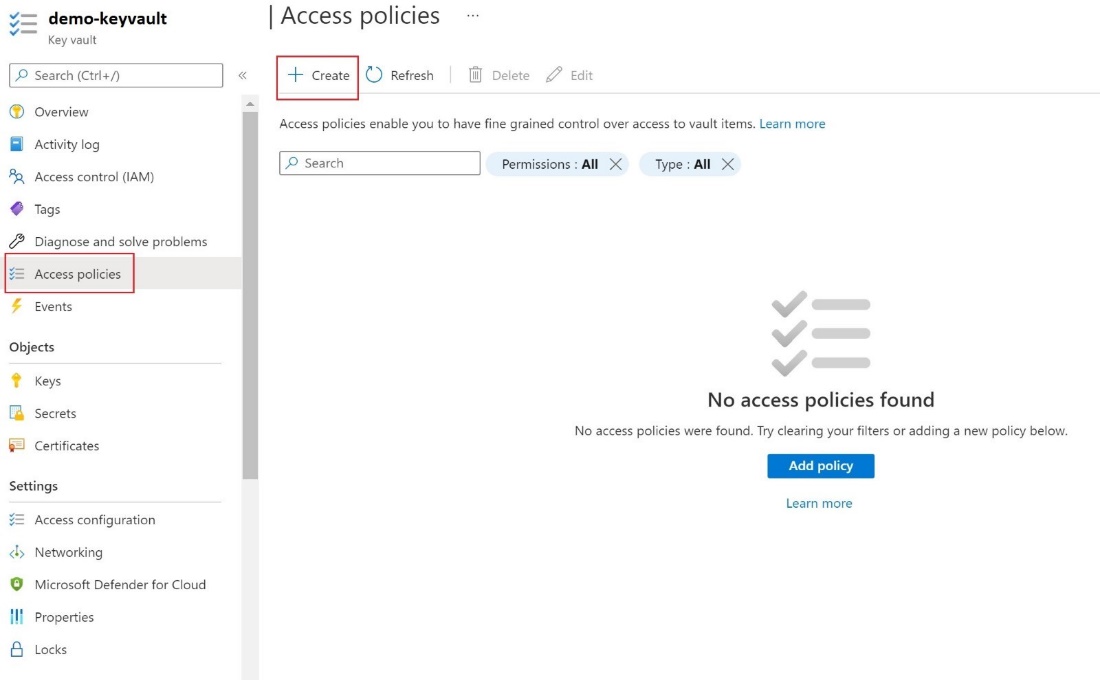
On the Permissions tab, select the following key permissions: Get, List, Wrap Key, and Unwrap Key.
On the Principal tab, select the user-assigned managed identity.
Select Create.
Configure customer managed key
To set up the customer-managed key, follow these steps.
In the portal, go to your Azure Database for MySQL Flexible Server instance. Under Security, select Data encryption.
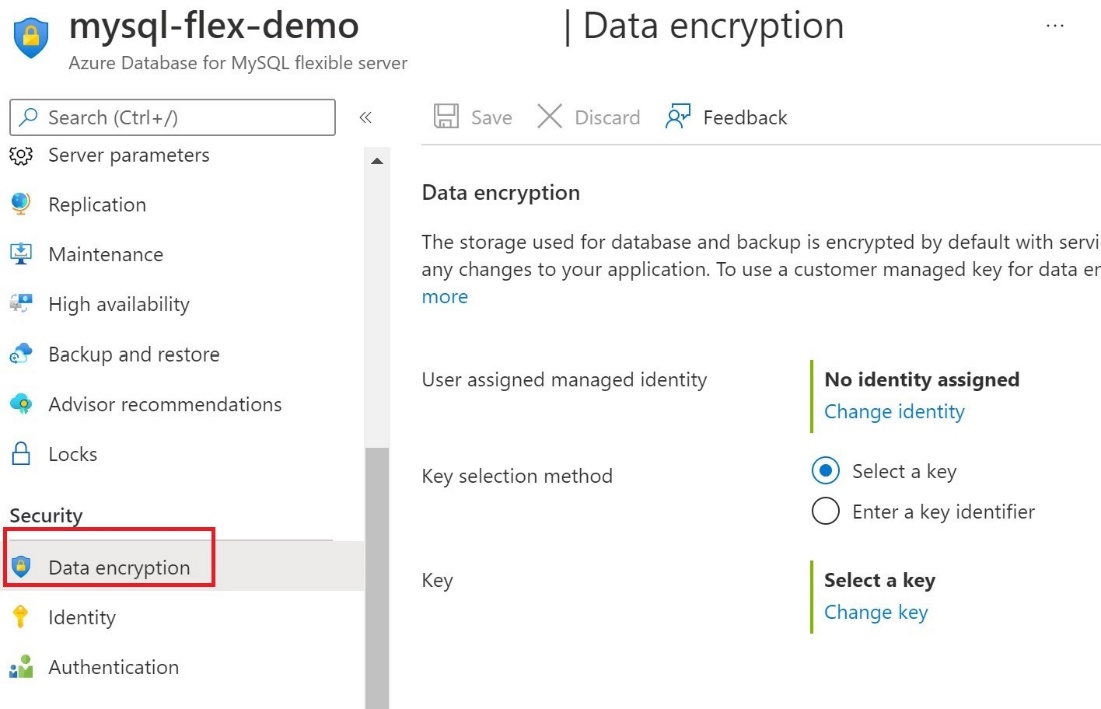
On Data encryption, under No identity assigned, select Change identity.
In Select user assigned managed identity, select the
demo-umiidentity, and then select Add.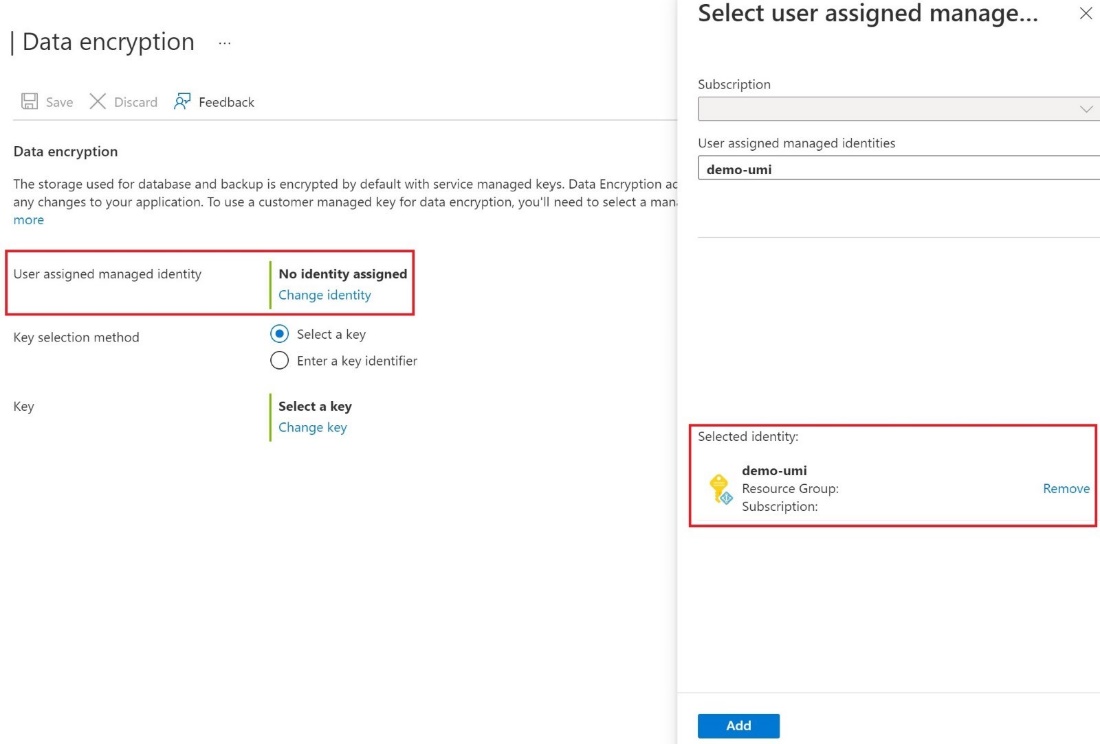
To the right of Key selection method, either Select a key and specify a key vault and key pair, or select Enter a key identifier.
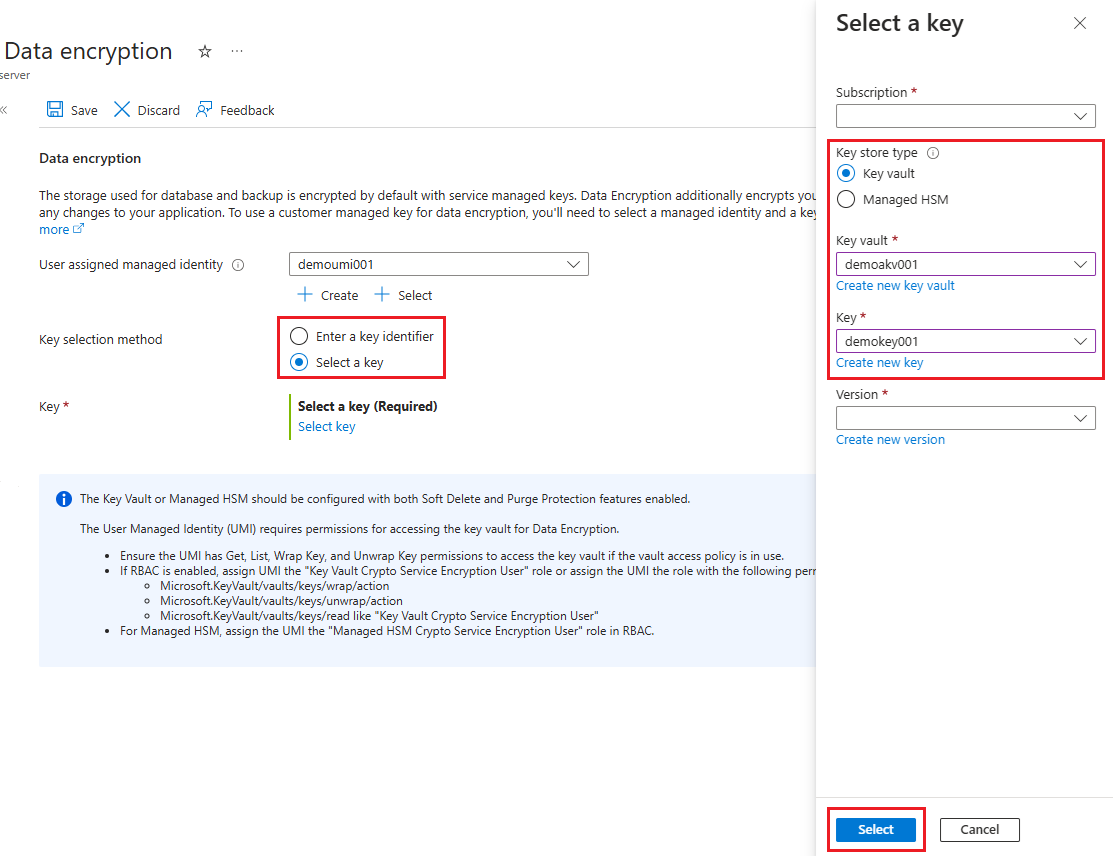
Select Save.
Use data encryption for restore
To use data encryption as part of a restore operation, follow these steps.
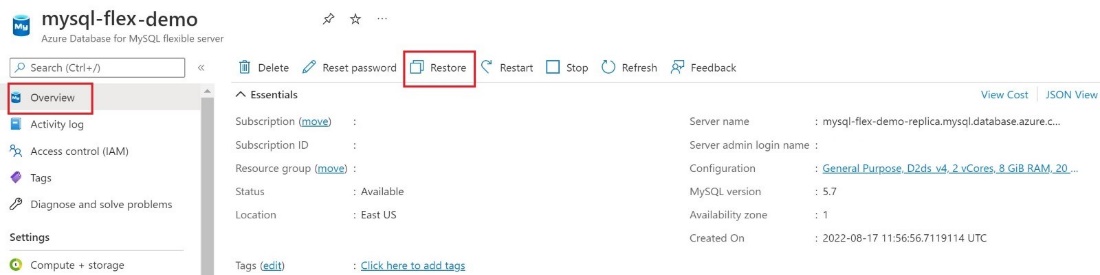
In the Azure portal, go to the Overview page for your server and select Restore.
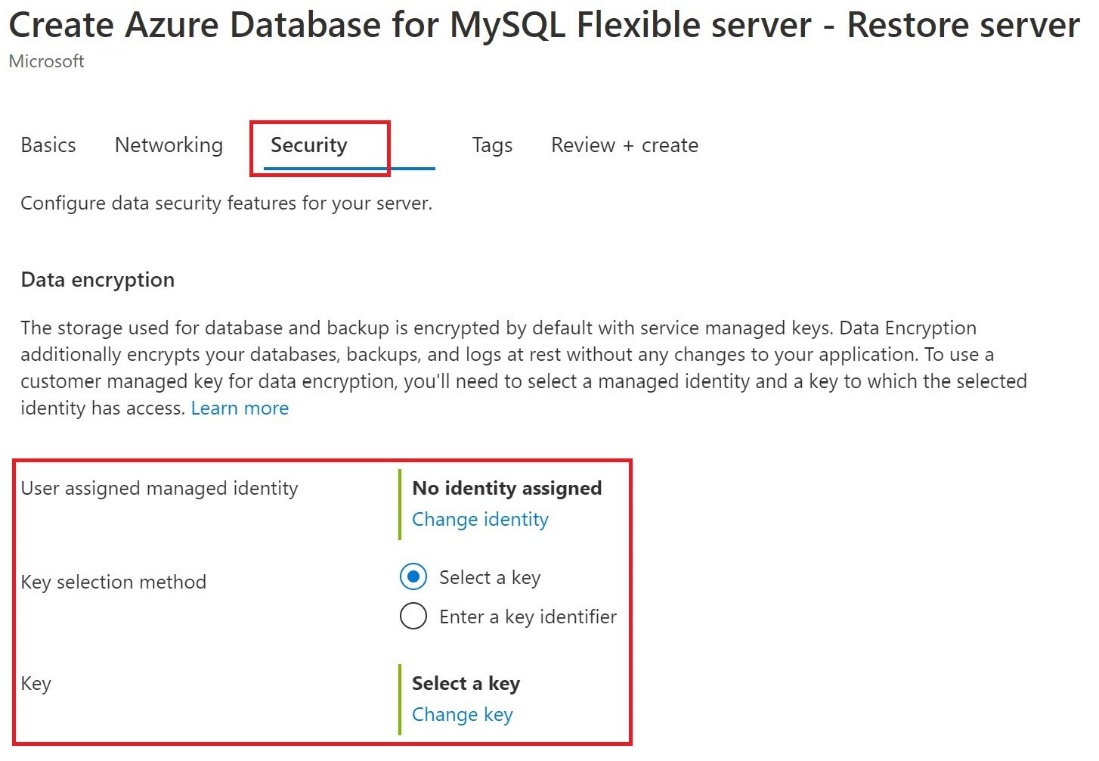
On the Security tab, enter the identity and the key.
Select Change identity and select the User assigned managed identity and select Add.
To select the key, you can either select a key vault and key pair or enter a key identifier.
Use data encryption for replica servers
After you encrypt your Azure Database for MySQL Flexible Server instance with a customer-managed key stored in Key Vault, any newly created copy of the server is also encrypted.
To configure replication, under Settings, select Replication, and then select Add replica.
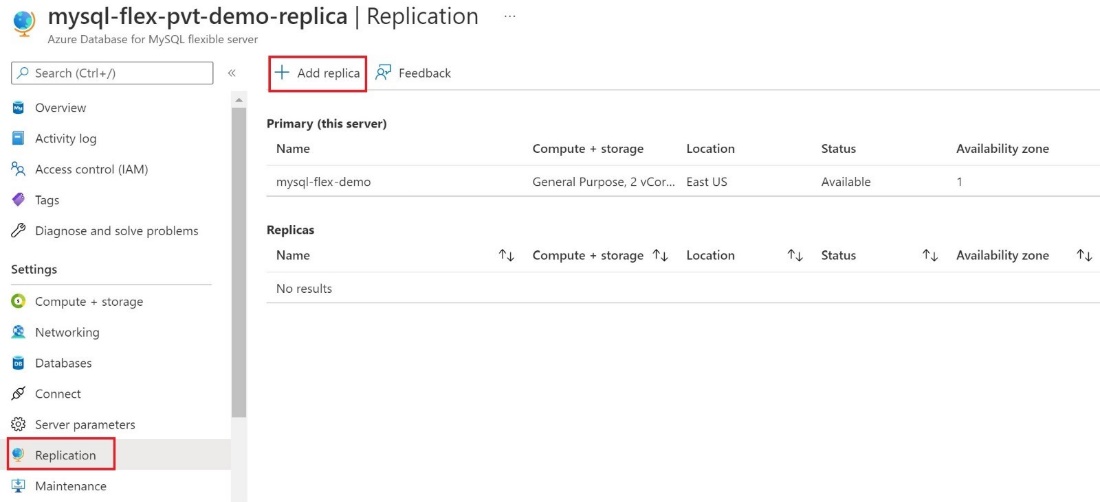
In Add Replica server to Azure Database for MySQL, select the appropriate Compute + storage option, and then select OK.
Important
When you try to encrypt an Azure Database for MySQL Flexible Server with a customer-managed key that already has replicas, configure one or more replicas by adding the managed identity and key.