Note
Access to this page requires authorization. You can try signing in or changing directories.
Access to this page requires authorization. You can try changing directories.
The Quantum Katas in QDK Learning are a self-paced course. QDK Learning is available in The Microsoft Quantum Development Kit (QDK) extension for Visual Studio Code (VS Code). The Katas course teaches quantum computing concepts and programming in Q#. Each kata includes explanations, examples, and coding exercises to help you apply what you learn.
Kata means "form" in Japanese and refers to a pattern for learning and practicing new skills.
Work through the Quantum Katas to:
- Learn the fundamentals of quantum computing and Q#.
- Run examples and check your solutions in VS Code.
- Choose the units that match your interests and experience.
- Save your progress and Q# exercise files in your workspace.
- Ask the QDK Learning agent for hints and explanations.
Prerequisites
To use the Quantum Katas, you need:
- The latest version of VS Code.
- The QDK extension for VS Code.
- A folder where QDK Learning can store your course files and progress.
To use the AI-assisted learning features, sign in to GitHub Copilot in VS Code.
If you haven't used QDK Learning before, see QDK Learning overview.
Start the Quantum Katas
To start the Quantum Katas, follow these steps.
- In VS Code, open the folder where you want to save your course files.
- On the Activity Bar, select the Microsoft Quantum icon.
- If the workspace isn't set up for QDK Learning, select Start learning.
- In the Learning view, find Quantum Katas and then select Switch Course.
- Expand the Quantum Katas course.
- Select Getting Started to open the first lesson.
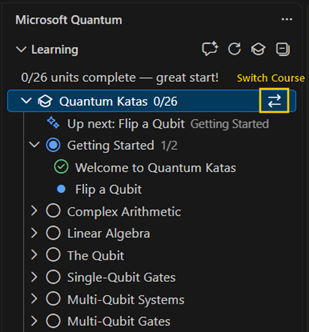
If you previously started the Quantum Katas in this workspace, QDK Learning returns to your saved position. To continue directly from that position, select Up next under the Quantum Katas course.
Go through the Quantum Katas
The Quantum Katas use two main areas in VS Code.
- The Learning view shows the course structure and your progress.
- The Lesson tab shows the current lesson or exercise and its available actions.
When an activity includes Q# code, QDK Learning also opens a .qs file in the editor. Edit and save the file like any other Q# file.
You don't have to complete the units in order. Select any unit in the Learning view to go to that unit.
Work with lessons and examples
Lessons explain quantum computing concepts and can include runnable Q# examples. The available actions depend on the lesson.
| Action | Description |
|---|---|
| Next | Mark the lesson as complete and go to the next activity. |
| Run | Run the Q# example for the lesson. After the example runs, Next becomes the primary action. |
| Explain | Ask the QDK Learning agent to explain the current concept in more detail. |
| Back | Go to the previous activity. |
Complete coding exercises
Exercise activities open a Q# file with placeholder code. To complete an exercise, follow these steps.
- Read the exercise instructions in the Lesson tab.
- Complete the code in the
.qsfile. - Select Check in the Lesson tab, or select Check Solution above the exercise code.
- If the solution is correct, select Next to continue.
Exercise activities include the following actions.
| Action | Description |
|---|---|
| Check | Check your code against the expected result. |
| Hint | Ask the QDK Learning agent for a hint about the current exercise. |
| Reset | Restore the original placeholder code and discard your changes to the exercise. |
| Back | Go to the previous activity. |
If your solution isn't correct, a Check failed message provides more information. Select What went wrong? to ask the QDK Learning agent for help without revealing the full solution.
After you complete an exercise, Next becomes the primary action. To run the validation again, select Check. You can ask Copilot to show alternative solutions to some problems.
Use Copilot to support your learning
The QDK Learning agent uses your current kata, lesson, and code as context. Use the buttons in the Lesson tab or enter your own prompt in Copilot Chat.
For example, try the following prompts.
Navigate the course
I'm interested in learning about Grover's algorithm. Take me to the relevant unit.
Get help with an exercise
Help me understand why my solution doesn't work, but don't show me the complete answer.
Explore a concept
Explain the difference between relative phase and global phase.
Save and reset your progress
QDK Learning automatically saves your place in the course and completed activities in the qdk-learning.json file at the root of your workspace. QDK Learning saves the Q# files that you edit in the qdk-learning folder.
To continue later:
- In Visual Studio Code, open the same workspace folder.
- Select the Microsoft Quantum icon.
- Expand the Learning view and then the Quantum Katas course.
- Select Up next to return to your current activity.
To reset an individual exercise:
- Select Reset in the Lesson tab or Reset Exercise in the Q# code editor.
- Confirm the reset. QDK Learning replaces your code.
You can also ask Copilot to reset a lesson for you.