Note
Access to this page requires authorization. You can try signing in or changing directories.
Access to this page requires authorization. You can try changing directories.
In this quickstart, you create, run, and submit an Azure Stream Analytics (ASA) job by using the ASA Tools extension for Visual Studio Code on your local machine. You learn to build an ASA job that reads real-time streaming data from IoT Hub and filters events with a temperature greater than 27°. The output results are sent to a file in blob storage. The input data used in this quickstart is generated by a Raspberry Pi online simulator.
Note
Visual Studio Code tools don't support jobs in the China East, China North, Germany Central, and Germany Northeast regions.
Prerequisites
- Azure subscription. If you don't have an Azure subscription, create a free account.
- Visual Studio Code.
Install the Azure Stream Analytics Tools extension
Open Visual Studio Code (VS Code).
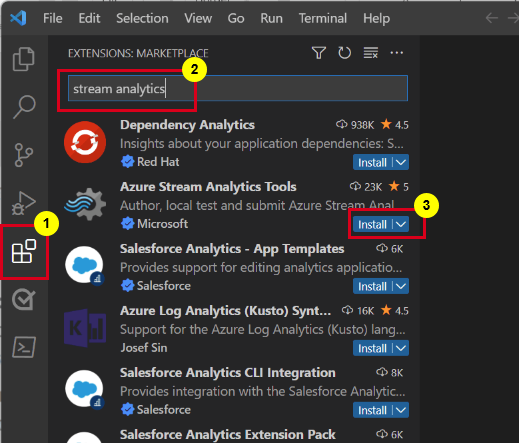
From Extensions on the left pane, search for stream analytics and select Install on the Azure Stream Analytics Tools extension.
After it's installed, select the Azure icon on the activity bar and sign in to Azure.
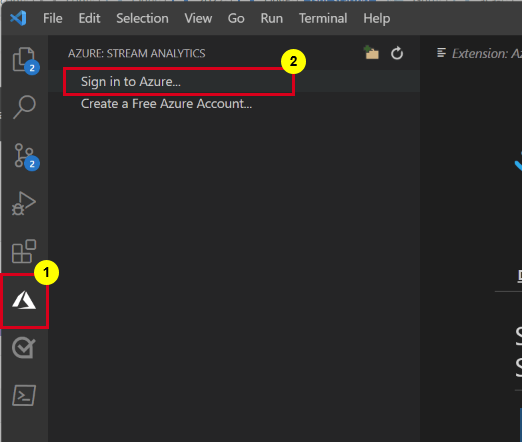
Once you're signed in, you can see the subscriptions under your Azure account.
Note
The ASA Tools extension automatically signs you in every time you open VS Code. If your account has two-factor authentication, use phone authentication rather than using a PIN. To sign out your Azure account, press Ctrl + Shift + P and enter Azure: Sign Out.
Prepare the input data
Before defining the Stream Analytics job, prepare the input data. The solution ingests the real-time sensor data to IoT Hub, which you later configure as the job input. To prepare the input data required by the job, complete the following steps:
Sign in to the Azure portal.
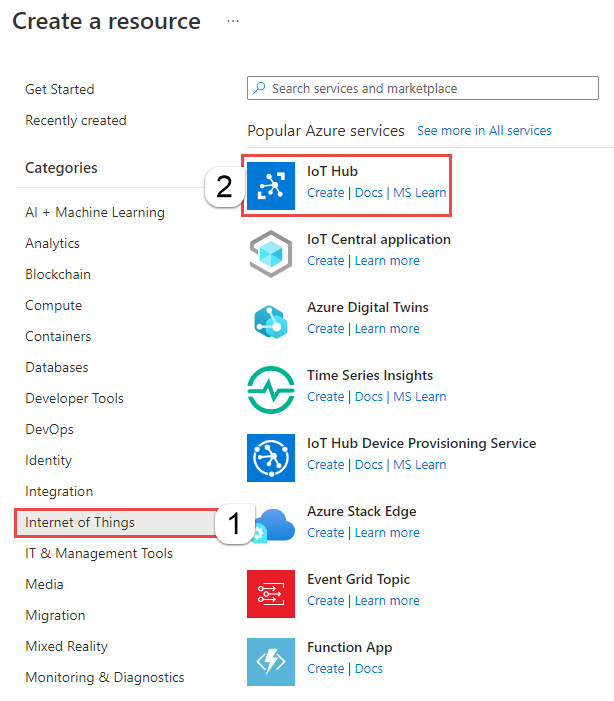
Select Create a resource. On the Create a resource page, select Internet of Things > IoT Hub.
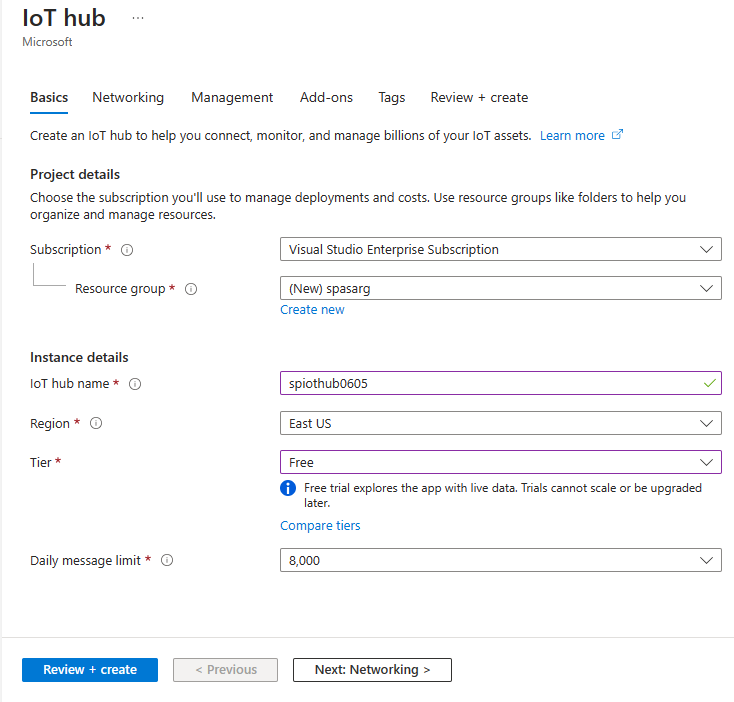
On IoT Hub page, follow these steps:
- For Subscription, select your Azure subscription.
- For Resource group, select an existing resource group or create a new resource group.
- For IoT hub name, enter a name for your IoT hub.
- For Region, select the region that's closest to you.
- For Tier, select Free, if it's still available on your subscription. For more information, see IoT Hub pricing.
- For Daily message limit, keep the default value.
- Select Next: Networking at the bottom of the page.
Select Review + create. Review your IoT Hub information and select Create. Your IoT Hub might take a few minutes to create. You can monitor the progress in the Notifications pane.
After the resource (IoT hub) is created, select Go to resource to go to the IoT Hub page.
On the IoT Hub page, select Devices on the left menu, and then select + Add device.
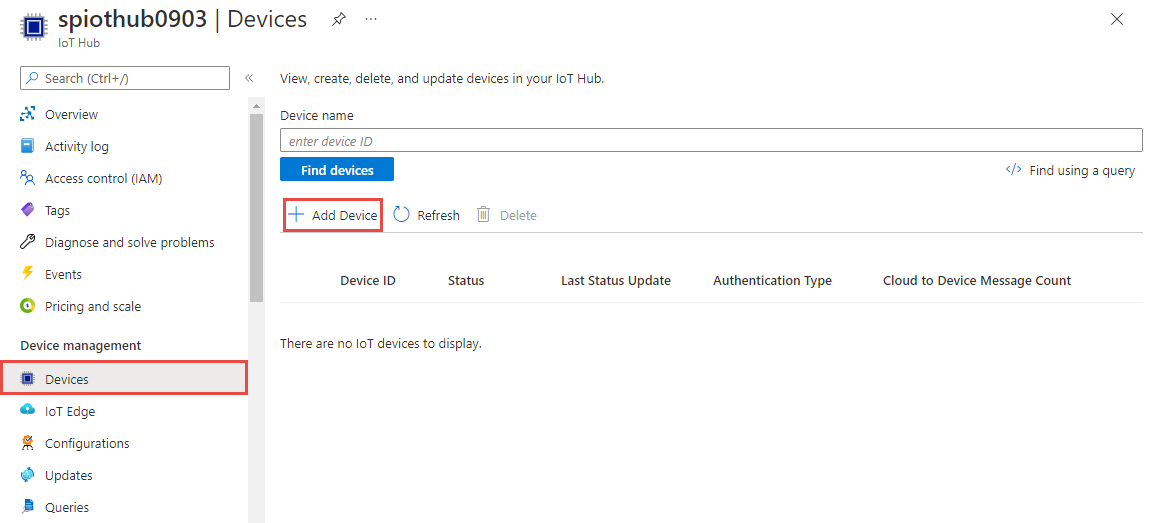
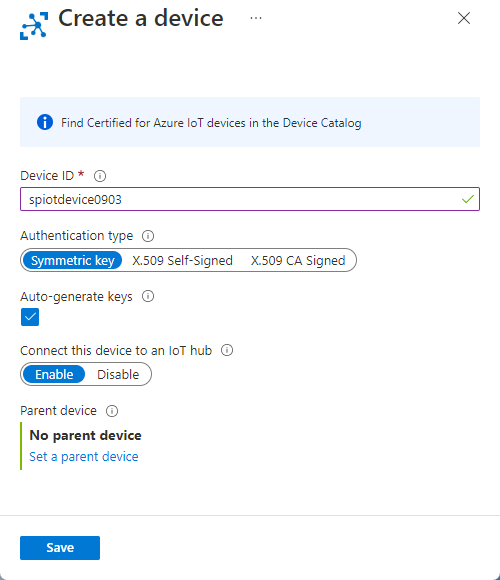
Enter a Device ID and select Save.
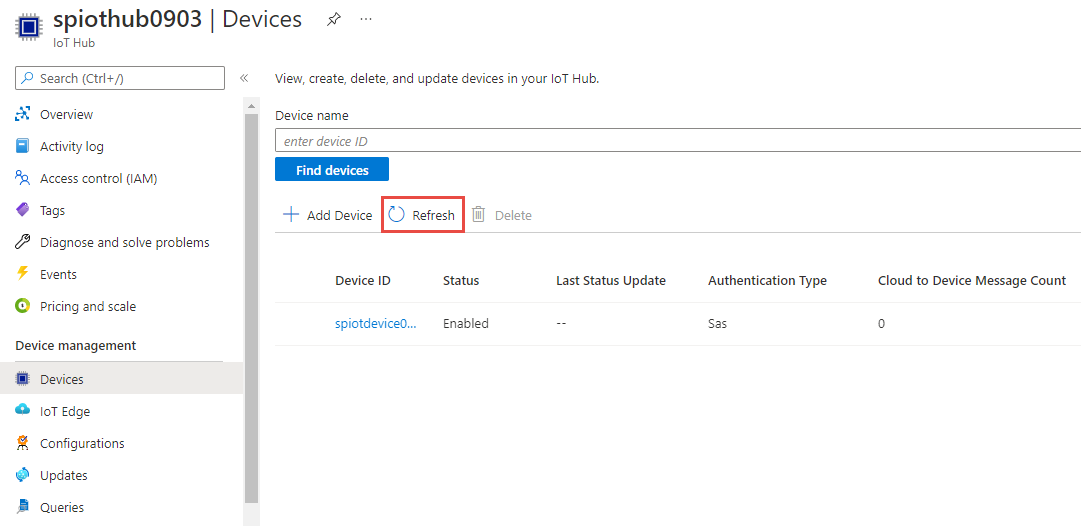
After you create the device, you see the device in the IoT devices list. Select Refresh button on the page if you don't see it.
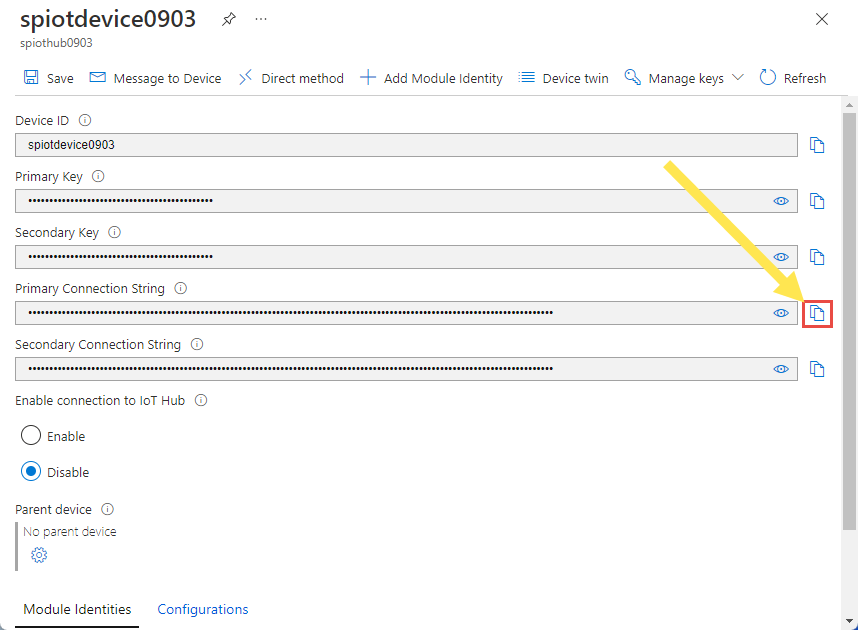
Select your device from the list.
On the device page, select the copy button next to Primary Connection String, and save it to a notepad to use later.
Run the IoT simulator
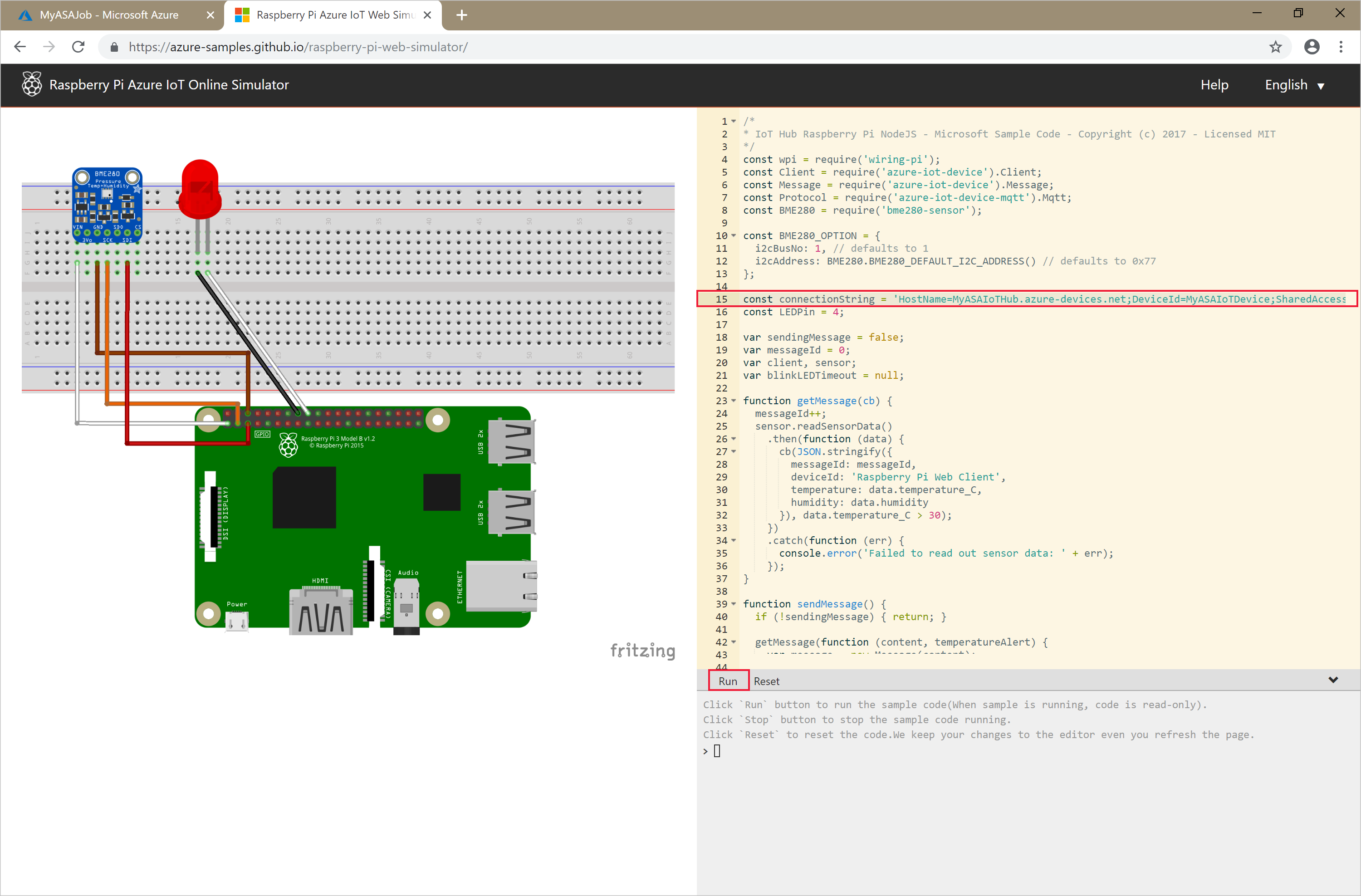
Open the Raspberry Pi Azure IoT Online Simulator.
Replace the placeholder in line 15 with the Azure IoT Hub device connection string you saved in a previous section.
Select Run. The output shows the sensor data and messages that are sent to your IoT Hub.
Important
Select Reset after a few minutes to reset the connection string.
Create blob storage
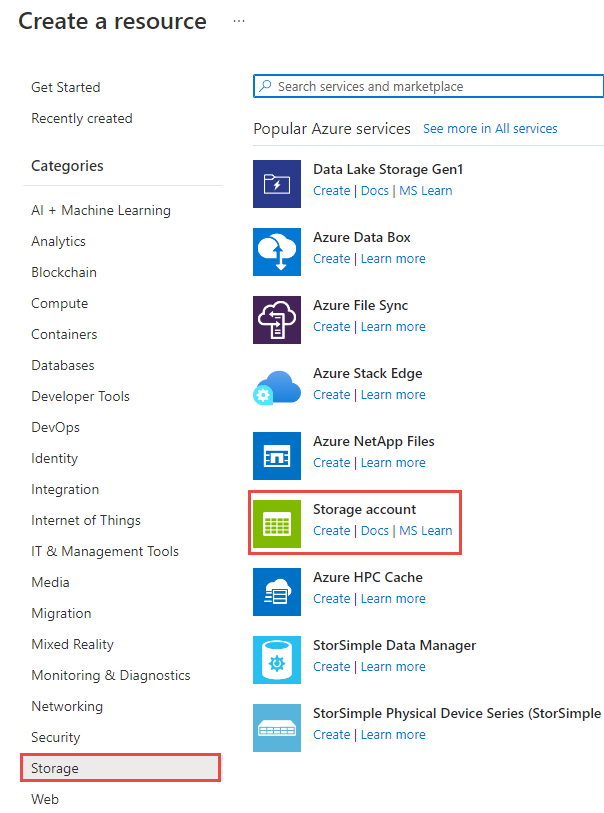
From the upper-left corner of the Azure portal, select Create a resource > Storage > Storage account.
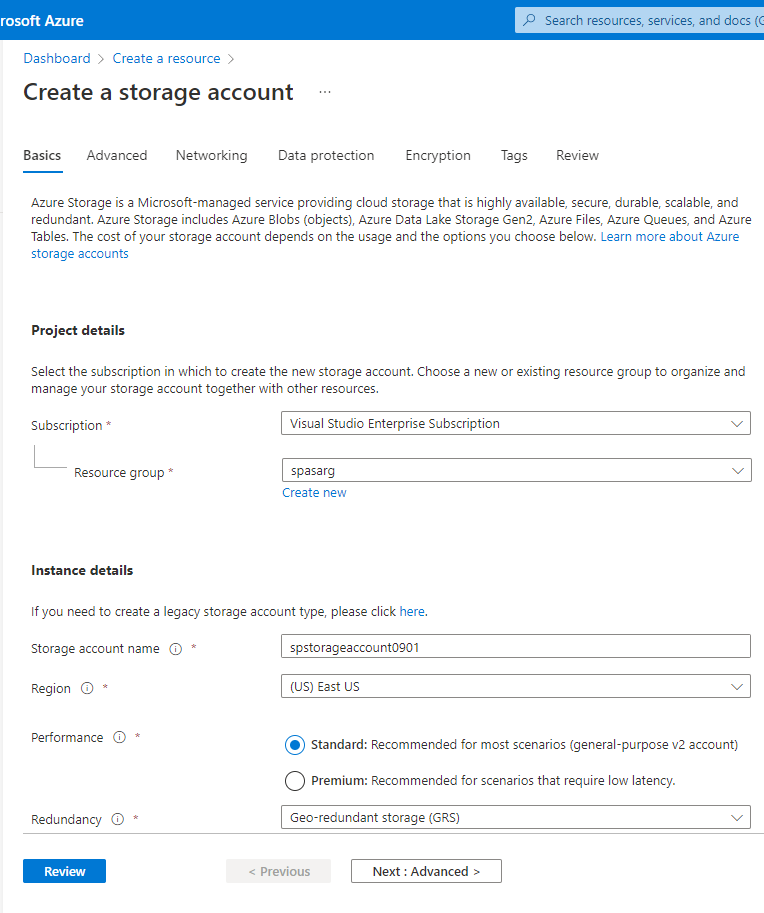
In the Create storage account pane, enter a storage account name, location, and resource group. Choose the same location and resource group as the IoT hub that you created. Then select Review and Create to create the storage account.
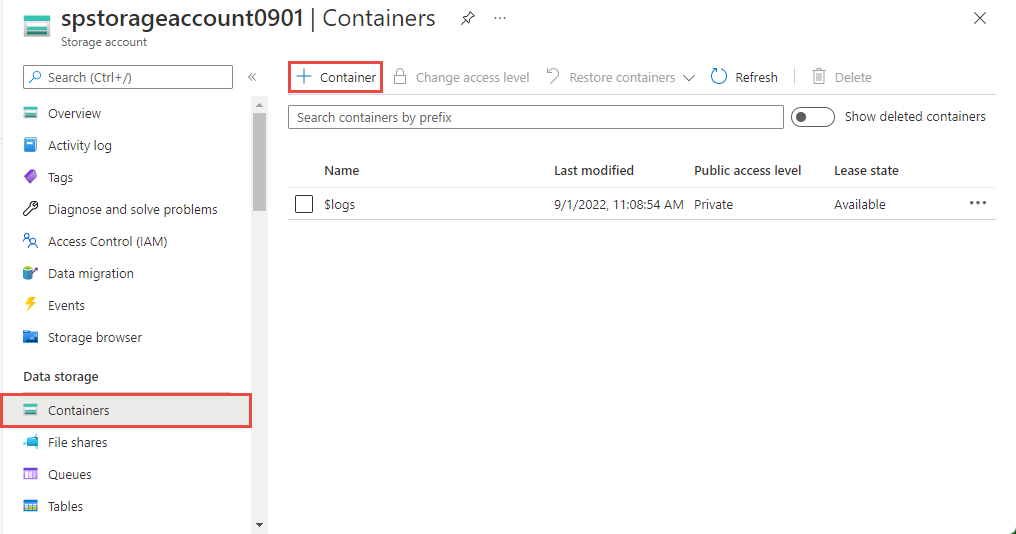
On the Storage account page, select Containers on the left menu, and then select + Container on the command bar.
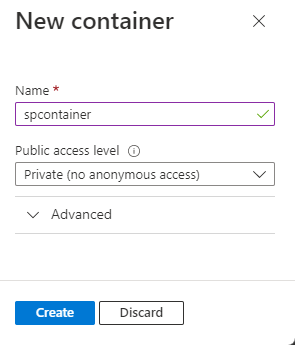
From the New container page, provide a name for your container, leave Public access level as Private (no anonymous access), and select OK.
Create a Stream Analytics project
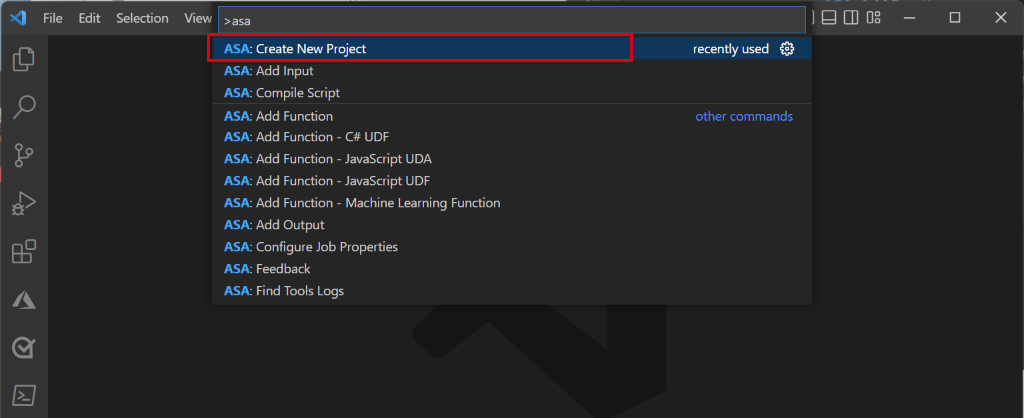
In Visual Studio Code, select View > Command Palette, and enter ASA: Create New Project.
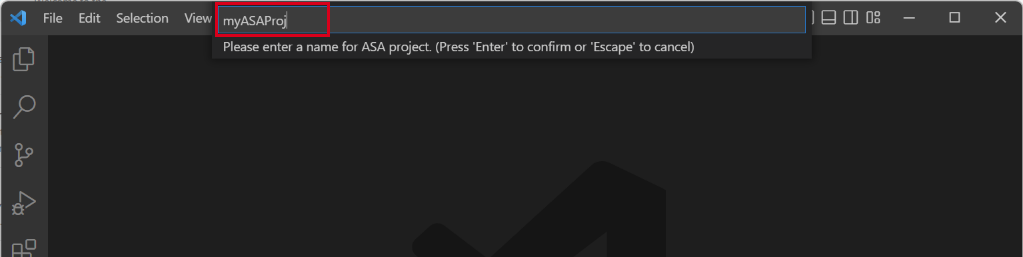
Enter your project name, like myASAproj, and select a folder for your project.
Visual Studio Code adds an ASA project to your workspace. It consists of three folders: Inputs, Outputs, and Functions. It also has the query script (*.asaql), a JobConfig.json file, and an asaproj.json configuration file.
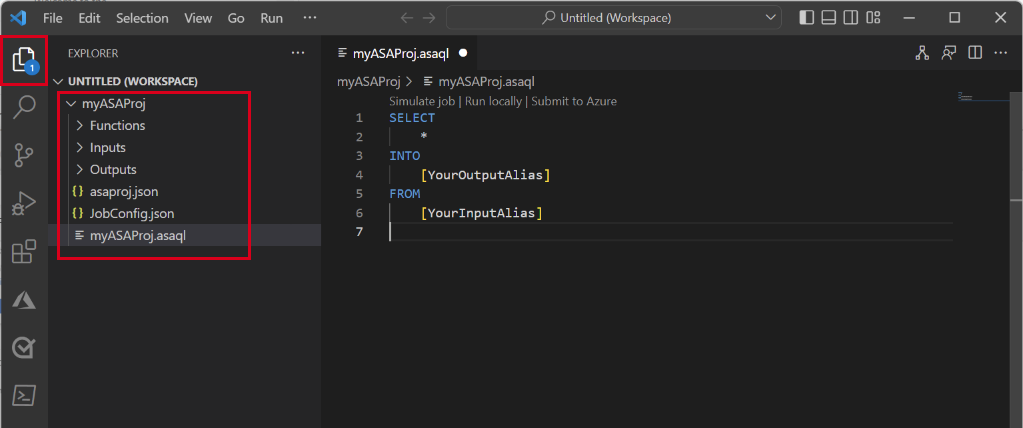
The asaproj.json file contains the inputs, outputs, and job configuration settings for submitting the Stream Analytics job to Azure.
Note
When you add inputs and outputs from the command palette, the corresponding paths are added to asaproj.json automatically. If you add or remove inputs or outputs on disk directly, you need to manually add or remove them from asaproj.json. You can put the inputs and outputs in one place and then reference them in different jobs by specifying the paths in each asaproj.json file.
Define the transformation query
Open myASAproj.asaql file and add the following query:
SELECT *
INTO Output
FROM Input
WHERE Temperature > 27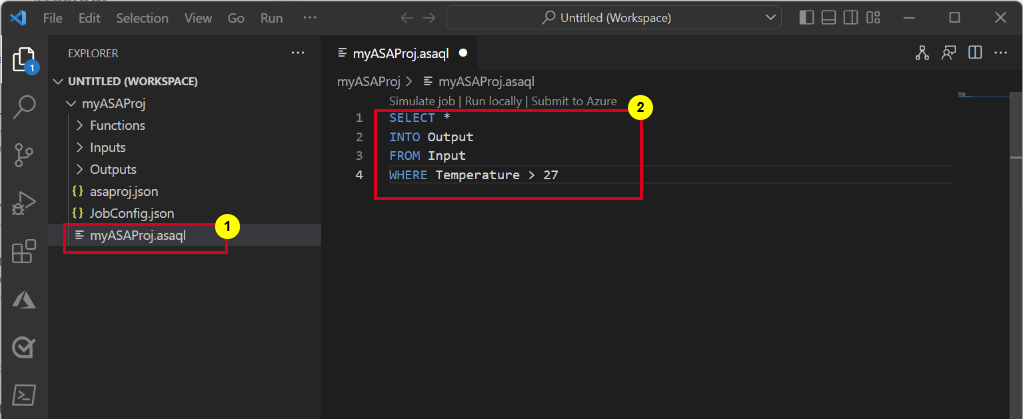
Configure job input
Right-click the Inputs folder in your Stream Analytics project. Then select ASA: Add Input from the context menu.
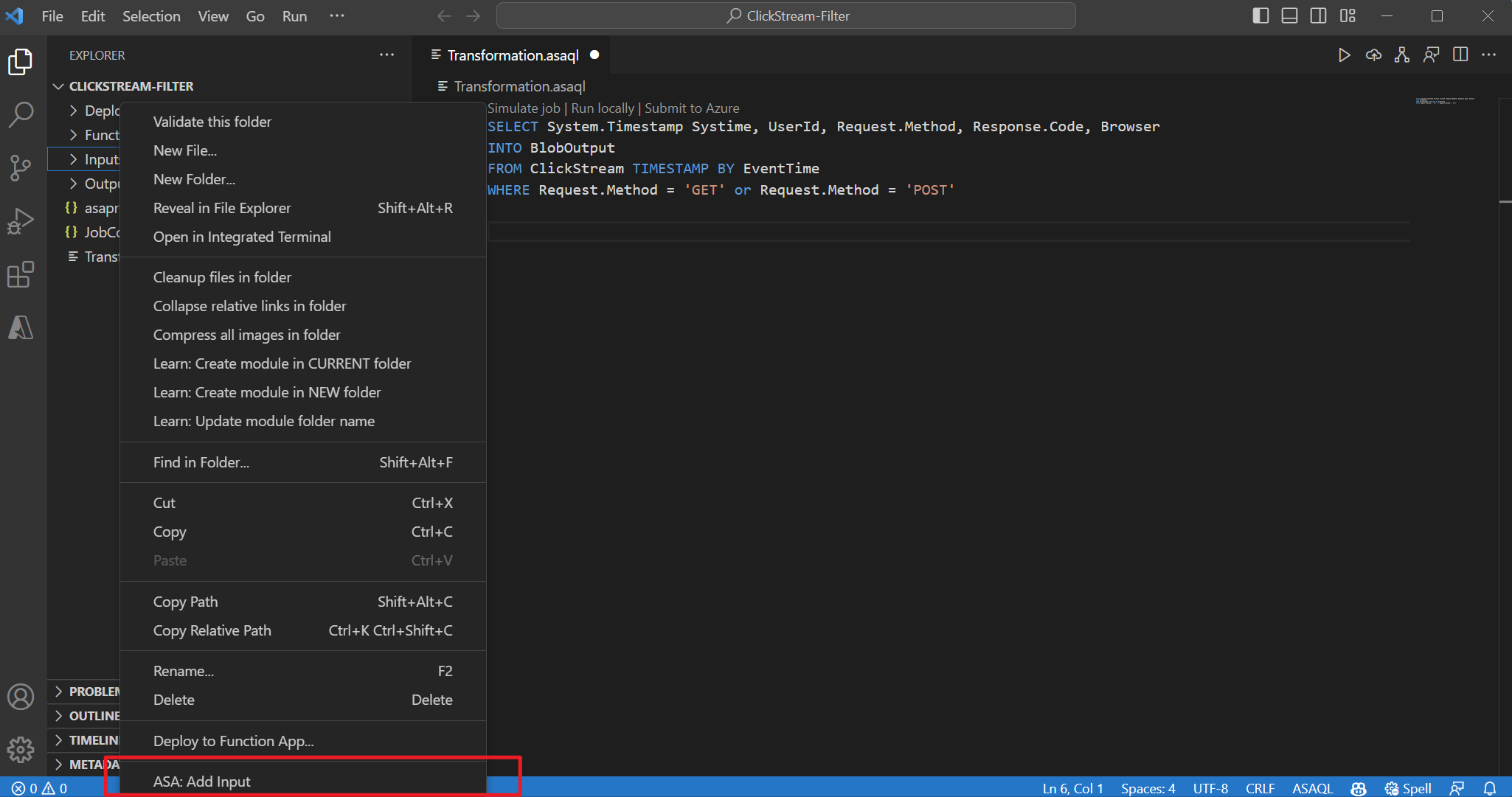
Or press Ctrl+Shift+P to open the command palette and enter ASA: Add Input.
Choose IoT Hub for the input type.
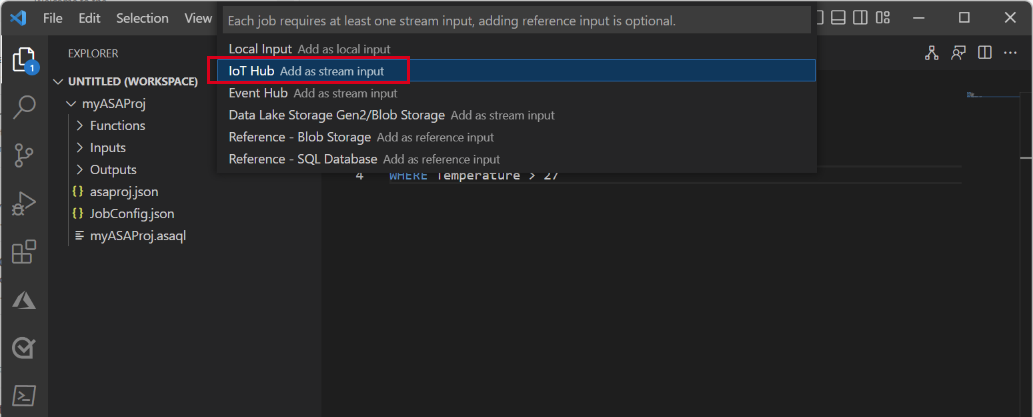
Choose Select from Azure subscriptions from the drop-down menu, and then press ENTER.
Enter Input for the name, and then press ENTER.
Under Inputs folder, you see an Input.json file is created.
In the JSON file, confirm that Input is specified Name.
In the JSON editor for Input.json, choose Select from your subscriptions, and then select your Azure subscription that has the IoT hub.
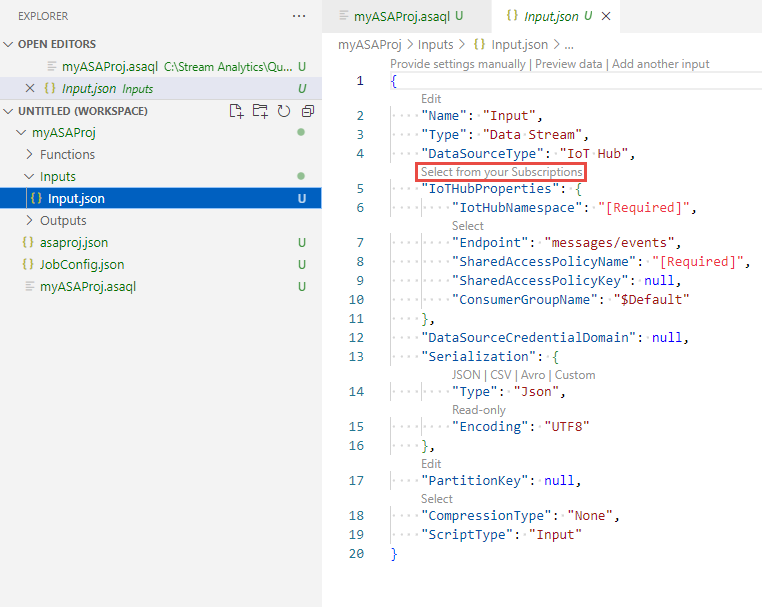
In the JSON editor, choose Select an IoT Hub, and then select the IoT hub you created.
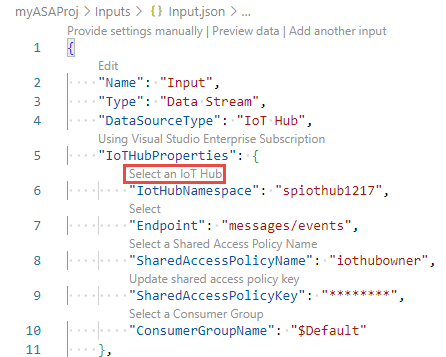
By default, the
SharedAccessPolicyNameshould be set toiothubowner. If not, choose Select a Shared Access Policy Name link, and then select iothubowner from the drop-down list.The
SharedAccessPolicyKeyvalue should be automatically set.Select Preview data to see if the input data is successfully configured for your job. It will fetch a sample of your IoT Hub and show in the preview window.
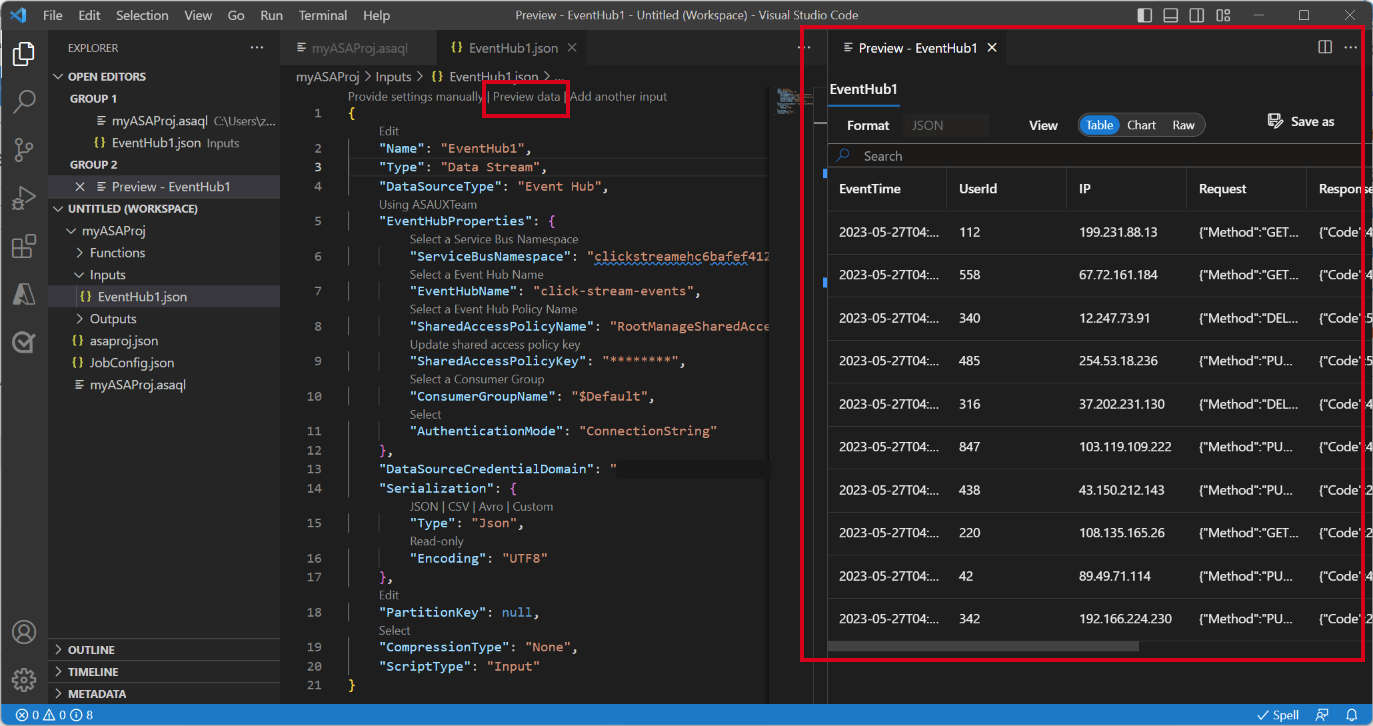
Configure job output
- Right-click Outputs in the explorer, and select ASA: Add Output.
- Choose Data Lake Storage Gen2/Blob Storage for the sink type in the drop-down list.
- Choose Select from Azure subscriptions.
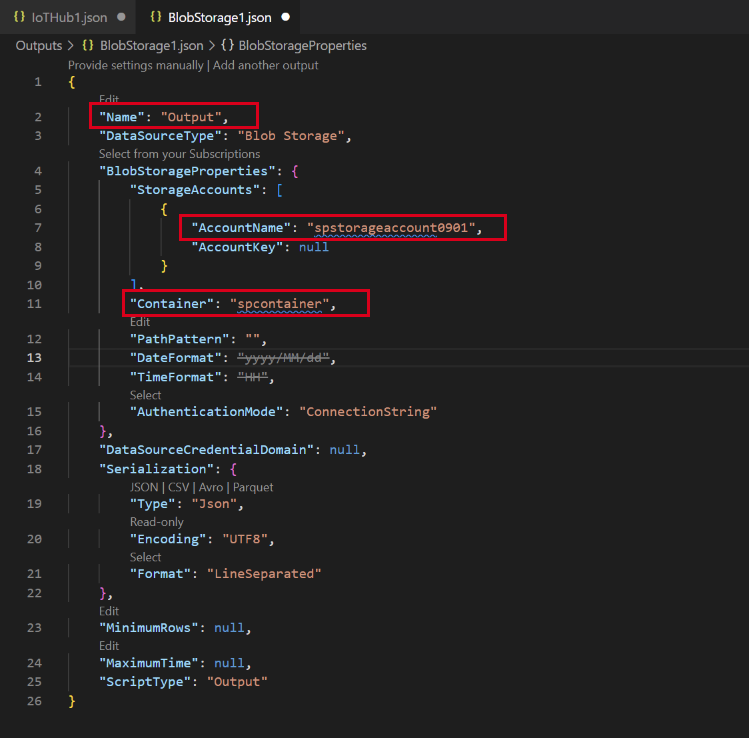
- Enter Output for the name of the alias and press ENTER. This output name is used for INTO statement in the query.
- In the JSON editor for Output.json, choose Select from your subscriptions, and then select your Azure subscription that has the Azure Storage account.
- If you need to change the storage account that's automatically filled, choose Select a Storage account, and then select your Azure Storage account. Storage account names are automatically detected if they're created in the same subscription.
- If you need to change the container name, choose Select a container, and select the blob container you created.
Compile the script and submit it to Azure
Script compilation checks syntax and generates the Azure Resource Manager templates for automatic deployment.
Right-click the script file in the explorer window, point to ASA: Compile Script, and then select ASA: ARM Template V2 (recommended).
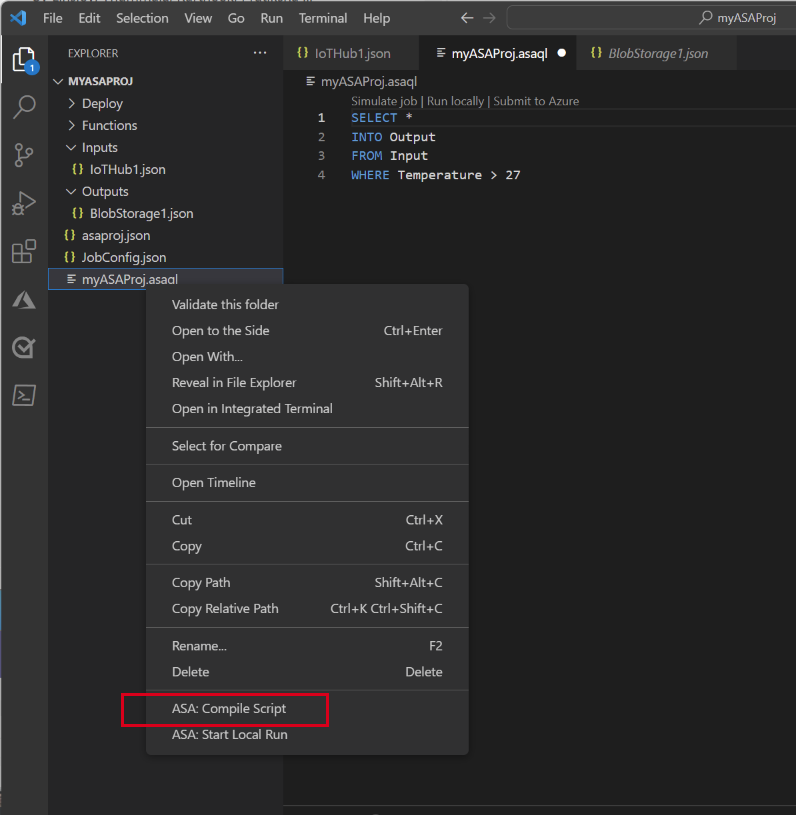
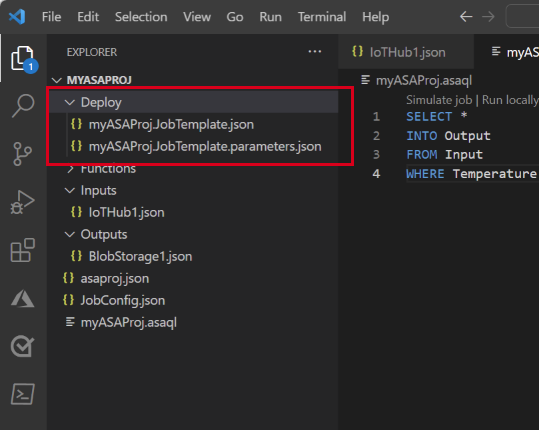
After compilation, you see a Deploy folder under your project with two Azure Resource Manager templates. These two files are used for automatic deployment.
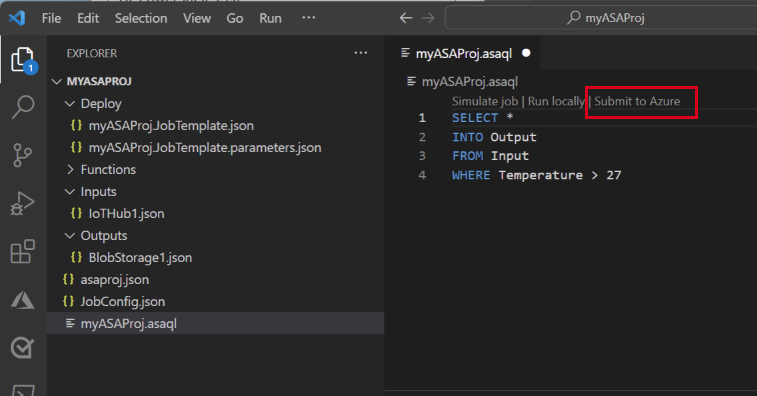
Select Submit to Azure in the query editor.
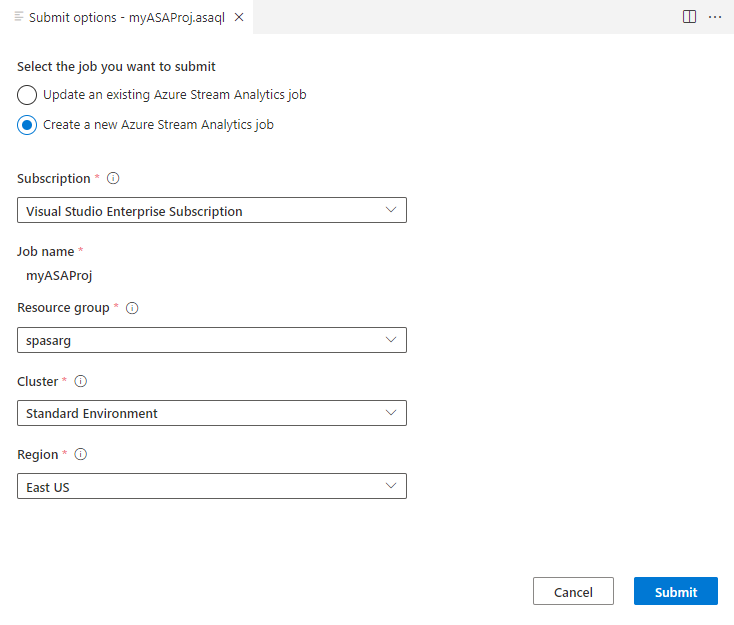
In the Submit window, follow these steps:
Select your Azure subscription.
Select an Azure resource group.
Select the region where you want to create the Stream Analytics job.
Then, select Submit.
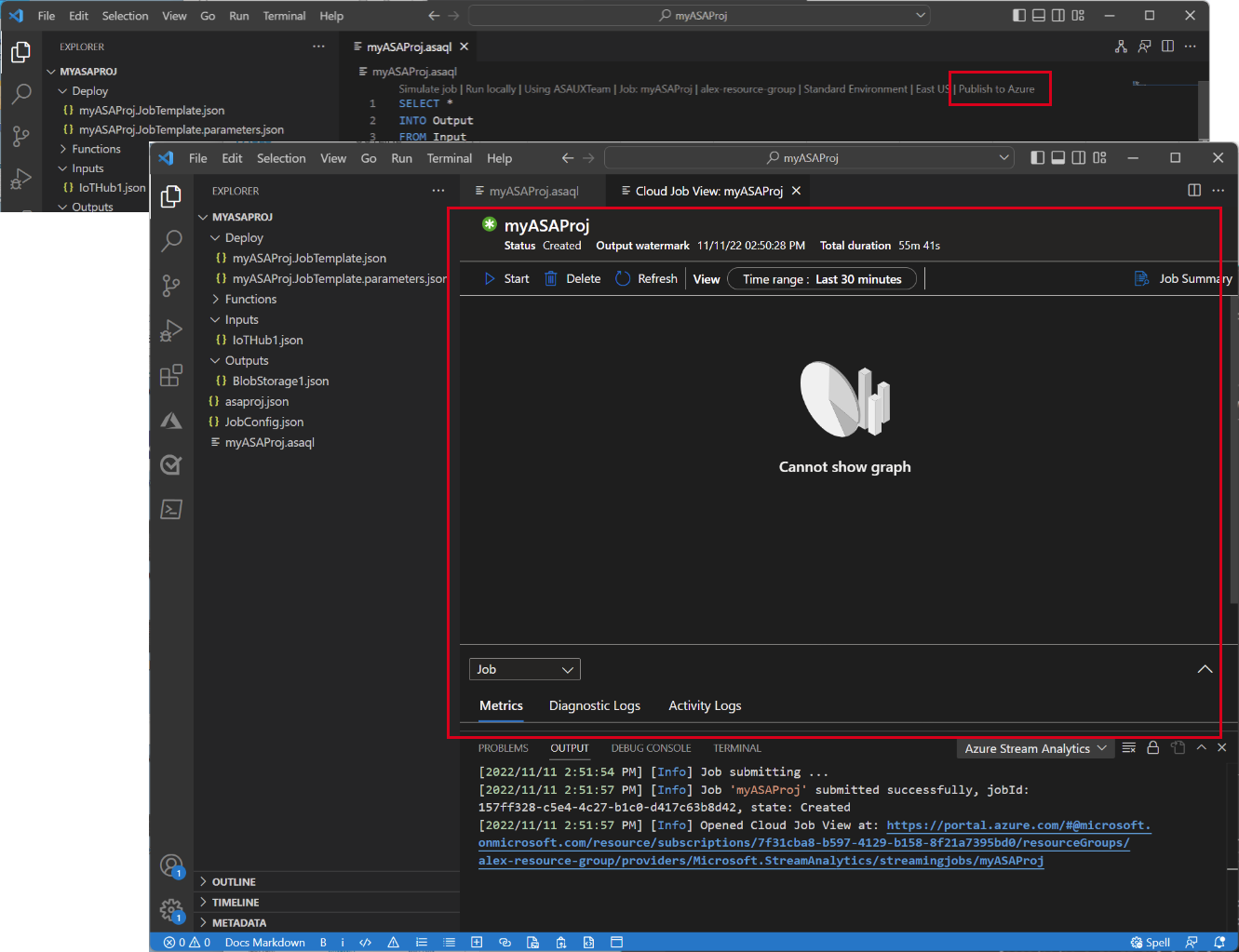
Select Publish to Azure and complete. Wait for it to open a new tab Cloud Job View showing your job's status.
Start the Stream Analytics job and check output
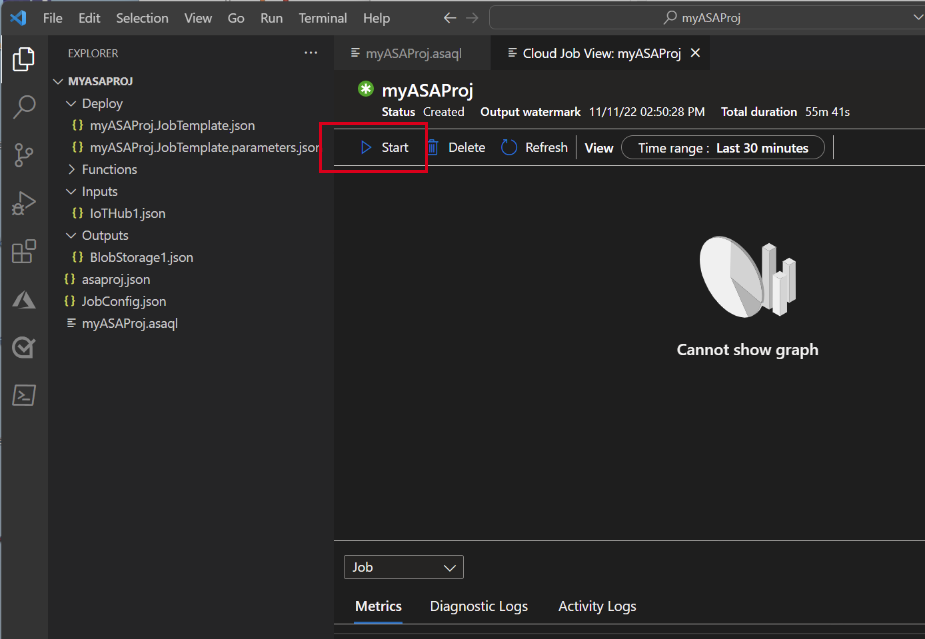
On the Cloud Job View tab, select Start to run your job in the cloud.
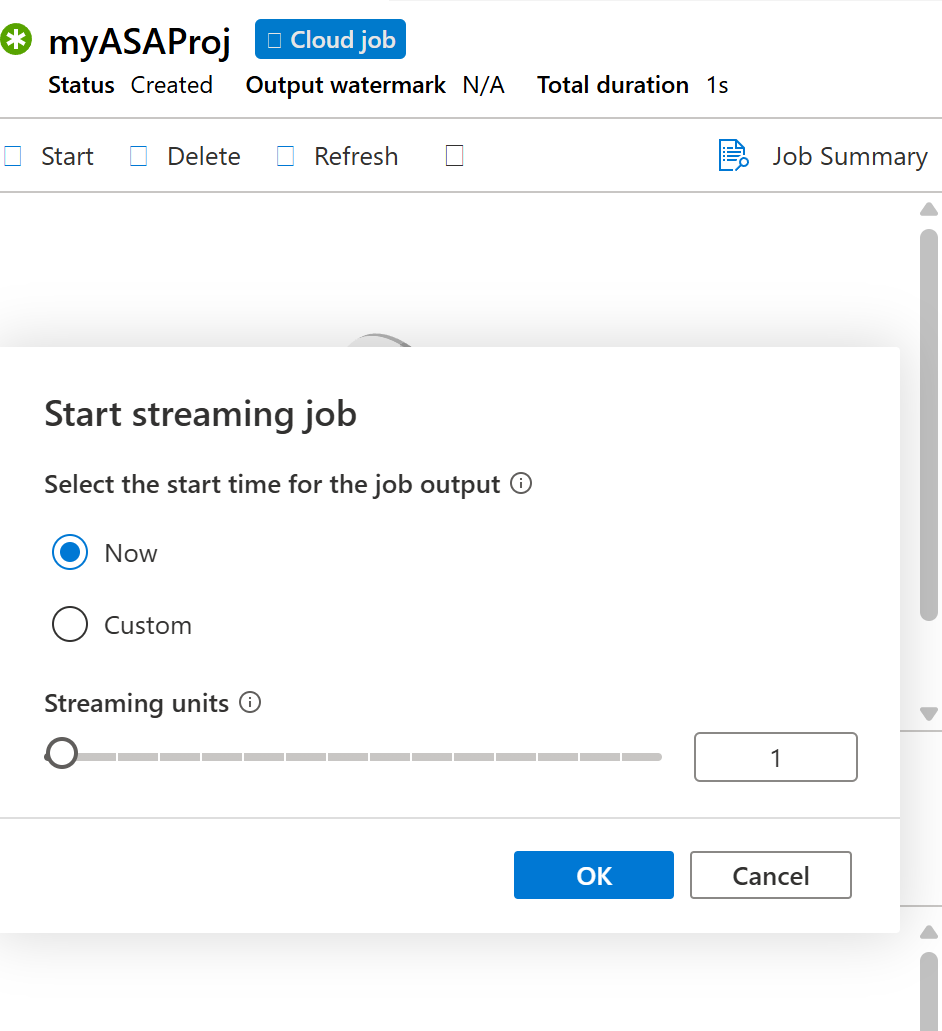
On the Start streaming job window, select OK. This process might take a few minutes to complete.
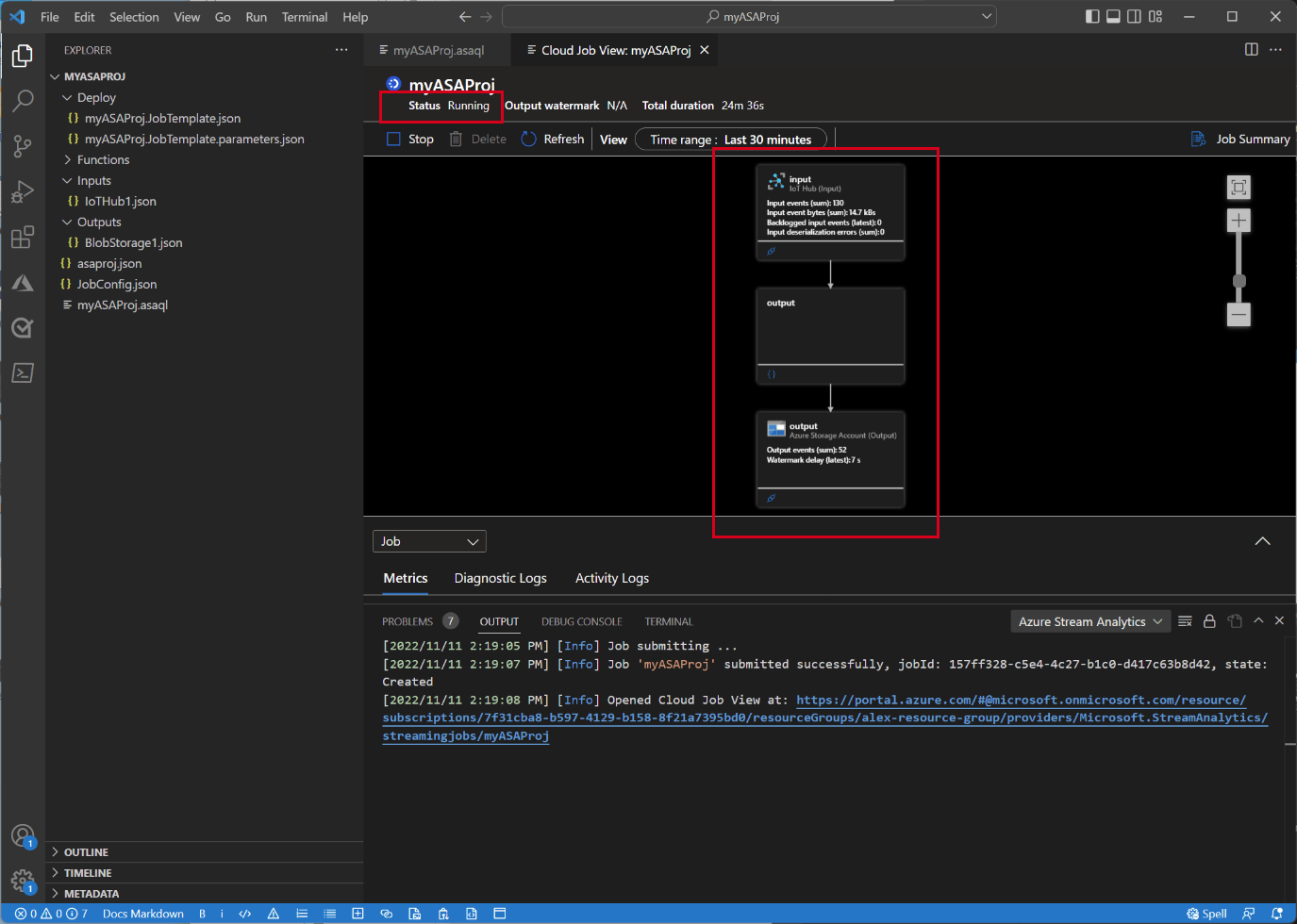
If your job starts successfully, the job status changes to Running. You see a logical diagram showing how your ASA job is running.
To view the output results, open the blob storage in the Visual Studio Code extension or in the Azure portal.
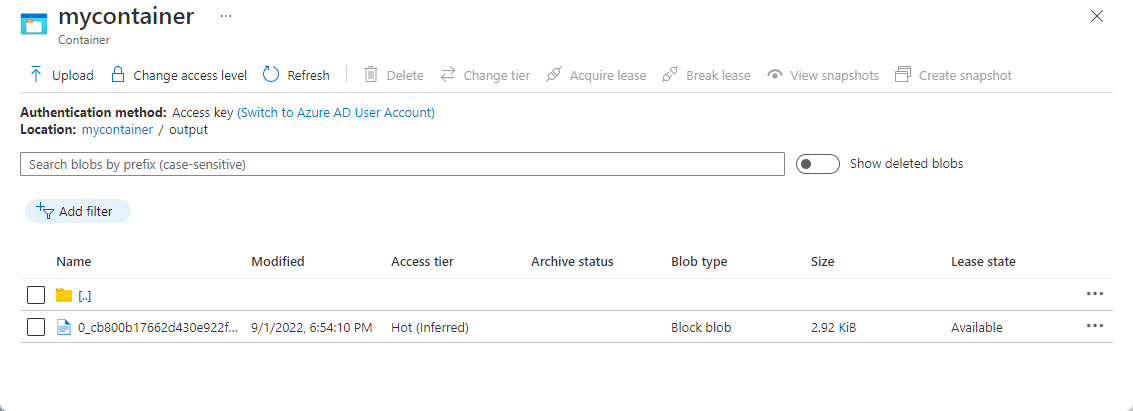
Download and open the file to see output.
{"messageId":11,"deviceId":"Raspberry Pi Web Client","temperature":28.165519323167562,"humidity":76.875393581654379,"EventProcessedUtcTime":"2022-09-01T22:53:58.1015921Z","PartitionId":3,"EventEnqueuedUtcTime":"2022-09-01T22:52:57.6250000Z","IoTHub":{"MessageId":null,"CorrelationId":null,"ConnectionDeviceId":"MyASAIoTDevice","ConnectionDeviceGenerationId":"637976642928634103","EnqueuedTime":"2022-09-01T22:52:57.6290000Z"}}
{"messageId":14,"deviceId":"Raspberry Pi Web Client","temperature":29.014941877871451,"humidity":64.93477299527828,"EventProcessedUtcTime":"2022-09-01T22:53:58.2421545Z","PartitionId":3,"EventEnqueuedUtcTime":"2022-09-01T22:53:03.6100000Z","IoTHub":{"MessageId":null,"CorrelationId":null,"ConnectionDeviceId":"MyASAIoTDevice","ConnectionDeviceGenerationId":"637976642928634103","EnqueuedTime":"2022-09-01T22:53:03.6140000Z"}}
{"messageId":17,"deviceId":"Raspberry Pi Web Client","temperature":28.032846241745975,"humidity":66.146114343897338,"EventProcessedUtcTime":"2022-09-01T22:53:58.2421545Z","PartitionId":3,"EventEnqueuedUtcTime":"2022-09-01T22:53:19.5960000Z","IoTHub":{"MessageId":null,"CorrelationId":null,"ConnectionDeviceId":"MyASAIoTDevice","ConnectionDeviceGenerationId":"637976642928634103","EnqueuedTime":"2022-09-01T22:53:19.5830000Z"}}
{"messageId":18,"deviceId":"Raspberry Pi Web Client","temperature":30.176185593576143,"humidity":72.697359909427419,"EventProcessedUtcTime":"2022-09-01T22:53:58.2421545Z","PartitionId":3,"EventEnqueuedUtcTime":"2022-09-01T22:53:21.6120000Z","IoTHub":{"MessageId":null,"CorrelationId":null,"ConnectionDeviceId":"MyASAIoTDevice","ConnectionDeviceGenerationId":"637976642928634103","EnqueuedTime":"2022-09-01T22:53:21.6140000Z"}}
{"messageId":20,"deviceId":"Raspberry Pi Web Client","temperature":27.851894248213021,"humidity":71.610229530268214,"EventProcessedUtcTime":"2022-09-01T22:53:58.2421545Z","PartitionId":3,"EventEnqueuedUtcTime":"2022-09-01T22:53:25.6270000Z","IoTHub":{"MessageId":null,"CorrelationId":null,"ConnectionDeviceId":"MyASAIoTDevice","ConnectionDeviceGenerationId":"637976642928634103","EnqueuedTime":"2022-09-01T22:53:25.6140000Z"}}
{"messageId":21,"deviceId":"Raspberry Pi Web Client","temperature":27.718624694772238,"humidity":66.540445035685153,"EventProcessedUtcTime":"2022-09-01T22:53:58.2421545Z","PartitionId":3,"EventEnqueuedUtcTime":"2022-09-01T22:53:48.0820000Z","IoTHub":{"MessageId":null,"CorrelationId":null,"ConnectionDeviceId":"MyASAIoTDevice","ConnectionDeviceGenerationId":"637976642928634103","EnqueuedTime":"2022-09-01T22:53:48.0830000Z"}}
{"messageId":22,"deviceId":"Raspberry Pi Web Client","temperature":27.7849054424326,"humidity":74.300662748167085,"EventProcessedUtcTime":"2022-09-01T22:54:09.3393532Z","PartitionId":3,"EventEnqueuedUtcTime":"2022-09-01T22:54:09.2390000Z","IoTHub":{"MessageId":null,"CorrelationId":null,"ConnectionDeviceId":"MyASAIoTDevice","ConnectionDeviceGenerationId":"637976642928634103","EnqueuedTime":"2022-09-01T22:54:09.2400000Z"}}
{"messageId":28,"deviceId":"Raspberry Pi Web Client","temperature":30.839892925680324,"humidity":76.237611741451786,"EventProcessedUtcTime":"2022-09-01T22:54:47.8053253Z","PartitionId":3,"EventEnqueuedUtcTime":"2022-09-01T22:54:47.6180000Z","IoTHub":{"MessageId":null,"CorrelationId":null,"ConnectionDeviceId":"MyASAIoTDevice","ConnectionDeviceGenerationId":"637976642928634103","EnqueuedTime":"2022-09-01T22:54:47.6150000Z"}}
{"messageId":29,"deviceId":"Raspberry Pi Web Client","temperature":30.561040300759053,"humidity":78.3845172058103,"EventProcessedUtcTime":"2022-09-01T22:54:49.8070489Z","PartitionId":3,"EventEnqueuedUtcTime":"2022-09-01T22:54:49.6030000Z","IoTHub":{"MessageId":null,"CorrelationId":null,"ConnectionDeviceId":"MyASAIoTDevice","ConnectionDeviceGenerationId":"637976642928634103","EnqueuedTime":"2022-09-01T22:54:49.5990000Z"}}
{"messageId":31,"deviceId":"Raspberry Pi Web Client","temperature":28.163585438418679,"humidity":60.0511571297096,"EventProcessedUtcTime":"2022-09-01T22:55:25.1528729Z","PartitionId":3,"EventEnqueuedUtcTime":"2022-09-01T22:55:24.9050000Z","IoTHub":{"MessageId":null,"CorrelationId":null,"ConnectionDeviceId":"MyASAIoTDevice","ConnectionDeviceGenerationId":"637976642928634103","EnqueuedTime":"2022-09-01T22:55:24.9120000Z"}}
{"messageId":32,"deviceId":"Raspberry Pi Web Client","temperature":31.00503387156985,"humidity":78.68821066044552,"EventProcessedUtcTime":"2022-09-01T22:55:43.2652127Z","PartitionId":3,"EventEnqueuedUtcTime":"2022-09-01T22:55:43.0480000Z","IoTHub":{"MessageId":null,"CorrelationId":null,"ConnectionDeviceId":"MyASAIoTDevice","ConnectionDeviceGenerationId":"637976642928634103","EnqueuedTime":"2022-09-01T22:55:43.0520000Z"}}
Clean up resources
When you no longer need the resources, delete the resource group, the Stream Analytics job, and all related resources. Deleting the job stops billing for the streaming units the job consumes. If you plan to use the job in the future, you can stop it and restart it later when you need. If you aren't going to continue to use this job, delete all resources created by this quickstart by using the following steps:
From the left menu in the Azure portal, select Resource groups and then select the name of the resource that you created.
On your resource group page, select Delete. Enter the name of the resource to delete in the text box, and then select Delete.
Next steps
To learn more about ASA Tools extension for Visual Studio Code, see the following articles: