Note
Access to this page requires authorization. You can try signing in or changing directories.
Access to this page requires authorization. You can try changing directories.
Important
Virtual WAN connection policy is currently in Public Preview and is provided without a service-level agreement. It shouldn't be used for production workloads. See the Supplemental Terms of Use for Microsoft Azure Previews for legal terms that apply to Azure features that are in beta, preview, or otherwise not yet released into general availability.
The following document describes how to use connection policy in Azure Virtual WAN.
Known issues
The following table contains known issues with Virtual WAN connection policy.
| Issue | Status |
|---|---|
| Virtual WAN portal experience for connection policy isn't available. | Currently, connection policy can be managed via Azure Virtual Network Manager. Virtual WAN Azure portal support for connection policy is currently rolling out. |
| Connection policy experience in Azure Virtual Network Manager is greyed out. | Connection policy experience in Azure Virtual Network Manager runs a few validation checks before allowing users to assign a connection policy to Network Manager connectivity configuration. |
| Connection policy doesn't allow for propagated route tables to be set to a remote route table from a different Virtual WAN hub. | Reference best practices for guidance. |
Background
Connection policies provide a way to group multiple Virtual WAN connections and apply common configuration to them. Connection policies are designed to make bulk-management easier by allowing you to apply configurations to a group of Virtual Network connections as one atomic operation. Connection policies also provide enforcement. Properties configured through connection policies override connection-specific configurations, ensuring that the correct configuration is applied to all connections under the policy and prevent accidental misconfiguration of individual connections.
Connection policies aren't designed to be a replacement for all connection-level configuration properties, and there may be some connection-specific properties that can't be configured through connection policies. For example, static routes require next hop IP addresses that are specific to each connection and can't be repeated across multiple connections.
Application scope
Connection policies are scoped to the Virtual WAN hub on which the policy is created. As a result, a connection policy can only manage connections connected to the same Virtual WAN hub. In addition, connection policies can only be applied to Virtual Network connections.
Connection policies can manage the following properties of Virtual Network connections. Other properties such as static routes are connection-specific and bulk management isn't applicable.
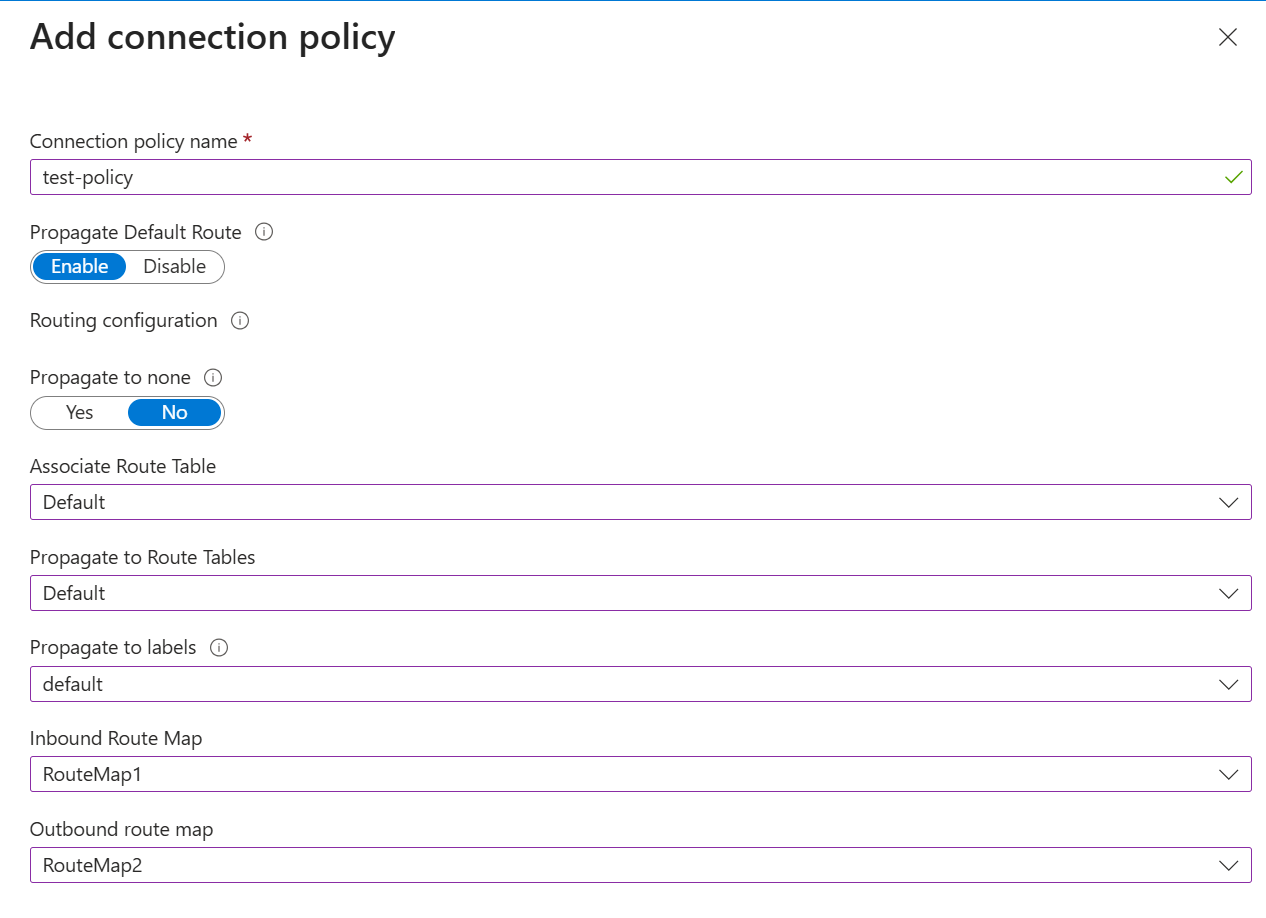
- Enable internet security: Controls whether or not Virtual WAN advertises the default route (0.0.0.0/0) to the Virtual Network connection.
- Associated route table: Specifies which Virtual WAN route table is associated with the Virtual Network connection.
- Propagated route table: Specifies which Virtual WAN route table is associated with the Virtual Network connection and propagates routes to. In connection policy, this property can only reference local route tables. Reference remote route tables using labels.
- Propagated labels: Specifies which labels the Virtual Network connection propagates to.
- Inbound/Outbound route maps: Specifies which route maps are applied to routes learnt from or advertised to the Virtual Network connection.
Configuration order of preference
Virtual WAN control plane uses the following order of preference when determining which configuration to apply to Virtual Network connections with conflicting settings. Configurations higher in the list take precedence over configurations lower in the list.
- Routing-intent managed settings (associated and propagated route tables and labels).
- Connection policy settings.
- Connection-level settings.
Best Practices
- Connection policies can't reference remote route tables. Instead, use Virtual WAN route table labels with connection policies to group propagated route tables across multiple Virtual WAN hubs. Reference Virtual WAN route table labels in connection policy to simplify operations.
- Carefully define update domains within Virtual WAN to minimize the impact of configuration changes on your network. Instead of assigning all Virtual Network connections to a single connection policy, group connections into multiple connection policies corresponding to different update domains and apply changes in an incremental fashion.
Other Considerations
- A Virtual network connection can only be managed by one connection policy at a time. If you have different groups of connections with different configurations, create multiple connection policies and group the connections accordingly.
- Routing intent automatically configures the associations and propagations for Virtual Network connections. Connection policies can't override the associated and propagated route tables and labels for Virtual Network connections to hubs configured with routing intent.
- Connection policies can't be used to create new Virtual Network connections. Create the Virtual Network connections and then add the new connection to an existing connection policy, or use Azure Virtual Network Manager to facilitate the creation of new Virtual network connections to Virtual WAN.
- Connection policies don't overwrite existing connection-level settings. Instead, connection policies are applied on top of connection-level settings. If there are conflicting settings between a connection policy and connection-level settings, the connection policy settings take precedence. You can easily roll back any changes by removing the connection from the connection policy.
Create a connection policy
- Navigate to your Virtual WAN hub.
- Under Routing select Connection policies.
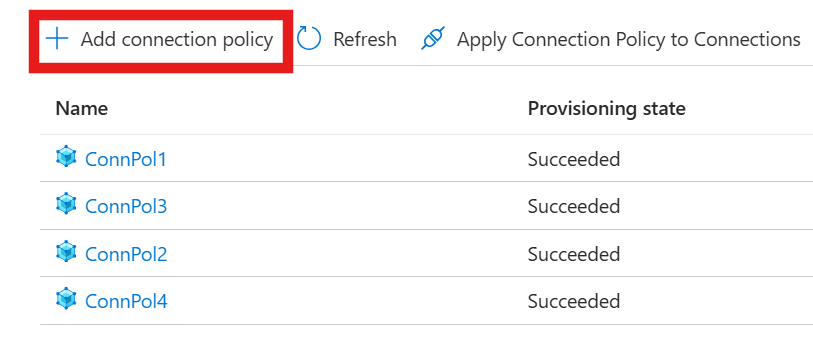
- Name the connection policy, and configure the routing configuration settings that you want to apply to all connections under the connection policy. Click Save.
Update a connection policy
- Click on the connection policy to modify.
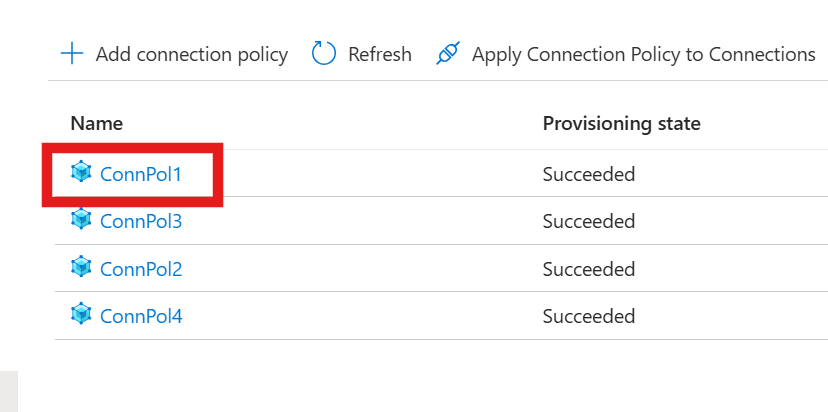
- Change any of the available properties of the connection policy. Do not change the name of the connection policy.
- Review the Virtual Network Connections tab to see which connections are impacted by the changes to the connection policy.
- Select Save to apply the changes to the connection policy and propagate the changes to all Virtual Network connections utilizing the connection policy.
Add new Virtual Network connections to connection policy
- Click on Apply Connection Policy to Connections.
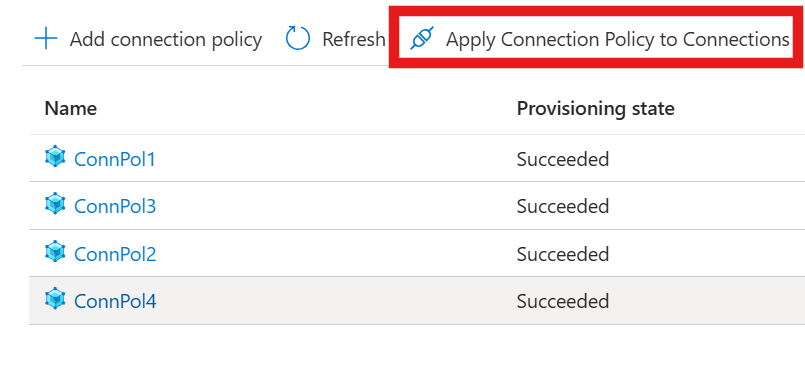
- Select the connection policy you want to apply to Virtual Network connections.
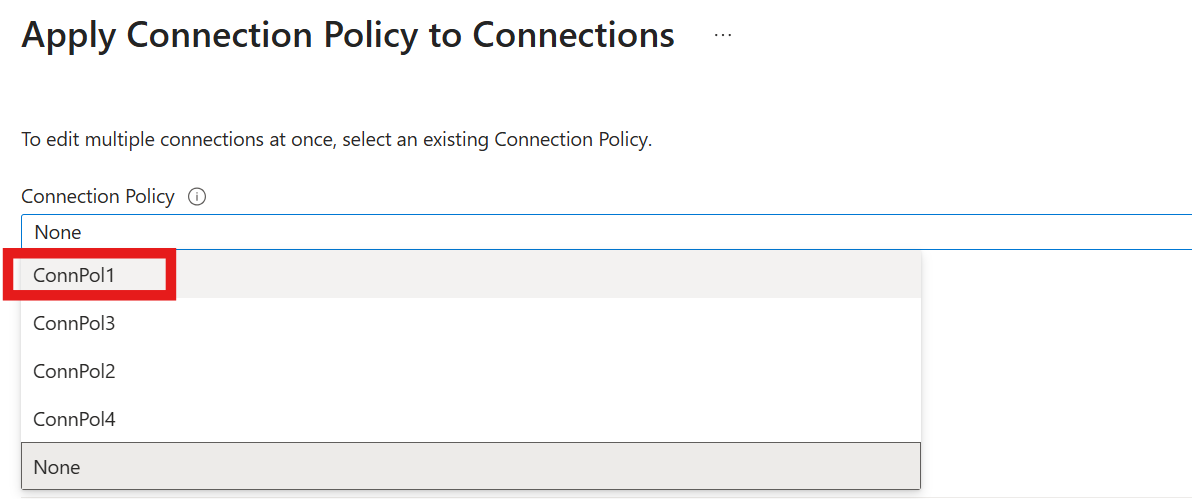
- Select the Virtual Network connections you want to apply the connection policy to. You can select multiple connections at once. If a connection is already assigned to a connection policy, selecting the connection moves the connection from the current connection policy to the new connection policy.
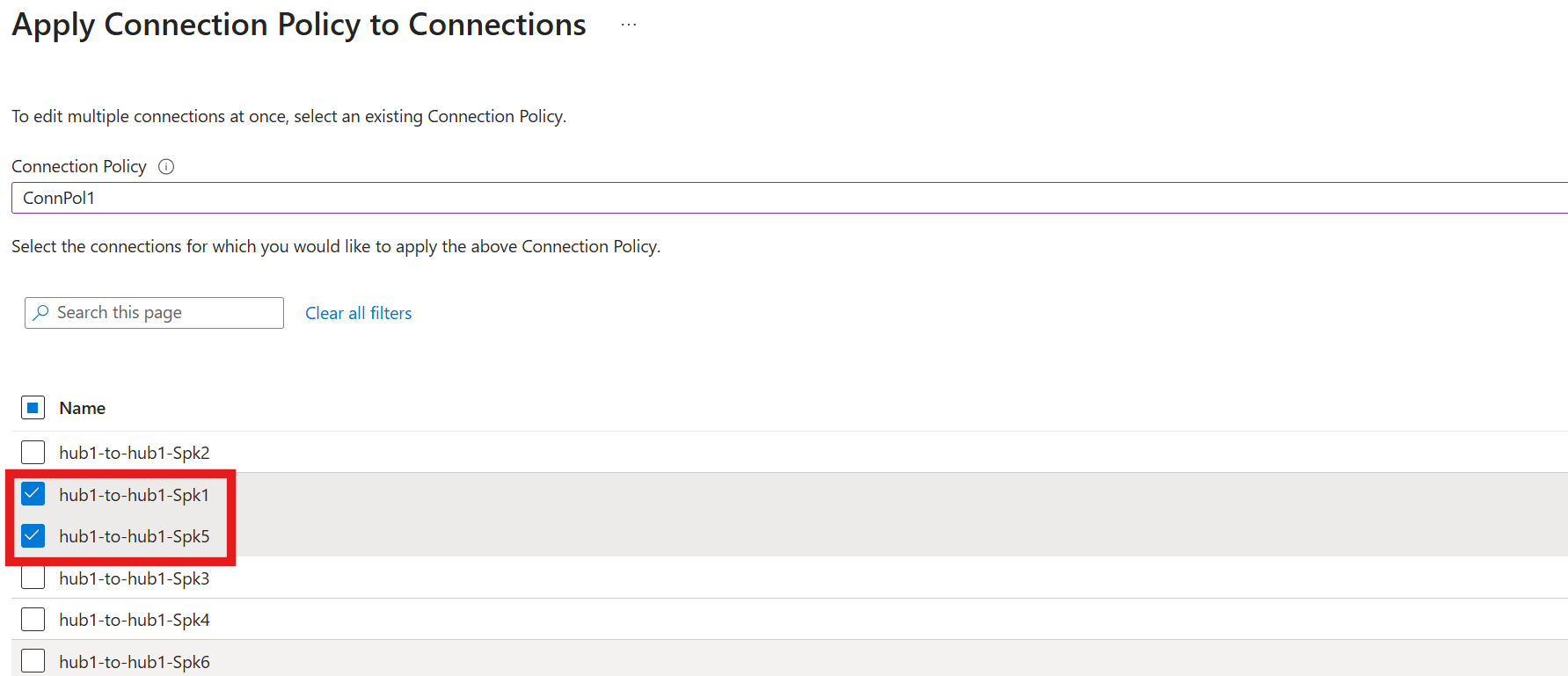
- Review the selected connections, and select Save*
Remove Virtual Network connections from connection policy
- Click on Apply Connection Policy to Connections.
- Select the connection policy you want to apply to Virtual Network connections as None.
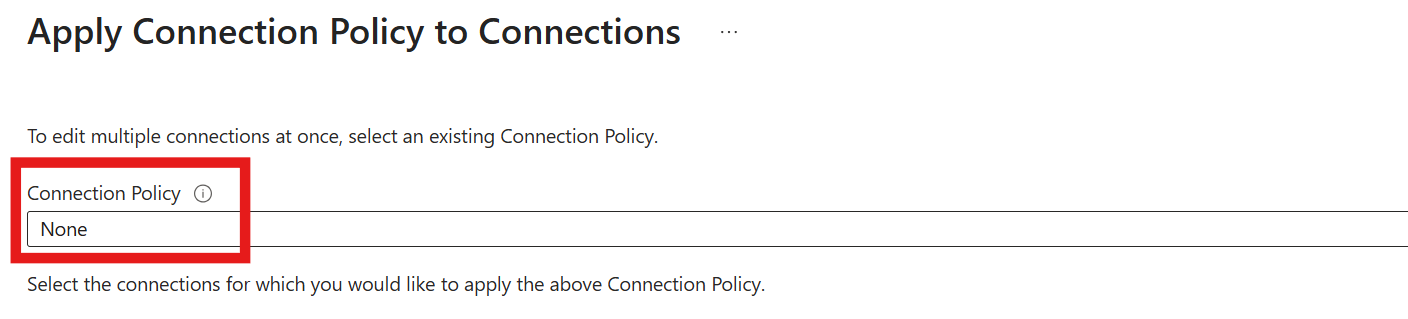
- Select the Virtual Network connections you want to dissociate from connection policy and select Save. This removes the connection policy settings from the Virtual Network connections and any existing connection-level settings take effect.
