Note
Access to this page requires authorization. You can try signing in or changing directories.
Access to this page requires authorization. You can try changing directories.
Tamper protection helps prevent certain security settings, such as virus and threat protection, from being disabled or changed. Use the methods described in this article to configure tamper protection for Microsoft Defender Antivirus on Windows devices.
To configure tamper protection for Microsoft Defender for Endpoint on macOS, see Configure tamper protection for Microsoft Defender for Endpoint on macOS.
To protect organization-managed Microsoft Defender Antivirus exclusion lists from unauthorized changes, see Protect Microsoft Defender Antivirus exclusions with tamper protection.
For answers to common questions, see Frequently asked questions about tamper protection. For help with blocked settings and exclusion protection, see Troubleshoot problems with tamper protection.
Important
When tamper protection is turned on, tamper-protected settings can't be changed. Changes to these settings might appear to succeed, but tamper protection blocks the changes. Use troubleshooting mode to temporarily disable tamper protection when you need to change a protected setting.
A policy that manages tamper protection takes precedence over the organization-wide setting in the Microsoft Defender portal. A policy or portal setting also takes precedence over a setting that a local administrator configures in the Windows Security app.
Prerequisites
For operating system, product version, licensing, permissions, and device-management requirements, see Requirements for tamper protection.
Configure tamper protection in Microsoft Intune
Microsoft Intune is the recommended tool for configuring and distributing Defender for Endpoint features to devices. However, Intune is a separate product that isn't part of Defender for Endpoint, and it isn't included in all subscriptions. To use Intune, you need a subscription that includes it, or you can buy it separately as a standalone subscription or add-on. If you don't have Intune, you can use any of the other methods in this article. For more information, see Microsoft Intune licensing.
To configure tamper protection in Intune, use an endpoint security Antivirus policy. For detailed instructions, see Create endpoint security policies or Modify existing policies (links open new tabs in the Intune documentation).
Assign the policy to your entire organization or to selected user or device groups. You can also exclude specific groups from the policy assignment.
When you create the policy, use these specific settings:
- Policy type: Go to Manage > Antivirus on the Endpoint security | Overview page at https://intune.microsoft.com/#view/Microsoft_Intune_Workflows/SecurityManagementMenu/~/overview.
- Platform: Select Windows.
- Profile: Select Windows Security Experience.
When you create or modify the policy, use these specific settings on the Configuration settings tab:
- Tamper protection (device) in the Defender section: Select On.
Configure tamper protection in the Microsoft Defender portal
Note
Tamper protection is on by default for new deployments as part of built-in protection.
If tamper protection is deployed and managed through Intune, the Intune policy takes precedence. Changing the setting in the Defender portal doesn't change the policy-managed state. Instead, the Defender portal setting restricts tamper-protected settings to their secure default values.
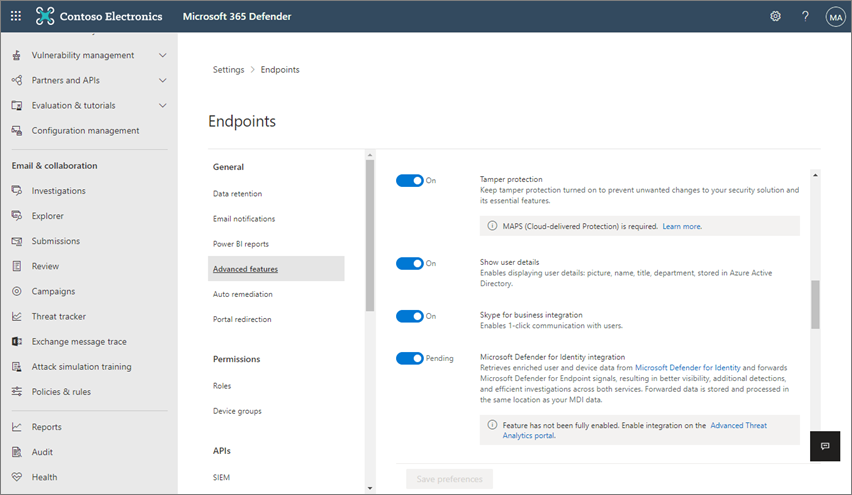
On the Advanced features page in the Microsoft Defender portal at https://security.microsoft.com/preferences2/endpoints, slide the Tamper protection toggle to  On or
On or  Off.
Off.
Configure tamper protection using Microsoft Configuration Manager
Note
Configuration Manager doesn't support configuring tamper protection directly. Use tenant attach to deploy the setting from the Intune admin center. Tenant attach synchronizes on-premises Configuration Manager devices with the Microsoft Intune admin center so you can deploy endpoint security policies to device collections.
To configure tamper protection for tenant-attached devices, use an endpoint security Antivirus policy. For detailed instructions, see Create endpoint security policies or Modify existing policies (links open new tabs in the Intune documentation).
When you create the policy, use these specific settings:
- Policy type: Go to Manage > Antivirus on the Endpoint security | Overview page at https://intune.microsoft.com/#view/Microsoft_Intune_Workflows/SecurityManagementMenu/~/overview.
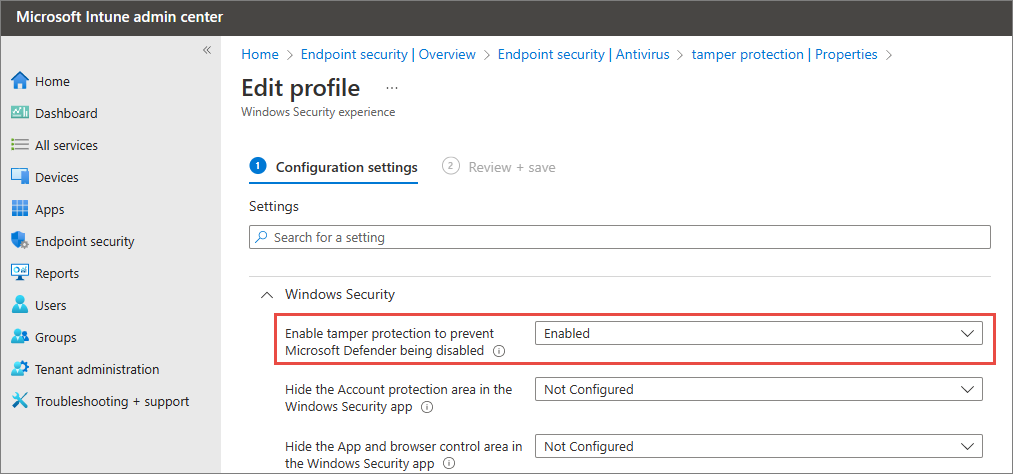
- Platform: Select Windows (ConfigMgr).
- Profile: Select Windows Security experience (ConfigMgr).
When you create or modify the policy, use these specific settings on the Configuration settings tab:
- Enable tamper protection to prevent Microsoft Defender from being disabled in the Windows Security section: Select Enabled.
Configure tamper protection using the Windows Security app
You can use the Windows Security app to configure tamper protection on an individual device.
Use the following steps to turn tamper protection on or off:
In the Windows Security app on the device, go to Virus & threat protection.
In the Virus & threat protection pane, in the Virus & threat protection settings section, select Manage settings.
In the Virus & threat protection settings pane, slide the Tamper Protection toggle to
On or
Off.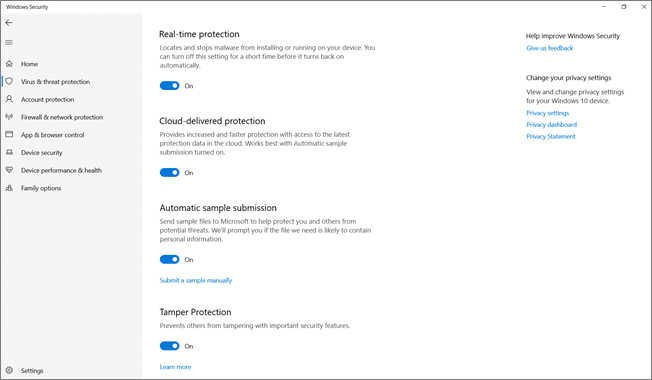
Configure tamper protection using PowerShell
You can't use PowerShell to configure tamper protection during normal operation.
Temporarily disable tamper protection using PowerShell
The PowerShell command to temporarily disable tamper protection works only while the device is in Defender for Endpoint troubleshooting mode.
For instructions, see Temporarily disable tamper protection using PowerShell.
Determine the status of tamper protection and real-time protection using PowerShell
To determine the current status of tamper protection and real-time protection on a device, run the following command:
Get-MpComputerStatus | Select-Object IsTamperProtected, RealTimeProtectionEnabled
The value True means the setting is enabled. The value False means the setting is disabled.