Note
Access to this page requires authorization. You can try signing in or changing directories.
Access to this page requires authorization. You can try changing directories.
On Windows devices, troubleshooting mode in Microsoft Defender for Endpoint lets you temporarily change certain policy-managed Microsoft Defender Antivirus settings. Use troubleshooting mode to diagnose performance, application compatibility, false positives, and other antivirus issues, including when tamper protection prevents changes to protected settings.
Troubleshooting mode is available for devices enrolled in Defender for Endpoint that run Windows or macOS. Currently, troubleshooting mode isn't available for Linux devices. On macOS, troubleshooting mode doesn't allow you to disable tamper protection. For macOS requirements and instructions, see Troubleshooting mode in Microsoft Defender for Endpoint on macOS.
While troubleshooting mode is active, local administrators can change settings on individual devices that are usually locked by policy. Local administrators can't turn off or uninstall Microsoft Defender Antivirus, but they can change other Microsoft Defender Antivirus security settings, such as cloud protection and tamper protection.
Troubleshooting mode can take up to 15 minutes to start and automatically turns off after four hours. It's limited to eight hours per device, and the quota resets 24 hours after troubleshooting mode is first enabled. When troubleshooting mode expires, policy-managed settings become read-only and revert to their previous values. The device user receives notifications when troubleshooting mode starts, is about to end, and ends.
Temporarily disabling tamper protection can increase security risk. The device must be online when you temporarily disable tamper protection.
Changes delivered through management policies while troubleshooting mode is active don't take effect until troubleshooting mode expires. Microsoft Defender Antivirus platform updates also aren't applied while troubleshooting mode is active. Platform updates are applied after troubleshooting mode ends when Windows Update runs.
Prerequisites
Before you enable troubleshooting mode, verify the following requirements:
- The Microsoft Entra Security Administrator role. For least-privileged access, use a custom Microsoft Defender unified role-based access control (RBAC) role with Authorization and settings \ Security settings \ Core security settings (manage) and Authorization and settings \ Security settings \ Detection tuning (manage) permissions. For more information, see Microsoft Defender unified RBAC.
- A device that's enrolled and active in Defender for Endpoint.
- Microsoft Defender Antivirus platform version
4.18.2203(March 2022) or later, actively running on the device. - One of the following operating systems and minimum versions or builds:
Windows 10:
- 21H2 (November 2021): Build
19044.1618(March 2022) or later. - 21H1 (May 2021): Build
19043.1620(March 2022) or later. - 20H2 (October 2020): Build
19042.1620(March 2022) or later. - 20H1 (May 2020): Build
19041.1620(March 2022) or later.
For the update, see KB5011543: Microsoft Update Catalog.
- 21H2 (November 2021): Build
Windows 11: Supported versions.
- 21H2 (October 2021): Build
22000.593(March 2022) or later is required. For the update, see KB5011563: Microsoft Update Catalog.
- 21H2 (October 2021): Build
Windows Server 2019: Build
17763.2746(March 2022) or later. For the update, see KB5011551: Microsoft Update Catalog.Windows Server 2022: Build
20348.617(March 2022) or later. For the update, see KB5011558: Microsoft Update Catalog.Later Windows Server versions.
Azure Stack HCI: Version 23H2 (November 2023) or later.
Windows Server 2012 R2 or Windows Server 2016: The modern unified solution with all of the following minimum component versions:
- Microsoft Defender for Endpoint sensor version
10.8049.22439.1084(September 2022) or later. For the update, see KB5005292: Microsoft Update Catalog. - Microsoft Defender Antivirus platform version
4.18.2207.7(August 2022) or later. For the update, see KB4052623: Microsoft Update Catalog. - Microsoft Defender Antivirus engine version
1.1.19500.2(July 2022) or later. For updates, see Security intelligence updates for Microsoft Defender Antivirus.
- Microsoft Defender for Endpoint sensor version
Enable troubleshooting mode in the Microsoft Defender portal
Enable troubleshooting mode on a device before making temporary changes to its Microsoft Defender Antivirus settings:
On the Device inventory page in the Microsoft Defender portal at https://security.microsoft.com/machines, select anywhere in the device row except the check box.
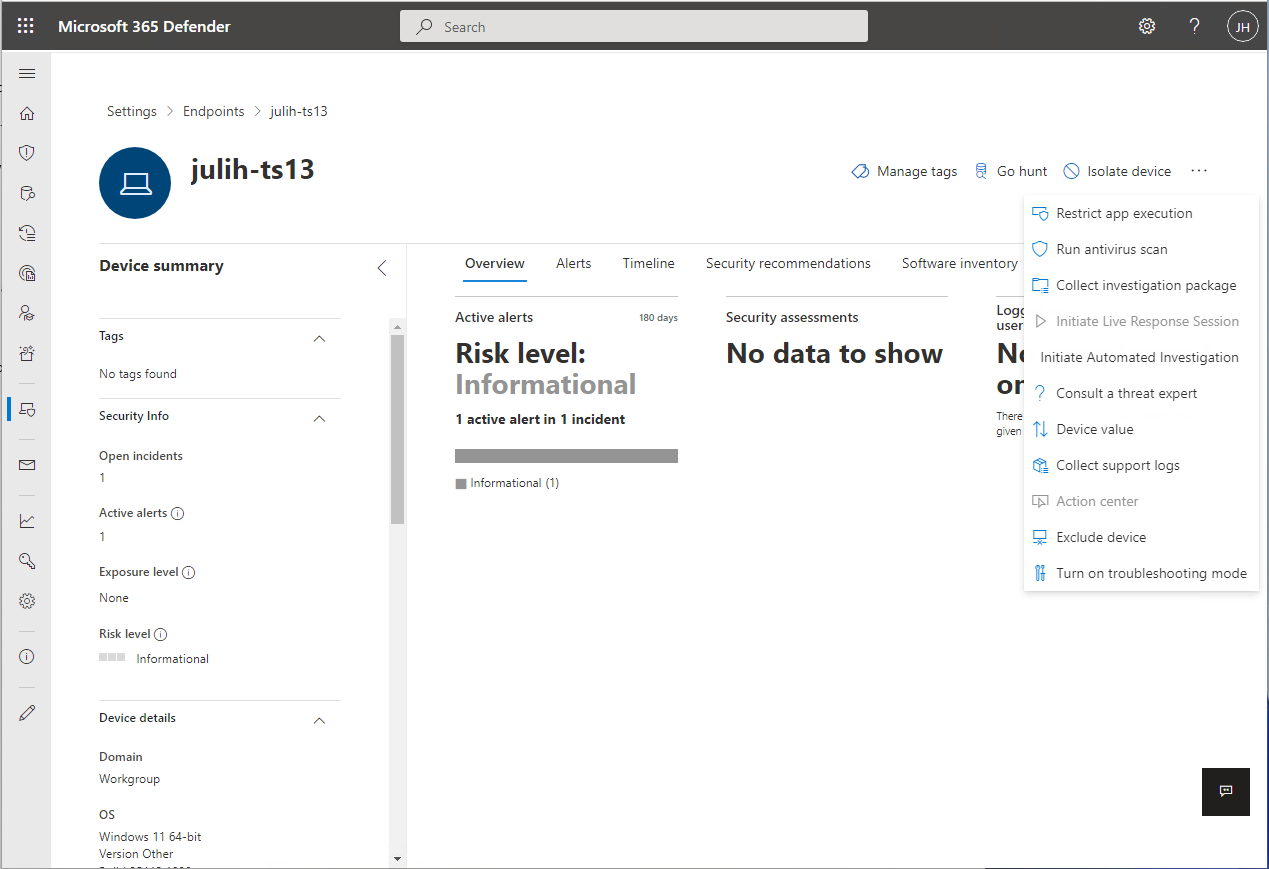
On the device details page, select More options (...), and then select Turn on troubleshooting mode.
Note
The Turn on troubleshooting mode option appears for all devices, even if a device doesn't meet the prerequisites.
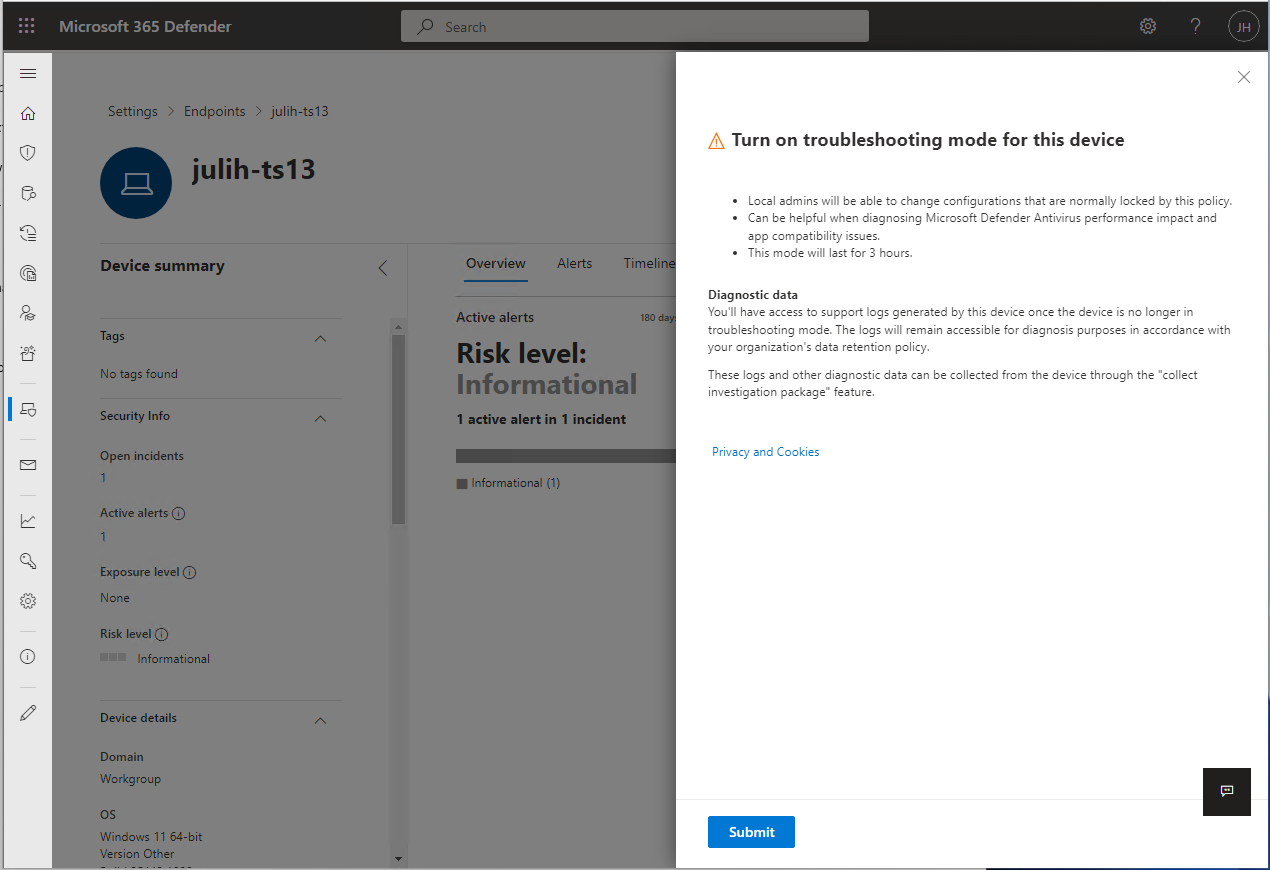
In the confirmation flyout, select Submit.
Wait for the device details page to show that troubleshooting mode is active. Activation can take up to 15 minutes.
Temporarily disable tamper protection
After troubleshooting mode is active, use PowerShell on a supported Windows device or the Windows Security app on a supported Windows client device to temporarily disable tamper protection.
Temporarily disable tamper protection using PowerShell
To temporarily disable tamper protection while the device is in troubleshooting mode, run the following Set-MpPreference command in an elevated PowerShell session (a PowerShell window you opened by selecting Run as administrator):
Set-MPPreference -DisableTamperProtection $true
To verify the status of tamper protection on the device, run the following command:
Get-MpComputerStatus | Select-Object IsTamperProtected
The value False confirms that tamper protection is off.
Temporarily disable tamper protection using the Windows Security app
Follow the steps in Configure tamper protection using the Windows Security app to turn off tamper protection.
Note
You don't need to turn tamper protection back on manually. When troubleshooting mode expires, the temporary change is discarded, and tamper protection returns to its previous policy-managed state. If tamper protection was previously on, it turns back on. If it was previously off, it remains off.
Review troubleshooting mode results
Defender for Endpoint collects logs and investigation data throughout the troubleshooting process:
- A snapshot of
MpPreferenceis taken before troubleshooting mode begins. - A second snapshot is taken just before troubleshooting mode expires.
- Operational logs are collected while troubleshooting mode is active.
Use the following methods to review or collect troubleshooting mode information:
- Microsoft Defender portal: Review when troubleshooting mode started and ended in the Device Timeline on the device page.
- Event Viewer: Expand Applications and Services Logs > Microsoft > Windows > Windows Defender, and then select Operational. Events might include event IDs 5000, 5001, 5004, and 5007. For more information, see Review event logs and error codes to troubleshoot issues with Microsoft Defender Antivirus.
- Investigation package: Use Collect investigation package on the device page to collect the logs and snapshots. The data remains on the device until an administrator collects it.
- Advanced hunting: Use the advanced hunting queries to review troubleshooting mode events.
Advanced hunting queries
Use the following advanced hunting queries to view troubleshooting mode events in your environment. You can also use the queries to create detection rules that generate alerts when devices are in troubleshooting mode.
Get troubleshooting events for a particular device
Search by deviceId or deviceName by commenting out the line that you don't want to use.
//let deviceName = "<deviceName>";   // update with device name
let deviceId = "<deviceID>";   // update with device id
DeviceEvents
| where DeviceId == deviceId
//| where DeviceName  == deviceName
| where ActionType == "AntivirusTroubleshootModeEvent"
| extend _tsmodeproperties = parse_json(AdditionalFields)
| project Timestamp,DeviceId, DeviceName, _tsmodeproperties,
 _tsmodeproperties.TroubleshootingState, _tsmodeproperties.TroubleshootingPreviousState, _tsmodeproperties.TroubleshootingStartTime,
 _tsmodeproperties.TroubleshootingStateExpiry, _tsmodeproperties.TroubleshootingStateRemainingMinutes,
 _tsmodeproperties.TroubleshootingStateChangeReason, _tsmodeproperties.TroubleshootingStateChangeSource
Devices currently in troubleshooting mode
DeviceEvents
| where Timestamp > ago(3h) // troubleshooting mode automatically disables after 4 hours
| where ActionType == "AntivirusTroubleshootModeEvent"
| extend _tsmodeproperties = parse_json(AdditionalFields)
| where _tsmodeproperties.TroubleshootingStateChangeReason contains "started"
|summarize (Timestamp, ReportId)=arg_max(Timestamp, ReportId), count() by DeviceId
| order by Timestamp desc
Count of troubleshooting mode instances by device
DeviceEvents
| where ActionType == "AntivirusTroubleshootModeEvent"
| extend _tsmodeproperties = parse_json(AdditionalFields)
| where Timestamp > ago(30d)  // choose the date range you want
| where _tsmodeproperties.TroubleshootingStateChangeReason contains "started"
| summarize (Timestamp, ReportId)=arg_max(Timestamp, ReportId), count() by DeviceId
| sort by count_
Count troubleshooting mode instances in a time range
DeviceEvents
| where ActionType == "AntivirusTroubleshootModeEvent"
| extend _tsmodeproperties = parse_json(AdditionalFields)
| where Timestamp > ago(2d) //beginning of time range
| where Timestamp < ago(1d) //end of time range
| where _tsmodeproperties.TroubleshootingStateChangeReason contains "started"
| summarize (Timestamp, ReportId)=arg_max(Timestamp, ReportId), count()
| where count_ > 5          // choose your max # of TS mode instances for your time range