Note
Access to this page requires authorization. You can try signing in or changing directories.
Access to this page requires authorization. You can try changing directories.
[This article is prerelease documentation and is subject to change.]
Use the contact canvas to review contact details, engagement insights, notes, activity history, relationships, and related business records. Update supported information without switching between forms.
Important
- This is a preview feature.
- Preview features aren't meant for production use and may have restricted functionality. These features are available before an official release so that customers can get early access and provide feedback.
Prerequisites
- Your administrator enabled the contact canvas. Learn more in Manage canvases in CRM Canvas Designer.
- You have the required license and access to the contact and its related records. For supported licenses, see the Dynamics 365 Licensing Guide.
Open the contact canvas
- In Copilot Service workspace or Sales Hub, go to Contacts.
- Open the contact you want to review. The contact opens in the canvas experience.
Understand the contact canvas
Use section navigation to move around the page.
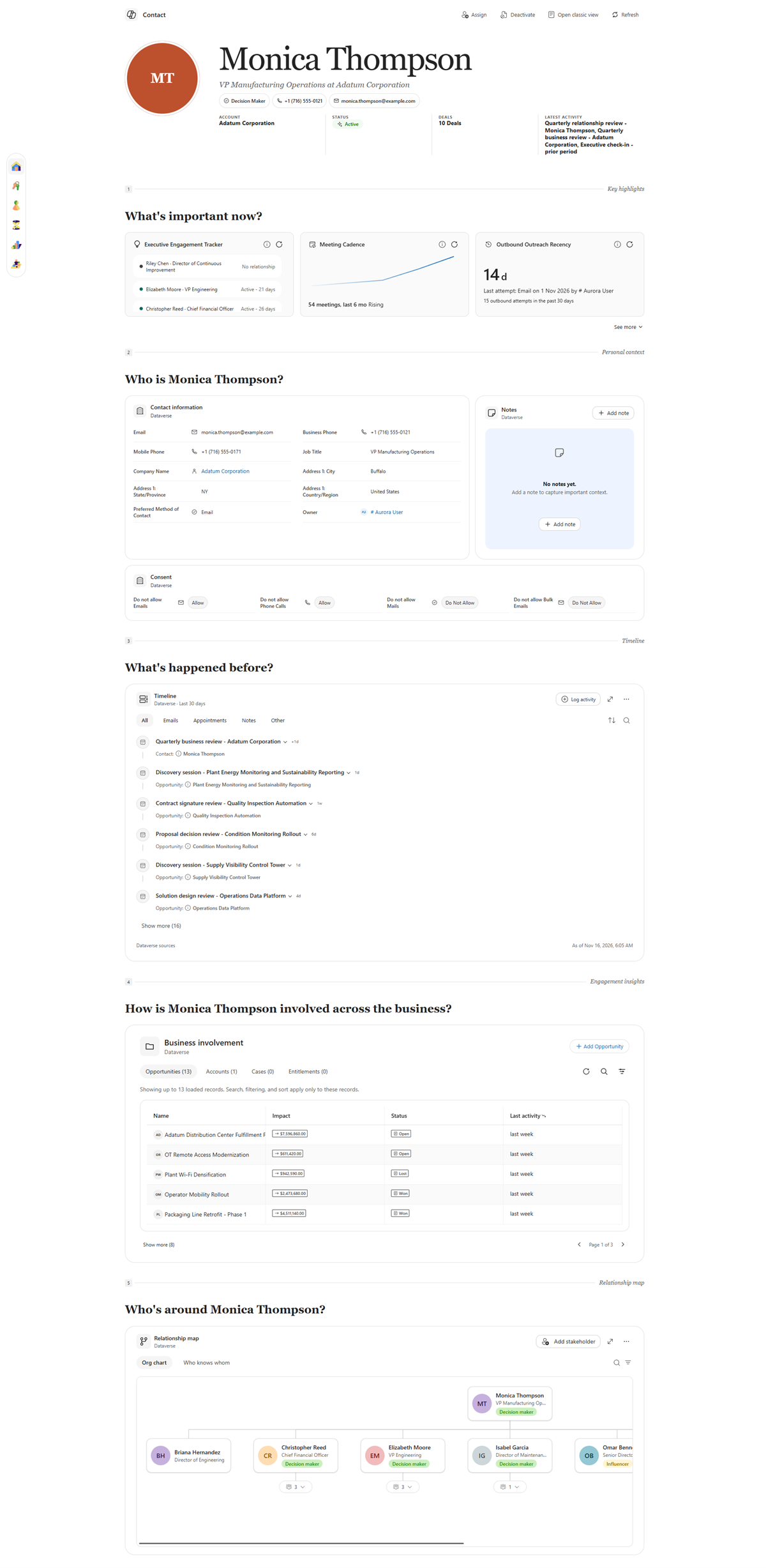
| Area | What you see | What you can do |
|---|---|---|
| Command bar | Assign, Deactivate, Open classic view, and Refresh. |
|
| Contact header | Contact name, job title, decision-maker designation, phone, email, account, status, deals, and latest activity. |
|
| What's important now? | Insight cards about engagement, outreach, and meeting cadence. By default, the component initially shows up to three cards. To view insights, your administrator must set up and configure insights. |
|
| Personal context: Contact information | Contact details such as email, phone numbers, company, job title, address, preferred contact method, and owner. |
|
| Personal context: Consent | Communication preferences for email, phone calls, mail, and bulk email. |
|
| Personal context: Notes | Notes associated with the contact. You need permission to create notes; adding a note doesn't send a message or complete a follow-up task. |
|
| What's happened before? | Timeline of recorded activities and notes. Conversations that weren't recorded don't appear. |
|
| Business involvement | Related Opportunities, Accounts, Cases, and Entitlements, with available impact, status, and last-activity details. |
|
| Relationship map | An Org chart view and a Who knows whom view of recorded relationships and connections. The map can't identify an introduction path to someone with no recorded connection. |
|
Understand insights and recommendations
Compare contact insights to distinguish your team's outreach attempts from the contact's responses. Your permissions, available data, and enabled insights determine which results you can see. Cards can show a value, comparison, trend, or list of records.
| Insight | Description |
|---|---|
| Contact Two-Way Engagement Recency | Shows the number of days since the contact last responded or otherwise engaged through a qualifying activity. The insight doesn't count unanswered outbound attempts. When qualifying history exists, the insight shows Warm, Cooling, or Cold. |
| Contact Outbound Outreach Recency | Shows the number of days since your team last attempted to contact the person, regardless of whether they responded. It measures outreach activity, not relationship health. |
| Meeting Cadence | Compares the number of qualifying recorded meetings in the past 30 days with the previous 30 days. It doesn't show a trend when there isn't enough history. |
For example, your team might have emailed a contact two days ago, but the contact last responded 60 days ago. Outbound outreach recency shows two days, while two-way engagement recency shows 60 days and Cold.
Interpret insight results
Check these limitations when you assess a result.
| Consideration | What to know |
|---|---|
| Recorded data | Built-in preview insights use Dynamics 365 data stored in Dataverse. They don't directly read untracked Outlook, Teams, or LinkedIn activity and might not reflect all customer activity. |
| Calculation time | Changes made after the As of timestamp might not appear in the result. |
| Copilot credits | Calculating insights in this preview uses your organization's Copilot credits; viewing them doesn't. If credits run out, insights keep their last result and As of timestamp until more credits are available. |
| Meeting records | Completed appointments can identify invited contacts but don't confirm attendance. Insights might not count meetings that are still scheduled or aren't tracked in Dataverse. |
| Limited history | Don't interpret an empty engagement result as Cold or assume that a missing result means there's no risk. Cards might not show a result when they lack data. |
If a result appears incomplete, check the related records or ask your administrator to review data availability and configuration.