Note
Access to this page requires authorization. You can try signing in or changing directories.
Access to this page requires authorization. You can try changing directories.
This article describes some of the more common channel mapping scenarios in Microsoft Dynamics 365 Commerce that you can extrapolate for most other business requirements.
Dynamics 365 Commerce supports many business scenarios for mapping online channels that have a configured set of products, prices, and discounts to e-commerce site experiences for customers.
This article covers the following scenarios:
- A single-language channel that has a single e-commerce site experience. For example, this scenario might involve a single brand site that is configured for the US English market.
- A multilangauge channel that has a single localized site experience. For example, this scenario might involve a single brand site that is configured for Canada with French and English language support. In this scenario, users who select different languages have the same site experience, but it's localized into each user's selected language.
- A multilangauge channel that has a different site experience per language. For example, this scenario might involve a single brand site that is configured for Canada with French and English language support. In this scenario, there's a unique site experiences for each language.
- Multiple channels (single-language and/or multilangauge) that have a single localized site experience. For example, this scenario might involve a single brand site that is configured for Australia and New Zealand. In this scenario, both countries/regions share the same site experience in English, but each country/region is configured with different products, currency, prices, discounts, and shipping modes.
- Multiple channels (single-language and/or multilangauge) that have a different site experience per channel. For example, this scenario might involve a single brand site that is configured for Australia, Canada, and Germany in multiple languages. In this scenario, each country/region has a unique site experience that is configured with different products, currency, prices, discounts, and shipping modes.
Channels
A channel (also known as an online store or online channel) represents an online e-commerce storefront that you use to map products, pricing, discounts, languages, payment methods, delivery modes, fulfillment centers, and other aspects of the online experience that are available to your e-commerce customers. You create and manage channels in Commerce headquarters and map them to a single legal entity. The legal entity usually resides in a single country/region that requires tax reporting for the channel, and you can configure it with only a single currency.
For more information about channels, see Channel overview. For more information about how to create an online channel, see Set up an online channel.
The following example illustration from Commerce headquarters shows the default online channels that are deployed with Dynamics 365 Commerce if the demo data option is selected.

E-commerce sites
An e-commerce site contains a set of site pages that customers use to browse and shop. You manage e-commerce sites in Commerce site builder.
For more information about how to create and manage sites in site builder, see E-commerce site overview.
Common channel mapping scenarios
Dynamics 365 Commerce supports a wide range of channel mapping scenarios. The channel mapping scenarios that follow are just a subset of all possible channel mapping scenarios. They're intended as a guide to help you plan for any unique business scenarios that you have. The fictitious Adventure Works sporting goods store that is included with the Dynamics 365 Commerce demo data is used as an example for each scenario.
Single-language channel that has a single e-commerce site experience
In the most basic scenario, a single channel has a single language for selling in a single market. An example for this scenario is an Adventure Works online store that is set up for the US English market only.
The following example illustration shows a channel configuration in Commerce headquarters. In this configuration, the online channel supports only a single language (en-us), a single currency (USD), and a single business entity (usrt) that you use for tax reporting.

You can map the single online channel to a single e-commerce site in site builder. For information about how to create a new site and map it to a channel, see the Map a channel to a site in site builder section of this article.
Multi-language channel that has a single localized site experience
In this scenario, a single channel supports more than one language. Therefore, you can localize product names, descriptions, and attributes in Commerce headquarters. To provide a complete localized site experience, you can also localize marketing content on the site in Commerce site builder.
The limitation of this scenario is that you can configure a single channel with only one currency, one legal entity, and one set of products and prices. This configuration works best for countries/regions that have a single currency and multiple languages, a single legal entity, and a single set of products and prices. For example, Canada has both English and French languages.
You can configure each language in a channel with its own domain name. For example, you can configure the www.adventure-works.ca domain for the Canada English version, and the www.adventure-works-fr.ca domain for the Canada French version. Alternatively, you can configure different languages in a channel in a single domain, and then use a different path for each language. For example, you can configure the www.adventure-works.ca domain for the Canada English version, and then use the www.adventure-works.ca/fr path for the Canada French version. You can also enable geo detection to automatically redirect a user to the correct site, based on the user's location.
For information about how to enable customers to manually switch between languages, see the Add and configure the site picker module section of this article. For information about how to customize localized pages and fragments, see the Manage site content that has multiple channels and languages section.
Multi-language channel that has a different site experience per language
You might prefer a scenario where a single channel supports more than one language, but a different site experience renders for each language. The recommended method for implementing this scenario is to use page variants on a single site.
Another method is to create a new e-commerce site for each language in site builder, and then map each site to a single online channel and language. The result is a single online channel that is mapped to multiple e-commerce sites, one for each language. This multiple-site method requires extra management resources, because you manage more than one site in site builder.
Multiple channels (single-language and multilanguage) that have a single localized site experience
A branded site might require multiple online channels per region to support a different currency, set of products, and set of prices for each channel in a single site. For example, the Adventure Works site might have an online channel for the Canadian market that has multiple languages, a channel for the US market that has one language, and a channel for the German market that has one language. In this scenario, you configure each online channel for a region-specific legal entity, and it can have the same set of products that other channels have, a subset of those products, or a different set of products. Each channel also has its own prices in the regional currency, taxes, discounts, and shipping modes.
In this scenario, you can configure each market with its own domain names. For example, you can configure the www.adventure-works.com domain for the US market, and the www.adventure-works.de domain for the German market. Alternatively, you can configure each market to use a different path. For example, you can configure the www.adventure-works.com domain for the US market, and then use the www.adventure-works.com/de path for the German market. By enabling geo detection, users are automatically redirected to the correct site, based on their region.
You might also want your site to provide a drop-down list that lets users manually switch to a specific market. For more information, see the Add and configure the site picker module section of this article.
For information about how to configure multiple channels on a single site, see the Configure multiple channels on an e-commerce site section.
Multiple channels (single-language and multilanguage) that have a different site experience per channel
You might want to have multiple channels for a single brand in different regions, and you might want each region to have a different site experience. Two methods exist for implementing this scenario:
- Use page variants.
- Configure a different site for each online channel in site builder, and then map each site to a different online channel and language. This method requires extra management resources, because you manage more than one site in site builder.
Cross-channel sharing
Cross-channel sharing is useful when multiple channels on a single site can share content. For example, a retailer that has multiple brands and storefronts that are grouped under a single site can share some content among some or all of the storefronts. Shared content can include pages for terms and conditions, payment terms, shipment methods, and frequently asked questions (FAQ). For more information, see Enable and use cross-channel sharing.
Map a channel to a site in site builder
Multiple methods exist for creating and configuring sites to use different online channels.
Create a new site
You can create a new site in site builder by going to the Sites list page and selecting New site. In the New site dialog box, select the default online channel and language for the site, as shown in the following example illustration.

The site that you create is empty and doesn't include any site pages, such as a home page, category pages, or product pages.
For more information, see Create an e-commerce site.
Create a new site by using the site copy operation
Instead of creating a new, empty site, start with a copy of one of the starter sites that are provided in the Commerce module library, such as the Fabrikam or Adventure Works site.
To copy an existing site, go to the Sites list page in site builder, and select Copy site. In the Copy site dialog box, select the source site and specify the name of the destination site.
At this point, you can't select the default online channel and language for the site. However, you can configure those properties after the site copy operation is complete. When you first select the site on the Sites list page in site builder, the Setup your site dialog box appears, where you can select the default channel and language.
For more information about the site copy operation, see Copy an e-commerce site.
Manage an existing site channel
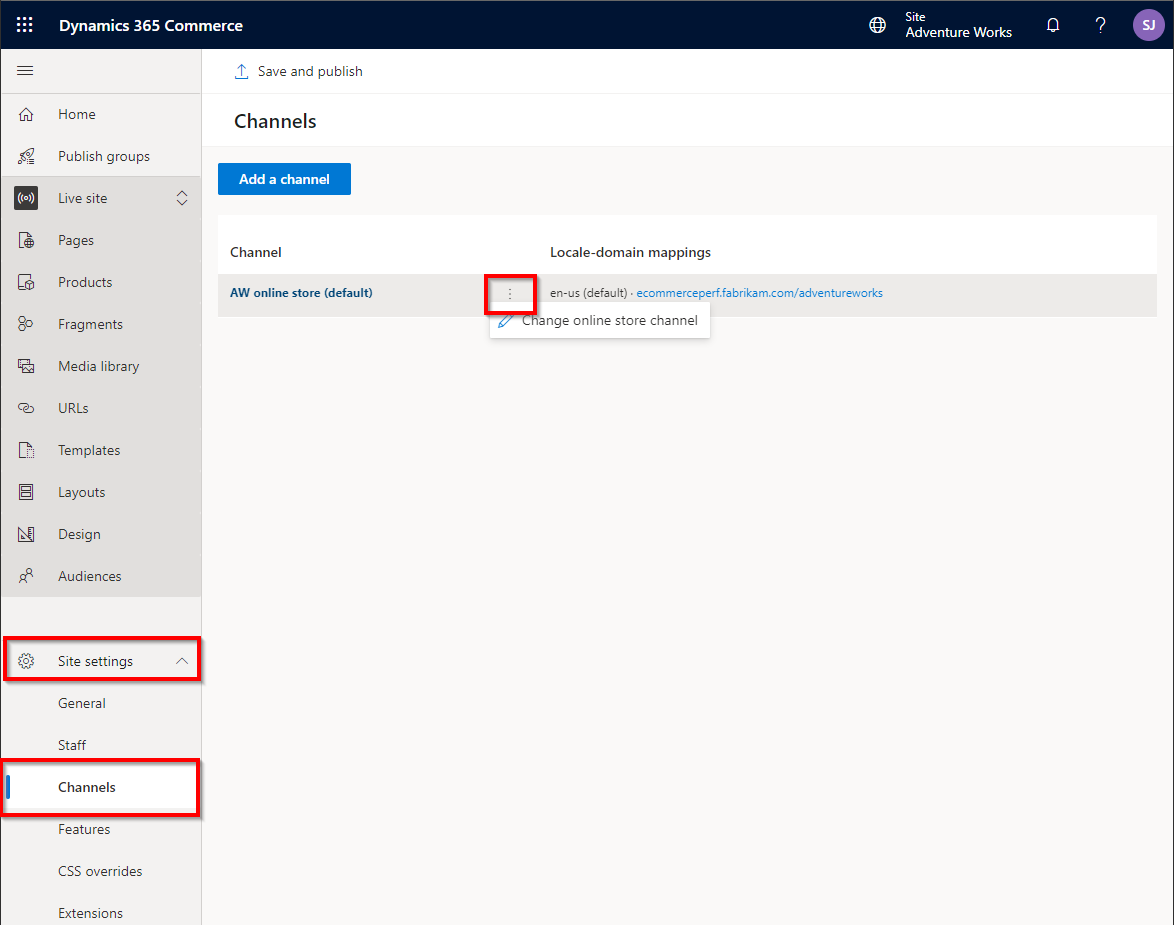
After you configure a site with a channel, manage and update the channel from within the selected site in site builder at Site settings > Channels, as shown in the following example illustration.
Support multiple sites in a single tenant
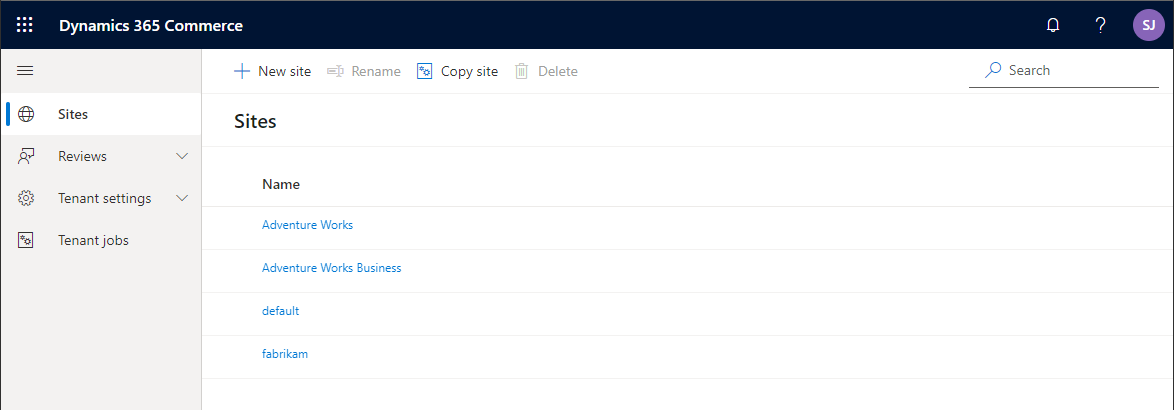
Many branded sites can coexist in a single tenant. The following example illustration shows three different branded sites (Adventure Works, Adventure Works Business, and Fabrikam), each of which is mapped to a different single online channel.
Configure a single domain name with paths for multiple sites
You can use a single domain name for multiple sites. Use paths to separate sites or languages. For example, the www.mycompany.com domain is configured for two different e-commerce sites: one for Fabrikam and one for Adventure Works. In this case, the default path (www.mycompany.com), also known as the blank path, works for the Fabrikam site, and another path (for example, www.mycompany.com/adventureworks) works for the Adventure Works site. You can also use a custom path (for example, www.mycompany.com/fabrikam) instead of the default path for the Fabrikam site.
Alternatively, use a different domain name for each site (for example, www.adventure-works.com and www.fabrikam.com). Use paths for different languages or regions (for example, www.adventure-works.com/fr-ca for Canada French).
Configure multiple languages on a site
Configure languages for the e-commerce site in site builder at Site settings > Channels. In the following example illustration, each language is configured by using the locale for the path, so that each language has a unique URL.

To add a new channel language, go to Site settings > Channels, and select the channel link. In the pane that appears, select Add a locale to select the channel and locale that you want to add. Then specify the path to use for the selected channel.
Add and configure the site picker module
After you configure a site with multiple languages or channels, add a language selector to the site page header, so that users can manually select their language or country/region. The module library header module has built-in support for users to select a language by using the site picker module. Add the site picker module to the header module in the header fragment.
For more information about how to add and configure the site picker module, see Site picker module.
Implement page variants for each language
In this scenario, there's only one channel, but there are multiple languages. You can change the appearance of a page based on the selected language by creating a page variant for it. You can then add localized content to the variant.
When you have a page open in site builder, and you select the link in the upper right that shows the current channel and language, a channel and language picker appears, as shown in the following example illustration. If you want to override the page for the current language, select another locale, and then select Change. You can also change the channel if you're managing a site that has multiple channels and languages.

If the variant for the selected page or fragment isn't created yet, you receive a warning message, as shown in the following example illustration. In this case, select the Create page variant link in the message text. The dialog box that appears provides options that let you either start with a copy of an existing variant or create a brand-new page from a template.

If you don't create a variant, the original page renders and shows the appropriate language for module strings and product information from Commerce headquarters. However, if text such as a page title or other marketing content is specified directly in default page modules, the strings for that text remain in the original language.
Instead of manually creating each page and fragment, you can export each page and fragment to an XML Localization Interchange File Format (XLIFF) file that you can send for localization. After each XLIFF is localized, you can import it as a localized page variant. To export an XLIFF file from a page or fragment in site builder, or to import an XLIFF file into a page or fragment, select Localization on the command bar. Then select either Export XLIFF or Import XLIFF, as shown in the following example illustration.

Manage site content that has multiple channels and languages
A site that has multiple channels and languages stores a unique variant of each page and fragment for each combination of a channel and a language. This behavior enables the page variants to contain localized data but also gives you the flexibility to change the look and feel of a page for a specific variant.
For information about how to work with page variants, see the Implement page variants for each language section of this article.
Configure multiple channels on an e-commerce site
You can add channels to an e-commerce site in site builder by going to Site settings > Channels and selecting Add a channel. Then, in the Add a channel dialog box that appears, you can select the online channel and default locale.
Additional resources
Organizations and organizational hierarchies overview
Set up geo detection and redirection