Note
Access to this page requires authorization. You can try signing in or changing directories.
Access to this page requires authorization. You can try changing directories.
The browser-like tabbed experience in Copilot Service workspace helps customer service representatives (service representatives or representatives) handle multiple sessions concurrently. Representatives can work on multiple cases and conversations, and perform other activities in a single workspace app. You can enable this experience and productivity tools for your representatives who use custom model-driven app.
Prerequisites
Make sure that the system requirements for Copilot Service workspace are met.
How it works
The process for enabling the multisession experience and productivity tools for a custom model-driven app is as follows:
Create a model-driven app from a solution in your development environment. Learn more in Build your first model-driven app.
In Copilot Service admin center, enable the multisession and productivity tools for the custom app as explained in the section that follows.
Validate the changes and test the experience in the custom app. The productivity tools settings are applied to the user account based on the experience profile that’s assigned to the user. Learn more in Experience profiles.
Export the solution from the development environment that contains the model-driven app and the corresponding sitemap. The multisession navigation settings are included in the app module by default. Learn more in Export solutions.
Import the solution in your testing environment, validate the changes, and test your customizations. Learn more in Import solutions.
Enable multisession experience and productivity tools
Perform the following steps to enable the experience.
In the site map of Copilot Service admin center, go to Workspaces.
Select Manage in Productivity setting for model-driven apps.
Select the custom model-driven app you want to use and select Edit.
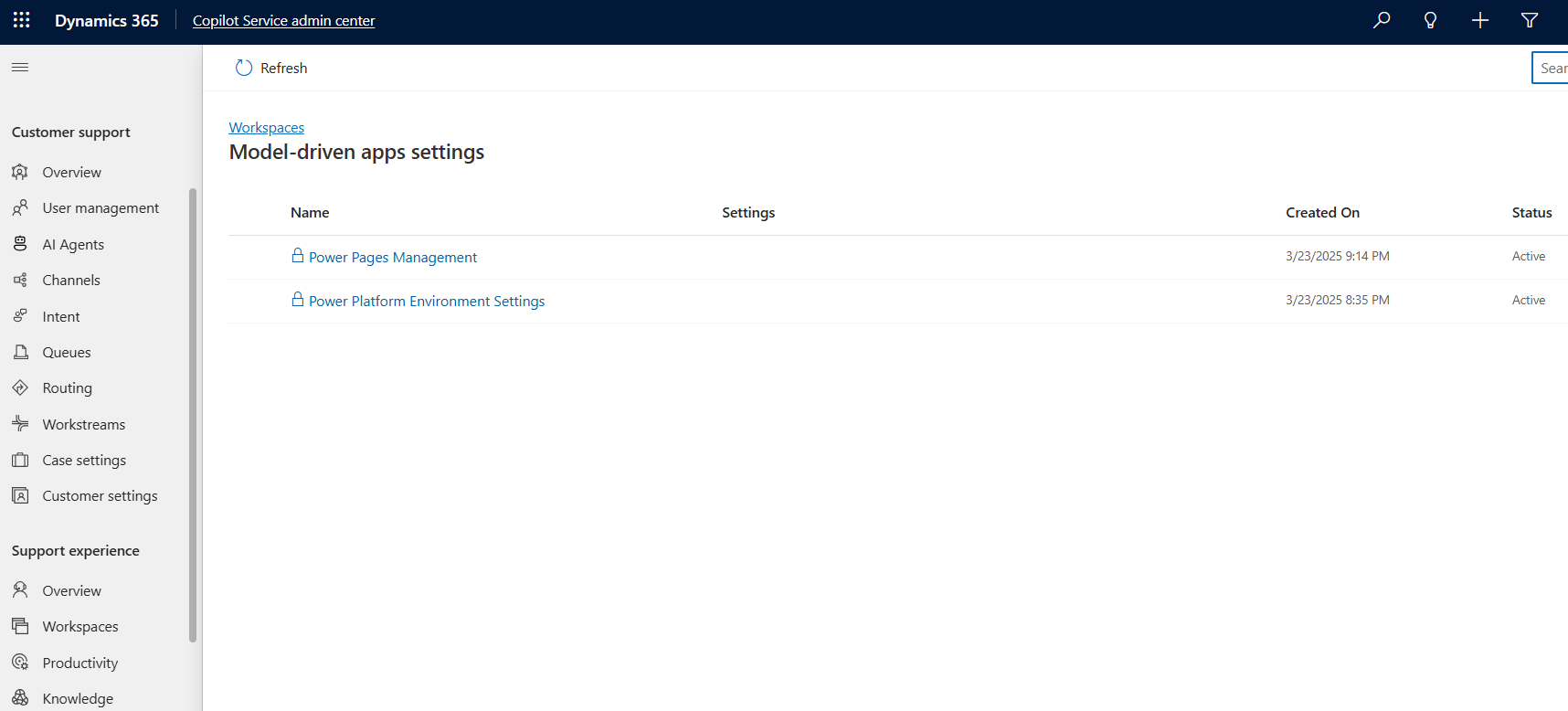
Note
A model driven app with the lock icon indicates that it's part of a managed solution and can't be edited.
Select both Productivity tool and Multisession with productivity tools, and then select Save. When you select Multisession with productivity tools, the Productivity tool checkbox is selected automatically.
Review the custom support app information, and select Confirm on the dialog.
Manage the application lifecycle
You can enable multisession and productivity tools in a custom model-driven app in your development environment, package the app, and then import it to a testing or production environment.
- You can enable the multisession experience in a model driven app within an unmanaged solution only.
- This feature isn't supported in model driven apps installed by default, such as Sales Hub.