Note
Access to this page requires authorization. You can try signing in or changing directories.
Access to this page requires authorization. You can try changing directories.
[This article is prerelease documentation and is subject to change.]
Use the case canvas in Copilot Service workspace to review a customer's issue, case summary, key details, activity history, and suggested response in one place. Use this context to plan your next step without repeating previous work.
Important
- This is a preview feature.
- Preview features aren't meant for production use and may have restricted functionality. These features are available before an official release so that customers can get early access and provide feedback.
Example: Continue a case after a handoff
A customer reports being charged twice for a gift card that the recipient never received. Another representative started the case, and you need to continue the investigation.
The case canvas brings the summary, timeline, case details, and suggested response together in one view. Instead of navigating between areas of the classic form to gather context, you can quickly review previous work and plan your response—without repeating troubleshooting steps or asking the customer to repeat information.
Prerequisites
Your administrator enabled the case canvas in Copilot Service admin center. Learn more in Manage canvases in CRM Canvas Designer to publish the case canvas.
Intent or knowledge management is configured for next best action or knowledge search.
Your administrator enabled the Copilot case summary feature to generate case summaries.
Open a case
- In Copilot Service workspace, select Cases.
- Select an existing case.
To switch to the classic case form, select Open classic view on the command bar. To return, select Open canvas view on the classic form.
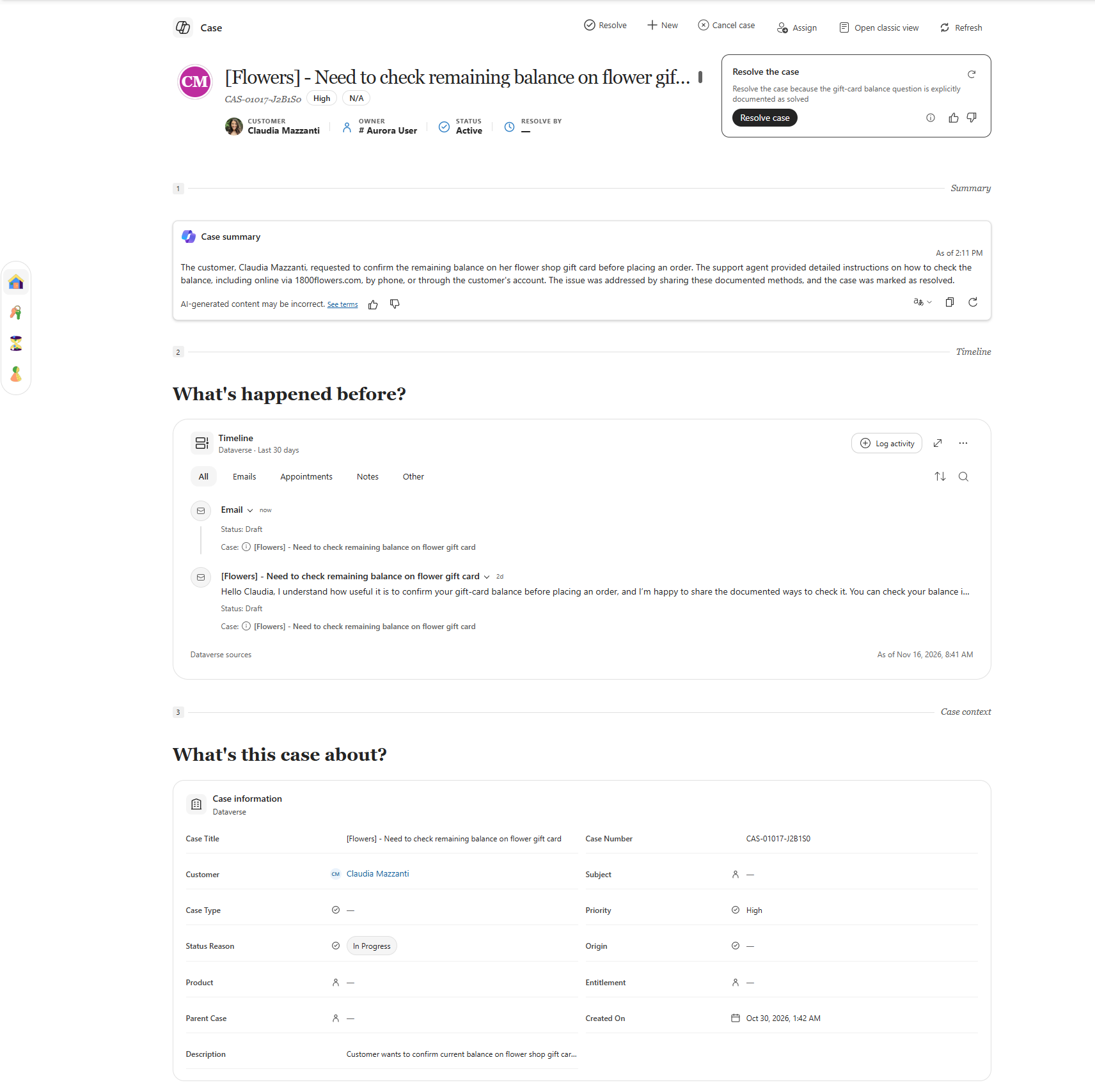
Explore the case canvas
| Area | What you see | Actions |
|---|---|---|
| Command bar | Resolve case, New, Assign, and the additional commands menu. |
|
| Case header | Case title, number, priority, customer, owner, and status. | Confirm that you opened the correct case. Identify the issue, customer, and representative responsible for follow-up. |
| Response card | Reply to customer, a suggested follow-up, and Draft email. |
|
| Summary card | AI-generated case summary and its timestamp. |
|
| What's happened before? | Timeline, activity categories, and Log activity. |
|
| What's this case about? | Case information. |
|
| App side pane | Knowledge search, if your administrator enables it. | Search for knowledge articles to help resolve the customer's issue. Learn more in Search knowledge articles. |
Related information
Compare classic case forms and the case canvas
Manage canvases in CRM Canvas Designer
Use enhanced case forms to manage cases