Note
Access to this page requires authorization. You can try signing in or changing directories.
Access to this page requires authorization. You can try changing directories.
Scheduling work orders linked to projects and project tasks in Field Service uses the same processes as scheduling any other work order. However, consider some additional factors when scheduling work orders that are linked to projects or project tasks.
To help you identify work orders linked to projects and tasks:
- Add Project and Project Task to the Work Orders page in Field Service by using Edit columns.
- Use the Project tab at the bottom of the schedule board to view and manage work orders linked to projects and project tasks.
Prerequisites
- You have a Field Service dispatcher or administrator role.
- For work orders linked to project tasks: A project manager created project tasks in the work breakdown structure in Project Operations.
- For work orders linked to project tasks: A work order tied to a project task was created in Project Operations.
Schedule a work order linked to a project
Schedule a work order linked to a project like other work orders. Use the schedule board or schedule assistant.
Schedule a work order linked to a project task
When a project manager creates a work order from a project task in Project Operations, the work order appears in Field Service for scheduling and execution. The Time Promised Start and Time Promised End values come from the task’s planned start and end dates. If the project task dates change, the time promised dates update automatically as long as the work order is Unscheduled or Scheduled.
If you attempt to schedule a work order that conflicts with project constraints, one or more warnings appear. Common constraints that create warnings include:
- Scheduling a work order outside the project task data range.
- Scheduling a work order before a predecessor task is complete.
- Task dates change after a work order is scheduled.
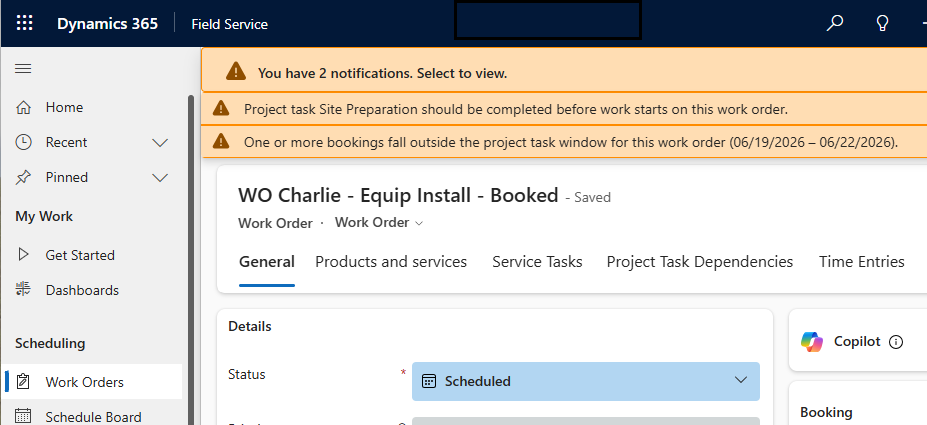
Keep these constraints in mind when scheduling.
To schedule the work order, follow these steps:
Open the work order in Field Service.
Review the work order details.
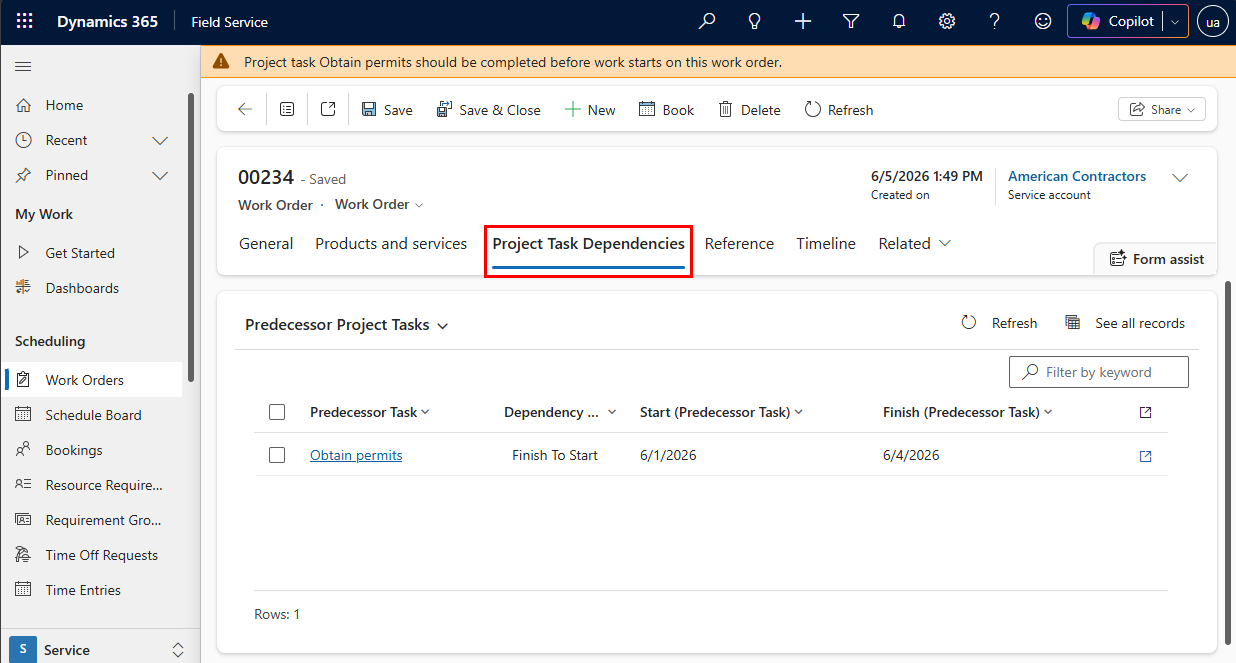
Select the Project Task Dependencies tab to view predecessor and successor tasks. Change the Predeccessor Project Tasks view to Successor Project Tasks to toggle between both.
Use the schedule board or schedule assistant.