Note
Access to this page requires authorization. You can try signing in or changing directories.
Access to this page requires authorization. You can try changing directories.
The schedule assistant helps dispatchers assign requirements to ideal resources. It recommends resources that match criteria like availability, skills, and location. The system also estimates travel time for the recommended resources, which helps dispatchers plan work accordingly.
When the dispatcher identifies the right resource for the job, they book the resource.
Schedule assistant filters
After launching the schedule assistant, the Schedule Assistant Filter pane displays. Refine results to find the right resource using filters like work location, characteristics, territory, resource types, and more.
By default, the search range filter is set to match the requirement's From Date and To Date, which can be adjusted. For multiday requirements, ensure that each requirement detail that needs to be booked is within the schedule assistant's start and end dates.
Note
Using customizations to change the From and To Date fields or otherwise modifying these time components with custom plugins isn't supported and might cause errors.
The default limit for searching resource availability is 100 entries, but it can be increased up to a maximum of 1,000. For organizations with a large number of resources, this default might result in incomplete search results. To increase the limit, adjust the Resource Availability Retrieval Limit in Booking Setup Metadata. Increasing the limit might affect search performance.
Note
If you book outside the schedule assistant's recommended slots, constraints such as capacity, work hours, and time windows aren't verified or enforced.
Time zone for search results
View and change the time zone in the Board view settings after launching the schedule assistant.
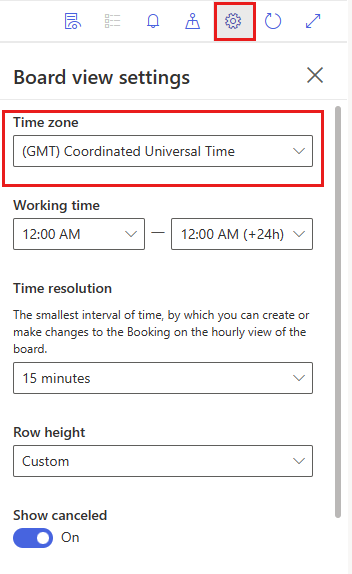
The system derives the time zone value from the time zone on the requirement when launched from the schedulable entity. Open the requirement and select Modify Calendar to view and edit the requirement time zone. When launched from the schedule board with Find availability, the system derives the time zone value from the schedule board settings record.
When to use the schedule assistant
The schedule assistant is best suited for semi-automated scheduling where a dispatcher reviews suggestions and makes the final decision. Use it when:
- The requirement has constraints like skills, territories, or time windows that need to be honored.
- You want the system to estimate travel time and rank resources.
- You need to find availability across many resources quickly.
For simple assignments or emergency work, consider manual scheduling. For fully automated scheduling, consider the Resource Scheduling Optimization add-in or the Scheduling Operations Agent.