Note
Access to this page requires authorization. You can try signing in or changing directories.
Access to this page requires authorization. You can try changing directories.
Project managers can initiate field work directly from the project plan by creating a work order from a project task. You can also associate existing work orders with project tasks and remove or reassign work orders from tasks.
Each project task can link to only one work order, while a project can still have multiple work orders across different tasks. If you want to create a work order from a project, go to Create a work order from a project.
When you link a work order to a project task, the task’s planned start and end dates apply to the work order as the time promised window. The dates provide guidance for scheduling in Field Service. However, changes made during scheduling don't update project task dates, preserving the integrity of the project plan.
Prerequisites
- The Field Service and Project Operations integration is installed.
- You have a Project Operations license and permission to manage projects.
- The project must have tasks at the leaf task level in the work breakdown structure (WBS).
- Any task dependencies are defined in the WBS using the Depends on field for each task.
Create a work order from a project task
In Project Operations, open a project.
Select the Tasks tab.
On the task line, select the Open details icon or select ⋮ (vertical ellipsis) > Details: Project Operations to open the Project task details pane.
Select the Field Service tab.
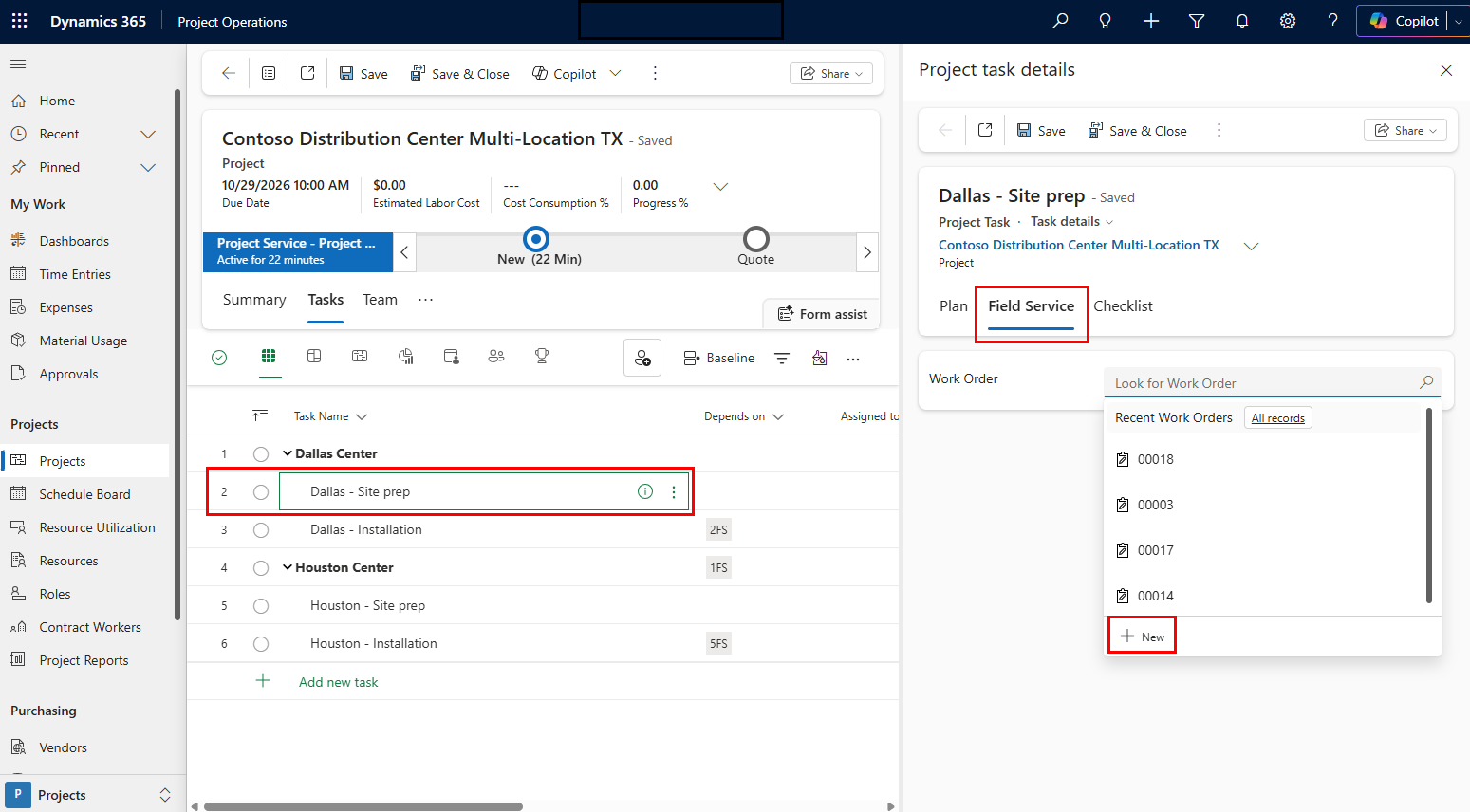
In the Work Order field, select New at the bottom of the drop-down. A quick create pane appears.
Select the Work Order Type and add any other relevant information.
Project context automatically populates key values, such as the project, project task, and price list. The Time From Promised and Time To Promised default from the task’s planned dates.
Save and close.
Field Service users can access the work order in Field Service for scheduling and execution. All resulting labor, material usage, and costs align to the correct task and roll up accurately within the project. Only approved time entries update task execution progress on the WBS.
Associate an existing work order to a project task
Project managers can associate existing work orders with project tasks to align previously created or in-progress work with the project structure.
In Project Operations, open a project.
Select the Tasks tab.
On the task line, select the Open details icon or select ⋮ (vertical ellipsis) > Details: Project Operations, to open the Project task details pane.
Select the Field Service tab.
In the Work Order field, search for and select the work order from the list.
When you link a work order, it inherits missing scheduling context from the task, including time promised dates if not already defined. Project teams can retroactively align execution with the correct task, improving reporting accuracy and visibility into progress and cost tracking.
Remove or reassign work orders from project tasks
To reflect changes in project scope or planning, remove or reassign work orders between project tasks as long as time entries are still in a Draft state. If you must remove or reassign work orders, move the time entries back to draft.
When you remove a work order from a project task in Project Operations, the system detaches it from the task but keeps it associated with the project for financial tracking. Reassigning a work order allows project managers to correct task alignment before execution begins.
If actuals such as time or material usage are already recorded, a warning appears when you attempt to modify the association to prevent unintended impacts on reporting and financial accuracy.
To remove or reassign a work order, follow these steps:
In Project Operations, open a project and select the Tasks tab.
On the task line, select the Open details icon or select ⋮ (vertical ellipsis) > Details: Project Operations, to open the Project task details pane.
Select the Field Service tab.
Remove the work order or reassign this task to a different work order.
Save and close.
View work orders related to project tasks
You can view key information about work orders related to project tasks within Project Operations. As users schedule and book resources on the work order, the system automatically updates the booked resources.
On the task line, select the Open details icon or select ⋮ (vertical ellipsis) > Details: Project Operations.
Select the Field Service tab.
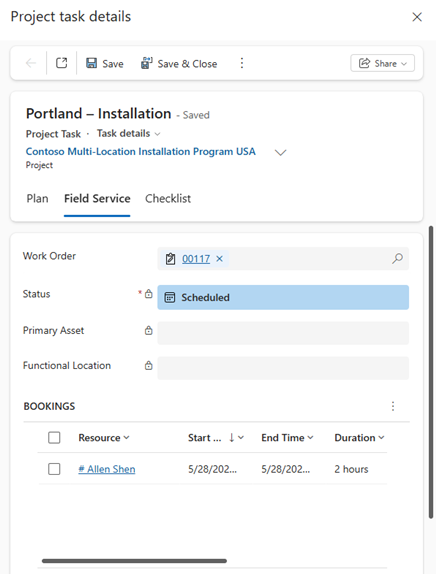
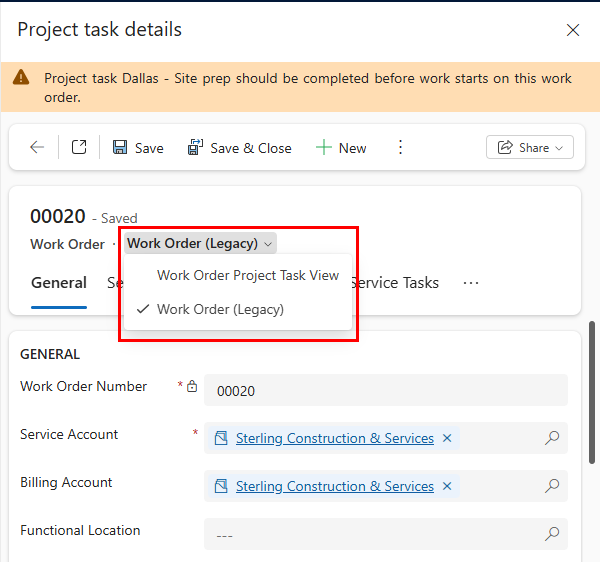
To view more details, select the work order. You can change the views in the task details pane from Work Order (Legacy) to Work Order Project Task View.