Note
Access to this page requires authorization. You can try signing in or changing directories.
Access to this page requires authorization. You can try changing directories.
This article explains how to set up and generate the Standard Audit File for Tax (SAF-T) for legal entities that have their primary address in Norway in Microsoft Dynamics 365 Finance.
Note
As of version 221.208 of SAF-T Format (NO) and version 221.176 of SAF-T Financial data model mapping, version 1.40 of SAF-T Financial is supported. SAF-T Financial version 1.40 is the only valid format as of January 1, 2027.
To generate SAF-T Financial 1.40, you must import new versions of the SAF-T model, model mapping, and format, and your Finance environment must meet the application prerequisites:
| Finance version | Build |
|---|---|
| 10.0.51 and later | any |
| 10.0.50 | 10.0.2919.15 |
| 10.0.49 | 10.0.2790.101 |
| 10.0.48 | 10.0.2645.170 |
For more details, see Upgrade to SAF-T Financial version 1.40.
Important
Use of the One voucher functionality introduces a limitation on further SAF-T reporting for some scenarios that are subject to SAF-T. Specifically, a bank statement scenario must be posted by using different vouchers for transactions that have different counteragent accounts. Learn more about how to use the One voucher functionality and SAF-T in the SAF-T report and One voucher section later in this article.
Set up SAF-T for Norway
To use the Norwegian SAF-T Financial data report in Finance, complete the following setup tasks:
- Enable features in Feature management.
- Import Electronic reporting (ER) configurations.
- Set up the organization registration number.
- Set up the tax registration numbers of the company.
- Set up the ER format on the General ledger parameters page.
- Associate sales tax codes used in Finance with Norwegian standard value-added tax (VAT) codes.
- Associate main accounts used in Finance with Norwegian standard accounts or an Income statement (Næringslivskoder).
- Complete the configuration of application-specific parameters
Enable features in Feature management
To enable features in Feature management, follow these steps:
In Finance, go to Feature management > All.
In the feature list, find and select the following features:
- Performance improvement for Norwegian SAF-T report – This feature is available in Finance version 10.0.44. We recommend that you enable it, because it improves report performance.
- Performance enhancement for general ledger dimension set balance calculation – Enable this feature if you enable the Performance improvement for Norwegian SAF-T report feature. To learn more about the Performance enhancement for general ledger dimension set balance calculation feature, see New financial dimension sets.
- Vendor ship-from address support on invoices (optional) – Enable this feature if you want the Country or region element of SAF-T Financial 1.40 to be reported for vendor invoice transactions. Learn more in Country or region of the vendor in the AmountStructure node.
Select Enable now.
Note
To enhance the performance of the SAF-T report for legal entities that have their primary address in Norway, we recommend that you enable the Performance improvement for Norwegian SAF-T report feature. This feature is available in Finance version 10.0.44 and the following builds of earlier versions:
- 10.0.43: 10.0.2177.60
- 10.0.42: 10.0.2095.136
- 10.0.41: 10.0.2015.209
The Performance improvement for Norwegian SAF-T report feature uses new data sources that the Performance enhancement for general ledger dimension set balance calculation feature introduces. Before you enable the Performance improvement for Norwegian SAF-T report feature, ensure that the Performance enhancement for general ledger dimension set balance calculation feature is enabled.
Use the following versions or later of ER configurations with the Performance improvement for Norwegian SAF-T report feature:
- SAF-T Format (NO) 221.208
- SAF-T Financial data model mapping 221.176
Import ER configurations
In Finance, import the following ER configurations from the Global repository.
| ER configuration name | Configuration type |
|---|---|
| Standard Audit File (SAF-T) | Model |
| SAF-T Financial data model mapping | Model mapping |
| SAF-T Format (NO) | Format (exporting) |
Learn more about how to import ER configurations in Import Electronic reporting (ER) configurations from Dataverse.
Import the most recent versions of the configurations. The version description usually includes the number of the Microsoft Knowledge Base (KB) article that explains the changes that were introduced in the configuration version.
Note
After you import all the ER configurations from the preceding table, set the Default for model mapping option to Yes for the SAF-T Financial data model mapping configuration.
Set up the organization registration number
The organization registration number of the legal entity is reported in the SAF-T file in the Header > Company > RegistrationNumber field. To configure the organization registration number that should be reported in the RegistrationNumber field, follow these steps:
To set up the organization registration number, follow these steps:
- In Finance, go to Organization administration > Organizations > Legal entities, and select your legal entity.
- On the Bank account information FastTab, assign the organization number to the Routing code field.
Set up the company tax registration numbers
Starting with version 175.119 of the SAF-T Format (NO) ER format, the TaxRegistration node under Header > Company of the report shows company VAT registration numbers that are active during the reporting period of the report. These numbers come from the registration IDs that you define in the properties of the legal entity. The TaxVerificationDate field of the TaxRegistration node shows the expiration date of the registration ID when the number expiration date falls within the reporting period. To configure the registration ID that should be reported in the TaxRegistration node, follow these steps:
To set up the company tax registration numbers, follow these steps:
- In Finance, go to Organization administration > Organizations > Legal entities.
- Select the legal entity, and then select Registration IDs.
- Select or create the address in Norway, and then, on the Registration ID FastTab, select Add.
- In the Registration type field, select the registration type that's dedicated to Norway, and that uses the VAT ID registration category.
- In the Registration number field, enter the tax number.
- On the General tab, in the Effective field, enter the date when the number becomes effective.
Learn more about how to set up registration categories and registration types in Registration IDs.
If you don't specify the VAT registration number among the registration IDs of the legal entity, the system retrieves the value from the Tax registration number field on the Tax registration FastTab of the legal entity properties page.
Set up the ER format
To set up the ER format, follow these steps:
- In Finance, go to General ledger > Ledger setup > General ledger parameters.
- On the General ledger parameters page, on the Standard Audit File for Tax (SAF-T) tab, in the Standard Audit File for Tax (SAF-T) field, select SAF-T Format (NO).
Note
In legal entities that have their primary address in Norway, the Standard Audit File for Tax (SAF-T) tab of the General ledger parameters page includes the Use common menu item checkbox in addition to the Standard Audit File for Tax (SAF-T) field.
To run the SAF-T Format (NO) ER configuration, clear the Use common menu item checkbox. Select this checkbox only if you plan to use an ER configuration that you can run directly from the Electronic reporting workspace and that doesn't require any data preprocessing on the Finance app side. Learn more about the common Standard Audit File for Tax (SAF-T) feature in Standard Audit File for Tax (SAF-T) electronic report.
Associate sales tax codes used in Finance with Norwegian standard VAT codes
As the documentation explains, in Norwegian SAF-T Financial data, sales tax codes that you use in Finance must be associated with Norwegian standard VAT tax codes (StandardTaxCode) for SAF-T reporting. You can find the Norwegian standard VAT tax codes at https://github.com/Skatteetaten/saf-t.
As of version 175.119 of the SAF-T Format (NO) ER format, you can use one of the following two options to associate sales tax codes that you use in Finance with Norwegian standard VAT codes. Base your choice on your company's setup and preferences.
- Use the application-specific parameters of the ER format.
- Use the External codes functionality.
If you use option 1, the report doesn't consider option 2. If any of the sales tax codes that you use in Finance aren't associated with a value by using either the application-specific parameters of the ER format or the External codes functionality, you receive a warning message when you generate the report. This message includes information about the missing mapping.
Option 1: Associate sales tax codes used in Finance with Norwegian standard VAT codes by using the application-specific parameters of the ER format
To associate sales tax codes that you use in Finance with Norwegian standard VAT codes by using the application-specific parameters of the ER format, follow these steps:
- In the Electronic reporting workspace, select the Reporting configurations tile.
- On the Configurations page, expand Standard Audit File (SAF-T), and then select SAF-T Format (NO).
- On the Configurations tab, in the Application specific parameters group, select Setup.
- On the Application specific parameters page, select the latest version of the format that you want to define conditions for.
- On the Lookups FastTab, select the StandardTaxCodes_Lookup lookup, and define the appropriate conditions.
- On the Conditions FastTab, define which tax codes must correspond to a specific lookup result. Use the "NA" lookup result for tax codes that have no Norwegian standard VAT code and must be reported as "NA" in SAF-T.
- After you finish setting up conditions, in the State field, select Completed. Then save the configuration.
Option 2: Associate sales tax codes used in Finance with Norwegian standard VAT codes by using the External codes functionality
To associate sales tax codes that you use in Finance with Norwegian standard VAT codes by using the External codes functionality, follow these steps:
In Finance, go to Tax > Indirect taxes > Sales tax > Sales tax codes.
On the Sales tax code page, select the Sales tax code record. On the Action Pane, on the Sales tax code tab, in the Sales tax code group, select External codes.
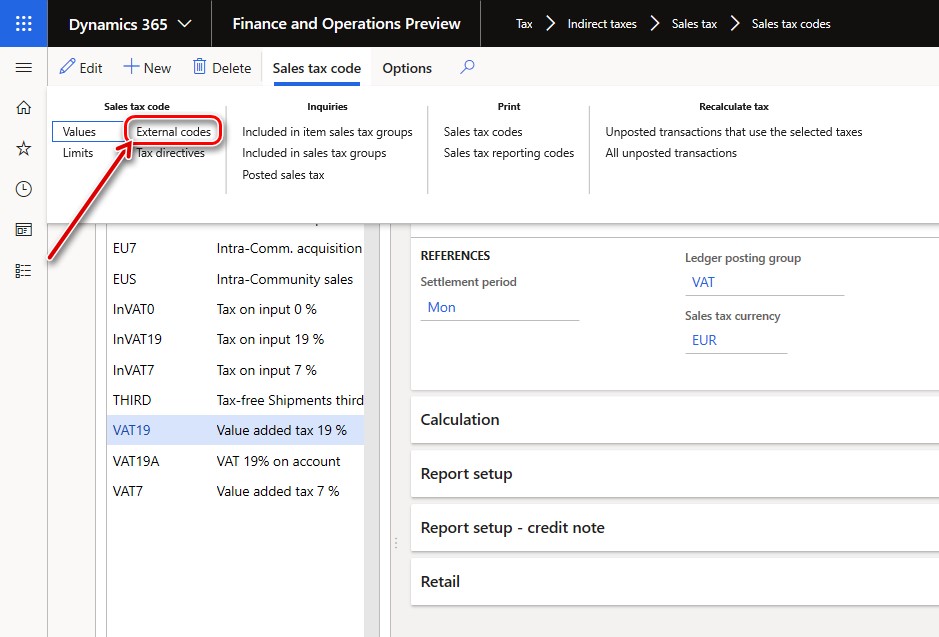
On the External codes page, specify the Norwegian standard VAT tax codes that should be used for the selected sales tax code record for SAF-T reporting.
In the Overview section, in the Code field, select the identifier of the external code definition. In the Value section, in the Value field, enter a standard tax code that corresponds to the selected sales tax code.

Associate main accounts used in Finance with Norwegian standard accounts or an Income statement (Næringslivskoder)
In Norwegian SAF-T Financial data, you must associate main accounts used in Finance with Norwegian standard accounts or an Income statement (Næringslivskoder) for SAF-T reporting. You can find the Norwegian standard accounts at https://github.com/Skatteetaten/saf-t.
As of version 175.119 of the SAF-T Format (NO) ER format, you can use one of the following two options to associate main accounts used in Finance with Norwegian standard accounts or an Income statement. Choose the option that best fits your company's setup and preferences.
To associate main accounts used in Finance with Norwegian standard accounts or an Income statement (Næringslivskoder), follow these steps:
- Use additional consolidation accounts. Use this option to associate main accounts used in Finance with an Income statement (grouping category and grouping code).
- Use the application-specific parameters of the ER format. This option supports only Norwegian standard accounts and is available only before January 1, 2025.
If you use option 1, the report doesn't consider option 2. If any main accounts used in Finance aren't associated with a value by using either the application-specific parameters of the ER format or additional consolidation accounts, you receive a warning message when you generate the report. This message includes information about the missing mapping.
Note
SAF-T Financial of version 1.30 and later supports only Grouping category and Grouping code fields. Standard accounts are no longer supported. Due to this change, starting with version 175.137, SAF-T Format (NO) introduces a validation with a warning before January 1, 2025, and a blocking exception starting January 1, 2025, if you use option 2. Starting with version 175.137 of SAF-T Format (NO), option 2 is no longer supported, and the Use grouping category parameter is mandatory when you run the SAF-T report.
Option 1: Associate main accounts used in Finance with Norwegian standard accounts or an Income statement by using additional consolidation accounts
To associate main accounts used in Finance with Norwegian standard accounts or an Income statement by using additional consolidation accounts, follow these steps:
- Create a consolidation account group. You can choose any name for the consolidation account group. This name isn't used in the XML report. Consolidation account group is used as a link to the set of Additional consolidation accounts where Norwegian standard accounts or an Income statement (Næringslivskoder) for SAF-T reporting are defined.
- Add accounts to the consolidation account group. In the Consolidation account field, specify a standard account. If the Use grouping category option of the report is turned off, this value is reported in the StandardAccountID element of SAF-T under the Master data > GeneralLedgerAccounts > Account node (available only before January 1, 2025). If the Use grouping category option of the report is turned on, this value is reported in the GroupingCode field of the report. In the Consolidation account name field, you can optionally specify the standard account name or description. This value isn't used in SAF-T.
Learn more about additional consolidation accounts in Consolidation account groups and additional consolidation accounts.
Option 2: Associate main accounts used in Finance with Norwegian standard accounts by using the application-specific parameters of the ER format
Note
This option isn't supported after January 1, 2025, due to changes introduced in SAF-T Financial of version 1.30. Microsoft recommends that you use the following or a higher version of the ER configurations:
- SAF-T Format (NO) 221.208
- SAF-T Financial data model mapping 221.176
To associate main accounts used in Finance with Norwegian standard accounts by using the application-specific parameters, follow these steps:
In Finance, go to the Electronic reporting workspace.
In the configuration tree, select the SAF-T Format (NO) ER format.
Make sure that the company you're working in is the company for which you want to set up the application-specific parameters.
On the Action Pane, on the Configurations tab, in the Application specific parameters group, select Setup.
On the left side of the Application specific parameters page, select the version of the format that you want to use.
On the Lookup FastTab, select StandardMainAccount_Lookup. Then, on the Conditions FastTab, specify criteria by adding lines for each Result value that must be used in the selected company. If several main accounts in the selected company must result in the same standard account, add a separate line for each main account, and specify the same standard account for each one.
Select the value NA as the last condition in the list. Set it to *Not blank* in the Main account column. Verify the value in the Line column to ensure that NA is the last condition in the table.
After you finish setting up conditions, change the value of the State field to Completed, save your changes, and close the page.

You can easily export the setup of application-specific parameters from one version of a report and import it into another by selecting Export or Import on the Action Pane. You can also export the setup from one report and import it into the same report in another company if the main accounts are the same in both companies.
Complete the configuration of application-specific parameters
Regardless of whether you use the options to associate standard tax codes and standard main accounts with application-specific parameters, you must complete the configuration of the application-specific parameters.
To complete the configuration of application-specific parameters, follow these steps:
- In Finance, go to the Electronic reporting workspace.
- In the configuration tree, select the SAF-T Format (NO) ER format.
- Make sure that the company that you're working in is the company for which you want to set up the application-specific parameters.
- On the Action Pane, on the Configurations tab, in the Application specific parameters group, select Setup.
- On the left side of the Application specific parameters page, select the version of the format that you want to use.
- Change the value of the State field to Completed, save your changes, and close the page.
Upgrade to SAF-T Financial version 1.40
If you already generate SAF-T Financial version 1.30, follow these steps to start reporting version 1.40. You don't need to enable any new features to generate version 1.40. To report the vendor's country or region in the Country or region element, enable the optional Vendor ship-from address support on invoices feature.
- Ensure that your Finance environment meets the application prerequisites:
| Finance version | Build |
|---|---|
| 10.0.51 and later | any |
| 10.0.50 | 10.0.2919.15 |
| 10.0.49 | 10.0.2790.101 |
| 10.0.48 | 10.0.2645.170 |
- Import the latest versions of the Standard Audit File (SAF-T) model, SAF-T Financial data model mapping, and SAF-T Format (NO) configurations from the Global repository. Import at least the following versions:
| ER configuration name | Configuration type | Version |
|---|---|---|
| Standard Audit File (SAF-T) | Model | 221 |
| SAF-T Financial data model mapping | Model mapping | 221.176 |
| SAF-T Format (NO) | Format (exporting) | 221.208 |
- Set the Default for model mapping option to Yes for the SAF-T Financial data model mapping configuration.
- If you use application-specific parameters (standard VAT codes), export the setup from the previous format version and import it into the new version, then set State to Completed. See Complete the configuration of application-specific parameters.
- Go to General ledger > Ledger setup > General ledger parameters, and on the Standard Audit File for Tax (SAF-T) tab, make sure that SAF-T Format (NO) is selected.
- Generate the report. The Report tax information in sales tax currency checkbox isn't shown in the dialog for version 1.40. If you previously selected Report tax information in sales tax currency, note that in version 1.40, tax amounts are reported in the accounting currency, and NOK amounts are added automatically when the accounting currency isn't NOK.
To generate SAF-T Financial version 1.30, use version 190.180 or earlier of SAF-T Format (NO).
Generate the Norwegian SAF-T Financial data report
To generate the Norwegian SAF-T Financial data report, follow these steps:
In Finance, go to General ledger > Inquiries and reports > Standard Audit File for Tax (SAF-T) > Standard Audit File for Tax (SAF-T).
In the dialog for the report, in the From date and To date fields, specify the start and end dates of the period that you want to generate the report for.
Select the checkboxes for Customers, Vendors, and Financial dimensions to include all the records from the related tables on the report.
If you clear the Customers and Vendors checkboxes, the report includes only customers and vendors of your company that have transactions in the reporting period, and customers and vendors that have a non-zero balance.
If you clear the Financial dimensions checkbox, the report includes only financial dimensions that were used in transactions during the reporting period in the <MasterFiles> node of the report.
In the Personnel number field, select an employee to add to the <AuditFileSender> node of the report. This node reports information about the contact person for the audit file (first name and last name).
Note
The Report tax information in sales tax currency checkbox is available only when the format selected in the Standard Audit File for Tax (SAF-T) field on the General ledger parameters page generates SAF-T Financial version 1.30 or earlier. If the version is 1.40 or later, the checkbox isn't available on the report dialog. For version 1.40, tax amounts are always reported in the accounting currency, and NOK amounts are added when the accounting currency isn't NOK. Learn more in Tax amounts and currencies in the TaxInformation node.
For SAF-T version 1.30 or earlier, select the Report tax information in sales tax currency checkbox if you want to report tax information in the tax code currency.
If you select the Report tax information in sales tax currency checkbox, the <TaxInformation> element reports the following amounts in the tax code currency:
GeneralLedgerEntries/Journal/Transaction/Line/TaxInformation/TaxBase
GeneralLedgerEntries/Journal/Transaction/Line/TaxInformation/TaxAmount/Amount
If you clear the Report tax information in sales tax currency checkbox, the amounts in the <TaxInformation> element and all the amounts on the reports are reported in the accounting currency.
The following amount is always reported in the document currency:
GeneralLedgerEntries/Journal/Transaction/Line/TaxInformation/TaxAmount/CurrencyAmount
Where GeneralLedgerEntries/Journal/Transaction/Line/TaxInformation/TaxAmount/Currency represents the document currency.
Select Include zero lines to include documents that have a zero amount on the report.
In the Consolidation account group field, select the name of the consolidation account group that you created and set up for Norwegian standard accounts or an Income statement. This parameter is mandatory as of January 1, 2025.
Select the Use grouping category checkbox to generate GroupingCategory and GroupingCode nodes instead of the StandardAccountID element in the GeneralLedgerAccounts node. The value of GroupingCategory is copied from the name of the consolidation account group. This parameter is mandatory as of January 1, 2025.
In the Execution mode field, select one of the following values:
Single file – The SAF-T is generated as one file that includes all the sections: Header, MasterFiles, and GeneralLedgerEntries.
Separate files – The SAF-T is generated as two or more files:
- Header and MasterFiles – This file includes the header information and all the MasterFiles sections.
- Header and GeneralLedgerEntries – This file can be automatically split into multiple files, depending on the data volume that is included in the reporting period. The files are split to comply with the 2-GB source XML data limitation that is specified as the Altinn portal and file size limitations.
Only master files – The SAF-T that is generated includes the Header and MasterFiles sections only.
Only general ledger entries – The SAF-T that is generated includes the Header and GeneralLedgerEntries sections only. This file can be automatically split into multiple files, depending on the data volume that is included in the reporting period. The files are split to comply with the 2-GB source XML data limitation that is specified as the Altinn portal and file size limitations.
You can also apply filters for the Main accounts and General journal entry fields by using Records to include FastTab in the dialog for the report.
A SAF-T report for a long time period, such as a quarter or a year, can include a large amount of data and take a long time to generate. Therefore, use batch jobs. The dialog for the SAF-T report includes a Run in the background tab where you can set up report generation in batch mode. Set the Batch processing option to Yes. Learn more about batch processing in Batch processing overview.
To review batch jobs or find a generated file, follow these steps:
- In Finance, go to Organization administration > Electronic reporting > Electronic reporting jobs.
- Find a line that is related to your job, and then select Show log. If nothing is shown, no messages were produced when the file was generated.
- To view a file, select Show files, find the file that you need, and then select Open.
Learn more about how to configure a destination for each ER format configuration and its output component in Electronic reporting (ER) destinations.
Report naming and splitting
The documentation for Norwegian SAF-T Financial data requires the following naming structure for the XML reports that you generate:
<SAF-T export type>_<organization number of the vendor that the data represents>_<date and time(yyyymmddhh24hmise>_<file number of total files>.xml
Here's an example:
SAF-T Financial_999999999_20160401235911_1_12.xml
Here's an explanation of the parts of this file name:
SAF-T Financial states the SAF-T type of file.
999999999 represents the organization number that belongs to the owner of the data.
If the organization number is missing, or the output XML file doesn't contain <RegistrationNumber>NA</RegistrationNumber>, go to Organization administration > Organizations > Legal entities, and select your legal entity. Then, on the Bank account information FastTab, assign the organization number to the Routing code field.
20160401235911 represents the date and time when the file was created. (A 24-hour clock is used for the time.)
1_12 represents file 1 out of 12 total files in the export (that is, in the same selection).
The volume of a single XML file must be less than 2 gigabytes (GB). You must validate every individual XML file that you submit against the schema. All <MasterFiles> nodes must be in the first file, and the associated transactions must be in the subsequent files (the number of these files is flexible).
The following table shows a sample selection of one accounting year that has 12 periods. For each period, there's one file that contains transactions.
| File number | Contents of the audit file |
|---|---|
| 1 | <Header> and <MasterFiles> nodes |
| 2–13 | <Header> and <GeneralLedgerEntries> nodes |
You can include up to 10 XML files in the same zip archive.
In accordance with these requirements, the SAF-T Format (NO) ER format is implemented to automatically split the resulting report in XML format, based on the following assumptions:
The maximum volume of the resulting XML report is 2,000,000 kilobytes (KB) (that is, 2 GB).
All the XML files use the following naming structure:
<SAF-T export type>_<organization number of the vendor that the data represents>_<date and time(yyyymmddhh24hmise>
You include all the XML files in one zip archive.
You validate each individual XML file against the schema.
After the report is generated, if more than one XML file is generated, you must manually number the generated files in the zip archive by adding _<file number of total files> to the file names. You must also ensure that there are no more than 10 XML files in the same zip archive. If there are more than 10 XML files in an archive, you must manually split it into several archives, each of which has a maximum of 10 XML files.
Implementation details
SAF-T report and One voucher
Using the One voucher functionality introduces a limitation of further SAF-T reporting for data if one voucher was applied. Set the Allow multiple transactions within one voucher parameter to No on the General ledger parameters page in your legal entity if you post transactions that are part of the SAF-T report. For information about One voucher functionality, see One voucher.
<AnalysisType> and <AnalysisTypeDescription> nodes
The SAF-T report for Norway must include information about the AnalysisTypeTable node under the MasterFiles node of the report. AnalysisTypeTable represents a table with the analysis code identifiers that are used to further specify transaction data. In Finance, Financial dimensions is the data source for the AnalysisTypeTable node. When you set up Financial dimensions in your legal entity, use the ReportColumnName field of the Financial dimension data source for the value that you report in the <AnalysisType> node. Use the Dimension name field of the Financial dimension data source for the value that you report in the <AnalysisTypeDescription> node.
As of version 175.119 of the SAF-T Format (NO) ER format, the Journal type enumerated list of values is included as an additional data source for the AnalysisTypeTable node under the MasterFiles node of the report. The AnalysisTypeTable node includes all the values of the LedgerPostingType enumeration in Finance that are represented by the Bilagsart value in the AnalysisTypeDescription field. Each general journal account entry that you report in the GeneralLedgerEntries > Journal > Transaction > Line node of SAF-T is reported. The reported information includes information from the LedgerPostingType value of the GeneralJournalAccountEntry table that's represented in the Analysis node.
Tax amounts and currencies in the TaxInformation node
The currency of the amounts in the TaxInformation node depends on the version of SAF-T Financial that the format generates.
| Element | Version 1.30 or earlier | Version 1.40 |
|---|---|---|
| …/TaxInformation/TaxBase | Accounting currency, or the sales tax code currency if the Report tax information in sales tax currency checkbox is selected | Always the accounting currency |
| …/TaxInformation/DebitTaxAmount/Amount or CreditTaxAmount/Amount | Accounting currency, or the sales tax code currency if the checkbox is selected | Always the accounting currency |
| …/TaxInformation/DebitTaxAmount/CurrencyAmount or CreditTaxAmount/CurrencyAmount | Document currency (shown in Currency) | Document currency (shown in Currency) |
| …/TaxInformation/DebitNOKTaxAmount or CreditNOKTaxAmount (NOKAmount, NOKTaxBase) | Not reported | Reported only if the accounting currency of the legal entity isn't NOK. NOKAmount and NOKTaxBase are taken from the tax amounts in the sales tax code currency. |
SAF-T Financial version 1.40 introduces the DebitNOKTaxAmount and CreditNOKTaxAmount elements. They let you report VAT amounts that are fixed in Norwegian kroner (NOK), as section 4-2 of the Bookkeeping Act requires, when the other amounts in the TaxInformation node are in another currency. Because of this change, the Report tax information in sales tax currency checkbox isn't available for version 1.40. If the accounting currency is NOK, the NOK elements aren't generated.
Country or region of the vendor in the AmountStructure node
Starting with SAF-T Financial version 1.40, the AmountStructure node can include the optional Country or region element. The SAF-T Format (NO) ER format fills in this element for vendor invoice transactions with the country or region of the vendor's ship-from address on the posted invoice.
The Country or region element is generated only when all the following conditions are met:
- The Vendor ship-from address support on invoices feature is enabled in Feature management. To learn more about how the ship-from address is set on vendor invoices, see Vendor ship-from address support on invoices. Vendor invoices that you posted before the feature was enabled don't have a ship-from address, so Country or region isn't reported for them.
- The posted vendor invoice has a ship-from address. The ship-from address is filled only for vendors with Require ship from enabled.
- Country or region is reported only when the transaction currency is used by more than one country or region (EUR, USD, GBP, CHF, DKK, NOK, AUD, NZD, ZAR, INR, XOF, XAF, XCD, XPF, XCG).
- The amount is reported with currency details (CurrencyCode and CurrencyAmount). The SAF-T Financial 1.40 schema allows Country or region only together with these elements.
Data sources for SAF-T elements
The following table shows where the main SAF-T Financial elements get their values in Finance.
| SAF-T element | Source in Finance | Learn more |
|---|---|---|
| Header > Company > RegistrationNumber | Routing code field on the Bank account information FastTab of the legal entity | Set up the organization registration number |
| Header > Company > TaxRegistration | Registration IDs of the legal entity (VAT ID category). If none exist, the Tax registration number field of the legal entity is used. | Set up the company tax registration numbers |
| Header > AuditFileSender | Employee that's selected in the Personnel number field of the report dialog | Generate the report |
| MasterFiles > GeneralLedgerAccounts > Account > GroupingCategory | Name of the consolidation account group that's selected in the report dialog | Associate main accounts… |
| MasterFiles > GeneralLedgerAccounts > Account > GroupingCode | Consolidation account of the additional consolidation account | Same as above |
| MasterFiles > TaxTable > … > StandardTaxCode | Application-specific parameters (StandardTaxCodes_Lookup) or External codes of the sales tax code | Associate sales tax codes… |
| MasterFiles > AnalysisTypeTable > AnalysisType / AnalysisTypeDescription | ReportColumnName and Dimension name of financial dimensions; Bilagsart for journal types (LedgerPostingType) | AnalysisType and AnalysisTypeDescription nodes |
| …/Line/…Amount > Amount | Accounting currency amount of the general journal account entry | — |
| …/Line/…Amount > CurrencyCode / CurrencyAmount / ExchangeRate | Transaction currency, amount, and exchange rate of the general journal account entry | — |
| …/Line/…Amount > Country or region (1.40) | Country or region of the vendor ship-from address on the posted vendor invoice | Country or region of the vendor… |
| …/Line/TaxInformation > TaxBase, …TaxAmount > Amount | 1.40: accounting currency. 1.30 or earlier: accounting currency or sales tax code currency, depending on the report dialog setting | Tax amounts and currencies… |
| …/Line/TaxInformation > DebitNOKTaxAmount / CreditNOKTaxAmount (1.40) | NOK amount and tax base. Reported only when the accounting currency isn't NOK. | Same as above |