Note
Access to this page requires authorization. You can try signing in or changing directories.
Access to this page requires authorization. You can try changing directories.
Project managers can initiate field work directly by creating a work order from the project level in Project Operations. A project can have multiple work orders across different tasks.
Project managers can also associate existing work orders with projects to align previously created or in-progress work with the project structure.
To create a work order from a project task, go to Create a work order from a project task.
Prerequisites
- The Field Service and Project Operations integration is installed.
- You have a Project Operations license and permission to manage projects.
Create a work order from a project
In Project Operations, open the project.
Select the Related tab and then Work Orders.
Select New Work Order. A quick create pane appears.
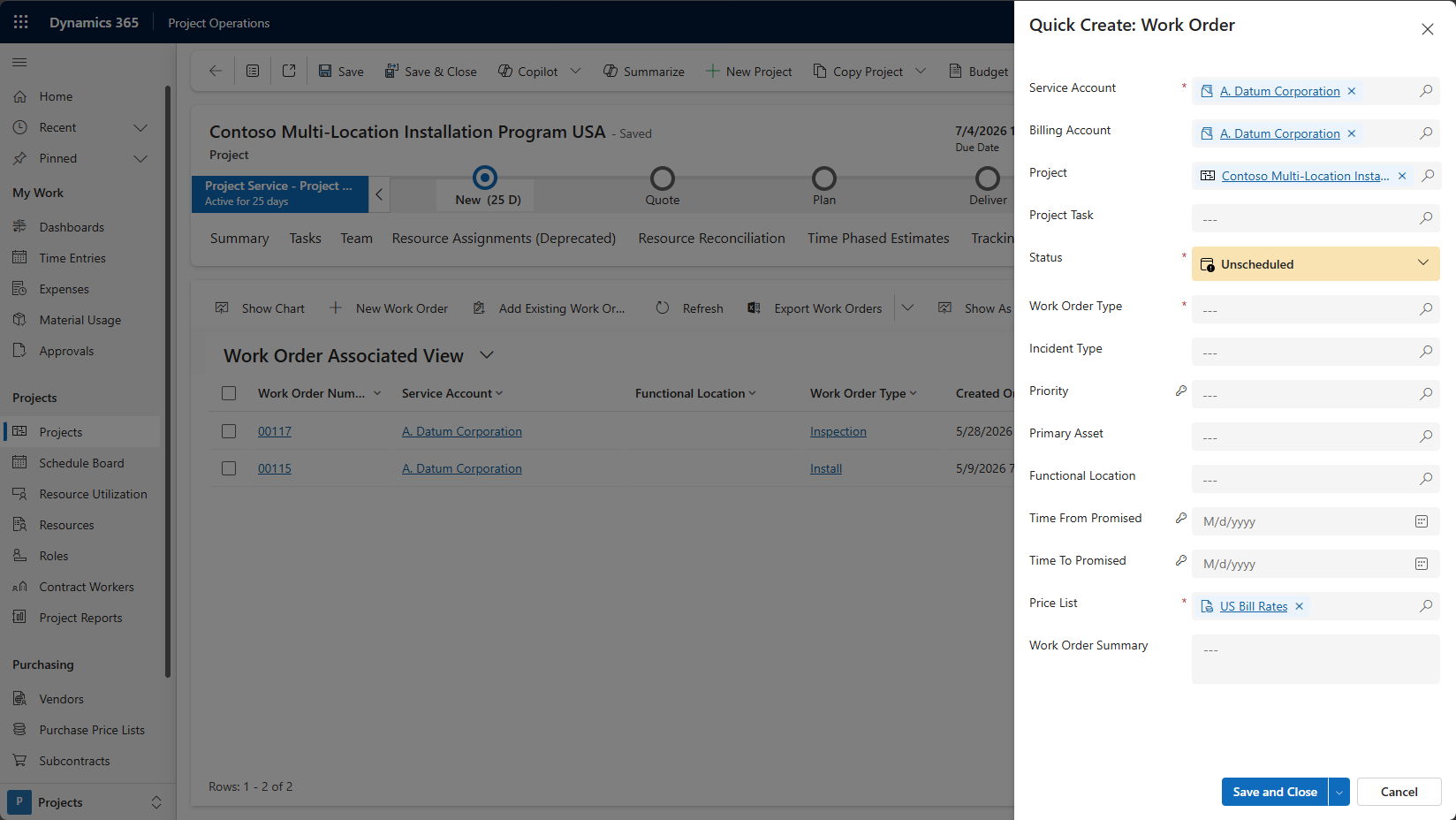
Select the Work Order Type and add any other relevant information.
Project context automatically populates key values, such as the account, project, and price list.
Save and close.
The work order is available in Field Service for scheduling and execution.
Associate an existing work order to a project
In Project Operations, open the project.
Select the Related tab and then Work Orders.
Select Add Existing Work Order. Search for and select the work order from the list.