Note
Access to this page requires authorization. You can try signing in or changing directories.
Access to this page requires authorization. You can try changing directories.
A difference report compares the current state of your tenant with a selected backup and highlights what changed.
Difference reports show objects that were created, modified, soft-deleted, or restored after the selected backup was taken, along with details about:
- Changed attributes: Properties of the object whose values differ between the backup and the current tenant state.
- Changed links: Changes to the object's relationships with other objects, such as group membership.
Key details:
- A difference report ID identifies the comparison job.
- Create multiple difference reports from the same backup, but only one report can run at a time.
- Difference reports are retained for up to seven days after completion.
Tip
Create a difference report before starting recovery so you can review and understand the changes in your tenant.
Prerequisites
You need at least the Microsoft Entra Backup Reader role to review difference reports. To review and create difference reports, you need the Microsoft Entra Backup Administrator role. The Global Administrator role also includes these permissions.
The tenant must meet the Backup and Recovery prerequisites, including Microsoft Entra ID P1 or P2 licenses.
Scope a difference report
When you create a difference report, scope it to control which objects are included in the comparison:
- All supported objects: Includes all supported object types in the tenant.
- By object type: Includes only selected object types, such as Conditional Access policies, service principals, or groups.
- By object ID: Includes only specific objects by their object IDs with their object types specified. Specify up to 100 object IDs across supported object types.
You set the scope when you create the report. You can't change it afterward.
Create a difference report
Sign in to the Microsoft Entra admin center as at least a Microsoft Entra Backup Administrator.
Go to Backup and recovery > Backups. Select a backup from the list, and then select Create difference report.
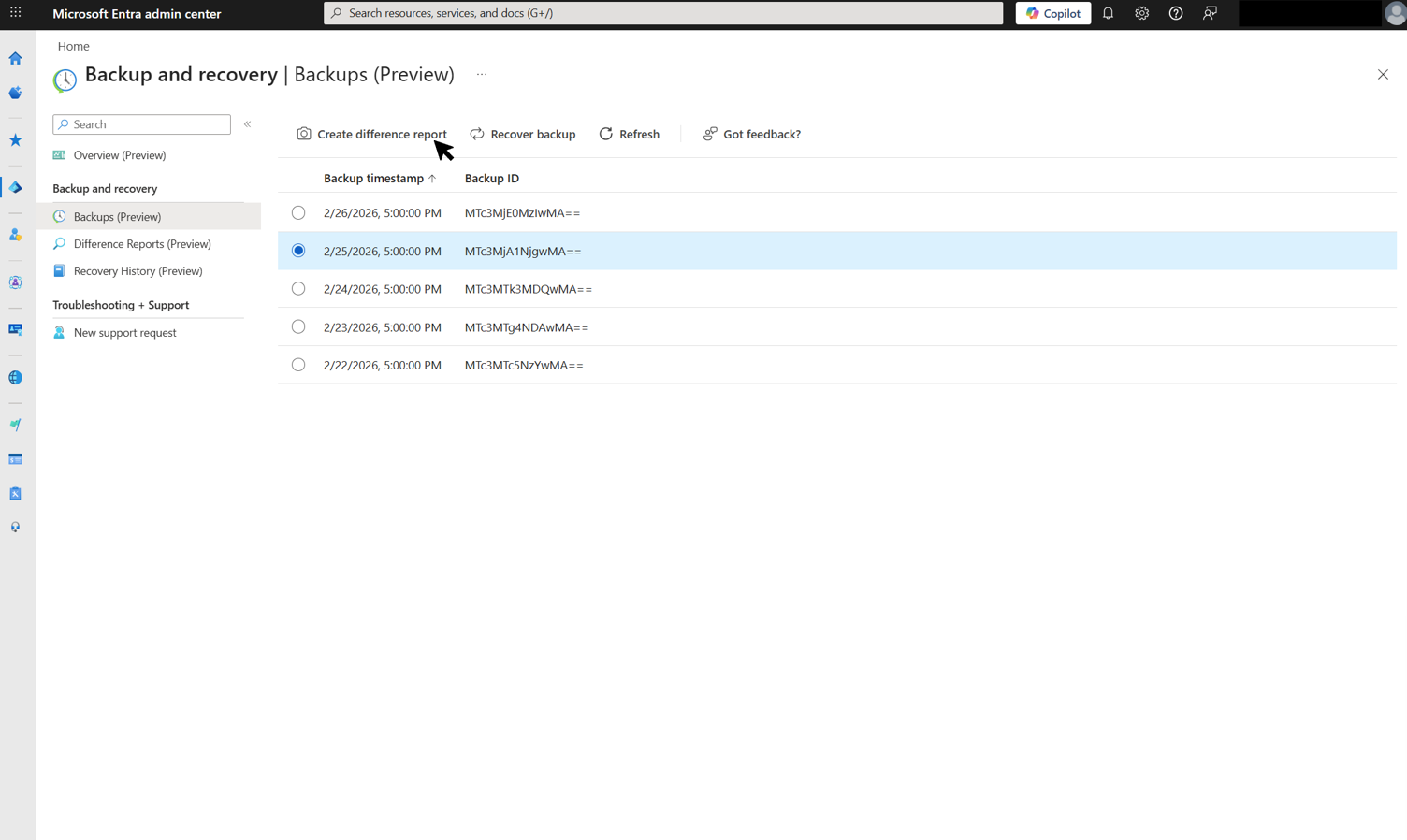
Backups are created automatically once per day. Only retained backups appear for selection. The report compares the selected backup with the current tenant state.
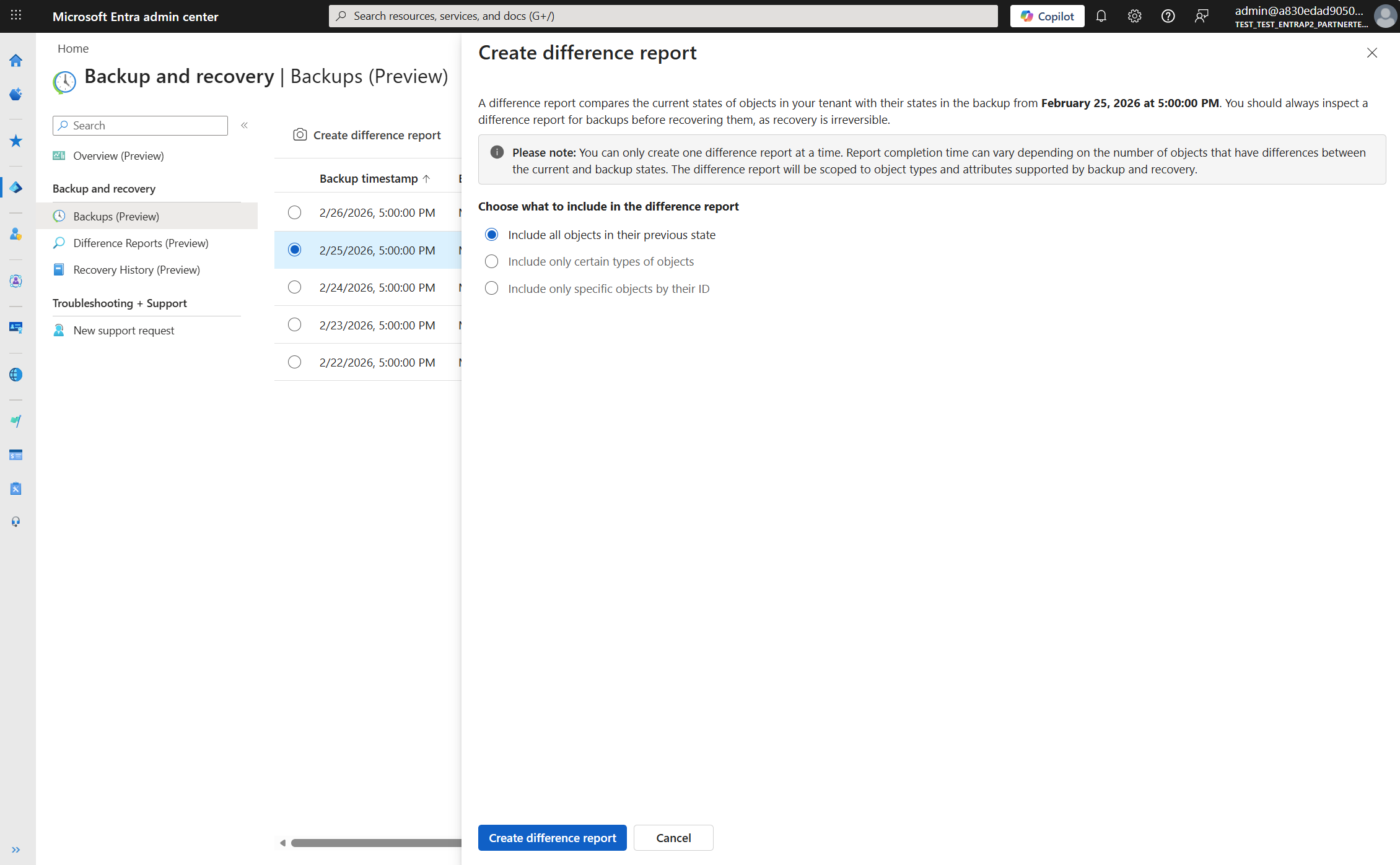
(Optional) Apply filters to limit the scope of objects included in the report. Choose one of these options:
Include all objects in their previous state: Compares all supported objects in the tenant.
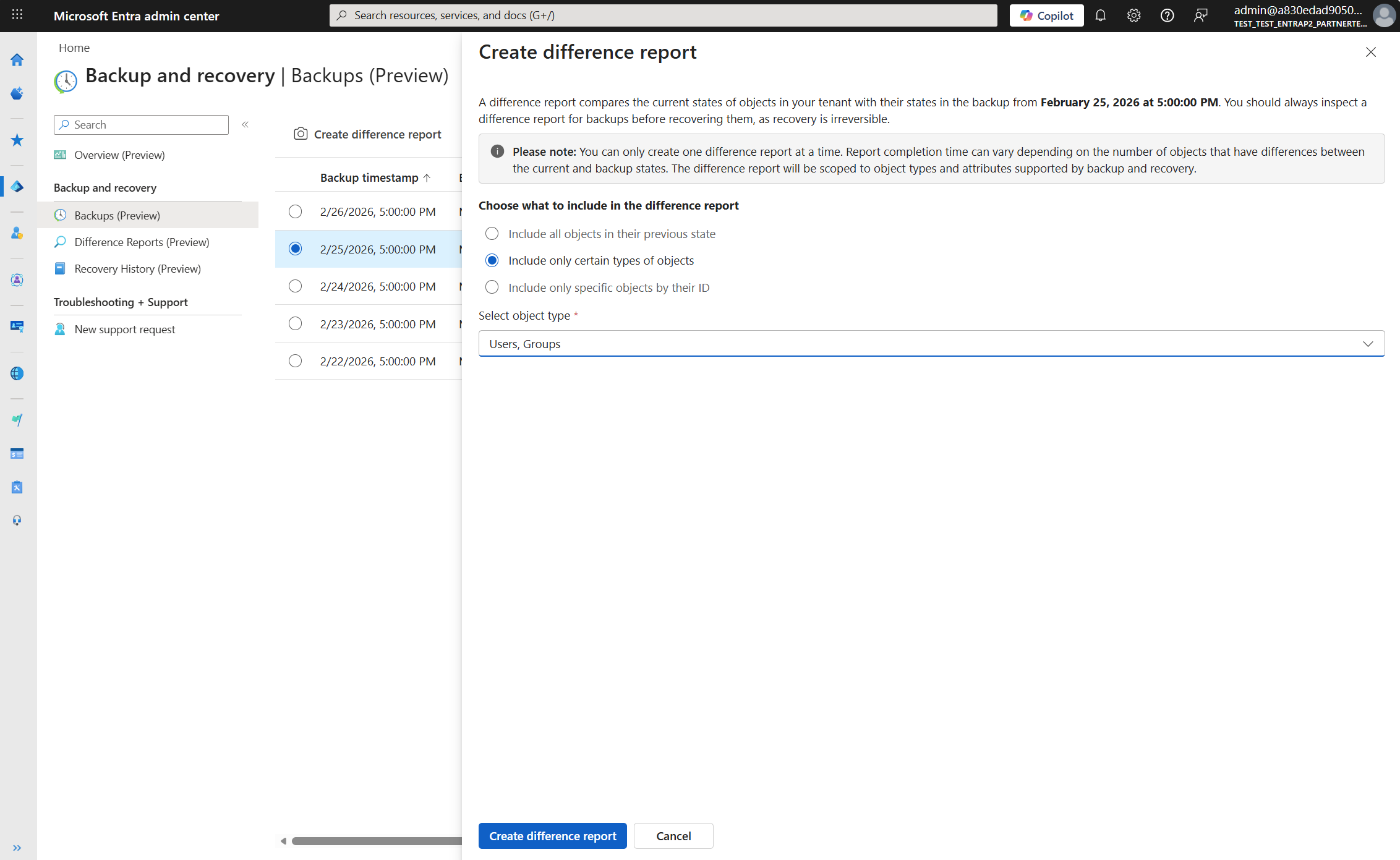
Include only certain types of objects: Limits the report to selected object types, such as Users and Groups.
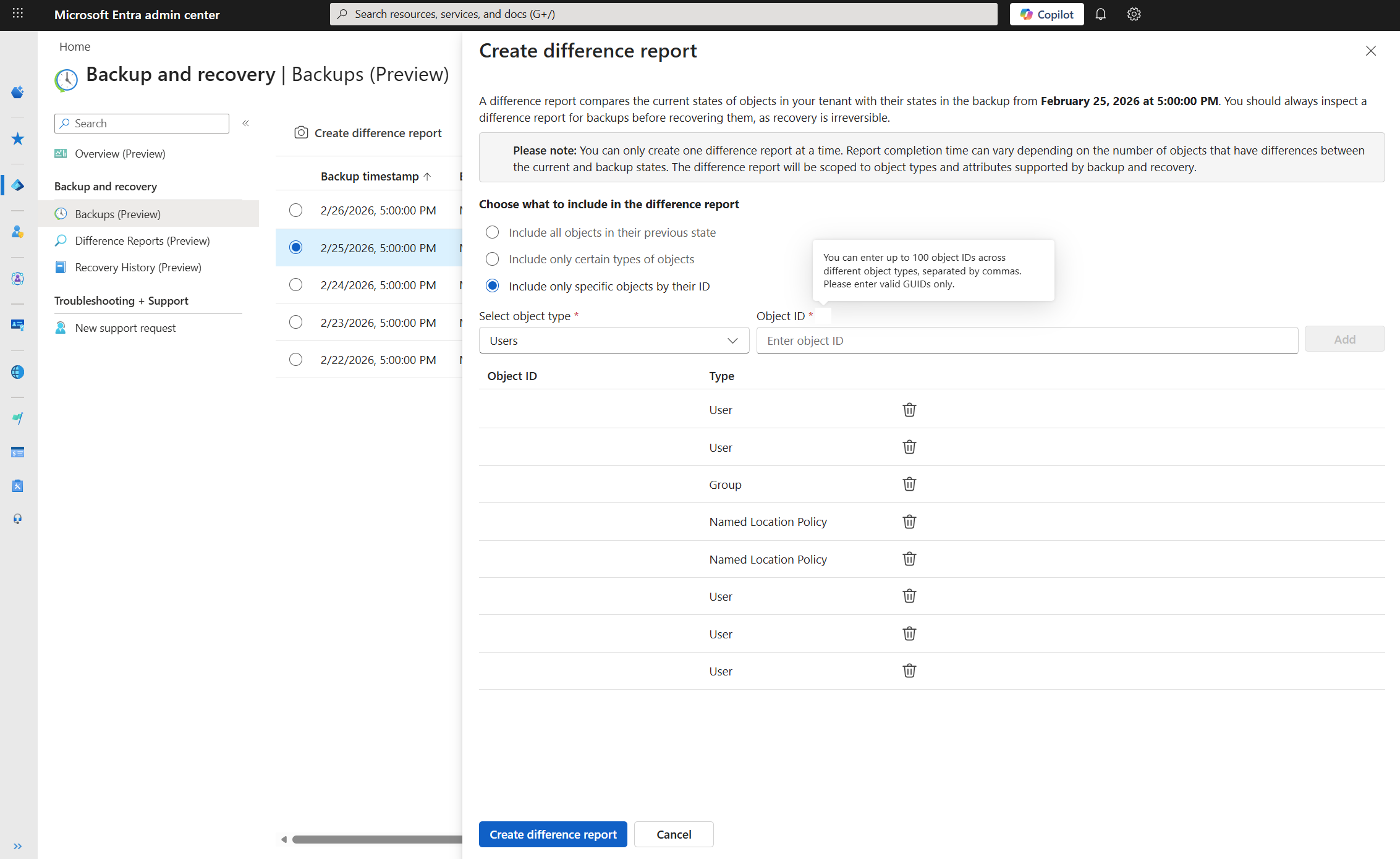
Include only specific objects by their ID: Limits the report to specific objects by their object IDs. Enter up to 100 object IDs across different object types.
Select Create difference report to start the report.
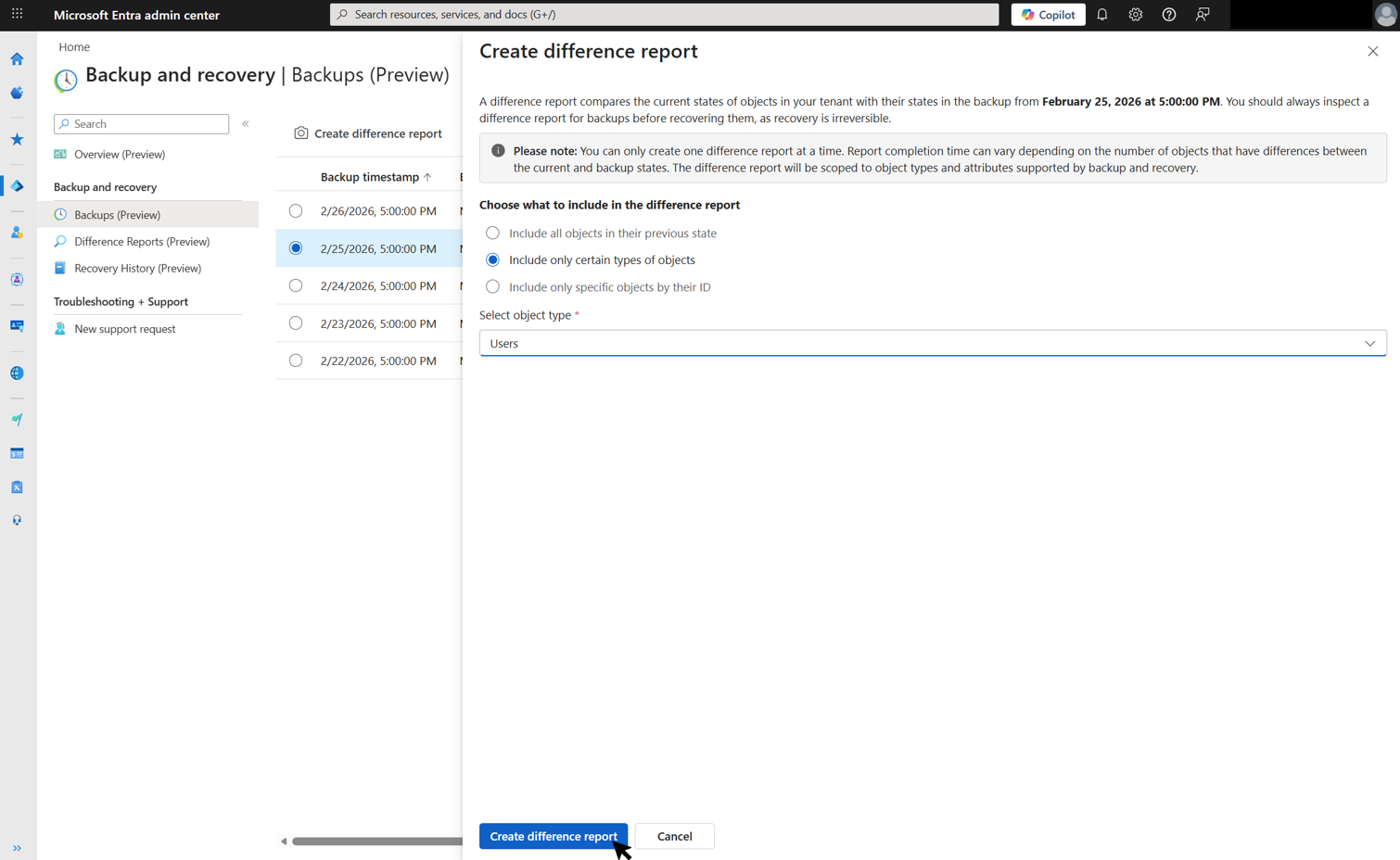
Cancel a difference report
Cancel a difference report while it's in progress. Canceled reports don't display partial results. Canceling is useful if you started the report by mistake.
Go to Backup and recovery > Difference reports.
Select the in-progress report, and then select Cancel in the toolbar.
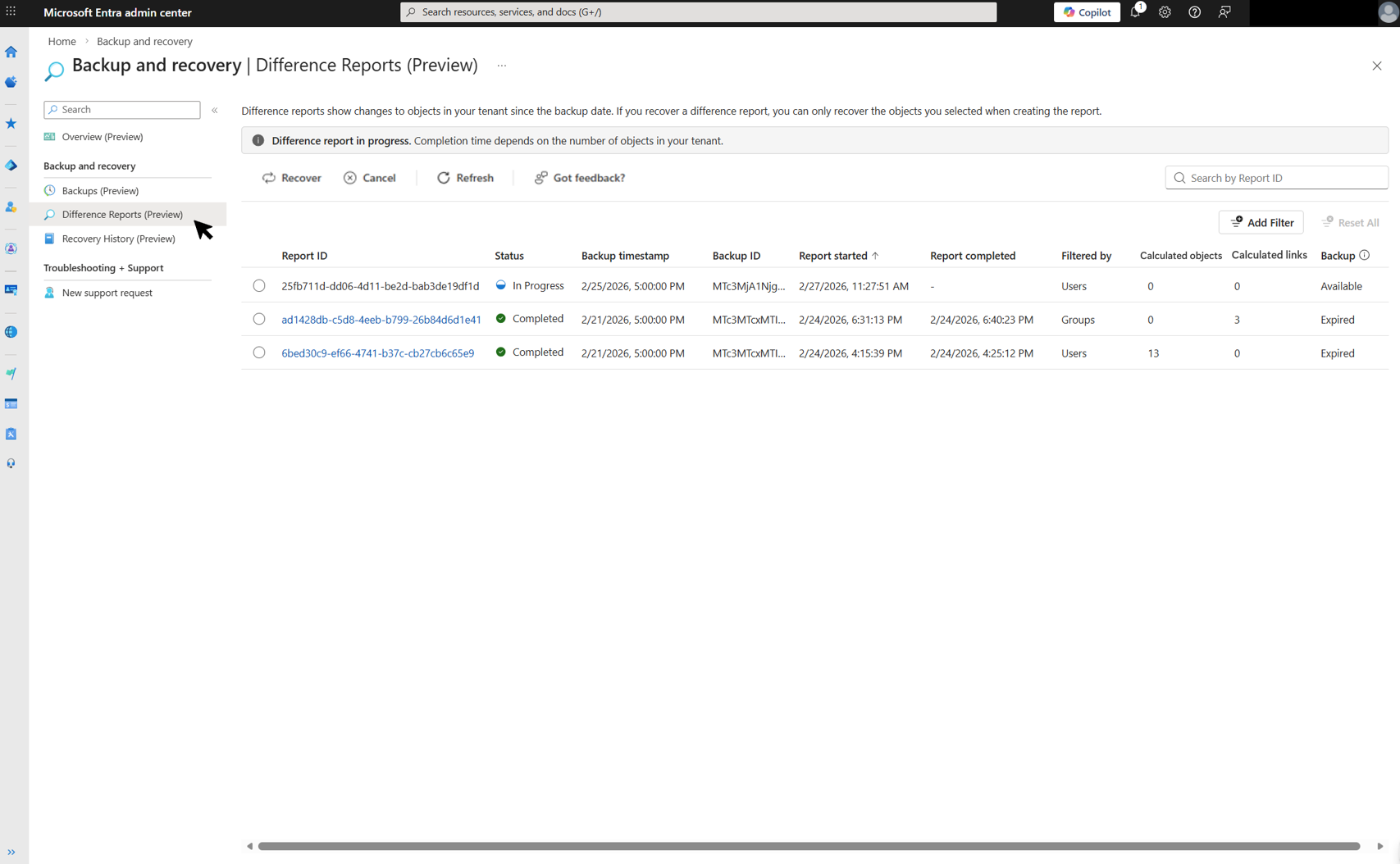
Check difference report statuses
Difference reports move through these statuses as they're created and processed:
| Status | Description |
|---|---|
| Loading data | The system loads data from the selected backup for comparison with the current tenant state. If you previously used the backup for a difference report or recovery, this step might finish quickly. |
| In progress | The system calculates differences between the backup and the current tenant state. Duration depends on the number of objects and the scope of the report. |
| Completed | The difference report finished processing and is ready for review. |
| Failed | The difference report couldn't be generated because of an error. |
| Canceled | The difference report was canceled before completion. |
Review a difference report
A difference report reflects the current tenant state at the time the report was created and doesn't update automatically. If more changes occur before recovery, create a new difference report.
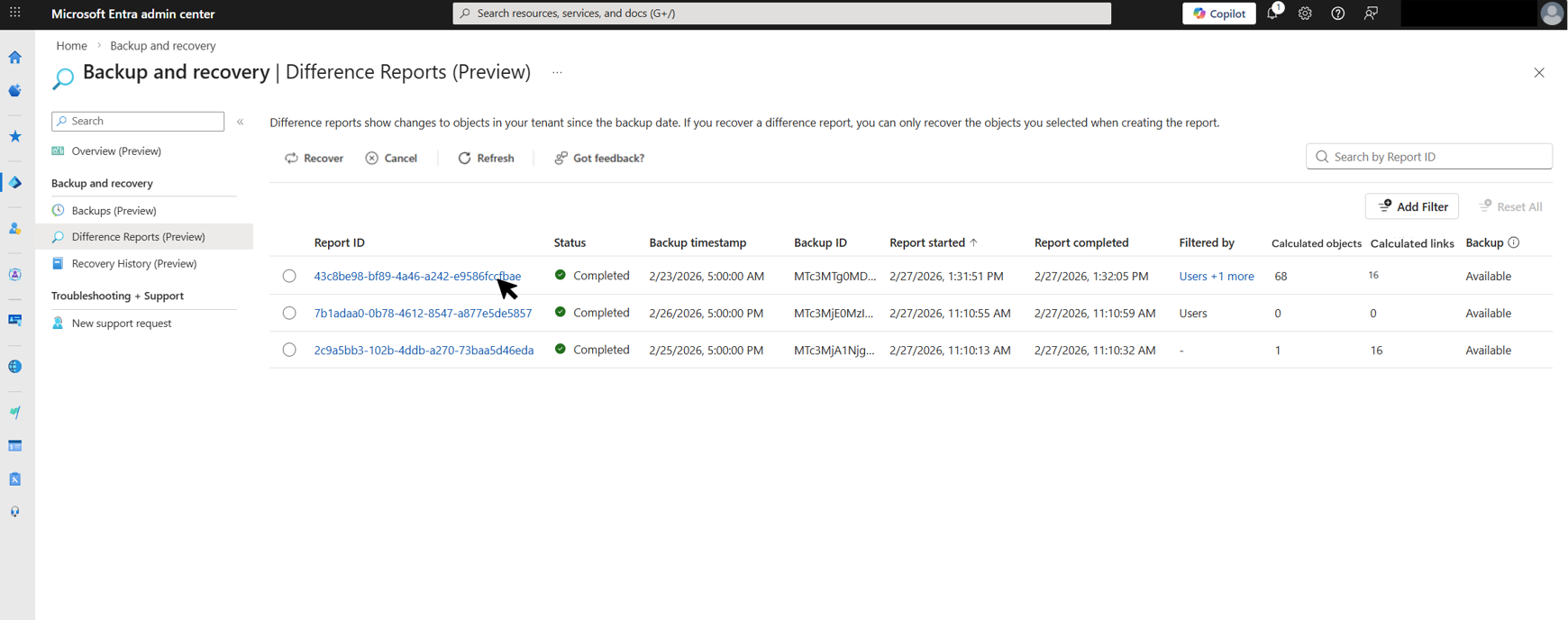
Go to Backup and recovery > Difference reports. The list shows each report's status, backup details (ID, timestamp, and availability), and scoping criteria. It also shows creation and completion times, and the number of objects and links in the report.
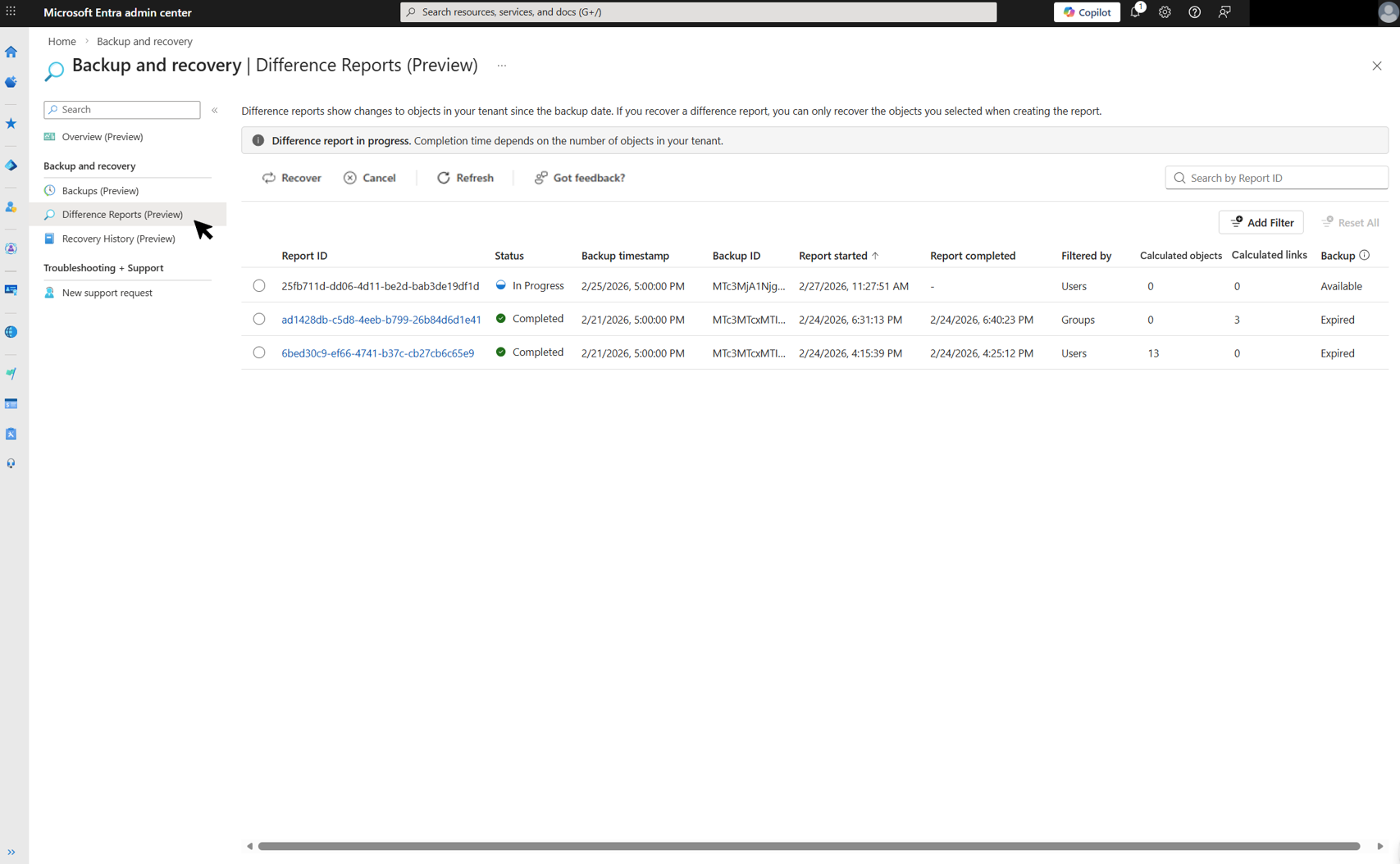
Select a completed difference report to view its details.
Review the difference report content. The report lists each object that changed, along with the recovery action that applies during recovery.
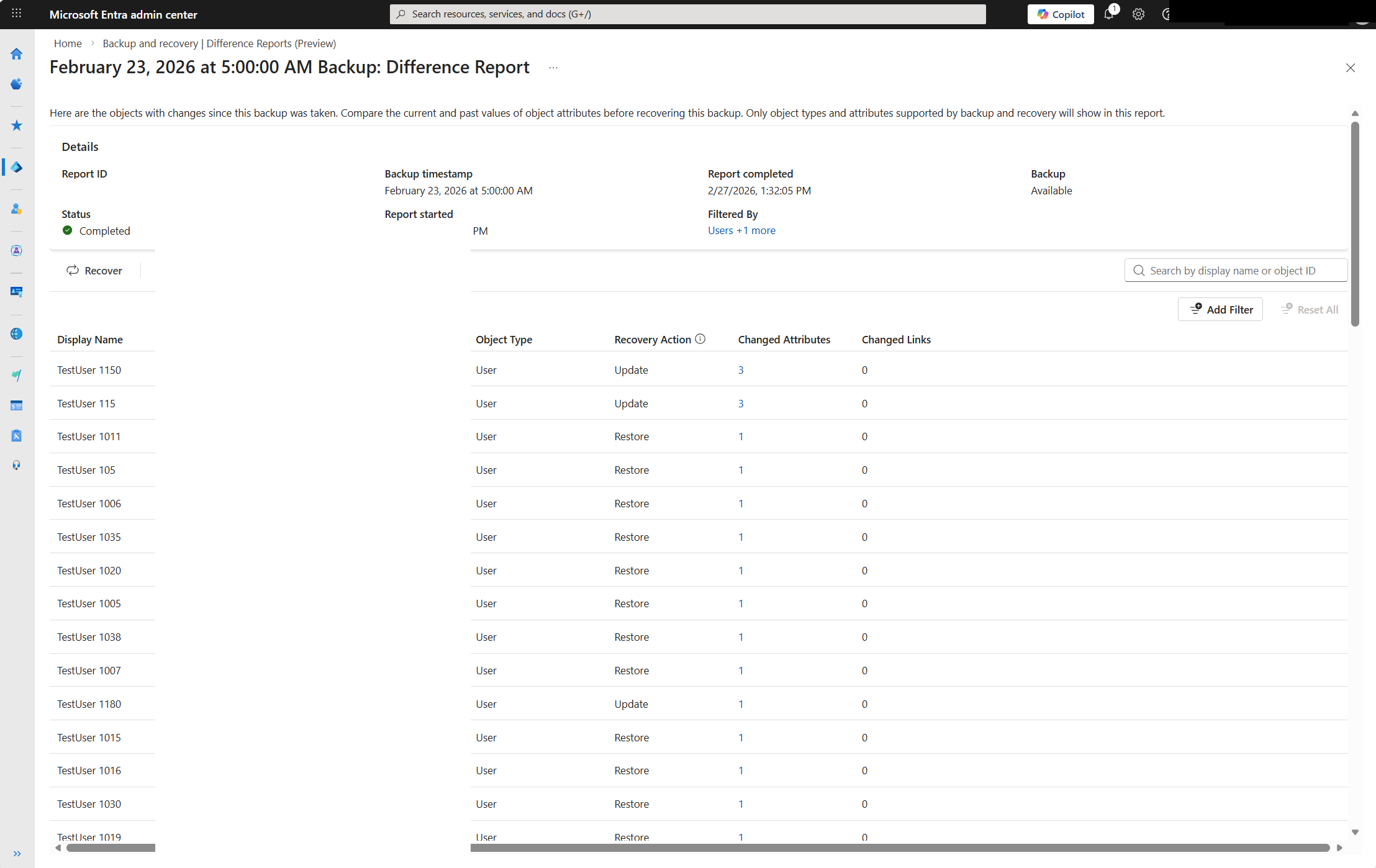
The report includes this information for each object:
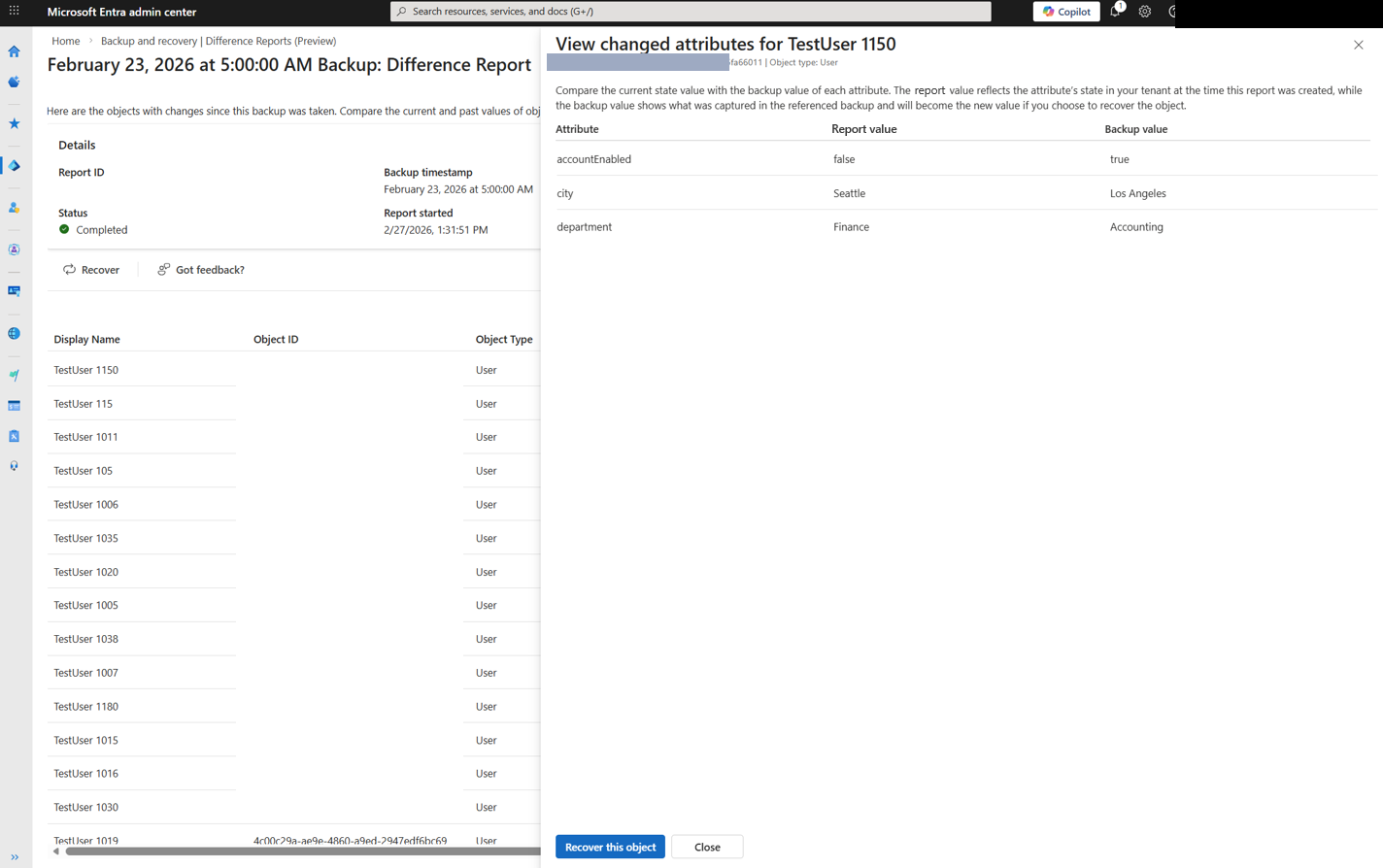
Changed attributes: Select the count in the Changed Attributes column to view the attribute differences. The Report value column shows the value captured when the difference report was created. The Backup value column shows the value as captured in the selected backup.
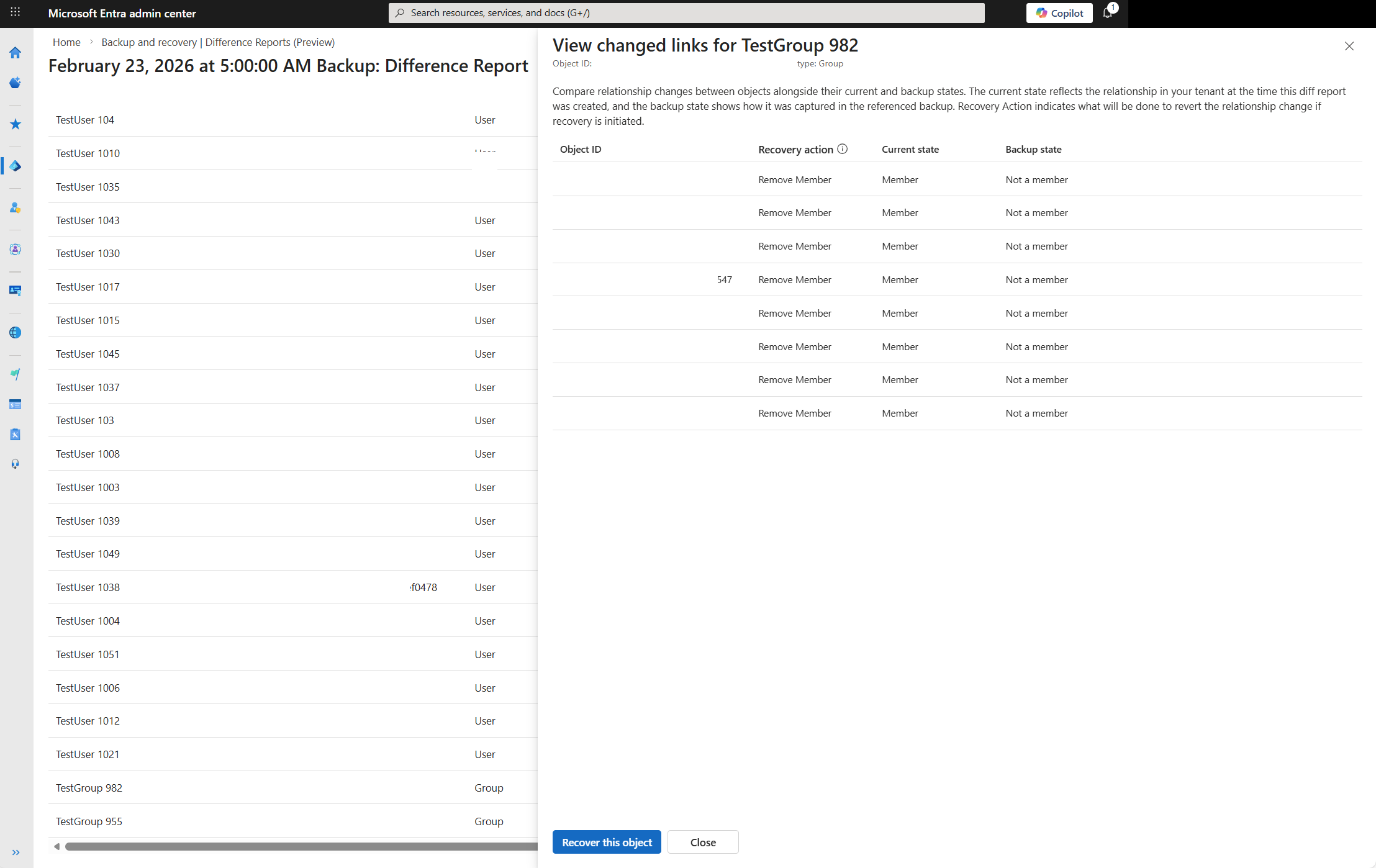
Changed links: Select the count in the Changed Links column to view the relationship differences. The Report state column shows the relationship as captured when the difference report was created. The Backup state column shows the relationship as captured in the selected backup. The Recovery action column indicates the action taken to restore the backup state.
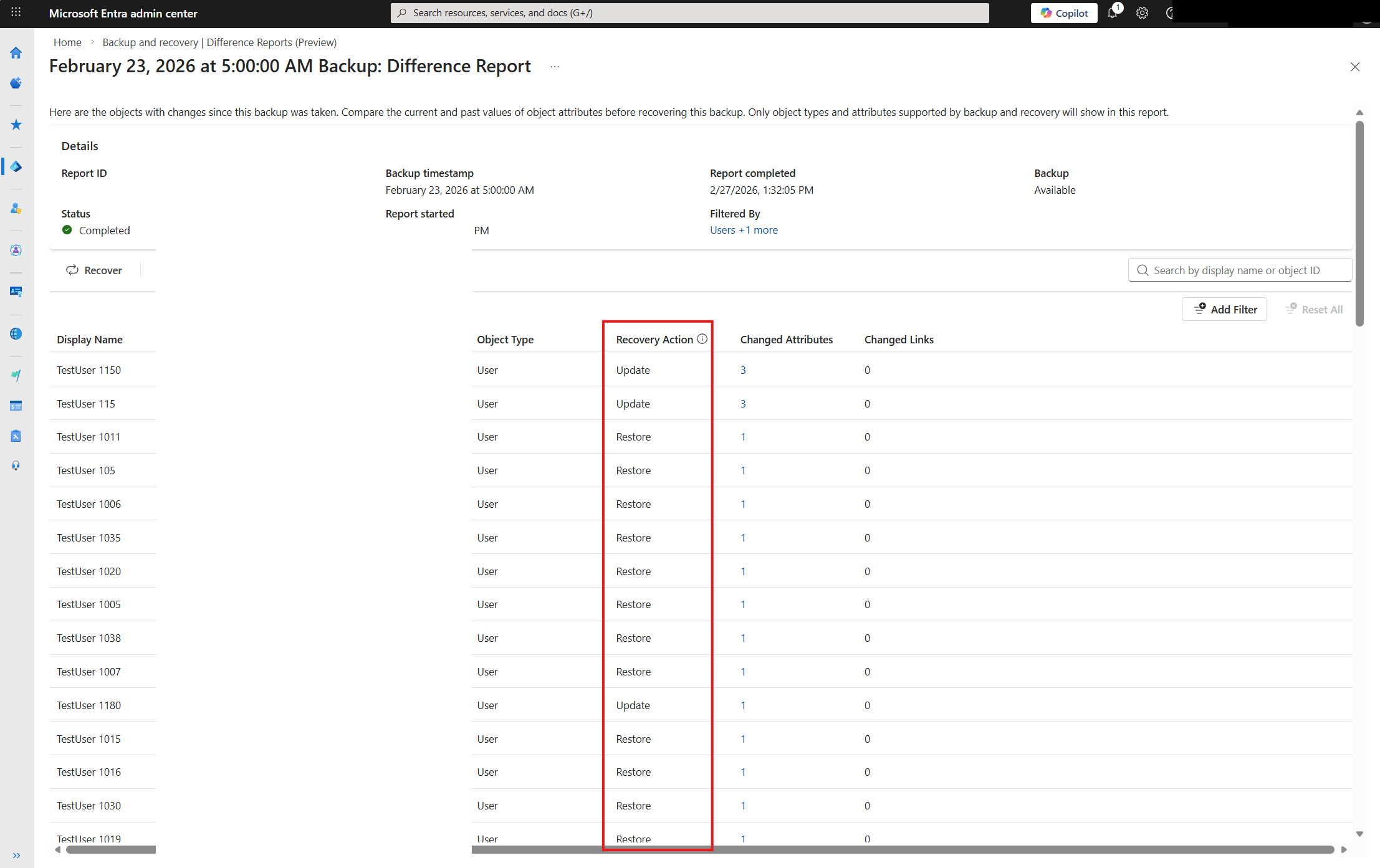
Recovery action: The action that applies when the object is recovered. Possible values:
- Update: Revert changed attributes, links, or both on an existing object.
- Restore: Restore a soft-deleted object.
- Soft delete: Soft-delete an object that was created after the backup.
Note
Hard-deleted objects and read-only properties don't appear in difference reports. Objects synced from on-premises directories can appear in difference reports but aren't recoverable.