Note
Access to this page requires authorization. You can try signing in or changing directories.
Access to this page requires authorization. You can try changing directories.
Learn how to recover objects to a previously known-good state by using Microsoft Entra Backup and Recovery. Recovery includes restoring, soft-deleting, and updating supported objects and attributes.
Key details:
- A recovery ID identifies the recovery job.
- Backups are created automatically once per day. Only retained backups are available for recovery and for generating difference reports.
- Only one recovery runs at a time. If another job (recovery job or difference report) is already running, you must wait for it to complete or cancel it before starting a new one.
- Recovery History retains recovery details for seven days after the recovery completion date.
- Audit logs record all recovery actions.
Prerequisites
The tenant must meet the Backup and Recovery prerequisites, including Microsoft Entra ID P1 or P2 licenses. To recover objects, you need the Microsoft Entra Backup Administrator role.
Recover from a difference report
Use this method when you already created a difference report and reviewed the changes.
Sign in to the Microsoft Entra admin center as at least a Microsoft Entra Backup Administrator.
Go to Backup and recovery > Difference reports. Select a completed difference report.
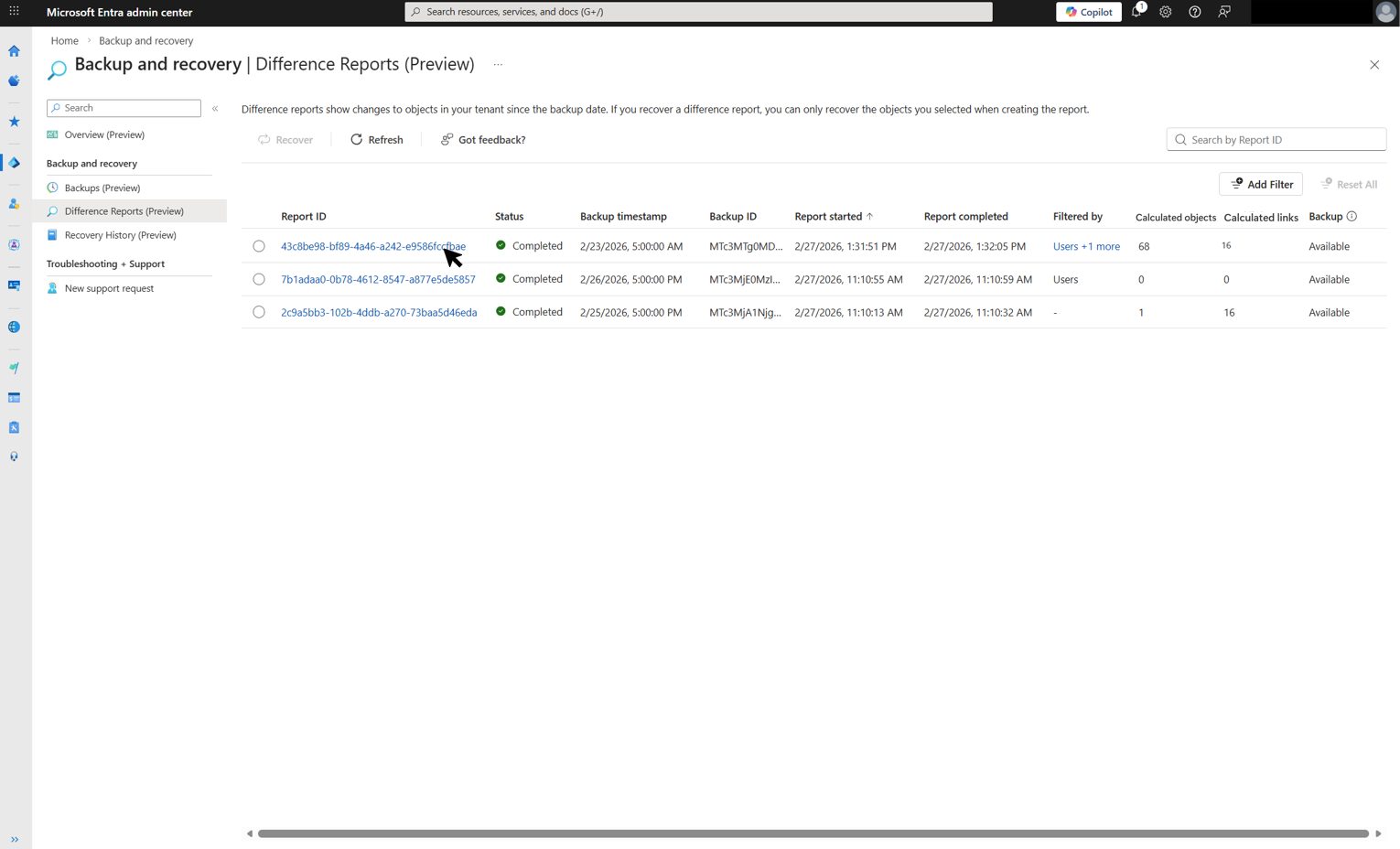
Difference reports compare the selected backup with the current tenant state and show changed attributes and links.
After inspecting the objects listed in the difference report, select Recover to start recovery.
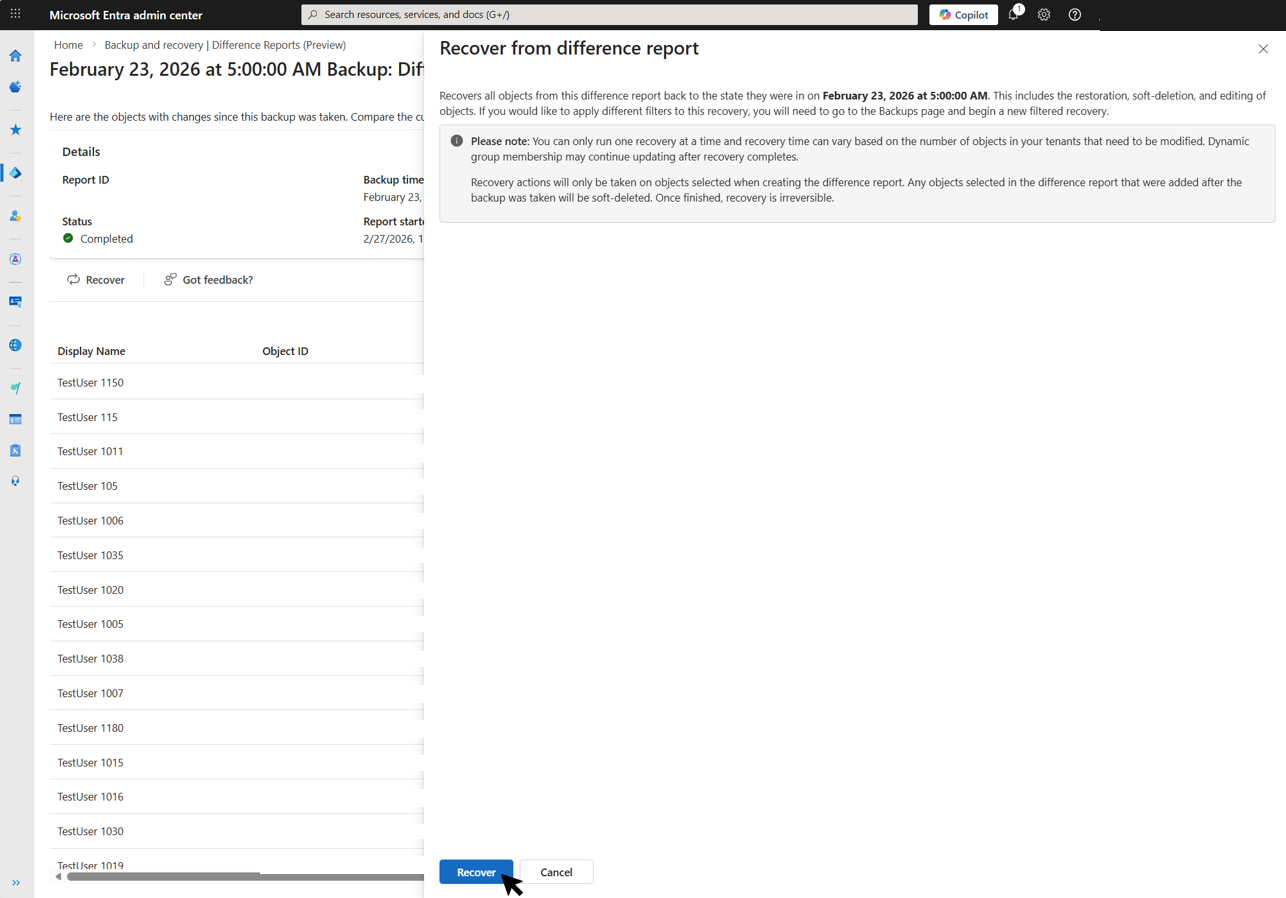
If you recover from a difference report that was created with scoping filters, recovery automatically uses the same scope and doesn't allow additional filtering. To recover a different set of objects, start from the backups page and run difference report to review changes.
(Optional) To recover a single high-priority object without initiating a full recovery job, open the object's changed attributes panel and select Recover this object.
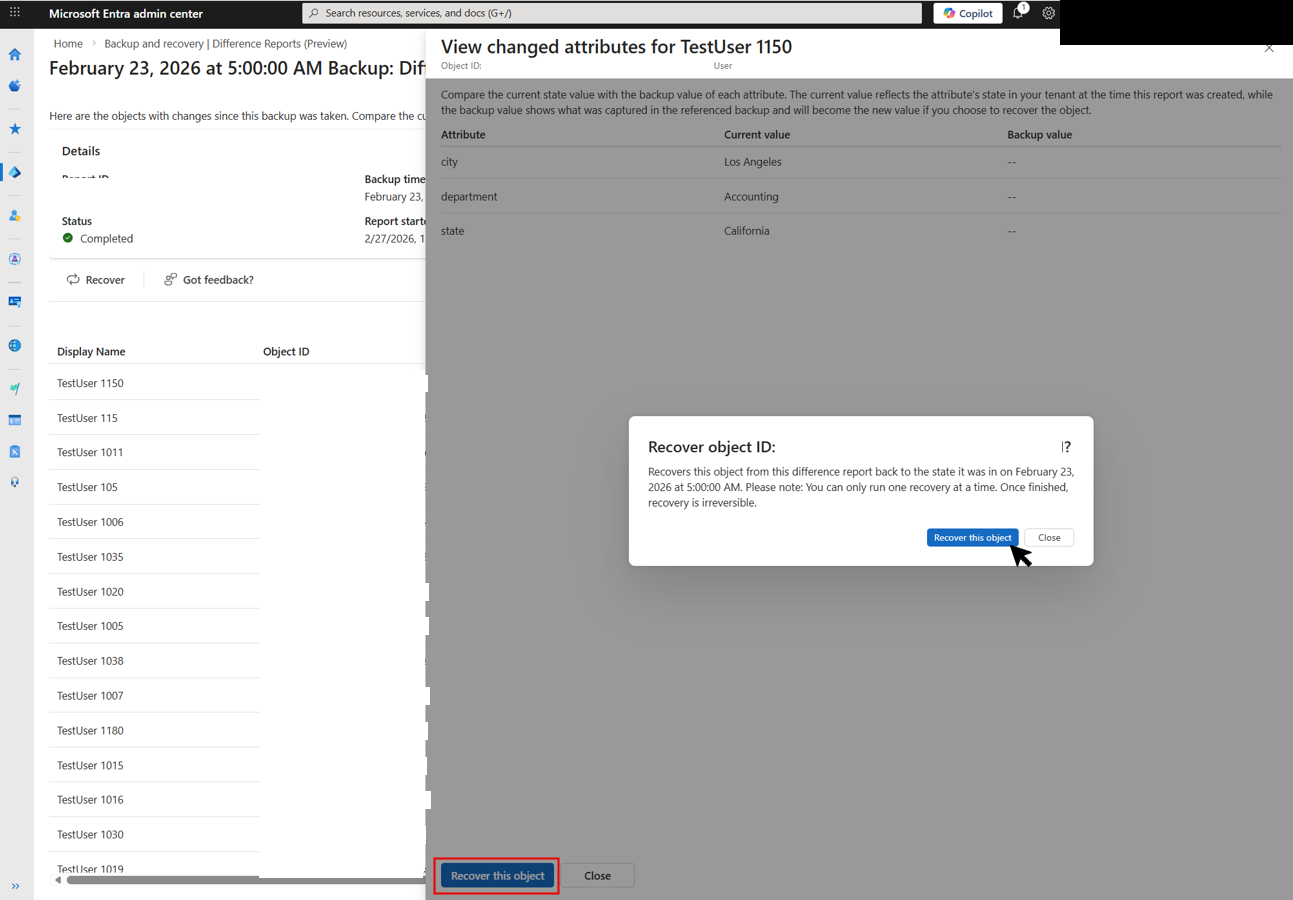
Difference reports are a point-in-time comparison. If objects are modified in the tenant after the report is created, those changes aren't reflected in the report. When you recover from a difference report, recovery applies to the tenant's most current state. This might result in a different set of changes than the difference report shows.
Recover directly from a backup
Creating a difference report lets you preview changes before recovery. To skip this step, recover directly from a backup. Only retained backups are listed on the Backups page.
Sign in to the Microsoft Entra admin center as at least a Microsoft Entra Backup Administrator.
Go to Backup and recovery > Backups. Select a backup and select Recover backup.
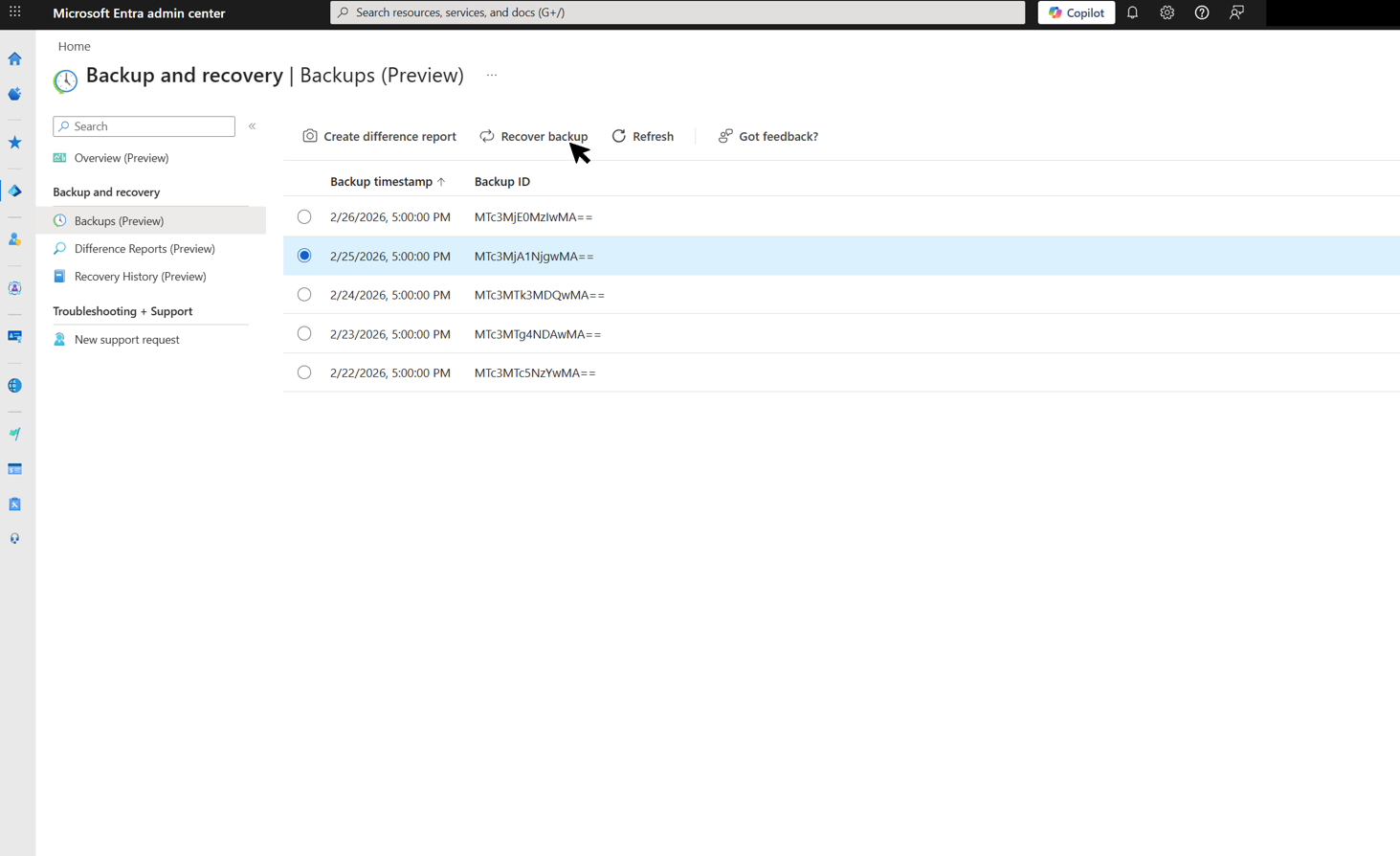
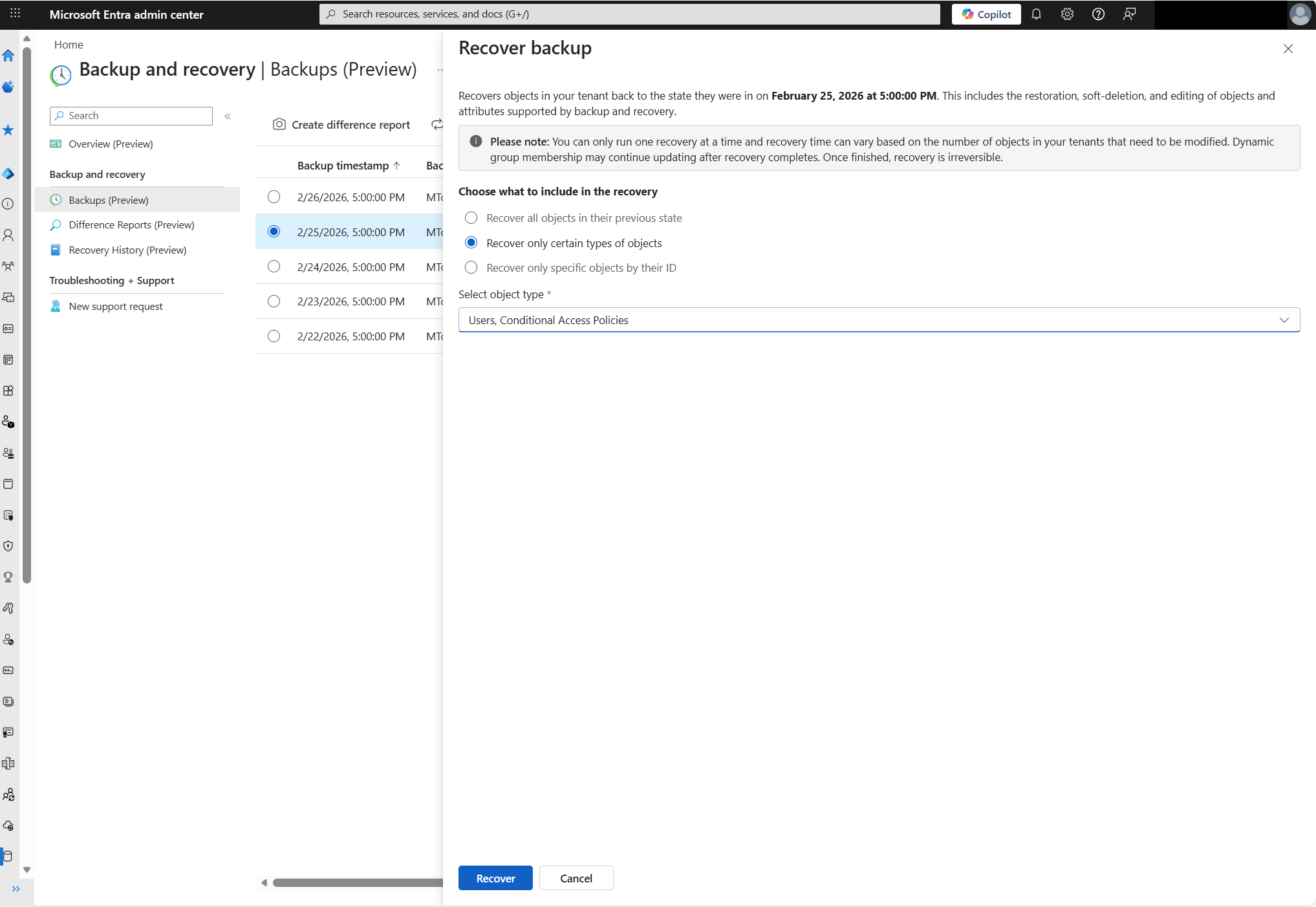
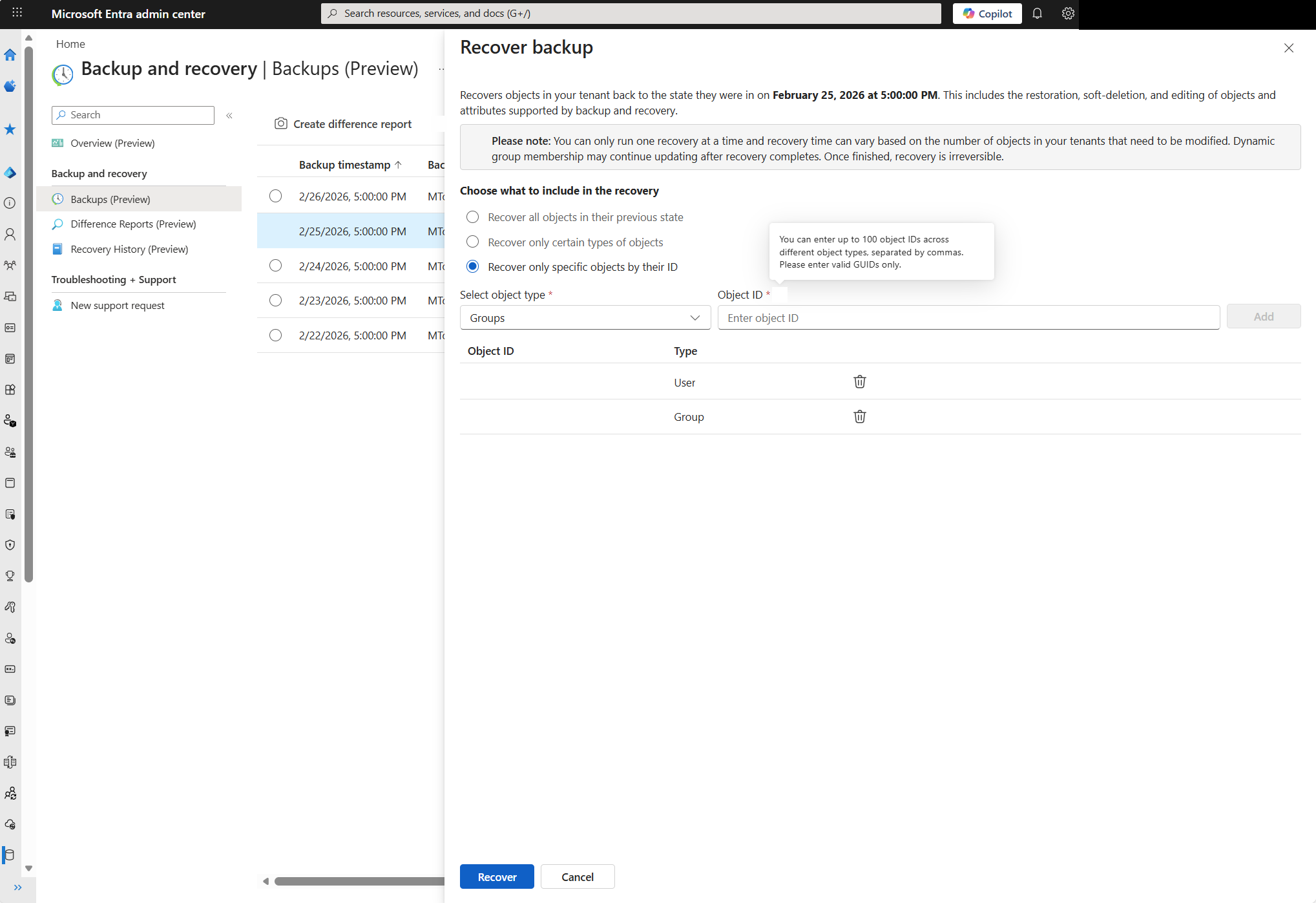
(Optional) Apply scoping filters to limit the objects included in recovery. Choose one of these options:
Recover all objects in their previous state: Recovers all supported objects in the tenant.
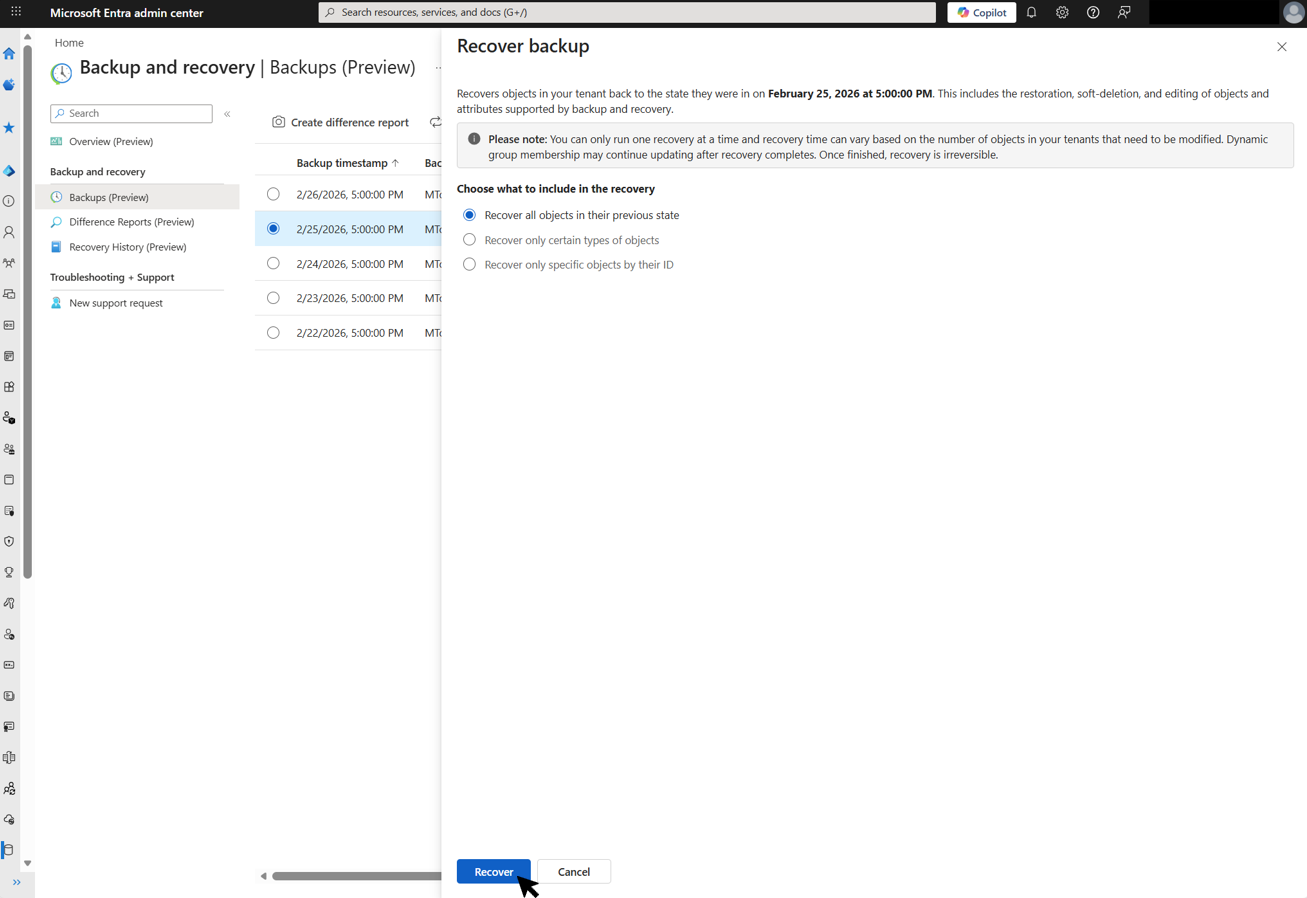
Recover only certain types of objects: Limits recovery to selected object types, such as Users or Conditional Access Policies.
Recover only specific objects by their ID: Limits recovery to specific objects by their object IDs. Enter up to 100 object IDs across different object types.
Select Recover to start the recovery job.
Warning
Recovery actions apply directly to your tenant and can't be undone automatically. Review changes in a difference report before starting recovery. The recovery job records all changes in audit logs.
Cancel a recovery
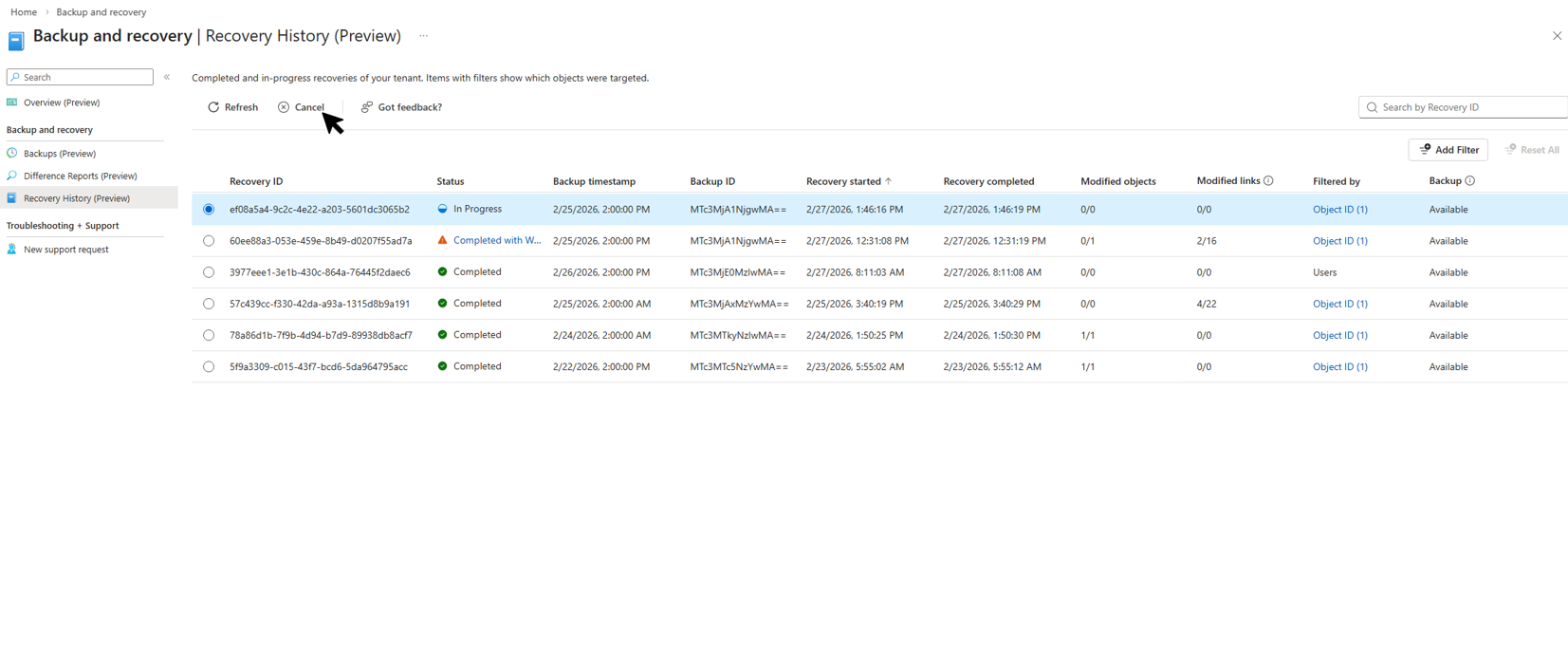
Cancel a recovery job while it's running. Any recovery actions completed before cancellation remain in effect.
Go to Backup and recovery > Recovery History.
Select the in-progress recovery job, and then select Cancel.
Note
- Soft-deleted users, Microsoft 365 Groups, cloud security groups, application registrations, and service principals can be restored for 30 days. For more information, see Soft deletion in Microsoft Entra Backup and Recovery. Backup and Recovery restores supported properties and links from retained backups.
- Hard-deleted objects can't be recovered. Use Protected Actions to prevent unwanted hard deletions in your tenant.