Note
Access to this page requires authorization. You can try signing in or changing directories.
Access to this page requires authorization. You can try changing directories.
Choose Your Own Telephony Provider (CYOT) lets your organization use a supported telephony provider to deliver SMS and voice authentication for Microsoft Entra ID. CYOT is the recommended option when a supported offering meets your coverage, contractual, and compliance requirements.
This overview covers CYOT and Bring Your Own Telephony Provider (BYOT). Both options connect Microsoft Entra to a telephony provider through an integration in your Azure subscription; purchasing and deployment differ.
CYOT combines providers evaluated by Microsoft for geographic coverage and fraud protection capabilities with Microsoft Security Store purchasing, Azure subscription billing, centralized subscription management, and guided deployment in the Microsoft Entra admin center.
Microsoft Entra continues to manage the authentication experience, including one-time passcode (OTP) generation and validation. Your organization selects and configures a provider based on its coverage, pricing, and other requirements, while the provider delivers SMS messages and voice calls.
To get started, set up the integration in the admin center (CYOT).
When to use BYOT: Consider Bring Your Own Telephony Provider (BYOT) when an existing provider agreement or a specific requirement cannot be accommodated through the supported CYOT offerings. See Set up SMS and voice with your own telephony provider by using APIs (BYOT).
Important
Microsoft recommends phishing-resistant authentication methods, such as passkeys, instead of SMS or voice. Use a telephony provider only for user populations that have a business, regulatory, or technical requirement for telephony-based authentication.
How CYOT and BYOT work
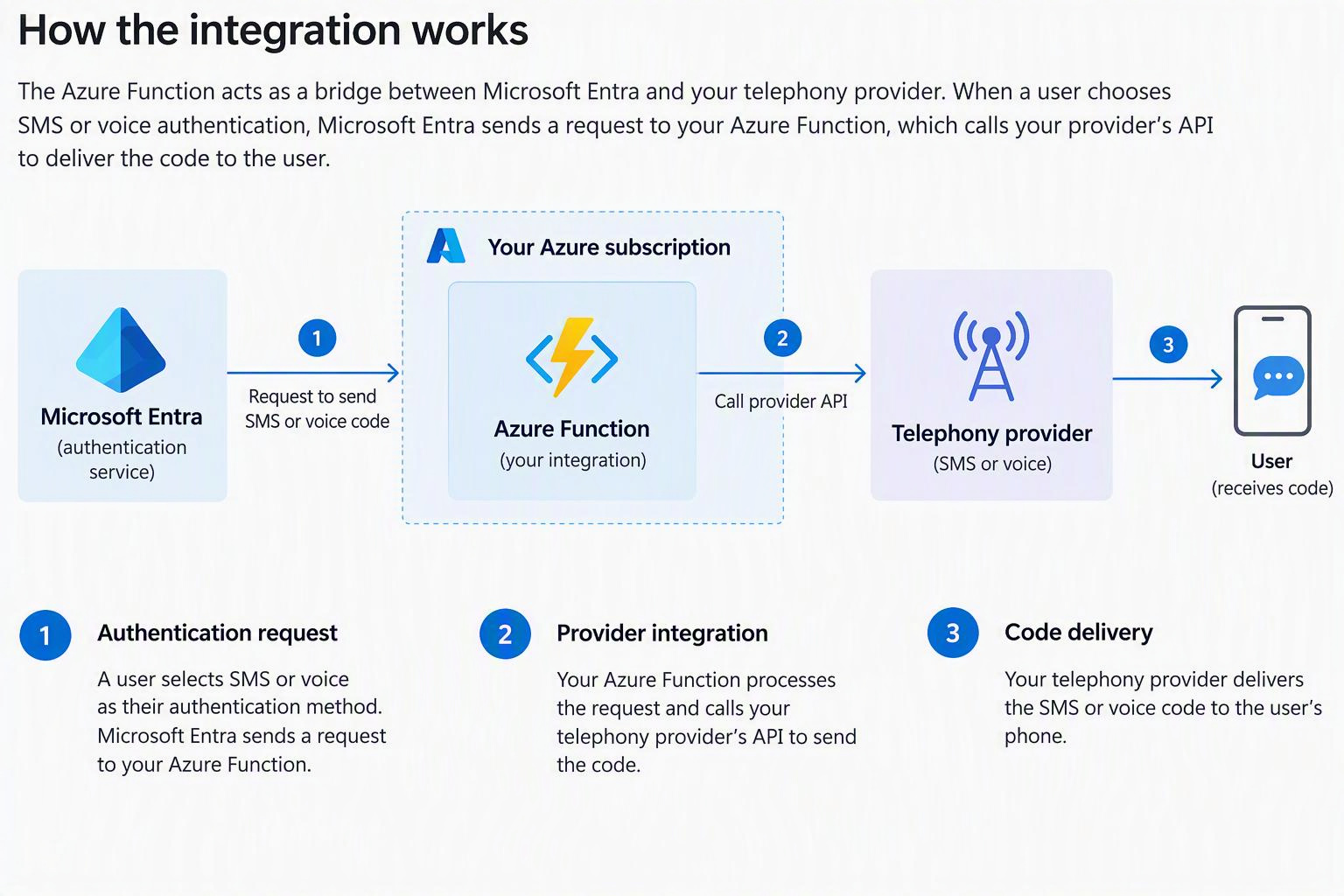
When SMS or voice authentication is required:
- Microsoft Entra initiates the authentication request.
- Microsoft Entra sends the request to the CYOT or BYOT integration deployed in your Azure subscription.
- The integration sends the request to your configured telephony provider.
- Your telephony provider delivers the SMS message or voice call to the user.
- Microsoft Entra completes the authentication flow.
The Azure Function deployed in your subscription connects Microsoft Entra with your telephony provider.
Available telephony providers
For CYOT, select a supported telephony provider based on your organization's coverage, pricing, and other requirements.
Review pricing and other commercial details for the available provider offers:
- Soprano: Per-user offer or per-transaction offer in Microsoft Security Store.
- Telesign: Telesign Verify for Microsoft Entra in Microsoft Security Store.
- Infobip: Infobip offer in Microsoft Security Store.
Note
CYOT provider availability, coverage, pricing, and commercial terms can vary. Review the provider's Microsoft Security Store listing for the latest information before purchasing. Marketplace purchase availability is separate from telephony coverage.
For BYOT, obtain your provider's ready-to-deploy integration package and setup instructions, and confirm channel support, coverage, and commercial terms directly with the provider. See Set up SMS and voice with your own telephony provider by using APIs (BYOT).
Understand your responsibilities
With CYOT or BYOT, your organization owns the Azure resources deployed in your subscription and your telephony provider account, so you keep full control over how they run. CYOT uses guided deployment in the admin center; BYOT uses your provider's published integration package and API setup instructions. Your team manages the Azure Function and provider account from there.
| Owner | Responsibilities |
|---|---|
| Microsoft | Microsoft Entra authentication and the handoff to your endpoint. |
| Customer | Deploying and operating the integration, managing the telephony provider account, and configuring fraud controls. |
| Telephony provider | SMS and voice delivery, and offering fraud controls. |
Get started with CYOT
At a high level, setting up CYOT involves:
- Subscribe to a telecom provider. Review the available provider offers in Microsoft Security Store and purchase the offer that meets your organization's requirements.
- Set up the provider integration. Deploy the integration in your Azure subscription and connect it to your provider.
- Create an SMS or voice profile. Route SMS or voice authentication through your provider.
- Evaluate. Validate the integration while Microsoft continues to deliver messages, so users aren't affected.
- Roll out. Move traffic to your provider gradually, validating at each stage.
For detailed instructions, see Set up SMS and voice with your own telephony provider in the Microsoft Entra admin center.
Get started with BYOT
Obtain your provider's ready-to-deploy integration package and set up your account directly with the provider. Deploy the integration in your Azure subscription, complete provider authorization, and configure the authentication method policy through APIs. Evaluate the integration before gradually moving traffic to your provider. Preserve existing production SMS and voice targets throughout evaluation and rollout.
For detailed instructions, see Set up SMS and voice with your own telephony provider by using APIs (BYOT).
Plan your deployment
Before moving production authentication traffic to CYOT or BYOT, consider fraud protection, resiliency, and costs based on your organization's requirements.
Prevent telephony fraud
Work with your telephony provider to configure the fraud protection, destination, usage, and spending controls appropriate for your organization's traffic and risk requirements.
See Prevent telephony fraud when using your own telephony provider.
Plan for resiliency
Plan the availability and recovery of the Azure resources and telephony provider used by your CYOT or BYOT integration.
Organizations with additional availability requirements can implement cross-region resiliency and, where appropriate, configure provider redundancy.
See Plan for resiliency when using your own telephony provider.
Understand costs
CYOT and BYOT can involve two separate categories of costs:
- Telephony provider costs for SMS and voice delivery through your selected provider.
- Azure costs for the Azure Function and supporting resources deployed in your subscription.
Review both before moving production authentication traffic to CYOT or BYOT.
For CYOT, provider charges follow the offer you purchase through Microsoft Security Store. For BYOT, charges follow the terms you agree directly with your provider.
See Estimate telephony-provider and Azure hosting costs.
Troubleshoot CYOT
To diagnose SMS or voice issues, identify whether the issue is in Microsoft Entra authentication and configuration, your CYOT or BYOT integration, or telephony provider delivery.
See Troubleshoot SMS and voice with your own telephony provider for diagnostic guidance and information about where to get support.
Related content
- Set up SMS and voice with your own telephony provider in the Microsoft Entra admin center.
- Protect against telephony fraud with your own telephony provider.
- Plan for resiliency and high availability.
- Troubleshoot SMS and voice with your own telephony provider.
- Frequently asked questions.
- Passkeys by default and retirement of Microsoft-provided SMS and voice authentication.
- Configure and enable users for SMS-based authentication using Microsoft Entra ID.