Note
Access to this page requires authorization. You can try signing in or changing directories.
Access to this page requires authorization. You can try changing directories.
Spark views in Microsoft Fabric let you abstract complex data modeling logic and provide simplified access without duplicating data. Views don't store data—they execute the underlying query each time you select from them, giving you real-time results.
If you're familiar with materialized lake views, which persist results as Delta files (commonly used in medallion architectures), Spark views offer a lightweight alternative when you don't need to store the data.
This article describes how to create and manage Spark views in schema-enabled lakehouses, where views are stored in OneLake and visible in Lakehouse Explorer. If you're working with non-schema-enabled lakehouses, see Spark views with non-schema-enabled lakehouses.
How are Spark views stored?
In schema-enabled lakehouses, view metadata is stored in OneLake alongside your tables, but as files rather than folders. This approach:
- Prevents naming conflicts between views and tables
- Uses a special file property that allows engines to identify the object as a view
Currently, only Spark and the lakehouse can read Spark views. Other Fabric workloads, like SQL analytics endpoint or Semantic models, don't yet recognize Spark views.
Create a Spark view
To create a Spark view, use a notebook session with a schema-enabled lakehouse as your default lakehouse. Run a Spark SQL statement with CREATE OR REPLACE VIEW:
CREATE OR REPLACE VIEW my_view AS
SELECT * FROM my_table WHERE status = 'active'
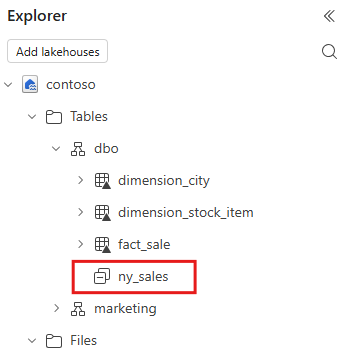
For example, you might create a view named ny_sales to filter sales data for a specific region.
The view appears in Lakehouse Explorer under your schema after refresh.
Cross-lakehouse queries
Spark views can reference data from multiple lakehouses. Join tables from different lakehouses—or even different workspaces—within a single view.
CREATE OR REPLACE VIEW my_view AS
SELECT * FROM myworkspace.mylakehouse.schema.my_table as a
JOIN otherworkspace.otherlakehouse.schema.my_other_table as b
ON a.identifier=b.identifier WHERE a.status = 'active'
Specify the view location
Create views in your default lakehouse, or specify a four-part name for any lakehouse you have access to:
CREATE OR REPLACE VIEW myworkspace.mylakehouse.schema.my_view AS
SELECT * FROM my_table WHERE status = 'active'
For more information about four-part naming, see Cross-workspace Spark SQL queries.
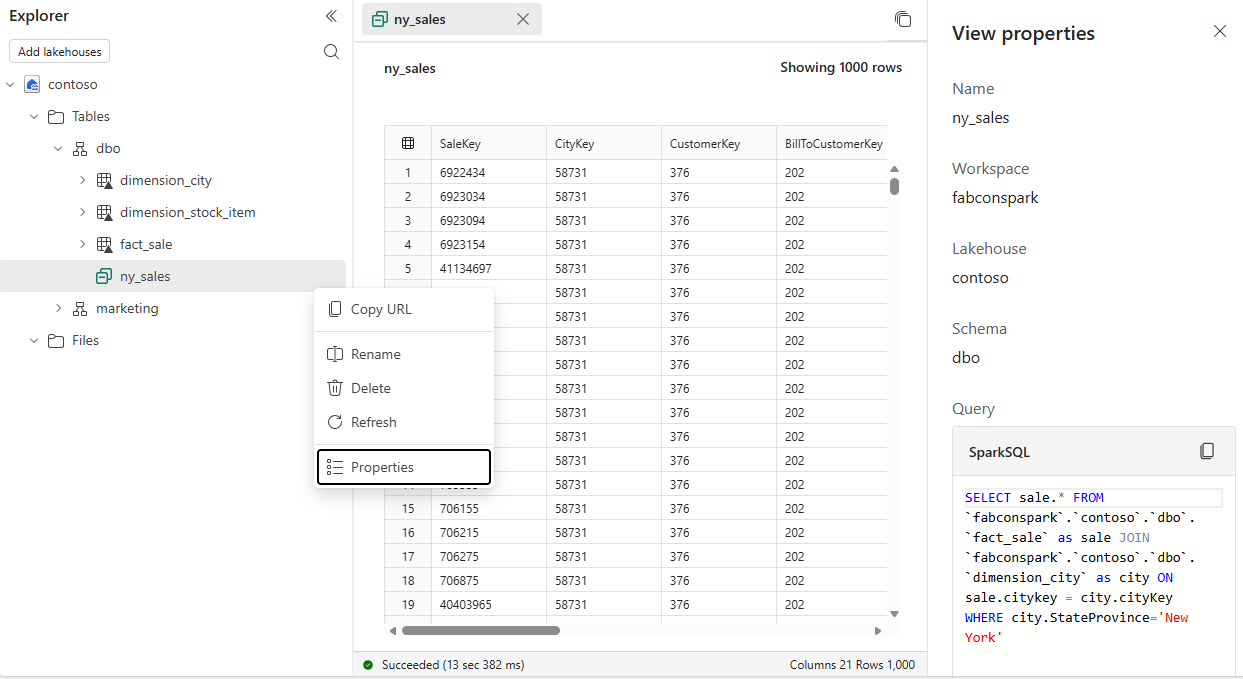
Manage views in Lakehouse Explorer
Once created, your Spark view appears in Lakehouse Explorer alongside your tables. From the view's context menu, you can:
Rename the view
Delete the view
View properties, including the underlying query definition
Spark views with non-schema-enabled lakehouses
When your notebook's default lakehouse is non-schema-enabled, Spark views are created in the metastore. Those Spark views are not visible in Lakehouse Explorer. Only views stored in OneLake appear in Lakehouse Explorer.
To create a Spark view stored in OneLake for a non-schema-enabled lakehouse, use a notebook session with a schema-enabled lakehouse as your default and reference the non-schema-enabled lakehouse in your query:
CREATE OR REPLACE VIEW myworkspace.non_schema_lakehouse.my_view AS
SELECT * FROM myworkspace.non_schema_lakehouse.my_table AS table
WHERE table.status = 'active'