Note
Access to this page requires authorization. You can try signing in or changing directories.
Access to this page requires authorization. You can try changing directories.
The refresh SQL analytics endpoint activity in Microsoft Fabric pipelines lets you programmatically refresh a Lakehouse SQL analytics endpoint as part of an orchestrated workflow. It's part of the Lakehouse Utility Suite for pipelines, and is typically used after the Lakehouse Maintenance activity (for example, after OPTIMIZE or VACUUM operations). Downstream consumers—such as Power BI reports, notebooks, or external SQL clients—then see the latest data after data preparation or maintenance steps complete.
Use this activity to make SQL analytics endpoints immediately reflect recent updates without relying on manual refreshes or ad hoc processes. Use this activity when your pipeline:
- Updates or maintains Lakehouse data (for example, after Copy Jobs, Notebook execution, or Lakehouse maintenance activities).
- Requires the Lakehouse SQL analytics endpoint to reflect the latest metadata and data changes.
- Needs deterministic refresh timing before downstream steps such as reporting, analytics, or exports.
Prerequisites
Before using this activity, make sure that:
- A tenant account with an active subscription. Create an account for free.
- A workspace with a Lakehouse
- A SQL analytics endpoint exists for the Lakehouse.
- The pipeline identity (user or service principal) has permission to refresh the SQL analytics endpoint.
Add a refresh SQL analytics endpoint activity to your pipeline in the UI
Create a new pipeline in your workspace.
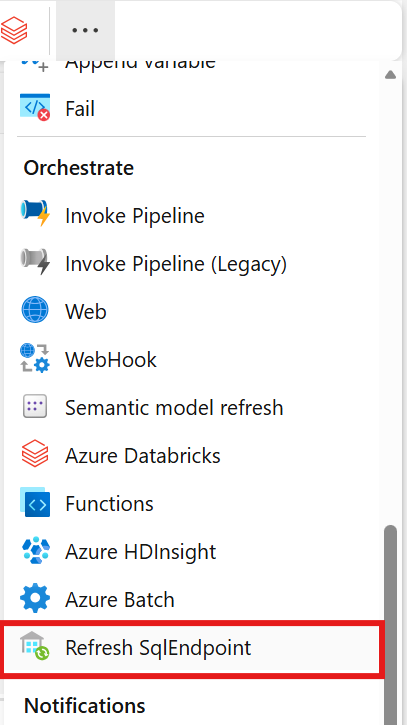
Search for Refresh SQL analytics endpoint in the pipeline Activities pane and select it to add it to the pipeline canvas.
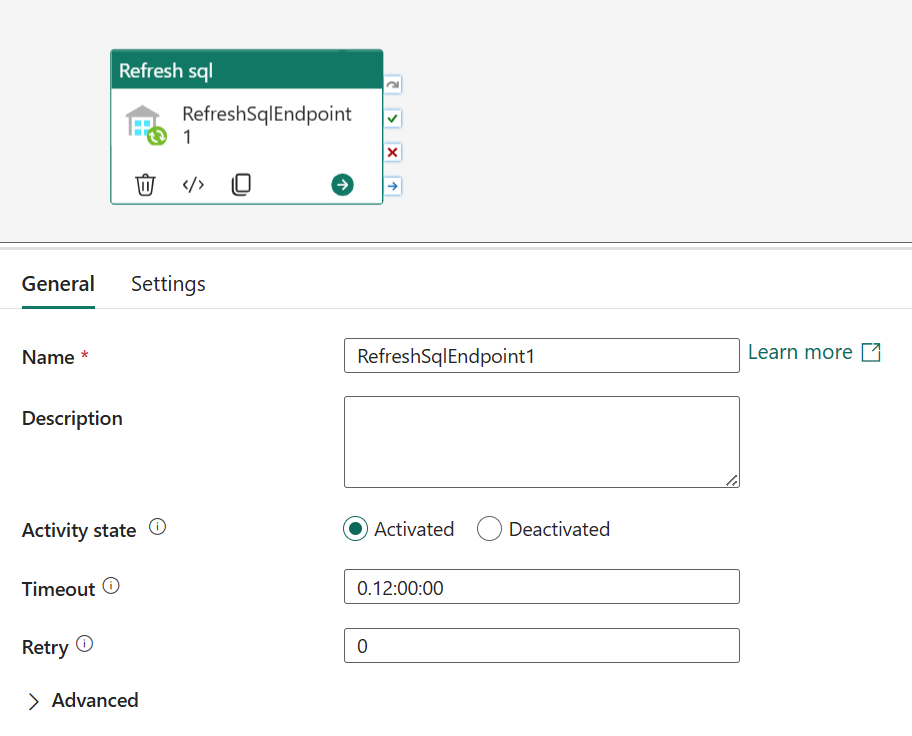
Select the new Refresh SQL analytics endpoint activity on the canvas if it isn't already selected.
Tip
You can orchestrate this activity alongside other Lakehouse Utility Suite activities—such as the Lakehouse Maintenance activity—in the same pipeline so maintenance and refresh run in sequence.
Refer to the General settings guidance to configure the General settings tab.
Refresh SQL analytics endpoint activity settings
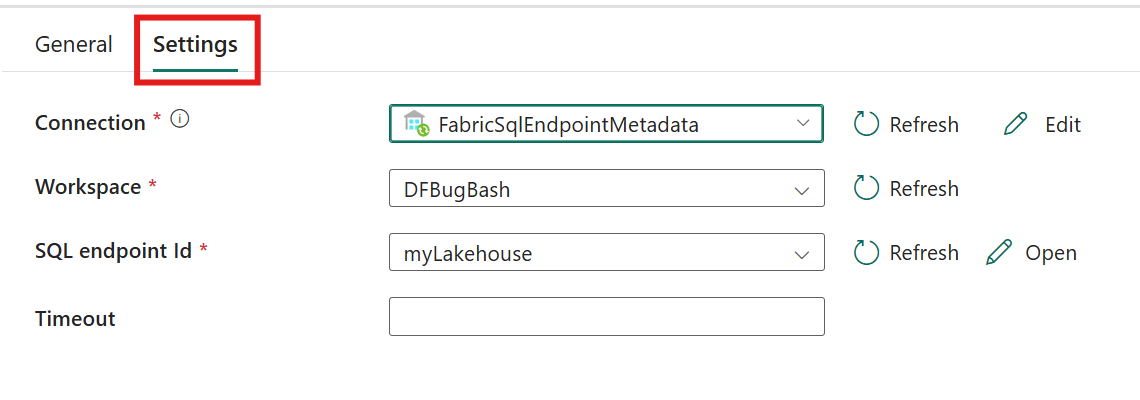
Select the Settings tab to configure the activity.
Configure connection by selecting an existing connection from the Connection dropdown, or creating a new connection, and specifying its configuration details.
Specify the Workspace that contains the Lakehouse.
Specify the SQL analytics endpoint as the SQL analytics endpoint Id for the Lakehouse you want to refresh. The refresh updates the Lakehouse SQL analytics endpoint metadata so it reflects recent data and schema changes.
Activity behavior
When the activity run finishes:
If the Output pop-up shows the Success status, the request syncs unsynced data successfully.
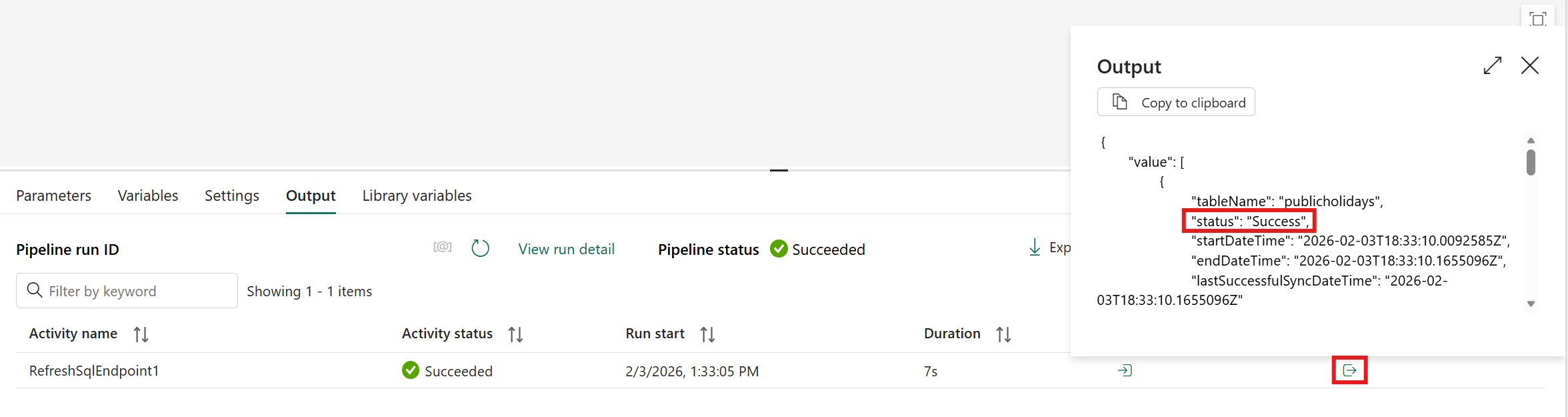
A NotRun status in the Output pop-up means that the refresh of the SQL analytics endpoint didn't run. That condition usually means that you didn't add new data since the last sync, so you didn't need to run it.
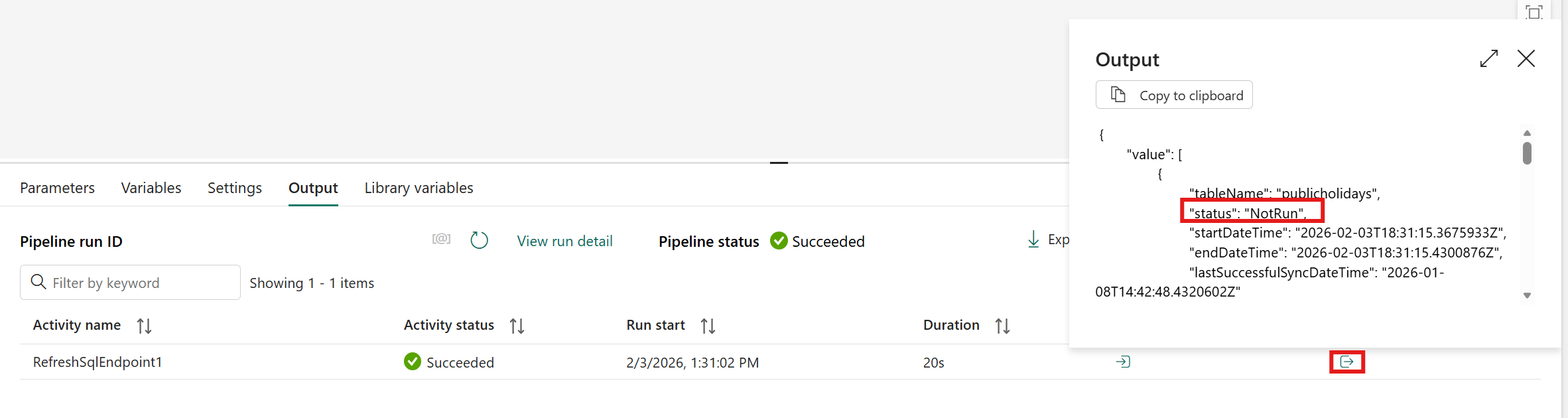
If the Output pop-up shows the Failure status, something went wrong.
Note
The activity run sets these statuses in the Output pop-up. Don't confuse these statuses with the activity status itself.
Common scenarios
- Refreshing the SQL analytics endpoint after a Notebook writes transformed data to a Lakehouse.
- Trigger a SQL analytics endpoint refresh after the Lakehouse Maintenance activity (OPTIMIZE or VACUUM) completes.
- Ensuring reports and dashboards query the most recent Lakehouse state at well-defined points in a pipeline.
Why does my SQL analytics endpoint refresh fail when underlying data is locked?
The refresh SQL analytics endpoint activity can fail intermittently when other processes actively update the underlying Lakehouse data. These processes include ingestion pipelines, notebooks, or concurrent write operations.
This failure happens because the SQL analytics endpoint needs to acquire internal locks to complete the refresh. If another operation locks the data, the request times out or returns an error.
This behavior is expected based on how SQL analytics endpoints manage metadata refresh operations.
Symptoms
- The activity fails intermittently, not consistently.
- Error messages indicate refresh conflicts or lock contention.
- Pipelines with multiple sequential refresh SQL analytics endpoint activities show higher failure rates.
Root cause
SQL analytics endpoints require exclusive access to certain metadata structures during refresh. If another compute process writes to the Lakehouse at the same time, lock contention occurs.
This behavior isn't a defect in the refresh SQL analytics endpoint activity. It's the natural result of concurrent read and write operations on the underlying data.
Workarounds
Two practical approaches can mitigate this issue:
- Use only one refresh SQL analytics endpoint activity at the end of processing
- Implement a recurring refresh schedule
Use only one Refresh SQL analytics endpoint activity at the end of processing
To reduce the likelihood of lock conflicts, consolidate your pipeline so that:
- All ingestion, transformation, and update activities run first,
- Then only one refresh SQL analytics endpoint activity executes at the end.
- This approach doesn't eliminate failures completely, but greatly reduces how often they occur.
Implement a recurring refresh schedule
If your scenario doesn't require strict transactional consistency at a specific moment, adopt a recurring refresh pattern:
- Schedule a refresh every 15 minutes—continuously. Some refresh attempts might fail due to locking, but enough succeed to keep your SQL analytics endpoint relatively up to date.
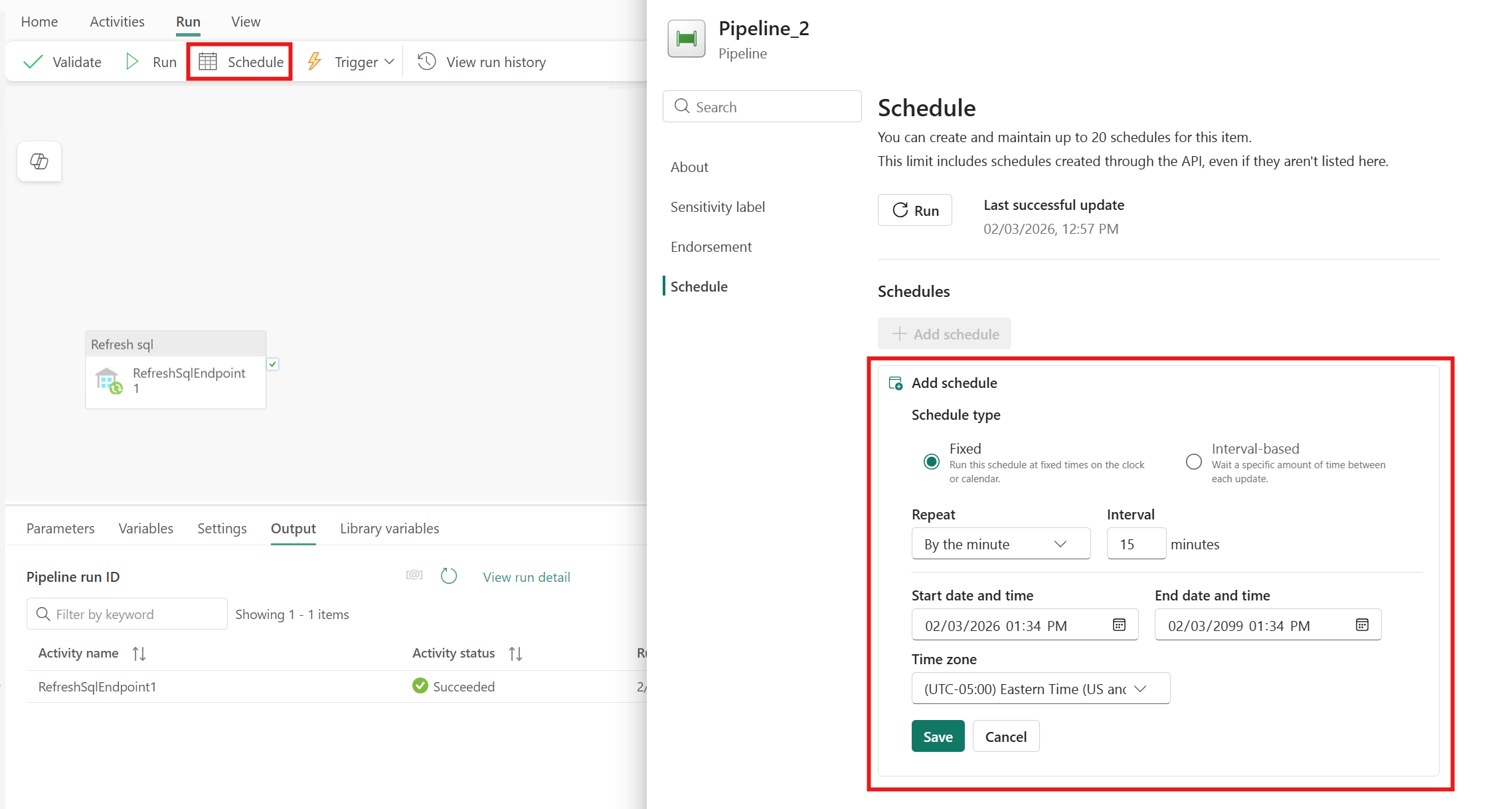
This approach is practical and robust for many analytics workloads.
Save and run or schedule the pipeline
Switch to the Home tab at the top of the pipeline editor and select the save button to save your pipeline. Select Run to run it directly or Schedule to schedule runs at specific times or intervals. For more information on pipeline runs, see: schedule pipeline runs.

After running, you can monitor the pipeline execution and view run history from the Output tab below the canvas.
Known issues
- The refresh SQL analytics endpoint activity might intermittently fail when other processes actively update the underlying Lakehouse data. For workarounds, see Why does my SQL analytics endpoint refresh fail when underlying data is locked?