Note
Access to this page requires authorization. You can try signing in or changing directories.
Access to this page requires authorization. You can try changing directories.
In this tutorial, you learn how to copy data across workspaces. This experience shows you a quick demo about copying data from a Lakehouse in one workspace to a Lakehouse in another workspace using a pipeline.
Prerequisites
- Microsoft Fabric enabled workspaces. If you don't already have them, refer to the article Create a workspace.
- Lakehouse. You use the Lakehouse in different workspaces as the source and destination data stores. If you don't have them, see Create a Lakehouse for instructions on how to set one up in different workspaces.
Create a pipeline
Switch to the Data Factory experience.
Select New and then Pipeline, and then input a name for your pipeline.
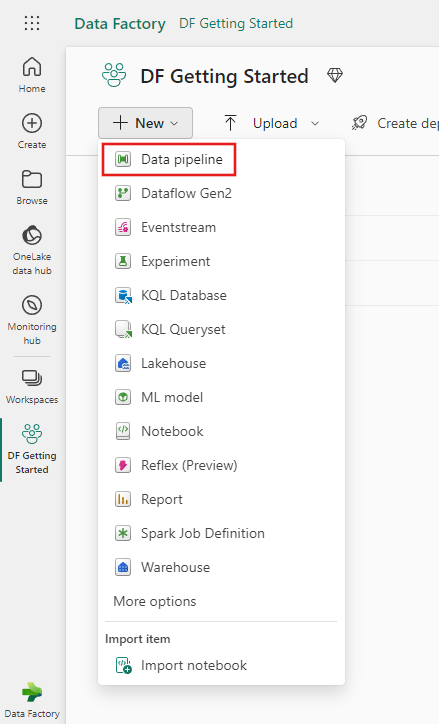
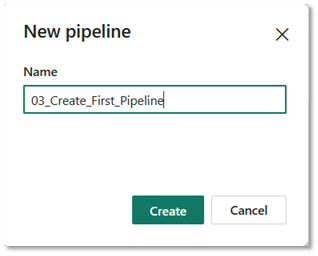
Copy data across workspaces using a pipeline
You can copy data across workspaces either directly through the UI or by using parameters in a pipeline. This section focuses on how to connect to the destination Lakehouse located in different workspaces. For details on how to use copy activity in a pipeline and how to configure Lakehouse in a copy activity, go to Add a copy activity directly and Configure Lakehouse in a copy activity.
Option 1: Through UI
In the source configuration for the copy activity in your pipeline, select your source Lakehouse and the data that you want to copy, and configure the source properties.
In the destination configuration, go to the connection drop-down list to browse to all connections.

On the OneLake catalog tab, select Explorer and choose the workspace where your destination Lakehouse is located. Then select the Lakehouse.


In the Connect to data source page, select an existing connection or create a new Lakehouse connection from the drop-down list.

Tip
If you use copy assistant, on choose data source/destination page, you can also utilize this step to connect to your Lakehouse.
Configure other destination properties and run your pipeline.
Option 2: Using parameters
In the source configuration for your copy activity in the pipeline, select your source Lakehouse and the data you want to copy, and configure the source properties.
In the destination configuration, follow Configure parameters in a copy activity to add parameter for your destination Lakehouse connection. If you need to create a new connection, follow the step 3 in this section.
Specify the destination workspace ID and Lakehouse ID after specifying the expression.

Configure other destination properties and run your pipeline.