Note
Access to this page requires authorization. You can try signing in or changing directories.
Access to this page requires authorization. You can try changing directories.
Applies to: ✅ SQL analytics endpoint and Warehouse in Microsoft Fabric
Custom SQL pools give administrators more control of how resources are allocated to handle requests. In this quickstart, you'll configure custom SQL pools and observe the classifier values using the Fabric REST API.
Workspace administrators can use the application name (or program name) from the connection string to route requests to different compute pools. Workspace administrators can also control the percentage of resources each compute SQL pool can access, based on the burstable scale limit of the workspace capacity.
The Fabric REST API defines a unified endpoint for operations.
Prerequisites
- Access to a Warehouse item in a workspace. You should be a member of the Administrator role.
Get the current configuration
Use the following API to get the current configuration.
Fabric Notebook Example
You can run the following example Python code in a Fabric Spark notebook.
- The code sends a
GETrequest to the custom SQL pool configuration API and returns the custom SQL pool configuration for the workspace. - The
workspace_idfield uses themssparkutils.runtime.contextto get the workspace GUID that the notebook runs in. To configure a custom SQL pool in a different workspace, update theworkspace_idto the GUID of the workspace where you want to configure the custom SQL pools.
import requests
import json
from notebookutils import mssparkutils

# This will get the workspace_id where this notebook is running.
# Update to the workspace_id (guid) if running this notebook outside of the workspace where the warehouse exists.
workspaceId = mssparkutils.runtime.context.get('currentWorkspaceId')

url = f'https://api.fabric.microsoft.com/v1/workspaces/{workspaceId}/warehouses/sqlPoolsConfiguration?beta=true'
response = requests.request(method='get', url=url, headers={'Authorization': f'Bearer {mssparkutils.credentials.getToken("pbi")}'})

if response.status_code == 200:
    print(json.dumps(response.json(), indent=4))
else:
    print(response.text)
Configure custom SQL pools
The following Python example enables and configures custom SQL pools. You can run this Python code in a Fabric Spark notebook.
- The custom SQL pools configuration is only active when
customSQLPoolsEnabledattribute is set to true. You can define a payload in thecustomSQLPoolsobject definition, but if you don't set customSQLPoolsEnabled to true, the payload is ignored and autonomous workload management is used. - The code configures two custom SQL pools,
ContosoSQLPoolandAdhocPool.- The
ContosoSQLPoolis set to receive 70% of the available resources. The Application Name classifier has the value ofMyContosoApp. - All SQL queries that come from a connection string that specifies the
MyContosoAppapplication name are classified to theContosoSQLPoolcustom SQL pool and have access to 70% of the total nodes of burstable capacity. - All SQL queries that don't contain
MyContosoAppin the application name of the connection string are sent to theAdhoccustom SQL pool, which is defined as the default pool. These requests get access to 30% of the total nodes of burstable capacity.
- The
- All custom SQL pool configurations must have one default SQL Pool identified by setting the
isDefaultattribute to true. - The sum of all
maxResourcePercentagevalues must be less than or equal to 100%. - The
workspace_idfield uses themssparkutils.runtime.contextto get the workspace GUID that the notebook runs in. To configure a custom SQL pool in a different workspace, update theworkspace_idto the GUID of the workspace where you want to configure the custom SQL pools.
import requests
import json
from notebookutils import mssparkutils

body = {
  "customSQLPoolsEnabled": True,
  "customSQLPools": [
    {
      "name": "ContosoSQLPool",
      "isDefault": False,
      "maxResourcePercentage": 70,
      "optimizeForReads": False,
      "classifier": {
        "type": "Application Name",
        "value": [
          "MyContosoApp"
        ]
      }
    },
    {
      "name": "AdhocPool",
      "isDefault": True,
      "maxResourcePercentage": 30,
      "optimizeForReads": True
    }
  ]
}

# This will get the workspaceId where this notebook is running.
# Update to the workspace_id (guid) if running this notebook outside of the workspace where the warehouse exists.
workspace_id = mssparkutils.runtime.context.get('currentWorkspaceId')

url = f'https://api.fabric.microsoft.com/v1/workspaces/{workspace_id}/warehouses/sqlPoolsConfiguration?beta=true'
response = requests.request(method='patch', url=url, json=body, headers={'Authorization': f'Bearer {mssparkutils.credentials.getToken("pbi")}'})

if response.status_code == 200:
    print("SQL Custom Pools configured successfully.")
else:
    print(response.text)
Tip
Use these helpful Application Name (regex) classifier values for traffic from Fabric:
- To classify queries from Fabric pipelines, use
^Data Integration-to[0-9a-fA-F]{8}-[0-9a-fA-F]{4}-[1-5][0-9a-fA-F]{3}-[89abAB][0-9a-fA-F]{3}-[0-9a-fA-F]{12}$. - To classify queries from Power BI, use
^(PowerBIPremium-DirectQuery|Mashup Engine(?: \(PowerBIPremium-Import\))?). - To classify queries from the Fabric portal SQL query editor, use
DMS_user.
Set the application name in SQL Server Management Studio (SSMS)
The classifier for custom SQL pools uses the application name or program name parameter of common connection strings.
In SQL Server Management Studio (SSMS), specify the server name for the warehouse and provide authentication. Microsoft Entra MFA is recommended.
Select the Advanced button.
In the Advanced Properties page, under Context, change the value of Application Name to
MyContosoApp.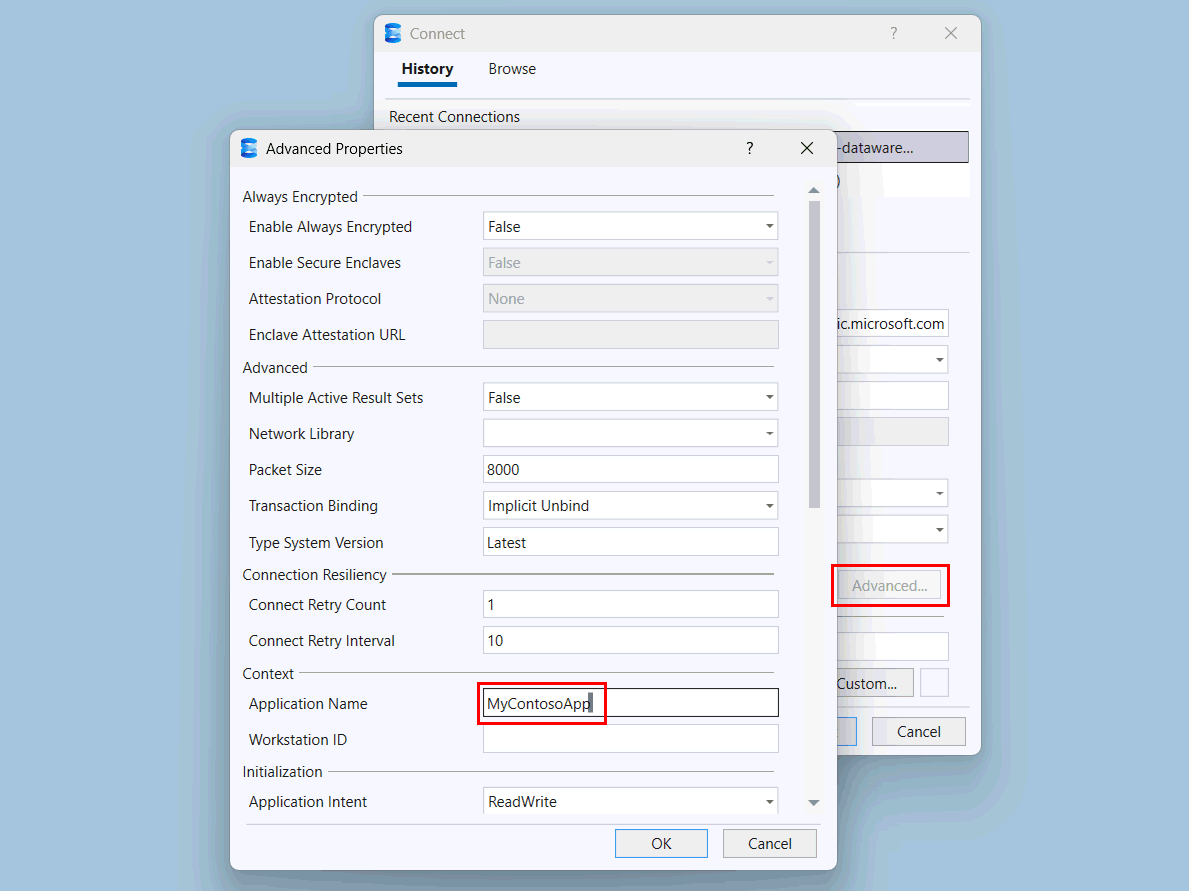
Select OK.
Select Connect.
To generate some sample activity, use this connection in SSMS to run a simple query in your warehouse, for example:
SELECT *
FROM dbo.DimDate;
Observe query insights for the custom SQL pool
Review the
sys.dm_exec_sessionsdynamic management view to see thatMyContosoAppis being recognized as the application name passed from SSMS to the SQL engine.SELECT session_id, program_name FROM sys.dm_exec_sessions WHERE program_name = 'MyContosoApp';For example:
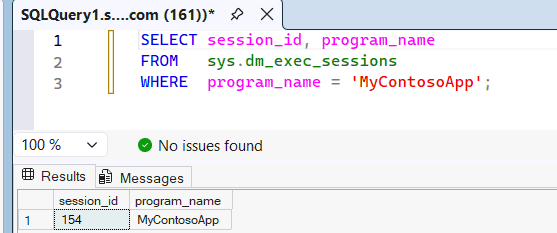
Because the
program_namematches the application name in theMyContosoAppcustom SQL pool, this query uses the resources in that pool. To prove what custom SQL pool the query used, you can query the queryinsights.exec_requests_history system view. Wait 10-15 minutes for query insights to populate, and then run the following query.SELECT distributed_statement_id, submit_time, program_name, sql_pool_name, start_time, end_time FROM queryinsights.exec_requests_history WHERE program_name = 'MyContosoApp';You can also identify the pool of a query by its Statement ID. In the Fabric portal SQL query editor, run a query against your warehouse or SQL analytics endpoint.
SELECT *
FROM dbo.DimDate;
Select the Messages tab and record the Statement ID for the query execution. In the SQL query editor, the
program_nameisDMS_user, which you configured to use theMyContosoAppcustom SQL pool earlier.Wait 10-15 minutes for query insights to populate.
Retrieve the
sql_pool_nameand other information to verify that the proper custom SQL pool was used.SELECT distributed_statement_id, submit_time, program_name, sql_pool_name, start_time, end_time FROM queryinsights.exec_requests_history WHERE distributed_statement_id = '<Statement ID>';
Revert the custom SQL pools configuration
To return the workspace to the original state, change the customSQLPoolsEnabled property to False. If you want to preserve the custom SQL pools configuration, you need to pass in each pool name as in the customSQLPools list.
This example Python code disables custom SQL pools and reverts back to the autonomous workload management configuration of SELECT and non-SELECT pools. A PATCH request is called with the customSQLPoolsEnabled property set to False.
import requests
import json
from notebookutils import mssparkutils

body = {
  "customSQLPoolsEnabled": False,
  "customSQLPools": []
}

# This will get the workspaceId where this notebook is running.
# Update to the workspace_id (guid) if running this notebook outside of the workspace where the warehouse exists.
workspace_id = mssparkutils.runtime.context.get('currentWorkspaceId')

url = f'https://api.fabric.microsoft.com/v1/workspaces/{workspace_id}/warehouses/sqlPoolsConfiguration?beta=true'
response = requests.request(method='patch', url=url, json=body, headers={'Authorization': f'Bearer {mssparkutils.credentials.getToken("pbi")}'})

if response.status_code == 200:
    print("SQL Custom Pools successfully disabled.")
else:
    print(response.text)