Note
Access to this page requires authorization. You can try signing in or changing directories.
Access to this page requires authorization. You can try changing directories.
✅ SQL analytics endpoint and Warehouse in Microsoft Fabric
This article shows a Fabric capacity admin how to enable on-demand billing for the Data Warehouse category, and then configure the Data Warehouse-specific controls: workspace compute ceilings for new and existing workspaces, custom SQL pool allocations, and monitoring via sql_pool_insights.
Important
On-demand billing in Fabric is currently in preview.
For platform-wide concepts, including F0 capacity setup, general spend-limit behavior across all on-demand billing categories, quotas, and transition behavior, see Set up on-demand billing in Microsoft Fabric and On-demand billing in Microsoft Fabric.
For an overview of on-demand billing for Data Warehouse, see On-demand billing for Fabric Data Warehouse.
Prerequisites
- A Microsoft Fabric capacity (F SKU) in a region and subscription where the preview is available.
- Capacity admin role membership on that capacity.
- Available on-demand quota for the region. To check quota or request an increase, see Manage on-demand quotas.
- At least one workspace on the capacity that contains a warehouse or SQL analytics endpoint (or plan to create one).
Enable on-demand billing for Fabric Data Warehouse
Enabling on-demand billing for the Data Warehouse category is an online operation (active queries aren't disrupted) and can take between 5 to 15 minutes.
- Sign in to the Fabric admin portal and go to Capacity settings.
- Select the Fabric capacity where you want to enable on-demand billing for Data Warehouse.
- On the Details tab, expand the On-demand billing section.
- Find the Data Warehouse category and turn the toggle On.
- Select the gear icon next to the Data Warehouse toggle to open the spend-limit configuration.
- Enter a value in the Spend limit field, in CU-hours, that reflects your daily budget for the Data Warehouse category. If you don't set a value, the full category quota is the default.
- Select Apply.
After you enable on-demand billing, every workspace on the capacity that contains a warehouse, SQL analytics endpoint, or warehouse snapshot begins consuming compute separately from the base capacity. Existing workspaces with bursting are initialized with smart default compute ceilings that approximate the throughput previously available. You can adjust workspace compute ceilings at any time; see the following sections.
For details on how spend limits are evaluated in the 24-hour rolling window and what happens when a limit is reached, see On-demand spend limits.
Choose a starting spend limit
The spend limit controls the maximum Data Warehouse CU-hours that can be consumed across the capacity over a rolling 24-hour window. Choose a starting value based on your expected usage and budget.
As a starting point:
- Align with your current capacity level: Use your current Fabric SKU CU × 24 hours. For example, if your current capacity provides 512 CU, and you use it comfortably without throttling, 512 × 24 = 12,288 CU-hours.
- Plan for sustained use of a workspace ceiling: Multiply the workspace compute ceiling by the number of hours you expect the workload to actively use that level of compute. For example, a 512-CU ceiling used for 12 hours represents up to 6,144 CU-hours.
These calculations are planning estimates, not expected consumption. A workspace only consumes the compute its workloads actually use, and all Data Warehouse workspaces on the capacity contribute to the same spend limit.
Disable on-demand billing for Data Warehouse
Disabling is also an online operation (active queries aren't disrupted) and takes between 5 to 15 minutes to propagate. After you disable it, warehouse and SQL analytics endpoint workloads on the capacity return to sharing the base Fabric capacity. In F0 capacity, on-demand billing cannot be disabled.
- In the Fabric admin portal, go to Capacity settings and select the capacity.
- On the Details tab, expand the On-demand billing section.
- Turn the Data Warehouse toggle Off.
For information about how billing transitions are handled, see Transition behavior when enabling or disabling on-demand billing.
Set the default compute ceiling for new and migrated workspaces
You can set a default compute ceiling for new and migrated workspaces, measured in CUs. The new workspace default determines the compute ceiling that's automatically applied when you create a workspace on the capacity or migrate a workspace to it.
- In the Fabric admin portal, go to Capacity settings and select the capacity.
- Under On-demand billing > Data Warehouse, locate New and migrated workspaces.
- Enter the default ceiling in the Compute ceiling (CU) text box.
- Minimum: 25 CU.
- Maximum: capped by the configured 24-hour compute limit.
- Select Save.
The default applies only when a workspace contains at least one warehouse or SQL analytics endpoint item.
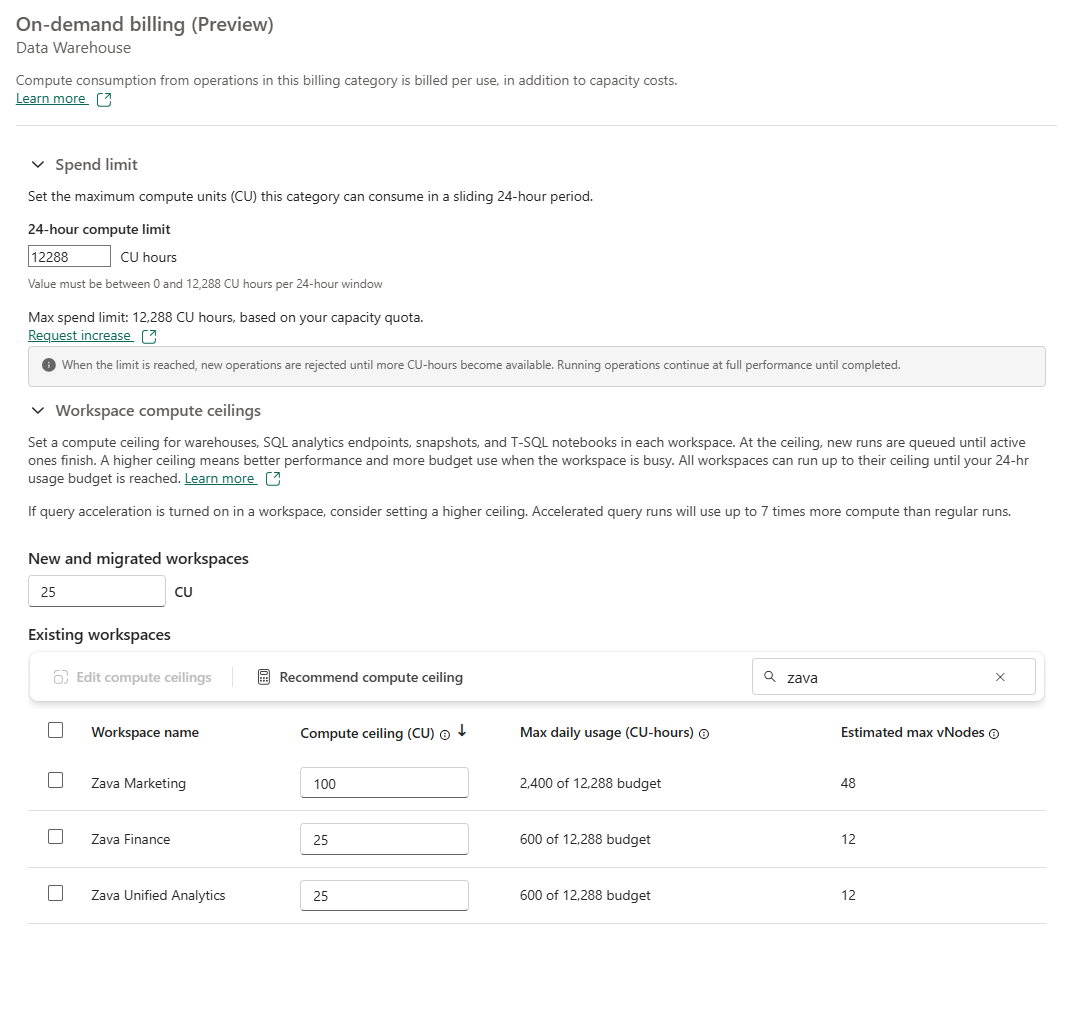
Set the compute ceiling for an existing workspace
You can set a Compute ceiling (CU) for each existing workspace, measured in CUs. Based on the compute ceiling for each workspace, you then see the resulting calculated Max daily usage (CU-hours) and Estimated max vnodes.
| Column | What it tells you |
|---|---|
| Max daily usage (CU-hours) | The most a workspace could use in a day if it ran at its full ceiling for the entire 24-hour window (ceiling × 24). Actual usage is almost always lower. This value is also compared against your 24-hour compute limit so you can see how much of your budget a single workspace could theoretically consume. |
| Estimated max vNodes | The estimated maximum number of vNodes available to the workspace at the set compute ceiling. |
Change the ceiling for a workspace
- In the Fabric admin portal, open Capacity settings > On-demand billing > Data Warehouse.
- In the Workspace compute ceilings section, expand Existing workspaces.
- Select one or more workspaces, and then select Edit compute ceilings.
- Enter a new Compute ceiling (CU) value for each workspace.
- Minimum: 25 CU.
- Maximum: capped by the configured 24-hour compute limit.
- Select Save.
The spend limit determines how much Data Warehouse compute the capacity can consume over the rolling 24-hour window, while each workspace compute ceiling determines how quickly an individual workspace can consume compute. Start with the smart default where applicable, then use the following workload patterns or the compute ceiling recommender to adjust the ceiling.
Guidance by workload pattern
Use the following patterns as a starting point. Watch the Capacity Metrics app for a couple of weeks and adjust.
| Workload pattern | Guidance |
|---|---|
| Cost-sensitive, long running hours (for example, a reporting warehouse that serves dashboards and read queries throughout the business day) | Set a lower ceiling. The workspace runs closer to its ceiling for many hours, so you want that ceiling to be modest. Queueing during brief spikes is an acceptable tradeoff for predictable cost. |
| Performance-sensitive, short bursts (for example, month-end batch processing, ad hoc analyst queries, or a heavy nightly ingestion) | Set a higher ceiling. The workspace only runs for a short window, so a bigger ceiling finishes work faster without materially raising daily spend. |
Mixed workload — SELECTs alongside heavier ingestions in the same workspace (for example, business intelligence workloads with read-only workloads served during the day and nightly INSERT/COPY INTO/MERGE jobs on the same warehouse) |
Set a ceiling that comfortably covers your heaviest ingestion window. Consider splitting the SELECT workload and the ingestion/transformation workload into custom SQL pools so read queries get predictable capacity even while an ingestion is running. To configure capacity limits for custom SQL pools, see Configure custom SQL pools. |
| Query acceleration is used in the workspace | Set a higher ceiling. Accelerated query runs use up to seven times more compute than regular runs. A low ceiling can reject acceleration-eligible queries before they can benefit. |
| Development / test workspace | Set a lower ceiling than your production workspaces. Dev/test workloads rarely need the same headroom as production and this keeps cost bounded while still letting the workspace run. |
Tip
When you increase a ceiling to raise concurrency, watch Max daily usage on the page. If a workspace's max daily usage starts to represent a large share of your 24-hour compute limit, you might want to raise the spend limit, split the workload across workspaces, or use custom SQL pools to maximize performance. Splitting workloads doesn't create separate budgets; all Data Warehouse workspaces on the capacity continue to contribute to the same 24-hour compute limit.
Use the compute ceiling recommender
If you're not sure what value to set, use the Recommend compute ceiling wizard on the same page. The wizard converts a budget and an activity window into a suggested ceiling for a single workspace.
- In the Workspace compute ceilings section, expand Existing workspaces.
- Select a workspace, and then select Recommend compute ceiling.
- Enter your Daily target spend in USD. The estimate uses the Data Warehouse on-demand rate for the region shown in the wizard. Always check the Fabric pricing page for the latest rates in your region.
- Set Active hours per day. This value is how many hours per day the workspace actively runs operations.
- Review the Recommended compute ceiling value.
- To compare recommendations, adjust either input and select Calculate again. To close the wizard, select Cancel.
- Apply the recommended value in the ceiling column and save.
The recommender is a starting point, not a commitment. You still pay only for actual consumption, not the ceiling. Refine the value after a couple of weeks of monitoring in the Capacity Metrics app. The estimate uses the Data Warehouse on-demand rate, including the applicable workload multiplier, based on the reference region shown in the wizard. Actual pricing varies by region and applicable discounts.
Estimate your on-demand cost
Choose the method based on what you want to estimate.
Option 1: Estimate cost based on current usage
Use this method to estimate what your existing Data Warehouse workload might cost with on-demand billing.
- Use the Fabric Capacity Metrics app to determine your recent Data Warehouse compute consumption in CU-seconds for the period you want to estimate.
- Divide that consumption by 3,600 to convert it to CU-hours, then multiply by the regional pay-as-you-go price per CU-hour and the Data Warehouse on-demand multiplier of 1.3.
- If you retain a paid Fabric capacity (F2 or higher) to serve workloads other than Fabric Data Warehouse, then add its provisioned-capacity cost. An F0 capacity has no provisioned-capacity charge.
Estimated Data Warehouse on-demand cost ≈ (Data Warehouse CU-seconds ÷ 3,600) × regional pay-as-you-go price per CU-hour × 1.3
Estimated total cost ≈ retained provisioned-capacity cost + estimated Data Warehouse on-demand cost
This estimate is for planning. Actual cost can change as workload usage changes.
Option 2: Estimate cost based on the spend limit
Use this method to project monthly Fabric Data Warehouse cost assuming the configured 24-hour compute limit is fully consumed each day.
- Start with the configured 24-hour compute limit in CU-hours.
- Multiply by the number of days in the month.
- Multiply by your regional CU-hour price and the Data Warehouse multiplier of 1.3.
Projected monthly cost ≈ 24-hour compute limit × days in month × regional CU-hour price × 1.3
For example, for a 12,000 CU-hour limit over 30 days:
12,000 CU-hours × 30 × regional CU-hour price × 1.3
This projection isn't a hard billing cap. Spend limits are checked periodically, and in-progress operations continue to completion and are charged after a limit is reached. Actual charges can be higher or lower than this projection. For details, see On-demand spend limits.
Configure custom SQL pools
When you enable custom SQL pools in a workspace, the workspace compute ceiling becomes the total poolable compute that you divide across both user-controlled and system pools. The system pool automatically receives approximately one-third of the ceiling. The percentages you allocate to user-controlled pools apply to the remaining two-thirds, not to the full workspace ceiling.
To complete these steps, you must be a member of the Administrator role in the workspace. The Capacity Admin role alone isn't sufficient.
As a workspace administrator, open Workspace settings > Data Warehouse > SQL Pools in the workspace where you want to enable custom SQL pools.
Note the effective compute available (workspace ceiling minus the ~33% system pool allocation).
Allocate percentages across your user-controlled pools so they total 100% of the remaining compute. In this example, allocate 20% to SQL pool A, and the rest to SQL pool B.
For example, with a workspace compute ceiling of 99 CU:
Pool Allocation System pool ~33 CU SQL pool A 20% of remaining → ~13 CU SQL pool B 80% of remaining → ~53 CU
For full setup steps and pool-management options, see Custom SQL pools in Fabric Data Warehouse.
Monitor Data Warehouse on-demand consumption
For platform-wide monitoring (On-demand compute tab, all on-demand billing categories, quota status), see Monitor and manage on-demand billing usage in Microsoft Fabric.
For Data Warehouse-specific monitoring at the pool level, use T-SQL to query the queryinsights.sql_pool_insights view in the warehouse. The current_workspace_capacity column indicates whether a workspace pool is running on shared capacity (F SKU) or on on-demand billing. For on-demand pools, the column returns a string of the form On-demand <n> CUs, where <n> is the pool's currently allocated ceiling.
SELECT TOP (100)
    [sql_pool_name],
    [timestamp],
    [max_resource_percentage],
    [is_optimized_for_reads],
    [current_workspace_capacity],  -- e.g., 'F64' or 'On-demand 620 CUs'
    [is_pool_under_pressure]
FROM [<your-warehouse-name>].[queryinsights].[sql_pool_insights]
ORDER BY [timestamp] DESC;
Use this view to answer:
- Is a specific workspace pool running on shared capacity or on-demand billing?
- Is a pool under pressure (indicating the ceiling might be too low)?
For more on queryinsights, see Query insights in Fabric Data Warehouse.