Note
Access to this page requires authorization. You can try signing in or changing directories.
Access to this page requires authorization. You can try changing directories.
Capacity overage is an opt-in feature that automatically pays for excess capacity usage, up to a limit set by the capacity admin. It prevents throttling and ensures that workloads continue uninterrupted, even when they temporarily exceed a capacity's limits. For more information about how capacity overage works, costs, and limits, see Capacity overage in Microsoft Fabric.
Prerequisites
Before you enable capacity overage, ensure you meet the following requirements:
Capacity type: Capacity overage is available only for F SKUs. During public preview, it’s recommended only for F16 capacities and higher.
Role: You must be a capacity admin to enable or configure capacity overage. You also need this permission for other capacity‑level settings, such as surge protection.
Quota: Capacity overage uses extra compute power beyond what’s included in your normal Fabric capacity. Your capacity needs sufficient quota or Fabric capacity units to support the overage limit you want to set.
Enable capacity overage
Fabric turns off capacity overage by default for existing capacities. Use the following steps to enable it:
Sign into your Fabric portal. From the top‑right corner, open Settings. Select Admin portal, and then choose Capacity settings.
Select the capacity you want to configure. You must be a capacity admin for it.

Scroll to the Capacity Overage section.
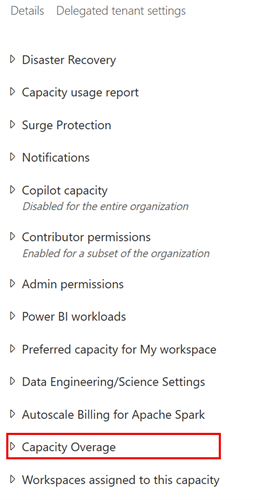
Under the capacity’s settings, expand Capacity overage and turn On the toggle to enable capacity overage for that capacity.
Set a spending limit for the allowed capacity overage. Specify a 24-hour limit value in multiples of 48 CUs. For example, you can set "Up to 240 CU-hours per day" as the limit. The UI shows how much additional capacity this setting provides. Once the limit is reached, standard throttling applies to any further overage.
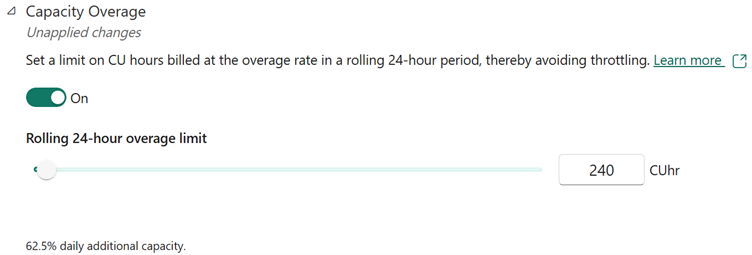
Select Apply to save your settings.
Once enabled, capacity overage becomes active within 5 minutes. You don’t need to restart or pause the capacity. The feature will now monitor usage and automatically bill overages when necessary. The capacity admin can come back to these settings at any time to adjust the spending limit or to disable it.
Note
Turn off capacity overage at any time to revert to normal throttling. Charges already incurred won’t be refunded. If the capacity is overloaded when you disable it, or if you lower the limit below current usage, throttling resumes immediately. Check current load before turning it off to avoid disruption.
Calculate the estimated cost of your CU limit
To estimate the potential cost of your capacity overage limit, take 3 times your CU per hour bill rate and multiply this value by your configured CU hour limit.
Note
You pay only for CU hours you actually consume.
Pricing varies by region. For a more accurate estimate, use the following steps:
Navigate to the Azure Pricing Calculator.
Search for Microsoft Fabric.
Select your region.
Select an F2 capacity for your region and choose Pay as you go.
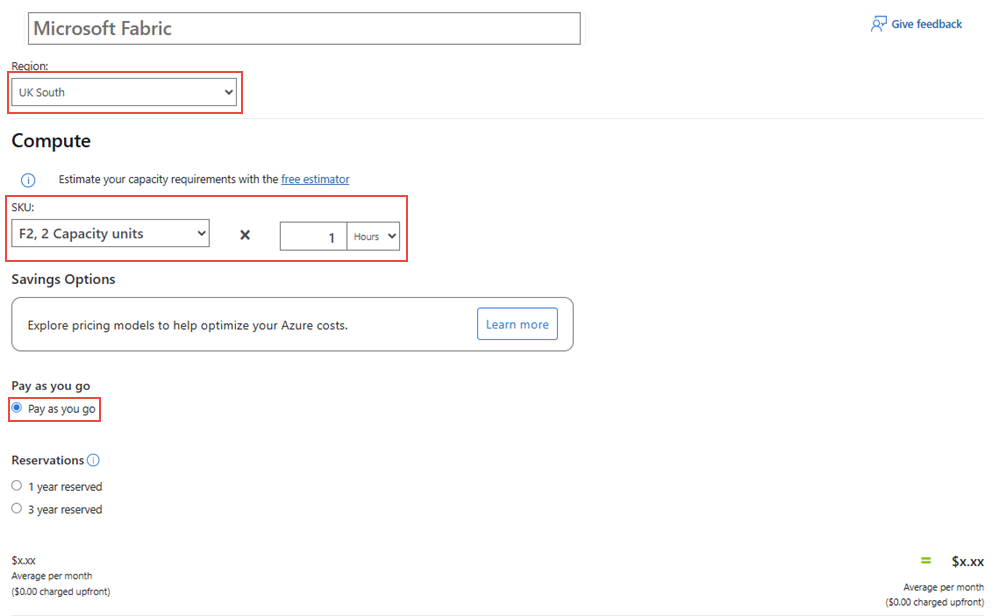
To calculate the estimated cost if your limit was reached, follow these steps:
Divide the listed hourly price by 2. This adjustment accounts for the fact that an F2 capacity provides 2 CU hours per hour and you need to find the value of 1 CU hour.
Multiply the resulting value by 3, because Fabric charges capacity overage at 3 times the pay-as-you-go rate.
Multiply the calculated hourly cost by the number of CU hours configured as a limit.