Note
Access to this page requires authorization. You can try signing in or changing directories.
Access to this page requires authorization. You can try changing directories.
In this tutorial, you learn how to create rolling forecasts in planning sheets:
- Build a rolling 2026 forecast anchored on 24 months of actuals
- Generate a statistical forecast using the Trend Decomposition with MSTL algorithm
- Close January 2026 as actuals arrive
- Extend the horizon to January 2027
- Commit the finalized forecast to a Fabric SQL database
Prerequisites
Before you start this tutorial, ensure you complete the first three tutorials:
This tutorial uses the plan app and the Fabric SQL database you created in the previous tutorials.
Create a rolling forecast sheet
In this section, you set up the forecast planning sheet and create a blank forecast measure for 2026, ready to be populated by the statistical model.
In Northwind_FMCG_Plan, select New Planning Sheet in the Home ribbon. Enter Forecast and select Create.
Configure the field assignments:
Field Value Rows Category → Sub-Category Columns Date hierarchy—Year, Quarter, Month Short Values Gross Revenue In the Filter panel in the sidebar, apply a year filter for 2024 and 2025. Only these two years’ values feed into the statistical forecast.
In the Planning ribbon, select Totals and enable Column Subtotal on the left.
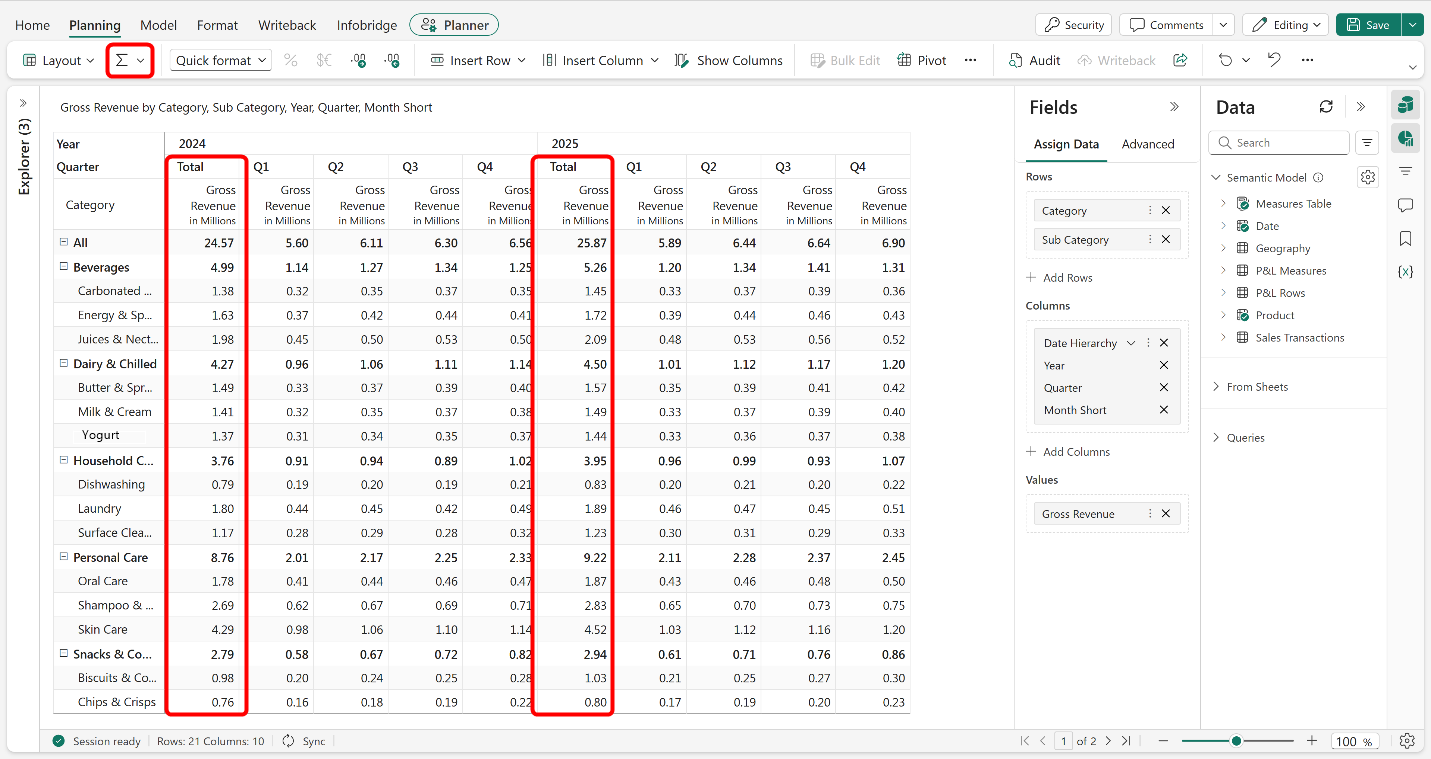
In the Model ribbon, select Forecast.
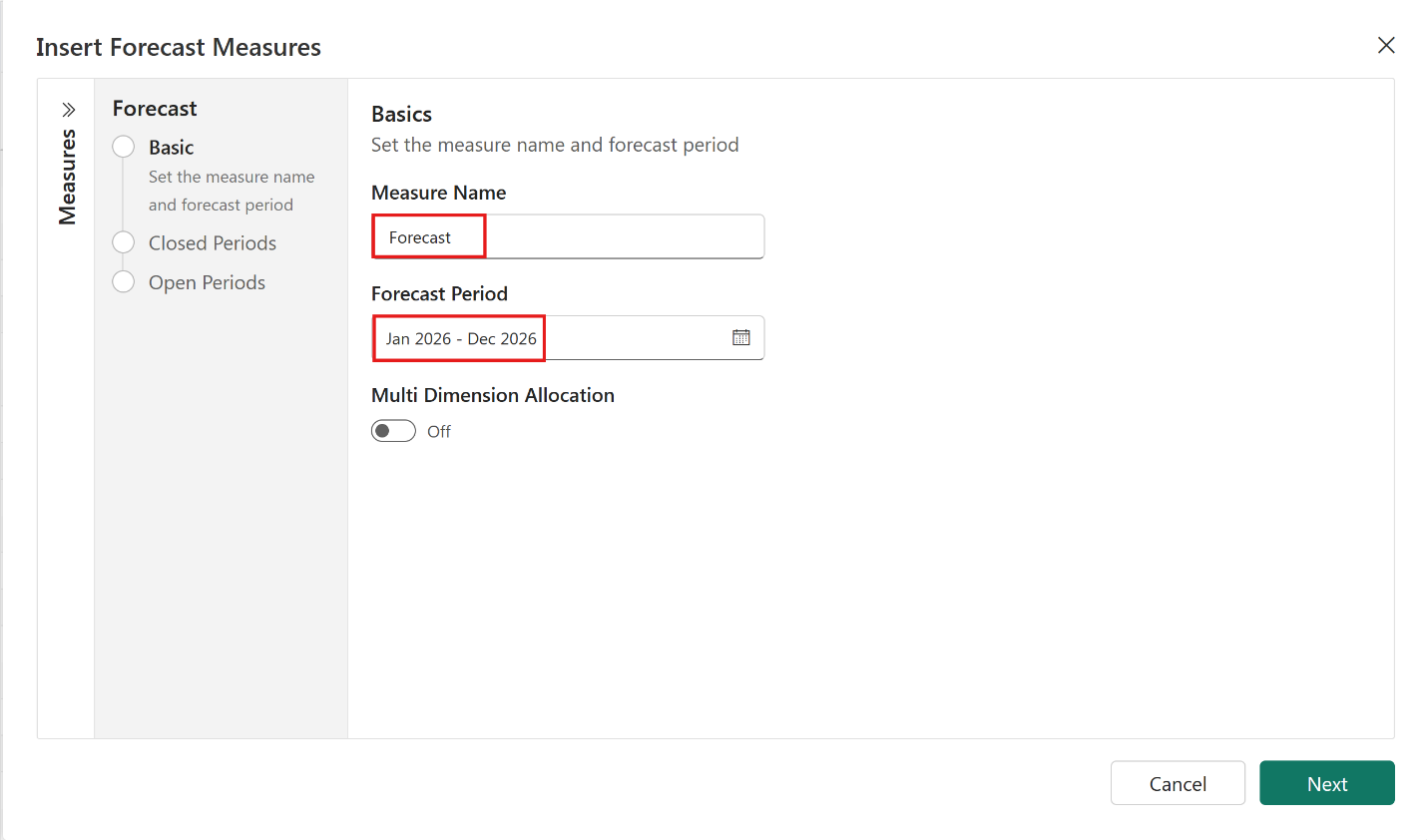
Enter Forecast as the measure name. Set the Forecast Period to Jan 2026 to Dec 2026. Select Next.
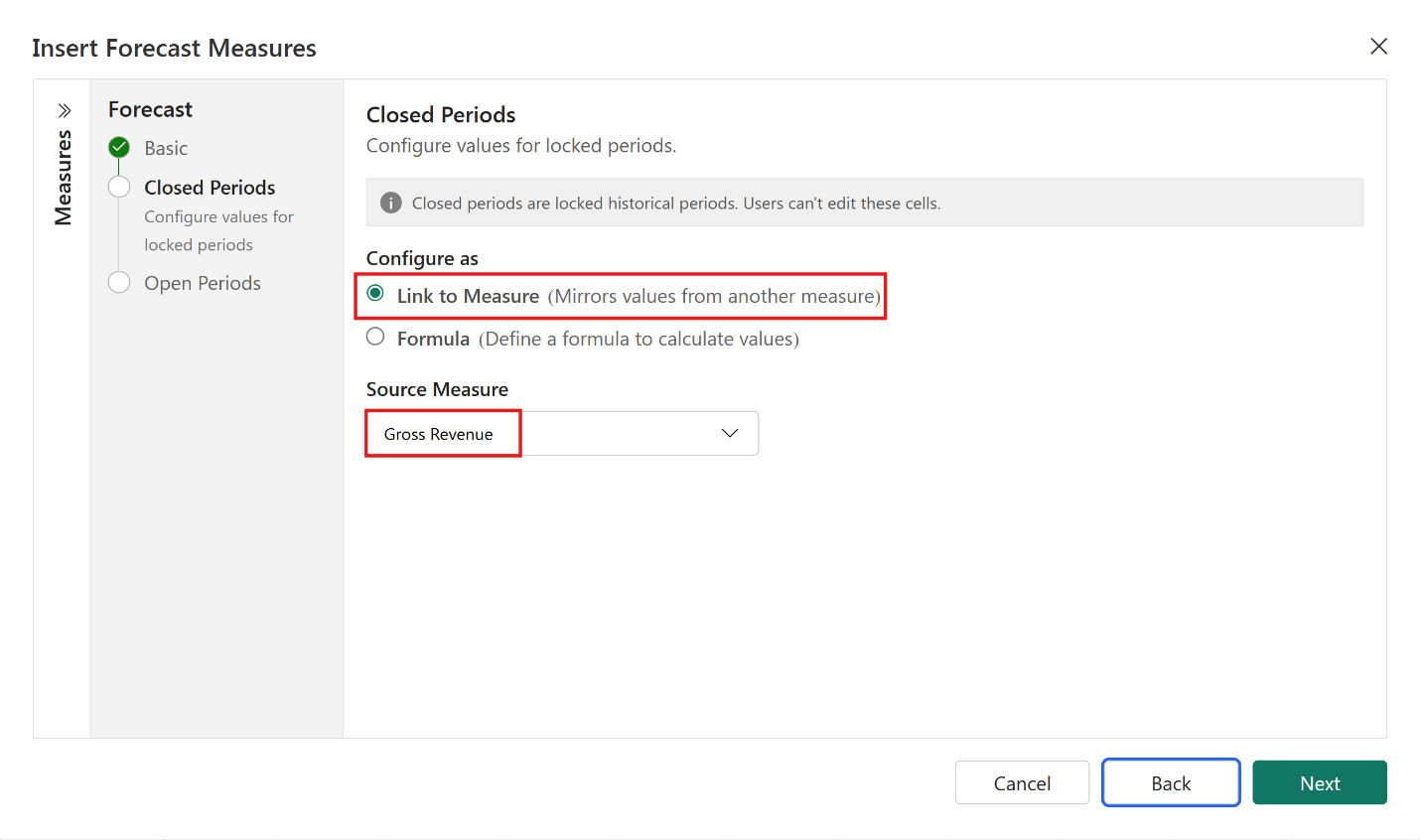
In the closed period configuration, select Link to Measure and set Source Measure to Gross Revenue. This configuration brings in the corresponding Gross Revenue actuals once a period closes. Select Next.
In the open period configuration, select Data Input and set Default Value to None. Leaving open periods blank allows the predict feature to populate the forecast using statistical methods. Select Save.
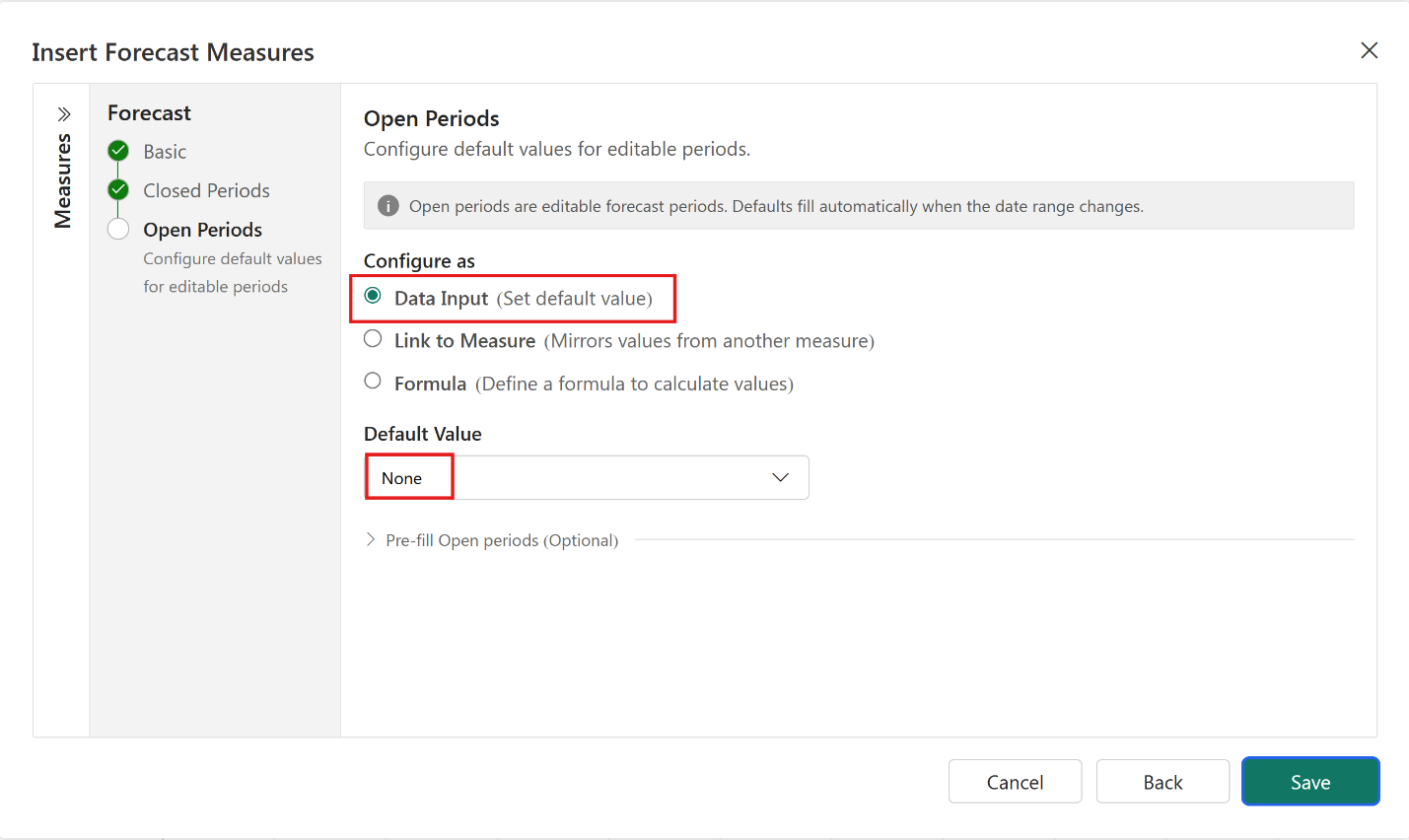
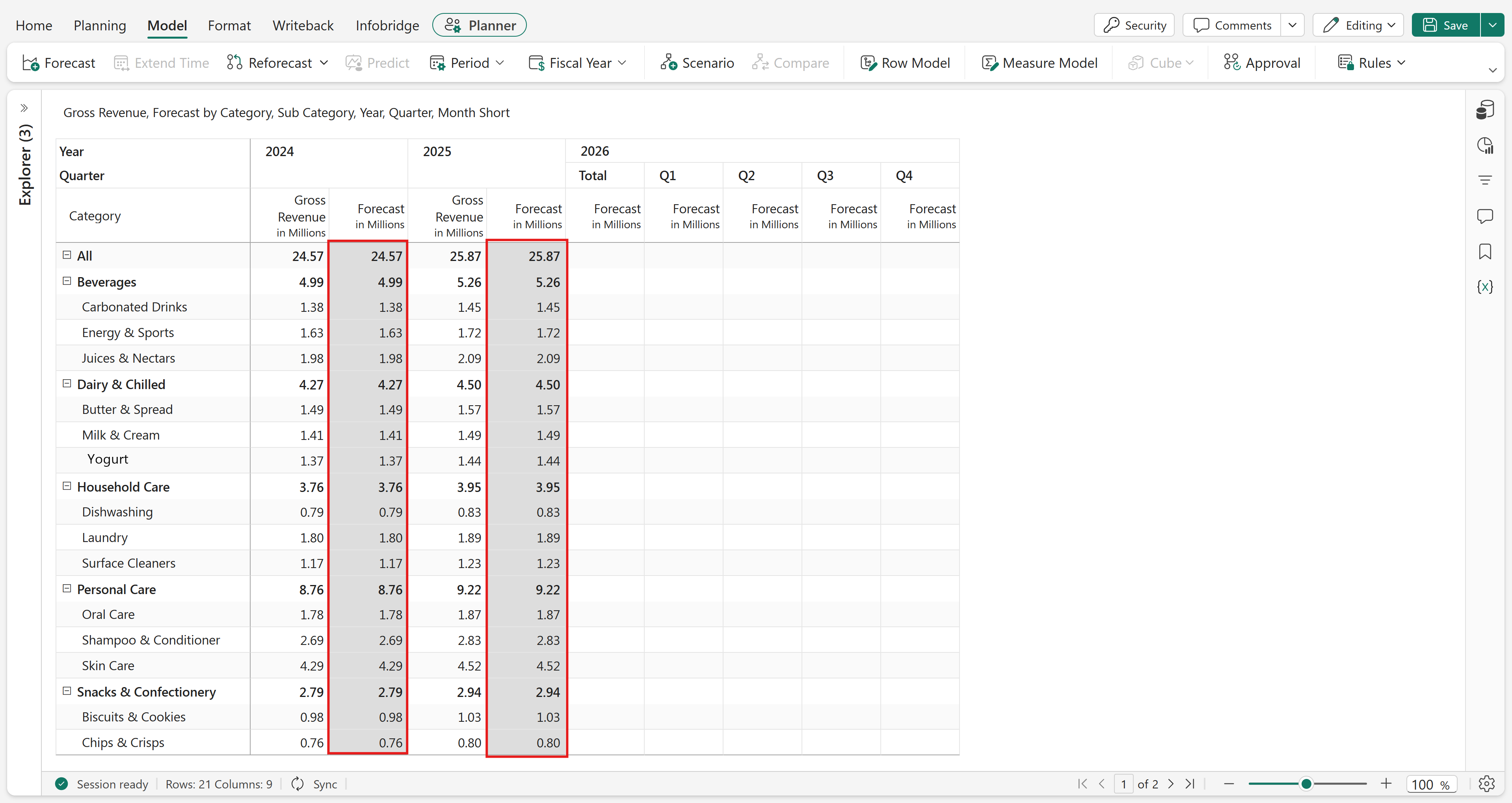
Observe that the 2024 and 2025 forecast columns appear greyed out, indicating closed periods. The 2026 columns are open and empty, ready for the statistical model.
Generate the statistical forecast
In this section, you run the statistical forecast across the full January–December 2026 horizon using 24 months of historical actuals. The Trend Decomposition with MSTL algorithm detects seasonal patterns at both annual and quarterly cycles and generates a complete year of forecasted values in one pass.
Select the cell at the intersection of the All row and the Forecast subtotal column for 2026.
In the Model ribbon, select Predict. The Predict panel opens.
Use the lock icon to freeze the selection. Confirm Row Selected is Grand Total and Select Measure is Forecast.
Confirm the following default selections:
Setting Value Historic data range Jan 2024–Dec 2025 Forecast date range Jan 2026–Dec 2026 Configure the forecast as follows:
Setting Value Confidence 90% Growth factor 4% Evaluation Bottom Up Round all negative values to zero No 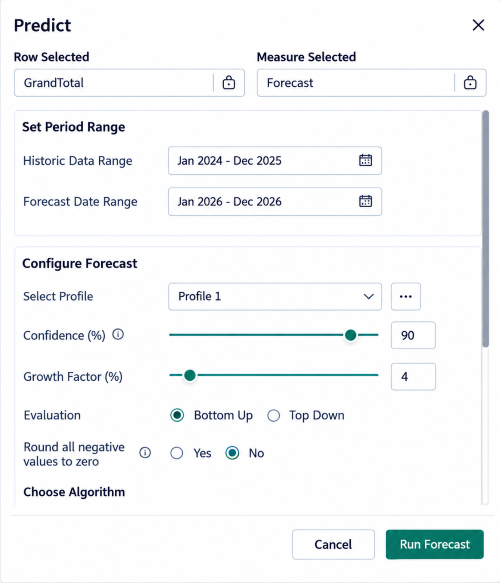
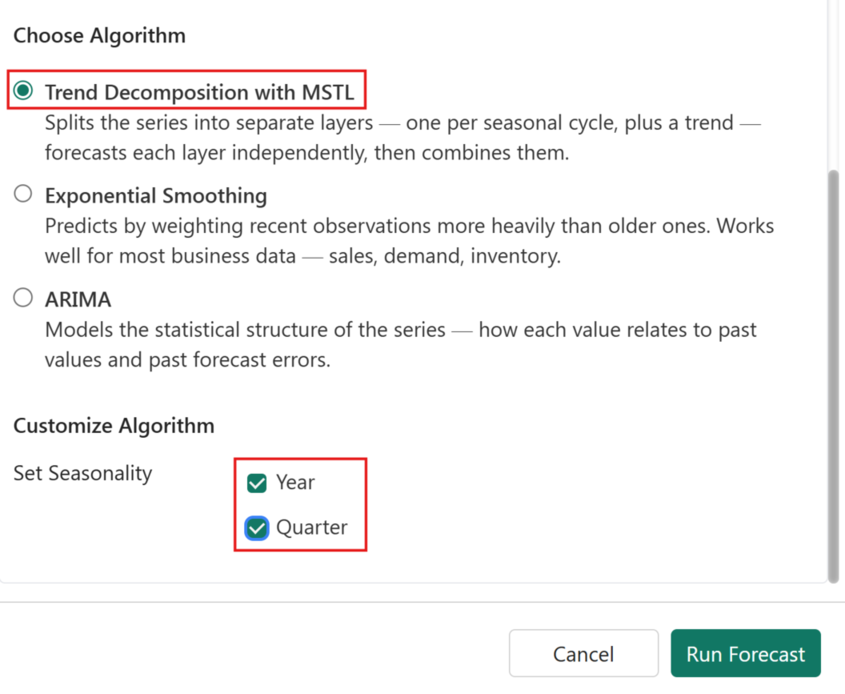
Under Choose Algorithm, confirm Trend Decomposition with MSTL is selected. Under Customize Algorithm, select both Year and Quarter under Set Seasonality. This selection tells the model to detect and account for patterns at both cycle levels at the same time. Select Run Forecast.
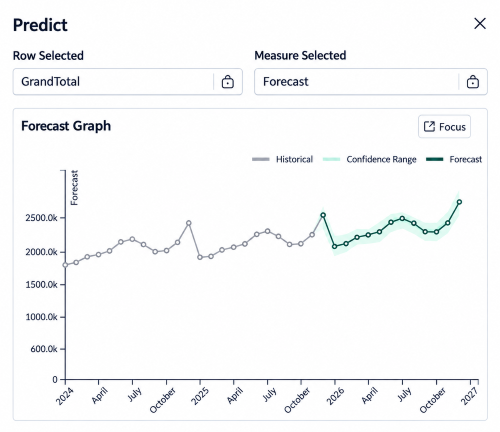
The forecast preview appears—historical data in grey, predicted values in green, with the confidence range shown as green shading.
Scroll down to see the forecast table. Select Save Forecast.
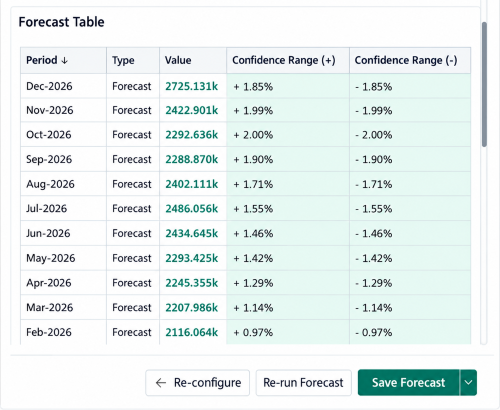
Confirm the forecast measure and the date range, and then select Save. The statistical forecast is created with values calculated at the most granular level of the row and column hierarchies, then aggregated up to higher levels.
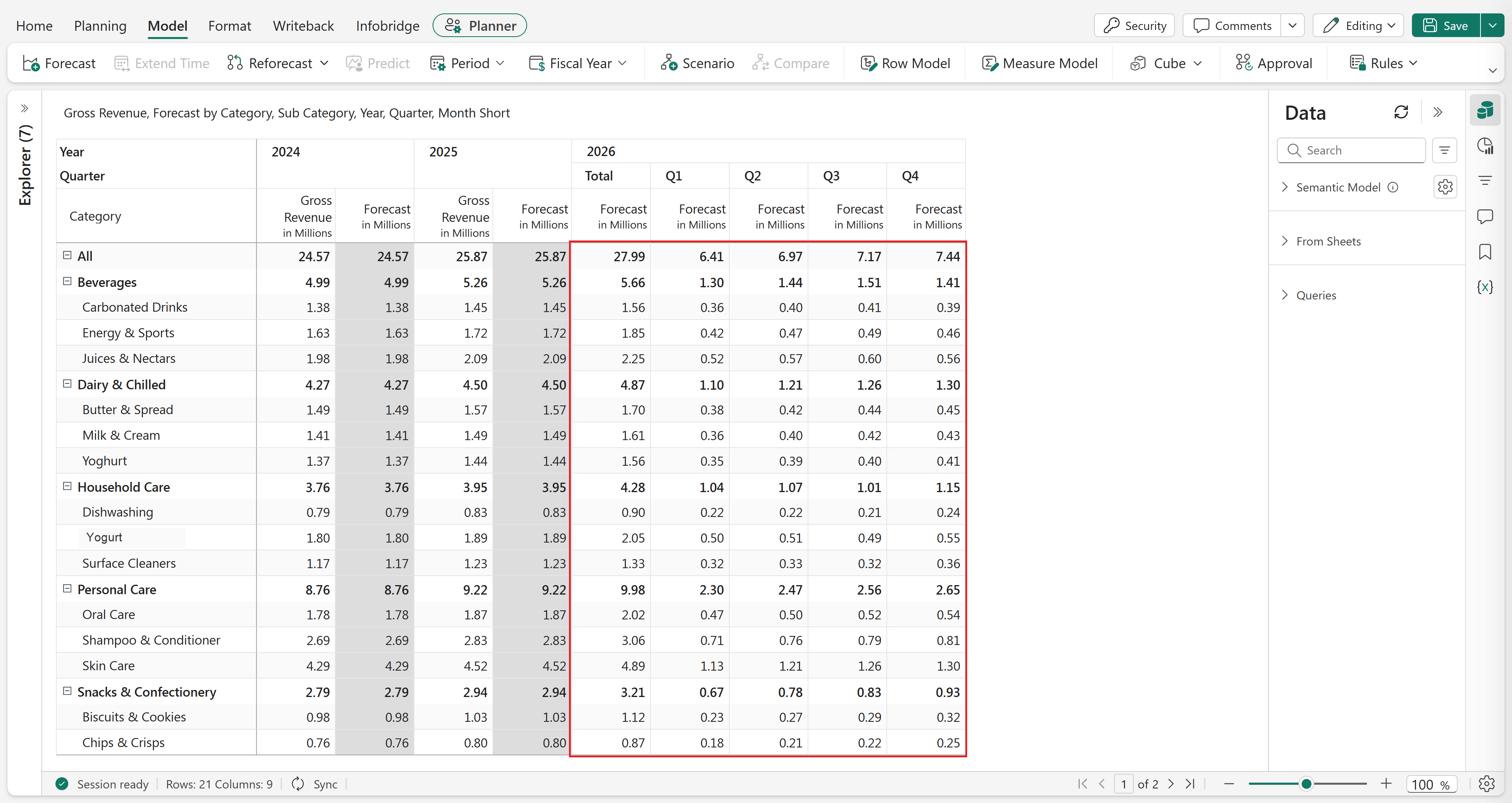
Close the period and extend the forecast horizon
In this section, you reveal January 2026 actuals, close the period to lock them in, extend the horizon to January 2027, and reforecast the newly opened month.
Reveal January 2026 actuals
In this part, you add 2026 to the year filter to reveal January's actual Gross Revenue alongside the statistical forecast. Comparing the two values shows how closely the forecast matched actuals.
In the Filter panel, edit the existing year filter and add 2026 alongside 2024 and 2025.
Expand the column headers and compare the two January 2026 values side by side:
- Forecast: $2.09m—the value generated by the statistical model
- Gross Revenue: $1.92m—the actual January figure
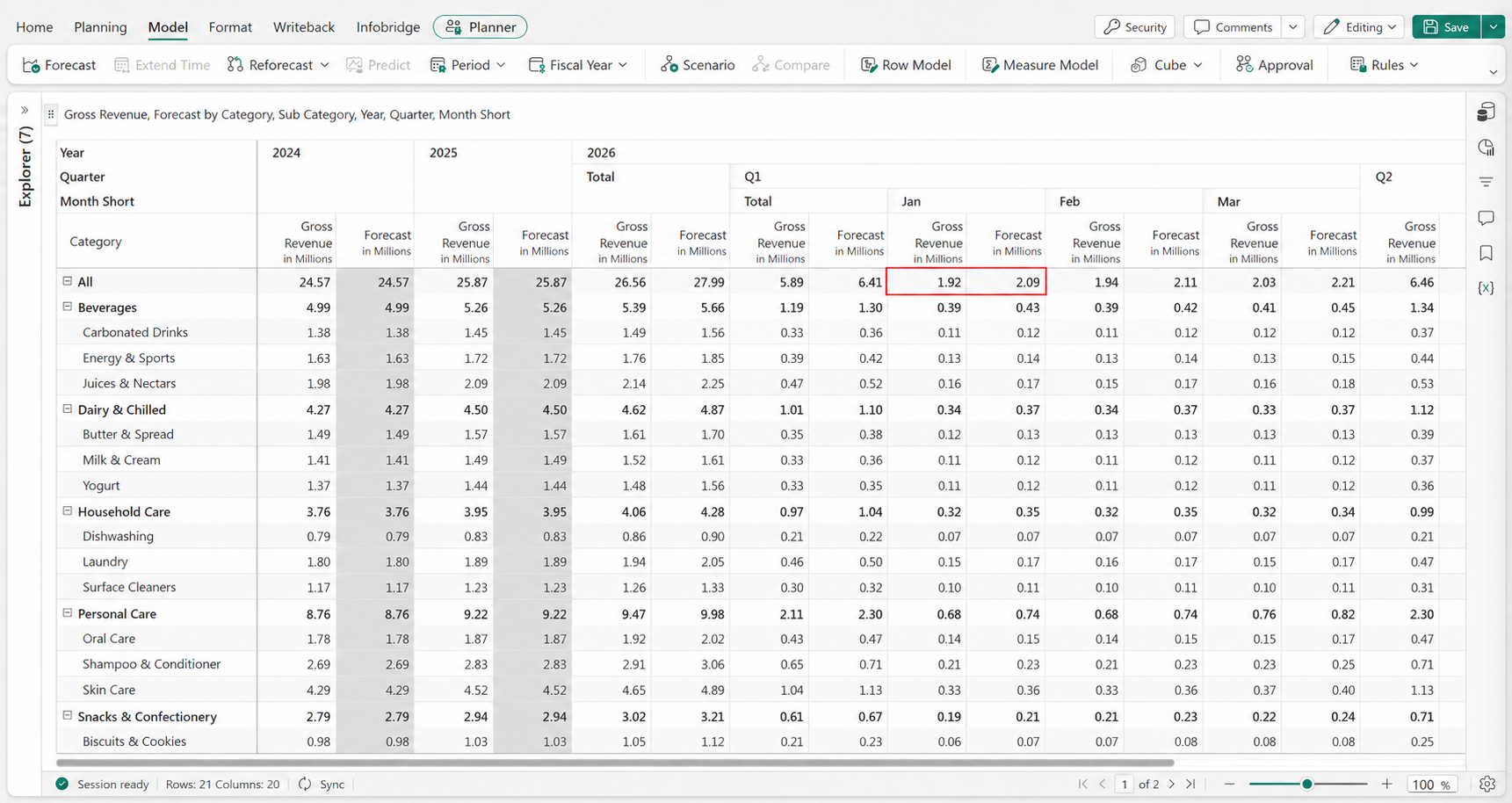
Close January forecast and extend the horizon
In this section, you close the January 2026 forecast to lock in the actuals and extend the forecast horizon by one month. This action keeps a continuous 12-month forward view as each period closes.
In the Model ribbon, select the Period dropdown and select Close Period.
In the Close Period dialog box, select the Close period till dropdown and select Custom. Set the period to January 2026.
Select Extend Forecast Range and set Duration to 1 Month. This action maintains a continuous 12-month forward window. As January closes, January 2027 is added to the horizon.
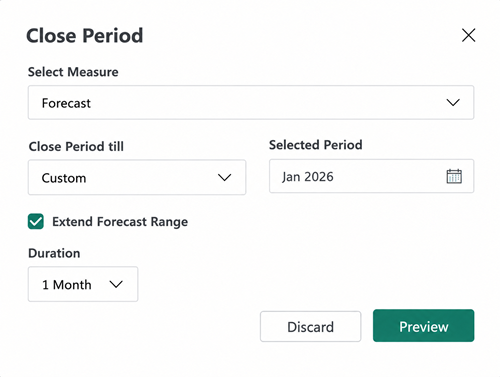
Select Preview. Verify the following values, and then select Save:
Field Value Measure Forecast Closed period Jan 2024–Jan 2026 Open period Feb 2026- Jan 2027 January 2026 is now populated with actual gross revenue and greyed out. The forecast horizon extends automatically to January 2027.
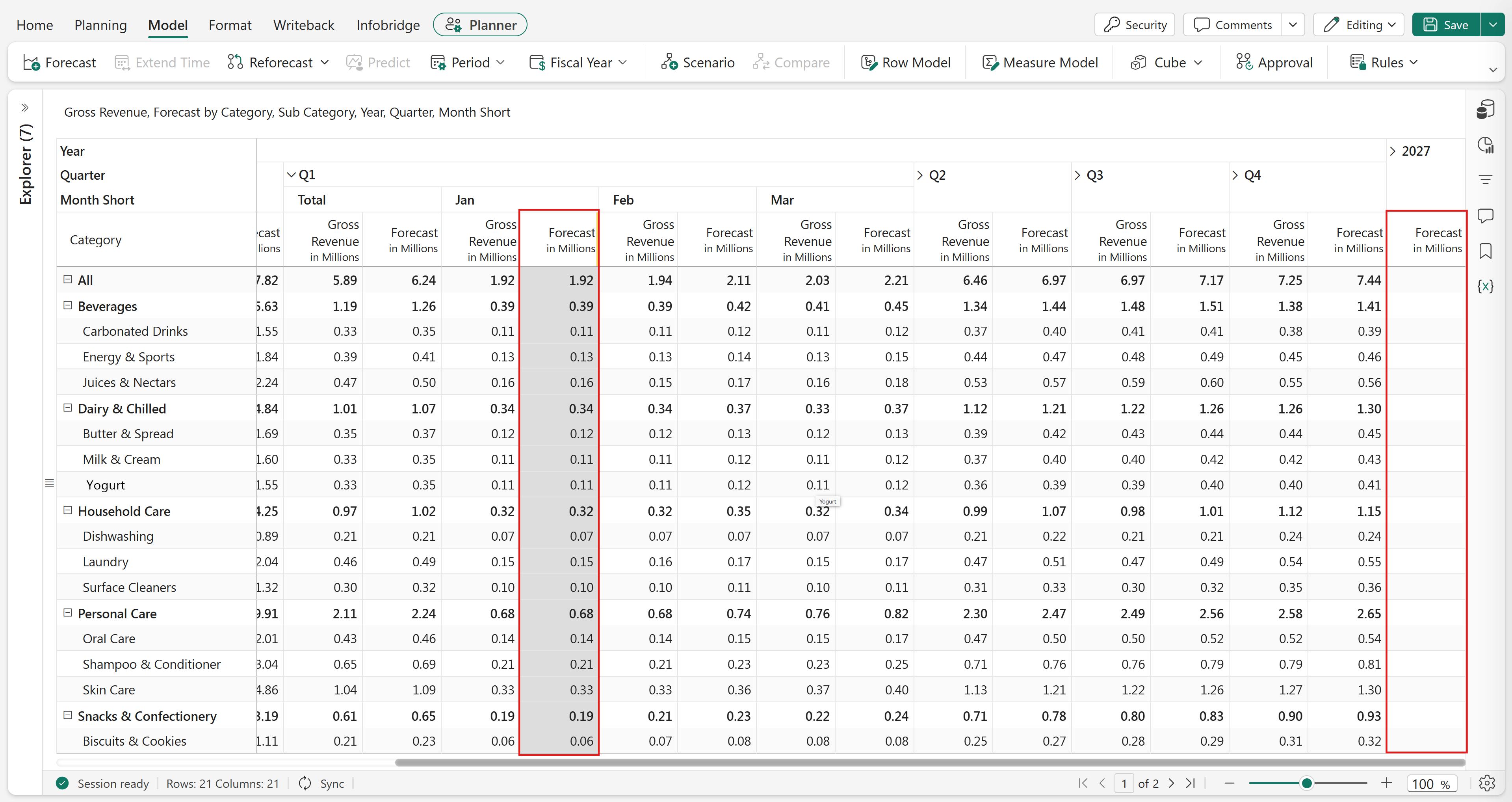
Reforecast January 2027
In this section, you reforecast the newly opened January 2027 period using January 2026 actuals as a baseline. This approach gives the extended month a realistic starting value instead of an empty cell.
In the Model ribbon, select Reforecast and select Reforecast Column. Configure it as follows and select Apply:
Setting Value Target period Jan 2027–Jan 2027 Copy source Gross Revenue Apply operation Single Period Source periods Jan 2026 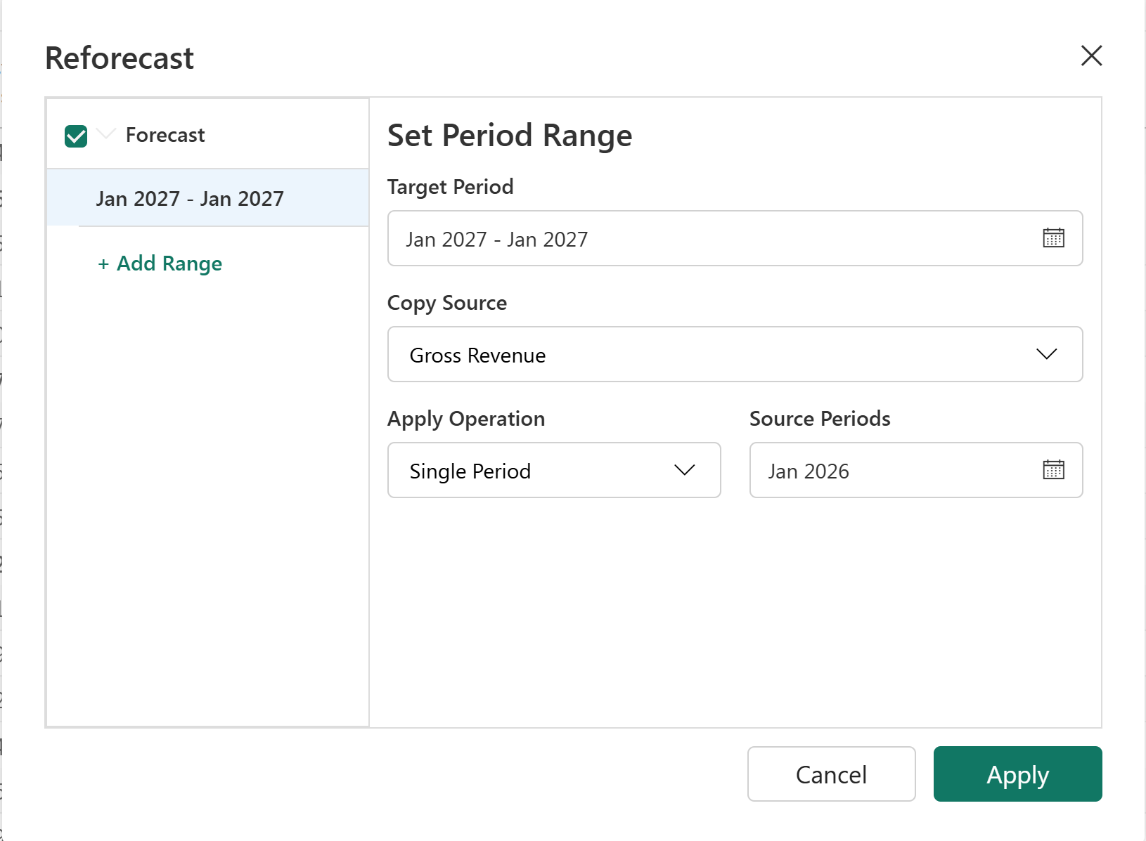
January 2027 is seeded from January 2026 actuals ($1.92M), giving a realistic baseline for the extended horizon.
Double-click the Jan 2027 grand total cell, enter +4%, and select the check mark. January 2027 is now populated at $2M.
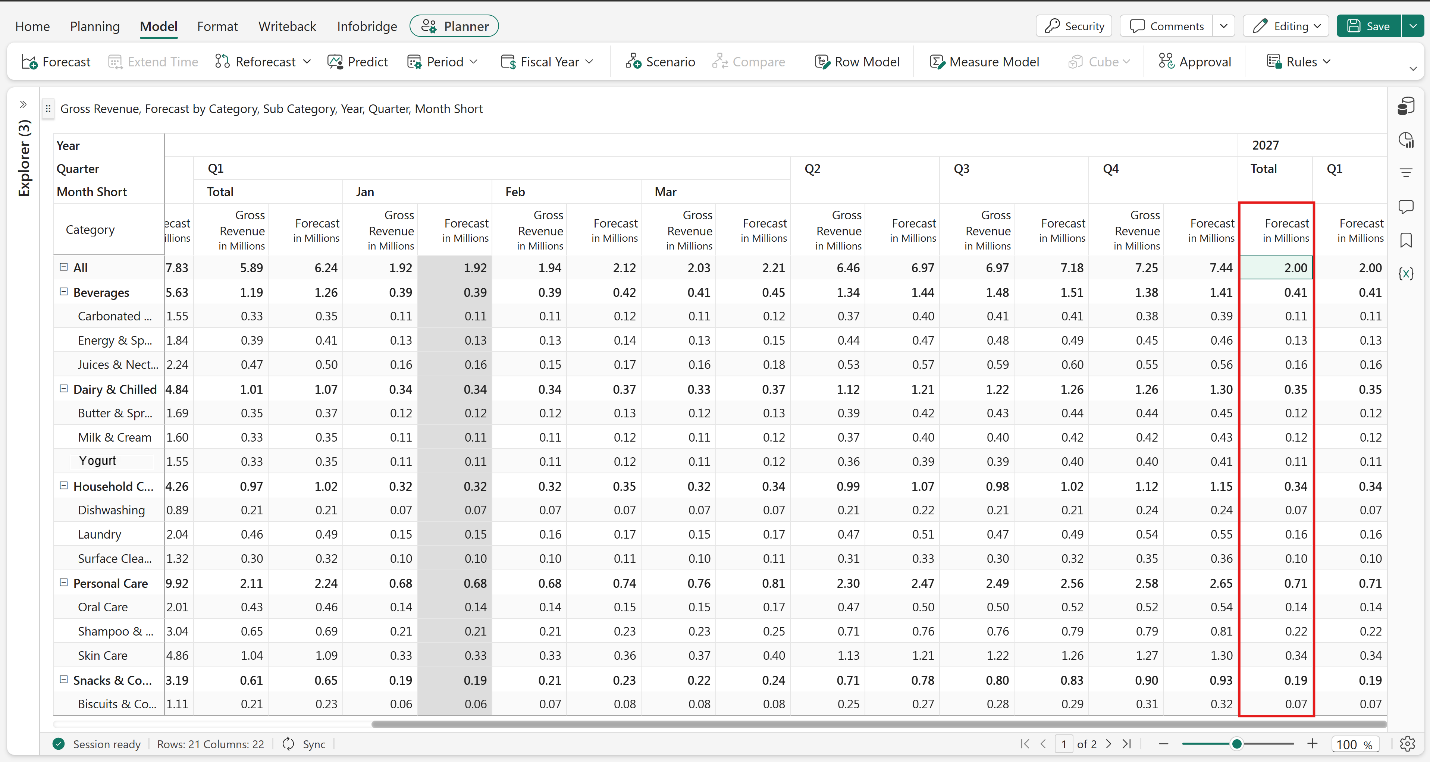
Commit the forecast to the database
In this section, you add a writeback destination, configure writeback settings, run writeback, and verify the results in the database.
For an overview of writeback concepts, see Writeback in Planning.
Add a writeback destination
In this section, you add the Fabric SQL database as a writeback destination for the forecast measure. This destination determines where committed values are written when you run writeback.
In the Writeback ribbon, select Add destination.
In Create Destination, configure the settings as shown in the following table and select Add:
Setting Value Select connection Northwind_FMCG (created in Tutorial 1) Database name Northwind_FMCG_Lisa Taylor (created in Tutorial 1) Schema dbo Table name Forecast Decimal precision 2 Text length 512 A confirmation message appears when you add the destination successfully. <Add image here - image 56 with writeback add destination settings>
Configure writeback settings
In this section, you configure how the forecast is written to the database - the writeback type, which measures are included, and the destination. These settings determine what gets written and how each writeback run behaves.
In the Writeback ribbon, select Settings. The settings panel has four tabs—General, Data, Destinations, and Advanced.
In the General tab, select the information icon next to each writeback type to review the options:
Type Behavior Long One row per observation. Full snapshot every run. Wide Each measure as a separate column. Full snapshot every run. Long with Changes Writes only changed values. Builds an audit history over time. Wide with Changes Same as Wide but writes only changed values. Select Long with Changes. A warning appears confirming the destination will be turned off. Select Proceed.
Confirm Filter type is set to None—this writes back all data without filtering.
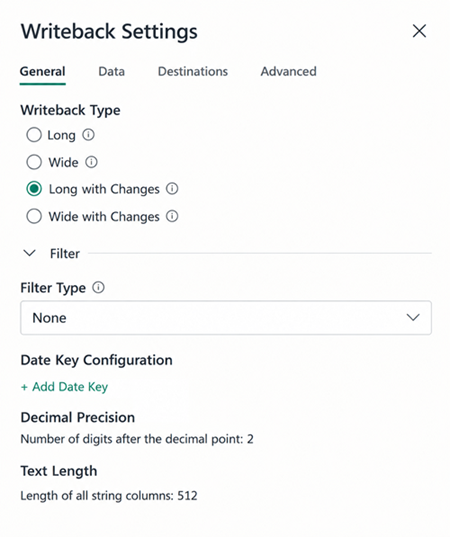
Select the Data tab. Deselect Gross Revenue—this is a read-only actuals measure and doesn't need to be committed to the database. Only Forecast should be selected.
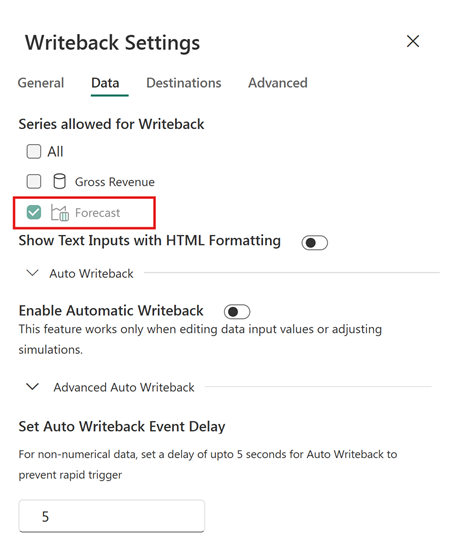
Open the Destinations tab and select the Fabric SQL destination created in Add a writeback destination.
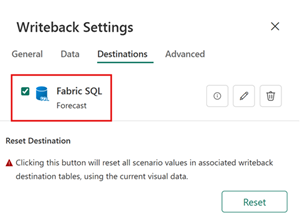
Run writeback and verify data
In this section, you run writeback and confirm that writeback saves forecast data correctly in the Fabric SQL database. You also review the writeback logs to see the run's status and details.
In the Writeback ribbon, select Writeback. A confirmation message that states, Writeback Completed, appears within a few seconds.
Open your training workspace folder and open the Northwind_FMCG SQL database.
Expand Northwind_FMCG > dbo > Tables and select the Forecast table. Verify the forecast data appears in the preview.
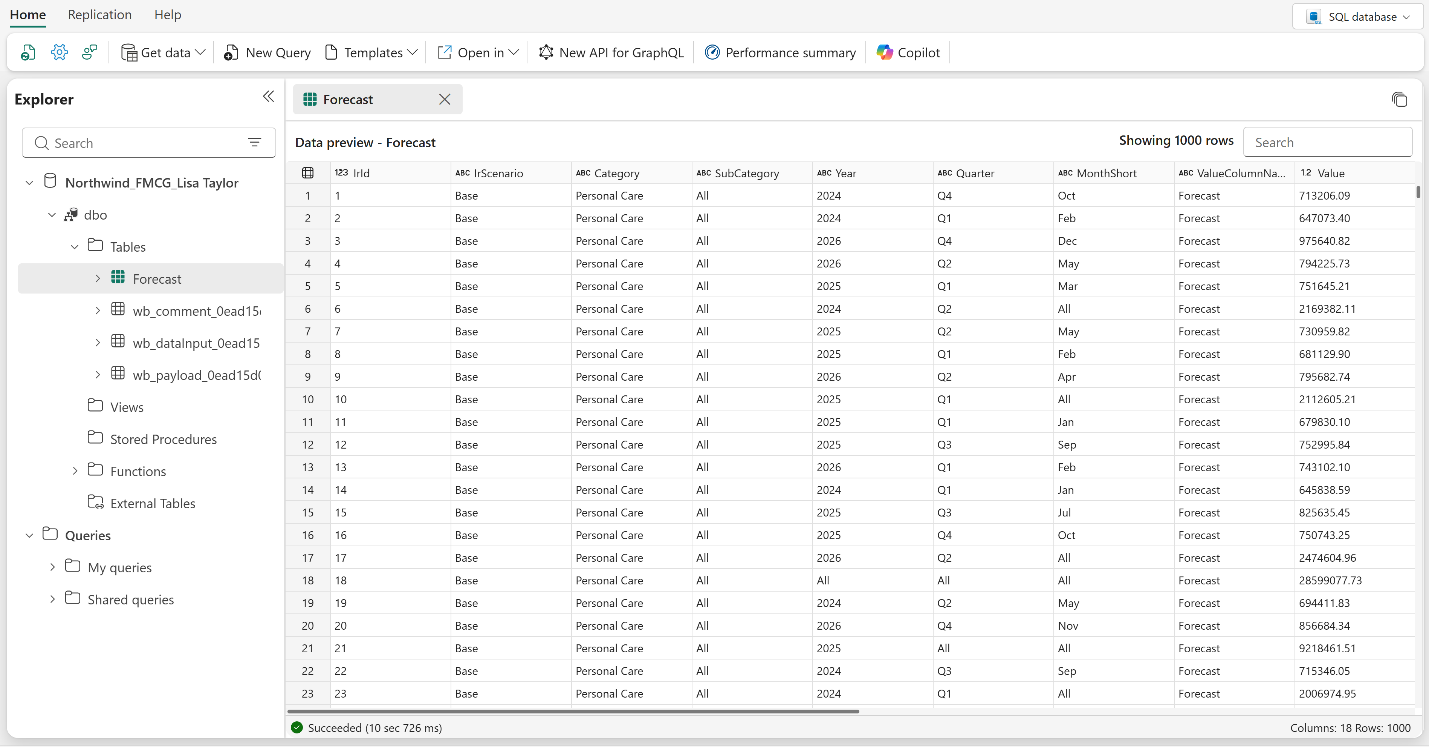
Go back to the plan app. In the Writeback ribbon, select Logs. Review the log details - status, duration, user who performed the writeback, measures written back, and writeback type.

Next steps
Build a P&L measure model, then create and compare scenarios in tree view in the next tutorial, Build a P&L hierarchy