Note
Access to this page requires authorization. You can try signing in or changing directories.
Access to this page requires authorization. You can try changing directories.
In this tutorial, you build and configure a Measure Model by organizing native and formula measures into a hierarchical P&L structure. Then, you create two scenarios in the Tree layout and compare them to see the real-time impact of revenue growth and cost restructuring on net profit.
Prerequisites
Before you start this tutorial, ensure you complete the first tutorial: Fabric planning tutorial part 0: Introduction and environment setup
Configure a measure model
In this section, you set up the planning sheet and build a simple P&L model by using the Measure Model feature. Organize native measures into a parent-child hierarchy by using formula measures to turn a flat list of inputs into a structured P&L model.
In Northwind_FMCG_Plan, select New Planning Sheet in the Home ribbon. Enter P&L – Measure model and select Create.
Configure the field assignments from the P&L Measures table as follows:
Field Value Rows Region hierarchy— Region → Cities Columns Date hierarchy—Year, Quarter, Month Values All the measures from the P&L Measures table Double-click each measure label and remove the "Sum of" prefix to improve readability. Select the three dots (⋮) next to Avg Selling Price in the Values field and select Average from the dropdown. This change populates the average selling price instead of the summed value.
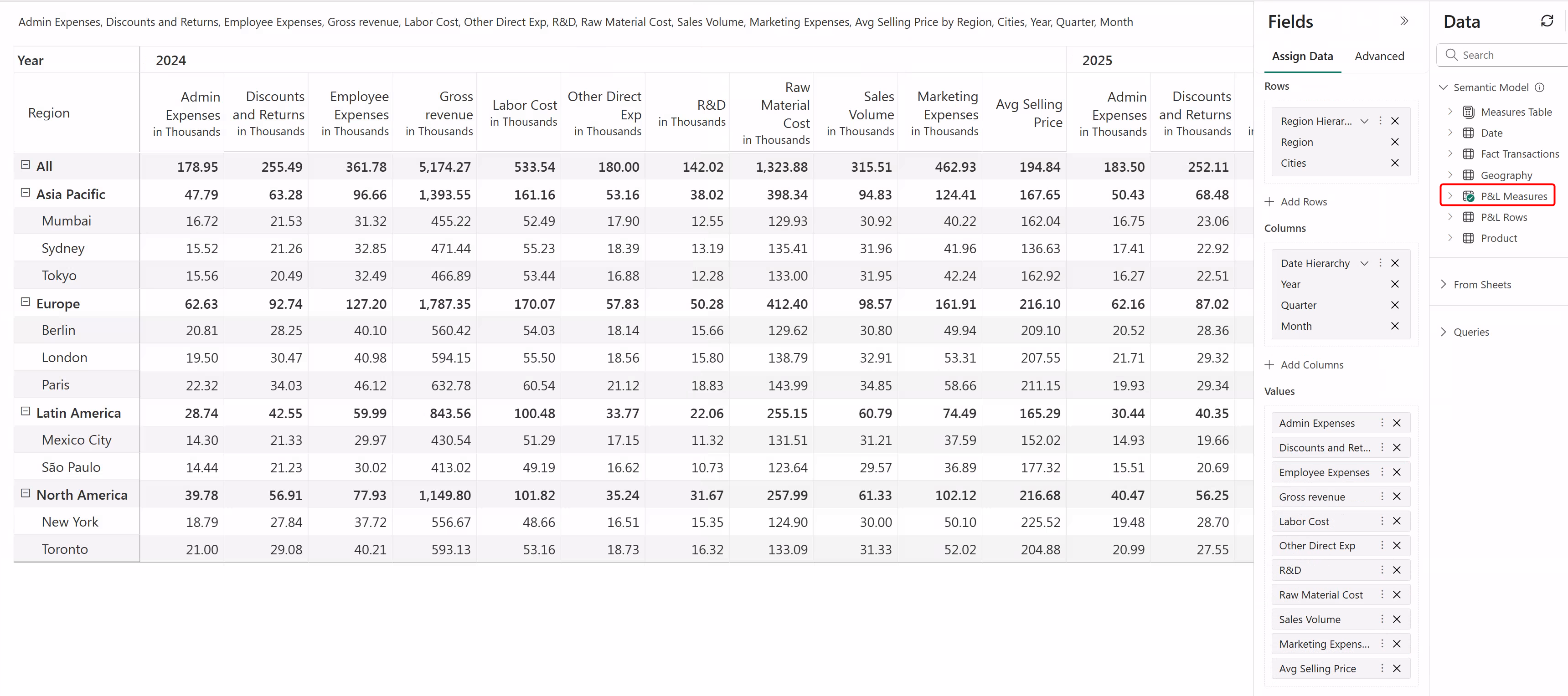
Go to the Model ribbon and select Measure Model. The measure model canvas opens.
To create a formula measure for Gross Revenue, first drag Sales Volume and Avg Selling Price into the Drop from measure list section at the bottom of the canvas.
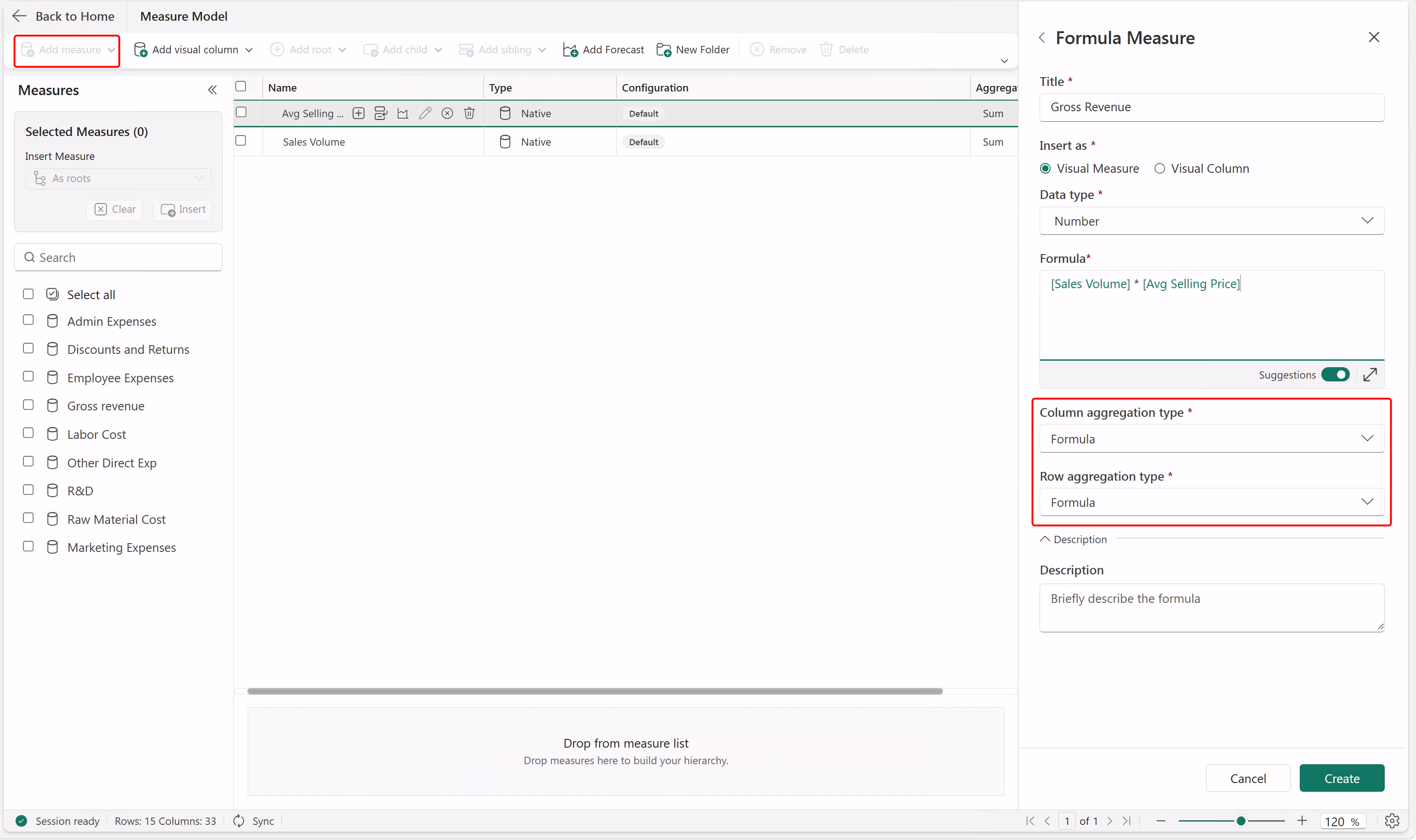
Select Add Measure > Formula. Name it Gross Revenue and enter the formula
[Sales Volume]*[Avg Selling Price]. Select Create.Note
Ensure the row and column aggregation type is set to Formula for all the formula measures you create.
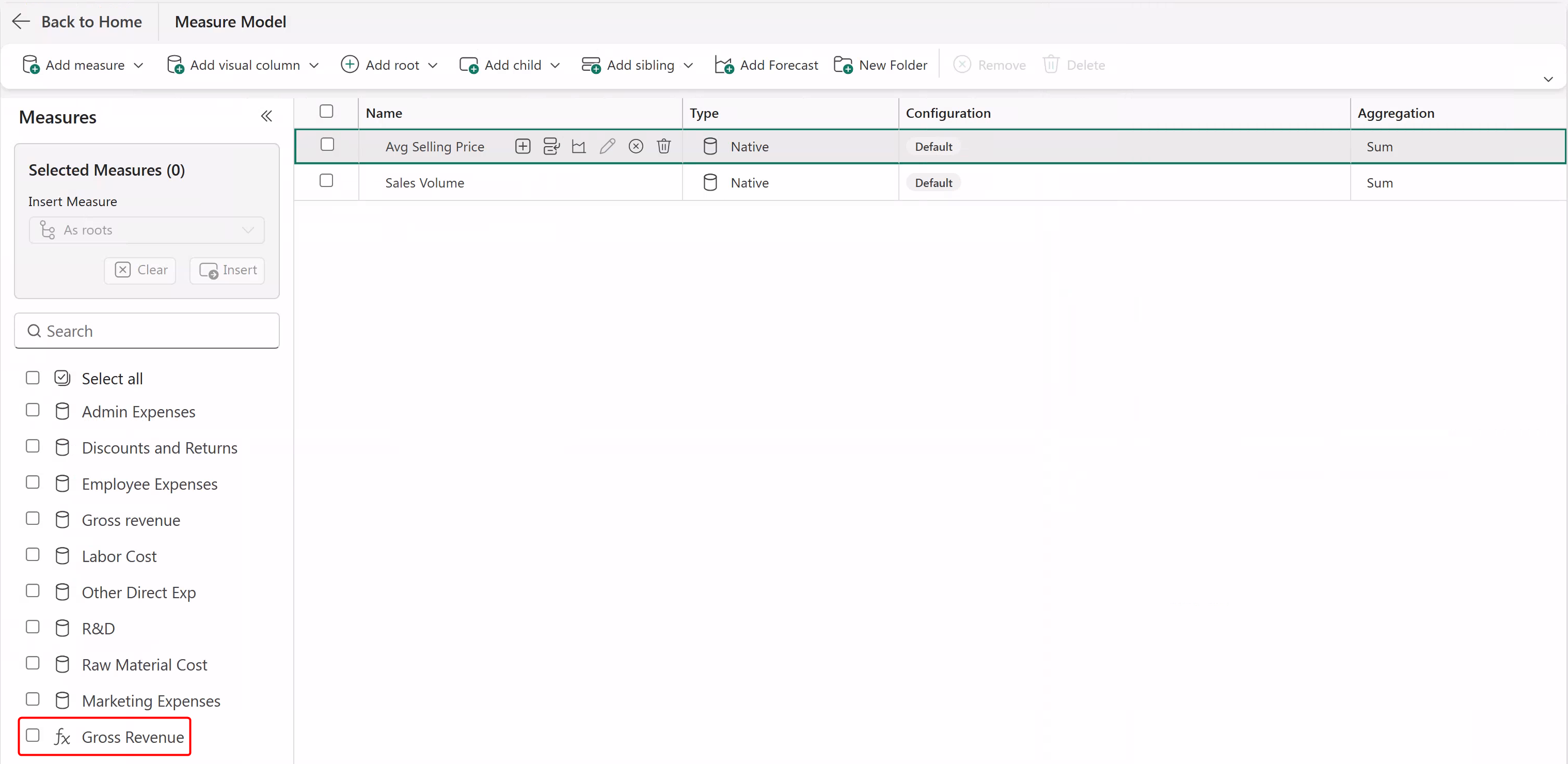
Gross Revenue is added to the measure list.
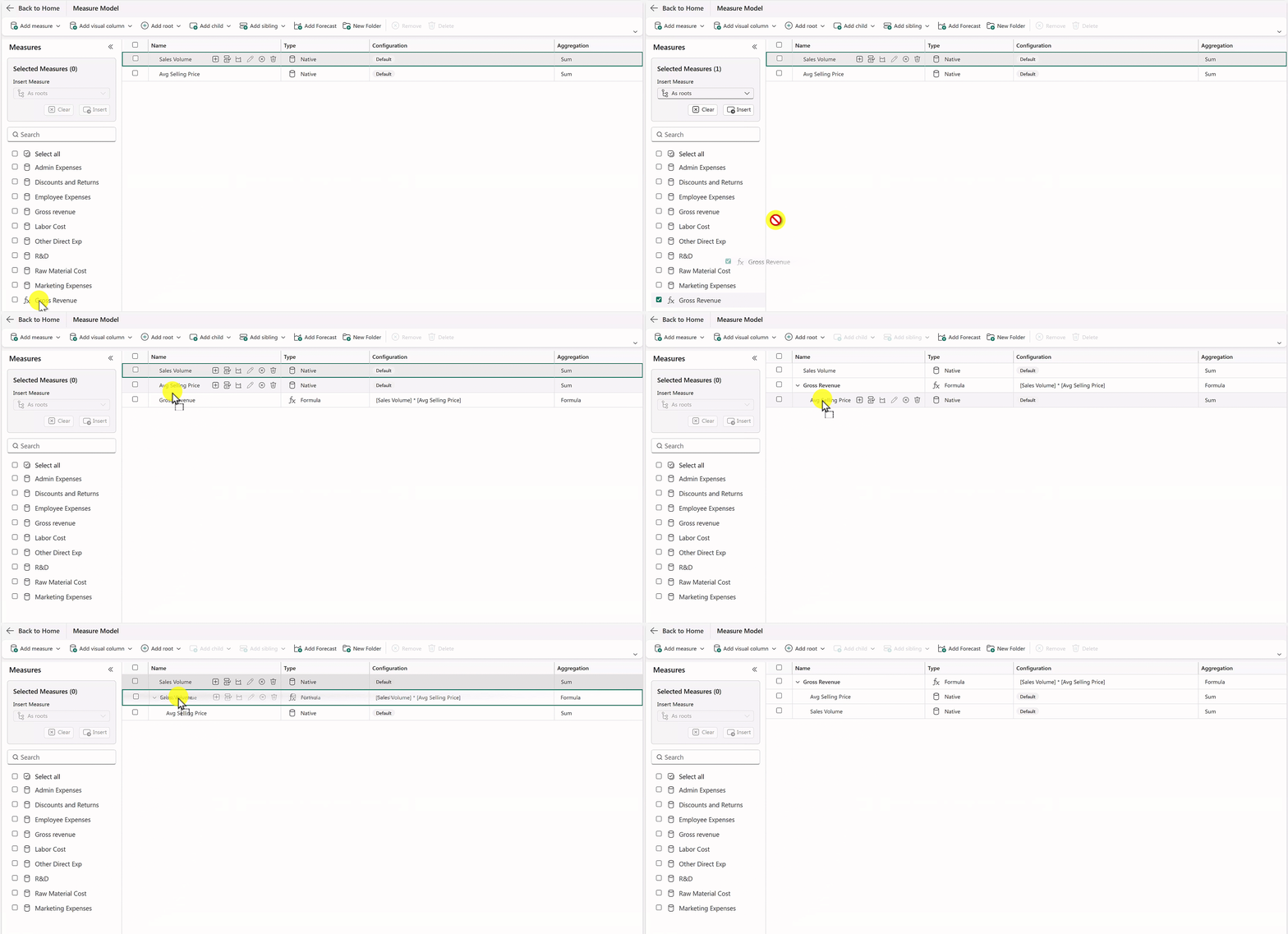
Drag the new Gross Revenue measure onto the canvas. Drag the Sales Volume and Avg Selling Price onto the Gross Revenue row — the measures snap into place as children. Observe that Gross Revenue becomes the parent of Sales Volume and Avg Selling Price.
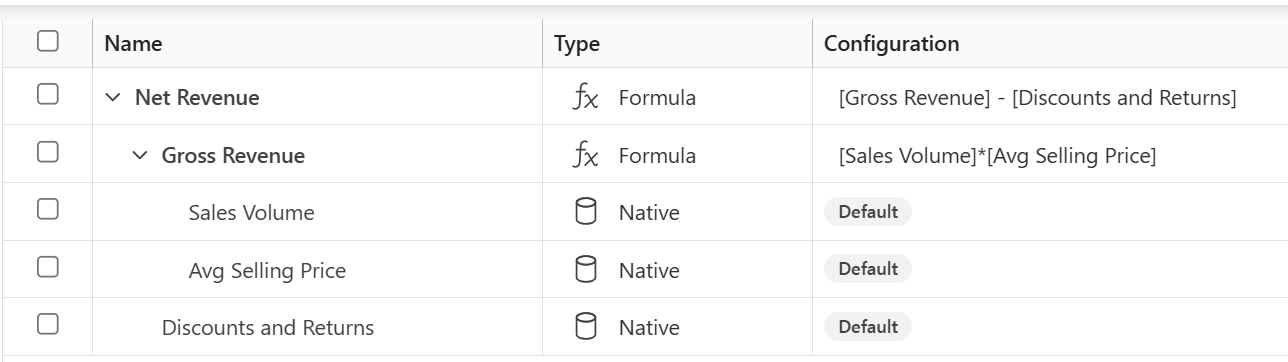
Drag Discounts and Returns onto the canvas. Follow the same steps to create a Net Revenue measure by using the formula
[Gross Revenue] – [Discounts and Returns].Drag Net Revenue onto the canvas. Then drag Gross Revenue and Discounts and Returns under the Net Revenue row. Observe that Net Revenue becomes the parent of Gross Revenue and Discounts and Returns.
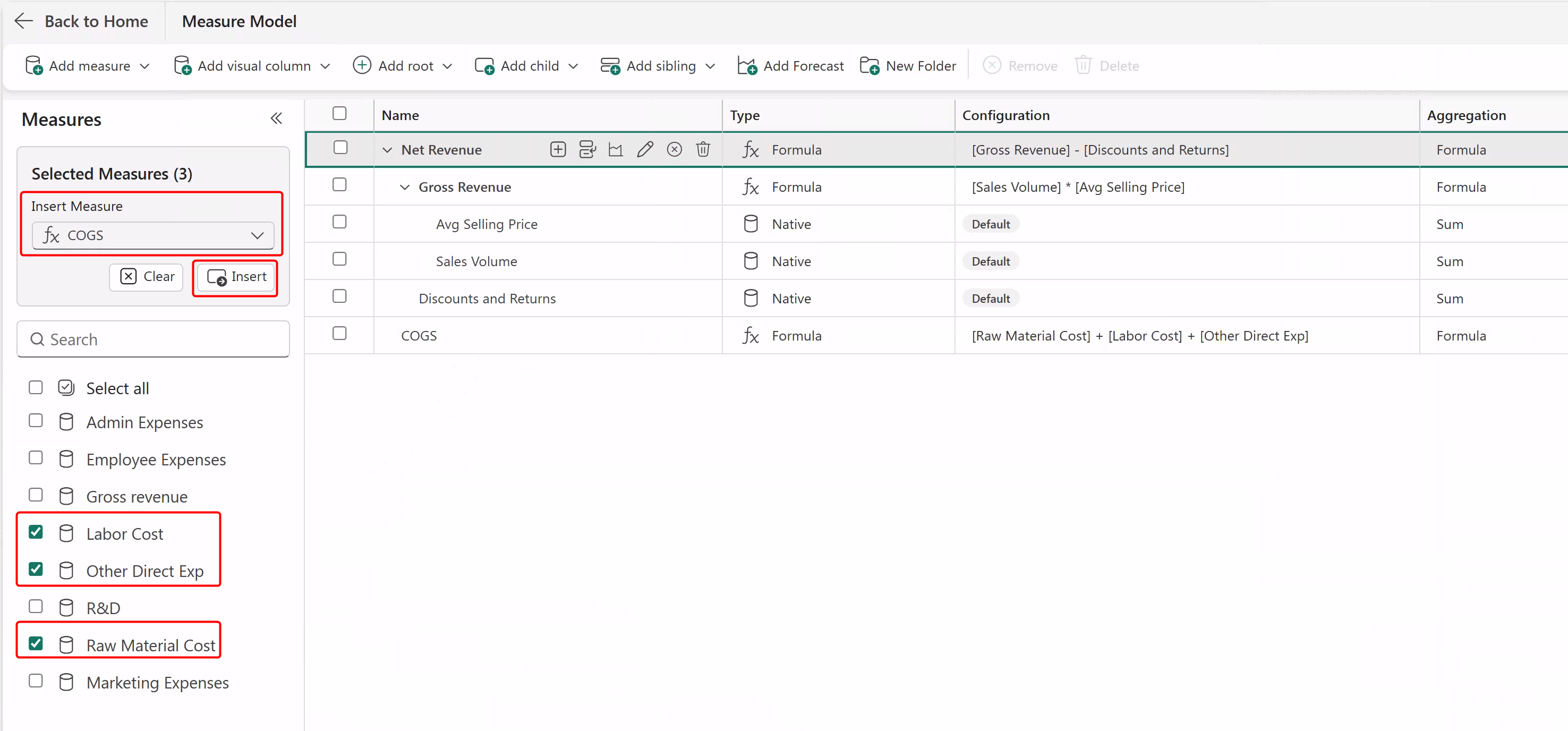
Create a formula measure for COGS by using the formula:
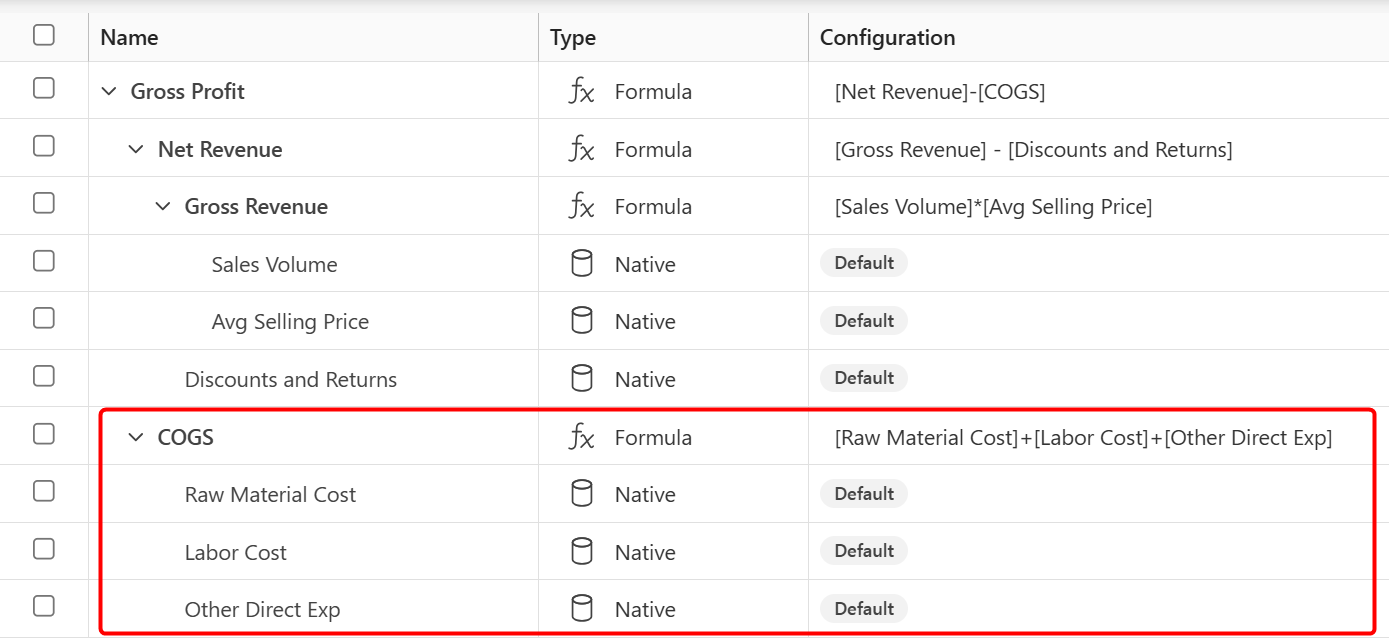
[Raw Material Cost]+[Labor Cost]+[Other Direct Exp]. Drag the COGS measure onto the canvas.Select Raw Material Cost, Labor Cost, and Other Direct Exp. From the Insert Measure dropdown, select COGS, and then select Insert.
The COGS measure becomes the parent of Raw Material Cost, Labor Cost, and Other Direct Exp.
In the same way, create the following calculated measures:
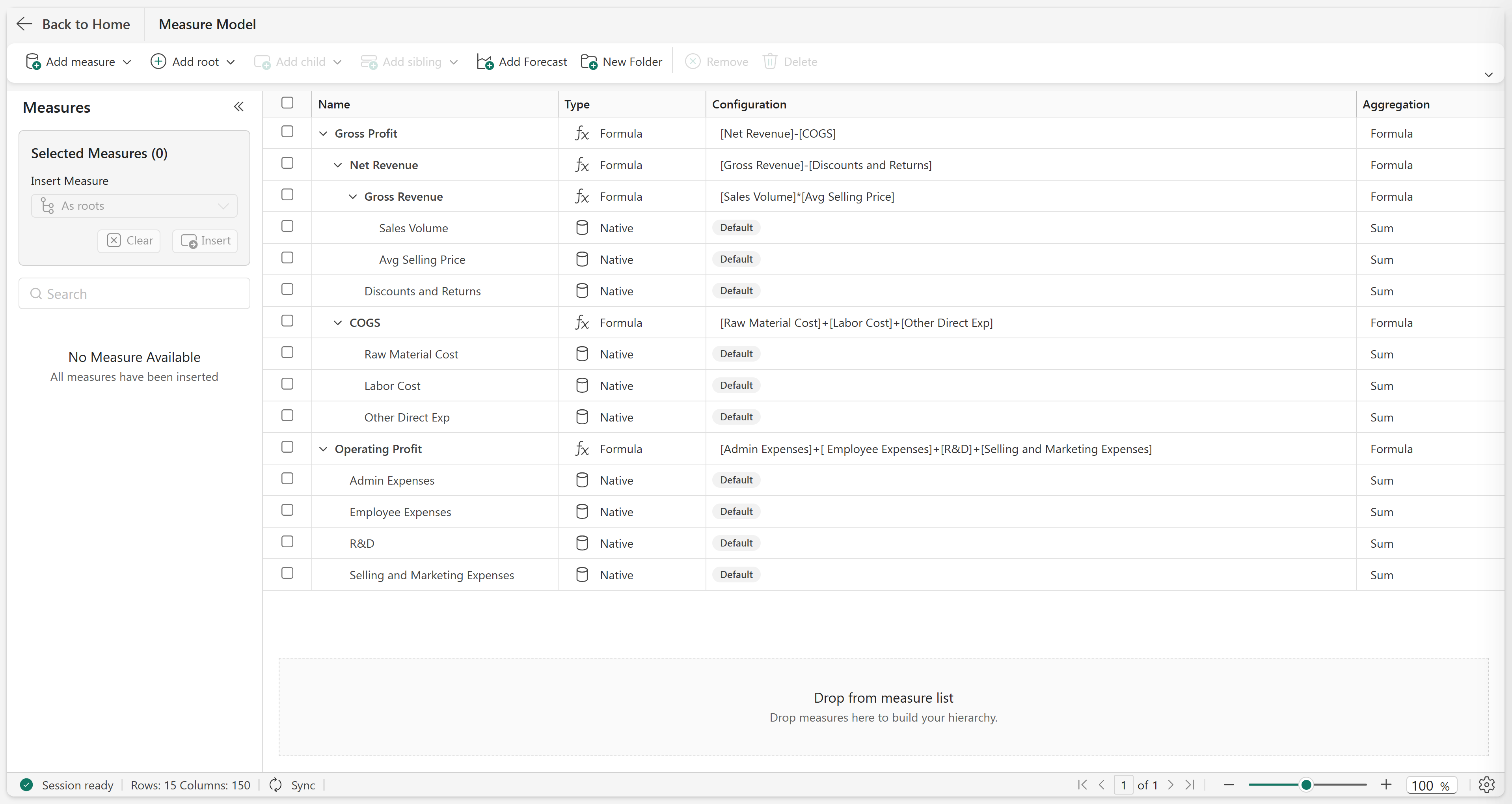
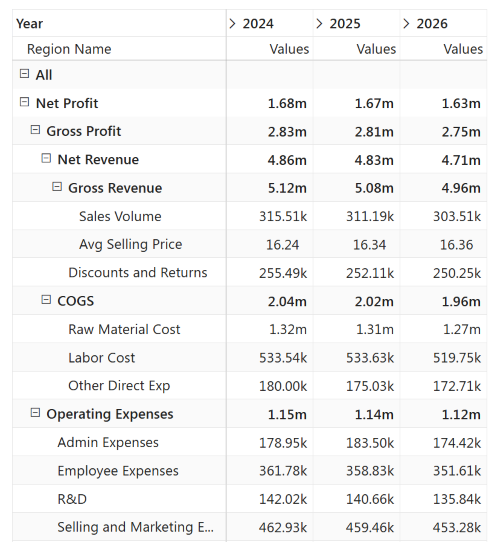
Measure Formula Gross Profit [Net revenue] – [COGS]Operating Expenses [Admin Expenses]+[Employee Expenses]+[R&D]+[Selling and Marketing Expenses]Net Profit [Gross Profit] – [Operating Expenses]The final P&L hierarchy is shown in the following image:
View the P&L model
In this section, you view the P&L model in the Measures in Rows layout.
Select Back to Home at the top of the measure model canvas. In the Planning ribbon, select the Layout dropdown and select Measures In Rows.
Observe that the configured measure hierarchy is now displayed — a structured P&L view of the calculated measures and their underlying components, replacing the flat list from the setup step.
Create best case and cost restructuring scenarios
In this section, you create two scenarios in the Tree layout — one to simulate revenue growth in Sydney and one to simulate restructuring costs in London.
Create best-case scenario
In this section, you create a best-case scenario in the tree layout and simulate revenue growth for the Sydney node. The measure hierarchy updates in real time as you adjust each input.
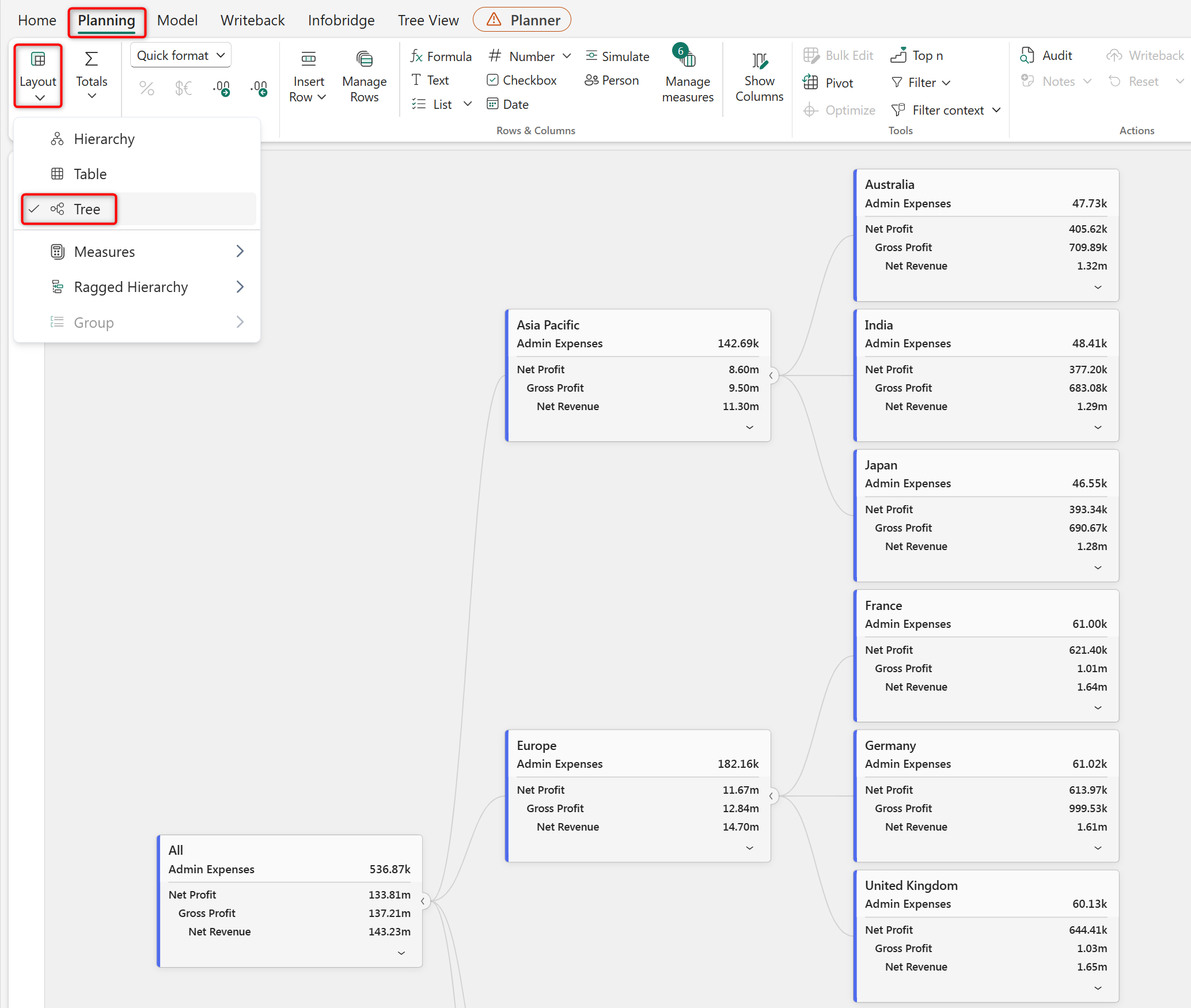
In the Planning ribbon, select Layout and select Tree. The P&L model displays in tree view, breaking down from the grand total through regions and cities with the measure hierarchy.
Select Display in the Tree View ribbon. In the Display Settings side panel, turn off Show Header KPI.
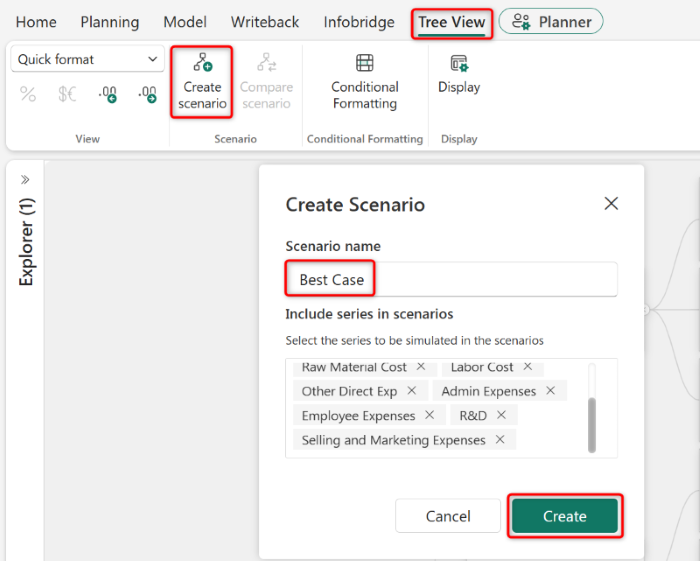
Select Create Scenario and name it Best Case. Ensure that all measures from the semantic model are included in the series, and select Create.
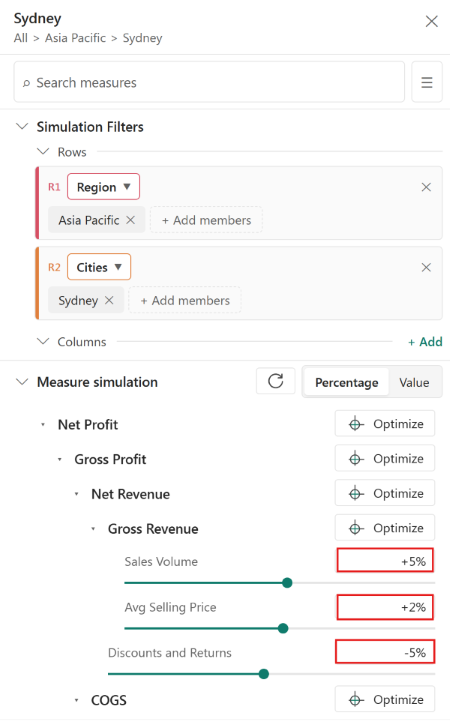
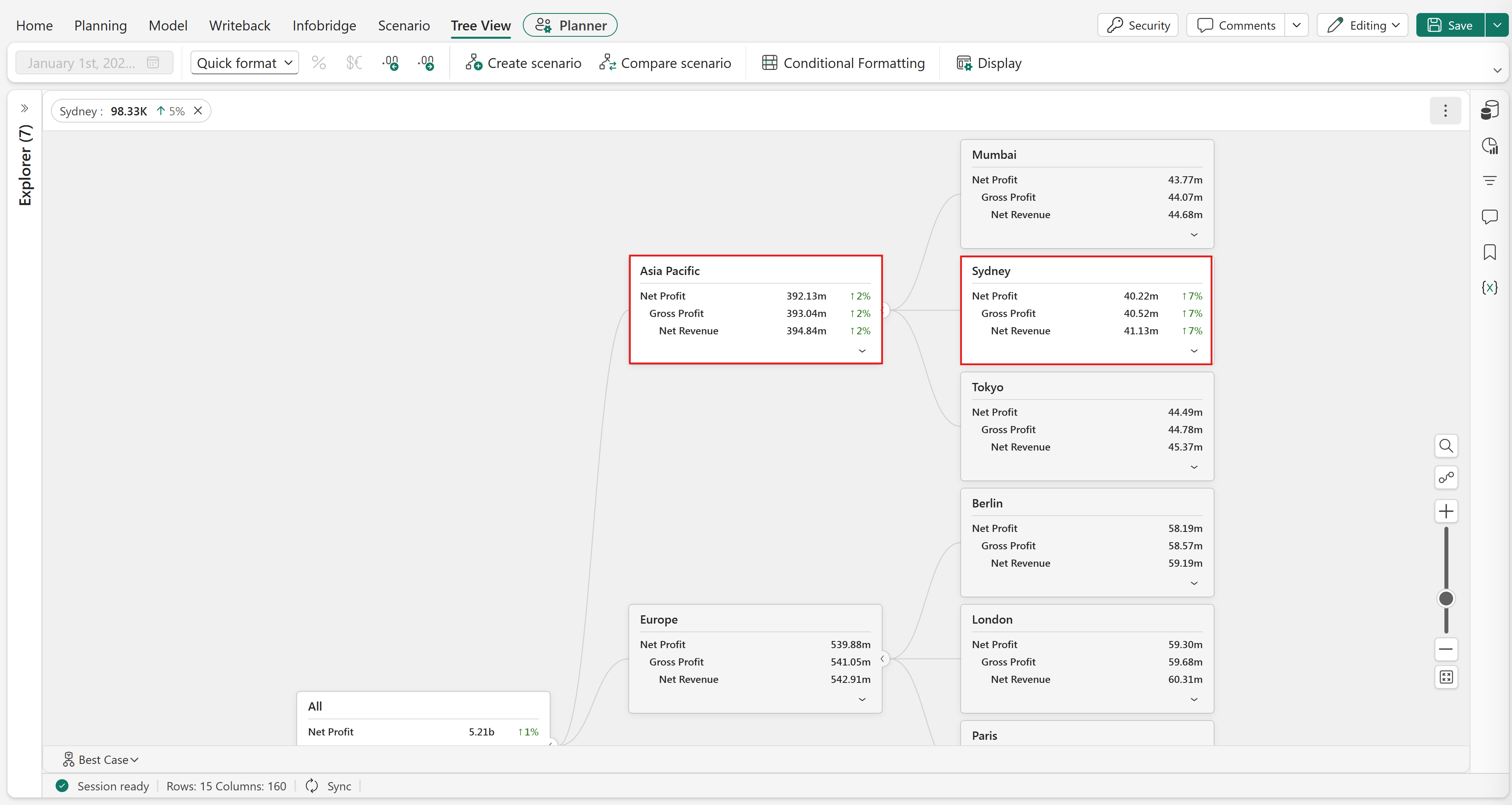
Under the Asia Pacific region, select the Sydney card. The simulation dialog box opens.
In the Measure Simulation dropdown, simulate the following under Gross Revenue:
- Sales Volume: 5%
- Avg Selling Price: 2%
- Discounts and Returns: −5%
Close the simulation dialog. Observe that the Sydney card updates in real time — Net Profit, Gross Profit, and Net Revenue show the upward variance indicators as each input is adjusted. The Asia Pacific and the All cards also update to reflect the change.
Cost restructuring scenario
In this section, you create a Cost Restructuring scenario and simulate reduced costs for the London node. This scenario lets you compare a cost-focused approach against the best case revenue-growth approach.
Select Create Scenario and name it Cost Restructuring. Ensure that the series includes all measures from the semantic model, and select Create.
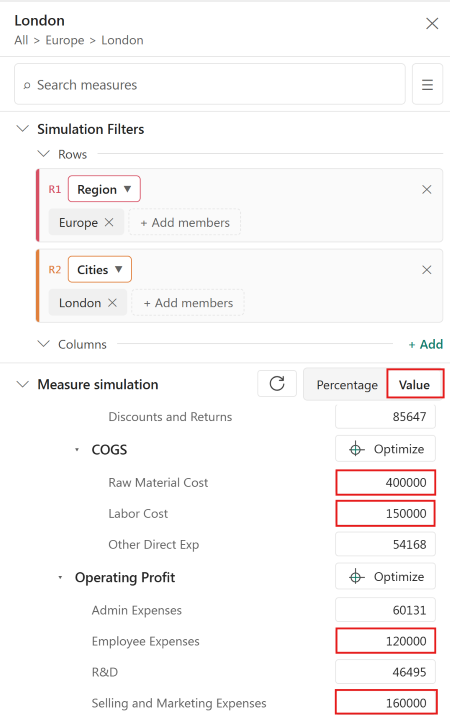
Confirm you can see the new scenario in the bottom left. Under the Europe region, select the London card. The simulation dialog box opens. Select Value. Scroll down and simulate the following values under COGS and Operating Expenses:
- Raw Material Cost: 400k
- Labor Cost: 150k
- Employee Expenses: 120k
- Selling and Marketing Expenses: 160k
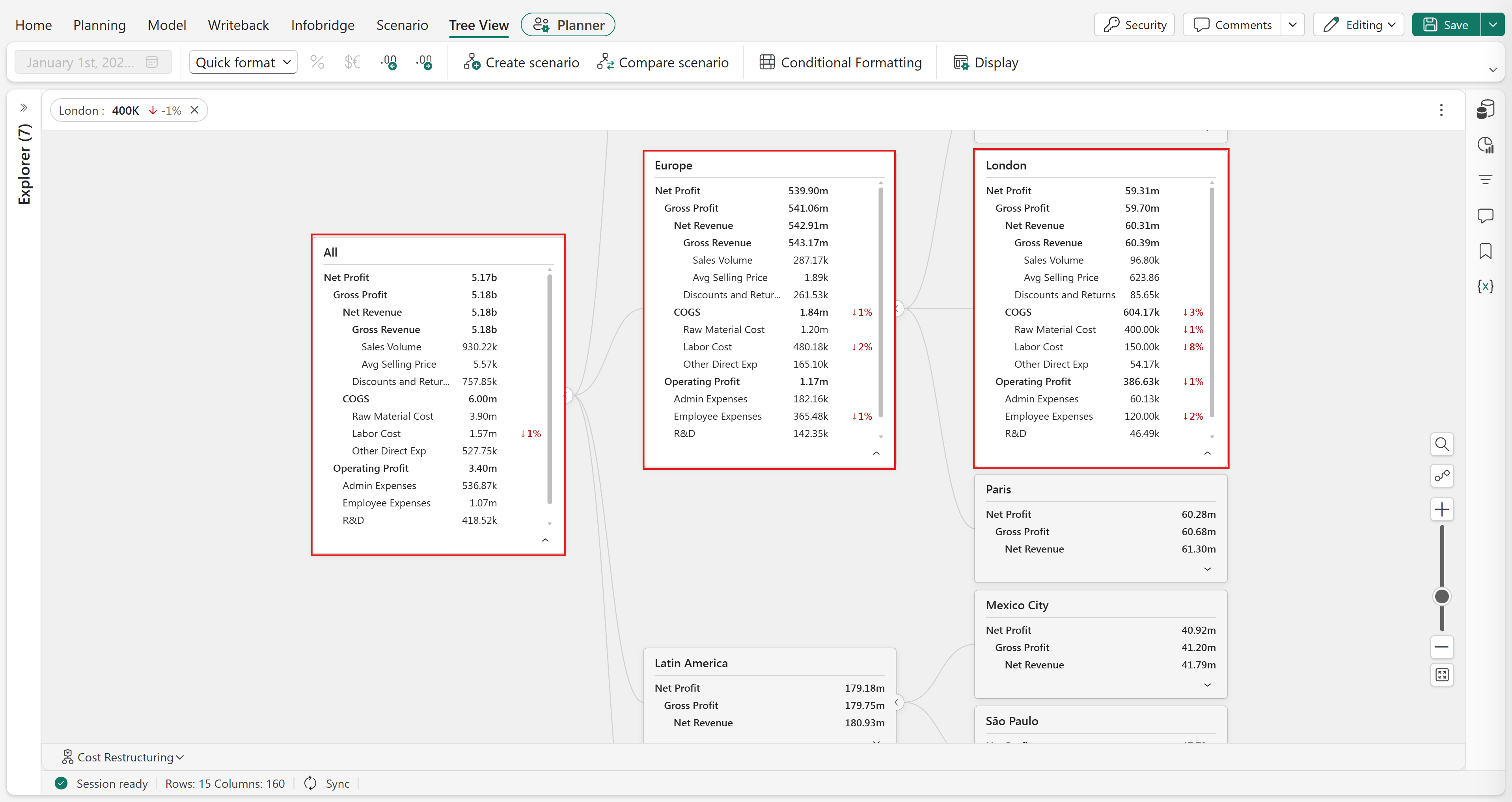
Close the simulation dialog box. Select the down arrow on the London card and Europe cards. Observe that the cards update in real time. The full P&L cascade is visible on the card, showing how the restructured cost inputs flow through COGS, Operating Expenses, Gross Profit, and Net Profit.
Compare scenarios
In this section, you compare the best case scenario with the cost restructuring scenario by using the Compare Scenarios feature.
In the Tree View ribbon, select Compare Scenario.
Configure the comparison with the following settings:
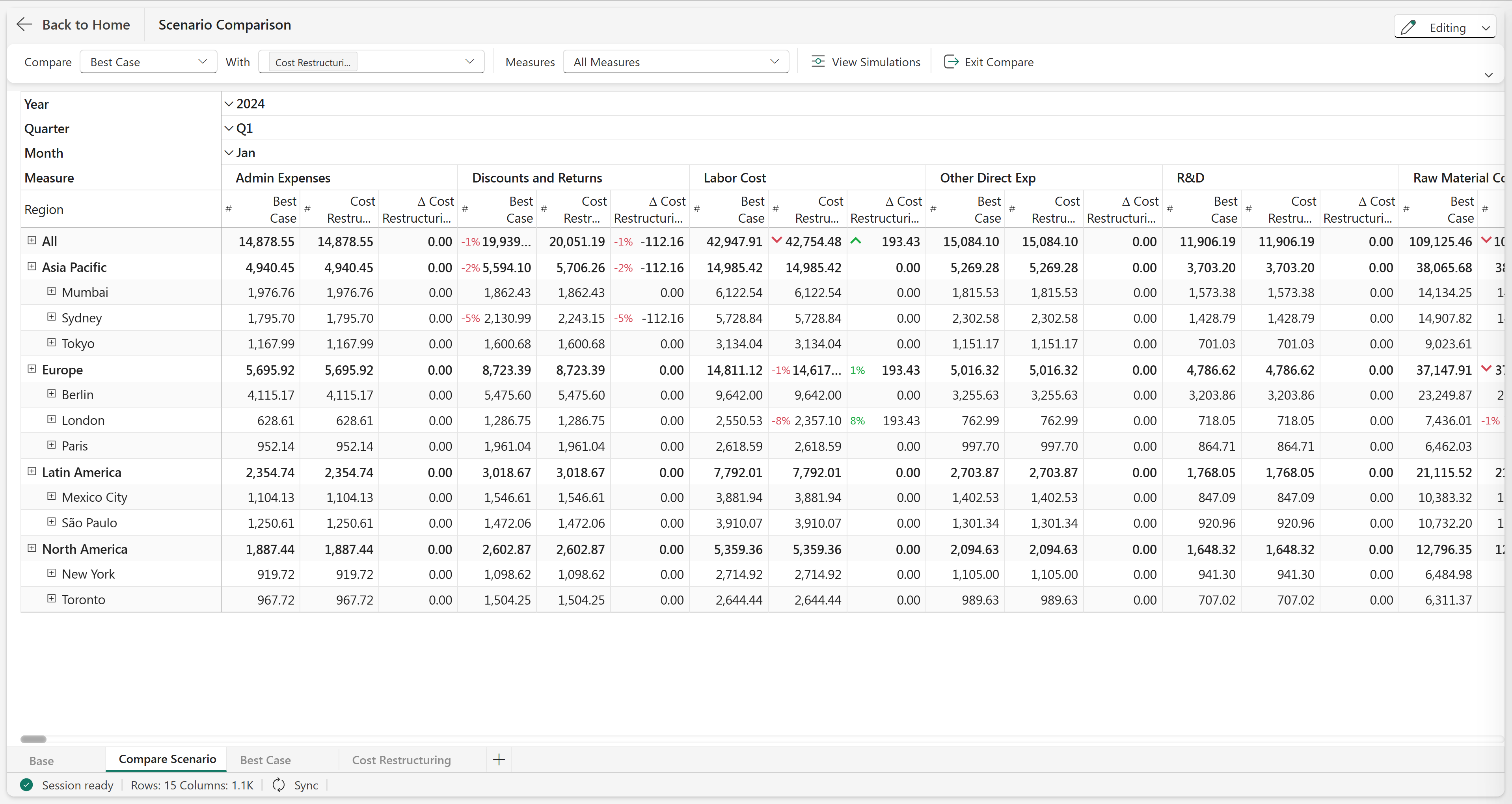
- Compare: Best Case
- With: Cost Restructuring
Observe the variance columns. The compare view places both scenarios side by side at every level of the hierarchy, making the difference immediately visible between a revenue growth approach and a cost restructuring approach.
Select Exit Compare to return to the tree view.
Next steps
Build a P&L row model in the next tutorial, Build a P&L hierarchy using row model builder