Note
Access to this page requires authorization. You can try signing in or changing directories.
Access to this page requires authorization. You can try changing directories.
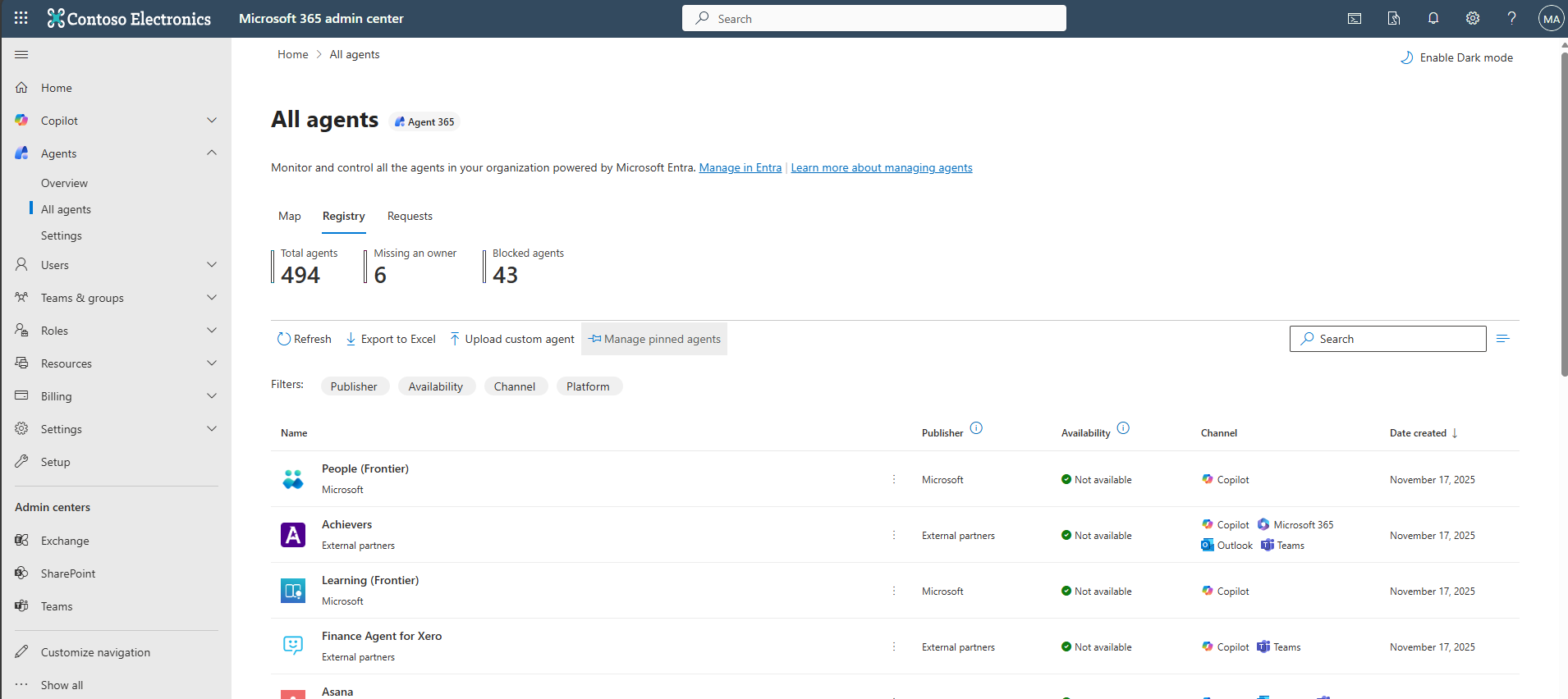
The Agent Registry page in the Microsoft 365 admin center provides a centralized view of all agents available in your organization. This section helps administrators monitor, manage, and govern agents effectively.
Agent Registry overview and types of agents
Agent Registry lists all agents integrated with Microsoft 365 Copilot, including:
- Microsoft agents - Built and maintained by Microsoft.
- External partner-built agents - Provided by trusted non-Microsoft developers.
- Shared by creator - Agents created and shared by individual users or developers in your organization.
- Published by your org - Custom agents approved and published by your organization for broader use.
Agent Registry list
Manage agents with embedded file content as a knowledge source
Agent creators can use Microsoft 365 Copilot Agent Builder to upload files for the agent to use as knowledge. Copilot stores the uploaded files in tenant-owned SharePoint Embedded containers. It then embeds the file content as knowledge for the agent to use in responses. For more information about how to build agents, see Build agents with Microsoft 365 Copilot Agent Builder.
This article explains how to handle embedded files, how you can manage agents and containers, and what to expect with sensitivity labels and deletion workflows.
Supported file types and limits

Embedded knowledge agents support uploading files as knowledge sources. Copilot only uses the text content of these files for grounding.
Supported file types
- .doc, .docx
- .ppt, .pptx
- .xls, .xlsx
- .txt
Maximum file size
| File type | Maximum file size |
|---|---|
| .doc, .ppt, .xls, .xlsx, .txt | 150 MB |
| .docx, .pptx, and .pdf | 512 MB |
Files that exceed these limits aren't accepted.
Maximum number of files
Users can upload up to 20 files per agent.
SharePoint Embedded containers
When you upload a file to an agent, Copilot stores the file in a SharePoint Embedded container. The Microsoft 365 service automatically creates this container and your organization owns it. The container appears in the SharePoint admin center and PowerShell under the application name Declarative Agent.
Important
Don't delete these containers. Deleting these containers might break the functionality of agents that rely on them.
View agent metadata
On the Agents page in the Microsoft 365 admin center, you can filter the agent inventory to view only agents that use embedded files as knowledge sources.

For each agent, the following metadata is available:
- File name - The name of the uploaded file.
- File sensitivity - The sensitivity label applied to the file.
- SharePoint container ID - The unique identifier for the container storing the file.
This metadata helps you track and audit the use of embedded content across agents.
Sensitivity labels and access control
The service applies sensitivity labels to the embedded content in the agent based on the most restrictive label from the uploaded files. The following rules determine how the service applies sensitivity labels:
Whichever of the following labels are more restrictive:
- Most restrictive sensitivity label of all files uploaded. For example, the highest priority of the labels on the uploaded files.
- If your organization configured and applied a default sensitivity label policy.
If a default sensitivity labeling policy is in place, the service automatically assigns a label.
The service only applies sensitivity labels if:
- You create the agent using Microsoft 365 Copilot Agent Builder.
- The agent includes embedded files.
You can view the sensitivity label for each agent in the Overview tab of the Microsoft 365 admin center.

User access and visibility
If a user doesn't have extract rights to any of the sensitivity labels applied to the uploaded files, they can't access the agent.
If a user has extract rights, they can view the agent's sensitivity label in the agent details pane.
For more information, see Sensitivity labels for agent embedded content.
Agent details
Researcher with Computer Use admin configuration
Important
Researcher with Computer Use is only for Frontier tenants.
For Researcher with Computer Use onboarding instructions, see the following short video:
Researcher with Computer Use is a powerful extension that builds on the capabilities of the Researcher agent. With Computer Use, Researcher agent can securely interact with public, gated, and interactive web content through virtual computer-enabling users. It can then uncover deeper insights, take action, and generate richer reports grounded in both their work data and the web. For more information, see Use Researcher with Computer use in Microsoft 365 Copilot.
Configure admin settings for Researcher agent with Computer Use
To configure admin settings for Researcher agent with Computer Use, follow these steps:
Navigate to Microsoft Admin Controls (MAC) Agents page.
In the left navigation pane, select Researcher under Agents, and check if there's another tab for Computer Use.
Customize users that have access to Researcher with Computer Use.

There are three options for configuring who has access to the experience:
Allow all users in your organization.
Allow specific users or groups only.
No users in your organization.

For users that have this option disabled, the Computer Use option is greyed out.

Configure Work access for Researcher with Computer Use:
- The Work option allows users to toggle on Work in the Sources menu, allowing Researcher agent to leverage a user's work content with Computer Use. For example, emails, chats, and files.
- When enabled by admins, users must still manually toggle on Work access.

- When disabled, the Work source appears greyed out and isn't selectable.

Select which websites are allowed for Computer Use:
There are three options for configuring websites the virtual device can access:
- All websites.
- Allow specific URLs or domains only.
- Exclude specific URLs or domains.
You can allow All websites, block some with the Exclude specified option, or only allow certain sites with the Allow specified option.
Learn more about Researcher with Computer Use
- Introducing Researcher with Computer Use in Microsoft 365 Copilot.
- Get started using Researcher with Computer Use.
- Frequently asked questions for Researcher with Computer Use.
Agent metadata in the Microsoft 365 admin center
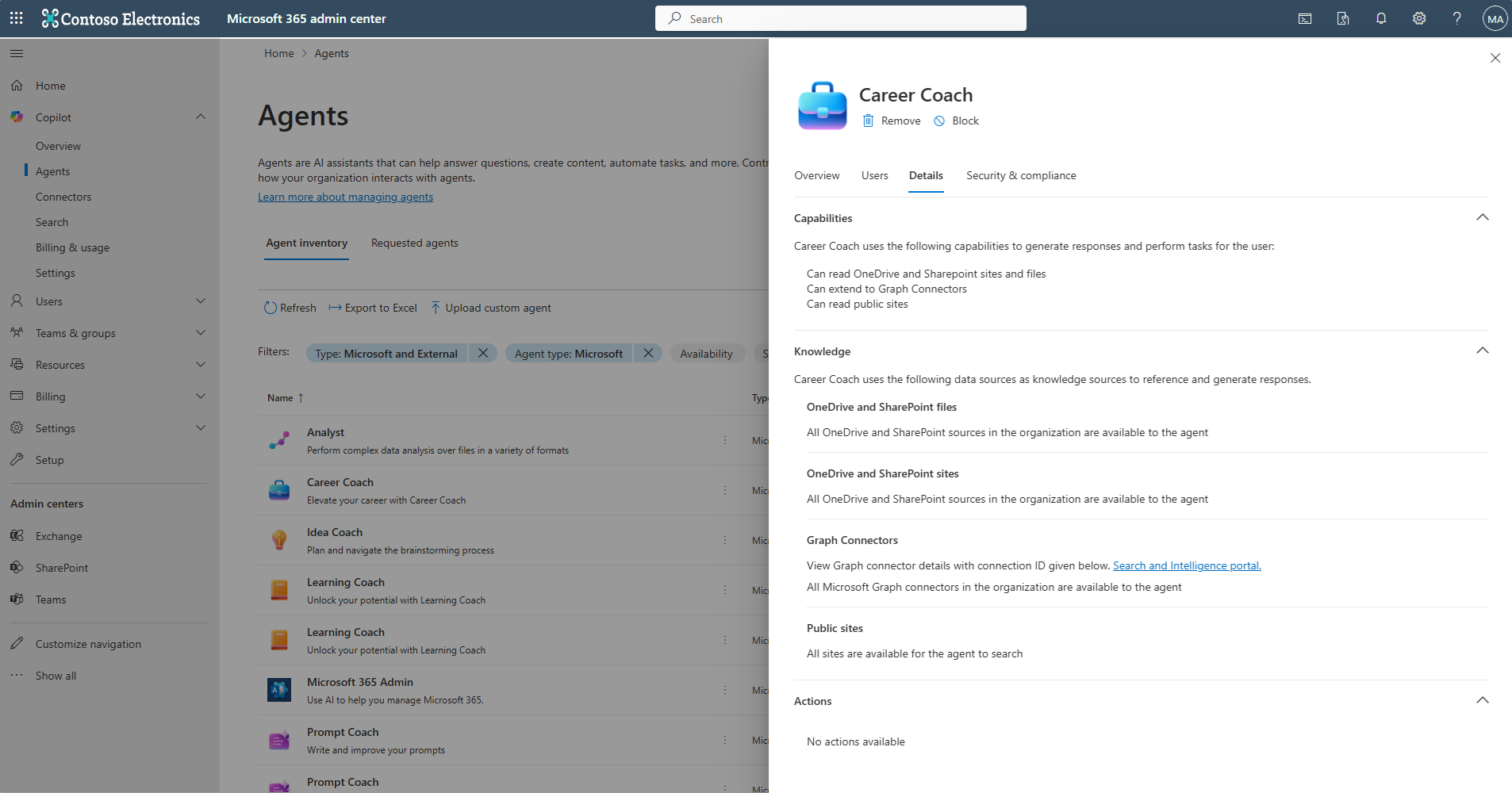
You can access key metadata for Copilot agents in Agents > All Agents. When you select an agent, the metadata is available in the Details tab.
The metadata includes details such as the agent's capabilities, data sources, and custom actions. Example data sources include OneDrive and SharePoint files and sites, or Graph connectors. Metadata is only for custom agents, which are designed to perform specific tasks based on predefined rules and configurations.
Admin actions to manage agents
Administrators in the Microsoft 365 admin center can take several actions to control the lifecycle, availability, and compliance of agents in their organization. These controls enable administrators to determine which agents are visible, who can access them, and how they're managed across the tenant.
Available actions
Publish - Make an agent available for installation to specific users or groups.
Activate - Allow only selected users or groups to install the agent and create instances.
Deploy - Automatically install an agent for users so it's ready to use without manual setup.
Pin - Surface key agents prominently in the Copilot interface for selected users or all users in the tenant.
Block - Restrict access to an agent across the organization, preventing any user from using it.
Remove - Remove an agent from the tenant's inventory; it can be re-added later from the store if needed.
Delete - Delete agents directly from the Microsoft 365 admin center. When you delete an agent, Microsoft 365 removes the agent from the inventory, It deletes all associated files
Approve Updates - Review and approve new versions or changes to existing agents before they're deployed.
Manage Ownerless Agents - Identify agents without an active owner and take action to block or remove them.
Reassign - Assign a new owner to agents which are ownerless or active.
Export Inventory - Download the full list of agents for reporting, audit, or compliance purposes.
Publish agents
A governance step for new agents: when a user publishes an agent, it requires AI admin approval before becoming available tenant-wide. Administrators can review the agent's details (Description, owner, data and tools, etc.) and then publish or reject it. On publishing, administrators can also scope its audience (specific users/groups or everyone), ensuring a controlled rollout.
The Microsoft 365 admin center publishing process for agents submitted through Copilot Studio ensures governance, security, and quality of custom applications.
It also reduces manual work by automating the submission and review of manifests, freeing developers, and administrators from repetitive tasks. The streamlined approval workflow makes it faster and easier for administrators to review, approve, and manage custom agents in the Microsoft 365 admin center.

Overview of the publishing process
The publishing process consists of the following steps:
Agent creation and submission - Developers create and test agents in Copilot Studio. When ready, they submit the agent for approval to the Microsoft 365 admin center directly from within Copilot Studio.
View pending submissions - In the Requests tab, you can view all submitted agents that are pending approval. This list displays:
- Agent name.
- Publisher name.
- Host products.
- Status.
- Date requested.
New submissions appear with the status of pending review.
Review submission details - Select a pending agent to view more details and metadata including:
- Agent description and capabilities.
- Connected data sources and tools.
These details help administrators make informed decisions about publishing or rejecting an agent.
Start the publishing wizard - When ready, select Start publishing to open the publishing wizard.
Select users or groups - Choose the users or groups that the agent should be published to. Publishing makes the agent available for installation to the selected audience.
(Optional) Pre-install or deploy - Optionally, you can pre-install (deploy) the agent for the same set of users or for a specific subset of users.
Apply Template - To strengthen governance and security for agents, you can apply a template that includes predefined policies:
Default Template - Microsoft provides an out of box template with essential security and compliance controls from Microsoft Entra, Purview, and SharePoint.
Custom Template - If you need additional governance beyond the default, create a custom template and apply extra policies such as Entra Access Package to meet your organization's requirements.
Review permissions and grant admin consent - Review the permissions requested by the agent and grant admin consent if appropriate. Permissions allow the agent to access relevant data or perform actions on behalf of users. For more information, see Understanding permissions.
Review and complete publishing - Review all configurations and select Finish to publish the agent.
Approve updates - When developers publish an update to an existing agent, the update appears in the Pending approval list with the status Update pending. Until the update is approved, the previous version of the agent remains available to users.
Important
Developers can update the existing apps to work with Microsoft 365 Copilot. If an admin preapproves or preinstalls the updated app, it updates for the assigned users and starts working with Copilot. If a developer updates a previously blocked app to work with Microsoft 365 Copilot, and then the administrators make the app available to the users, the app also works with Copilot.
Activate agents
A governance step for new agents: when a user requests an agent to be activated to create instances, it requires AI admin approval before they can create instances. Administrators can review the agent's details (Description, owner, data and tools, etc.) and then approve the request and activate or reject it. On activating, administrators can also scope its audience (specific users/groups or everyone), ensuring a controlled rollout.
The Microsoft 365 admin center activation process for agents ensures governance, security, and quality of custom applications.
Overview of the activation process
The activation process consists of the following steps:
View pending activation request - In the Requests tab, you can view all submitted agents that are pending activation request. This list displays:
- Agent name.
- Publisher name.
- Status.
- Date requested.
New submissions appear with the status of allow activation.
Review submission details - Select a pending agent to view more details and metadata, including:
- Agent description and capabilities.
- Connected data sources and tools.
These details help administrators make informed decisions about activating or rejecting an agent.
Start with the request tab - When ready, select the Request tab to open the request wizard.
Select users - Choose the users for whom you want to accept and approve of activating the agent. Activating an agent makes it available for the selected audience to install and create instances.
Activation Wizard - After you accept the activation request, the wizard opens where you can select users. You can include the original requesters and add security groups that have access to create instances from the agent.
Apply Template - To strengthen governance and security for agents, you can apply a template that includes predefined policies.
Default Template - Microsoft provides an out of box template with essential security and compliance controls from Microsoft Entra, Purview, and SharePoint. Default template automatically assigns the Agent 365 license to minimize manual license management. For more information, see Default template automatic license assignment.
Custom Template - If you need additional governance beyond the default, create a custom template and apply extra policies such as Restrict External Content sharing to meet your organization's requirements.
Review permissions and grant admin consent - Review the permissions requested by the agent and grant admin consent if appropriate. Permissions allow the agent to access relevant data or perform actions on behalf of users. For more information, see Understanding permissions.
Review and complete activation - Review all configurations and select Finish to activate the agent.
Once activated, the agent becomes available for creating instances in the Teams App Store, and the requester is notified. For future user additions, the process is simplified. The administrator only needs to approve or reject requests, leveraging existing templates without repeating the full activation steps.
| Service Name | Policy Name | Description of Policy | More Information |
|---|---|---|---|
| Microsoft Entra | Identity Protection | Detect agent identity threats by flagging anomalous activities involving agents. | What is Microsoft Entra ID Protection? |
| Microsoft Entra | Network visibility | Enable network visibility to agent access to external resources. | Learn about Secure Web And AI Gateway for Microsoft Copilot Studio agents |
| Microsoft Entra | Lifecycle management for agents | Govern Microsoft Entra Agent IDs at scale with lifecycle policies. | Automate identity lifecycle management with Microsoft Entra ID Governance |
| Sharepoint | Restrict external sharing of sites and its content | Provides capability to allow or restrict specific agents from sharing content in SharePoint sites and OneDrive with external users and guests. | What is SharePoint Advanced Management? |
| Sharepoint | Access Control for Sites and OneDrive | Allows admin to specify agents and users allowed to access a given site. | Restrict SharePoint site access with Microsoft 365 groups and Microsoft Entra security groups |
| Sharepoint | Agent access insights | Provides insights on content and sites permissioned to users. | Data access governance reports for SharePoint and OneDrive sites |
| Sharepoint | Content Permissions Insights | Provides insights on agents accessing SharePoint and OneDrive sites. | Monitor agent access to SharePoint and OneDrive |
| Purview | Purview Audit Enabled | Audit trails log all activities and provide clear observability. | Data security |
| Purview | Know Your Data Policy | Data security controls safeguard against sensitive data leaks and oversharing. | Data security |
| Purview | Purview AI compliance assessment | Continuous monitoring evaluates agents for compliance gaps and identifies areas needing attention. | Data security |
Default template automatic license assignment
The default template automatically assigns the Agent 365 license during activation. This automatic license assignment eliminates manual license management and ensures that every hired agent instance is properly licensed before becoming operational. Key benefits include:
- Faster Onboarding - No need for administrators to manually allocate licenses for each instance.
- Compliance Assurance - Prevents unlicensed usage and maintains entitlement integrity.
- Scalable Management - Supports large-scale deployments without increasing administrative overhead.
Deploy agents
You can deploy agents across the whole organization or for specific users or groups by using the same gestures and controls that work for any other app in the Microsoft 365 admin center.
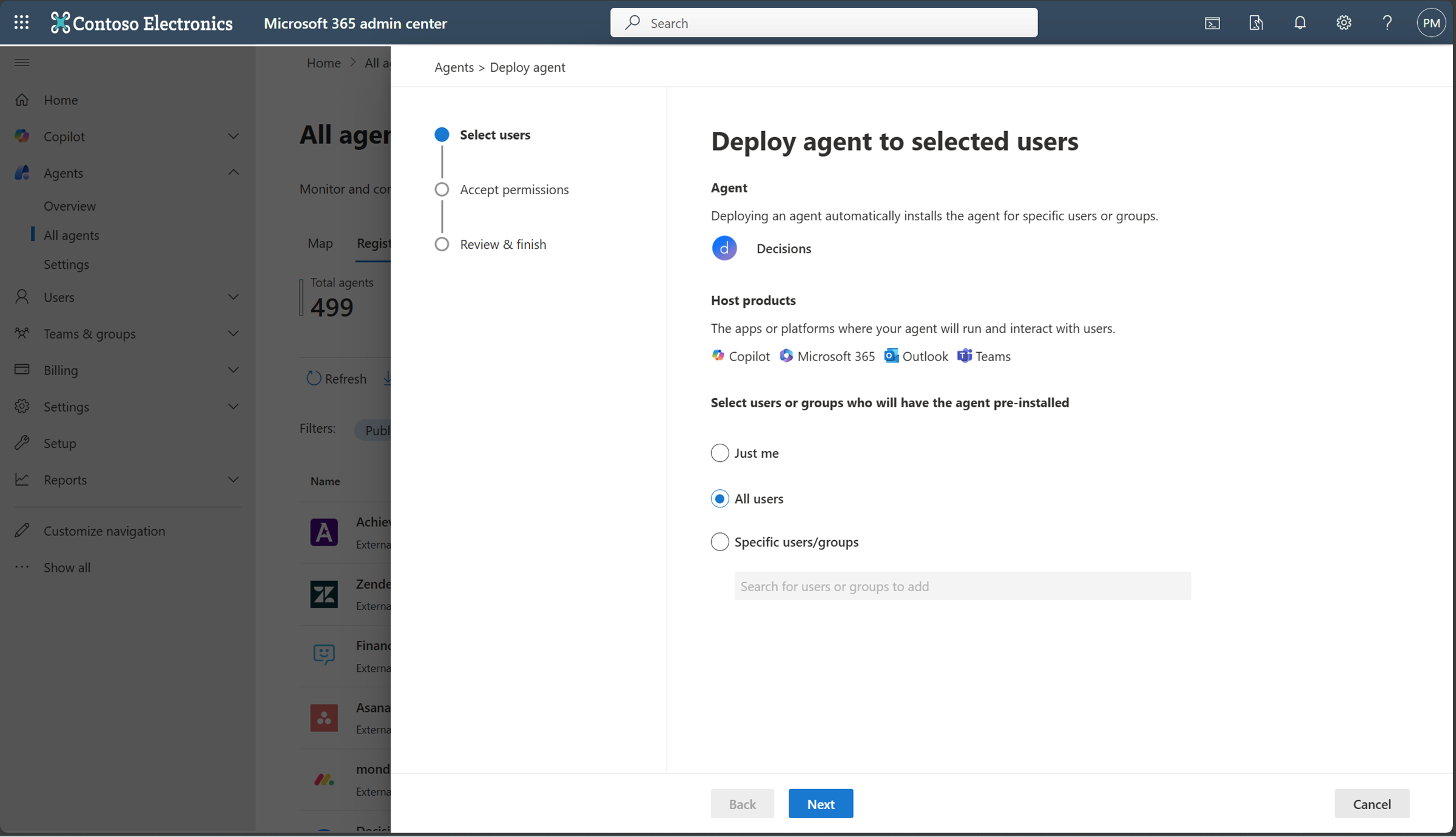
To deploy an agent, follow these steps:
- From the Agent Registry, filter the list by Availability.
- Select an agent from the list that isn't deployed.
- Select Deploy.
- Decide whether to deploy the agents for everyone or specific users or groups.
- Review the permissions requested by the agent and grant admin consent if appropriate. For more information, see Understanding permissions.
Deploying an agent affects its availability and functionality in Copilot and in the other host products, such as Outlook, Teams, or Microsoft 365.
Understanding permissions
In the Microsoft 365 admin center, when granting permissions to agents, there are two types of permissions to consider:
- Application Permissions.
- Delegated Permissions.
Each permission type allows agents to perform different actions on behalf of users, depending on the scope of the access granted. This document explains these two types of permissions and provides an overview of the common permissions available.
Application Permissions
Application Permissions allow the agent to access data and perform actions without requiring a user to be signed in. These permissions let agents do tasks without needing a user to be signed in, like reading directory data, managing teams, or sending messages.
Key features of Application Permissions:
No user context required - The agent can operate without an active user session.
Wide-reaching capabilities - Agents with application permissions can act at the organizational level, allowing access to a large range of data.
Administrator consent required - Administrator consent is typically required for granting application permissions.
Common Application Permissions
| Permission | Details |
|---|---|
| Group.Read.All | Read all groups in the organization. |
| TeamsActivity.Send | Send a teamwork activity to any user. |
| RoleManagement.Read.Directory | Read all directory role-based access control (RBAC) settings. |
| User.Read.All | Read all users' full profiles. |
| Team.ReadBasic.All | Get a list of all teams in the organization. |
Delegated Permissions
Delegated Permissions allow the agent to act on behalf of a user when the user is signed in. These permissions provide access to user-specific data and allow agents to perform actions in the context of a particular user.
Delegated permissions are typically used for applications where the agent needs to interact directly with the user's data or take actions on their behalf.
Key features of Delegated Permissions
User context required - The agent performs actions with the signed-in user's permission.
Granular access - These permissions are typically more restricted, limiting access to only the user's data.
User consent might be required - Depending on the permissions, users might need to grant consent for the application to act on their behalf.
Common delegated permissions
| Permission | Details |
|---|---|
| User.ReadBasic.All | Read all users' basic profiles. |
| TeamsActivity.Send | Send a teamwork activity to any user. |
| RoleManagement.Read.Directory | Read all directory role-based access control (RBAC) settings. |
| User.Read.All | Read all users' full profiles. |
| Team.ReadBasic.All | Get a list of all teams. |
Where can administrators see all permissions of an agent
You can find the details of all types of permissions in the Permissions tab on the agent details page.
Go to the Microsoft 365 admin center.
In the left navigation pane, select Agents > All Agents.
Select an agent from the list to open the agent details page.
Select the Permissions tab to view all the permissions granted to the agent.


Manage pinning of agents
Note
After an Agent is pinned, it might take up to six hours for end-users to see it pinned.
This article explains how administrators can pin, unpin, or manage agents for everyone or specific groups using Microsoft 365 admin center. It also covers related actions like ranking the list of pinned agents and editing the scope of pinned agents.
Pinning agents is a feature that enables administrators to preselect and pin agents for end-users using Microsoft 365 Copilot. The administrator pins the agent to ensure that the agent is automatically listed in the end user's Copilot interface without requiring any user action. The agent is now readily accessible to the user in the Copilot interface.
Prerequisites
For end users
- Microsoft 365 work account.
- Access to Microsoft 365 Copilot Chat, for example, via Teams, web, or the Microsoft 365 Copilot app.
- The agent you want to pin must be discoverable to you.
For administrators
- AI Administrator.
- Access to the Microsoft 365 admin center.
- (Optional) Power Platform admin center access if you use Pay-as-you-go for agents.
Pinned agents

Microsoft-pinned agents
- These agents are agents that Microsoft pins by default for all users.
- Ensures essential or high-value agents, like core Copilot features, are always visible.
- End users can't unpin these agents. They're fixed in the pinned list.
Administrator-pinned agents
- Pinned by your organization's administrator through the Microsoft 365 admin center.
- Can be pinned for:
- All users.
- Specific groups.
- Specific users.
- End users usually can't unpin these agents. They're fixed in the pinned list.
User-pinned agents
- Pinned by individual users in their own Microsoft 365 Copilot Chat experience.
- Users can:
- Pin agents they frequently use.
- Unpin them anytime.
- This list is fully under the user's control, except for Microsoft-pinned or administrator-pinned agents, which remain locked.
Features
- Administrator-pinned agents appear by default for end-users, making them easier to discover and helping highlight new or important agents.
- Administrators can view the Microsoft-pinned agents in Microsoft 365 admin center.
- Administrators can pin up to three agents in Microsoft 365 admin center for end-users using Microsoft 365 Copilot in the organization.
- Administrators can choose to pin an agent for all users in the tenant or for specific users/groups. For example:
- Pin Sales Coach agent only for the sales department.
- Pin HR Q&A agent for all users.
- The end-user can't unpin the Administrator-pinned and Microsoft-pinned agents.
How to pin agents
In the Microsoft 365 admin center, navigate to Copilot > Agents by expanding Copilot in the left navigation.
In the Agents page, select the Manage pinned agents icon.


View Microsoft-pinned agents and administrator-pinned agents
In the right pane, you can view the Microsoft-pinned agents in the Pinned by Microsoft list view. Initially, there are no agents in the pinned by your org section.
Select Pin agents to pin new agents.
Locate the agent to pin
From the list of agents, find the agent you want to pin. You can search from the list to find a specific agent by name.

Select Next.

Choose the scope of pinning
You can choose the scope for the agent that you want to pin.
- Everyone (All Users) - Pin the agent for all users that the agent is deployed to in the tenant.
- Specific Groups or Users - Pin for one or more groups or individual accounts.

If you choose to select Specific Groups or Users, you can then select the specific users or groups to pin the agent.

Select Save, to save the details.


Review and finish
Select Review & Finish.
After you save the configuration, the system records which agent is pinned for the selected audience.


Can any agent be pinned
Only deployed agents can be pinned. If the agent isn't deployed, you see a banner with a message to first deploy the agent

If the agent is blocked, you must first unblock the agent before you can pin it.

Rank the list of pinned agents
The administrator has three slots reserved for the pinned agents for each user.
The administrator can use the Move up and Move down buttons to reorder the list of pinned agents by priority to control what is shown to the user.
How to unpin an agent
From the list of pinned agents, locate the agent that you want to unpin and select Unpin. When you remove the pin, the agent is no longer available under the Pinned by your org section.
How to edit the pinning scope of an agent
Select the agent and choose Edit users to modify the scope of users for which an agent is pinned.

Alternate entry point for pinning
You can also pin an agent from the agent details pane. Select the pin for the user icon. The icon is only enabled if the agent is deployed.

Block or unblock agents
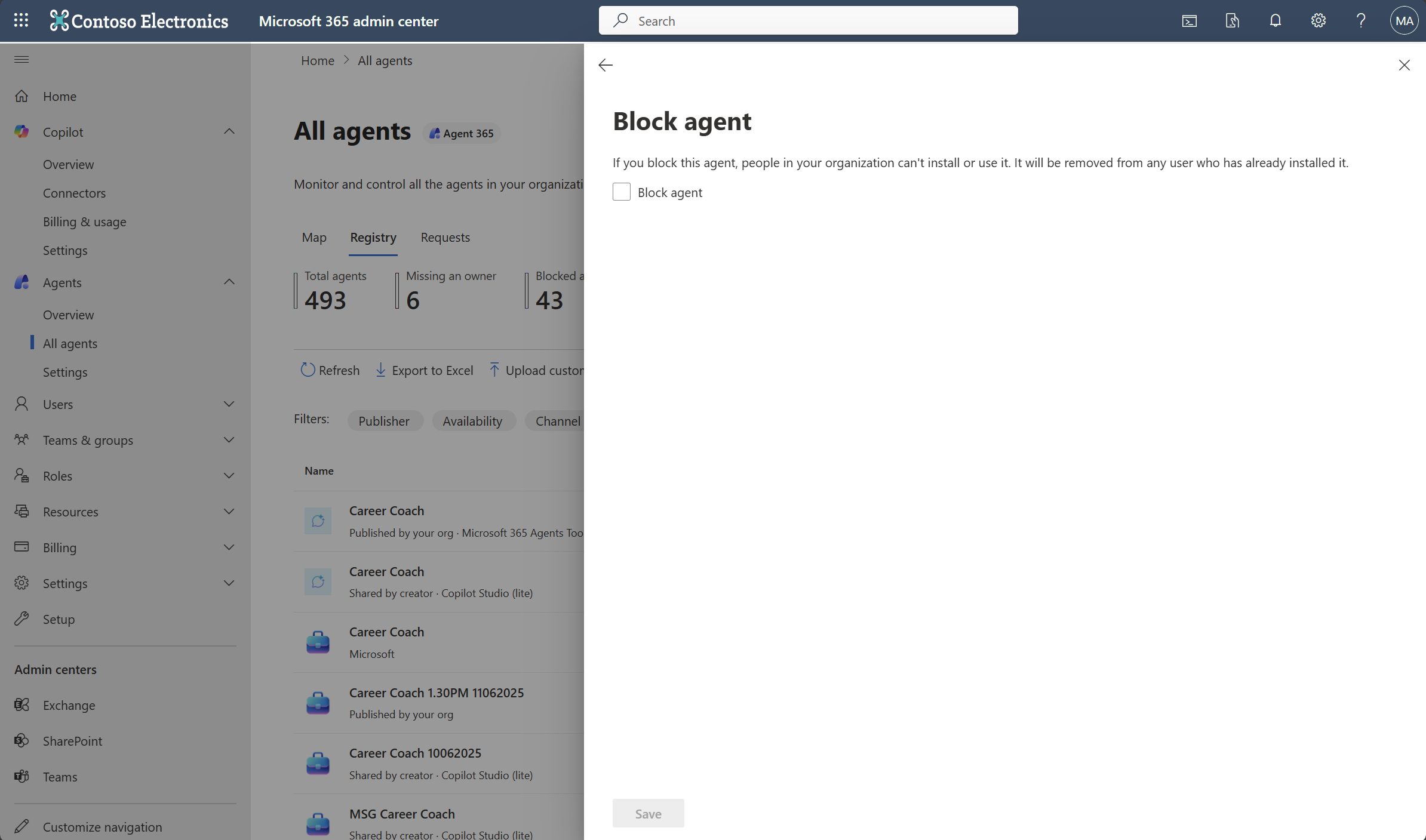
You can block or unblock agents for the entire organization by using the same controls that work for any other app in the Microsoft 365 admin center.
To block or unblock an agent, follow these steps:
- In the Microsoft 365 admin center, go to the Agents page.
- Choose an agent from the list of agents.
- Select Block or Unblock.
- Decide whether to block or unblock the agent for everyone.
Blocking or unblocking an agent created using Microsoft 365 Copilot Agent Builder and Microsoft 365 Copilot Studio affects its availability and functionality in Microsoft 365 Copilot. It also availability and functionality in other host products, such as Outlook, Teams, or Microsoft 365. However, blocking an agent created with SharePoint only impacts its availability in Microsoft 365 Copilot Chat.
Note
For the Researcher and Analyst agents, the Edit users panel is disabled. To manage their availability, you must block the agent for the entire tenant by using the Block action in the Microsoft 365 admin center.
Remove agents
You can remove first-party and external agents across the whole organization or for specific users or groups by using the same controls that work for any other app in the Microsoft 365 admin center.
To remove an agent, follow these steps:
- In the Microsoft 365 admin center, go to the Agents page.
- Filter the list by Availability.
- Select an agent from the list.
- Select Remove.
- Decide whether to remove the agents for everyone or specific users or groups.
Removing an agent affects its availability and functionality in Copilot and in the other host products, such as Outlook, Teams, or Microsoft 365.
Delete agents
You can delete agents directly from the Microsoft 365 admin center. When you delete an agent, the following actions occur:
- Microsoft 365 removes the agent from the inventory.
- It deletes all associated files.
- It deletes the underlying SharePoint Embedded container.
This deletion process is irreversible. Once you delete an agent, it might take up to 24 hours for the deletion to propagate to all users who had access to the agent. During this time, users might still see the agent listed, but they can't interact with it.
Note
The deletion workflow differs slightly depending on how you created the agent:
- If you created the agent by using Microsoft 365 Copilot Agent Builder or the Microsoft 365 Agents Toolkit, you can delete it from the Microsoft 365 admin center.
- If you created the agent from Microsoft 365 Copilot Studio, you can manage and delete it from the Power Platform admin center.
Ownerless shared agent management
Shared agents might become ownerless when the user who created them is deleted from the organization.
To help administrators manage these scenarios, the Microsoft 365 admin center now enables you to identify and manage ownerless shared agents. The dashboard displays the total count of such agents, a one-click filter to quickly isolate them, and real-time updates that reflect user deletions. With these features, administrators can efficiently review and address ownership gaps by blocking or deleting affected agents.

Key features
Ownerless agent count - Administrators can now view the total number of agents without a valid owner directly from the dashboard. For example, the dashboard shows 20 ownerless agents indicating that users who left the organization created these agents.
One-click filter - Selecting the dashboard pane instantly filters the agent inventory to display only shared agents missing an owner. This feature allows for quick triage and action.
Real-time updates - The ownerless agent count automatically updates when a user is hard deleted from the organization. This feature ensures that the dashboard reflects the current state without requiring manual refreshes.
Steps to view and manage ownerless shared agents
- In the Microsoft 365 admin center, go to Copilot > Agents.
- Locate the Missing an Owner tab.
- Select the tab to filter Agent inventory.
- Review the list of ownerless agents and take appropriate actions such as blocking or deleting the agent.
Export to Excel
Export the list of shared agents to an Excel file. This feature is essential for detailed analysis and reporting.
Note
If the export process reaches one minute, the exported file includes only the data up to that point.
The exported file includes comprehensive information about each shared agent, such as:
- Name.
- Host products.
- Created date.
- Developer user ID.
- Description.
- Status.
- Version.
With this information, you can efficiently manage and review the shared agents within your organization, ensuring compliance and optimizing resource allocation.
Programmatic access to Agent Registry
Inventory data is also available programmatically through Graph APIs enabling scalable and programmatic control over agent management. Now in preview, the new Microsoft Graph API endpoints allow administrators to automate bulk agent management, streamline onboarding, and integrate governance into existing workflows across agents in Microsoft 365. Beyond manual UX-driven agent management, the Graph API helps you accelerate agent management, maintain security and compliance, and ensure agents are available to the right users at the right time.
Get all agents in your inventory - With the GET packages API, administrators can retrieve a comprehensive list of all agents in their tenant to support compliance and reporting needs. Filter Agents by:
- Type.
- Host.
- Last update date time.
Get details of a particular agent in your inventory - The GET package details API provides rich metadata for any agent, including the following deployment information:
Status.
Supported hosts.
Creator information.
Sensitivity labels.
Properties from manifest for declarative agent or custom engine agent.
This metadata makes it easier to audit, manage, and optimize agent management.