Note
Access to this page requires authorization. You can try signing in or changing directories.
Access to this page requires authorization. You can try changing directories.
Important
This article is for deployments that are already on the simplified Workday integration and are applying a later release of the Workday solution. If a different scenario applies to you, start here instead:
- If you're moving from the legacy integration system user (ISU) and Reports as a Service (RaaS) configuration to the simplified setup, see Upgrade an existing Workday integration to the simplified setup.
- If you're setting up Workday for the first time, see Set up the simplified Workday integration for Employee Self-Service.
This release of the Workday solution removes a dependency on Workday's admin-only Get_References SOAP operation for selected Employee Self-Service topics. Previously, some signed-in employee scenarios could fail because the underlying call required admin-level access to Workday's Integration Build domain.
To resolve this requirement, reference data used by affected topics, such as phone device types and country phone codes, is now embedded in the Workday solution as template configurations. The agent reads these embedded values at runtime, so the admin-only SOAP call is no longer needed for signed-in employees.
To make room for the embedded data, the maximum length of the Value field on the Employee Self-Service Template Configuration table increased from 10,000 to 50,000 characters. This change ships in the Employee Self-Service Core, HR, and IT solutions, not in the Workday solution, so the order in which you upgrade matters.
What's new in this release
- The phone update topic no longer fails for signed-in employees because of the
Get_Referencespermission gap. - 17 reference data sets ship inside the Workday solution as template configurations. You can customize them in Dataverse if your Workday tenant uses non-default Reference IDs. See Customize Workday reference data.
- The Value column on the Employee Self-Service Template Configuration table increased to 50,000 characters.
- No connector or credential changes are required. Existing Workday connections continue to work.
Before you start
Confirm the following before you begin the upgrade:
- You have system administrator access to the Power Platform environment where the Employee Self-Service solutions are installed.
- You have the latest version of every installed Employee Self-Service solution (Employee Self-Service Core, Employee Self-Service HR, and Employee Self-Service IT), in addition to the new Workday solution. Check the release notes for the exact build numbers.
- You scheduled a maintenance window for end users. The upgrade completes in minutes, but a failed upgrade can disable Workday topics until you complete the recovery steps.
- You backed up any template configurations that you customized in your environment. Customizations to managed solution records are reset during package upgrades. See Customize Workday reference data for the backup and restore steps.
Recommended upgrade order
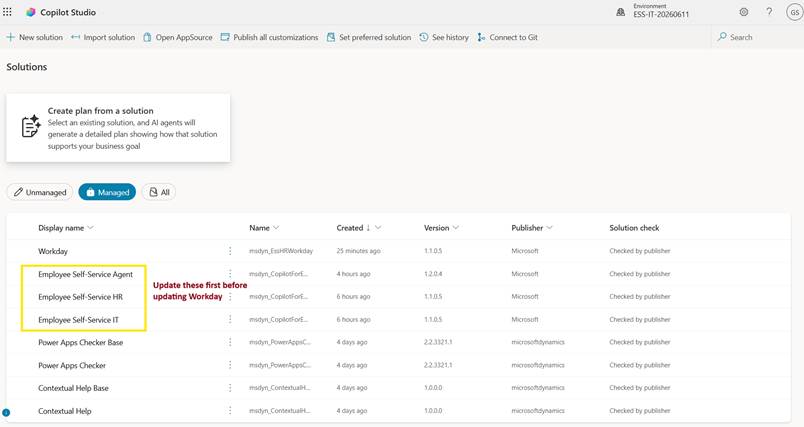
On environments that already have an earlier version of Employee Self-Service installed, follow this order exactly:
- Upgrade every Employee Self-Service solution that's present in the environment, including Employee Self-Service Core, Employee Self-Service HR, and Employee Self-Service IT. Upgrade them to the version that includes the 50,000-character field size for the Employee Self-Service Template Configuration Value column.
- Upgrade the Workday solution after all the Employee Self-Service solutions are on the new version.
Fresh installations have no special order requirement. On a clean environment, the Employee Self-Service solutions are installed before Workday, so the dependency resolves naturally.
Important
If your environment runs more than one Employee Self-Service agent side by side, such as Employee Self-Service Core, Employee Self-Service HR, and Employee Self-Service IT in the same environment, upgrade every installed Employee Self-Service solution before you upgrade the Workday solution. Power Platform resolves the field size of a managed attribute to the lowest active solution layer. If even one Employee Self-Service solution is still on the older version, the field size remains at 10,000 characters and the Workday upgrade fails. For example, if three Employee Self-Service solutions are installed, all three must be on the new version before you upgrade Workday.
Validate before you upgrade Workday
Before you import the Workday solution, verify that the Employee Self-Service solutions are ready by using one of the following options.
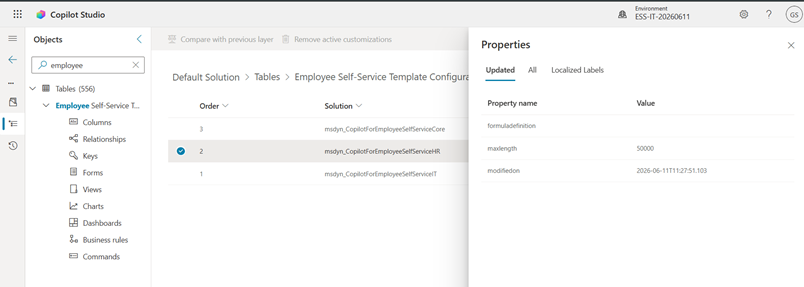
Option A: Check the field size in Dataverse
- In the Power Apps maker portal, select Solutions.
- Open Default Solution.
- Select Tables, search for Employee Self-Service Template Configuration, and then open Columns.
- Locate the Value column, open More commands, and then select Advanced > See solution layers.
- Open the top solution layer and confirm that the maximum length is 50,000.
Option B: Check the installed solution versions
In the Power Apps maker portal, open Solutions and confirm that each Employee Self-Service solution version matches the version listed in the release notes for this release. If any solution is still on an older version, upgrade it before you continue.
Validate after you upgrade Workday
After the Workday upgrade completes, ask an end user to run "What is my cost center?" or a similar quick prompt. A normal response confirms that the ESS HR Workday flow is on and the agent is responding. Then run "update my phone number" to confirm that the phone update flow works end to end.
What happens if you miss the upgrade order
If you upgrade the Workday solution before the Employee Self-Service solutions, the import fails with this validation error:
A validation error occurred. The length of the 'msdyn_value' attribute of the 'msdyn_employeeselfservicetemplateconfig' entity exceeded the maximum allowed length of '10000'.
You see this error in the Solutions area and in the solution import log.
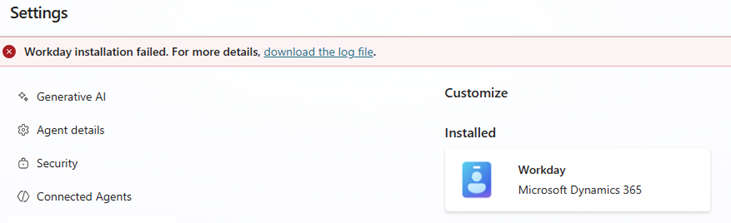
A second symptom is worth knowing about. When the Workday solution upgrade fails partway through, the Power Automate cloud flow named ESS HR Workday is turned off. This flow orchestrates calls to Workday from the agent. While the flow is off, end-user prompts that were working before the upgrade stop responding. For example:
- "What is my cost center?"
- "Who is my manager?"
- "Show me my passports."
- Any other prompt that calls a Workday topic.
Your previously installed working version of the Workday solution is still present in the environment. The upgrade didn't roll forward, but the supporting flow is left in a disabled state.
Recover if you already hit the error
If the upgrade already failed and end-user prompts are no longer responding, follow these steps.
Step 1: Restore the previous working state
- Sign in to Power Automate in the same environment as a system administrator.
- Open Flows and select ESS HR Workday.
- Open the flow and select Turn on from the top menu bar.
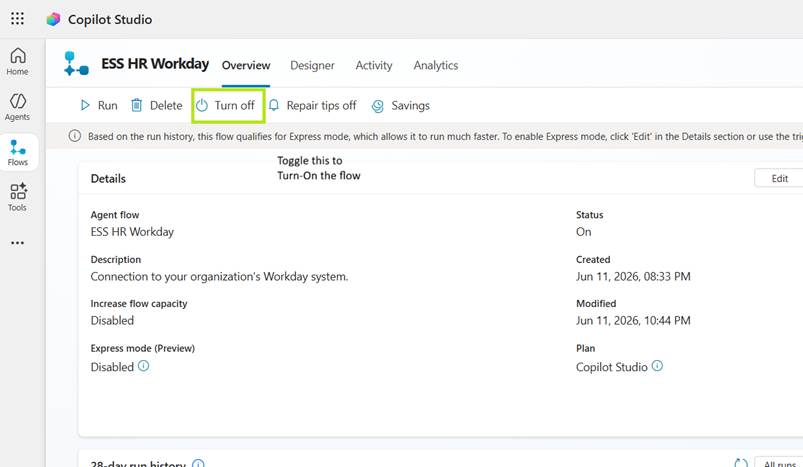
After the flow is on again, the prompts that were working before the upgrade respond as they did previously. At this point, you're back on your prior package version, with the original phone-update or visa topics gap still present, but everything else working.
Step 2: Reattempt the upgrade in the correct order
- Upgrade every Employee Self-Service solution (Core, HR, and IT) to the latest version.
- Upgrade the Workday solution.
After the Workday upgrade completes, return to Power Automate and confirm that the ESS HR Workday flow is in the On state. If it's off for any reason, turn it back on as described in Step 1.
Get help
If you encounter the upgrade error described in this article or notice unexpected behavior after the upgrade, contact your usual support channel. Include the error message, the solution import log, the installed Employee Self-Service solution versions, and the Workday solution version.