Note
Access to this page requires authorization. You can try signing in or changing directories.
Access to this page requires authorization. You can try changing directories.
Use the Cost Management dashboard in the Microsoft 365 admin center to enable usage-based billing, activate the default spending policy, configure model profiles, and select billing methods for Copilot Credits.
Roles and requirements
Global administrator and Billing administrator roles can add, select, and change billing methods, and set billing methods in policies.
AI administrator and License administrator roles can edit spending policies, manage limits and alerts, and billing methods. However, they can't create spending policies.
AI Reader, Global Reader, License Administrator, and other supported reader-based roles can view consumption dashboards and reports. These roles provide read-only access to consumption information and don't allow administrators to create or change spending policies, limits, alerts, request policies, or billing methods.
Note
Review existing role assignments. Assign a supported reader-based role to users who need to review consumption and spending information but don't need configuration permissions.
Important
Microsoft recommends that you use roles with the fewest permissions. Using roles with the fewest permissions helps improve security for your organization. Global administrator is a highly privileged role that you should limit to emergency scenarios when you can't use an existing role. For more information, see About administrator roles in the Microsoft 365 admin center.
To learn more about these roles, see Microsoft 365 admin roles.
Getting started with usage-based billing
This section covers the initial setup to guide administrators through enabling usage-based billing and creating the first spending policy. This process activates the AI experiences, like Cowork, that are gated by usage-based billing.
Sign in to the Microsoft 365 admin center with one of the following administrator roles:
- Global administrator
- Billing administrator
In the Microsoft 365 admin center, go to Copilot and then the Cost Management node.
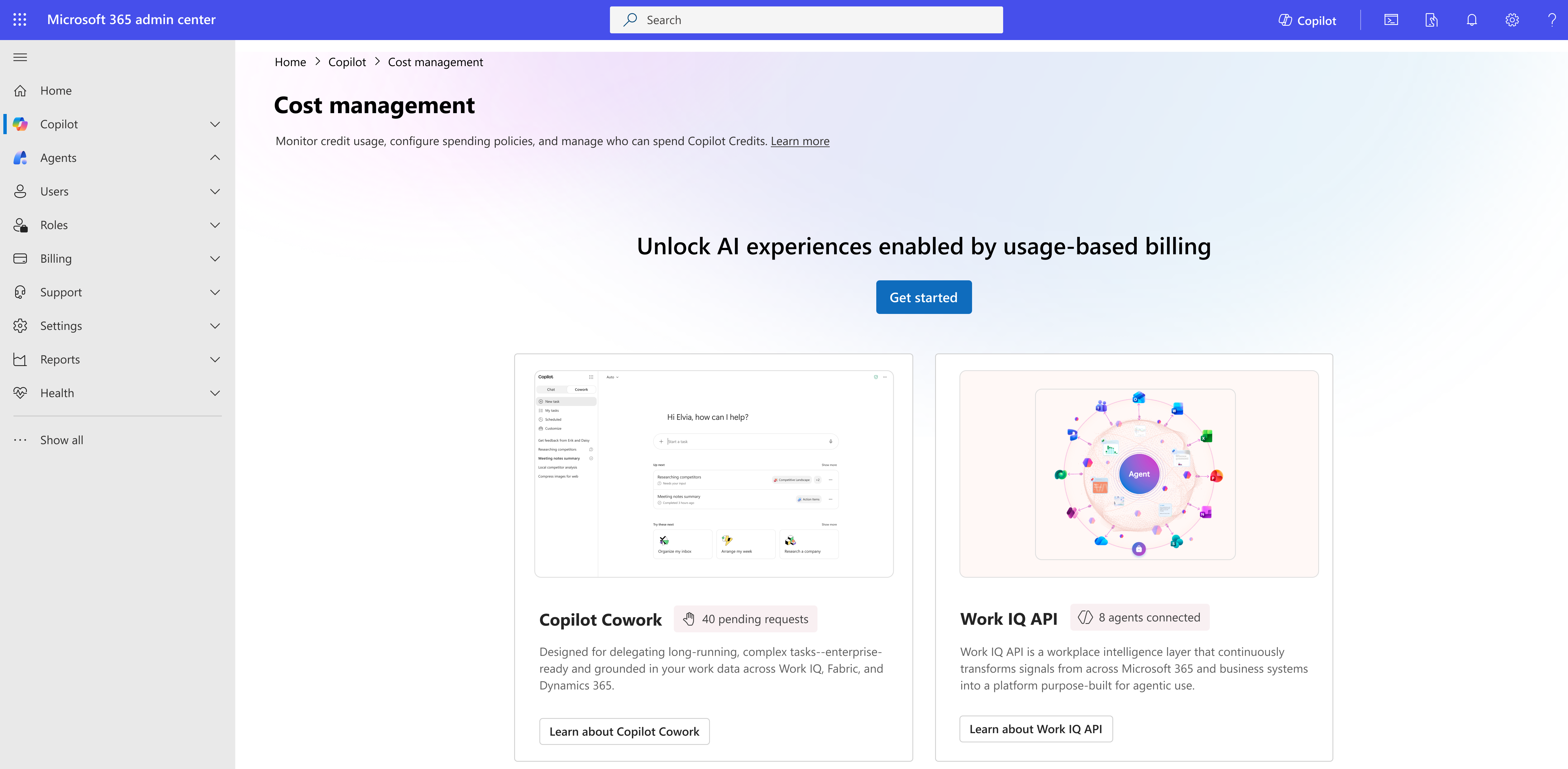
To unlock AI experiences enabled by usage-based billing, select Get Started.
A side-panel with the title Activate the default spending policy for your organization opens.
In the Billing method section, select how your organization is billed for Copilot credit usage. Select the default subscription for your organization. This subscription is selected by default for other policies that you create. For more detailed information on how the billing method is populated, see Configure billing method.
In the Set the monthly spending limit for this policy section, select one of the options.
Don't limit monthly spending - Allows the policy to use credits against the organization's billing method without restrictions.
Limit monthly spending - Limits the number of credits the default policy can spend each month.
In the Select the monthly spending limit for users (optional) section, set a monthly limit for users to prevent a single person from spending all available credits. Although this selection is optional, review and set this option for your organization to prevent runaway spending of Copilot Credits by one individual user.
In the Define alerts section, select the people who receive email notifications when policy usage reaches the threshold that you specify. You can set the threshold as a credit amount or a percentage. Alert emails begin when usage reaches the specified threshold and continue daily until the monthly usage period resets or you adjust the spending policy. If you set a monthly credit limit per user, you can also configure a user monthly spend alert. This option appears only when a monthly per-user limit is configured.
Note
The field prepopulates the logged in administrator email and suggests the administrators that you selected in billing notifications for alerting.
If a monthly per-user limit is configured, set the user-level notification thresholds. These notifications alert users as they approach their spending limit and can help them manage consumption before access is affected.
Review the Auto-apply new services setting. This setting is turned on by default.
- Leave the setting turned on to automatically add future supported Microsoft Copilot services and agents to the policy.
- Turn off the setting if you want to review and add future services manually.
The default setup targets your entire organization and all users. Optionally, you can customize the default spending policy to specific groups or change the services it governs by selecting Customize setup configuration before selecting Activate.
Select Activate. You're notified that the set up is complete.
Select Manage Configuration. The Configuration tab within the Cost management page is displayed. Copilot consumptive services are now available. You can now add more spending policies to scope access to specific groups, users, or services.
Note
When you activate the default spending policy, you set the tenant-level limit for all users. Each additional spending policy that you create has its own independent limit and doesn't inherit the tenant-level limit.
Configure model profiles
You can create and manage model profiles directly from Cost Management, or create and assign a model profile while creating a spending policy.
For more information on how to add a model profile while creating a spending policy, see Model profiles.
Note
Model profiles are currently available only for Copilot Cowork. The Model profiles step appears in a spending policy only when you select Cowork in Agents and services.
Create a model profile from Cost management
- In the Microsoft 365 admin center, go to Copilot > Cost management > Configuration.
- Select Model profiles.
- Select Add model profile.
- Enter a name for the model profile.
- Select the model providers and models to include in the profile.
- Select at least two models. The models can be from the same provider or from different providers.
- Optional: Select Microsoft can select the most comparable model to maintain availability.
- Save the model profile.
After you create a model profile, you can apply it to supported spending policies. Model profiles are reusable and can be assigned to multiple spending policies.
Model profile considerations
You must select at least two models when creating a model profile.
If a model provider is disabled for your organization, its models aren't available for selection in a model profile. In the Microsoft 365 admin center, go to Copilot > Settings > AI providers operating as independent processors to manage provider settings.
The Microsoft can select the most comparable model to maintain availability option allows Microsoft to use a comparable model if a selected model becomes unavailable because of a model-specific service interruption. If you don't enable this option, users might experience service interruptions when a selected model becomes unavailable.
When creating a model profile, choose the models that best meet your organization's requirements. Review the capabilities and requirements of each model and make selections based on your organization's needs.
Configure billing method
You have several choices when configuring billing methods in spending policies. Copilot credits are billed to the subscription that you select in the billing method. New policies use it by default. When credits run out for that subscription, usage automatically continues on a pay-as-you-go basis.
Important
A default billing method is preconfigured, but you can change it at any time.
Copilot Credit Pre‑Purchase Plan (P3) and pay‑as‑you-go aren't separate billing options. P3 is layered on top of pay‑as‑you-go.
Customers can use Agent P3 and Copilot P3 credits for AI experiences, such as Cowork. Currently, the Microsoft 365 admin center displays only the credits available from Copilot Credit P3. However, if the subscription selected for the billing method includes Agent P3, the system uses the Agent P3 credits first and bills any overage charges only after those credits are exhausted.
You can update the billing method for an existing spending policy. Open the spending policy that you want to modify and update its billing method. Changing the billing method doesn't require you to delete and recreate the policy. Existing spending policy settings, such as scoped users and groups, spending limits, alerts, and enabled services, are retained when you update the billing method.
Create a new Azure subscription
If you don't have an existing Azure subscription or prefer not to use one, create a new subscription directly from the Microsoft 365 admin center.
If you don't have access to any Azure subscriptions, the system automatically creates a subscription for you by using the billing account linked in the Microsoft 365 admin center.
You must be a Global administrator to create a new subscription this way.
Alternatively, you can manually create a subscription by selecting Create new from the subscription dropdown.
Use an existing Azure subscription
If you already have Azure subscriptions, the system shows the subscriptions linked to the billing account that you can access. These subscriptions appear in the Subscription dropdown by name, and you can hover to view the subscription ID.
To learn more about your subscriptions or decide which one to use for usage-based billing, review and manage them in the Azure portal: View Azure subscriptions.
Some subscriptions show an X pre-purchase credits available label. This label indicates that a Copilot Credit Pre-purchase plan (P3) is attached. The process uses available pre-purchase credits first, and once they're exhausted, usage automatically continues on a pay-as-you-go basis.
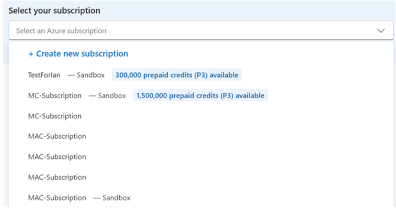
If available, the system selects a subscription with Copilot Credit Pre-purchase plan (P3) by default. Learn more about prepaid discounts.
Buy Pre-purchase Credits (Pre-purchase plan: P3)
You can purchase a Copilot Credit Pre‑Purchase Plan (P3) from the Microsoft 365 admin center by selecting Buy Pre-purchase Credits on the Cost Management > Configuration page. You can also complete this step through the Azure portal.
Note
Pre‑purchasing annual credits provides discounted rates compared to pay‑as‑you‑go pricing. Larger commitments unlock greater discounts, and any usage beyond your prepaid credits automatically continues on a pay‑as‑you-go basis. For more information, see prepaid discounts in Optimize Copilot Credit costs with a pre‑purchase plan.
Steps to purchase prepaid credits
Go to Cost Management > Configuration.
Select Buy Pre-purchase Credits.
In the side panel, choose the Azure subscription you want to use.
Select the credit amount based on your expected usage.
Review your current available credits before adding more capacity.
View the Copilot Credit Pre‑Purchase Plan (P3) details and total cost.
Select Go to checkout.
Review the purchase details, including Important information and Additional notes.
Select Purchase to complete the transaction.
After you purchase, a notification appears on the Configuration tab once processing is complete. The prepaid credits are available to select when you're selecting the subscription in the billing method when configuring spending policies.
Use existing Prepaid Capacity packs
If you purchased capacity packs, you can use them with the services in this experience.
During initial setup, if the system detects Prepaid Capacity packs, it sets them as the default billing method. Enable a pay-as-you-go meter to ensure your services continue once Prepaid Capacity pack credits are exhausted.
In the Billing Method page, when setting up a spending policy, the number of credits available from Prepaid Capacity packs reflects the credits that are available for use, instead of the total number of credits purchased. (where Available credits = Total purchased credits - Credits pre-allocated to environments in Power Platform admin center)
You can choose to apply Prepaid Capacity packs at the individual spending policy level in the Review billing method step.
You must be a Global administrator or Billing administrator to override or set the billing method.
Copilot Credits from Prepaid Capacity packs can be consumed by multiple services managed by both Microsoft 365 admin center and Power Platform admin center. However, capacity that is assigned or used in Power Platform admin center (for example, allocated to specific environments or consumed by agents) reduces the Copilot credits available for services managed by Microsoft 365 admin center. Therefore, it's important to leverage the Copilot > Cost management dashboard in Microsoft 365 admin center to properly identify what is available for these services.
- Check the Power Platform admin center for additional credit allocation and usage details: Power Platform admin center.
- For more information on how to manage capacity allocation or reallocation, see Manage Copilot Studio credits and capacity.
Note
If you select both Prepaid Capacity packs and an Azure subscription with Copilot Credit Pre-purchase plan (P3), billing is applied in the following order to keep spending predictable:
Prepaid Capacity packs
Copilot Credit Pre-purchase plan (P3)
Pay-as-you-go billing
For more information on other purchasing methods such as capacity packs, see Microsoft Copilot Studio Licensing Guide.
Pay-as-you-go
If you choose to override by using the pay-as-you-go option, the connected Azure subscription is billed on a pay-as-you-go basis. If Prepaid Capacity pack credits are available, the system uses those credits first, and then pay-as-you-go.
If you select Pay-as-you-go and you're an Owner or Contributor on the selected Azure subscription, you can configure Advanced billing settings.
Select Advanced billing settings to specify:
- The billing region where the billing policy is deployed.
- The resource group where the billing policy is deployed.
If the selected subscription already contains one or more resource groups, select the resource group to use. If the subscription doesn't contain a resource group, the Resource group list doesn't appear, and a resource group is automatically created when you create the billing policy.