Note
Access to this page requires authorization. You can try signing in or changing directories.
Access to this page requires authorization. You can try changing directories.
What is Microsoft 365 for frontline workers?
Microsoft 365 for frontline workers is a unified, AI-powered platform that supports your employees so they can do their best work and deliver exceptional customer outcomes. Microsoft 365 for frontline workers optimizes workforce and customer interactions in the following areas:
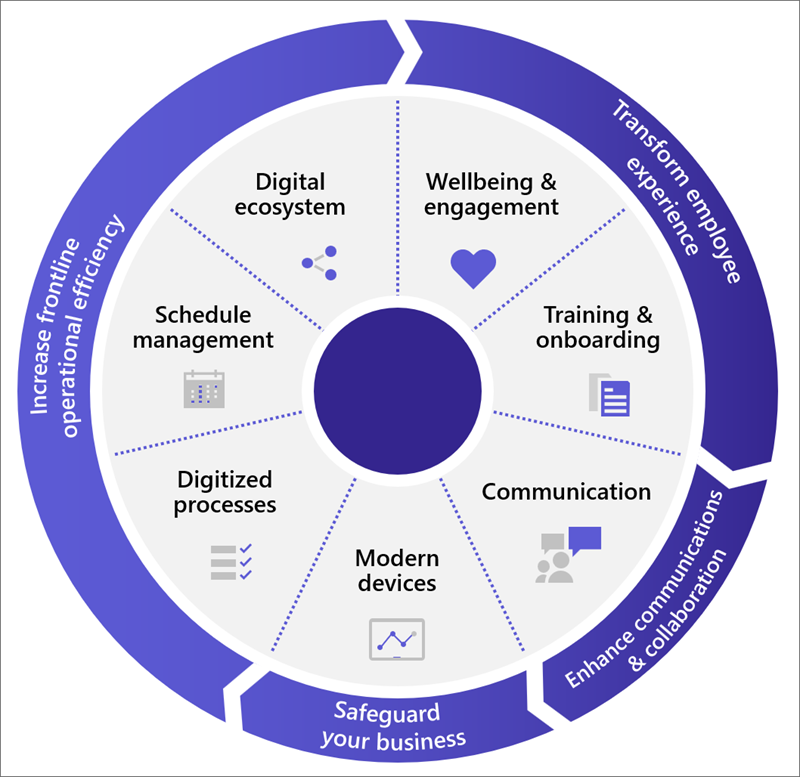
- Enhance communications and collaboration
- Transform employee experiences
- Increase frontline operational efficiency
- Simplify frontline work with an AI agent
- Safeguard your business with enterprise-grade security and compliance, including support for modern and shared devices
Enhance communications and collaboration
Streamline team and one-on-one communication across your entire organization with Microsoft 365 for frontline workers capabilities. To ensure every worker feels connected to your organization, you can enrich and expand corporate communications with Viva Connections and targeted announcements. Empower your workforce to seamlessly communicate with Teams chats, notifications, walkie talkie, and AI-powered translation and Copilot chat-enabling real-time, inclusive communication across locations and languages.
Increase frontline operational efficiency
Microsoft 365 includes apps like Lists, Planner, and Approvals to streamline operations and digitize paper-based processes. Enhance efficiency with automation and AI-powered workflows using Power Automate, Power Apps, and Microsoft Power BI from the Power Platform. Reduce repetitive tasks so frontline workers can focus on what matters most. Copilot and SharePoint agents provide instant answers and automate routine processes in the flow of work. Workforce management is simplified with Shifts in Teams, which integrates with major WFM systems and supports open shifts, swap requests, and compliance tracking across locations.
The following image shows the employee experiences that are key to frontline workers, and common areas where Microsoft 365 can improve experiences for frontline workers:
Simplify frontline work with an AI Agent
Frontline Agent keeps frontline workers and managers aligned, informed, and productive by:
- Reducing time spent searching for information and instructions across SharePoint and Teams chat and channel messages
- Summarizing key updates and action items at the start of your shift
- Helping draft end-of-shift handovers
Frontline Agent is rolling out in Microsoft Copilot and currently available in Microsoft Teams just like any other teammate. Frontline Agent helps frontline workers and managers stay aligned, informed, and productive. Built on Microsoft 365, Frontline Agent operates within your existing security, compliance, and device management framework. Learn more about setting up Frontline Agent in your organization.
Licensing for your frontline workers
Microsoft 365 for frontline workers is optimized for a mobile workforce that primarily interacts with customers, but also needs to stay connected to the rest of your organization.
Microsoft 365 for frontline workers refers to the Microsoft 365 F3 and F1 licenses, but you can also use an Enterprise license (E3, E5) to implement any of the frontline scenarios. Learn more about licensing options for frontline workers and which license types you should use for different types of users in your organization.
Some features are available for F3 licenses, but not F1, such as Power Apps and Power Automate. For a detailed comparison of Microsoft 365 plans for enterprises, see the Modern work plan comparison table.
Enhance communications and collaboration
Streamline team and one-on-one communication across your entire organization with Microsoft 365 for frontline workers capabilities. You can enrich and expand corporate communications with Viva Connections to make sure each of your workers feels connected to your broader organization. Make sure your workforce is able to seamlessly communicate with Teams chats, notifications, Walkie Talkie, and more.
| Icon | Solution area | Description |
|---|---|---|

|
Communication | Connect your frontline workforce and enable them to communicate and share information effectively, whether within their team, across locations, or across your entire company. |
Transform employee experiences
Foster an inclusive company culture and increase employee wellbeing while making sure all of your workers have the resources they need to succeed. Using Microsoft Teams, SharePoint, Viva Connections, and Viva Learning, you can connect employees with the tools, people, and devices they need to do their best work and build skills faster. For example:
| Icon | Solution area | Description |
|---|---|---|

|
Wellbeing & engagement | Nurture a sense of belonging with your frontline employees by helping them engage with your entire organization. |

|
Training & onboarding | Promote continual growth for your employees and encourage knowledge sharing and exchange. |
Increase frontline operational efficiency
Microsoft 365 includes apps like Lists, Planner, and Approvals that can help you streamline operations from paper-based processes to digitally tracked processes. You can also enhance these apps by adding workflow automation, custom apps, and business data tracking with Power Automate, Power Apps, and Power BI from the Power Platform. Extend even further with solutions provided by our partners in the digital ecosystem.
Enhance workforce management with Shifts, the schedule management tool in Teams that keeps your frontline workforce connected and in sync. Shifts connectors enable you to integrate Shifts with your workforce management (WFM) system. After you set up a connection, your frontline workers can seamlessly view and manage their schedules in your WFM system from within Shifts.
| Icon | Solution area | Description |
|---|---|---|

|
Schedule management | Simplify and streamline schedule coordination with your frontline workforce. Gain visibility into their schedules and enable them to arrange for cover and leave. |

|
Digitize your business processes | Drive operational efficiency by digitizing paper-based processes, and automating routine, repetitive steps. |

|
Digital ecosystem | Unite the technology your frontline workforce depends on behind a single pane of glass for a seamless end-to-end experience. Include partner solutions and take advantage of integrations that help streamline processes. |
AI-powered productivity
| Capability | More information |
|---|---|
| Learn about Frontline Agent scenarios | What scenarios does Frontline Agent enable? |
| Set up Frontline Agent | Prerequisites |
Safeguard your business
Safeguard your business with best-in-class security and compliance features. Microsoft 365 for frontline workers offers identity and access management, threat and information protection, and security management.
| Capability | More information |
|---|---|
| Manage identities and access | |
| Secure endpoints and apps across device types and operating systems |
Deploy and manage at scale
Deploy your frontline teams and give your frontline workforce access to the right apps and resources from the start.
| Solution area | More information |
|---|---|
| Frontline teams | When deploying your frontline teams, you can choose between dynamic team membership, static team membership, or a combination of both. Learn more about how to determine the best frontline team solution for your organization. |
| Frontline operational hierarchy | Set up a frontline operational hierarchy to map your organization's structure of frontline teams and locations to a hierarchy in the Teams admin center. |
| Frontline apps | Standardize Shifts settings across all your frontline teams and manage them centrally by deploying Shifts to your frontline teams at scale. |
| Teams policy packages | Use Teams policy packages for frontline workers to streamline and help provide consistency when managing policies for your frontline. |
Adoption principles to help envision and implement business scenarios
You can implement many helpful scenarios for frontline workers quickly, using out-of-the-box capabilities. For a list of scenarios we recommend and provide guidance for, see Choose your scenarios.
However, it also pays to spend time thinking through exactly what you want to achieve organizationally and setting the appropriate groundwork. Particularly if you need to enhance out-of-the-box scenarios with integrated or custom solutions from solution providers or partners, you want to spend time planning and envisioning before you dive in.
The following principles are based on information from the Frontline Solutions Success Kit. Find more adoption resources on the frontline worker section of the Microsoft Adoption site.
| Start | Discover | Envision | Build | Grow |
|---|---|---|---|---|
| Assess and prepare | Align on value | Identify solutions | Build and validate | Roll out and expand |
Start
- Assess your existing frontline environment and processes.
- Identify core stakeholders - business, IT, and frontline.
- Identify motivations, goals, assumptions, and potential blockers.
- Identify any other in-progress initiatives that might be related, to understand any potential overlaps, conflicts, or potential for alignment.
Discover
- Define what's needed and why with personas, problem analysis, and stories.
- Understand current workarounds and gaps.
- Confirm "what's in it for me" for all of your personas.
- Get executive sponsorship.
Envision
- Evaluate what you need technically to enable the scenarios.
- Map apps and capabilities to light up key scenarios and user stories.
- Think through questions about device management, such as how will workers access Teams (install themselves? pushed to them?), how will they sign in and how will you manage their identities? What's your approach to bring-your-own, corporate shared, or assigned devices?
- Identify relevant roles and responsibilities for the execution phase.
Build
- Implement your scenario or solution at a small scale.
- Use a pilot program to validate your solutions and scenarios with a subset of users.
Grow
- Roll out your solution at scale.
- Continue to gather feedback and establish ongoing maintenance and governance.
- Plan for continuous education and readiness.
- Expand scenarios as needed, over time.
Ready to get started?
Get started by following these steps:
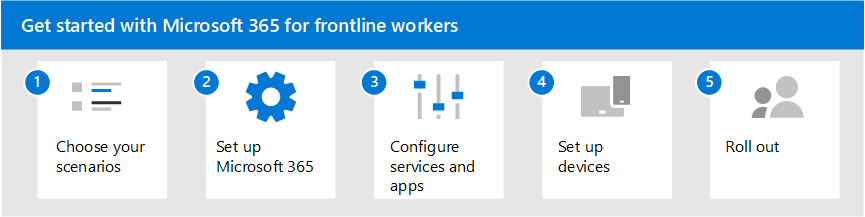
- Choose your scenarios: Discover the ways you can use Microsoft 365 for frontline workers to connect and engage your workforce, manage your workforce, and streamline operations.
- Set up Microsoft 365: Set up Microsoft 365 core elements, Microsoft Teams, and any other services you need.
- Configure services and apps: Configure the services and apps you need for your scenarios. The steps to configure each scenario, plus training resources you can provide to your end users are included in each scenario article.
- Set up devices: Learn how to set up shared and personal devices to work with Microsoft 365 and Teams and to allow your frontline workers to communicate more securely within your organization.
- Roll out: Roll out communications and training for your frontline managers and workers. Learn more about helping your organization adopt and use Microsoft 365 for frontline workers on the Adoption site.