Note
Access to this page requires authorization. You can try signing in or changing directories.
Access to this page requires authorization. You can try changing directories.
Note
This article describes features used in agents or agent flows powered by the standard harness.
You can export and import agents using solutions, so that you can move your agents across multiple environments.
First, create a custom solution and add your agent to it. Then, export the solution with your agent, and import it into another environment. You can also upgrade or update a solution with an agent, and remove an unmanaged layer from a managed agent.
For more information on the solution explorer in Copilot Studio, see View and manage solutions in Copilot Studio.
Note
You can't export topic-level or node-level comments when you export an agent.
Prerequisites
- You must have at least the System Customizer security role to use this feature. Learn more about configuring user security in an environment.
- You should be familiar with solution concepts, as described in Solution concepts, and Create and manage solutions in Copilot Studio.
Things to know
You can't export managed solutions.
- When you create a solution, it's unmanaged by default. If you change it to a managed solution, you can't export it. You need to create a new solution.
Not all agent components and properties are included.
The agent instructions (main prompt) are included.
However, some components such as custom topics and knowledge sources might not be included if they're stored as separate resources or Dataverse tables, depending on how they're created or linked.
Some bot properties don't transfer, including:
- Conversation ID
- CDS Bot ID
- Environment ID
- Topic-level or node-level comments
The imported agent might be missing some elements, for example the agent icon and channel details is empty.
Removing an agent from a solution doesn't remove its components from the solution. You should remove the components separately.
Warning
Don't remove unmanaged agents components, such as agent topics, directly from the solution unless you also remove the agent from the solution.
You should only make changes to topics as part of the standard authoring process in the Copilot Studio UI. Removing or changing an agent's components directly from the solution causes the export and import to fail.
You can't export a solution that contains an agent with periods (
.) in the name of any of its topics.
Create a custom solution and add your agent
To create a new solution in the Copilot Studio solution explorer, follow the steps in Create and manage solutions in Copilot Studio.
The solution you created opens automatically. If it doesn't, select it in the list of solutions.
Select Add existing, then select Agent, and then select Agent again.
In the Add existing agents list, select the agents you want to export, and then select Add.
Note
For a Classic chatbot:
If you're using skills, remove the skill's environment variable Current Value by selecting Remove from this solution.
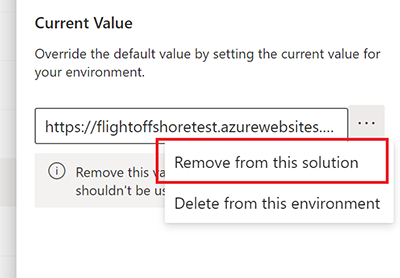
Removing an agent from a solution doesn't remove its components from the solution. You must remove the components separately.
Add components to an agent in a custom solution
If you add components, such as topics or flows, to your agent in Copilot Studio, you must also add them to the agent in your unmanaged solution before you export.
Select the solution that contains your agent.
In the Objects pane, locate your agent under Agents.
Select the three dots (⋮), select Advanced, and then select Add required objects.
Review the instructions and requirements in the Power Apps documentation to add an existing component to a solution.
Add custom connectors to your solution
If your agent uses custom connectors, follow the steps in Create custom connectors in solutions and learn about known limitations.
Important
You must import custom connectors first, then the connection reference with the agent solution.
Add Power Automate flows
When you use flows and environment variables, add the required objects for flows and environment variables.
Select the solution that contains your agent.
In the Objects pane, locate your workflows.
Select the three dots (⋮), select Advanced, and then select Add required objects.
Add environment variables
To add environment variables, follow these steps:
Select the solution that contains your agent.
If the solution doesn't have environment variables, select Add existing, select More, and then select Environment variable.
Select the required environment variables.
Select Next and then select Add.
If the solution already has all the environment variables, select the three dots (⋮), select Advanced, and then select Add required objects to ensure the solution has all the dependencies.
Customize components for managed solutions
To make components customizable in a managed solution, see View and edit table managed properties.
Ensure your environment allows customization before importing managed solutions. Verify your environment doesn't block customizations or unmanaged solutions. Learn more in Blocked unmanaged customizations in Dataverse.
Export the solution with your agent
You export and import agents by exporting and importing the solutions that contain them from one environment to another.
To export the solution with your agent, follow these steps:
In the list of unmanaged solutions, select the solution that contains your agent.
Select Export solution. As in the Power Apps export solutions experience, the Before you export right pane appears.
The rest of the steps are the same as for exporting solutions in Power Apps. To finish exporting the solution, follow the instructions and requirements in the Power Apps documentation.
Important
If your agent has a large number of components (for example, more than 250 topics or more than 100 entities), see Export using the standard harness.
Import the solution with your agent
To import the solution with your agent into another environment, follow these steps:
In the target environment, open the solution explorer in Copilot Studio.
Select Import solution. As in the Power Apps import solutions experience, the Import a solution right pane appears.
The rest of the steps are the same as for importing solutions in Power Apps. To finish importing the solution, follow the instructions and requirements in the Power Apps documentation.
If the import isn't successful, select Download log file to download an XML file that contains details about what caused the import to fail. The most common reason an import fails is that the solution doesn't contain some required components.
In the solution explorer, select the new imported solution from the list.
In the Objects pane, select Agents. Then select the agent's name to open the agent in Copilot Studio in a new tab.
Configure user authentication for the agent again.
Important
- You must publish your imported agent before it can be shared.
- It might take up to 24 hours for your agent's icon to appear everywhere.
Export and import agents in Teams
In Microsoft Teams, you can export and import agents between individual teams by using the Power Apps Teams app.
For example, if you export a working agent from a Teams team (team A), and then import it into team B, you don't have to build it from scratch for team B.
Follow the instructions in Export customizations from Dataverse for Teams.
When selecting the customizations to export, select the agent you want to export. Use the filter on the side pane to only show agents for a specific team.
The agent is saved to the Downloads folder on your computer.
To import in Teams, follow the instructions in Import customizations into Dataverse for Teams.
Your agent appears in the Copilot Studio app in Teams, under the team you imported it into.