Note
Access to this page requires authorization. You can try signing in or changing directories.
Access to this page requires authorization. You can try changing directories.
Note
This article describes features used in agents or agent flows powered by the standard harness.
Variables exist at four levels, or scopes:
- Topic variables you can use only in the topics where you create them. This scope is the default for variables that you create.
- Global variables you can use in all topics. You can change the scope of a topic variable to make it a global variable.
- System variables Copilot Studio automatically creates for an agent. They provide more contextual information about the conversation or the user. They're available in all topics.
- Environment variables you create in Power Platform. They're read-only in Copilot Studio. They store the parameter keys and values, which then serve as input to various other application objects, including Copilot Studio. By separating the parameters from the consuming objects, you can change the values within the same environment or when you migrate solutions to other environments. The alternative is leaving hard-coded parameter values within the components that use them.
Variable types
Each variable has a base type. The type determines what values the variable can hold and the operators you can use when you build a logical expression with it.
| Type | Description |
|---|---|
| String | A sequence of characters used to represent text |
| Boolean | A logical value that can only be true or false |
| Number | Any real number |
| Table | A list of values, but all values must be of the same type |
| Record | A collection of name-value pairs where values can be of any type |
| DateTime | A date, time, day of the week, or month relative to a point in time |
| Choice | A list of string values with associated synonyms |
| Blank | A placeholder for "no value" or "unknown value"; learn more in Blank in the Power Fx documentation |
You set a variable's type the first time you assign a value to it. After that, the type is fixed and you can't assign values of any other type. For example, if you assign the starting value 1 to a variable, you set its type to Number. If you then try to assign a String value like "apples", you get an error.
When you test an agent, a variable might temporarily appear with the type unknown. An unknown variable doesn't have a value yet.
The order of variables is determined from the top to the bottom of the authoring canvas. The agent considers nodes at the top of the authoring canvas before nodes at the bottom.
When you create branches by using Condition nodes, Copilot Studio orders the branches from left to right. The agent considers nodes in the leftmost branch before nodes in the rightmost branch.
Entities
Copilot Studio uses entities to identify specific types of information from a user's responses. The identified information is saved in a variable of the type that's appropriate for the information. The following table lists the variable base type associated with prebuilt entities.
| Entity | Variable base type |
|---|---|
| Multiple-choice options | Choice |
| User's entire response | String |
| Age | Number |
| Boolean | Boolean |
| City | String |
| Color | String |
| Continent | String |
| Country or region | String |
| Date and time | DateTime |
| String | |
| Event | String |
| Integer | Integer |
| Language | String |
| Money | Number |
| Number | Number |
| Ordinal | Number |
| Organization | String |
| Percentage | Number |
| Person name | String |
| Phone number | String |
| Point of interest | String |
| Speed | Number |
| State | String |
| Street address | String |
| Temperature | Number |
| URL | String |
| Weight | Number |
| Zip code | String |
| Custom entity | Choice |
Environment variables
Environment variables are a Power Platform concept. Environment variables enable the basic application lifecycle management (ALM) scenario of moving an application between Power Platform environments. In this scenario, the application stays exactly the same except for a few key external references that differ between the source environment and the destination environment.
Use environment variables in the same way as topic, global, and system variables. One notable difference is that environment variables are read-only in Copilot Studio. Agent authors can't modify environment variables in Copilot Studio. However, administrators can change the value of environment variables in Power Apps. In Copilot Studio, you can use the Variables panel to see information about an environment variable. The Variable properties panel also has a link to Power Apps, the authoring experience for environment variables.
The published version of an agent that uses environment variables includes the values you set for these variables when you publish the agent. Whenever an administrator updates environment variables, you must republish any agents that use these variables for the changes to take effect at runtime. However, there's one exception: you don't need to republish your agents when the value of an environment variable of type secret changes. Unlike other environment variables, secret variables are retrieved at runtime.
Environment variable types in Copilot Studio map to Power Apps data types as follows:
| Type in Copilot Studio | Type in Power Apps |
|---|---|
| Decimal number | Number |
| JSON | Detect the type from the value. If not JSON => Unspecified (validation error) |
| Text | String |
| Yes/No | Boolean |
| Data source | String |
| Secret | String |
Note
You see environment variable errors in the test chat and when publishing. However, these errors don't appear in the Topic list because environment variables aren't topic variables.
System variables
Every agent includes built-in system variables that provide extra information about a conversation.
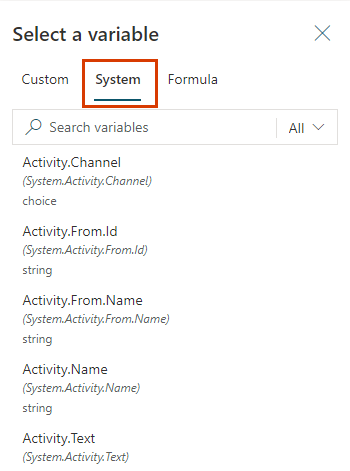
Copilot Studio doesn't show all system variables. To access hidden system variables, use a Power Fx formula.
To use system variables in a Power Fx formula, add System. before the variable name. For example, to include the system variable User.DisplayName in a formula, refer to it as System.User.DisplayName.
| Name | Type | Definition |
|---|---|---|
| Activity.Attachments | table | The file attachments that the user provides. |
| Activity.Channel | choice | The channel ID of the current conversation. |
| Activity.ChannelData | any | An object that contains channel-specific content. |
| Activity.ChannelId | string | The channel ID of the current conversation, as a string. |
| Activity.From.Id | string | The channel-specific unique ID of the sender. |
| Activity.From.Name | string | The channel-specific user-friendly name of the sender. |
| Activity.Name | string | The name of the event. |
| Activity.Recipient.Id | string | The incoming activity's Type property. |
| Activity.Recipient.Name | string | Represents the display name for the agent within the channel. In telephony channel context, the value of this variable is the phone number to which the agent is attached to. |
| Activity.Text | string | The most recent message sent by the user. |
| Activity.Type | choice | Type of activity. |
| Activity.TypeId | string | Type of activity, as a string. |
| Activity.Value | any | Open-ended value. |
| Bot.EnvironmentId | string | The environment ID of the agent. |
| Bot.Id | string | The ID of the agent. |
| Bot.Name | string | The name of your agent. |
| Bot.SchemaName | string | The schema name of the agent. |
| Bot.TenantId | string | The tenant ID of the agent. |
| ClientPluginActions | choice | Collection of Dynamic Client Plugin Actions to consider for generative orchestration. |
| Conversation.Id | string | The unique ID of the current conversation. |
| Conversation.InTestMode | Boolean | Boolean flag that represents if the conversation is happening in test canvas. |
| Conversation.LocalTimeZone | string | Name of the time zone to be used by the user in the IANA Time Zone database format. |
| Conversation.LocalTimeZoneOffset | datetime | The time offset from UTC for the current local time zone. |
| Error.Code | string | The error code for the current error. The error message for the current error. |
| Error.Message | string | The error message for the current error. Note: This variable is supported only if the trigger is On Error. |
| FallbackCount | number | This variable counts the times that a topic couldn't be matched to the user input. Note: This variable is supported only if the trigger is On Unknown Intent. |
| InactivityTimer.Continue | Boolean | Boolean flag that represents whether the timer needs to continued. Note: This variable is supported only if the trigger is Inactivity. |
| InactivityTimer.Count | number | Number of times the OnInactivity timer fired due to user inactivity after the configured time. Note: This variable is supported only if the trigger is Inactivity. Learn more in Inactivity trigger. |
| LastMessage.Id | string | The ID of the previous message sent by the user. |
| LastMessage.Text | string | The previous message sent by the user. |
| Recognizer.ExtractedEntities | choice | Represents the extracted entities from triggering message. Note: This variable is supported only if the trigger is On Select Intent. |
| Recognizer.IntentOptions | choice | Represents the intent options when recognizer returns ambiguous results. Note: This variable is supported only if the trigger is On Select Intent. |
| Recognizer.SelectedIntent | choice | Represents the intent selected from recognizer. Note: This variable is supported only if the trigger is On Select Intent. |
| Recognizer.TriggeringMessage.Id | string | The ID of the user message that triggered the current topic. |
| Recognizer.TriggeringMessage.Text | string | The user message that triggered the current topic. |
| Recognizer.MultipleTopicsMatchedReason | string | Used to determine why multiple topics were matched. Note: This variable is supported only if the trigger is On Select Intent. |
| SignInReason | choice | Used to determine what sign-in option is needed when triggering the topic. Note: This variable is supported only if the trigger is On Sign In. |
| User.Language | choice | This variable is used to set the user language locale per conversation. |
Variables for voice-enabled agents
The following variables are only available for voice-enabled agents. Learn more in Use voice variables.
| Name | Type | Definition |
|---|---|---|
| Activity.InputDTMFKeys | string | The raw DTMF key value from telephony. |
| Activity.SpeechRecognition.Confidence | number | The confidence score for the automatic speech recognition hypothesis entire result, 0 to 1. |
| Activity.SpeechRecognition.MinimallyFormattedText | string | Slightly formatted text of the automatic speech recognition hypothesis result. For example, "Five hundred dollars." Words are spelled out, but basic capitalization and punctuation are included. |
| Activity.UserInputType | choice | The type of the most recent input from the agent user. The value can be either test, speech, or DTMF. |
| Conversation.OnlyAllowDTMF | Boolean | Boolean flag that represents whether the IVR should be set to DTMF-only mode at runtime. |
| Conversation.SipUuiHeaderValue | string | The UUI header string used to pass context into IVR on call start. |
Variables for integrated authentication (default)
The following variables are available for agents configured to authenticate with Microsoft. This configuration uses Microsoft Entra ID authentication and is the default for new agents. Learn more in Authentication variables.
| Name | Type | Definition |
|---|---|---|
| User.DisplayName | string | The display name of the user currently talking to the agent. |
| User.Email | string | The email address of the user currently talking to the agent. |
| User.FirstName | string | The first name of the user currently talking to the agent. |
| User.Id | string | The unique ID of the user currently talking to the agent. |
| User.IsLoggedIn | Boolean | Boolean flag that represents whether the user currently talking to the agent is authenticated or not. |
| User.LastName | string | The family name of the user currently talking to the agent. |
| User.PrincipalName | string | The user principal name of the user currently talking to the agent. |
Variables for manual authentication with Generic OAuth 2
The following variables are available for agents configured to use the Generic OAuth 2 service provider.
| Name | Type | Definition |
|---|---|---|
| User.AccessToken | string | The access token for the user authenticating with the agent. |
| User.DisplayName | string | The display name of the user currently talking to the agent. |
| User.Id | string | The unique ID of the user currently talking to the agent. |
| User.IsLoggedIn | Boolean | Boolean flag that represents whether the user currently talking to the agent is authenticated or not. |
Variables for manual authentication with Microsoft Entra ID
The following variables are available for agents configured to use the Microsoft Entra ID (formerly Azure Active Directory) service providers.
| Name | Type | Definition |
|---|---|---|
| User.AccessToken | string | The access token for the user authenticating with the agent. |
| User.DisplayName | string | The display name of the user currently talking to the agent. |
| User.Email | string | The email address of the user currently talking to the agent. |
| User.FirstName | string | The first name of the user currently talking to the agent. |
| User.Id | string | The unique ID of the user currently talking to the agent. |
| User.IsLoggedIn | Boolean | Boolean flag that represents whether the user currently talking to the agent is authenticated or not. |
| User.LastName | string | The family name of the user currently talking to the agent. |
| User.PrincipalName | string | The principal name of the user currently talking to the agent. |