Note
Access to this page requires authorization. You can try signing in or changing directories.
Access to this page requires authorization. You can try changing directories.
Note
This article only applies to makers who have a Teams plan, available in select Microsoft 365 subscriptions. Makers with a Teams plan are limited to creating agents that use classic orchestration in Copilot Studio, and they can only publish these agents to Microsoft Teams. If you have a standalone Copilot Studio subscription, see Quickstart: Create and deploy an agent.
After the end of June 2026, it will no longer be possible to use the Copilot Studio for Teams app to create classic chatbots. The app will redirect you to the Copilot Studio web app instead.
Makers with a Teams plan can use Copilot Studio to build classic agents for Microsoft Teams. These agents have built-in natural language processing (NLP) capabilities and a no-code graphical interface. With the Teams plan, you can create, author, test, and publish your agents to Teams directly from the Copilot Studio interface.
When you create a classic agent, consider:
- The types of questions someone might ask
- The different ways a question is asked
- The expected answers
- Whether or not a user has follow-up questions or concerns
To help you get started making human resource (HR) agents, this quickstart shows you how to:
- Map your scenario and needs to align with what an agent can do
- Create an agent in Copilot Studio
- Build and enhance topics that answer common HR-style questions
- Test, publish, and share the agent with your organization
HR Support Bot is a friendly question and answer agent that brings a support professional expert from the HR team, when HR personnel are unable to help. An employee can ask the agent a question and the agent responds with an answer if it has content for it.
If the agent doesn't have an answer, the employee can submit a query. The query is sent to a predetermined team of experts who respond to query notifications.
Scenario
You work in human resources (HR) at Contoso and need to build an HR support agent in Microsoft Teams. The agent answers common HR questions, such as employee time-off, with relevant information from the company's internal knowledge base. The agent contacts HR experts and notifies them that an employee needs assistance for uncommon scenarios.
Once the agent is published, Contoso employees can access HR information in Teams without needing to search the company's intranet.
Create a new agent in a team
Go to Copilot Studio. The first time you use Copilot Studio, it might prompt you to pick a Teams team for your agent.
If prompted, select the team you want to manage the agent, and then select Continue. You can create a new team if necessary.
Select Create blank agent.
Enter a name for your agent—for example, "HR Support bot."
Select Create. The agent is created and the Overview page appears.
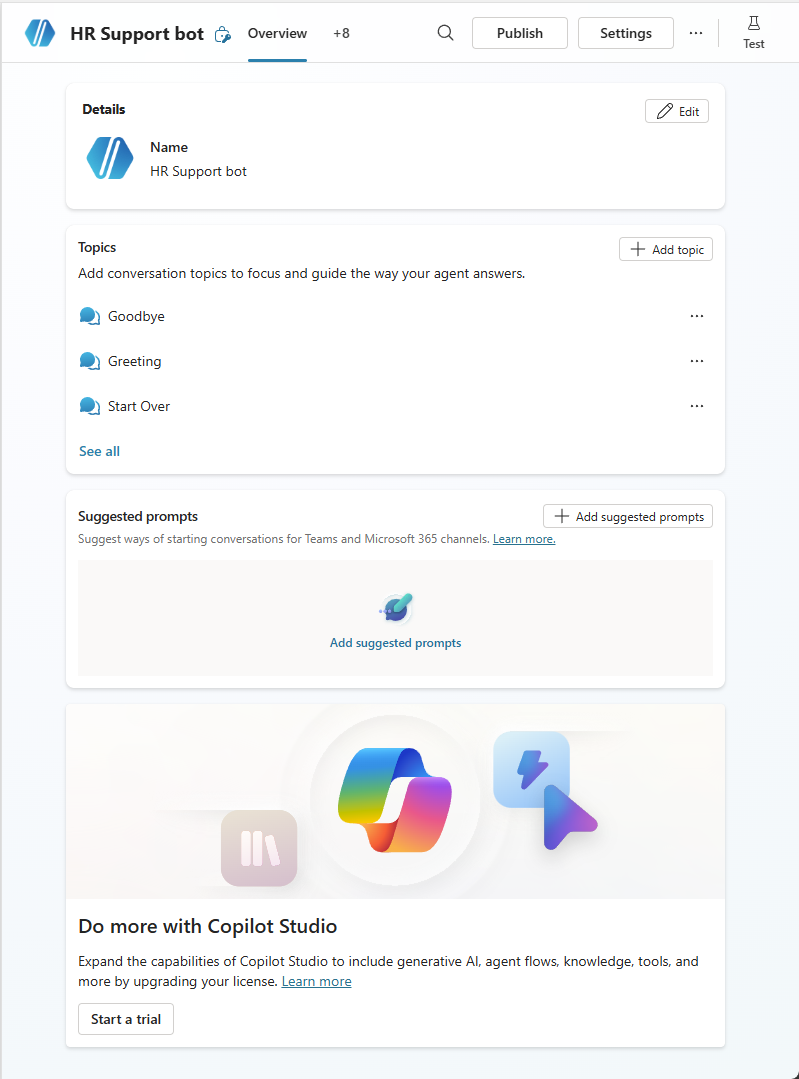
Replace the default icon with a more representative one, if desired.
Add suggested prompts, if desired.
Build an employee time-off topic for common time-off queries
An agent comes with a collection of topics that defines how it interacts with users. Let's build a topic to answer employee questions about taking time off.
Go to the Topics page for your agent.
Select Add a topic and select From blank.
On the Trigger node, select Edit. The Phrases panel appears.
Use the text box under Add phrases to add trigger phrases for this topic. For example, enter the following phrases:
- Need information on time off
- I need help with time off
- How many days of paid vacation do I have
- What are the national holidays
- I need extended leave
Trigger phrases for a topic define the ways users ask questions about that topic. These phrases are how we expect employees to ask about time off.
Copilot Studio comes with built-in natural language capabilities. You only need to define a few trigger phrases about time off and the agent can accurately trigger the topic based on the employee's input.
Close the Phrases panel when you're done. The Trigger node shows the phrases.
Select Details on the toolbar. The Topic details panel appears.
Name the topic "Employee time off" and enter an appropriate description.
Close the Details panel.
Select Save.
Define how the agent interacts
Select the Add node
 icon under the Trigger node, and then select Send a message. A Message node appears.
Enter the following text: "I can help with questions related to time-off."
Select the Add node
icon under the Message node, and then select Ask a question. A Question node appears.Enter the following questions: "What information are you looking for?"
Under Options for user, select New option, and then enter "Paid vacation."
Select New option again, and enter "National holidays."
Your topic branches off, based on the option the user chooses.
Select the default variable name under Save user response as to open the Variable properties panel and change the name to something meaningful, such as
TimeOffType. The changes are reflected on the authoring canvas.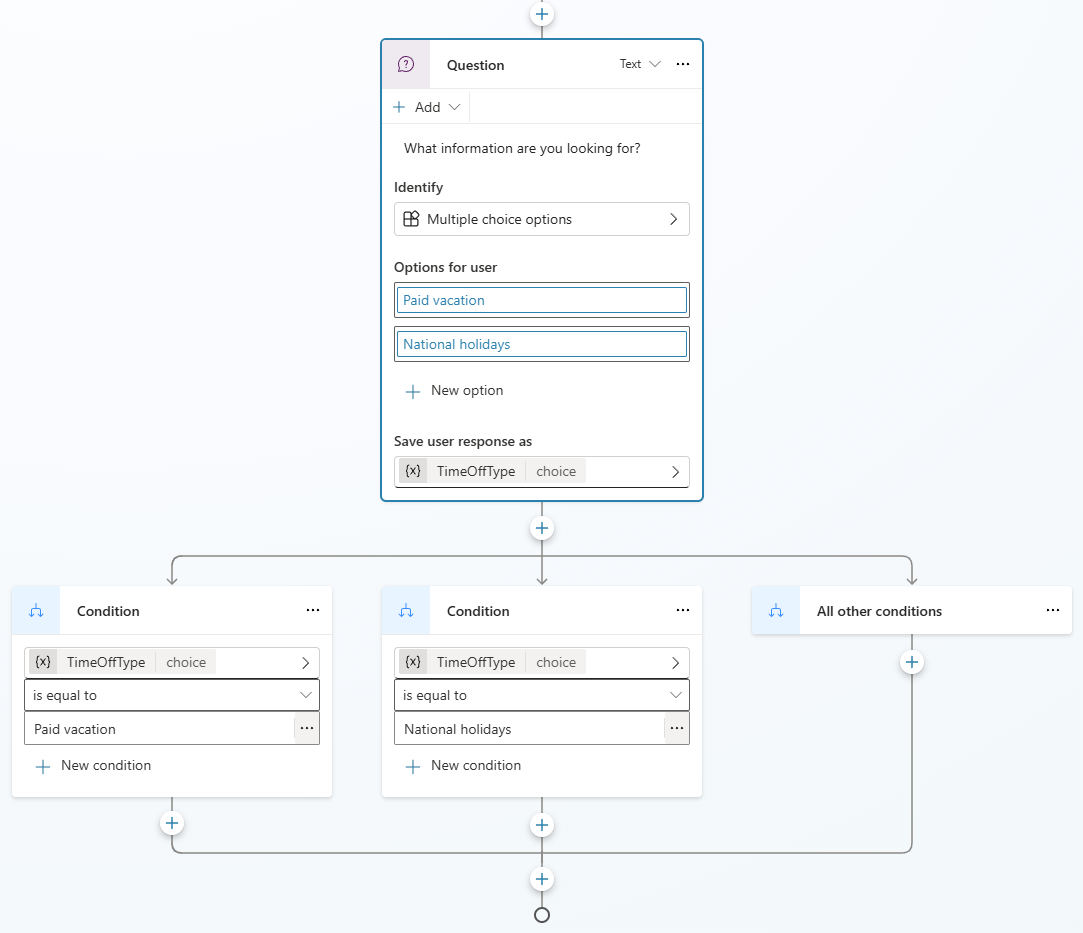
You can add different responses for each option. For "Paid vacation," the agent can point employees to an internal HR website to look up paid time-off policies.
Add a Message node on the Paid vacation branch with this message for the employee: "For paid vacation time-off, go to
www.contoso.com/HR/PaidTimeOffto submit time-off requests."On the National holidays path, add a Message node with the following text:
National holidays for 2020:
-   New Year's Day: January 1st
-   Memorial Day: May 25th
-   Independence day: July 4th
-   Labor Day: September 7th
-   Thanksgiving: November 26th - 27th
-   Christmas Eve and Christmas Day: December 24th - 25th
Select the Add node
icon under the set of condition branches, point to Topic management > Go to another topic, and then select End of Conversation. Ending the conversation this way makes your agent show a customer satisfaction survey.Select Save.
Test your agent
Copilot Studio includes a built-in test panel that you can use to test the agent in real time.
To open the test panel, select Test on the toolbar.
Enter "I need time off information."
Even though "I need time off information" doesn't match any trigger phrases exactly, your agent processes the user's input and triggers the Employee time off topic.
As you chat with the agent, you see where it is in the conversation in real time by following the checkmarks next to each node that runs.
Select Paid vacation.
The topic branches off based on the user's response. You open the Variables panel to monitor the
TimeOffTypevariable. However, what happens if the user is looking for national holidays in their inquiry? The user might feel annoyed if the agent asks them to repeat themselves. Let's give it a try.At the top of the test panel, select the Start new test session
 icon at the top of the panel to restart the conversation.
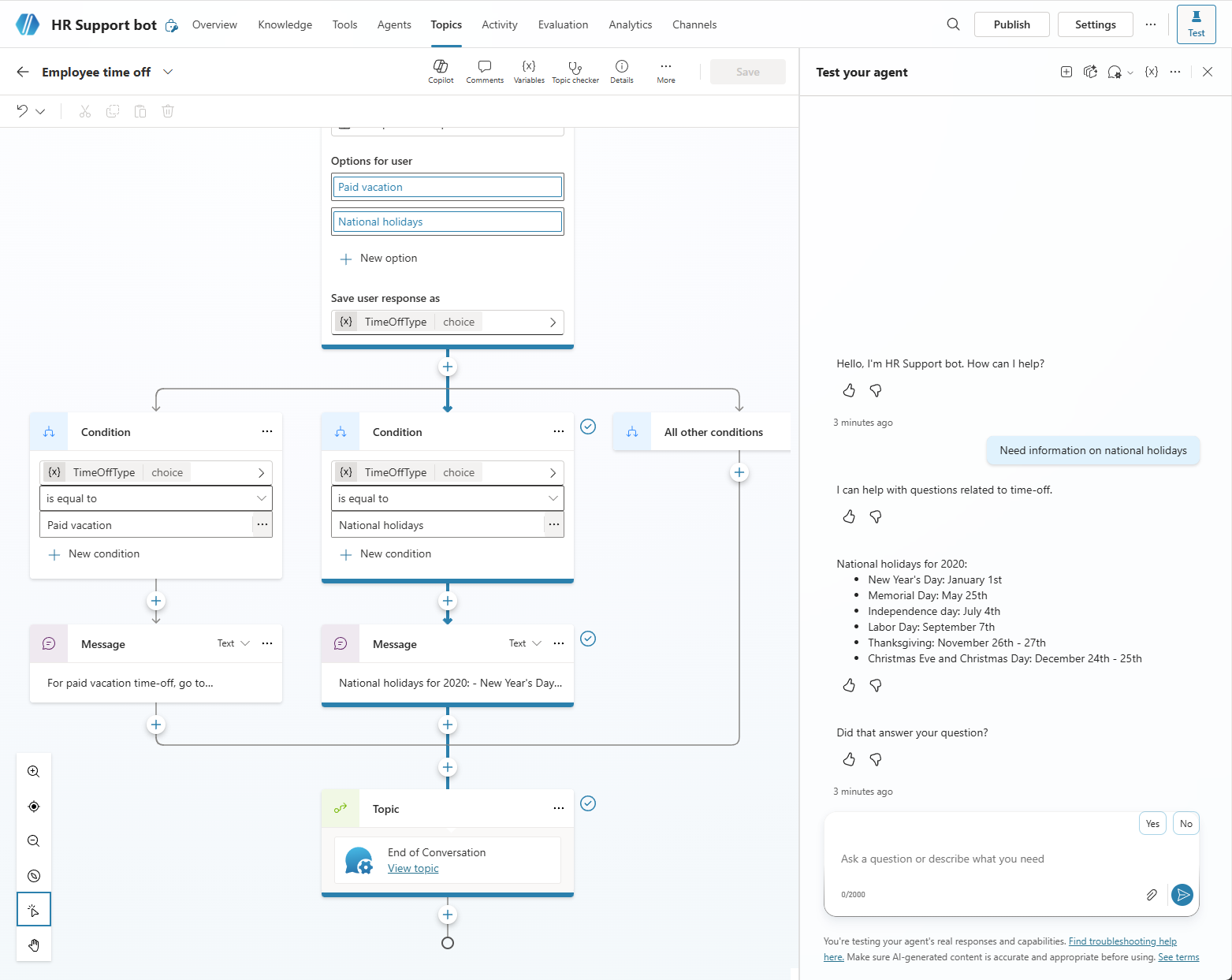
Enter "Need information on national holidays."
The agent bypasses its question on vacation type and directly provides information on national holidays. This behavior happens because Copilot Studio supports proactive slot filling and can determine that the user asks about national holidays.
Enhance the topic to handle complex queries by escalating to HR experts
After you complete the basics, add a more complex Extended leave option to the topic.
Return to your Employee time off topic.
On the Question node, add an Extended leave option.
Since each employee's personal situation is different, questions about extended leave require a discussion with an HR expert. You can build the agent to connect HR experts with your employees.
Add a Message node that says "Extended leave needs HR expert approval. Let me connect you with them."
In this example, you add a tool that notifies an HR expert. This tool sends a card to the HR expert channel in Teams to let experts know an employee needs them to reach out. You create the tool to send a message to a Teams channel and then call it with the appropriate input.
Add a Question node asking for a description for the issue: "How would you describe the issue?"
Under Identify, select User's entire response.
Replace the default name of the variable that holds the answer with "Description."
Select the Add node
icon under the Question node, point to Add a tool, and then select Create a flow. Power Automate opens.In Power Automate, add the following Teams step: Post message in a chat or channel. A new flow, based on a template, opens up.
If Power Automate prompts you to authenticate the connection to Teams, select Sign in under This flow will connect to.
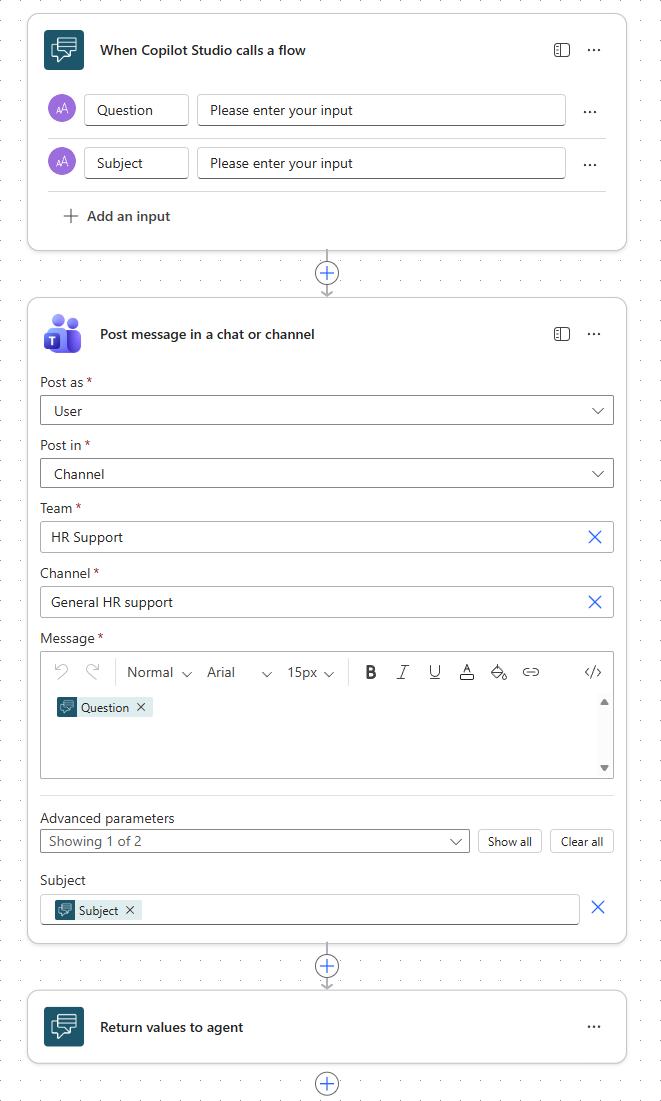
Select the first node of the flow, When Copilot Studio calls a flow, to add the inputs you want your agent to pass to this flow: that is, a title for the message, and the question to post to the channel.
Select Add an input, select Text, replace the default input name "Text" with "Subject," and leave the other field blank.
Select Add an input again, select Text, replace the default input name with "Question," and leave the other field blank.
Select the Post message in a chat or channel node and fill in the parameters for the Teams step.
For Post as, select User.
For Post in, select Channel.
For Team and Channel, select or enter the team and the channel where you want to post messages to the HR experts.
For Message, insert the
Questioninput parameter.Under Advanced parameters, select Subject, and then insert the
Subjectinput parameter.
Replace the default template name with a representative name for your flow—for example, "Post an HR question to an expert"—and save it.
Return to Copilot Studio, save your topic, and reload the page to refresh the list of flows available.
Select the Add node
icon under the Question node again, point to Add a tool, and then select your new flow.For the Subject parameter, enter "Extended leave question."
For Message, select the Description variable, which is collected during the conversation with the employee.
Tip
Your Copilot Studio agent is directly integrated with Teams, so it knows which employee it's chatting with. This feature allows you to build personal and customized agent responses.
To use the name of the person chatting with the agent, there's a predefined variable named
bot.UserDisplayNamethat you can use like any other variable.
You can let the employee know their request is sent to the experts.
Add a message node with the message "We notified the expert. They'll reach out shortly."
Save the topic.
You can add more topics so that HR Support Bot can answer more questions from Contoso employees.
Tip
Always test your agent to ensure it's working as expected for the best employee experience. You see a message posted to the Teams channel when the flow executes from the test chat.
Publish your agent and make it available to other employees
Select Publish at the top of the page.
Tip
If you're already in a conversation with the agent, you can type "start over" after publishing your changes. This command restarts the conversation with the latest version of the agent.
To make the agent available to employees, complete the following steps.
Go to the Channels page.
Select the Microsoft 365 and Microsoft Teams channel.
Select Add channel.
Optionally, customize the appearance of the agent.
Share your agent with your team.
Viewing the agent in the Built with Power Platform section of the Teams app store is a workaround to test it, since admin approval isn't required and avoids any spam to the admin.
When you're fully satisfied, share the agent with your organization. This step requires admin approval.
Find your agent in the Teams app store
An employee named Melissa can find the agent you built in the Teams app store.
Depending on how you shared your agent, Melissa can find it either in the Copilot extensions section or the Built for your org section of the Teams app store. For an agent to appear in the Built for your org section, an admin must first approve it.
Melissa selects the agent app and selects Add for me. The agent appears in the Teams app bar.
The Greeting topic automatically welcomes Melissa.
Tip
You can edit the Greeting topic to have a custom welcome message.
Melissa needs time off in July and August for personal reasons and enters "need time-off information." Melissa selects Paid vacation and a website appears where she can learn more about paid time off.
The agent then gathers customer satisfaction data and ends the conversation.
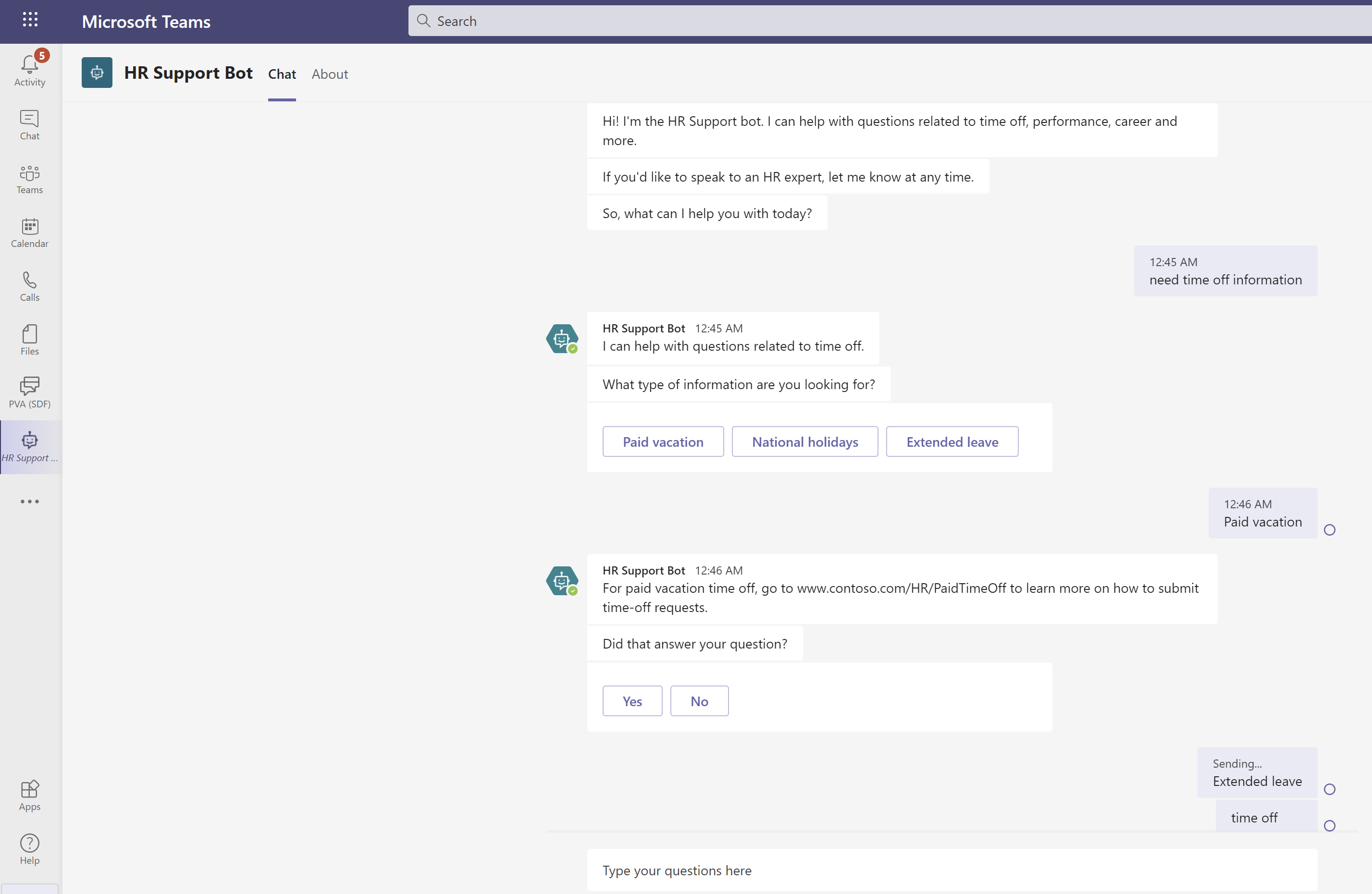
Melissa reviews the HR site for paid time off and understands she needs an extended leave. Melissa returns to the agent and types "I need extended leave."
The agent lets Melissa know that an HR expert is needed for the extended leave request and asks Melissa for a description of the issue.
The agent notifies an expert, who then reaches out to Melissa.
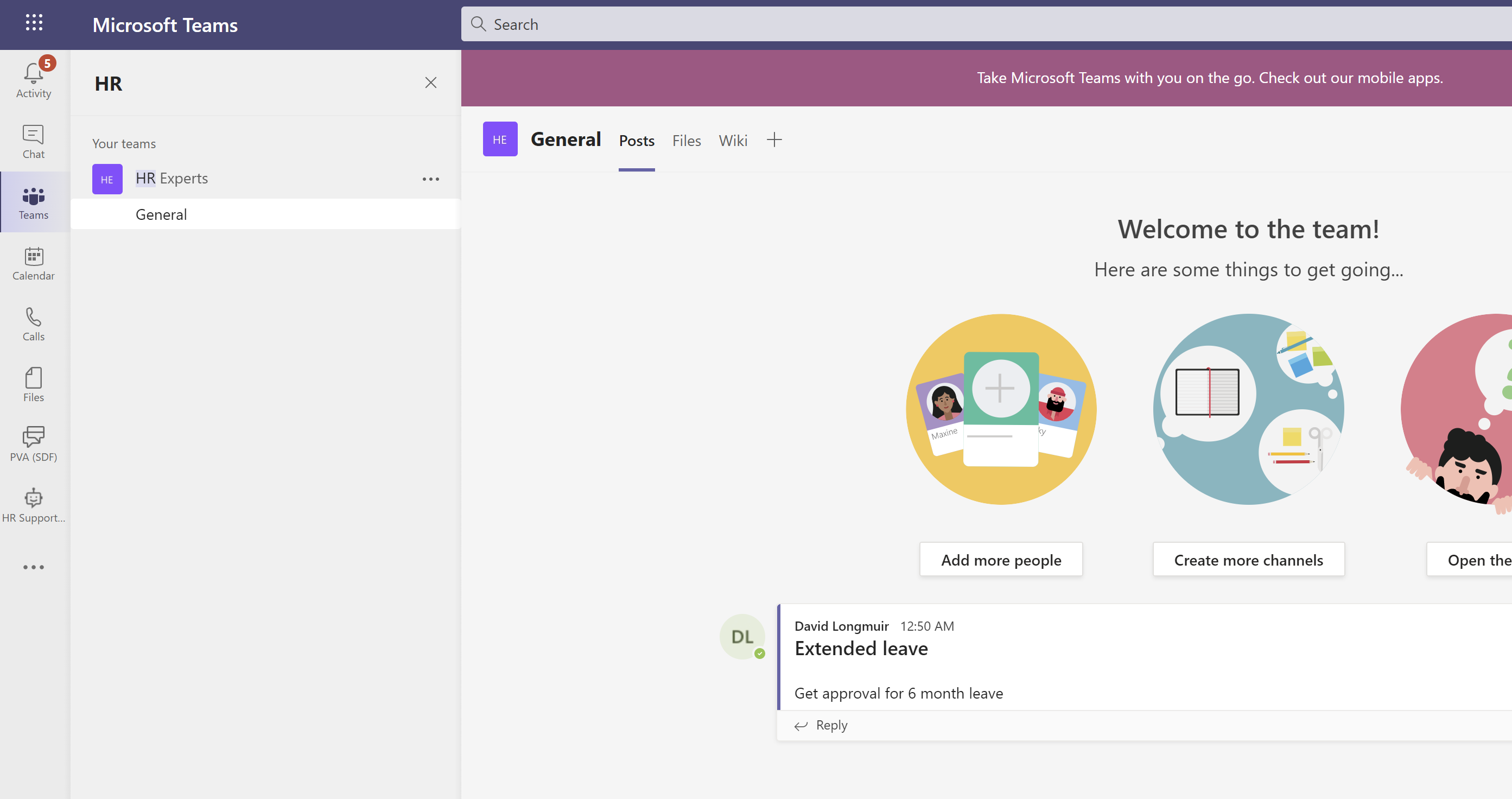
In the HR experts team's channel, you can see that the agent ran the flow and posted Melissa's request to the channel.