Note
Access to this page requires authorization. You can try signing in or changing directories.
Access to this page requires authorization. You can try changing directories.
Note
This article describes features used in agents or agent flows powered by the standard harness.
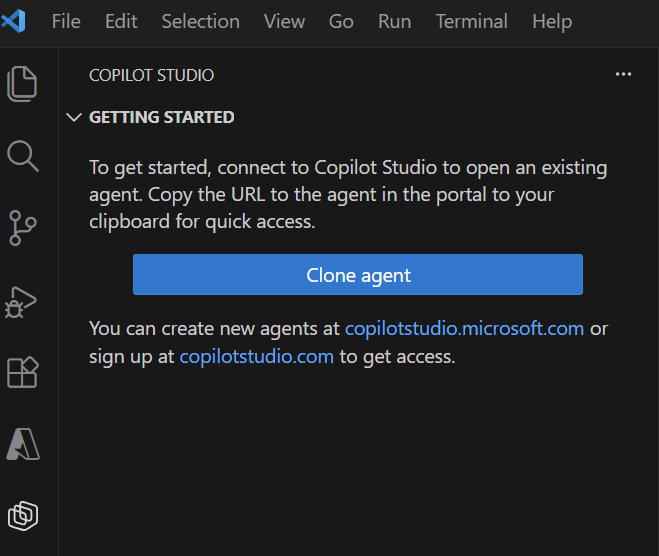
The Microsoft Copilot Studio extension for Microsoft Visual Studio Code enhances your development workflow in Copilot Studio by bringing enterprise agent authoring capabilities directly into the code editor. This extension bridges the gap between cloud-based Copilot Studio and local development. By using this extension, developers can work directly with Copilot Studio agents in the cloud, using familiar local tools and workflows.
Why use the Visual Studio Code extension?
Author and edit in developer-friendly environment
Work in the editor you already know and use with access to:
- Syntax highlighting for YAML agent definitions
- IntelliSense code completion
- Git integration for version control and make use of the cloud based source control integrations
- Work your way with your organization approved extensions
- Keyboard shortcuts and productivity features
Use a local development workflow
Use a local development workflow to manage your Copilot Studio agents:
- Clone agents from Copilot Studio to your local machine, and gain access to the Copilot Studio agent definition directly on your machine
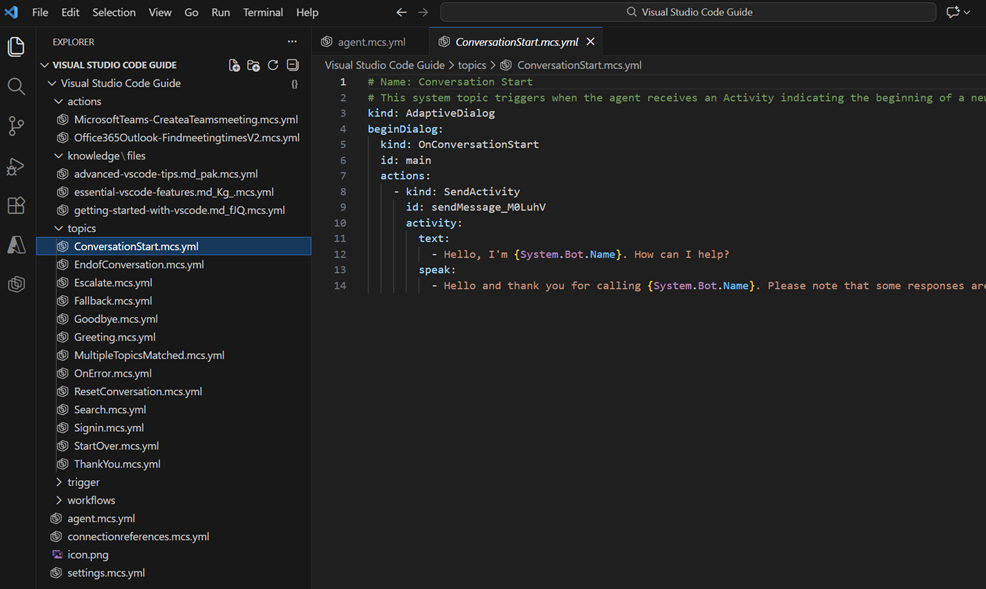
- Edit agent components by using the agent definition language in YAML or your favorite agent harness such as GitHub Copilot or Claude Code, as an alternative to the web UI
- Apply changes to your environment so you can preview and test changes directly in the product before deployment
- Redeploy or deploy your agent definition directly to an environment of your choice
Collaborate with your team through existing source control practices
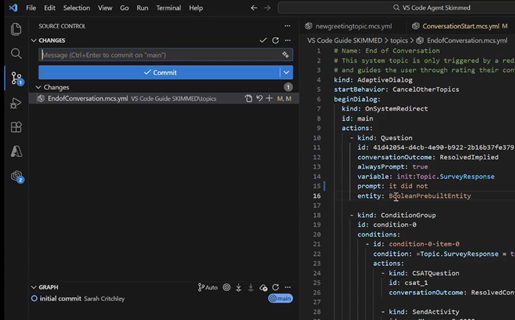
Collaborate with your team by using your existing source control practices:
- Version control your agent definitions with Git and your choice of source control with Visual Studio Code
- Review changes through pull requests
- Track modifications over time
- Collaborate using standard development workflows
Your organization already uses this functionality. Now, by using the extension and access to the full agent definition (and not just the solution file), you can use standard development practices with Copilot Studio agents across the full lifecycle by using your existing team collaboration tools, workflows, and deployments.
Availability and support
The Visual Studio Code extension for Copilot Studio is generally available (GA). Here's what to expect:
- Regular releases available through the Visual Studio Code extension package. Set your extension to update automatically or manually.
- Active development of new features and enhancements to the agent building lifecycle.
- Raise issues and suggestions on GitHub, with visibility of the current open issues and work being done.
Key capabilities
| Feature | Description |
|---|---|
| Agent cloning | Download existing agents from Copilot Studio to your local workspace and work with the Copilot Studio agent definition |
| YAML editing | Edit agent components using structured YAML with IntelliSense support |
| Component Management | Modify knowledge sources, knowledge files, tools, topics, triggers, and skills |
| Sync operations | View and apply changes between local workspace and Copilot Studio |
| Apply your agent changes to your agent in your chosen environment | Create a new agent in a Dataverse environment or update an existing agent |
Use cases
Here are some common scenarios where the Copilot Studio Visual Studio Code extension can enhance your development workflow.
Scenario 1: Your team wants to work with an IDE installed and managed locally
Challenge: The development team want to use their experience and familiarity of a development IDE for Agent development.
Solution: Use the Visual Studio Code Extension to work with Copilot Studio cloud-based agents. Cloning the agent definition to a local file directory and manage the updates locally in Visual Studio Code by editing locally and applying changes.
Scenario 2: Large-scale agent development
Challenge: Building complex agents with dozens of topics and tools through the Copilot Studio web UI can take time navigating back and forth.
Solution: Use the Visual Studio Code extension to manage agent components as code, with full text search, development workflows, and fast navigation capabilities.
Scenario 3: Audit Copilot Studio agent development with existing source control practices
Challenge: Multiple team members need to collaborate on agent development without conflicts.
Solution: Clone agents locally, use Git for version control, and use pull request workflows for code review.
Scenario 4: Agent-driven development
Challenge: You want to use AI to work with Copilot Studio agents and rapidly iterate
Solution: Use Visual Studio Code with GitHub Copilot, Claude Code, or your favorite agent to create and update Copilot Studio agent definition components.
Getting Started
Ready to begin? Follow these steps:
Next Steps
Continue to the Visual Studio Code installation guide to learn how to install and set up the extension.