Note
Access to this page requires authorization. You can try signing in or changing directories.
Access to this page requires authorization. You can try changing directories.
[This article is prerelease documentation and is subject to change.]
Business rules in Power Automate Process Mining allow you to define and evaluate specific behavioral patterns or key performance indicators (KPIs) in your process. Business rules are re-evaluated with each data refresh. The Process mining trigger in Power Automate cloud flow definition allows you to model and execute custom actions after each data refresh, based on the result of business rules evaluation.
To achieve this, you need to do the following:
- Create a case scope business rule in Power Automate Process Mining.
- Create an automated cloud flow triggered by a process mining trigger in Power Automate.
Important
- This is a preview feature.
- Preview features aren’t meant for production use and may have restricted functionality. These features are available before an official release so that customers can get early access and provide feedback.
- For more information, go to our preview terms.
Create a case scope business rule
Case scope business rule is a rule evaluated in the scope of a case (process instance identified by a unique case ID). For each case that meets the criteria specified by the rule, there's an evaluation result and an associated severity.
Learn more about business rules and steps for how to create a case scope business rule in Business rules.
From the best practice perspective, there are two recommended approaches to creating a case scope business rule—behavior deviation and KPI based approach. For the description of both approaches, this article uses an example from invoice approval process.
The customer defined that the business goal is to approve and process any invoice from US region in a maximum of 48 hours (in other words, the duration of the process instance shouldn't be greater than 48 hours).
Behavior deviation approach
In Behavior deviation approach, the customer defines behavior of the process considered as deviating from the business goal and the business rule returns only cases that are considered deviating according to the definition. All other cases are considered as nondeviating. The action is then taken only for the deviating cases.
For the previous example:
We define a case scope business rule such that it:
- Sets up an attribute filter for cases where Region is equal to US and a metrics filter for case duration metric to be greater than 48 hours.
- Calculates a custom metric as count of such cases (this actually means that each case is evaluated with result 1).
- Defines Error severity with a condition of Any.
This means that any invoice in US region with case duration greater than 48 hours is considered as deviating, assigned an error severity, and included in the result set for the action.
KPI based approach
KPI based approach allows the customer to also define behavior of the process considered as deviating from the business goal, in a way, that it's looking at all cases meeting defined filtering criteria, but the threshold KPI is calculated for all such cases. The resulting KPI values can then be categorized on a more granular level into several severity buckets. This allows the customer to define which cases are considered already deviating, which are considered to be deviating soon, and which are nondeviating. This allows you to take different actions for different severity categories.
For the previous example:
We define a case scope business rule such that it:
- Sets up an attribute filter for cases where Region is equal to US.
- Calculates a custom metric as case duration.
- Defines
Errorseverity with a condition greater than 48 hours,Warningseverity with condition between 36 and 48 hours, andOkseverity with less than 36 hours.
This means that for each invoice in US region case duration, KPI is evaluated and based on the result, the case is assigned a particular severity. All cases meeting the filter are included in the result set for the action. The action flow can then decide on a particular route case by case.
Check the business rule result
After defining the business rule, we recommend checking the results in the Power Automate Process Mining Desktop application. You can do this using Business rules statistics and setting the optional scope to the newly defined business rule.
The resulting screen is divided into two parts:
- Left side: Shows the summary statistics of the business rule evaluation—number of cases fitting the business rule and numbers of cases per severity.
- Right side: Shows a case by case detailed evaluation of the business rule including KPI value and corresponding severity.
All information included in both parts of the screen are available in the flow, when executed.

If the information that displays is correct, you can proceed to Create a triggered automated cloud flow.
Create a triggered automated cloud flow
To execute an action on top of business rule evaluation, you need to create an automated cloud flow in Power Automate that is using a Process mining trigger. Learn more about cloud flows in Power Automate in Overview of cloud flows.
Create an automated cloud flow. Learn how to do this in Create a cloud flow in Power Automate.
When selecting a trigger, search for process mining.
Select the When a Process data is refreshed trigger subtitled Process Mining.
The Power Automate editor opens with the flow in edit mode. The card at the top of the flow is the trigger. If the trigger isn't correctly configured or is incomplete, a warning icon displays along with the message, Invalid parameters.
Select the card.
In the configuration panel, set up the connection to Process Mining and set the mandatory parameters:
- Select your process.
- Select the process view to which the business rule will apply. Learn more about views in Manage views.
- Select your newly created business rule.

To further configure your cloud flow, follow the procedure in Configure your cloud flow in the designer.
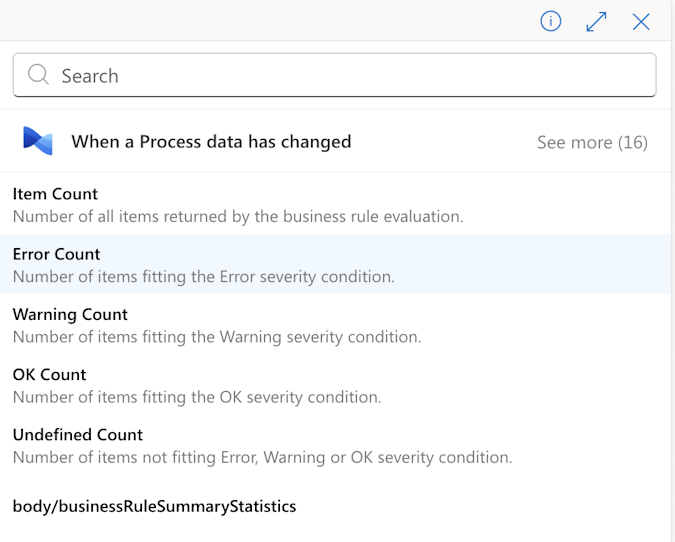
When you want to access the data supplied to the flow from Process Mining, select the lightning bolt icon to the right. This shows you the available options.
The options are contextually filtered to show the ones relevant for the context of the action you're configuring. Select Show more to see all options.
Note
If you select a data field from the case details, the Power Automate flow editor automatically encapsulates the activity into a For-Each activity to iterate over all the cases in the dataset.
The Process Mining trigger fires with each data refresh, no matter if it's manual, scheduled, or custom triggered refresh.
There are two sets of data structures available to you related to the left and right sides of the screen as described in the Check the business rule result section of this article.
body/businessRuleSummaryStatistics: Summary of the business rule evaluation outcome (summary on left side)
| Data field | Description |
|---|---|
| Item Count | Number of all cases returned by the business rule evaluation |
| Error Count | Number of cases fitting the Error severity condition |
| Warning Count | Number of cases fitting the Warning severity condition |
| OK Count | Number of cases fitting the Ok severity condition |
| Undefined Count | Number of cases not fitting the Error, Warning, or Ok severity condition |
Business Rule Items: Detailed evaluation for each case fitting the business rule (table on right side). Consists of list of Item Detail structures, each holding the following data fields.
Note
This section is limited to returning maximum of 5,000 cases.
| Data field | Description |
|---|---|
| Name | Item name (CaseID) |
| Index | Item index (technical identification of the case) |
| Start Date | Case start date and time |
| End Date | Case end date and time |
| Event Count | Number of events for a case |
| Metric Value | Result of the business rule metric evaluation for the case |
| Severity | Severity evaluation based on the Metric Value for the case |