Note
Access to this page requires authorization. You can try signing in or changing directories.
Access to this page requires authorization. You can try changing directories.
If someone sends you a link to a dashboard or a report, but it's not shared with you, you can request access if the feature is enabled. If you don't see a "Request access" option, see What to do if you don't see "Request access". If you share a dashboard or a report with someone, you need to grant them access.
Request access
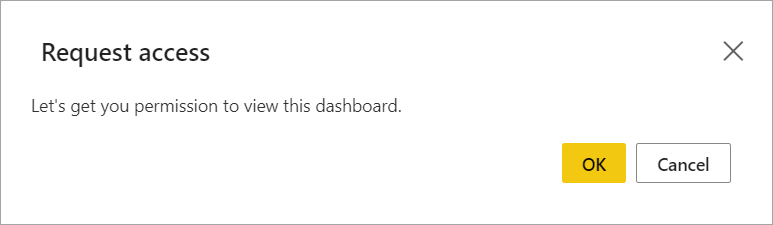
Select the link to the report or dashboard. If you see a Request access message, select OK.
Note
If you don't see a Request access option, see What to do if you don't see "Request access" for alternative ways to request access.
In the Request access dialog, you can provide a reason, or just select Send request.
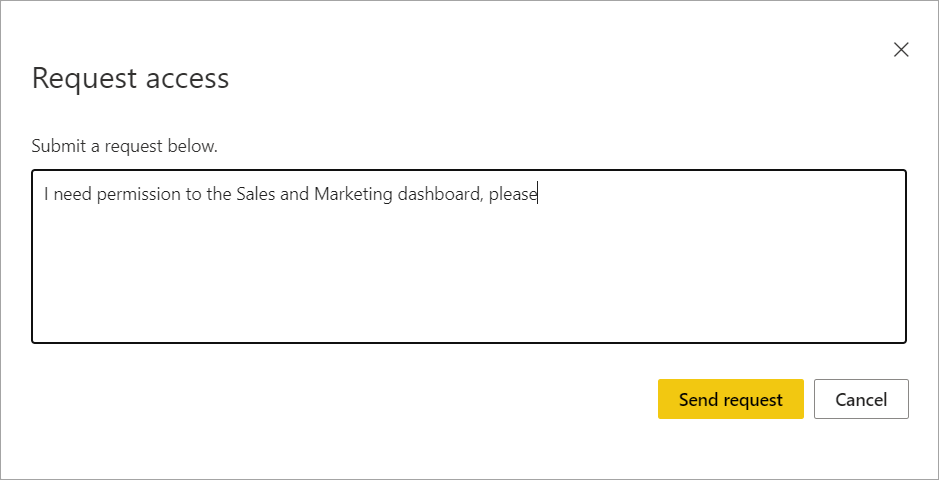
You see a confirmation that Power BI has sent your request.
What to do if you don't see "Request access"
If you select a link to a report or dashboard but don't see a Request access option, this can happen for several reasons:
Why "Request access" might not be available
- The owner disabled request access: Report or dashboard owners can disable the request access feature for their content.
- External sharing restrictions: Your organization's tenant settings might prevent external users or certain groups from requesting access.
- The content was deleted or moved: The report or dashboard might no longer exist or might have been moved to a different workspace.
- You already have access: You might already have access to the content but through a different workspace or app.
Alternative ways to request access
If the Request access button is not available, try these alternatives:
Find out who the owner is
If you don't know who owns the report or dashboard:
Check the URL for workspace information. The link might contain a workspace name or ID that can help identify the owner. Share this information with your Power BI administrator.
Contact the person who sent you the link. Even if they're not the owner, they can tell you who is or forward your request to the owner.
Ask your Power BI administrator to identify the owner. Your organization's Power BI administrator can look up who owns specific content and can either grant you access or connect you with the owner.
Check if you have any existing access to the workspace. Navigate to the Workspaces list in Power BI to see if you already have access to the workspace where the content is located. If you do, you might be able to see the workspace members list to identify who has Admin permissions.
Request access from the owner
Once you know who the owner is, or if you already know:
Contact the owner directly. Send them an email or message asking them to share the report or dashboard with you. Include the link to the specific content you need access to.
Ask them to add you to the workspace. If you need ongoing access to multiple reports, ask the owner to add you as a member of the workspace. See Give users access to workspaces.
Check if it's available through an app. Ask the owner if the content is available through a Power BI app they can share with you. Apps provide curated access to multiple reports and dashboards.
Contact your Power BI administrator. If you believe you should have access but cannot request it, contact your organization's Power BI administrator for assistance.
Verify the link is correct. Confirm with the sender that the link they sent is still valid and points to the correct content.
Grant access
If you're a report owner, you might receive an email from Microsoft Power BI saying that someone has requested access to your report.
In the email, select Grant access.
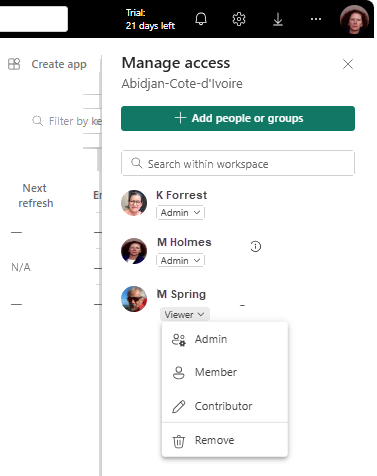
The user’s Pending access request opens automatically. Select one of the options:
- Admin to grant the user Read permissions to the report.
- Member
- Contributor
- Or Remove them.
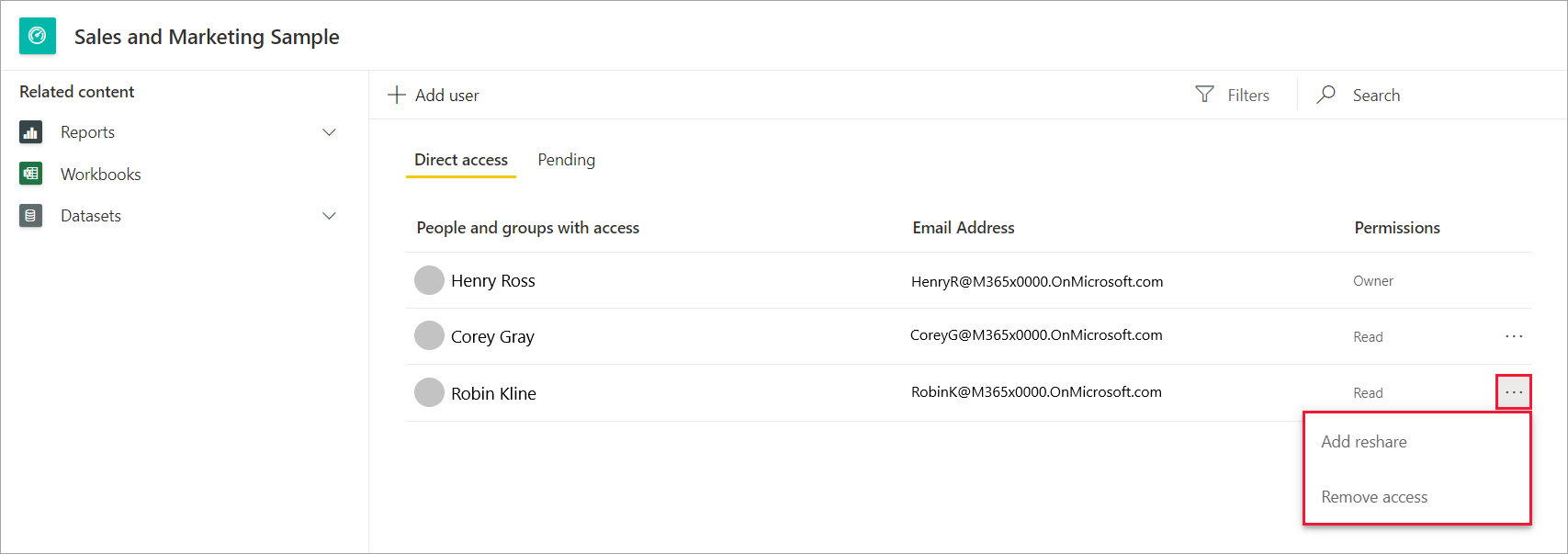
After you've approved the user’s request, you can select the Direct access tab to modify their permissions and give them Reshare permissions as well.