Note
Access to this page requires authorization. You can try signing in or changing directories.
Access to this page requires authorization. You can try changing directories.
Power Platform Admin (Preview) helps you get insights about your Power Platform resources through Microsoft Copilot Cowork. You can ask about inventory, usage, governance, capacity, and licensing.
As a Microsoft 365 administrator, install Power Platform Admin (Preview) for all users or selected users and groups. After installation, users connect their Power Platform account in Cowork.
Important
This feature is in preview. It provides read-only insights and guidance and doesn't independently execute administrative actions.
Prerequisites
To deploy the plugin, you need access to the Microsoft 365 admin center as a tenant administrator or with the Copilot administrator role. For more information, see Manage plugins for Copilot Cowork.
Users who connect the plugin need:
- An active work or school account in the organization that contains the Power Platform resources you want to access.
- Access to Microsoft Copilot Cowork and the Power Platform Admin (Preview) plugin.
- Permission to create a Power Platform for Admins V2 connection.
Required roles for data access
You can install the plugin for any user, but the account you use to connect must have at least one of the following roles in the organization to access Power Platform data through the plugin in Cowork:
- Global Administrator
- Power Platform Administrator
- Dynamics 365 Administrator
Installing the plugin for a user doesn't grant these roles or access to Power Platform data. These data-access requirements are separate from the Microsoft 365 permissions needed to manage plugin installations.
Confirm that the target users have the required licenses and access to Cowork. Installing the plugin doesn't grant access to Power Platform resources.
Important
Deploying the Power Platform Admin plugin doesn't grant access to Cowork itself. Configure Cowork access separately. Current Cowork access controls use a spending policy that includes Cowork; changing the Cowork agent entry in the registry doesn't grant that access. See Manage Copilot Cowork for your organization.
Install the plugin for users
As a Microsoft 365 administrator, install the plugin in the Microsoft 365 admin center.
- Sign in to the Microsoft 365 admin center.
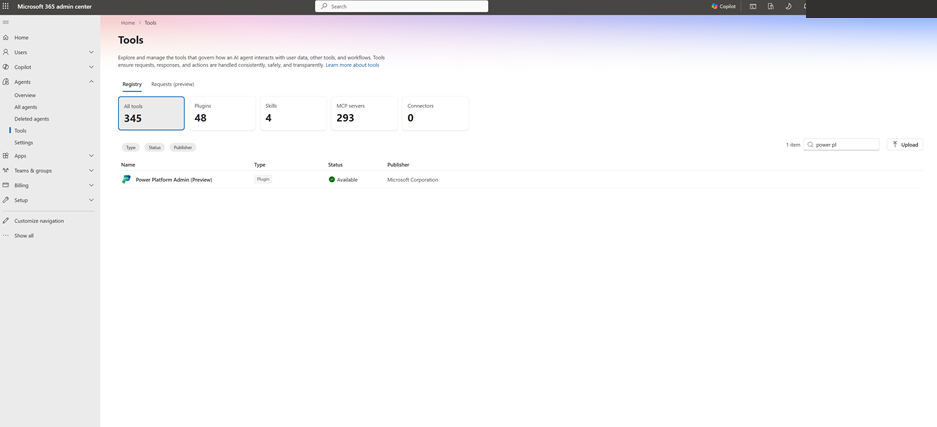
- In the left navigation pane, select Agents > Tools.
- On the Tools page, select the Registry tab.
- Search for Power Platform Admin and select Power Platform Admin (Preview), published by Microsoft.
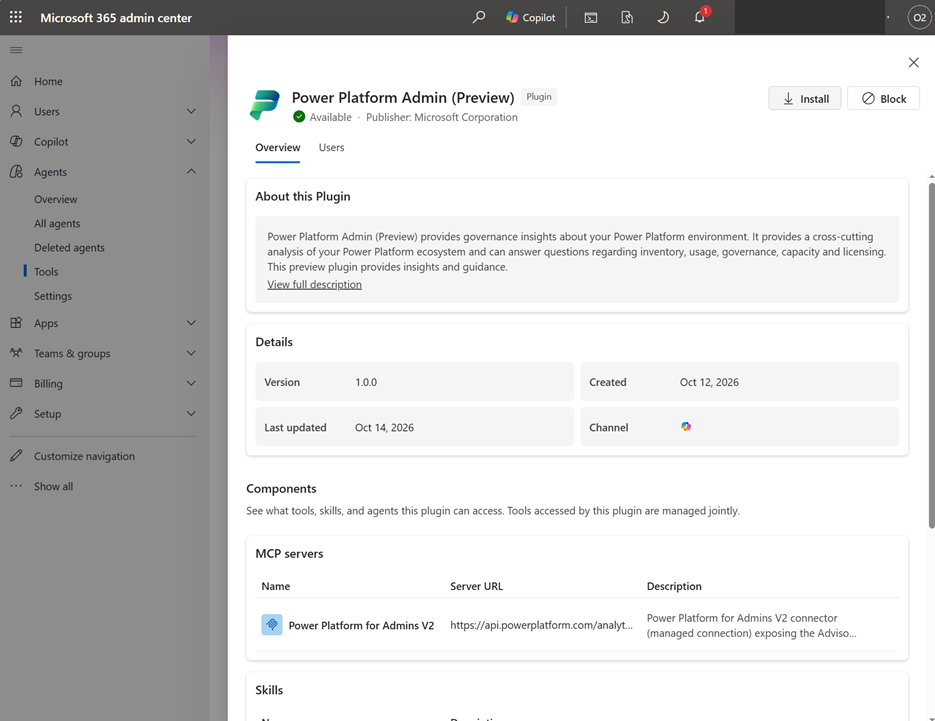
- Review the plugin overview and select Install.
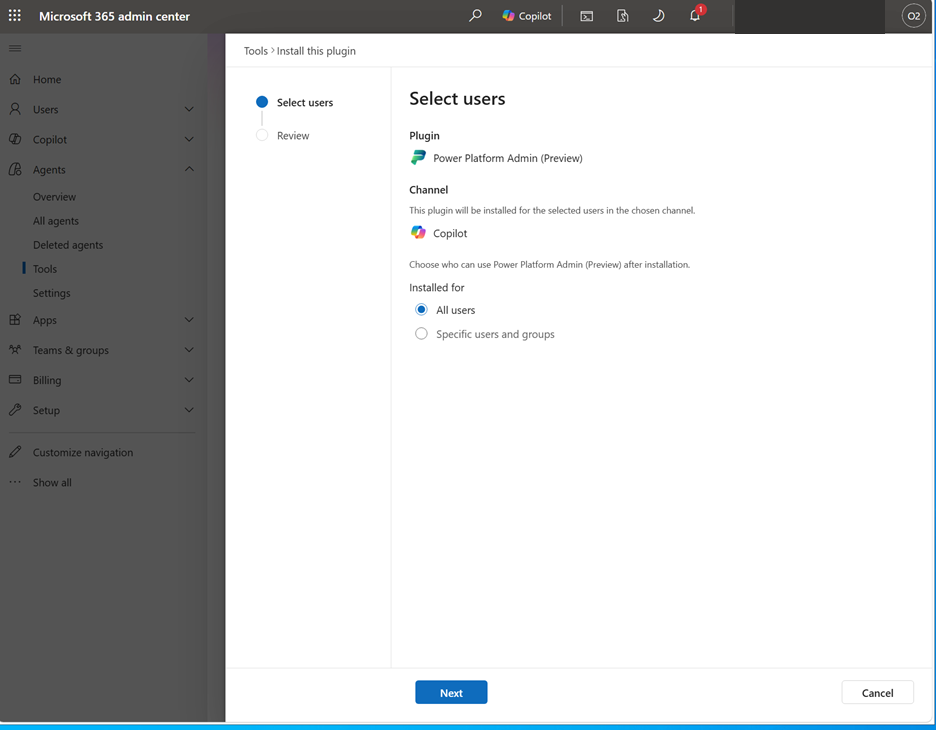
- On the Select users page, confirm that Channel is Copilot.
- Under Installed for, select All users or Specific users and groups. If you select specific users and groups, add them when prompted.
- Select Next.
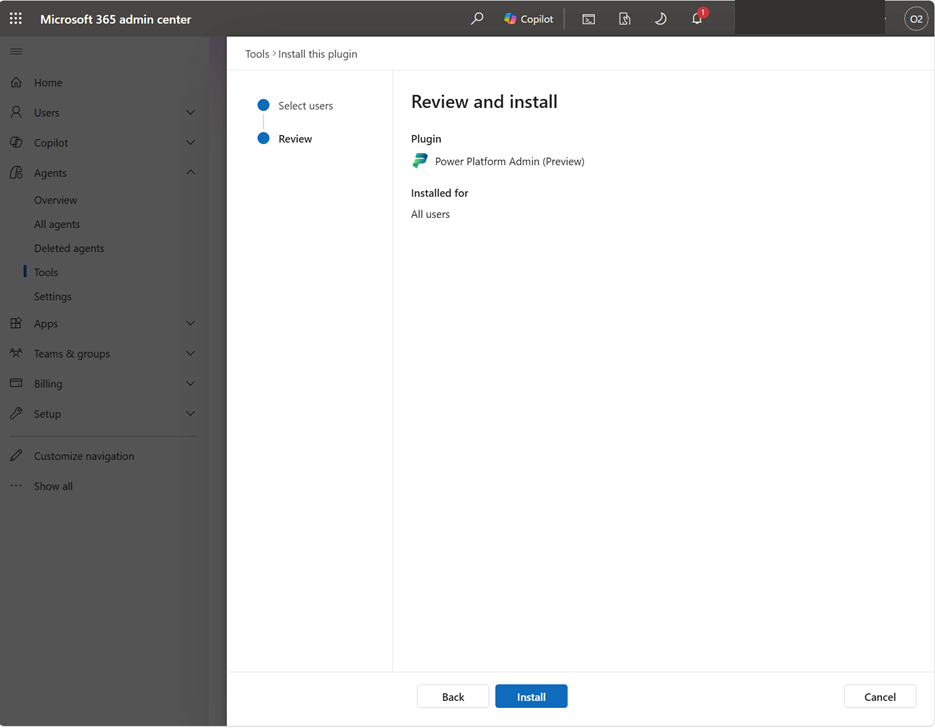
- On the Review and install page, confirm the selected audience and select Install.
Connect the plugin in Cowork
As a user in the installation audience, connect the plugin in Cowork.
- Open Copilot Cowork with your work or school account.
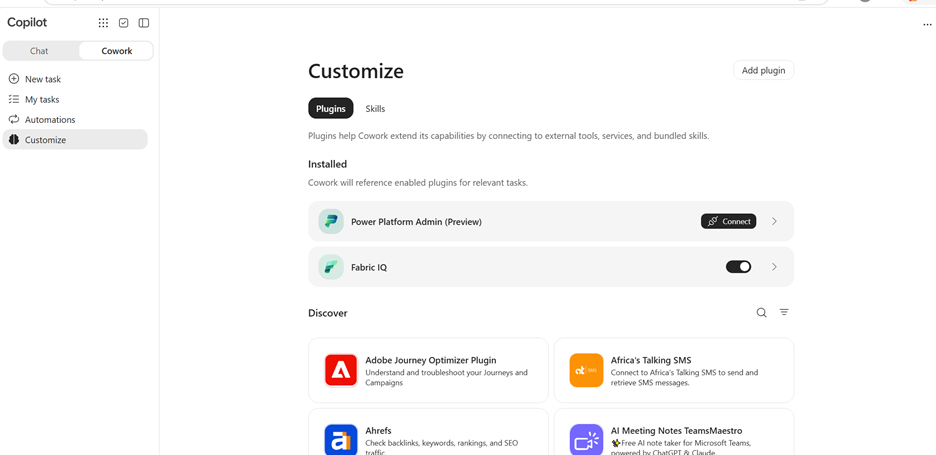
- In Cowork's navigation, select Customize.
- Under Installed, find Power Platform Admin (Preview) and select Connect.
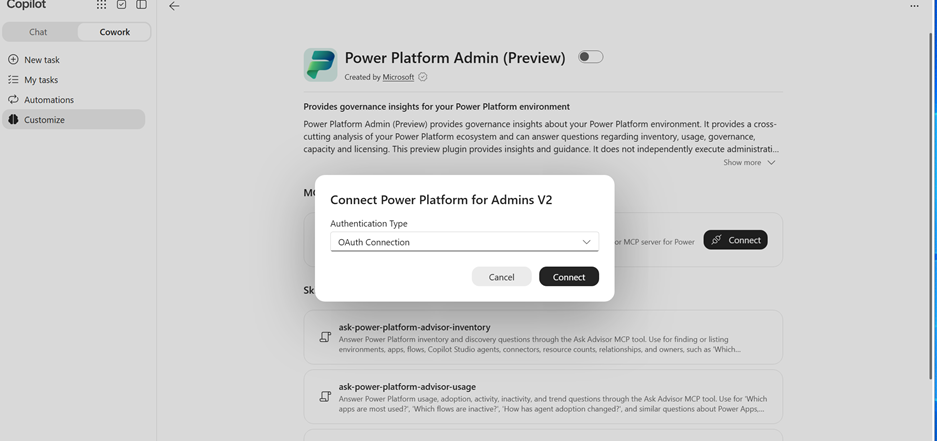
- In the Connect Power Platform for Admins V2 dialog, set Authentication Type to OAuth Connection, then select Connect.
- Sign in with an account that has one of the required roles for data access. Confirm that you're using the account and organization you intend to access before completing consent.
- Return to Cowork after the connection completes.
Important
Don't paste passwords, access tokens, or client secrets into a conversation.
Ask a question and approve the request
Ask a Power Platform question in Cowork. For example:
Which environments do we have, and what types are they?
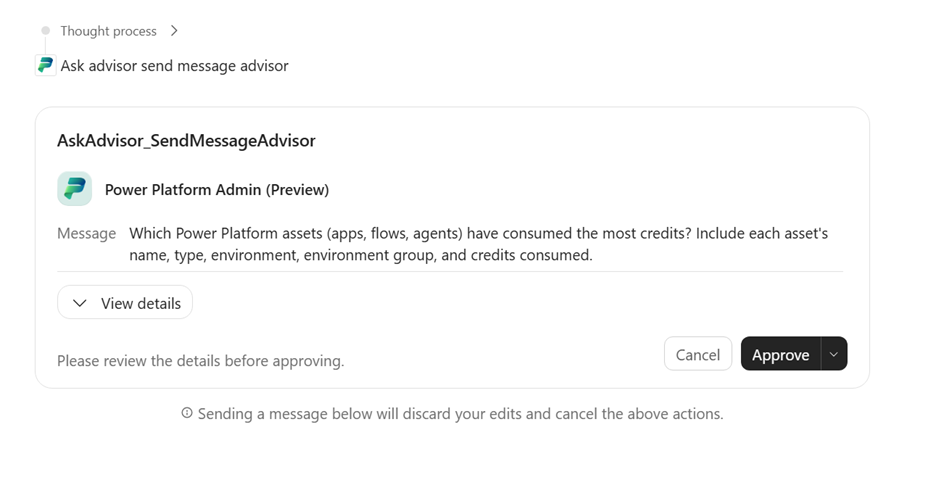
When Cowork displays an Ask Advisor approval card, select View details to review the request, and then select Approve to continue.
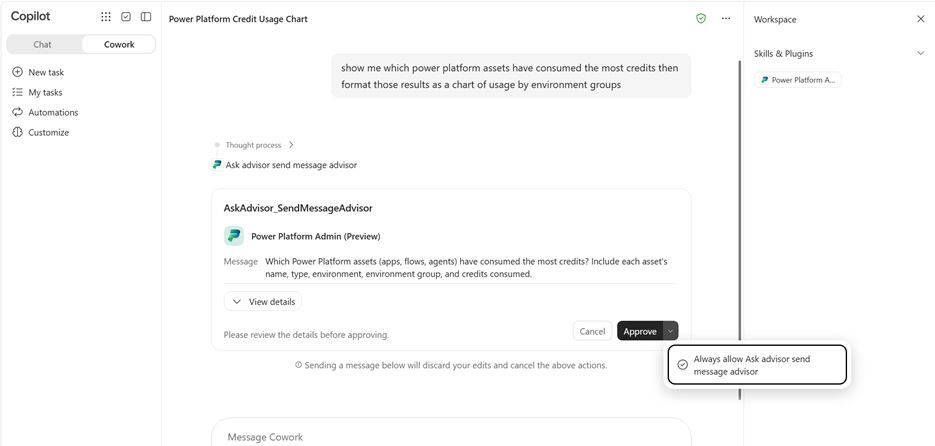
To allow future Ask Advisor send-message requests without a separate approval prompt, open the menu next to Approve and select Always allow Ask advisor send message advisor. Choose this option only if you want Cowork to remember this approval for future requests.
You can then ask about a named environment, resource, or reporting period. For example:
| Topic | Example question |
|---|---|
| Inventory | Which apps belong to the Finance environment? |
| Usage | Which apps had the most usage last month? |
| Governance | Which resources have ownership or sharing concerns? |
| Capacity | Where is Power Platform capacity being consumed? |
| Licensing | Which licensing considerations apply to this scenario? |
Troubleshooting
| Problem | What to do |
|---|---|
| You can't install the plugin | Ask your Microsoft 365 administrator to confirm that your account is included in the install audience and that the Copilot channel is selected. |
| The plugin is installed, but you can't access Power Platform data | Confirm that the account used for the Power Platform for Admins V2 connection has the Global Administrator, Power Platform Administrator, or Dynamics 365 Administrator role in the intended organization. Plugin installation alone doesn't grant data access. |
| The plugin doesn't appear under Installed in Cowork Customize | Ask your Microsoft 365 administrator to confirm that your account was included in the installation audience. |
| The plugin is installed, but Cowork is unavailable | Ask your administrator to check Cowork access separately. Installing the plugin doesn't grant access to Cowork. |
| Cowork asks you to connect | Complete the Power Platform for Admins V2 OAuth connection, then ask your question again. |
| The connection is ready, but Ask Advisor is unavailable | Report the problem through support. Include the plugin name and the error, but no credentials. |
| The account or organization is wrong | Stop before asking for tenant information. Use the connection settings to select or establish the intended connection. If the controls are unclear, ask your administrator or support for help. |
| A request takes longer than expected | Allow the active request to complete. If Cowork can't confirm the answer, include the returned conversation ID in your support request, if one is provided. |
Disable the plugin or disconnect your account
To disable the plugin for your conversations, open Customize, select Power Platform Admin (Preview), and turn off its switch. Users can't uninstall an admin-installed plugin. Contact your Microsoft 365 administrator to have the plugin removed from your account.
To disconnect your account, open the connection settings for Power Platform for Admins V2 and remove the connection. If you can't find a disconnect or removal control, contact your administrator or support for instructions.
Get help and support
For account access or plugin availability, contact your organization's administrator first.
For Power Platform assistance, use Microsoft Support in the Power Platform admin center. The support guide explains the required roles and support plans. You can access self-help resources without a support plan. You need an active support plan to create a support request.
When reporting a plugin issue, include:
- The plugin name, Power Platform Admin (Preview).
- The Copilot experience in which the issue occurred, such as Cowork.
- The time of the issue and the steps you followed.
- Any error message or conversation ID.
Don't include passwords, access tokens, or secrets.