Note
Access to this page requires authorization. You can try signing in or changing directories.
Access to this page requires authorization. You can try changing directories.
This architecture pattern addresses a common challenge with Microsoft Dataverse and SharePoint integrations. Dataverse enforces record-level security, but those permissions don't automatically apply to documents stored in SharePoint. This architecture pattern uses restricted SharePoint navigation and restricted document discoverability. These safeguards guide users to open SharePoint documents through the application experience and reduce the risk of oversharing.
Tip
This article provides an example scenario and a visual representation of how to reduce access to SharePoint documents outside a user's Dataverse permissions when using the native SharePoint integration. This solution is a generalized example architecture, which can be used for many different scenarios and industries. This article is limited to best practices.
Architecture diagram
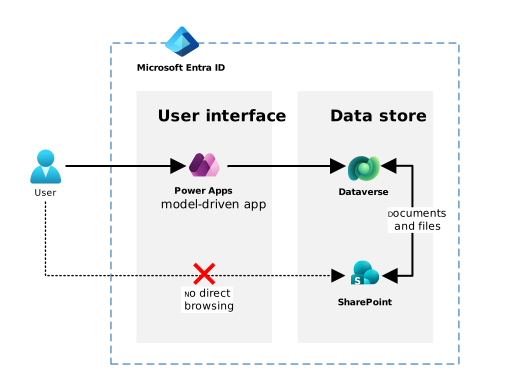
Workflow
The following workflow describes how this pattern structures and governs access to natively integrated SharePoint sites to better align document access with Dataverse role-based access controls (RBAC) and record‑level entitlements.
By restricting navigation and disabling discovery mechanisms, this pattern significantly reduces the risk of users accessing documents associated with Dataverse records for which they don't have authorization, while still preserving a seamless in‑application document experience.
Prepare access and environments
Configure access management
Review how the organization currently manages access to the Dataverse environment and the associated SharePoint site.
Use Entra ID security groups to manage access to the Dataverse environment and associated SharePoint documents. Learn more in Manage Microsoft Entra groups and group membership.
Prepare the Dataverse environment and SharePoint site
Ensure the Dataverse environment is restricted to the appropriate security group. Learn more in Control user access to environments with security groups and licenses.
Apply Managed environments, if required, for governance.
Grant users access to the environment.
If a dedicated site doesn't already exist, provision a SharePoint team site for the workload's working documents. This step creates a default Microsoft 365 group and SharePoint groups.
Configure SharePoint access and discoverability
Create a new permission level.
Apply the following list permissions:
- Add items
- Edit items
- Delete items
- View items (required)
- Open items (required)
- View versions
Apply the following site permissions:
- View pages (required)
- Open (required)
Ensure the site permission Browse directories is off.
Users with this permission level can't browse parent folders or navigate the site hierarchy. They can still add, edit, or open items from the Dynamics 365 app or custom model-driven app. This restriction makes documents that belong to other records harder to discover. Learn how to create and edit permission levels and about permission levels in SharePoint.
Under advanced permissions, create a site group and assign the new permission level to it. Learn how to customize SharePoint site permissions.
Grant the workload security group site access under the new SharePoint group.
Disable SharePoint search within the site. This setting prevents users (or Copilot) from locating content outside Dataverse's context. Learn more in Enable content on a site to be searchable.
Optionally, restrict Copilot from finding and serving up content from the site. Learn more in Restrict discovery of SharePoint sites and content.
Optionally, preserve elevated access for specific roles by adding users to the SharePoint "Members" or "Owners" site groups. This step is useful for those who require full document visibility across all records, and who need to navigate the SharePoint folder structure, such as executives or oversight units. Don't delete the default groups. Deleting them might make the system unstable.
Enable SharePoint integration in Dataverse
Enable SharePoint integration to connect the SharePoint site with the Dataverse environment. Learn more in Set up SharePoint integration.
Enable SharePoint document management for selected Dataverse tables, as required. For example, Accounts, Cases, Projects, Applications, Complaints, custom tables, and more.
Ensure users have appropriate Dataverse permissions for SharePoint Document and Document Location records. Learn more in Permissions required for document management tasks.
Users access files entirely through the Dynamics 365 app or Power Apps model-driven app interface. They open files through forms, subgrids, or buttons in the application. They don't go to SharePoint directly.
Optional enhancements
Add Conditional Access or app-enforced restrictions as extra safeguards, such as web-only or limited download for unmanaged devices. Learn more about Conditional Access.
Monitor usage through SharePoint and Purview audit logs to detect unexpected access patterns. Learn about auditing solutions in Microsoft Purview.
Components
Dataverse: Acts as the core application platform and enforces record‑level access control through RBAC. Dataverse provides the security model, table structure, and application surface that users interact with when accessing documents.
Power Apps model‑driven apps: Provides the controlled, guided interface through which users view and manage Dataverse records and the associated SharePoint documents. Users access documents through the application instead of browsing SharePoint without restrictions.
Entra ID: Used for identity management and security groups. Entra ID Security Groups are used to define which users are permitted to access the Dataverse environment and the associated SharePoint site. These groups create alignment between environment access and site access.
SharePoint Online: Serves as the document storage layer for tables enabled for native document management. SharePoint's role in this pattern includes:
- Hosting Dataverse‑generated document locations for each record
- Restricting site access to the workload's Entra ID security group(s)
- Removing or disabling site navigation paths
- Disabling site and library search
Microsoft Purview (Optional): Provides auditing, access logging, and data governance capabilities where required for compliance or operational oversight.
Scenario details
Organizations building business applications on Microsoft Power Platform or Dynamics 365 frequently rely on native SharePoint document management to store and manage files associated with Dataverse records.
Business challenge
While the native Dataverse and SharePoint integration provides strong usability benefits, it also introduces a well‑known architectural challenge: SharePoint's permission model doesn't automatically align with Dataverse's record‑level security (RBAC).
In common scenarios like case management, complaint handling, approvals, projects, investigations, grant applications, and regulatory workflows, each user group can access only specific records. Dataverse uses granular role-based access control (RBAC) to enforce these permissions. However, users who go to the associated SharePoint site can often access folders or files for records that Dataverse security prevents them from viewing in the app.
This misalignment creates several problems:
Unintended data exposure: Users might inadvertently browse or search into document libraries associated with other teams or business units.
Oversharing risk: Users who should only see documents through the Dataverse form might discover documents via parent folders, "recent" lists, or SharePoint search.
Operational complexity of alternatives:
Per‑item Access Control List (ACL) automation requires inheritance breaking, Microsoft Graph automation, and managing access at scale, creating significant operational overhead.
Multi‑site segregation, such as one site per team or business unit, adds heavy administrative and Application Lifecycle Management (ALM) complexity.
Third‑party vendors attract additional licensing costs and often require privileged access, which might not meet compliance requirements, especially for government organizations.
Proposed solution
The controlled SharePoint document access pattern offers a practical middle path. Rather than attempting to replicate Dataverse RBAC at the file or folder level, this architecture limits SharePoint discoverability and constrains navigation paths, while preserving the native document-management experience from within Dataverse and Power Apps/Dynamics 365. By restricting site access to workload security groups, removing navigational elements, disabling site and library search, and allowing users to reach documents primarily through Dataverse-generated URLs, the architecture effectively "contains" SharePoint within the workload boundary. Dataverse RBAC governs access to records and their document links, while SharePoint permissions govern direct access to the documents.
When to use this pattern
This pattern is particularly valuable when:
The organization accepts a risk‑managed approach where discoverability, rather than authorization, is the primary concern.
The business requires a familiar, collaborative SharePoint experience without maintaining per‑record ACLs.
Simplicity, maintainability, and predictable operations are preferred over highly customized security automation.
Regulatory requirements focus on reducing inadvertent access, maintaining audit trails, and ensuring appropriate oversight rather than strict per‑item enforcement.
This pattern directs users to open documents through Dataverse instead of navigating directly to the site. It reduces unintended cross-record access while preserving the seamless SharePoint document management experience that customers expect.
This simple, repeatable architecture supports governance for government agencies, enterprises, and regulated industries that require extra guardrails. It avoids unsupported or complex security constructs and balances usability, cost, and security. The architecture uses discoverability controls to manage general document access instead of strict enforcement at the file level.
When to consider an alternative approach
This pattern isn't suitable where strict file-level security is required for compliance reasons. While the pattern reduces inadvertent access through discoverability controls, it doesn't prevent intentional or malicious access if URLs are shared. Organizations requiring guaranteed file-level isolation should implement per-item ACLs or alternative segregation patterns.
Considerations
These considerations implement the pillars of Power Platform Well-Architected, a set of guiding tenets that improve the quality of a workload. Learn more in Microsoft Power Platform Well-Architected.
Reliability
Design the workload to avoid unnecessary complexity: This architecture pattern avoids fragile per‑item ACL automation, inheritance‑breaking, and complex integrations. It keeps document access behavior simple, predictable, and aligned to supported platform capabilities.
Implement structured, tested, and documented BCDR: Since the architecture uses only Dataverse and SharePoint Online, it inherits Microsoft's native (and documented) geo‑redundancy, backup, and restore capabilities without requiring custom business continuity and disaster recovery processes.
Security
Establish a security baseline aligned with platform guidance: Using a dedicated Entra ID security group as the single access boundary for both the environment and SharePoint site provides a clear, consistent baseline for identity‑driven access.
Create intentional segmentation and perimeters: Restricting SharePoint site access to workload security groups—and removing navigation and search capabilities—establishes a clear perimeter that limits discovery of documents outside their Dataverse context. A user who gets a link can access the file if they belong to the SharePoint site's security group. The intent of this pattern isn't to enforce security at the SharePoint item level. Instead, it uses a simple design to provide additional safeguards. The pattern makes this tradeoff intentionally.
Implement strict, conditional, and auditable Identity and Access Management (IAM): All access is identity‑based through Entra ID and auditable through Dataverse and SharePoint logging. This setup supports transparency and enables organizations to monitor unexpected access patterns.
Operational Excellence
Formalize routine operational tasks using platform capabilities: The pattern avoids custom automation, relying instead on native Dataverse and SharePoint behaviors. This approach simplifies operations and reduces manual intervention.
Centralize identity and access management: All permissions flow through Entra ID groups. Organizations can use access reviews, lifecycle governance, and existing enterprise processes without introducing custom role logic.
Performance Efficiency
Select the right services to meet performance expectations: The architecture uses Dataverse for structured business data and SharePoint for document storage, leveraging each service for its intended purpose with no additional processing layers.
Optimize logic by offloading responsibilities to the platform: Dataverse and SharePoint handle document access and rendering, ensuring minimal latency and leveraging Dataverse's optimized file handling pipeline.
Experience Optimization
Implement a consistent information architecture: By removing SharePoint navigation options and relying on Dataverse record‑contextual document views, users experience a consistent and predictable information structure.
Prioritize ease of use and reduce cognitive load: Users access documents only from within the Dataverse form associated with their record, minimizing confusion and preventing exposure to unrelated files.
Contributors
Microsoft maintains this article. The following contributors wrote this article.
Principal authors:
- Jared Pritchard, Solution Architect
Related resources
- Create and edit permission levels in SharePoint
- Permission levels in SharePoint
- SharePoint site permissions
- Set up SharePoint integration in Dataverse
- Enable SharePoint document management for specific entities
- Permissions required for SharePoint document management tasks in Dataverse
- Connect to and manage Microsoft Dataverse in Microsoft Purview