Note
Access to this page requires authorization. You can try signing in or changing directories.
Access to this page requires authorization. You can try changing directories.
Note
Starburst owns and provides this connector.
This article documents Starburst (DataSourceKind: StarburstPresto). For Starburst secured by Microsoft Entra ID (DataSourceKind: StarburstAad), including Microsoft Entra ID single sign-on for DirectQuery, see Starburst secured by Entra ID.
Summary
| Property | Value |
|---|---|
| Connector |  Starburst Starburst |
| Products | Power BI (semantic models) Power Query Online |
| Release state | General availability |
| Category | Other |
| Authentication kinds | Access Token (JWT) Kerberos OAuth Password |
| Data source kind | StarburstPresto |
| Function Reference Documentation | StarburstPresto.Contents |
| Support link | Support |
Note
Some capabilities might be present in one product but not others, due to deployment schedules and host-specific capabilities.
Prerequisites
- The most recent version of Power BI Desktop. Microsoft added the original Starburst connector to Power BI Desktop in October 2023, so any release from that date onward includes it. Always use the latest Power BI Desktop release to get current connector updates.
- The Starburst ODBC driver, installed on the same computer as Power BI Desktop. The version 3 driver is recommended. If you use the version 2 driver, it must be 2.0.15.1021 or later.
- For Power Query Online or refresh in the Power BI service, an on-premises data gateway with the Starburst ODBC driver installed on the gateway computer.
Supported capabilities
- Import
- DirectQuery (Power BI semantic models)
- Native (custom) SQL queries
- Advanced connection options:
- Role
- Catalog
- Use system proxy
- Connection string
- Native query
Parameters
Entry point: StarburstPresto.Contents
Required parameter count: 2
| Parameter | Display name | Required | Type | Group | Description | Sample values | Nullable |
|---|---|---|---|---|---|---|---|
| Host | Host | Yes | text | The hostname of the Starburst server. | "starburst.mydomain.com, mydomain-cluster.trino.galaxy.starburst.io" | false | |
| Port | Port | Yes | number | The port the server is running on. | 443 | false | |
| options | Advanced options | No | nullable record | Advanced options | true |
Fields in options
| Field | Display name | Required | Type | Group | Description | Declared default | Allowed values | Sample values | Nullable | Optional | Declared allowed values |
|---|---|---|---|---|---|---|---|---|---|---|---|
| options.Role | Role | No | text | Advanced options | Enter the system role. | "" | "public" | false | true | ||
| options.Catalog | Catalog | No | text | Advanced options | Specify a catalog name to enable native queries or to restrict the Navigator dialog to loading objects from only one catalog. | "" | "tpch" | false | true | ||
| options.UseSystemProxy | Use system proxy | No | text | Advanced options | When enabled, system proxy settings (if defined) will be used. | "No (default)"; "Yes" | false | true | ["No (default)", "Yes"] | ||
| options.ExtraConnectionString | Connection string (non-credential properties) | No | text | Advanced options | For non-credential properties only. Use the credential dialog box to provide security-related properties, such as Username and Password. | "" | "AllowSelfSignedServerCert=1;Min_TLS=1.2" | false | true |
Connect from Power Query Desktop
From the Home ribbon, select Get Data. Search for
Starburst, select the connector documented in this article, and then select Connect`. (See choose which Starburst connector to use for more information.)In the connection dialog, enter your Starburst cluster Host and Port`. For Starburst Galaxy, append the OAuth reference string to the host name as documented by Starburst.
Optionally expand Advanced options and set any of Role, Catalog, Use system proxy, Connection string, or Native query.
Select DirectQuery or Import for the data connectivity mode, and then select OK.
Select an authentication type, enter your credentials, and select Connect.
In Navigator, select the catalogs and tables you want, and then select Load or Transform Data.
Connect from Power Query Online
For Power Query Online, you connect through the on-premises data gateway.
From the Power BI service or Fabric, select Settings > Manage connections and gateways, then select + New.
Select On-premises and the gateway cluster that has the Starburst ODBC driver installed.
For Connection type, select the connector documented in this article.
Enter the connection details and authentication credentials, then select Create.
Map your semantic model's data source to the new connection in the dataset settings.
Additional information
Choose which connector to use
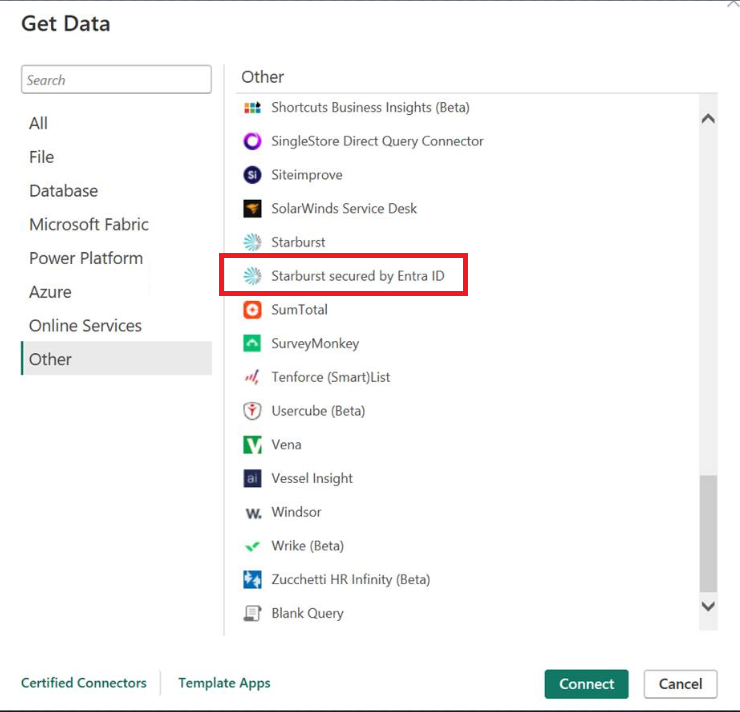
Two Starburst connectors appear in the Get Data dialog:
- Starburst. The original Starburst connector. Use this connector unless you need Microsoft Entra ID SSO for DirectQuery.
- Starburst secured by Microsoft Entra ID. A separate connector that adds Microsoft Entra ID as an authentication option for DirectQuery SSO. Use this connector for new reports where you want each viewer's Microsoft Entra ID identity to flow end-to-end to Starburst. To enable, see Enable Microsoft Entra ID single sign-on for DirectQuery.
Tip
Existing reports that use the original Starburst connector don't need to migrate. Switch to Starburst secured by Microsoft Entra ID only if you need Microsoft Entra ID SSO.
Authentication
The Starburst connector supports these authentication types. Choose the type that matches how your Starburst cluster is configured:
Kerberos
Select Windows as the authentication type. The cluster must be configured for Kerberos authentication, and Power BI Desktop must run in a domain with a valid Kerberos ticket. Run kinit if you need to obtain a ticket interactively.
Password
Select Basic as the authentication type and enter your Starburst username and password. The cluster must be configured to accept password authentication.
Access token
Select Web API as the authentication type and paste a personal JSON Web Token (JWT) issued by your Starburst administrator. The cluster must be configured to accept JWT authentication.
OAuth 2.0
Select Organizational account as the authentication type, then select Sign in. Power Query opens the OAuth sign-in page configured on your Starburst cluster.
Starburst Enterprise Platform (SEP) and Starburst Galaxy require server-side OAuth 2.0 setup before this option works. For setup instructions, see the Starburst documentation.
Microsoft Entra ID
This authentication type is available only in the Starburst secured by Entra ID connector. For setup and prerequisites, see Enable Microsoft Entra ID single sign-on for DirectQuery.
Limitations and considerations
- Existing semantic models that use the original Starburst connector continue to work and don't need to migrate.
- Microsoft Entra ID single sign-on for DirectQuery requires Starburst secured by Entra ID.