Note
Access to this page requires authorization. You can try signing in or changing directories.
Access to this page requires authorization. You can try changing directories.
The Recents & My Queries module in Dataflow Gen2 brings together recently used data items, favorites, and your personal library of saved Power Query queries. Use it to return to a table, folder, or other item you used before, or to reuse query logic without starting from the connector list.
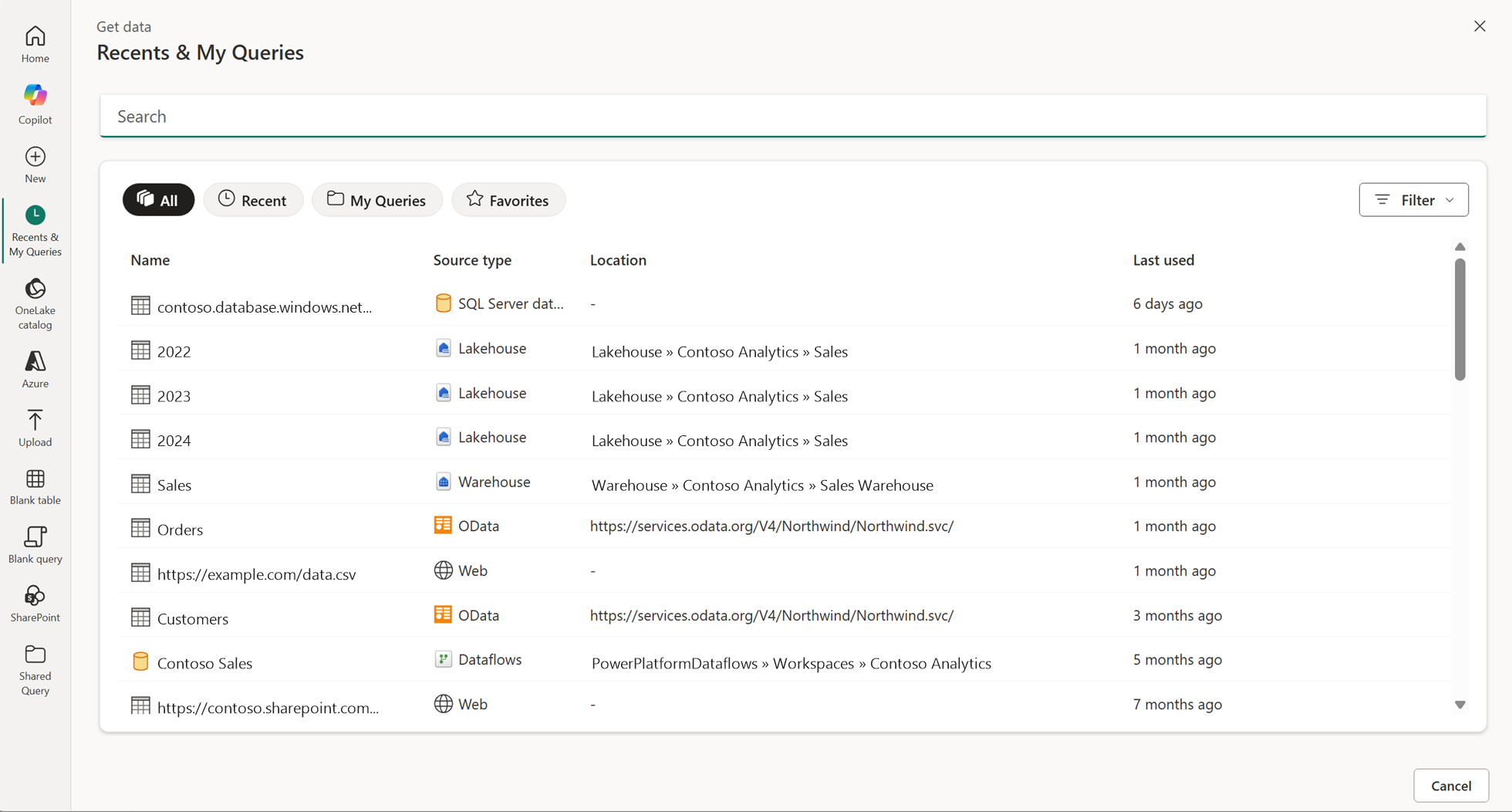
The source names, workspace names, and private addresses in these screenshots have been replaced with fictional examples.
Choose a view
Use the controls above the list to choose which items to display.
| View | When to use it |
|---|---|
| All | Browse the combined list when you aren't sure which category contains an item. |
| Recent | Return to recently used items. Queries saved to My Queries also appear in recent items. |
| My Queries | Browse query scripts you saved to your personal library for reuse across dataflows. |
| Favorites | Find items you marked as favorites. |
The list shows each item's Name, Source type, Location, and Last used information. Use Search to find an item, or open Filter to see the available filtering options.
Connect to a recent item
- Open Get data, and then select Recents & My Queries.
- Select Recent, or use All to browse the combined list.
- Locate the item by its name, source type, or location.
- Open the item's ellipsis (...) menu and select Connect.
- Complete any connection or authentication steps required by the source.
Recent items can include tables, sheets, databases, schemas, folders, views, and functions from supported sources. Connecting to a recent item brings it into the editor; it doesn't copy another dataflow's entire definition or destination settings.
Browse neighboring tables or files
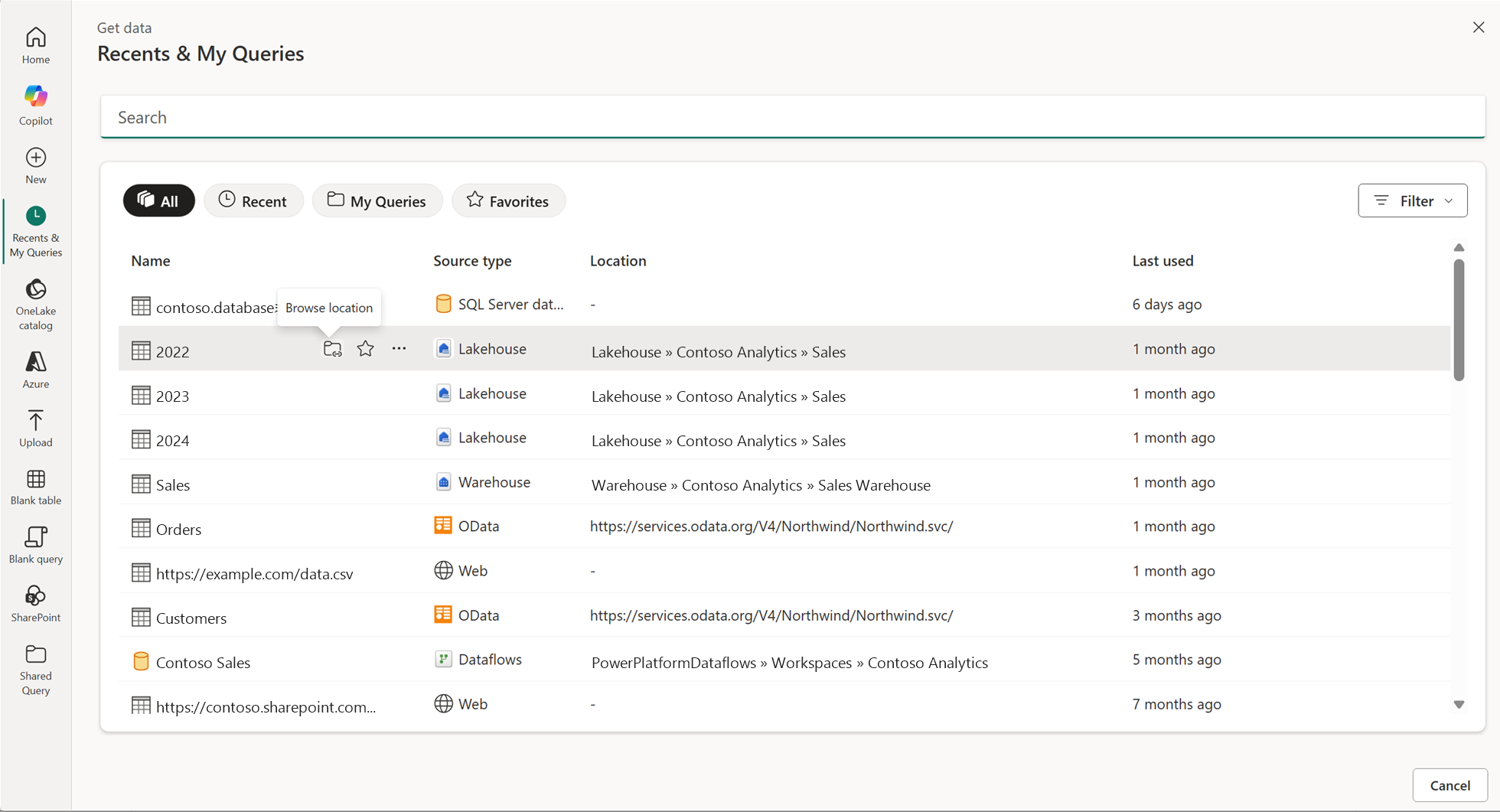
Use Browse location when you want data near a recent item rather than that exact item. For example, return to a database location to choose another table, or a folder to choose another file.
- Select Browse location on the recent item's row.
- Review the other items available in that location.
- Select the items you need. Each selected item creates a query in the Power Query editor.
For supported recent-item types and the ribbon's separate Recent data entry point, see Use recent data in Dataflow Gen2.
Use item actions
Hover over a row to see its available actions. The following example shows the Browse location icon, the star icon for favorites, and the ellipsis menu.
| Action | Purpose |
|---|---|
| Browse location | Open the item's source location to browse for data there. Use this action when you want to explore the location rather than reconnect directly to the listed item. |
| Favorite | Mark an item so you can find it in the Favorites view. Use the row's star icon or the Favorite menu command. |
| Connect | Start connecting to the selected item. |
| Remove from recent | Remove an entry from the recent list. This action doesn't delete the underlying source data or delete a saved query from My Queries. |
| Copy path to clipboard | Copy the item's path so you can paste it elsewhere. |
Available actions depend on the item. The following menu shows the actions for an OData entry.

Keep frequently used items in Favorites
Use favorites when you repeatedly return to the same sources and don't want to locate them in a longer recent list.
- Find the item in All or Recent.
- Hover over the row and select the star icon, or open its ellipsis menu and select Favorite.
- Select Favorites above the list to find your favorited items.
- Use the item's available actions to connect to it or browse its location.
Favoriting an item doesn't grant access to its data. You still need the source permissions and credentials required to connect.
If a recent item no longer connects
Confirm that you can still access the source, and check whether the item was moved or renamed. A recent-list entry isn't a copy of the source data. If needed, browse the location again or create a connection through New data source.
Save and reuse personal queries
My Queries is your personal library of query logic. It isn't the list of queries shared by other authors, and marking a source as a favorite doesn't save its query script to My Queries.
To save or import personal queries, open a Dataflow Gen2 that you can edit.
Add a query to My Queries
- In the Power Query editor, right-click the query in the Queries pane.
- Select Add to My Queries.
- Wait for the notification confirming that the query was saved. The notification identifies the name used in your personal library.
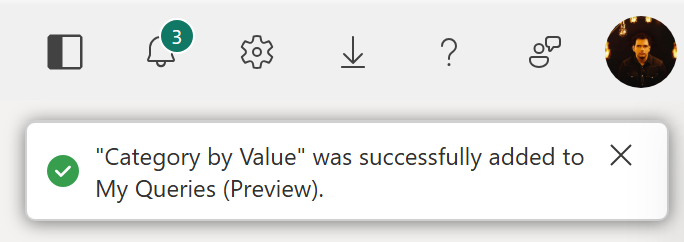
If a saved query already has that name, Power Query appends a numeric value to create a unique name.
Import a query from My Queries
- Open Get data, and then select Recents & My Queries.
- Select the My Queries filter.
- Select a saved query to import its M code into your current dataflow.
- Configure any required connections and data destinations.

Note
My Queries saves only the query's M code, not its credentials, query attributes, or data destination settings. Saving a query to My Queries doesn't share it with other people.
Personal library considerations
- The My Queries view shows only the latest 50 queries, ordered by last-used timestamp from newest to oldest.
- You can't delete saved queries from the My Queries view. Remove from recent isn't a personal-library delete command.
- Queries saved to My Queries also appear in recent items.
- The first time you save a query, a folder named My Queries is created in My workspace. Dataflow Gen2 items in that folder store your saved queries.
To browse queries shared by other authors, use the separate Shared Query module.
To enable sharing for a query or provide a link to its results, see Share queries with other people in Dataflow Gen2.
Other Power Query Online integrations might show a Recent module with recently used data sources, without the personal query library.