Note
Access to this page requires authorization. You can try signing in or changing directories.
Access to this page requires authorization. You can try changing directories.
The SharePoint app in Teams can showcase essential job tasks, news and announcement, personalized content - across web, desktop, and mobile. Beyond content and information, it can be customized to fit your organization’s brand and the needs of your end users. This article first focuses on configuring the banner, dashboard content, and resource links. Then, learn how to publish news and announcements. Last, learn how to manage access and permissions.
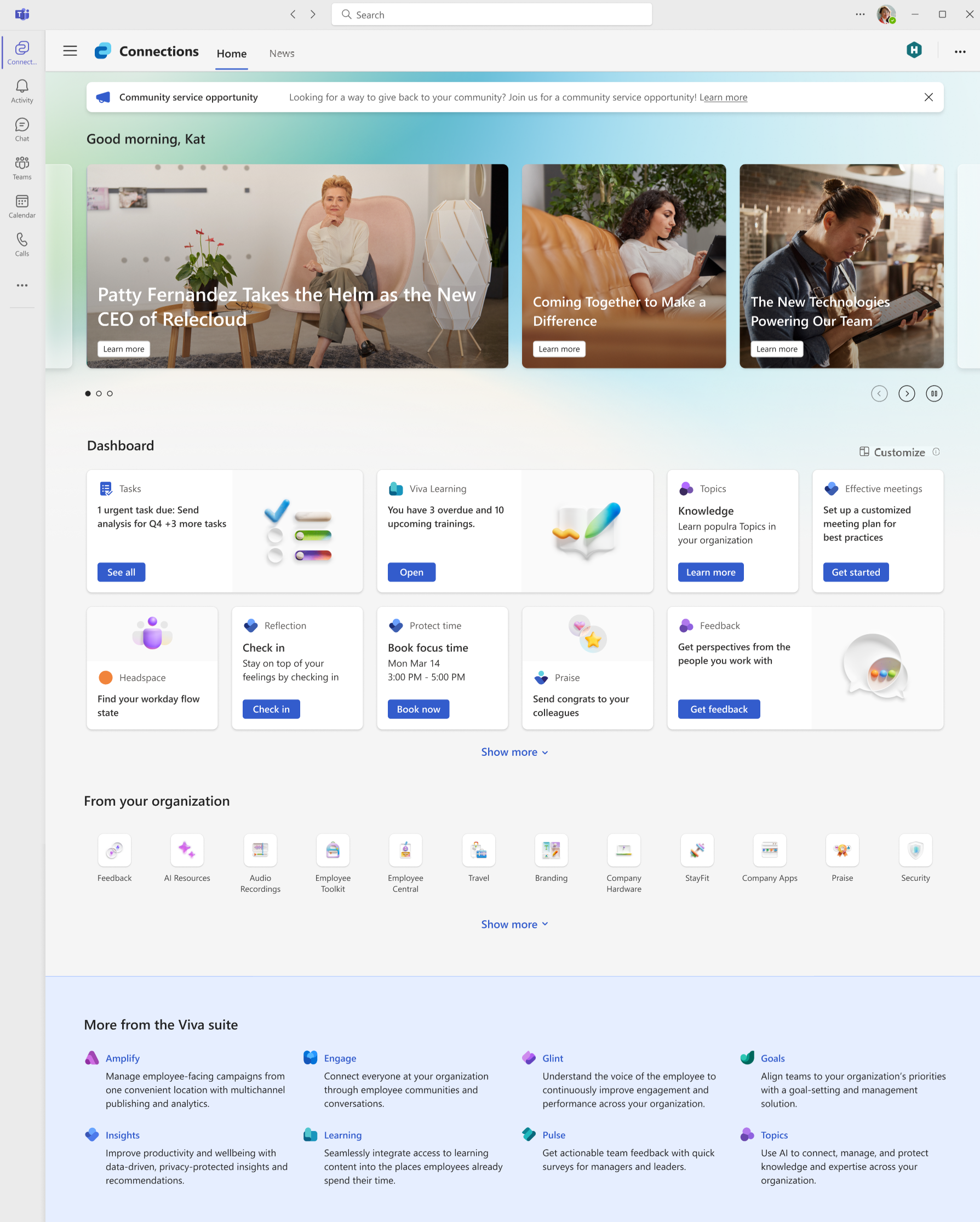
Announcements: Announcements from the organization display at the top of the SharePoint app in Teams experience and convey time-sensitive information to users.
News: SharePoint news can come from organizational sites, boosted news, the user’s followed sites, frequent sites, and articles published by people the user works with in an immersive reader experience. It also includes the option for users to request an AI generated news summary, powered by Copilot, providing a quick overview of all the latest news information.
Dashboard: The Dashboard is your users’s digital toolset. It brings together the tools your users need, enabling quick and easy access whether they are in the office or in the field.
Resources: The Resources web part enables additional navigation to common resources.
Navigational elements: The navigational elements located in the top-right and top-left corners help viewers easily get to-and-from other landing pages.
Change the look: Adjust site logo and site theme to reflect your organizational brand consistently.
Get started customizing the experience
Note
- You must have member level permissions (or higher) to edit the new desktop experience.
- Content for some of these elements can be filtered using audience targeting to create a personalized experience for users in your organization.
How to edit the SharePoint app in Teams experience for the first time
If you already have the SharePoint app in Teams established, editors who have site owner or member permissions to the SharePoint home site can edit and configure the home page. People with member permissions or higher can see Edit buttons in the SharePoint app in Teams.
If you're setting up the SharePoint app in Teams for the first time, you will do this from wihtin the SharePoint home site itself. Site owners control over how the app appears for everyone in their organization — both on mobile and desktop. Review how to configure the SharePoint app in Teams. It is a best practice to assign (at least two) owners and members from this site to give permissions to others so they can edit the experience for the rest of the organization.
How to switch between multiple SharePoint app in Teams experiences
If your organization created multiple SharePoint app in Teams experiences, you can switch between enabled and draft experiences from within the SharePoint app in Teams in order to edit them.
Navigate to the SharePoint app in Teams.
Select the ellipsis in the upper-right.
Then select Switch Experience.
Note
Only users with edit privileges are able to see the Switch Experience option in the menu.
A list of created experiences display along with their status (enabled or draft). Select an Experience to switch to.
Select Switch.
Note
Users are required to have a Microsoft Viva suite or Viva Communications and Communities license in order to create two or more experiences (up to 50). See Microsoft Viva plans and pricing for more info.
Give permission to edit the SharePoint app in Teams
If you're setting up the SharePoint app for Teams for the first time, navigate to the base SharePoint home site to assign owners and members who can edit and configure the experience.
Navigate to the SharePoint app in Teams.
Select the ellipsis in the upper-right.
Then select Manage access.
Select Grant access.
Under Site Access add users and select their level of permission from visitor, member, or owner.
Select Add.
Configure the dashboard and select default cards for intended audiences
When you set up the SharePoint app in Teams for the first time, you're asked to choose a set of default cards to create the initial dashboard layout. Default cards can be removed and edited after the initial selection. Default cards include Approvals, Assigned tasks, Shifts, Top news, and Viva Learning. For more information on available dashboard cards and their properties, see the article on available dashboard cards
By default, cards will already be on the dashboard and require minimal setup. Edit and preview the dashboard until you're ready to share with others. To edit existing cards, select the pencil icon to Edit the card. In the property pane that opens to the right of your experience, choose your card size from the Card size drop-down list.
In addition to the core set of dashboard cards, cards from partner solutions can be added to the card toolbox from the SharePoint store. Learn more about partner cards and how to request them. Additionally, customers can create custom cards by using the SharePoint Framework (SPFx) to create Adaptive Card Extensions (ACEs). Learn more about this framework and view the ACE solution gallery.
After creating or editing cards on the Dashboard, make sure you preview the experience for each audience. Select Preview in the top-right corner of the editing experience, then choose to preview the desktop or mobile view. What you see in preview mode approximates how the Dashboard displays for certain audiences and devices.
You can also apply Audience targeting so cards are filtered to specific roles, regions, or departments. Learn more about audience targeting. When you apply audience targeting to cards, you can preview how different people view the Dashboard depending on the audience or device.
Customize the app icon and label in the Teams app bar
Note
The SharePoint app in Teams is part of the tailored apps experience. Frontline users who see the tailored app experience have the SharePoint app in Teams pinned in the first position in the Teams left-side app bar on both mobile and desktop.
If you don’t want the app prepinned, either turn off tailored apps for frontline workers, change the app settings, or edit how apps in Teams are managed.
Your organization’s SharePoint app in Teams can display a custom icon and label in the Teams app bar. This customization takes place in the Teams admin center, which requires Teams admin permissions or higher. It's recommended that you also apply app settings that prepin and preinstall the app. Doing so makes sure people in your organization can more easily discover the SharePoint app in Teams.
Customize the banner image
Change the banner image in the header and set the focal point for the image. The banner image and focal point are visible across desktop and mobile.
Note
- The greeting is automatically generated and can't be customized.
- Depending on your organization's license type, you might see more dynamic information displayed in the banner.
- The banner image and focal point dynamically resize when viewed via the tablet and mobile app.
To change the banner image:
Start by selecting Edit and then select Change image.
Select the image you’d like to use and then select Reposition.
Once you're satisfied with the focal point, select Set focal point and then Save. There's no draft state for the banner image. It's displayed for all users when you select Save.
Apply a theme
Further customize the visual experience by applying preexisting SharePoint themes or a custom theme to reflect your organizational brand colors consistently across all instances of your desktop, tablet, and mobile experiences. Only users who have permissions to edit the SharePoint app in Teams experience can apply themes.
Note
If you have never selected a theme for your home site, the default SharePoint home site theme is used. Custom and pre existing themes do not apply to dark mode experiences.
Select the ellipsis, then select Change the look.
Select Theme.
Make a selection from the list of available themes.
- Themes from your organization can't be customized.
- SharePoint themes from Microsoft can be customized.
Note
- If an end user has selected dark mode on their desktop, mobile or tablet device, the dashboard and other components render in dark mode with the default color and won't apply the theme colors.
- Dark themes (has the property
isInverted=True), won’t be applied to the mobile experience. If the dark theme is selected, mobile will continue showing the SharePoint app in Teams with the user’s selected mode (light or dark) and the default colors.
Select Save.
The home site color theme reflects automatically in the SharePoint app in Teams experience.
Note
Using accent colors under the app customization feature will only apply to the app icon outline color on the Teams chrome, and won't apply all colors to the SharePoint app in Teams experience. For consistency of theming, it's a best practice to set the accent color same as the theme primary color from SharePoint.
How news is given priority in the News web part
News comes from multiple sources: Home sites, boosted news, news from org news sites, the user’s frequent sites, followed sites, trending sites, and news published by people the user works with. News content from organizational news sites is given priority in the news reader. Boosted and organizational news is put before any team news.
Promote important ‘official’ communications - Use News boost to raise the visibility of crucial news posts from organizational news sites.
Publish from official news sources - Like organizational news sites or SharePoint home sites.
Follow SharePoint sites within your organization – Users will see news posts added to their own News tab made on followed SharePoint sites.
Language and multilingual settings
The SharePoint app in Teams can be set in more than one language. Learn more about how different elements of the experience can be edited to display in more than one language and how to create a multilingual dashboard.
Note
The SharePoint app in Teams applies the users’ SharePoint preferred language but not the Microsoft Teams language setting. However, for the mobile app, the SharePoint app in Teams applies the device settings.
Manage permissions
The permissions model is based on the same permissions in SharePoint. Certain levels of permission grant access to specific editing tools and the ability to manage permissions and sharing.
| Owner | Member | Visitor |
|---|---|---|
| Can edit content in the banner, Dashboard, and Resources. Can add or remove owners, members, and visitors. |
Can edit content in the banner, Dashboard, and Resources. | Visitors are the end users in your organization. They can view and interact with content but can’t edit content or share the page with others. |
- People with member permissions or higher can see the Edit buttons in the SharePoint app in Teams experience.
- People with member permissions or higher can view permissions to the page by navigating to the ellipsis menu in the top-right and selecting Manage permissions.
Reminder: Once permission levels are assigned, people with owner or member permissions can see the Edit buttons in the SharePoint app in Teams experience.
How to add, view, and edit permissions
If you have member permissions or higher, you can view who has permission to view and edit the SharePoint app in Teams experience. Access permissions by navigating to the ellipsis menu (...) in the top-right corner and then select Site permissions.
If you have owner permissions or higher, you can give access to new people and change the roles of the people who already have access. Select Share to give access to new people. Edit the roles of existing people by selecting the drop-down arrow and then select a new role. Changes are applied immediately.
Help end users in your organization learn more
If your organization already has a SharePoint home site and you want to keep it as the landing experience for the SharePoint app in Team, assign is as a SharePoint home site from within the SharePoint admin center. Review how to configure the SharePoint app in Teams.