Note
Access to this page requires authorization. You can try signing in or changing directories.
Access to this page requires authorization. You can try changing directories.
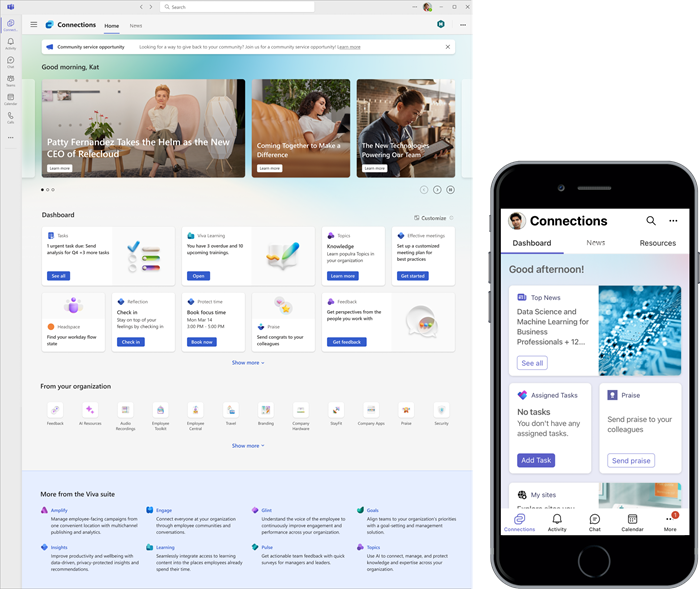
The SharePoint app in Teams, formerly Viva Connections, brings full SharePoint capabilities into Microsoft Teams. It is built on the SharePoint home site technology. A SharePoint home site provides a customized landing experience that reflects the organization’s brand, voice, and priorities. A SharePoint home site also serves as the gateway to other portals in your organization’s intranet. The SharePoint app in Teams is customizable and can be accessed through Microsoft Teams or the web from your desktop, mobile, or table device.
Use the quick guide to set up SharePoint in Teams or get more detailed guidance on how to plan, build, and launch.
The SharePoint app in Teams is:
A user experience app in Microsoft Teams that allows organizations to create unique experiences for different audiences like information workers, frontline workers, educators, researchers, or students.
A gateway to curate specific content and tools by providing easy access to resources, apps, services, relevant news, announcements, and popular destinations.
Built on trusted technology: SharePoint, Teams, and Microsoft Entra.
Easily accessed through the desktop, tablet, or mobile versions of the Microsoft Teams app, or through your company’s SharePoint home site on the Web.
Learn more about Microsoft Viva and Viva licensing.
Primary components of the SharePoint app in Teams
The SharePoint app in Teams is composed of four primary components - News, dashboard, announcements, and resources.
| Component | Description |
|---|---|
| News | The News reader provides users with SharePoint news from across the organizational sites, boosted news, user’s followed sites, frequent sites, and people the user works with. Users can easily Like interesting news and Save content for later. Users with a Microsoft 365 Copilot license can access a Copilot powered news summary from the desktop version of Microsoft Teams. For more information on News, see the article on the news in the ShaerPoint app in Teams |
| Dashboard | The dashboard is your user's digital toolset that brings together the resources your users need whether they are in the office or in the field. The dashboard uses dynamic (adaptive) cards that users can interact with to do things like clock in for a shift, access training materials, review paystub information, or book a shuttle. It can also be used as a web part on SharePoint home sites. For more information on customizing the dashboard, see the article on creating and editing a dashboard. |
| Resources | The Resources web part enables way finding across popular destinations. Organizations can curate a list of useful links that appear to users such as health benefits, important forms, and department websites. |
| Announcements | The Announcements web part display short messages for important communications in your Home site, typically at the top of the page. Announcements are created first and then displayed using this web part. This web part is available only in SharePoint home sites. |
Since the SharePoint app in Teams is based on the SharePoint platform, you can fully leverage SharePoint navigation, search, pages, web parts, lists, and libraries to design and configure your overall experience.
Mobile and desktop experiences
The desktop and mobile experiences are centered around the three main components of the dashboard, News, and resources. Users accessing the SharePoint app from Teams desktop app, SharePoint home page, or the Viva Suite home website features all three components at-a-glance.
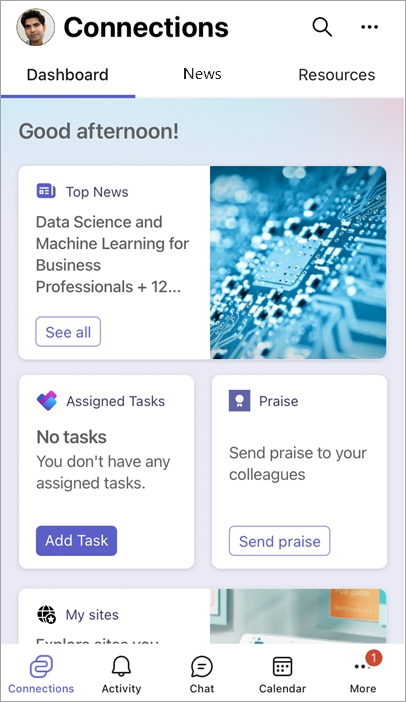
Accessing the SharePoint app in Teams from a tablet or mobile device features a more compact experience for the three components and uses tabs to make it easier to scroll through content.
The SharePoint app in Teams mobile experience
The experience in the SharePoint app in Teams mobile is responsive and brings in the content in its full fidelity.
For more detailed information, see the article on SharePoint app in Teams on mobile devices.
Additional capabilities:
Accessible from the web: Users can access the your company’s SharePoint home site, without needing the Microsoft Teams app.
Access specific tools and information based on roles: Throughout the SharePoint app in Teams, content can be targeted to specific audiences to ensure they have the right tools and information at the right time.
Easily share content: Content consumed within Teams can be easily shared into chats or channels, making collaboration easier.
Branding
Matching your organizational brand is integral to your users' relationship with your company's values and goals. The branding you apply – including your logo and colors – is automatically applied across the various end user experiences on Web, desktop and mobile. For information on how to apply your branding in an app, review how to customize apps in Microsoft Teams. The desktop app offers an opportunity for further branding by customizing the banner image and customizing the theme.
Note
- Organization branding in the SharePoint app for Teams is currently disabled for users on mobile and desktop who have enabled dark mode under their Microsoft Teams Appearance and Accessibility settings.
- Custom fonts are not currently supported on mobile.
Localization
The SharePoint app in Teams is available in most major languages used in Microsoft 365. Learn more about how to set up the SharePoint app in Teams mobile experience in a specific language and how to create a dashboard in more than one language.
Dashboard: Content can be set by dashboard authors to support multiple languages.
News: The content is available in the format in which it was authored, and SharePoint news posts display author-translated posts in the user’s preferred language.
Resources: Content follows the site's default language.
Extensibility
Many components to the SharePoint app in Teams experience can be customized. The SharePoint Framework (SPFx) is the recommended SharePoint customization and extensibility model for developers because of the native integration between SharePoint and Microsoft Teams. SPFx is the only extensibility and customization option for the SharePoint app in Teams. Learn more about SharePoint app in Teams extensibility.
The SharePoint app in Teams allows for multiple home sites across multiple experiences
Depending on the size of your organization and the information to communicate, you might decide to create a separate experience for each audience you wish to target. Organizations are able to set multiple home sites, creating a targeted experience that is content specific for that group of users (for example, a dashboard and resources with a frontline worker focus or for different geographic locations).
Note
Users with a Microsoft 365 subscription (E, F, or A license) are limited to creating and using one SharePoint app in Teams experience. If you want to create or use two or more experiences (up to 50), then every user in your tenant must have a Microsoft Viva Suite or Viva Communications and Communities license. See Microsoft Viva plans and pricing for more info.
Resources to prepare for the SharePoint app in Teams
There are several options to learn more about how to get and use the SharePoint app in Teams for your organization.
| Option | Description | Time to complete |
|---|---|---|
| Quick guide | Use the quick guide to get a high-level overview of how to get the SharePoint app in Teams. | 10 minutes |
| Plan, build, and launch guidance | Get more detailed guidance that focus on tasks in the plan, build, and launch phases. | 30 minutes |
| Learning path | Get in-depth guidance that includes fictitious business stories and examples. Complete knowledge checks to confirm learnings. | Two hours |
Privacy, Security, and Compliance in the SharePoint app in Teams
Privacy, security, and compliance are essential aspects of your organization. The SharePoint app in Teams takes advantage of Microsoft 365 tools and services, which are governed under the Microsoft Product Terms and the Data Protection Agreement (DPA). For more information, see the Microsoft Trust Center and the article on Microsoft Viva Compliance.
Learn more about how the SharePoint app in Teams inherits privacy features and settings from Microsoft 365, Teams, SharePoint, and Viva Engage (where applicable). Owners and members setting up a SharePoint app in Teams experience should confirm who has access to certain sites within SharePoint to ensure only authorized users have access to certain data and features. For more information, see the article on understanding how security works in Microsoft Viva.
More resources
Learn how to plan, build, and launch a home site