Note
Access to this page requires authorization. You can try signing in or changing directories.
Access to this page requires authorization. You can try changing directories.
Important
Azure Data Studio is retired as of February 28, 2026. You should migrate to Visual Studio Code. For more information, see What's happening with Azure Data Studio.
The Azure SQL migration extension for Azure Data Studio enables you to assess, get right-sized Azure recommendations and migrate your SQL Server databases to Azure.
Important
The Azure SQL migration extension in Azure Data Studio is retired as of February 28, 2026 along with Azure Data Studio. For more information, see Post-retirement alternatives for Azure SQL migration extension.
The Azure SQL Migration extension for Azure Data Studio offers these key benefits:
A responsive UI for an end-to-end migration experience. The extension starts with a migration readiness assessment and SKU recommendation (preview) (based on performance data).
An enhanced assessment mechanism that can evaluate SQL Server instances. The extension identifies databases that are ready to migrate to Azure SQL targets.
You can use the SQL Server migration experience in the Azure Arc portal to assess SQL Server databases.
An SKU recommendation engine that collects performance data from the on-premises source SQL Server instance and then generates right-sized SKU recommendations based on your Azure SQL target.
A reliable Azure service powered by Azure Database Migration Service that orchestrates data movement activities to deliver a seamless migration experience.
You can run your migration online (for migrations that require minimal downtime) or offline (for migrations where downtime persists throughout the migration) depending on your business requirements.
You can configure a self-hosted integration runtime to use your own compute resources to access the source SQL Server instance backup files in your on-premises environment.
Provides a secure and improved user experience for migrating TDE databases and SQL/Windows logins to Azure SQL.
For information about specific migration scenarios and Azure SQL targets, see the list of tutorials in the following table:
| Migration scenario | Migration mode |
|---|---|
| SQL Server to Azure SQL Managed Instance | Online / Offline |
| SQL Server to SQL Server on Azure Virtual Machines | Online / Offline |
| SQL Server to Azure SQL Database | Offline |
Important
If your target is Azure SQL Database, make sure you deploy the database schema before you begin the migration. You can use Azure Database Migration Service either from Azure portal or using PowerShell / AZ cmdlets.
This article describes how to install the Azure SQL migration extension through Azure Data Studio.
Prerequisites
If you don't have an Azure subscription, create a free Azure account before you begin.
To install this extension, you also need the following prerequisite:
Install the Azure SQL migration extension
Follow these steps to install the Azure SQL migration extension in Azure Data Studio. You can choose the standard installation method, or an offline mode, when the computer is disconnected from the Internet.
Connected mode installation
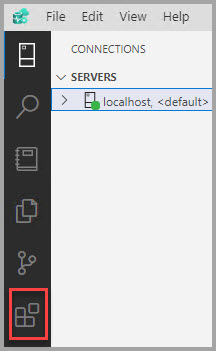
Open the extensions manager in Azure Data Studio. Select either the extensions icon or Extensions in the View menu.
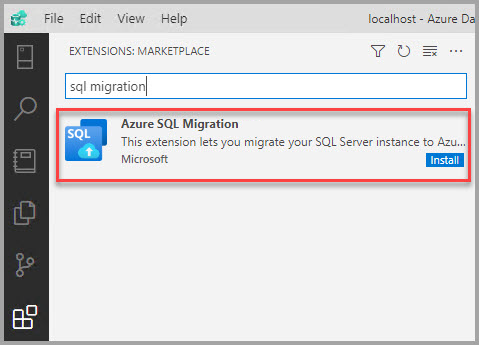
Type
Azure SQL migrationin the search bar.Select the Azure SQL Migration extension and view its details.
Select Install.
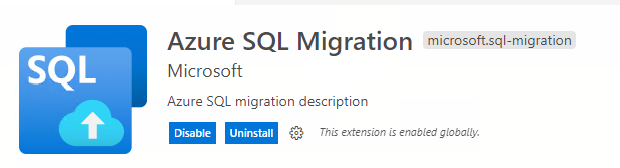
You see the Azure SQL migration extension in the extension list.
Connect to the SQL Server instance in Azure Data Studio. Right-click the instance name and select Manage to see the dashboard and the Azure SQL Migration extension landing page.


Set up auto update for the extension
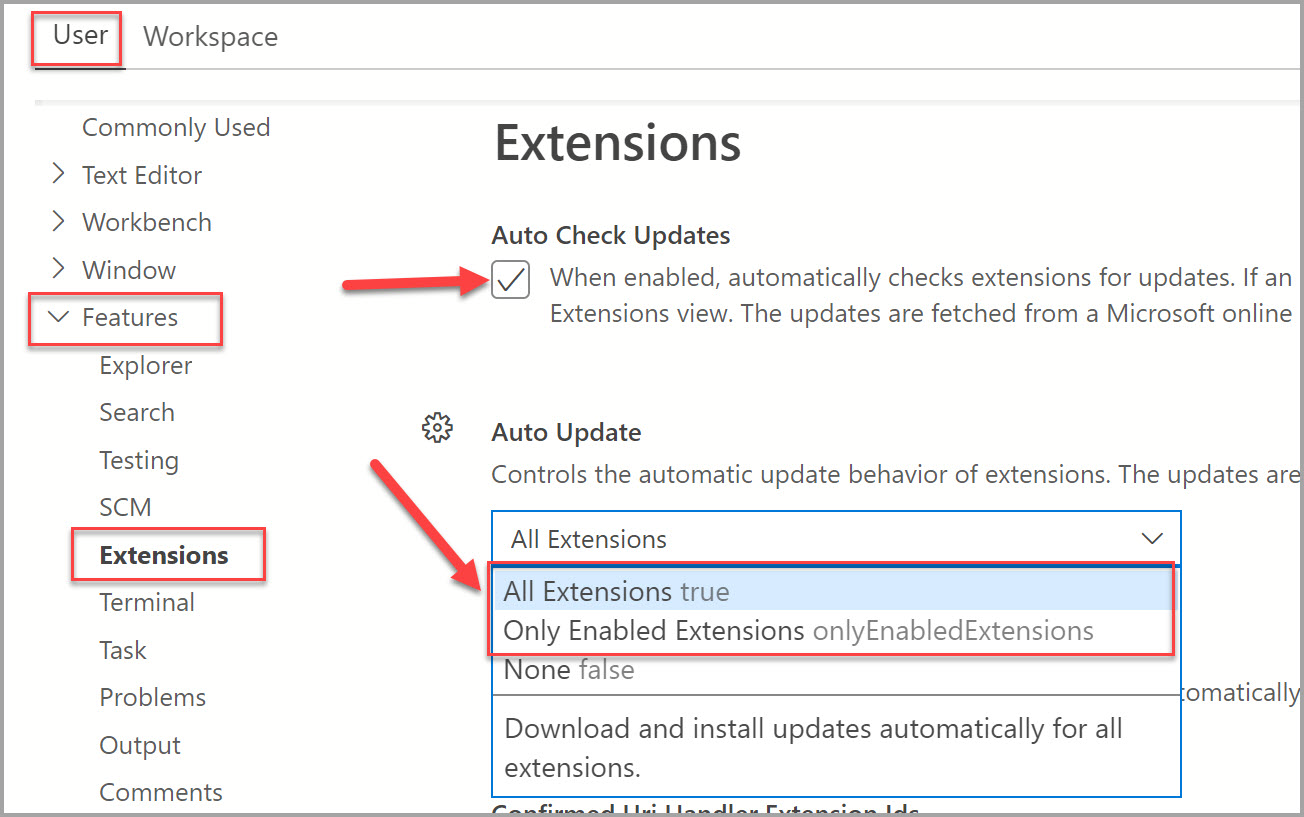
You can check for updates to the extension and have them automatically updated by configuring Auto Update in Azure Data Studio settings.
To enable auto updates:
Select the Settings icon in Azure Data Studio.
Select the checkbox under User > Features > Extensions > Auto Check Updates.
Select the dropdown under User > Features > Extensions > Auto Update and select either All Extensions or Only Enabled Extensions.
Note
If you want to update the extension manually, you can disable Auto Update and install the updates from the extension in the Marketplace.
Features
Azure SQL target readiness assessment and database migrations
The Azure SQL migration extension supports assessment and generates Azure recommendations (Preview) and database migrations for the following Azure SQL targets.
- SQL Server on Azure Virtual Machines
- Azure SQL Managed Instance
- Azure SQL Database
View precomputed Arc assessments and track migration
If your SQL Server instance is Arc enabled and the migration assessment is already computed, the SQL migration extension in Azure Data Studio fetches the precomputed assessment and SKU recommendation from Arc and populates it in the Assessments wizard. The extension also updates the latest migration status in the Arc resource of the SQL Server instance. You can track the progress in the built-in Database migration experience.
If your SQL Server instance isn't enabled by Azure Arc, the SQL migration extension creates a free and optional SQL Server instance Azure resource to track migration process at no extra cost.
- Select the Subscription, Resource Group, and Location where you want to create the tracking Azure resource.
- Register your subscription to the
Microsoft.AzureArcDataresource provider before creating the Azure resource. - If your subscription isn't already registered, an attempt is made to register the subscription with the resource provider on your behalf. If you don't have permission to register the resource provider, creating the resource in Azure is skipped.
Migration modes
The following migration modes are supported for the corresponding Azure SQL targets.
| Migration mode | Description |
|---|---|
| Online | The source SQL Server database is available for reading and writing activity, while database backups are continuously restored on target Azure SQL. Application downtime is limited to the duration of the cutover at the end of migration. |
| Offline | The source database can't be used for writing activity while backup files are restored on the target Azure SQL database. Application downtime persists from the start until the completion of the migration process. |
Support matrix
| Azure SQL target | Migration mode |
|---|---|
| Azure SQL Managed Instance | Online / Offline |
| SQL Server on Azure Virtual Machine | Online / Offline |
| Azure SQL Database | Offline |
Tip
For information on prerequisites, features, and migration workflow, see Migration using Azure Data Studio.
Post-retirement alternatives for Azure SQL migration extension
The Azure SQL migration extension in Azure Data Studio retires on February 28, 2026 along with Azure Data Studio. The following table provides guidance organized by migration phase and target platform.
| Migration scenario | Portal option | CLI option |
|---|---|---|
| Pre-migration (discovery and assessment) | SQL Migration experience in Azure Arc / Azure Migrate | DMS PowerShell / CLI |
| To Azure SQL Managed Instance | SQL Migration experience in Azure Arc | DMS PowerShell / CLI |
| To SQL Server on Azure Virtual Machines | Azure DMS portal (online) / SSMS migration component | DMS PowerShell / CLI |
| To Azure SQL Database | Azure DMS portal (offline and schema migration) / Striim (online migration) | DMS PowerShell / CLI (offline and schema migration) |
For more information, see the Azure SQL Migration blog post Alternatives After the Deprecation of the Azure SQL Migration Extension in Azure Data Studio.
Get help from Microsoft support
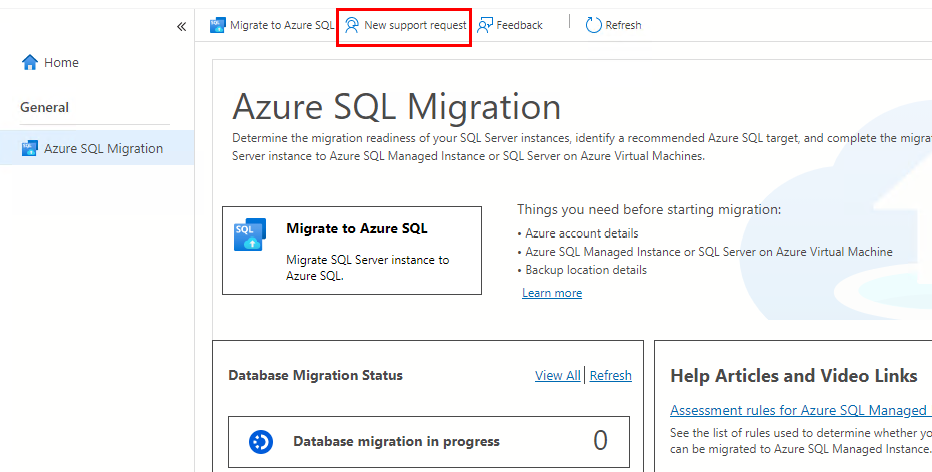
You can raise a support request to get Microsoft support assistance if you encounter issues or errors with your database migrations using the Azure SQL migration extension.
Select the New support request button in the upper section of the extension. It automatically takes you to the Azure portal, where you can fill in the details and then submit a support request.
You can submit ideas and suggestions for improvement, and other feedback, including bugs, in the Azure Community forum - Azure Database Migration Service. You can also use the Feedback button if you have any suggestions or feedback to improve the extension.