Note
Access to this page requires authorization. You can try signing in or changing directories.
Access to this page requires authorization. You can try changing directories.
Microsoft for Startups is a program built to help early-stage startups build, launch, and scale on Azure. This guide walks you through how to apply, including:
- Eligibility criteria for the program
- What you need before you start your application
- How to apply with or without an investor referral code
- What happens after you submit your application
Eligibility Criteria
Microsoft for Startups is designed for early-stage, B2B startups that meet the following criteria:
- Stage: Pre-seed through Series B funding
- Business model: B2B startups building software, AI, or technology solutions
- Product readiness: Working toward or already at MVP, with the goal of moving toward product-market fit
- Privately held: Independent companies (not subsidiaries of larger organizations)
- Compliance: Headquartered in a region where Microsoft for Startups operates
Tip
If you're working with an investor, accelerator, or venture capitalist (VC) in Microsoft's Investor Network, you might be eligible for higher-tier benefits, including up to $150,000 in Azure credits. Ask your investor for a 10-character referral code before you apply.
Before You Apply
To make the application process as smooth as possible, gather the following information before you begin:
- Valid personal Microsoft account with no prior Azure account
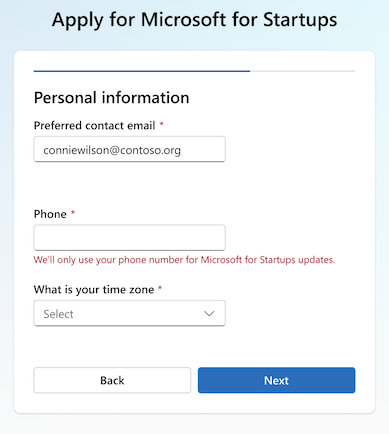
- Phone number
- Time zone (Microsoft uses your time zone to connect you with support in your region)
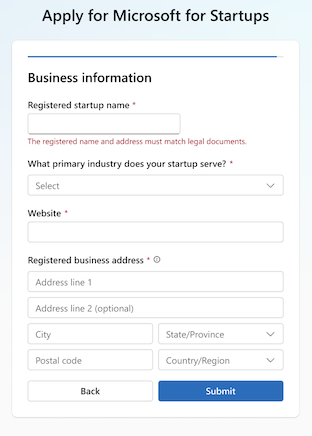
- Registered startup name (must match your legal documents)
- Primary industry your startup serves
- Website (if available)
- Address information
- Payment information
Optional
- Investor referral code (10 characters, provided by your investor, accelerator, or VC if they are in Microsoft's Investor Network)
Step 1: Visit the Microsoft for Startups Page
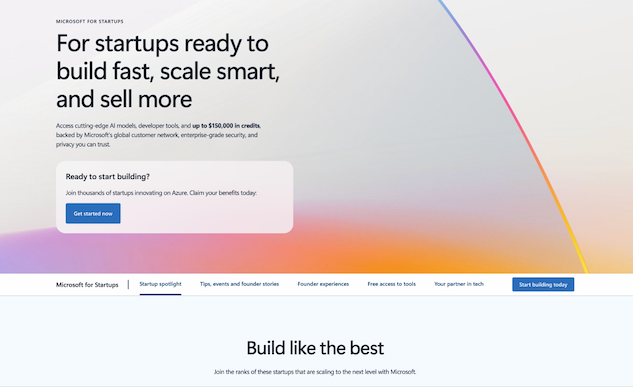
Navigate to the Microsoft for Startups landing page. From here, click "Get started now" to begin the application process.
Step 2: Sign In with Your Microsoft Account
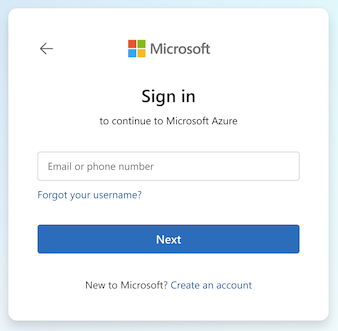
You're redirected to the Microsoft sign-in page. Enter a personal consumer email address associated with a Microsoft account and follow the prompts to sign in. If you don't have a Microsoft account associated with the desired email, select Create an account to set one up.
Warning
Use a personal consumer email address for the sign-up steps. Work, school, and company-domain email accounts aren't accepted (for example, connie@contoso.com).
Step 3: Apply and Verify
Note
Microsoft doesn't publicly share the list of participating investors. To request an investor referral code, contact your accelerator or VC directly.
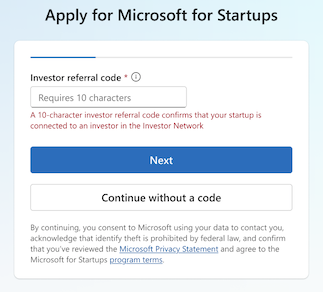
On Apply for Microsoft for Startups, you're asked if you have an investor referral code.
- If you have a 10-character investor referral code, enter it in the field and select Next.
- If you don't have an investor referral code, select Continue without a code.
If you don't have an investor referral code, you can still apply by selecting Continue without a code on the application page. After completing this path, you continue to the Azure account creation steps shared by both paths.
Step 1: Build Your Startup Dashboard
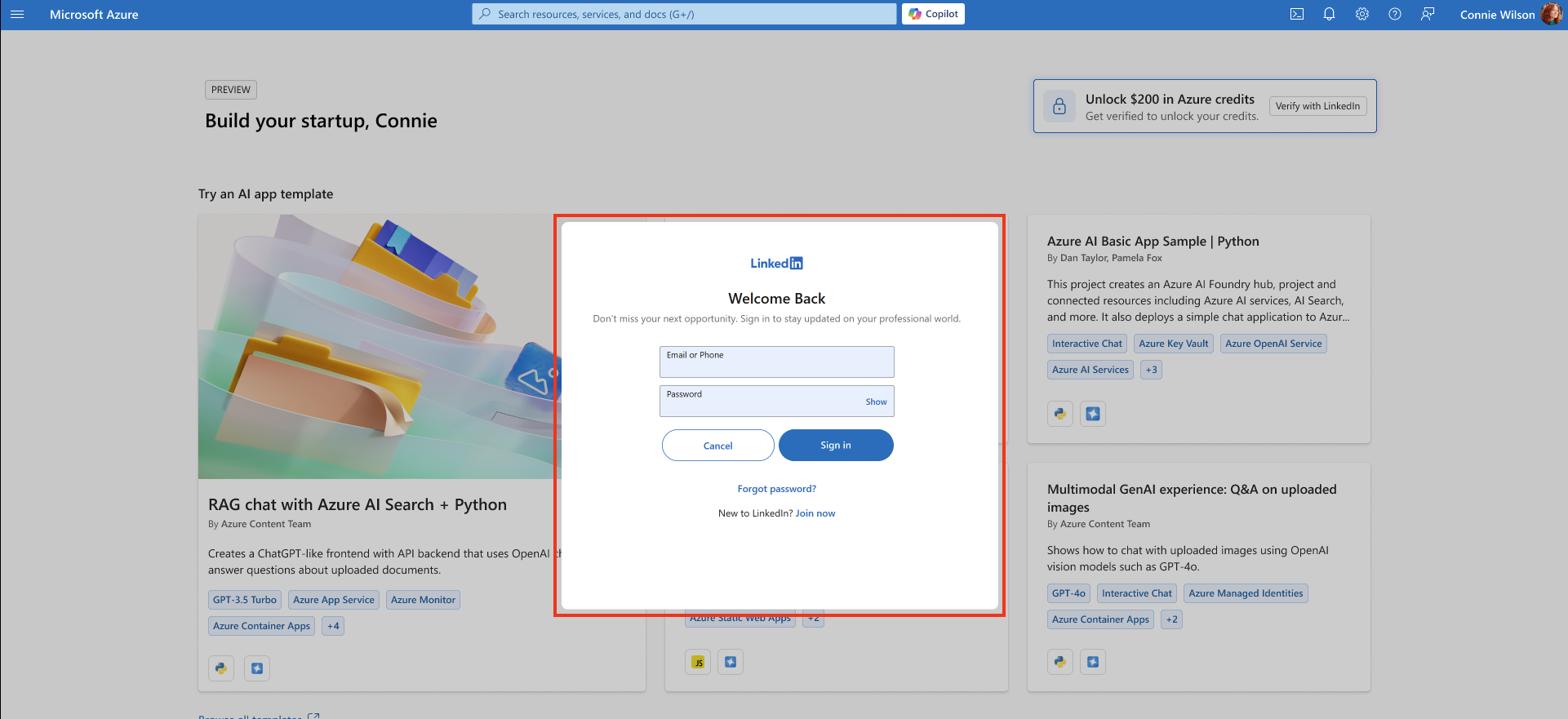
After you select Continue without a code, you see a preview of the Build your startup dashboard. In the top-right corner, you see the Unlock $200 in Azure credits prompt.
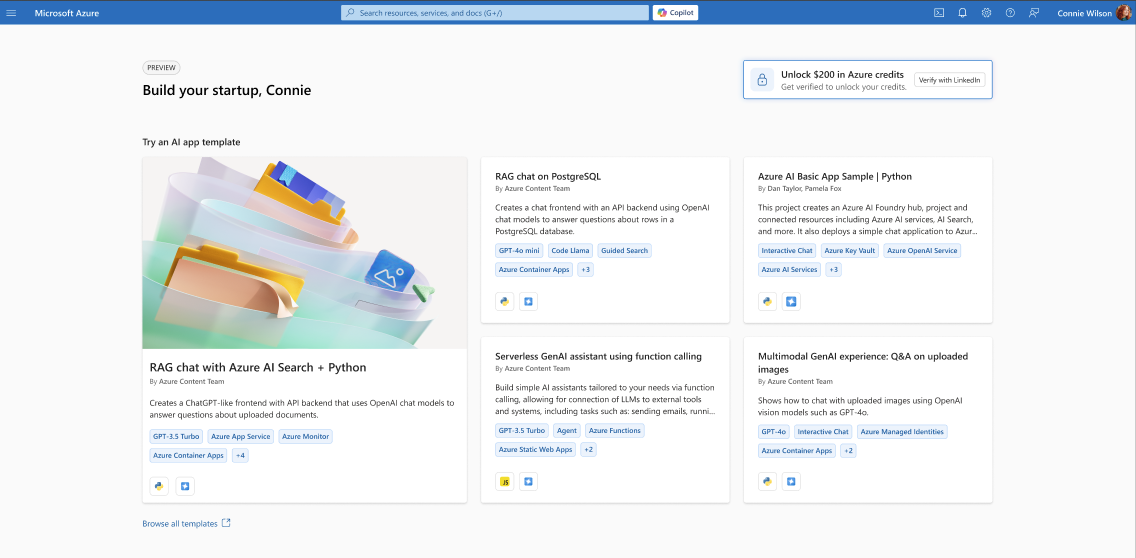
Select Verify with LinkedIn to sign in using your LinkedIn credentials (use your personal profile as this will be used to verify identity and eligibility). This step must be completed before creating an Azure account.
Note
Without an investor code, you go directly to Azure account creation rather than completing the longer application form. You receive a set amount of startup credits to begin building.
Step 2: Setting up your Azure account
Next, complete the three-step Azure account creation process to get your $200 in starter credits.
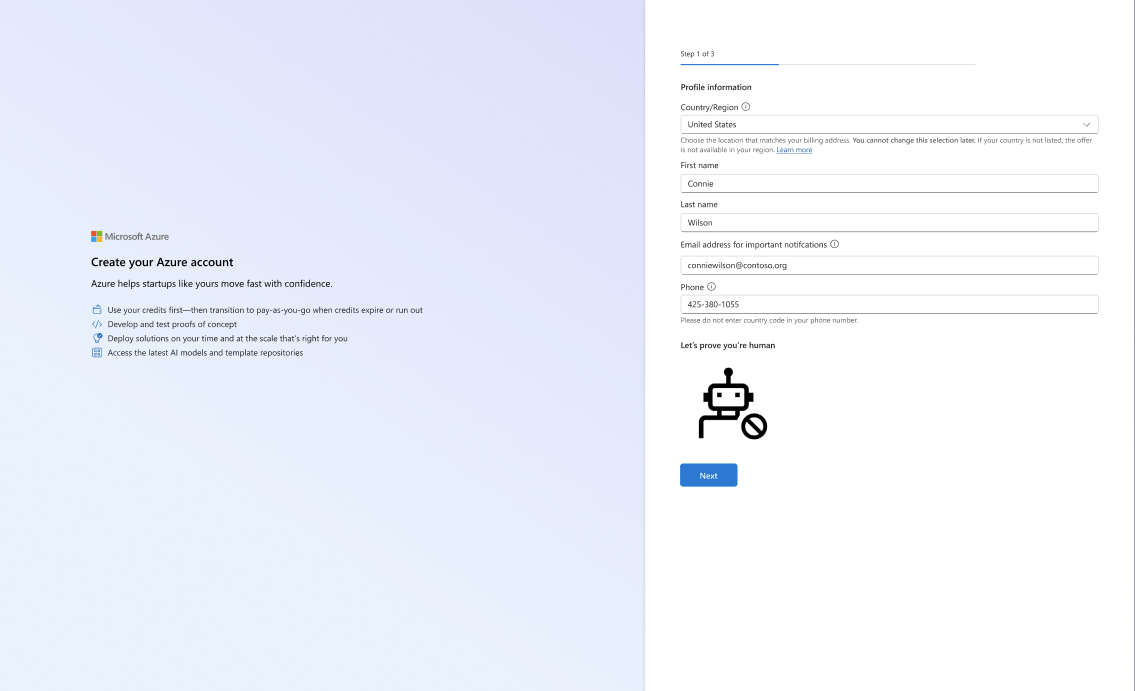
Profile information
Enter your profile information, including:
- Country/region (must match your billing address)
- First and last name
- Email address for important notifications
- Phone number
Complete the "Let's prove you're human" verification, and then select Next.
Note
You can't change your country or region selection later. If your country isn't listed, the offer isn't available in your region.
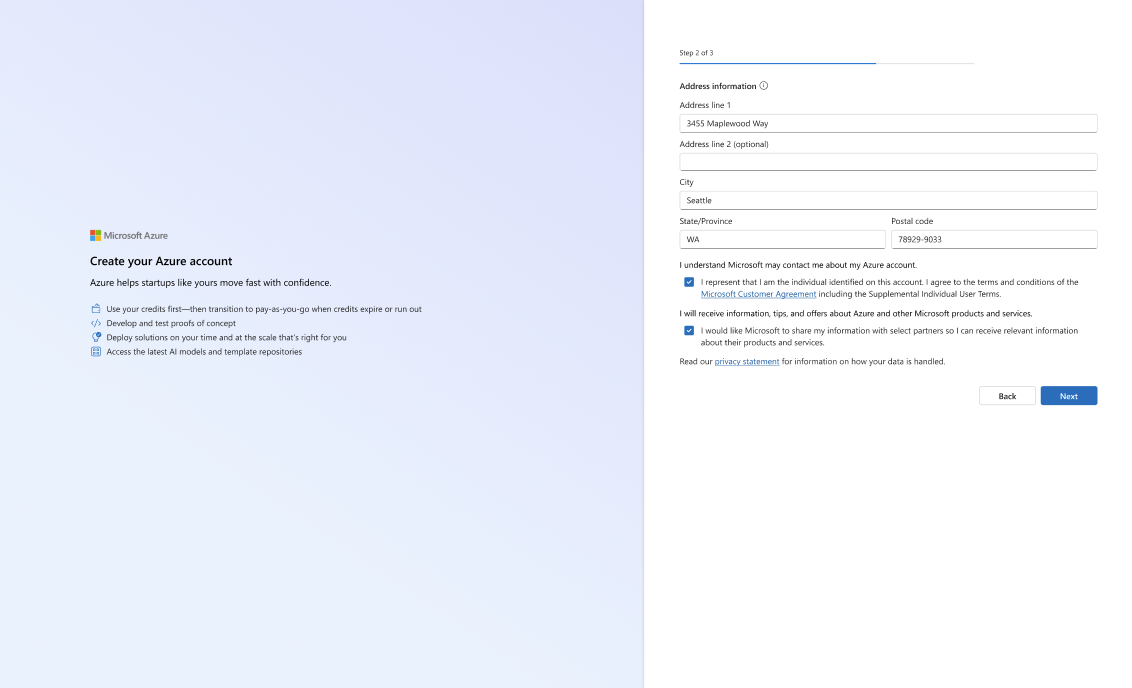
Address information
Enter your billing address, and then review and accept the consent checkboxes:
- Confirm you're the individual identified on this account and agree to the Microsoft Customer Agreement and Supplemental Individual User Terms
- (Optional) Opt in to receive product news, tips, and offers
- (Optional) Allow Microsoft to share your information with select partners
Select Next to continue.
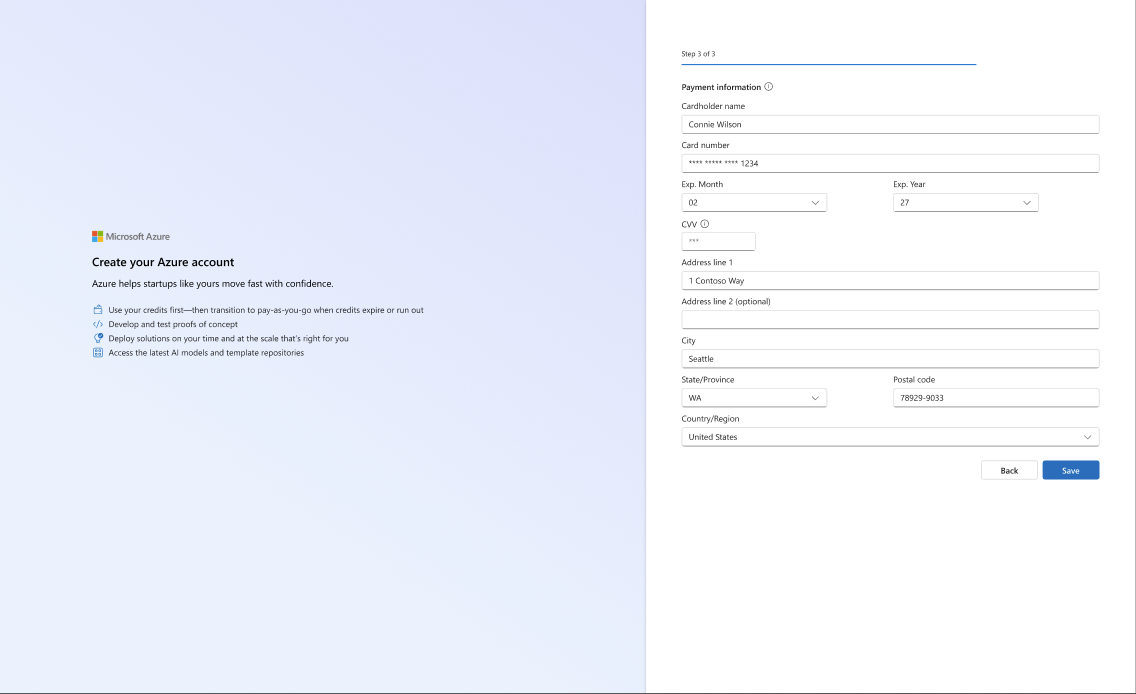
Payment information
Enter your payment information, including:
- Cardholder name
- Card number
- Expiration month and year
- CVV
- Billing address
Select Save to complete account setup.
Note
Your Azure Sponsorship subscription automatically converts to pay-as-you-go once your Azure credits are fully used or expired, whichever comes first. You pay only for what you use. There's no upfront commitment, and you can cancel your subscription at any time.
Step 3: Land on the Build Your Startup dashboard
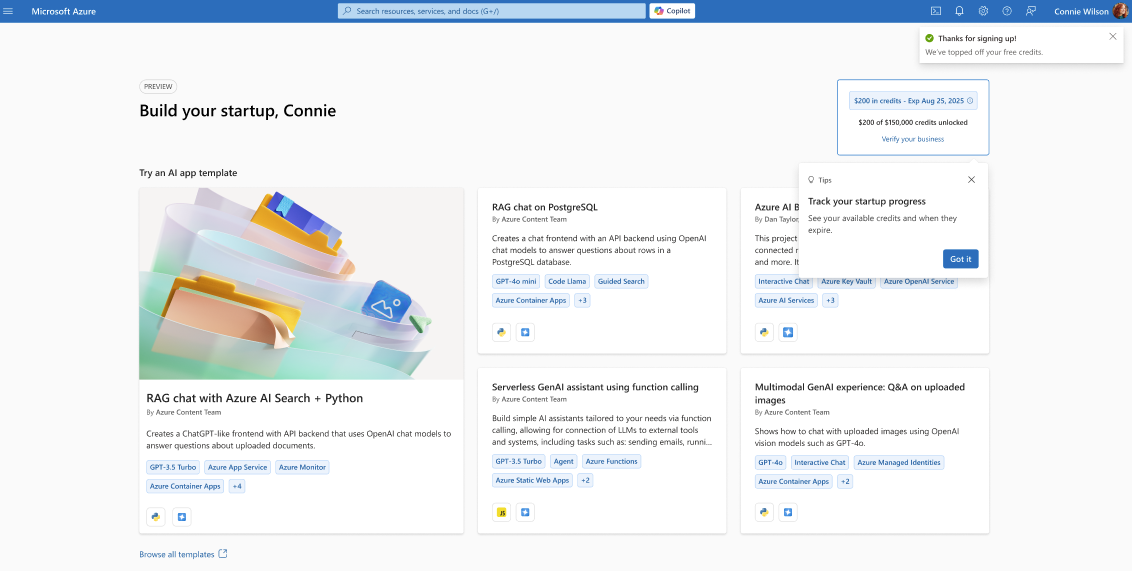
When you create your account, you land on the startup dashboard. You see a confirmation tip in the top-right corner: "You've unlocked $200 in Azure credits." Your credits are immediately available, and you can begin deploying resources right away.
Note
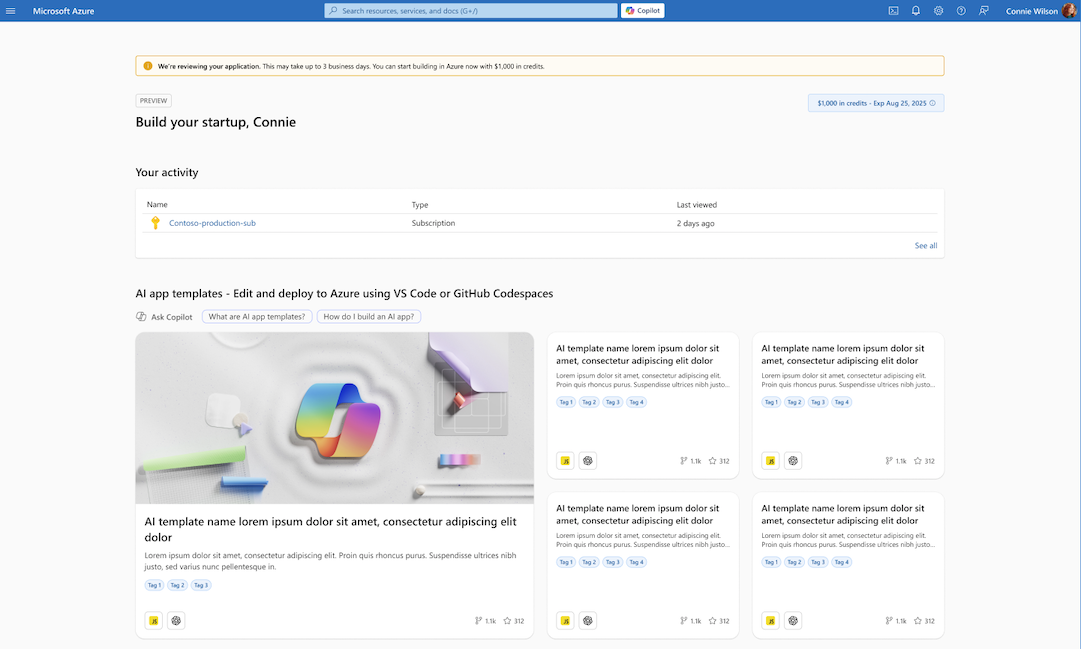
It can take up to 24 hours for your credit balance to fully update after account creation. When your application is approved (typically within three business days), you receive expanded program credits and benefits.
What Happens Next
After you complete your application and set up your Azure account, here's what to expect:
- Application review: Microsoft reviews your application within three business days. You receive an email notification when Microsoft makes a decision.
- Begin building immediately: Use your $200 in starter credits to deploy resources, test ideas, and explore the Azure platform.
- Unlock more credits: As your startup progresses, you might become eligible for additional Startup credits (up to $150,000) based on factors such as business verification, service adoption, usage patterns, and overall program eligibility.
- Add team members: Invite your co-founders and teammates to collaborate on your Azure subscription. See how to add a team member for details.
- Explore the portals: Use the Azure Portal Guide to learn how to manage your account, credits, and team.
Need Help?
If you have questions or run into issues during the application process, the following resources can help:
- For application questions: Visit the program support page for details on what's in scope for MfS Support and how to get in contact.
- For investor referral codes: Contact your accelerator or VC directly. Microsoft does not publicly share the list of participating investors.
- For Azure account or technical issues: Submit a support request through the Azure Portal once your account is set up.