Understand authentication in Microsoft Security Copilot
Microsoft Security Copilot uses on-behalf-of authentication to securely access security-related data via active Microsoft plugins. Specific roles within Security Copilot must be assigned to individuals or groups to access the platform. Once authenticated, your data access determines which plugins are available, and your role controls what other activities you can perform, such as configuring settings, assigning permissions, and executing tasks.
Real-Life scenarios
Scenario 1: IT Administrator Jane
Jane, an IT administrator, is assigned a Security Copilot role that allows her to configure settings and manage permissions. After authenticating, Jane accesses plugins related to threat intelligence and device management, enabling her to set security policies and monitor threats effectively.
Scenario 2: Security Analyst John
John, a security analyst, is given access to specific security plugins after authentication. His role lets him use tools for incident response and threat hunting, but he can't alter platform settings, ensuring a focused and secure workflow.
Roles in Security Copilot vs. Entra and Azure
Security Copilot Roles
These roles are unique to Security Copilot, providing access to specific features within the platform.
Microsoft Entra Roles
Entra roles grant access to various Microsoft products and are managed through the Microsoft Entra admin center. For more information, see Assign Microsoft Entra roles to users.
Azure IAM Roles
Azure IAM roles control access to Azure resources, like Security Capacity Units (SCU) within a resource group. For more information, see Assign Azure roles.
Access Security Copilot platform
After Security Copilot is onboarded for your organization, the following roles determine a user's access to the Security Copilot platform.
Security Copilot roles
Security Copilot introduces two roles that function like access groups but aren't Microsoft Entra ID roles. Instead, they only control access to the capabilities of the Security Copilot platform.
- Copilot owner
- Copilot contributor
By default, all users in the Microsoft Entra tenant are given Copilot contributor access.
Microsoft Entra roles
The following Microsoft Entra roles automatically inherit Copilot owner access.
- Security Administrator
- Global Administrator
Access the capabilities of Microsoft plugins
Security Copilot doesn't go beyond the access you have. Each Microsoft plugin has its own role requirements for calling the plugin's service and its data. Verify that you have the proper service roles and licenses assigned to use the capabilities of the Microsoft plugins that are activated.
Consider these examples:
Copilot contributor
As an analyst, you're assigned Copilot contributor access, which gives you access to the Copilot platform with the ability to create sessions. Following the least privilege model, you don't have any Microsoft Entra roles like Security Administrator. However, in order to utilize the Microsoft Sentinel plugin, you still need an appropriate role like Microsoft Sentinel Reader for Copilot to access incidents in the Microsoft Sentinel workspace. You need another service-specific role like the Endpoint Security Manager for Copilot to access the devices, privileges, policies, and postures available through the Intune plugin. For Microsoft Defender XDR, you're assigned a custom role that gives you access to the embedded Security Copilot experience and Copilot access to Microsoft Defender XDR data.
For more information on Defender XDR custom roles, see Microsoft Defender XDR Unified RBAC.
Microsoft Entra security group
Although the Security Administrator role inherits access to Copilot and certain plugin capabilities, this role includes
 permissions. Assigning this role purely for Copilot access isn't recommended. Instead, create a security group and add that group to the appropriate Copilot role (Owner or Contributor).
For more information, see Best practices for Microsoft Entra roles.
Access embedded experiences
In addition to the Copilot contributor role, verify the requirements for each Security Copilot embedded experience to understand what extra roles and licenses are required.
For more information, see Security Copilot experiences.
Shared sessions
Copilot contributor role is the only requirement for sharing a session link or viewing it from that tenant.
When you share a session link, consider these access implications:
- Security Copilot needs to access a plugin's service and data to generate a response, but that same access isn't evaluated when viewing the shared session. For example, if you have access to devices and policies in Intune, and the Intune plugin is utilized to generate a response that you share, the recipient of the shared session link doesn't need Intune access to view the full results of the session.
- A shared session contains all the prompts and responses included in the session, whether it was shared after the first prompt or the last.
- Only the user that creates a session controls which Copilot users can access that session. If you receive a link for a shared session from the session creator, you have access. If you forward that link to someone else, it doesn't grant them access.
- Shared sessions are read only.
- Sessions can only be shared with users in the same tenant that have access to Copilot.
- Some regions don't support session sharing via email.
SouthAfricaNorthUAENorth
For more information on shared sessions, see Navigating Security Copilot.
Assign roles
The following table illustrates the default access granted to starting roles.
Note
By default, Everyone has Copilot contributor access. Consider replacing this broad access with specific users or groups.
| Capability | Copilot owner | Copilot contributor |
|---|---|---|
| Create sessions | Yes | Yes |
| Manage personal custom plugins | Yes | Default No |
| Allow contributors to manage personal custom plugins | Yes | No |
| Allow contributors to publish custom plugins for the tenant | Yes | No |
| Upload files | Yes | Yes |
| Run promptbooks | Yes | Yes |
| Manage personal promptbooks | Yes | Yes |
| Share promptbooks with tenant | Yes | Yes |
| Update data sharing and feedback options | Yes | No |
| Capacity management | Yes* | No |
| Data evaluation | Yes | No |
| View usage dashboard | Yes | No |
| Select language | Yes | Yes |
Assign Security Copilot access
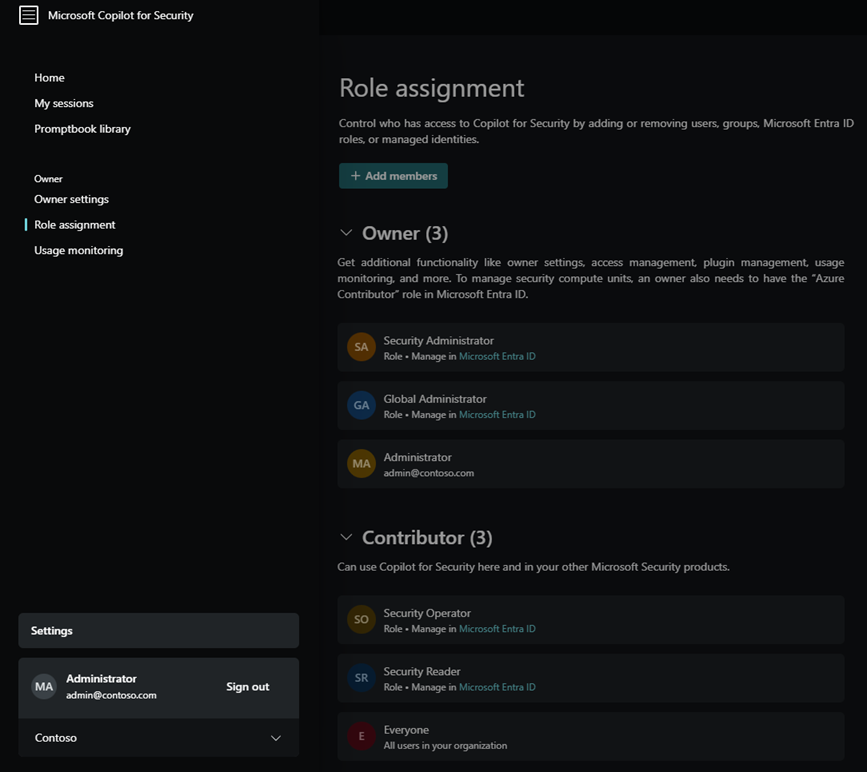
Assign Copilot roles within Security Copilot settings.
- Select the
 home menu.
 - Select Role assignment > Add members.
- Start typing the name of the person or group in the Add members dialog box.
- Select the person or group.
- Select the Security Copilot role to assign (Copilot owner or Copilot contributor).
- Select Add.
Note
We recommend using security groups to assign Security Copilot roles instead of individual users. This reduces administrative complexity.
Global Administrator and Security Administrator roles can't be removed from Owner access, but the Everyone group is removable from Contributor access. It's also a valid group to add back if you want to.
Entra role membership is only manageable from the Microsoft Entra admin center. For more information, see Manage Microsoft Entra user roles.
Configure owner settings
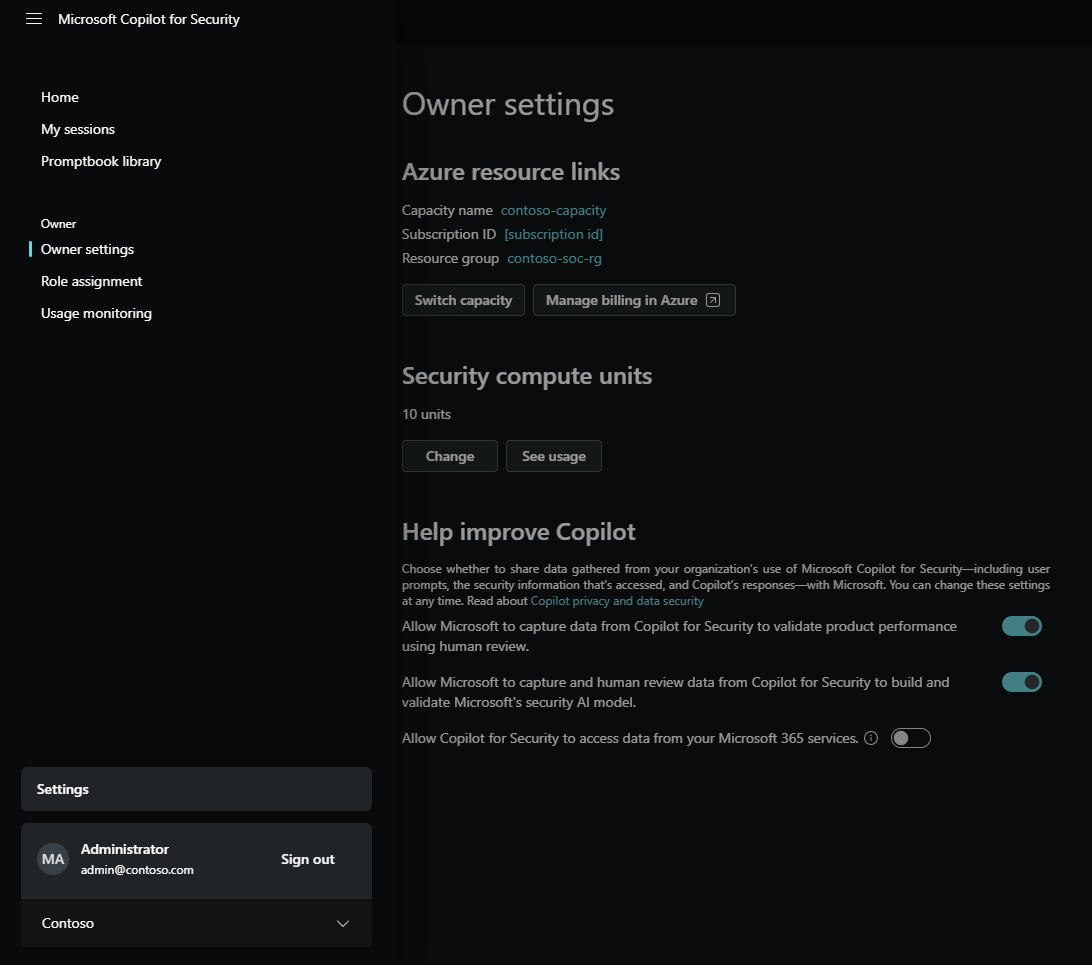
Here are configuration options available to users with the Copilot owner role:
- Manage capacity - security compute unit association and creation
- Data sharing and feedback options
- Data evaluation - location options
- Manage plugins
Capacity management
Manage capacity association and geo location evaluation options. Keep in mind, purchasing new security capacity units (SCUs), changing capacity, or associating with a different capacity all require Azure Owner or Contributor access to the capacity resource in the Azure portal.
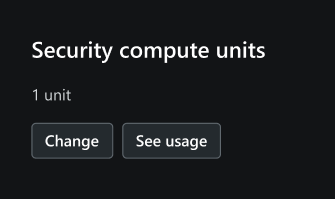
Figure shows owner setting for associating SCUs.
For more information on purchasing SCUs, see Provision capacity.
Data evaluation
Evaluate all prompts for your tenant strictly in your designated geography, or optionally allow Copilot to evaluate prompts anywhere.
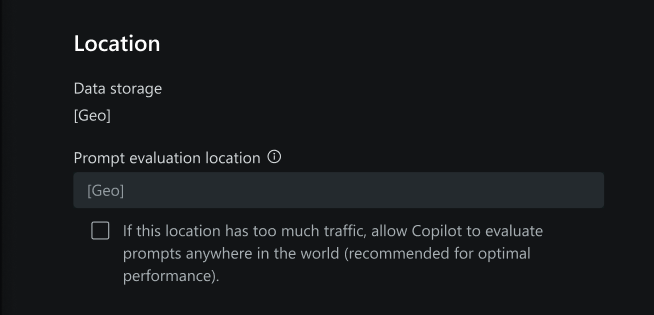
Figure shows owner setting for prompt evaluation location options.
Manage plugins
Preinstalled plugins, like ServiceNow and Azure AI Search, require more setup. When the setup includes configuring authentication, the plugin provider determines the type of authentication. Any plugin with the  or Set up buttons are configured per user. This means all users, including owners, only configure that plugin for themselves.
Note
Website plugins use anonymous authentication to access content.
In Preferences, the following plugin options are configurable:
- control whether other roles can add custom plugins for their sessions
- control whether other roles can publish custom plugins to the tenant
- control whether all roles can upload files
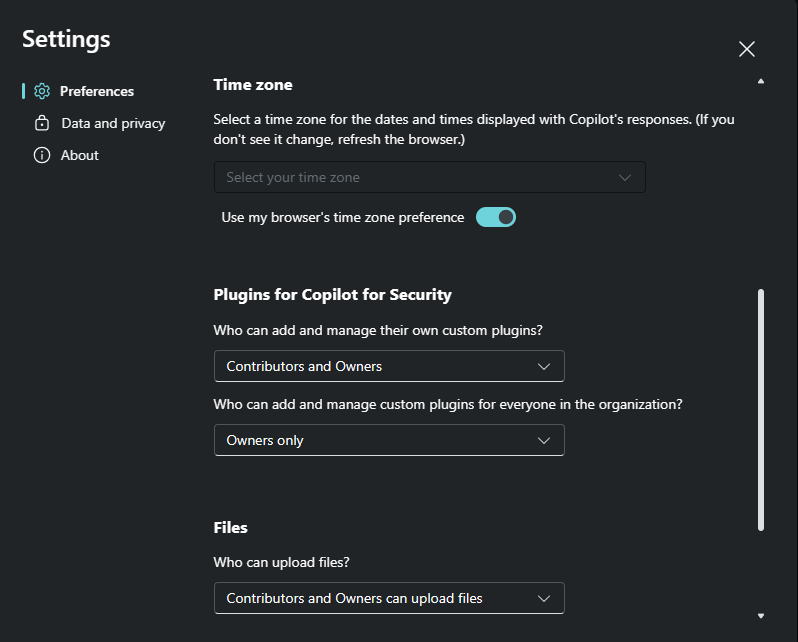
For more information, see Manage plugins and Add a source by uploading a file.
Manage promptbooks
Promptbook creation is available to all roles, including the ability to publish a custom promptbook for the tenant. Choose whether to publish a promptbook for yourself or the tenant at the time of creation.
For more information, see Build your own promptbook.
Multitenant
If your organization has multiple tenants, Security Copilot can accommodate authentication across them to access security data where Security Copilot is provisioned. The tenant that is provisioned for Security Copilot doesn't need to be the tenant that your security analyst logs in from. For more information, see Navigating Security Copilot tenant switching.
Cross tenant sign-in example
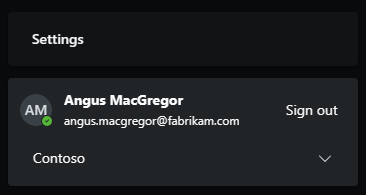
Contoso recently merged with Fabrikam. Both tenants have security analysts, but only Contoso purchased and provisioned Security Copilot. Angus MacGregor, an analyst from Fabrikam wants to use their Fabrikam credential to use Security Copilot. Here are the steps to accomplish this access:
Ensure Angus MacGregor's Fabrikam account has an external member account in the Contoso tenant.
Assign the external member account the necessary roles to access Security Copilot and the desired Microsoft plugins.
Sign in to the Security Copilot portal with the Fabrikam account.
Switch tenants to Contoso.
For more information, see Grant MSSP access.