Note
Access to this page requires authorization. You can try signing in or changing directories.
Access to this page requires authorization. You can try changing directories.
The Visual Studio subscription portal lets you use and maintain your subscriptions and program memberships in one place. You can switch between subscriptions, access your benefits, and update your profile.
Note
The Visual Studio subscription portal and admin portal don't support GCC High tenants, also known as private or government domains. This limitation also applies to subscribers who try to sign in to the Visual Studio integrated development environment (IDE). To access Visual Studio subscriptions, your organization needs to have a public tenant. For assistance in creating a public tenant, contact Azure support.
Use multiple subscriptions
The Visual Studio subscription portal brings together all your Visual Studio subscriptions and programs in a single portal experience. For example, you might have one subscription through work, and another through Visual Studio Dev Essentials for personal use.
On the Benefits page, the active subscription appears in the dropdown list next to Featured benefit section. You can use the list to switch between subscriptions if you have more than one. If you have only one subscription, the dropdown isn't available.
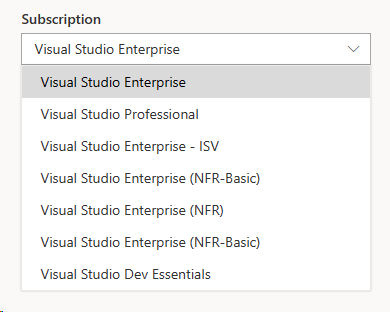
You can also switch subscriptions by selecting the Subscriptions tab and choosing the one you want to use.
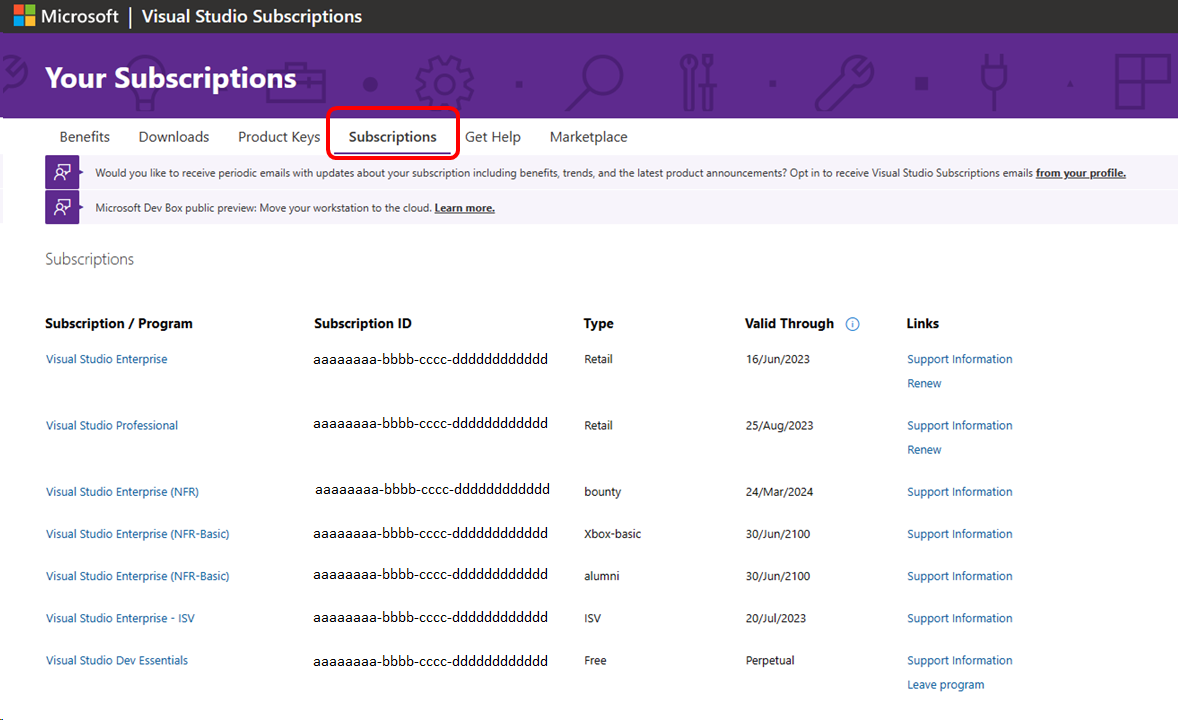
If your subscription isn't visible:
- The subscription might be expired. Only active subscriptions appear in the subscription portal.
- The subscription might be associated with a different email address. If you have multiple subscriptions and they're assigned to different email addresses, you see only one at a time. To switch to a different subscription, sign out of the portal and sign in with the email address that's associated with the desired subscription.
- If your company buys subscriptions through a volume license, it's possible that your admin didn't assign one to you or reassigned your subscription to another user.
Renew subscriptions
Standard subscriptions: Renew from the Microsoft Store or your reseller (for volume licensing).
Cloud subscriptions: Don't require renewal and remain active as long as they're paid.
Subscriptions acquired through programs: Are tied to your participation in the program. Contact your program owner for renewal details. Common programs include:
Transfer subscriptions
If your subscription was purchased through volume licensing, your admin can reassign it within the organization.
For retail subscriptions, an admin can transfer them by contacting customer service. Complimentary or Not For Resale subscriptions can't be transferred.
Update your profile
You can update your profile in the subscription portal to keep your information and preferences up to date. You can also:
- Make changes to your identity information.
- Associate your subscriptions with other sign-in identities from existing Azure accounts or Azure DevOps organizations by using alternate identities.
Change profile information
To change the contact information and preferences in your profile:
In the upper-right corner, select your name, then select Edit profile.
On the About tab, you can change your name, email, country/region, profile picture, and contact preferences.
On the Preferences tab, you can select your preferred language, date and time patterns, time zone, and user interface theme.
When you finish making changes, select Save.
Select Back to return to the Benefits page.
Set communication preferences
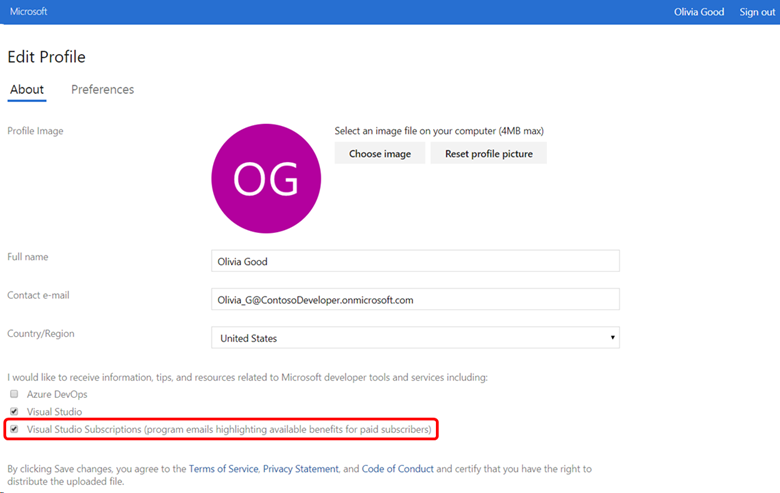
To receive periodic updates and newsletters about your subscription and benefits, go to the Edit Profile page in the subscription portal and select the Visual Studio Subscriptions checkbox. You can change your preferences and unsubscribe at any time.
Link a subscription to an existing Azure DevOps or Azure subscription
If you sign in with a personal Microsoft account and also have an Azure DevOps or Azure subscription linked to a work or school account, you can connect them by adding an alternate account. This connection allows you to keep using your Microsoft account. You can also access Azure services, Azure DevOps, and Visual Studio IDE resources associated with your work or school account.
Even if both accounts use the same email address, you need to add your work or school account as an alternate to use your benefits across both accounts.
To add an alternate account:
Sign in to the subscription portal by using your Microsoft account.
Select the Subscriptions tab.
Under Alternate account, select Add alternate account.
Enter the email address for your work or school account, and then select Add.
After you add an alternate account, you can update or remove it at any time:
Select the Subscriptions tab.
In the Related Links section, select the appropriate option.
Frequently asked questions
If I don't renew my subscription, how long does Microsoft keep my data?
The retention period depends on how the subscription was purchased:
| Channel | Duration (days) |
|---|---|
| Retail (for example, through Microsoft Store) | 360 |
| Microsoft 365 admin center | 180 |
| Microsoft Products and Services Agreement | 180 |
| Visual Studio cloud subscriptions | 180 |
| Program (for example, Microsoft Certified Trainer, Microsoft AI Cloud Partner Program, Imagine) | 180 |
| Not For Resale (for example, Most Valuable Professionals or Managed Services Provider) | 180 |
| Dev Essentials | 30 |
Note
If you choose to close your Microsoft account or Microsoft Entra account, your personal data is anonymized immediately. We don't fully remove all your personal data if you have active subscriptions.
How do I leave the Visual Studio Dev Essentials program?
To leave the program:
In the subscription portal, go to the Subscriptions tab.
Find the entry for Visual Studio Dev Essentials.
In the rightmost column, select the Leave program link.
How can I learn more about managing Visual Studio subscriptions for my organization?
See these articles:
- Assign individual subscriptions
- Assign multiple subscriptions
- Edit subscriptions
- Delete subscriptions
- Determine maximum usage
Where can I get support for my Visual Studio subscriptions?
For assistance with sales, accounts, and billing for your Visual Studio subscriptions, go to the Get Help page of the subscription portal.