Manage Viva Engage Core user licenses in Microsoft 365
When you assign user licenses as part of a bundled Microsoft 365 subscription plan, such as Microsoft 365 Enterprise, the Viva Engage Core license is automatically assigned to the user. You can remove or assign Viva Engage Core licenses for specific users in the Microsoft 365 admin center or by using Windows PowerShell cmdlets for Microsoft 365.
The Viva Engage Core service plan also enables access to Viva Engage. This functionality ensures uninterrupted Viva Engage experiences for your users. You can block users who don't have Viva Engage Core licenses from accessing Viva Engage by turning on the security setting Block Microsoft 365 users without Viva Engage licenses (see Start blocking users who don't have Viva Engage licenses in this article).
You must be a user management administrator to do the following operations.
Users who have a Viva Engage Core license can access the Viva Engage in Teams application, provided that it was installed through the Teams admin center. Learn more about installing Viva Engage.
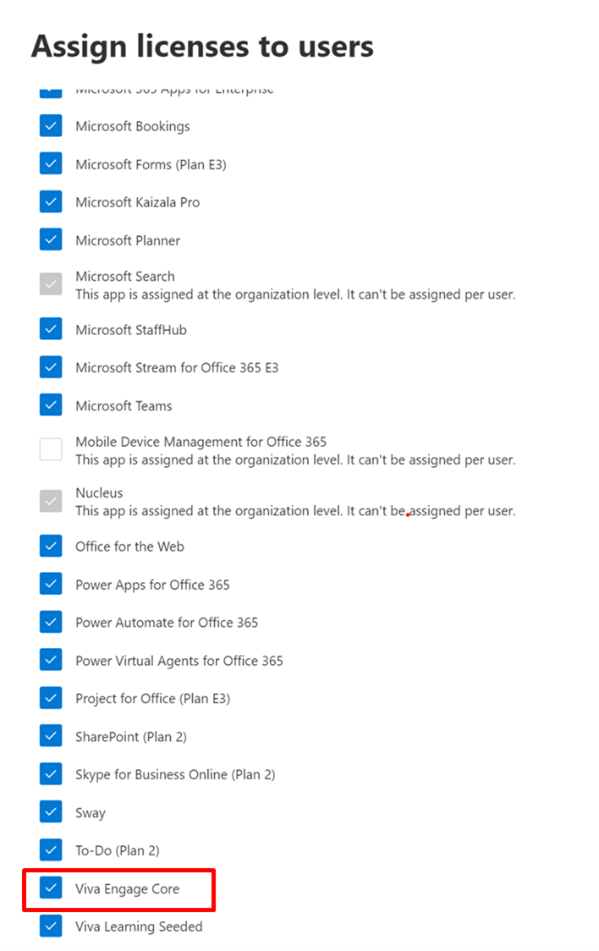
Manage Viva Engage Core licenses in the Microsoft 365 admin center
Assign and remove the Viva Engage Core license for users the same way you assign any other Microsoft 365 Enterprise license:
- Sign in to Microsoft 365 Enterprise, and go to the Microsoft 365 admin center. On the Users > Active Users page, assign or remove the Viva Engage Core license.
For more information, see Delete a user from your organization.
Manage Viva Engage Core licenses through Windows PowerShell
You can use cmdlets in Windows PowerShell to assign Microsoft 365 licenses. With Windows PowerShell, you can easily see who has a license and assign licenses for multiple users at the same time. For more information, see Assign Microsoft 365 licenses to user accounts with PowerShell. You can also bulk-update licenses using a CSV file. For more information, see How to bulk assign licenses to Microsoft 365 users based on CSV.
Following are some example Windows PowerShell script snippets you can use to manage Viva Engage Core licenses. Use them to develop a complete script for your organization.
The following example unassigns the Viva Engage Core license from the litwareinc:ENTERPRISEPACK (Microsoft 365 Enterprise) to the user belindan@litwareinc.com.
$UPN = "belindan@litwareinc.com"
$LicenseDetails = (Get-MsolUser -UserPrincipalName $UPN).Licenses
ForEach ($License in $LicenseDetails) {
  $DisabledOptions = @()
  $License.ServiceStatus | ForEach {
     If ($_.ProvisioningStatus -eq "Disabled" -or  $_.ServicePlan.ServiceName -like "*VIVAENGAGE_CORE*") { $DisabledOptions += "$($_.ServicePlan.ServiceName)" }
  }
  $LicenseOptions = New-MsolLicenseOptions -AccountSkuId $License.AccountSkuId -DisabledPlans $DisabledOptions
   Set-MsolUserLicense -UserPrincipalName $UPN -LicenseOptions $LicenseOptions
}
To enable Viva Engage Core for a user without affecting anything else in their license, you can run the previous script but change
If ($_.ProvisioningStatus -eq "Disabled" -or $_.ServicePlan.ServiceName -like "*VIVAENGAGE_CORE*") { $DisabledOptions += "$($_.ServicePlan.ServiceName)" }to
If ($_.ProvisioningStatus -eq "Disabled" -and $_.ServicePlan.ServiceName -notlike "*VIVAENGAGE_CORE*") { $DisabledOptions += "$($_.ServicePlan.ServiceName)" }The following example returns information about any users who aren't currently licensed for Microsoft 365.
Get-MsolUser -All -UnlicensedUsersOnly
Block users who don't have Viva Engage Core licenses
The Viva Engage Core license provides access to the core Viva Engage services. It also provides full access to the Engage app and Viva Engage.com the same way that the Viva Engage license currently does. Therefore, in any scenario where you're blocking a user or your entire company from accessing Viva Engage, you need to remove the Viva Engage Core license.
It takes just a few steps to start blocking Microsoft 365 users who don't have Viva Engage Core licenses. However, turning on this setting can accidentally disrupt users' access to Viva Engage. So before you begin, do the following to make sure your Viva Engage users can continue working smoothly:
Make sure that you have turned on the setting to enforce Microsoft 365 identity for Viva Engage users. You can assign or unassign Viva Engage licenses only to Viva Engage users who are managed in Microsoft 365. So, to block Microsoft 365 users without Viva Engage Core licenses, all Viva Engage users must be managed in Microsoft 365. The setting Block Microsoft 365 users without Viva Engage licenses can be turned on only when the Enforce Office 365 identity for Viva Engage users setting is turned on.
Make sure that all current Viva Engage users have a Viva Engage Core license. When you start blocking Microsoft 365 users without Viva Engage core licenses, any user without a Viva Engage Core license won't be able to access Viva Engage. So before you begin, make sure that all our current Viva Engage users have Viva Engage Core licenses. One method to check this is to go to the Export Users page in Viva Engage and export all users. Then compare that list to the list of users in Microsoft 365, and make any necessary changes. For more information, see How to audit Viva Engage users in networks connected to Microsoft 365.
Tell your users about this change. We strongly recommend that you tell users that you're starting to block Microsoft 365 users without Yammer or Viva Engage Core licenses, because it can disrupt their day-to-day usage of Viva Engage.
Use the following steps to block users who don't have Viva Engage Core licenses. To perform these steps, you must be a Microsoft 365 Global administrator and synchronized to Viva Engage as a verified admin.
In Yammer, go to the Network Admin section, and choose Security Settings.
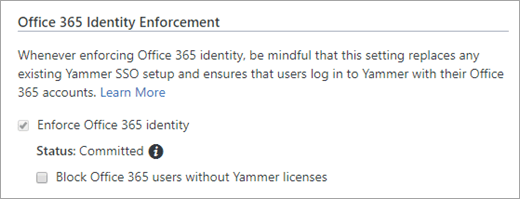
On the Security Settings page, go to the Enforce Office 365 Identity section, select the Enforce Office 365 identity in Yammer checkbox, and confirm the selection. Enforcing Microsoft 365 identity is a prerequisite step to blocking users without Yammer licenses.
Select the Block Office 365 users without Yammer licenses checkbox, and then choose Save.
You'll see a confirmation message that asks if you're ready to start blocking Office 365 users without Yammer and Viva Engage Core licenses.
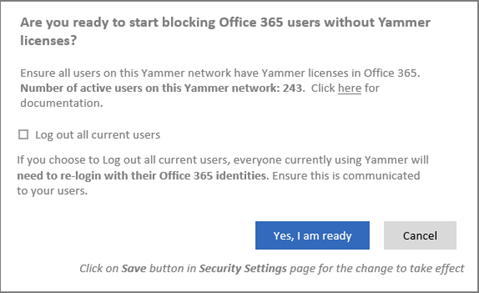
The confirmation message shows you the number of active users on the Yammer network. Make sure all the current Yammer users have either Yammer or Viva Engage Core licenses. For more information, see How to audit Yammer users in networks connected to Office 365.
You can automatically log out all current users so you can be sure that everyone using the Yammer service is logged in with their Microsoft 365 identities and has a Yammer or Viva Engage Core license. To do this, select the Log out all current users checkbox. We strongly recommend that you do this step at a time of minimal user activity, because users could get logged out in the middle of their work. Also, make sure to communicate to users ahead of time.
To start blocking Microsoft 365 users without Viva Engage Core licenses, select Yes, I am ready to confirm your choice. This step returns you to the Security Settings page, where the Block Office 365 users without Yammer licenses checkbox is now selected.
Choose Save to save all your settings on the page.
If you leave the page without selecting Save, your settings won't take effect.
FAQ
Why are Viva Engage Core licenses "per user"?
Per-user licenses let you assign Viva Engage to a subset of users in your company, typically for a geographical or team-by-team rollout. Only users who have a Viva Engage Core license can see the Viva Engage tile in the Microsoft 365 app launcher and the Viva Engage application in Teams.
How does this affect Viva Engage users who sign in with their email and password?
Licenses are enforced only for users who sign in with Microsoft 365 identity.
What if I don't want anyone in my company to use a legacy Yammer identity?
You can Enforce Office 365 identity for your legacy Yammer users.
Q: How can I tell if all of my Yammer or Viva Engage users have accounts in Microsoft 365?
A: Export your list of users from Yammer or Viva Engage, and then check for users who aren't in Microsoft 365. For more information, see Audit Viva Engage users in networks connected to Microsoft 365.
Feedback
Coming soon: Throughout 2024 we will be phasing out GitHub Issues as the feedback mechanism for content and replacing it with a new feedback system. For more information see: https://aka.ms/ContentUserFeedback.
Submit and view feedback for