Note
Access to this page requires authorization. You can try signing in or changing directories.
Access to this page requires authorization. You can try changing directories.
Important
The new connection experience on Windows is currently in PREVIEW. This information relates to a prerelease product that might be substantially modified before it's released. Microsoft makes no warranties, expressed or implied, with respect to the information provided here.
The new connection experience in Windows App for Windows delivers a more seamless, intuitive way to connect to and work across your Azure Virtual Desktop, Windows 365, and Remote PC devices.
When you select a resource, connection progress is now shown earlier in the flow. In the previous experience, users might only see a spinning status indicator until the session was ready. In the new experience, the connection shell appears immediately and displays connection status while the session starts. This gives users faster confirmation that the connection request was received, reduces uncertainty during startup, and helps prevent repeated clicks or duplicate connection attempts.
The redesigned connection bar also improves in-session navigation and control. Users can switch between active sessions, access session controls, and change display settings without leaving the current workflow.
Connection messaging has been improved end to end so status and errors are easier to understand at each stage. If a session can't start, Windows App now shows clearer, actionable information instead of leaving users waiting without context. If connection quality drops during a session, Windows App prominently signals the issue with a yellow pulsing border and a "connection is unstable" notice, then automatically clears both once the connection stabilizes.
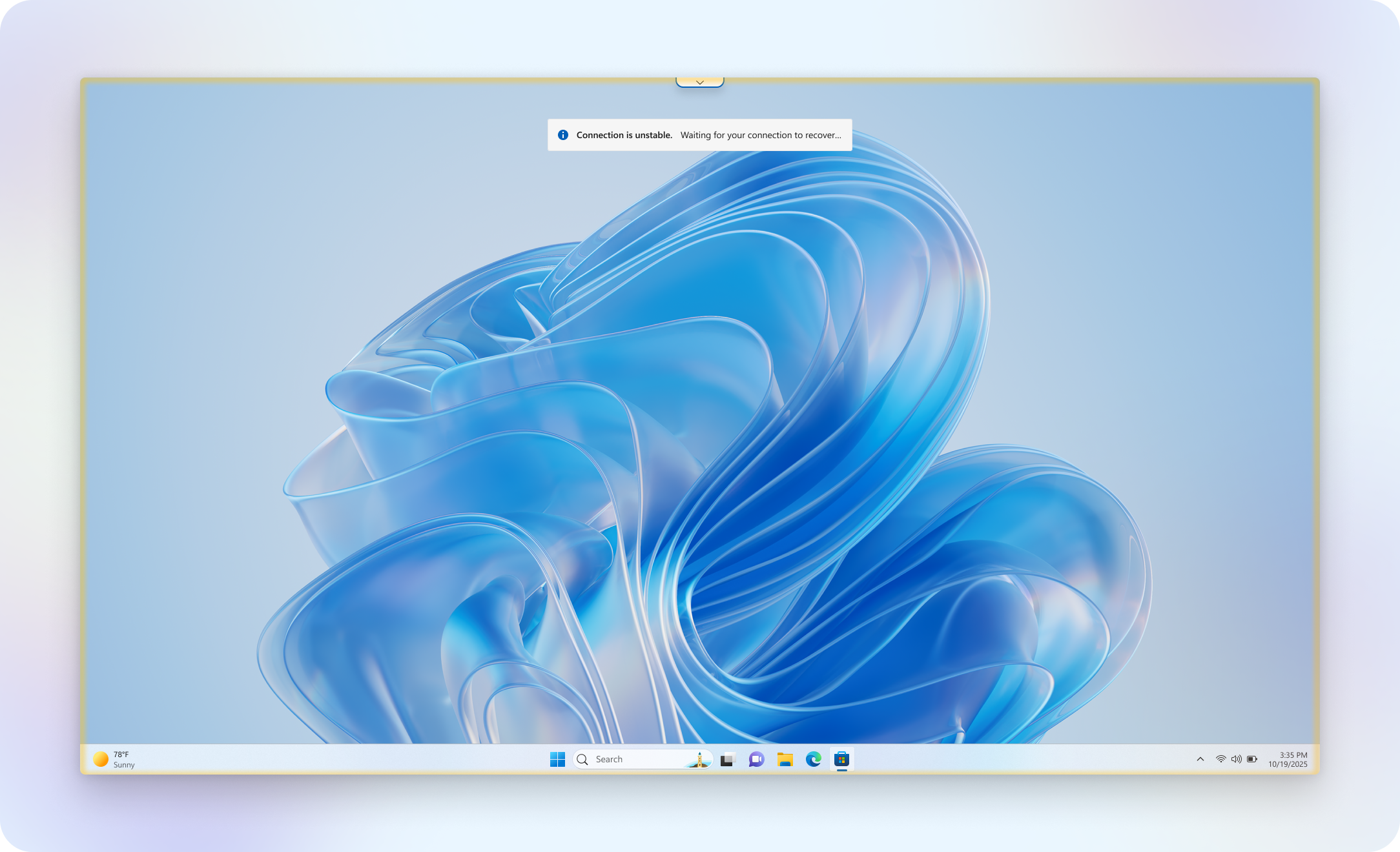
These updates are supported by a modernized connection platform focused on reliability, responsiveness, and ongoing service improvements.
The new connection experience is available as an opt-in preview. Interested in trying it? Sign up here to get started.
Prerequisites
Once accepted into the public preview, you can enable the new connection experience by going to Windows App > Settings > Enable new connection experience.
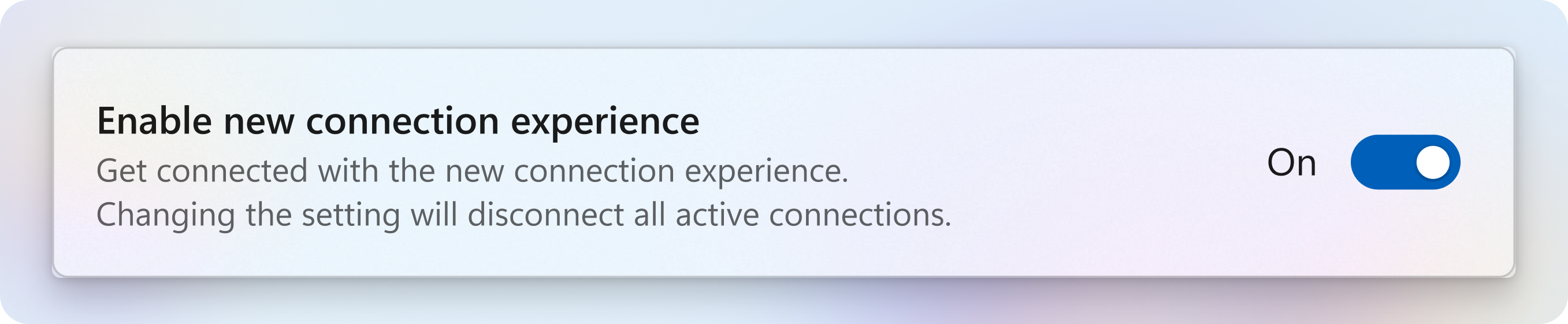
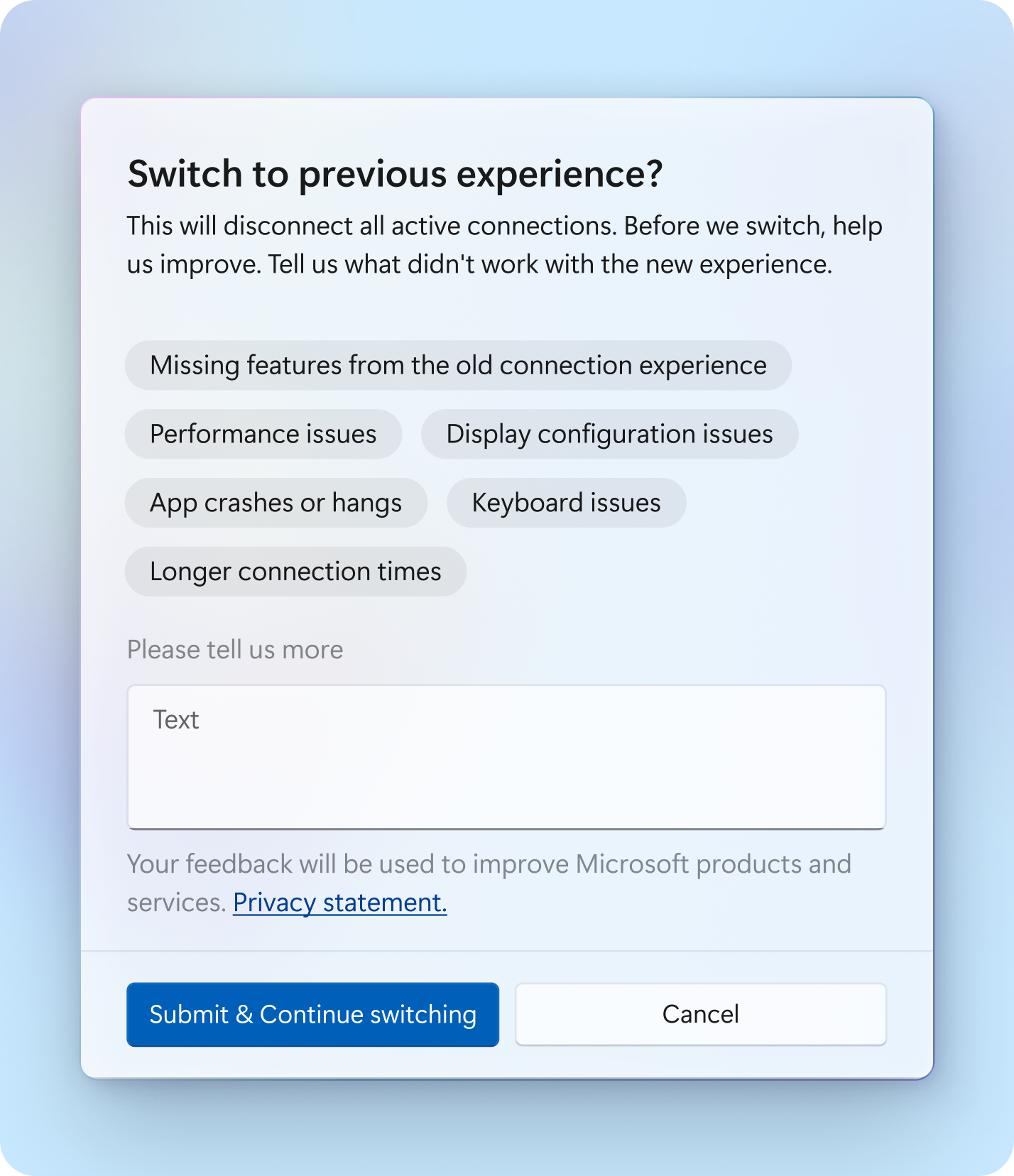
To switch to the previous connection experience, turn off the setting above. Windows App then shows a feedback prompt. After you submit feedback or close the prompt, the app switches to the previous experience. Reconnect to your resources after the switch. Your feedback helps improve future updates to the new connection experience.
Note
Switching back to the previous experience will disconnect all active sessions.
Known issues and limitations
The new connection experience on Windows is currently in preview and has the following known issues and limitations. We're actively working on improvements throughout the preview, so check back regularly for updates.
Operating system: Windows 11, version 23H2 or older on Arm64 devices isn't supported.
Display settings: Display settings configured on the Windows App device card don't work as expected. Use the connection bar to adjust display settings instead.
Remote applications: Azure Virtual Desktop RemoteApps and Windows 365 Cloud Apps continue to work as they do today, with no change to the connection experience.
Unsupported features: The new experience doesn't currently support the following features:
- URL redirection
- TWAIN scanner redirection
- Intune Mobile Application Management (MAM)
- Graphics: AVC hardware decode and AVC mixed mode
- Graphics: HEVC decode (4:2:0)
- Some third-party dynamic virtual channel (DVC) plugins might not work as expected
- Display and Input Protection
- Fast Reconnect